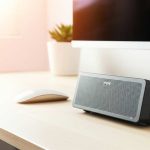
Want to connect your computer to a Bluetooth speaker? It’s super simple! Just turn on Bluetooth on both devices, pair them up, and you’ll be enjoying wireless sound in minutes. Let’s get your tunes flowing!
Hey there, tech explorers! Max here from AffTechy.com. Isn’t it awesome when your music fills the room, or when movie sound just pulls you in? That’s the magic of good speakers. But sometimes, those wires can get a little… tangled. Or maybe you just want to stream your favorite podcast from your computer to a cool portable speaker without fuss.
I totally get it. When I first started exploring gadgets, figuring out how to connect things felt like cracking a secret code. You see all these buttons and settings, and it can feel a bit overwhelming. But guess what? Connecting your computer to a Bluetooth speaker is actually one of the easiest tech tricks up your sleeve. It’s like giving your computer a superpower to send sound wirelessly!
Think about it: no more fiddling with audio cables, no more being tied to one spot. You can have your computer playing music across the room, or share that funny YouTube video with friends without everyone huddling around your laptop. It’s all about making your tech work for you, easily and without stress.

So, if you’ve ever looked at your Bluetooth speaker and your computer and wondered, “How do these two talk to each other?” – you’ve come to the right place! We’re going to walk through this together, step by step. It’s going to be straightforward, fun, and by the end, you’ll be a Bluetooth connecting pro. Ready to dive in and unlock some wireless audio freedom? Let’s break it down!
Let’s Talk About Sound and Bluetooth
Sound makes our digital world so much richer, doesn’t it? Whether it’s the epic soundtrack to your favorite game, the clear dialogue in a movie, or just the background music that sets your mood, audio quality makes a huge difference. For a long time, this meant being tethered by wires. You’d plug your computer into your speakers, and that was that. It worked, but it wasn’t exactly flexible.
Then came Bluetooth. It’s like a secret handshake for gadgets! Bluetooth is a wireless technology that lets devices talk to each other over short distances. Think of it as a personal, invisible cable. This means your computer can send its audio signal – the music, the movie sounds, the game effects – straight to your Bluetooth speaker without any physical connection. Pretty neat, right?
This opens up a whole new world of possibilities. You can use that portable Bluetooth speaker you love for your laptop, or even connect your computer to a larger home stereo system if it has Bluetooth capabilities. It’s all about convenience and a cleaner setup.

Why Connect Your Computer to Bluetooth Speakers?
So, why bother connecting your computer to a Bluetooth speaker? Well, let me count the ways! For starters, it’s all about freedom. No more tripping over cables or being limited by their length. You can place your speaker anywhere in the room, or even take it to another room entirely, as long as it’s within Bluetooth range.
It’s also about upgrading your sound experience. Many Bluetooth speakers, especially the portable ones, offer a richer, fuller sound than your computer’s built-in speakers. Imagine listening to your favorite playlist with booming bass or crystal-clear highs – all from a small speaker placed just where you want it.
Plus, it’s super convenient for sharing. Want to show your friends that funny video on a bigger, better sound system? Just pair your computer and speaker, and everyone can enjoy. It’s a simple way to enhance everything from work presentations to casual entertainment.
What You’ll Need for Bluetooth Magic
Before we jump into the steps, let’s make sure you have everything ready. It’s pretty simple, honestly!
Your Computer: This could be a desktop or a laptop. Most modern computers come with built-in Bluetooth. If yours doesn’t, don’t worry, there are easy workarounds we can talk about later!
Your Bluetooth Speaker: Make sure it’s charged up and ready to go!
A little patience: Sometimes technology likes to keep us on our toes, but we’ll get through this together.
That’s it! Just your computer, your speaker, and a willingness to learn. It’s going to be a breeze.
Step 1: Prep Your Speaker – Get It Ready to Pair
This is the first, crucial step! Your Bluetooth speaker needs to be discoverable, meaning it’s open to finding and connecting with new devices. Think of it like a shy friend who needs a little nudge to say hello.
Most Bluetooth speakers have a dedicated pairing button. It might be labeled “Bluetooth,” “Pair,” or have a little Bluetooth symbol on it. You usually need to press and hold this button for a few seconds.
You’ll often hear a little beep or see a flashing light on the speaker. This is its way of saying, “Okay, I’m looking for a friend now!” The light usually changes from a solid color to a blinking one, or it might change color entirely. Check your speaker’s manual if you’re unsure, as this can vary a bit between brands.
Step 2: Turn On Bluetooth on Your Computer
Now, let’s get your computer ready to find that speaker. The process is slightly different depending on whether you’re using Windows or macOS, but it’s straightforward for both.
For Windows Users
First, click on the Start menu (that’s the Windows icon usually in the bottom-left corner). Then, click on Settings (it looks like a gear icon). In the Settings window, click on Devices.
Here, you’ll see a few options on the left. Click on Bluetooth & other devices. Make sure the Bluetooth toggle switch is turned On. If it’s off, just click it to turn it on. You’ll see a blue bar appear, indicating it’s active.
For macOS Users
On your Mac, look for the Apple menu in the top-left corner of your screen. Click on it, then select System Settings (or System Preferences on older Macs). In the System Settings window, find and click on Bluetooth.
On the Bluetooth screen, you’ll see a toggle switch. Make sure it’s set to On. If it’s off, click it to enable Bluetooth. Your Mac will then start searching for nearby Bluetooth devices.
Step 3: Pair Your Speaker and Computer – The Big Moment!
This is where the magic happens! Your computer is now looking for Bluetooth devices, and your speaker is broadcasting its availability.
On your Windows computer, after turning Bluetooth on, you should see a list of nearby devices appear under “Other devices.” Your Bluetooth speaker should pop up there. Click on its name. You might see a prompt asking you to confirm a PIN or code. If so, just click Connect or Pair.
On your Mac, once Bluetooth is on, you’ll see a list of devices under “Nearby Devices” or “My Devices.” Find your Bluetooth speaker in this list and click the Connect button next to it. Your Mac might also ask for confirmation or display a pairing code.
Once they’re connected, you’ll usually hear a confirmation sound from your speaker, and the device will show up as “Connected” or “Paired” on your computer’s Bluetooth settings. Ta-da! You’ve just made them friends.
Step 4: Set Your Bluetooth Speaker as the Default Audio Device
Sometimes, even after pairing, your computer might still try to play sound through its own speakers. We need to tell it to use your new Bluetooth speaker instead.
For Windows Users
Go back to your Settings (Start Menu > Settings). Click on System, then Sound. Under “Output,” you’ll see a dropdown menu that says “Choose your output device.” Click on this dropdown and select your Bluetooth speaker from the list. You can also right-click the speaker icon in your taskbar and select “Open Sound settings” to get to the same place faster.
For macOS Users
Go back to System Settings (Apple menu > System Settings). Click on Sound. Then, select the Output tab. You’ll see a list of audio output devices. Click on your Bluetooth speaker’s name in this list. Your Mac will now send all audio through it.
Troubleshooting Tips: When Things Get Hiccupy
Don’t worry if it doesn’t work perfectly the first time. Technology can be a bit quirky! Here are a few common issues and how to fix them.
Speaker Not Appearing:
Make sure your speaker is still in pairing mode. You might need to press and hold the pairing button again.
Ensure your speaker is close enough to your computer. Bluetooth has a range, usually around 30 feet (10 meters).
Turn Bluetooth off and then back on on your computer.
Restart both your computer and your speaker. This fixes more problems than you’d think!
Connection Drops Frequently:
Check for interference. Other wireless devices, microwaves, or even thick walls can sometimes disrupt the signal. Try moving the speaker closer to your computer.
Ensure your speaker’s firmware is up to date. Some speakers have companion apps that allow for updates.
If your computer’s Bluetooth is older, it might struggle with multiple connections or longer distances.
No Sound After Connecting:
Double-check that your Bluetooth speaker is selected as the default audio output device in your computer’s sound settings (we covered this in Step 4).
Make sure the volume on both your computer and your speaker is turned up. It sounds simple, but it’s an easy thing to overlook!
Try disconnecting and then reconnecting the speaker.
Computer Doesn’t Have Bluetooth:
No worries! You can easily add Bluetooth capability to your computer with a small USB Bluetooth adapter. They’re inexpensive and plug right into a USB port. Once plugged in, you’ll install a driver, and your computer will have Bluetooth just like that. You can find them at most electronics stores or online retailers.
Fun Facts About Bluetooth
Did you know the name “Bluetooth” comes from a Viking king? Harald Bluetooth was known for uniting the Danish tribes, and the technology was named to represent the uniting of different communication protocols. Pretty cool historical tidbit while you’re enjoying your tunes!
Also, Bluetooth uses a frequency band that’s also used by Wi-Fi (the 2.4 GHz band). While they can sometimes interfere with each other, they’ve developed ways to coexist peacefully. It’s like having two different conversations happening in the same room without talking over each other too much.
Comparing Bluetooth Speaker Types for Your Computer
When you’re thinking about connecting your computer, the type of Bluetooth speaker you use can make a big difference in your experience. Here’s a quick look at some popular options and what they’re great for.
| Speaker Type | Pros | Cons | Best For |
|---|---|---|---|
| Portable Bluetooth Speaker | Lightweight, easy to carry, long battery life, often water-resistant. | Sound quality can vary; may not fill a large room. | On-the-go listening, small workspaces, casual use. |
| Desktop Bluetooth Speakers | Designed for desk use, often offer better sound clarity and volume than portables. | Less portable, might require a power outlet. | Home offices, enhancing computer audio for movies/music. |
| Smart Speakers (with Bluetooth) | Multi-functional (voice assistant), can connect via Bluetooth, good sound. | Can be pricier, requires Wi-Fi for full smart features. | Users who want a do-it-all device for music, control, and computer audio. |
| Soundbars (with Bluetooth) | Excellent for home theater, immersive sound, clear dialogue. | Larger, more expensive, best suited for TV/computer setups. | Dedicated entertainment setups, enhancing movie and game audio. |
As you can see, there’s a speaker for every need! For simple computer audio enhancement, a good desktop Bluetooth speaker or a high-quality portable speaker works wonderfully. If you’re a movie buff, a soundbar might be your ultimate upgrade. Think about where and how you’ll use it most to make the best choice.
What to Look For When Buying a Bluetooth Speaker for Your PC
If you’re in the market for a new Bluetooth speaker to pair with your computer, here are a few things to keep in mind.
Sound Quality: This is probably the most important factor. Read reviews and, if possible, listen to speakers in person. Look for mentions of clear highs, balanced mids, and decent bass.
Battery Life: If you plan to move your speaker around or use it away from a power outlet, check how long it lasts on a single charge. For computer use, a few hours is usually fine, but more is always better!
Bluetooth Version: Newer Bluetooth versions (like 5.0 or higher) offer better range, faster connections, and more stable performance. It’s not a deal-breaker for basic use, but it’s a nice bonus.
Connectivity Options: While we’re focusing on Bluetooth, some speakers also have a 3.5mm audio jack. This can be a great backup if Bluetooth isn’t working or if you want to connect older devices.
* Durability and Design: If you’re taking it outdoors or need something that can withstand a bit of wear and tear, look for rugged or water-resistant models. And of course, pick one that looks good in your space!
Frequently Asked Questions About Connecting Bluetooth Speakers
Let’s tackle some common questions you might have.
Q1: How far can my computer and speaker be apart?
Generally, Bluetooth has a range of about 30 feet (10 meters). This can vary based on the Bluetooth version and any obstacles between the devices, like walls or furniture. For the best, most stable connection, it’s good to keep them within about 15-20 feet.
Q2: Can I connect multiple Bluetooth speakers to my computer at once?
Most computers can only connect to and play audio through one Bluetooth audio device at a time. Some advanced audio software or specific hardware might allow for multi-speaker setups, but for typical use, it’s one speaker at a time for standard audio output.
Q3: Will connecting via Bluetooth affect sound quality?
Bluetooth uses compression to send audio wirelessly. While modern Bluetooth codecs (like aptX and LDAC) have greatly improved sound quality, there can still be a slight difference compared to a wired connection, especially for audiophiles. However, for most everyday listening, the difference is barely noticeable and the convenience is well worth it.
Q4: How do I disconnect my Bluetooth speaker?
On your computer, go back to your Bluetooth settings. Find your speaker in the list of connected devices and click “Disconnect” or “Remove device.” On the speaker itself, you might need to press and hold the pairing button again to make it forget the connection or turn off Bluetooth on your computer.
Q5: Do I need to re-pair my speaker every time?
Once your speaker and computer are paired, they should automatically reconnect whenever both Bluetooth devices are turned on and within range. You usually only need to go through the full pairing process the very first time you connect them, or if you want to connect to a different device.
Q6: What is a Bluetooth dongle?
A Bluetooth dongle is a small USB device that adds Bluetooth functionality to a computer that doesn’t have it built-in. You plug it into a USB port, install the necessary drivers, and your computer will then be able to find and connect to Bluetooth devices like speakers, headphones, and keyboards.
Q7: Can I connect my phone to the speaker after connecting to my computer?
Most Bluetooth speakers can only be actively connected to one device at a time for audio playback. If your speaker supports multi-point pairing (connecting to two devices simultaneously), it might allow this. Otherwise, you’ll need to disconnect from your computer first before pairing with your phone, or vice versa.
Conclusion: Enjoy Your New Wireless Sound!
See? Connecting your computer to a Bluetooth speaker is totally doable, and now you know exactly how to do it! We’ve covered everything from getting your speaker ready to making sure your computer knows where to send the sound. You’ve learned how to pair them up, set them as default, and even what to do if things don’t go quite as planned.
It’s amazing how a simple wireless connection can transform your listening experience. Whether you’re rocking out to music, diving into a game, or just enjoying a podcast, great sound without the wires makes everything better. You’ve got the power to set up your audio just the way you like it.
Don’t be afraid to experiment with different speaker placements or try out new audio sources. The tech world is full of possibilities, and you’re now equipped to explore them with confidence. So go ahead, fire up that speaker, connect your computer, and let the good times roll! Now go enjoy amazing sound and make every moment louder and better!