Quick Summary: Connecting your Bluetooth speaker to your computer is super easy! Just turn on your speaker and your computer’s Bluetooth, then pair them up. You’ll be enjoying wireless sound in minutes!
Hey there, tech adventurers! Ever feel like your computer’s built-in speakers are a little… sad? You know, when you’re trying to blast your favorite tunes, get really into a game, or watch a movie, and the sound just isn’t cutting it? I totally get it. Sometimes, we want that booming bass or crystal-clear dialogue that only a good speaker can deliver. But then you look at all the speaker options out there, and it can feel a bit overwhelming, right? All those technical terms and connection types can make your head spin.
Well, that’s where I come in! My name is Max, and I’m all about making technology simple and fun. Think of me as your friendly guide on AffTechy.com. Today, we’re tackling something super common and incredibly useful: connecting a Bluetooth speaker to your computer. It’s like unlocking a whole new world of sound for your digital life. We’ll make it so easy, you’ll wonder why you didn’t do it sooner. So, let’s dive in and get your music flowing wirelessly!
Why Bother With A Bluetooth Speaker Anyway?
You might be thinking, “My computer has speakers, why do I need another one?” That’s a fair question! But here’s the cool part: Bluetooth speakers are like magic wands for your audio. They’re portable, so you can move your sound from your desk to your living room, or even outside to your patio.
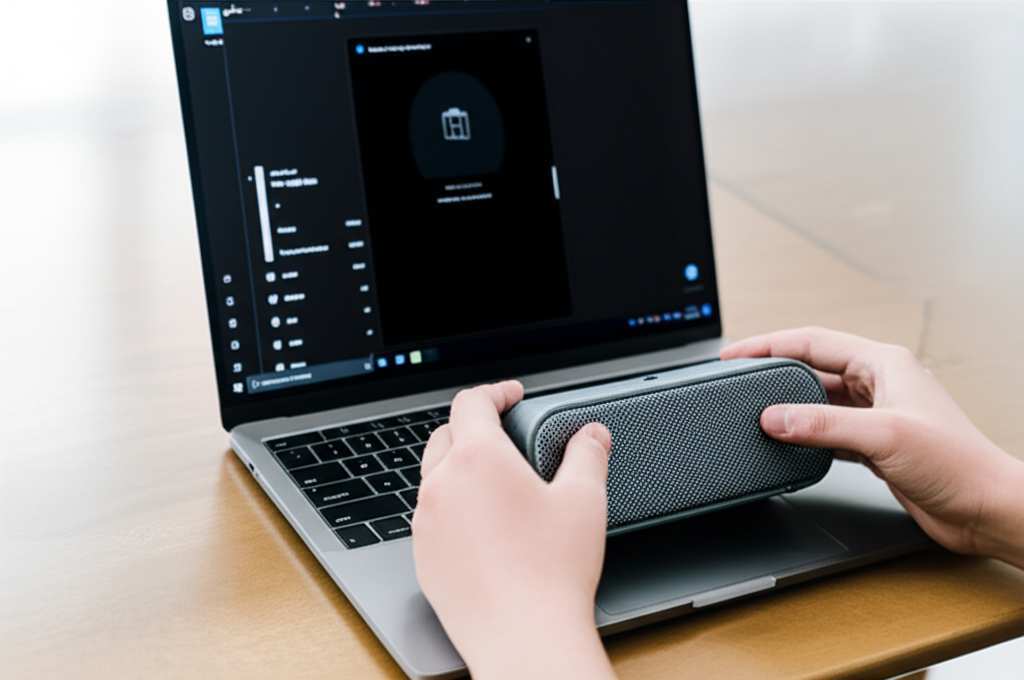
Plus, the sound quality is often way better than those tiny built-in speakers. Imagine your favorite songs with rich bass that you can actually feel, or movie sound effects that pull you right into the action. It’s a game-changer for your entertainment.
And the best part? No messy wires! Bluetooth technology lets you connect wirelessly. This means a cleaner desk setup and more freedom to place your speaker wherever it sounds best. Let’s make this happen!
Getting Your Bluetooth Speaker Ready
Before we even touch your computer, we need to make sure your speaker is ready to party. It’s like prepping ingredients before you cook – essential for a great meal (or, in this case, great sound!).
Charge It Up!
First things first, make sure your Bluetooth speaker has enough juice. Most speakers have a charging port, usually a USB-C or micro-USB. Plug it in with the cable that came with it, or any compatible one. Some speakers have indicator lights that show you when they’re charging and when they’re full. It’s always a good idea to give it a good charge before you start, so you don’t run out of power halfway through your favorite playlist.
Power On and Pairing Mode
Now, let’s turn it on! You’ll usually find a power button on the speaker itself. Once it’s on, you need to put it into “pairing mode.” This is how your speaker tells your computer, “Hey, I’m here and ready to connect!”
How you do this can vary slightly between speakers. Often, there’s a dedicated Bluetooth button, or you might need to press and hold the power button for a few seconds. You’ll usually hear a little sound, or see a light blinking (often blue), which tells you it’s in pairing mode. Check your speaker’s manual if you’re not sure – they’re usually pretty straightforward!
Connecting to Your Computer: The Step-by-Step Guide
Alright, speaker is charged and in pairing mode. Now, let’s get your computer on board. The process is pretty similar whether you’re using a Windows PC or a Mac, but there are a few little differences. Don’t worry, I’ll walk you through both!
For Windows 10 and Windows 11 Users
Windows makes it really easy to find and connect new devices. Let’s get this done in a few simple steps.
- Open Settings: Click on the Start menu (that’s the Windows icon in the bottom-left corner) and then click on the gear icon to open “Settings.”
- Go to Devices/Bluetooth & devices: In Windows 10, you’ll click on “Devices.” In Windows 11, you’ll click on “Bluetooth & devices.”
- Turn on Bluetooth: Make sure the Bluetooth toggle switch is turned ON. If it’s off, click it to turn it on. You’ll see a list of devices that are already connected or available.
- Add a device: Click on the “Add Bluetooth or other device” button (Windows 10) or the “+ Add device” button (Windows 11).
- Select Bluetooth: A new window will pop up. Click on “Bluetooth” at the top.
- Find Your Speaker: Your computer will start scanning for nearby Bluetooth devices that are in pairing mode. You should see your speaker’s name appear in the list.
- Select and Connect: Click on your speaker’s name. Your computer will connect to it. You might see a confirmation message, or hear a sound from your speaker.
- Check Audio Output: Once connected, your computer should automatically start using the speaker. If not, click the speaker icon in your taskbar (usually near the clock), and select your Bluetooth speaker from the list of playback devices.
And voilà! Your Bluetooth speaker should now be connected and playing sound from your Windows computer. Easy peasy!
For Mac Users
Macs are known for their user-friendly design, and connecting Bluetooth devices is no exception. Here’s how to do it:
- Open System Preferences/Settings: Click on the Apple menu in the top-left corner of your screen and select “System Preferences” (on older macOS versions) or “System Settings” (on newer macOS versions).
- Go to Bluetooth: Find and click on the “Bluetooth” icon.
- Turn on Bluetooth: If Bluetooth is off, click the button to turn it on. Your Mac will start searching for available devices.
- Find Your Speaker: Your Bluetooth speaker, if it’s in pairing mode, should appear in the list of devices.
- Connect: Click the “Connect” button next to your speaker’s name.
- Confirm Connection: Your Mac will connect to the speaker. You’ll see a “Connected” status next to its name.
- Set as Audio Output (if needed): Usually, your Mac will automatically switch to the Bluetooth speaker for audio. If it doesn’t, go back to System Preferences/Settings, click on “Sound,” then the “Output” tab. Select your Bluetooth speaker from the list.
See? Your Mac is just as eager to play some great tunes wirelessly. Now you’re all set!
Troubleshooting Common Connection Hiccups
Sometimes, tech doesn’t play nice right away. It happens to all of us! If your computer and speaker aren’t connecting, don’t panic. Here are a few common issues and how to fix them.
Speaker Not Showing Up?
This is probably the most common problem. Here’s what to check:
- Is it really in pairing mode? Double-check that your speaker is actively in pairing mode. The blinking light is your best friend here! If it’s just on, it might not be discoverable.
- Is Bluetooth on your computer enabled? Sounds simple, but sometimes it gets accidentally turned off.
- Are they close enough? Bluetooth has a range. Make sure your speaker is within a few feet of your computer, especially during the initial pairing.
- Restart both devices: Turn off your speaker, turn off Bluetooth on your computer, wait a few seconds, then turn them back on and try again. This fixes a surprising number of issues!
Connection Drops Frequently?
If you’re connected but the sound keeps cutting out, try these:
- Check the distance: Are you moving too far away from the computer? Walls and other objects can also interfere with the signal.
- Reduce interference: Other wireless devices (like microwaves or some Wi-Fi routers) can sometimes cause interference. Try moving away from them if possible.
- Update your computer’s Bluetooth drivers: On Windows, this can sometimes help. Go to Device Manager, find your Bluetooth adapter, and look for an option to update the driver.
No Sound Even Though Connected?
This is frustrating, but usually easy to fix:
- Check the volume levels: Make sure the volume on both your computer and your speaker is turned up! Sometimes one is muted or turned way down.
- Verify audio output: As mentioned in the setup steps, ensure your computer is actually set to send audio to the Bluetooth speaker.
- Test with another device: Try connecting your speaker to your phone. If it works there, the issue is likely with your computer. If it doesn’t work on your phone either, the speaker itself might have a problem.
A great resource for understanding Bluetooth connectivity is articles from sites like CNET, which often have deep dives into how these technologies work.
Choosing the Right Bluetooth Speaker for You
Okay, so you know how to connect one. But what if you’re in the market for a new speaker? There are tons out there! Thinking about what you’ll use it for can help you pick the perfect one.
Portability vs. Power
Are you looking for something small you can toss in a bag and take anywhere? Or do you want something that fills a room with sound? Smaller speakers are super portable but might not have the loudest volume or deepest bass.
Larger speakers often sound richer and louder but are less convenient to move around. Think about where you’ll use it most. For parties, you might want something powerful. For your desk, a compact one might be perfect.
Battery Life
This is a big one for portable speakers! How long does it last on a single charge? If you’re planning long listening sessions away from a power outlet, look for speakers with 10+ hours of battery life.
Some speakers even act as power banks, letting you charge your phone! That’s a neat trick for outdoor adventures.
Water Resistance
Taking your music to the beach, pool, or even just the bathroom? Look for speakers with an IP rating (like IPX7). This means they can handle splashes, rain, or even being submerged in water!
This rating tells you how protected the speaker is against solids (like dust) and liquids. A higher number is generally better.
Sound Quality Features
This is where things get interesting. Some speakers offer:
- 360-degree sound: So everyone in the room gets great audio.
- Stereo pairing: You can buy two of the same speaker and connect them together for an immersive stereo experience.
- Built-in EQ: Allows you to adjust bass and treble.
Let’s Look at Some Popular Speaker Types
Here’s a quick look at what you might find:
| Speaker Type | Best For | Pros | Cons |
|---|---|---|---|
| Ultra-Portable Mini Speakers | On-the-go, travel, personal listening | Very small, light, affordable | Limited bass, lower volume |
| All-Around Portable Speakers | Home, office, picnics, casual use | Good balance of sound, portability, and battery life | Can be pricier than mini |
| Rugged/Waterproof Speakers | Outdoors, poolside, active lifestyles | Durable, water-resistant, dustproof | Can sometimes sacrifice sound for toughness |
| Home/Smart Speakers | Living room, kitchen, smart home integration | Excellent sound, often voice assistant compatible | Less portable, usually requires Wi-Fi for full features |
When you look at these options, think about your daily life. If you’re always moving, a rugged, portable speaker is a winner. If you just want better sound at your desk, a solid all-around portable speaker will do the trick. For serious home listening, a larger, more powerful option might be best.
Fun Facts About Bluetooth!
Did you know the name “Bluetooth” comes from a Viking king? Harald Bluetooth was known for uniting Danish tribes, just like Bluetooth technology aims to unite devices! It’s pretty neat how technology gets its names.
Bluetooth uses radio waves to communicate, which is why it doesn’t need a direct line of sight like infrared remotes. These radio waves operate in the 2.4 GHz frequency band, which is also used by Wi-Fi. That’s why sometimes they can interfere with each other, though modern Bluetooth is pretty good at managing this.
Maintaining Your Bluetooth Speaker
Taking care of your speaker will help it last longer and sound better. It’s not complicated at all!
- Keep it clean: Gently wipe down the exterior with a soft, dry cloth. If there’s dust in the speaker grille, you can try a soft brush or compressed air. Avoid using harsh chemicals.
- Protect the charging port: Make sure the charging port is free of debris before plugging in the cable.
- Avoid extreme temperatures: Don’t leave your speaker in a super hot car or out in freezing weather for long periods.
- Update firmware (if available): Some higher-end speakers allow you to update their internal software (firmware) via an app. This can sometimes improve performance or add new features.
Frequently Asked Questions (FAQ)
Q1: Do I need an internet connection to connect my Bluetooth speaker to my computer?
A1: Nope! Bluetooth is a direct wireless connection between your speaker and computer. You don’t need Wi-Fi or an internet connection for them to talk to each other. Pretty handy, right?
Q2: Can I connect multiple Bluetooth speakers to my computer at once?
A2: Generally, most computers can only connect to one Bluetooth audio device at a time. Some advanced setups or specific software might allow for more, but for most users, it’s one speaker at a time for audio output.
Q3: How far can my Bluetooth speaker be from my computer?
A3: The standard Bluetooth range is about 30 feet (or 10 meters). However, this can be reduced by walls, furniture, or even other electronic devices. For the best, most stable connection, try to keep them within about 15-20 feet of each other.
Q4: My Bluetooth speaker is connected, but the sound is choppy. What can I do?
A4: This often happens due to interference or distance. Try moving your speaker closer to your computer, turning off other Bluetooth devices you aren’t using, or moving away from potential sources of interference like microwaves.
Q5: Is it bad for my Bluetooth speaker to always keep it plugged in and charging?
A5: Most modern Bluetooth speakers have smart charging systems that prevent overcharging. So, it’s generally okay to keep them plugged in when you’re not using them, especially if you plan to use them frequently. However, it’s also good practice to let the battery discharge a bit now and then.
Q6: How do I disconnect my Bluetooth speaker from my computer?
A6: You can either turn off your speaker, or turn off Bluetooth on your computer. You can also go into your computer’s Bluetooth settings and choose to “Disconnect” or “Remove” the speaker. This is a good idea if you want to connect to a different device.
Q7: What’s the difference between Bluetooth and Wi-Fi speakers?
A7: Bluetooth is for direct, short-range connections between two devices (like your computer and speaker). Wi-Fi speakers connect to your home network and can often offer higher quality audio, longer range, and multi-room audio capabilities, but they require a Wi-Fi connection to function.
Conclusion: Enjoy Your Wireless Sound!
See? Connecting a Bluetooth speaker to your computer is really that simple! You’ve learned how to get your speaker ready, how to pair it with both Windows and Mac computers, and even what to do if things go a little sideways. Plus, you’ve got some tips on picking out a new speaker and keeping it in top shape.
Now you can enjoy your music, podcasts, games, and movies with amazing sound quality, all without being tethered by wires. It’s all about making technology work for you, making your everyday experiences a little bit better and a lot more fun.
So go ahead, try connecting your speaker. If you’ve got one already, give it a whirl! If you’re thinking about getting one, you’re now armed with the knowledge to choose wisely. Now go enjoy amazing sound and make every moment louder and better!