
Connecting your Bluetooth speaker to your Onn Roku TV is super easy! Just follow these simple steps to get better sound for movies, music, and games.
Hey there, tech explorers! Max here from AffTechy.com, your go-to spot for making technology feel like a walk in the park. Ever feel like your TV’s sound is just… okay? You know, that kind of sound that’s fine for the news but doesn’t quite bring that movie explosion or your favorite song to life? I’ve been there! Sometimes, the built-in TV speakers are a bit shy, and we all love a little more oomph for our entertainment.
Maybe you’ve got a fantastic Bluetooth speaker just sitting there, and you’re wondering if it can join the TV party. Or perhaps you’re looking to upgrade your home theater experience without a giant soundbar setup. It’s totally normal to feel a bit lost when you first start connecting gadgets. So many buttons, so many settings! But don’t worry, that’s exactly why I’m here.
We’re going to dive into how you can easily connect your Bluetooth speaker to your Onn Roku TV. Think of it as giving your TV a voice upgrade, simple as that. No confusing jargon, just clear, friendly steps to get you enjoying richer sound in no time. Ready to make your living room sound amazing? Let’s break it down step by step.
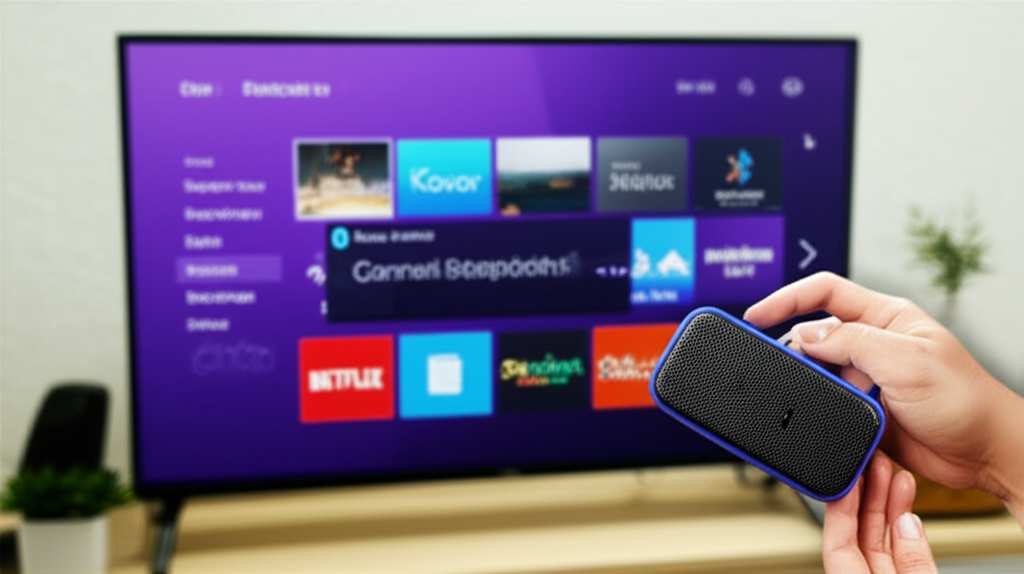
Why You Might Want to Connect a Bluetooth Speaker to Your Onn Roku TV
Let’s chat about why this is such a cool idea. Your Onn Roku TV is awesome for streaming all your favorite shows and movies. But sometimes, the built-in speakers can be a little… well, flat. They’re designed to be budget-friendly and work, but they don’t always deliver that cinematic punch or that concert-hall feel.
Adding a Bluetooth speaker can totally transform your viewing experience. Imagine feeling the rumble of an action scene or hearing the subtle details in a quiet drama. Plus, it’s a super flexible way to get great sound. You can use that same speaker for your phone, tablet, or computer, making it a versatile addition to your tech setup.
Can All Onn Roku TVs Connect to Bluetooth Speakers?
This is a super important question, and the short answer is: it depends on your specific Onn Roku TV model. Not all TVs have built-in Bluetooth audio support. Roku TVs, in general, are pretty smart, but Bluetooth audio output isn’t a standard feature on every single model, especially older or more basic ones.
If your Onn Roku TV doesn’t have built-in Bluetooth for audio, don’t fret! There are still ways to make it work. We’ll cover those too. It might just require a little extra gadget, but it’s totally doable. Think of it as a small step for a big sound reward.

How to Check if Your Onn Roku TV Has Bluetooth Audio Support
First things first, let’s see if your TV is ready to go wireless with its sound. It’s usually pretty straightforward to check.
1. Go to Settings: Grab your Roku remote and head to the main menu. Navigate to the ‘Settings’ option.
2. Look for ‘Remotes & Devices’: Once you’re in Settings, you’ll want to find an option that sounds like ‘Remotes & Devices’ or ‘System.’
3. Search for ‘Bluetooth’: Within that menu, look for anything related to ‘Bluetooth.’ If you see an option to ‘Add Bluetooth device’ or something similar, your TV likely has built-in Bluetooth for audio!
If you don’t see any Bluetooth options related to audio devices, it’s possible your TV doesn’t support it directly. But hey, don’t close the tab just yet! We’ve got other tricks up our sleeve.
Connecting Directly via Built-in Bluetooth (If Your TV Supports It)
Alright, if your Onn Roku TV does have that handy Bluetooth feature, this is the easiest way to get connected. It’s like pairing your phone with your headphones.
Step 1: Put Your Bluetooth Speaker in Pairing Mode
Every Bluetooth speaker is a little different, but they all have a way to enter ‘pairing mode.’ This is when the speaker is ready to find and connect to a new device.
Check the Manual: The best place to find out is your speaker’s instruction manual. It will tell you exactly which button to press and for how long.
Look for a Bluetooth Button: Often, there’s a dedicated button with the Bluetooth symbol (it looks like a little B with lines sticking out). You might need to press and hold it for a few seconds.
Listen for a Sound or Look for a Light: When your speaker is in pairing mode, it usually makes a little chime or beep, and a small light might start blinking. This is its way of saying, “I’m ready to connect!”
Step 2: Put Your Onn Roku TV in Bluetooth Pairing Mode
Now, let’s get your TV ready to find that speaker.
1. Navigate to Bluetooth Settings: Go back to your TV’s Settings > Remotes & Devices.
2. Select ‘Pair Bluetooth device’: You should see an option to ‘Pair Bluetooth device’ or ‘Add Bluetooth device.’ Select that.
3. Let the TV Search: Your TV will now start scanning for nearby Bluetooth devices that are in pairing mode. This might take a moment.
Step 3: Select Your Speaker from the List
Once your TV finds your speaker, its name should pop up on the screen.
Find Your Speaker’s Name: Look for the name of your Bluetooth speaker in the list of available devices.
Select and Connect: Use your Roku remote to highlight your speaker’s name and press the OK button. Your TV will then attempt to connect to the speaker.
Step 4: Confirm the Connection
You might hear a confirmation sound from your speaker, or the TV screen will tell you that the device is connected.
Play Some Audio: The best way to test is to play a show, movie, or music. You should hear it coming loud and clear from your Bluetooth speaker!
Troubleshooting Tip: If it doesn’t connect right away, try turning both the speaker and the TV’s Bluetooth off and on again. Make sure the speaker is still in pairing mode and close to the TV.
What If Your Onn Roku TV Doesn’t Have Built-in Bluetooth? (The Workaround!)
Okay, so your TV didn’t have that built-in Bluetooth magic. No problem! We can still get awesome sound. The solution here is a little gadget called a Bluetooth Transmitter/Receiver.
What is a Bluetooth Transmitter/Receiver?
Think of this device as a translator. It takes the audio signal from your TV (usually through a headphone jack or an optical audio port) and beams it wirelessly via Bluetooth to your speaker. Many of these gadgets can also receive Bluetooth audio, so they’re pretty versatile!
How to Use a Bluetooth Transmitter/Receiver
This is still pretty simple, just involves one extra step.
1. Choose Your Transmitter: You can find these online or at electronics stores. Look for one that has the right audio inputs for your TV. The most common are:
3.5mm Headphone Jack: Most TVs have this. It’s a small, round port.
RCA Audio Ports: These are usually red and white ports.
Optical Audio Port (TOSLINK): This is a small port with a little flap, often labeled ‘Digital Audio Out.’ This usually gives the best sound quality.
Here’s a quick look at some common connection types:
| Connection Type | Description | Common on TVs |
|---|---|---|
| 3.5mm Headphone Jack | A single round port, often for headphones. | Very common |
| RCA Audio (Red & White) | Two ports, one for the right channel (red) and one for the left (white). | Common |
| Optical Audio (TOSLINK) | A small, square-ish port with a flap, for digital audio. | Common on newer TVs |
When you’re picking one out, make sure it comes with the right cables to connect to your TV’s available ports.
2. Connect the Transmitter to Your TV:
Power Up: Plug the Bluetooth transmitter into a USB port for power. Many TVs have USB ports that can do this, or you can use a wall adapter.
Plug in the Audio Cable: Connect one end of the audio cable (the one that came with your transmitter) to the correct port on your TV (headphone, RCA, or optical).
Connect to Transmitter: Connect the other end of the audio cable to the ‘Audio In’ port on your Bluetooth transmitter. Make sure it’s set to ‘Transmit’ mode.
3. Pair the Transmitter with Your Speaker:
Put Speaker in Pairing Mode: Just like before, make sure your Bluetooth speaker is in pairing mode.
Put Transmitter in Pairing Mode: Press and hold the Bluetooth button on your transmitter. It will also start blinking, indicating it’s searching.
Wait for Connection: The transmitter and speaker will find each other and pair automatically. You might hear a confirmation sound from the speaker.
4. Set Your TV’s Audio Output:
Go to TV Settings: On your Onn Roku TV, navigate to Settings > Audio.
Select Audio Output: Look for an option like ‘Audio Output’ or ‘Speakers.’ You’ll need to switch it from ‘TV Speakers’ to ‘Headphone’ or ‘External Speakers’ (depending on which port you used). If you used optical, you might see an ‘Optical Out’ option.
Check Volume: You might need to adjust the volume on both the TV and the speaker. Sometimes, when using the headphone jack, the TV volume controls the output volume.
This setup ensures your TV’s sound is sent out to the transmitter, which then sends it wirelessly to your speaker.
Tips for the Best Bluetooth Audio Experience
Once you’re connected, here are a few things to keep in mind for the smoothest, best-sounding experience.
Keep Devices Close and Unobstructed
Bluetooth works best when the devices are relatively close to each other and there aren’t too many walls or large objects in the way. For your TV and speaker, keeping them in the same room, without massive furniture in between, is ideal. This helps prevent any skipping or dropouts in the audio.
Check for Audio Lag (Lip Sync Issues)
Sometimes, especially with older Bluetooth technology or certain transmitters, you might notice a slight delay between what you see on screen and what you hear. This is called audio lag or lip sync issues.
How to Spot It: Watch a scene with dialogue. If the voices seem to be a bit behind the actors’ mouths, you’ve got lag.
What to Do:
Check Your Transmitter: Some transmitters have settings to reduce lag. Look for ‘low latency’ features.
Try a Different Connection: If you used the headphone jack, try an optical audio connection if your TV and transmitter support it. Optical is often more stable.
Roku’s Private Listening Mode: While not for Bluetooth speakers, Roku TVs have a fantastic feature called ‘Private Listening’ through the Roku mobile app. This lets you listen through headphones connected to your phone, which has zero lag. It’s a great alternative if lag is a persistent problem with your speaker setup. You can learn more about it here: https://www.roku.com/blog/private-listening
Update Your Devices
Make sure your Onn Roku TV firmware is up to date. Sometimes, updates include improvements to Bluetooth connectivity. Your Bluetooth speaker might also have firmware updates available from the manufacturer.
Consider a Dedicated Bluetooth Transmitter for the Best Results
If you’re frequently experiencing lag or connection issues with a general-purpose transmitter, investing in one specifically designed for TV audio can make a big difference. These often use newer Bluetooth versions (like Bluetooth 5.0) which offer better range, stability, and lower latency. TechRadar often has great reviews on the latest audio gadgets: https://www.techradar.com/news/best-bluetooth-transmitters
Choosing the Right Bluetooth Speaker for Your Onn Roku TV
If you’re in the market for a new speaker, here are a few things to think about to make sure it’s a great match for your TV.
Sound Quality
This is the big one! Do you want deep bass for action movies, or clear dialogue for dramas? Reading reviews and, if possible, listening to speakers in person can help. Brands like JBL, Bose, and Sony offer a range of options.
Connectivity Options
Even if you’re connecting to your TV, having multiple ways to connect your speaker is handy. Bluetooth is great, but sometimes AUX-in (a wired connection) can offer a more stable connection.
Battery Life (for portable speakers)
If you plan to move your speaker around the house or use it outdoors, battery life is crucial. Aim for speakers that offer at least 8-10 hours of playback on a single charge.
Size and Portability
Do you want a speaker that sits permanently near the TV, or one you can easily move to the kitchen or patio? This will influence the size and design you choose.
Let’s compare a couple of popular types of Bluetooth speakers you might consider.
| Speaker Type | Pros | Cons | Best For |
|---|---|---|---|
| Portable Bluetooth Speaker (e.g., JBL Flip, UE Boom) | Lightweight, easy to move, good battery life, often water-resistant. | Can sometimes lack deep bass compared to larger speakers, might have slight lag. | Versatile use around the house, patios, or for casual listening. |
| Bluetooth Soundbar (e.g., Vizio, Samsung entry-level) | Designed for TV audio, often better bass and clarity than portable speakers, can improve dialogue. | Less portable, requires more space, might be more expensive. | Dedicated TV sound enhancement, immersive movie watching. |
| Home Bluetooth Speaker (e.g., Bose SoundLink, Sony SRS-X series) | Excellent sound quality, good bass, often stylish design. | Less portable, might require more power outlet access. | Enhancing your living room’s audio for movies, music, and TV shows. |
When picking out a speaker, think about how you’ll use it most. For pure TV watching, a soundbar might be ideal. For flexibility, a good portable or home speaker works wonders.
Frequently Asked Questions (FAQ)
Got more questions buzzing around? I’ve got you covered.
-
Q: My Onn Roku TV doesn’t show a Bluetooth option. What should I do?
A: No worries! This just means your TV doesn’t have built-in Bluetooth audio. You’ll need a separate Bluetooth transmitter/receiver gadget. You plug it into your TV’s headphone or optical port, and then it sends the sound wirelessly to your speaker. It’s a super common and effective workaround! -
Q: How do I put my Onn Roku TV into Bluetooth pairing mode?
A: You’ll typically go to Settings on your TV, then find ‘Remotes & Devices,’ and select ‘Pair Bluetooth device.’ Your TV will then scan for speakers that are also in pairing mode. -
Q: I connected my speaker, but there’s no sound. What’s wrong?
A: First, double-check that your speaker is fully charged and turned on. Then, make sure it’s actually connected in your TV’s Bluetooth menu. If you used a transmitter, ensure the audio cables are plugged in securely to both the TV and the transmitter, and that the TV’s audio output is set correctly (e.g., to Headphone or Optical Out). Also, try increasing the volume on both the TV and the speaker. -
Q: Is there a delay between the video and audio when I connect a Bluetooth speaker?
A: Sometimes, yes. This is called audio lag. It depends on the Bluetooth version your TV and speaker (or transmitter) use. Newer Bluetooth versions (like 5.0 and above) and transmitters designed for low latency help reduce this. If lag is a big issue, you might need to try a different transmitter or consider a wired audio solution. -
Q: Can I connect multiple Bluetooth speakers to my Onn Roku TV?
A: Most Onn Roku TVs, and most Bluetooth transmitters, can only connect to one speaker at a time. Some advanced Bluetooth transmitters might support connecting two speakers simultaneously, but this is less common for basic setups. -
Q: How do I disconnect my Bluetooth speaker from my TV?
A: You can usually go back to the Bluetooth settings on your TV and select your speaker, then choose ‘Disconnect’ or ‘Forget Device.’ Alternatively, you can simply turn off your Bluetooth speaker, or turn off Bluetooth on your TV. -
Q: Will connecting a Bluetooth speaker affect my TV’s warranty?
A: No, absolutely not! Connecting external audio devices like Bluetooth speakers, soundbars, or even headphones is a standard function and will not void your Onn Roku TV’s warranty.
Bringing it All Together: Enjoying Your Enhanced Sound
So there you have it! Connecting a Bluetooth speaker to your Onn Roku TV is totally achievable, whether your TV has built-in Bluetooth or you use a handy little transmitter. You’ve learned how to check your TV, pair your devices, and even what to do if you hit a small snag.
It’s amazing how much better movies, shows, and even your favorite tunes can sound with just a little audio upgrade. You don’t need to be a tech wizard to make it happen. By following these steps, you’re well on your way to a more immersive and enjoyable home entertainment experience.
Don’t be afraid to experiment a little! Try out different speakers if you have them, or explore the settings on your TV and transmitter. The goal is to find what sounds best to you.
Now go enjoy amazing sound and make every moment louder and better! Happy streaming!


