Yes, you can connect a Bluetooth speaker to your Roku for better sound! It’s a simple way to boost your audio experience without buying a whole new TV. Get ready for richer music, clearer dialogue, and more immersive movies.
Hey there, tech explorer! Have you ever found yourself wishing your Roku movies and shows sounded a little… bigger? Maybe the dialogue is a bit hard to catch, or you just want that awesome movie-theater boom when the action starts. I totally get it! So many of us love streaming our favorite content, but sometimes the built-in TV speakers just don’t cut it.
It can feel a bit overwhelming when you start looking into sound upgrades. There are soundbars, surround sound systems, and a million different speaker types. But what if I told you there’s a super simple way to get amazing sound using something you might already have – a Bluetooth speaker? Yep, that’s the magic we’re diving into today.
Today, we’re going to demystify connecting your Bluetooth speaker to your Roku device. No confusing jargon, no complicated wiring – just straightforward steps to unlock richer audio for your entertainment. We’ll cover how it works, what you need, and how to get it all set up. Let’s make your Roku experience sound absolutely fantastic!
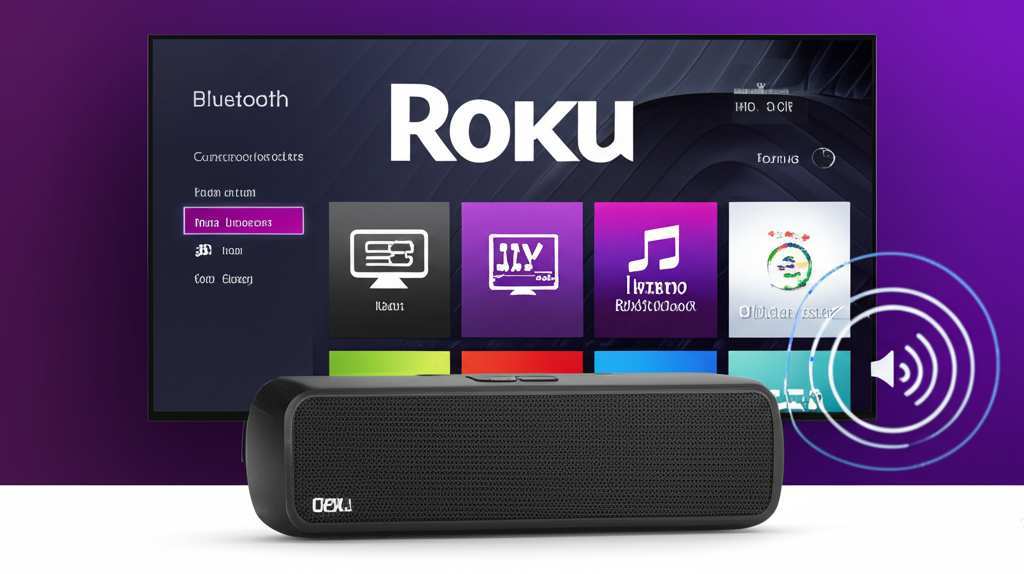
Let’s Talk About Sound Quality
Think about your favorite movie scene or that catchy song you love to stream. How much better does it feel when the sound is rich and full? Good audio really pulls you into the story, doesn’t it? It makes games more exciting and music more vibrant.
Unfortunately, most TV speakers are designed to be compact, not to fill a room with booming sound. They’re often a bit tinny, especially at higher volumes. This is where external speakers, like Bluetooth ones, come to the rescue. They’re built to produce a much wider range of sounds.
Using a Bluetooth speaker is a fantastic way to upgrade your Roku’s audio without a huge investment. It’s like giving your TV a voice transplant, but a really, really good one! You can enjoy clearer dialogue, deeper bass, and a more immersive listening experience for everything you watch.
The Bluetooth Speaker to Roku Connection Explained
So, can you actually connect a Bluetooth speaker to your Roku? The short answer is: it depends on your Roku model. This is super important to know right from the start. Not all Roku devices have built-in Bluetooth for audio output.
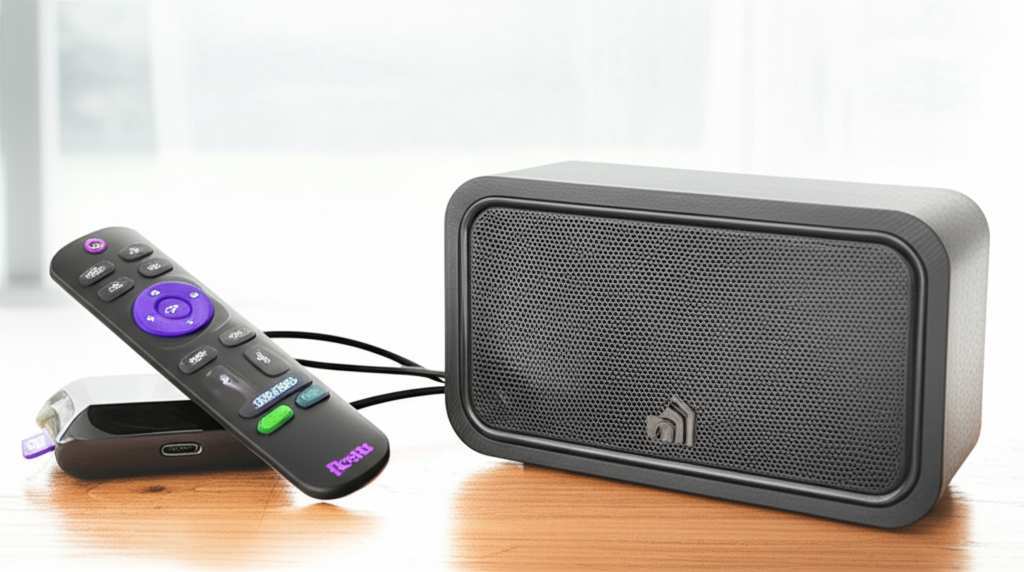
Historically, Roku devices focused on simpler streaming. They added features like private listening through the Roku mobile app, which uses your phone’s Bluetooth. But direct Bluetooth speaker output is a newer feature, and it’s not on every single model. It’s like how some phones have headphone jacks and others don’t – you have to check your specific device.
If your Roku does support Bluetooth audio output, it’s a game-changer for your sound. It means your Roku can send its audio signal wirelessly to your speaker, just like your phone does. This gives you freedom from cables and allows you to place your speaker wherever it sounds best.
Checking If Your Roku Supports Bluetooth Audio
This is the most crucial step! Before you get excited about pairing, you need to confirm your Roku device is ready for Bluetooth speaker action. Don’t worry, it’s an easy check. You’ll be looking for a specific setting in your Roku’s menu.
Here’s how to find out:
- Turn on your Roku device and TV.
- Go to the Roku Home screen.
- Navigate to Settings.
- Scroll down and select Remotes & Devices.
Once you’re in “Remotes & Devices,” look for an option related to Bluetooth or audio devices. If you see something like “Pair Bluetooth device” or “Bluetooth audio,” then congratulations! Your Roku can connect directly to Bluetooth speakers. If you don’t see this option, your Roku model likely doesn’t support direct Bluetooth audio output.
What If My Roku Doesn’t Have Built-in Bluetooth?
Don’t despair if your Roku menu doesn’t show a Bluetooth pairing option for speakers. There are still ways to get that amazing sound! It just means we need a little helper device.
The most common solution is a Bluetooth transmitter. This is a small gadget that you plug into your TV’s audio output. It then broadcasts the audio signal wirelessly via Bluetooth. You can then pair your Bluetooth speaker to this transmitter, and voilà – sound!
Many transmitters connect via the 3.5mm headphone jack or RCA audio outputs on your TV. Some even have optical audio inputs for even better sound quality. It’s a really neat workaround that opens up possibilities for older TVs or Roku models.
Another option, which is already built into many Roku devices, is the Roku mobile app. You can use your smartphone as a remote and also send audio from your Roku directly to your phone, and then from your phone to a Bluetooth speaker. It’s not as seamless as direct Roku-to-speaker Bluetooth, but it works!
Connecting Your Bluetooth Speaker Step-by-Step
Okay, let’s get to the fun part! Assuming your Roku does have built-in Bluetooth audio support, here’s how to pair your speaker. It’s pretty similar to pairing your phone to a speaker.
Step 1: Put Your Speaker in Pairing Mode
First, turn on your Bluetooth speaker. Almost all speakers have a specific button or a combination of buttons you need to press to make them discoverable. This is usually indicated by a flashing light or a sound alert.
Refer to your speaker’s manual if you’re unsure. It’s often a dedicated Bluetooth button, or sometimes holding down the power button for a few seconds. The goal is to make it ready to connect to a new device.
Step 2: Access Bluetooth Settings on Your Roku
Now, go back to your Roku device. If you’re not already there, follow the path we talked about: Settings > Remotes & Devices. You should see the “Pair Bluetooth device” or “Bluetooth audio” option if your Roku supports it.
Select this option. Your Roku will start searching for nearby Bluetooth devices that are in pairing mode. Think of it like your Roku actively looking for your speaker.
Step 3: Select Your Speaker from the Roku List
On your Roku screen, you should see a list of available Bluetooth devices appear. Look for the name of your Bluetooth speaker. It might be a brand name or a model number.
Once you find it, select your speaker using your Roku remote. Your Roku will then attempt to establish a connection.
Step 4: Confirm the Connection
If the pairing is successful, your Roku will usually give you a confirmation message. You might also hear a sound from your Bluetooth speaker indicating it’s connected. The flashing light on the speaker often turns solid or changes color.
Now, try playing something on your Roku! The sound should come from your Bluetooth speaker. If it doesn’t, check the volume on both your Roku and your speaker. Sometimes, you might need to re-select the audio output in your Roku settings if it defaults back to the TV speakers.
Using the Roku Mobile App for Audio
If direct Bluetooth isn’t an option, the Roku mobile app is your next best friend. This is a fantastic feature for private listening or for routing audio to a Bluetooth speaker. Here’s how it works:
Step 1: Download and Set Up the Roku App
First, download the official Roku app onto your smartphone or tablet. Make sure your phone and your Roku device are connected to the same Wi-Fi network. Open the app and follow the prompts to connect it to your Roku player.
Step 2: Connect Your Bluetooth Speaker to Your Phone
Before you start streaming through the app, pair your Bluetooth speaker to your smartphone. Go into your phone’s Bluetooth settings, turn on Bluetooth, and select your speaker from the list of available devices. Make sure your speaker is in pairing mode, just like before.
Step 3: Activate Private Listening on Roku App
In the Roku app, you’ll find a section for “Remote” or “Playback.” Look for an option called “Private Listening” or “Mobile Device Audio.” Tap this to enable it.
When Private Listening is active, the audio from your Roku channel will be sent to your phone. Because your Bluetooth speaker is already connected to your phone, the sound will then play through your speaker! It’s a clever way to use your phone as an audio bridge.
This method is great because it doesn’t rely on your Roku having built-in Bluetooth for external speakers. It’s a universal solution for most Roku users.
Tips for Getting the Best Sound
Now that you know how to connect, let’s talk about making that sound truly amazing. A few simple tricks can elevate your listening experience from good to spectacular. It’s all about placement and settings!
Speaker Placement Matters
Where you put your Bluetooth speaker can make a huge difference. Try to place it at ear level if possible. If you’re watching a movie, positioning it in front of you, similar to where TV speakers would be, often works best for dialogue.
Avoid corners if you can, as this can sometimes make bass sound boomy or muddy. Experiment with different spots in your room. Sometimes just moving it a foot or two can change the sound dramatically.
Adjusting Volume Levels
You’ll likely have volume controls on both your Roku remote and your Bluetooth speaker. It’s a good idea to set one to a comfortable baseline and use the other for fine-tuning. For example, you could set your speaker’s volume to about 75% and then use your Roku remote for everyday adjustments.
This helps prevent distortion that can happen if either device is maxed out. Plus, it gives you a wider range of control.
Check Roku Audio Settings
Roku has some handy audio settings that can help fine-tune the sound. Go to Settings > Audio & Video. Here, you might find options like “Surround sound” (set to “Auto” or “Stereo” depending on your speaker) or “Volume Level” (consider “Leveling” if you watch a mix of loud and quiet content).
Experiment with these. For a single Bluetooth speaker, “Stereo” is usually the best bet. If you have a soundbar that supports surround, then “Auto” might work.
Keep Firmware Updated
Both your Roku device and your Bluetooth speaker often have firmware that can be updated. These updates can improve performance, fix bugs, and sometimes even add new features. Check the settings on both devices for any available updates and install them.
Bluetooth Transmitter vs. Roku App: Which is Better?
If your Roku doesn’t have built-in Bluetooth, you’re likely choosing between a Bluetooth transmitter and the Roku app. Both have their pros and cons, and the “better” choice really depends on your setup and preferences.
Bluetooth Transmitter
A Bluetooth transmitter is a dedicated piece of hardware. You plug it into your TV’s audio out port (like headphone jack, RCA, or optical). It then wirelessly sends the audio to your Bluetooth speaker.
Pros:
- Dedicated Audio Path: It’s designed solely for audio transmission, often offering a stable connection.
- No Phone Needed: Once set up, you don’t need your phone to be nearby or running the app.
- Potentially Lower Latency: Some advanced transmitters offer very low latency (delay), which is great for movies to keep audio and video in sync.
- Universal Compatibility: Works with almost any TV or audio device with an audio output.
Cons:
- Extra Cost: You have to buy the transmitter, which can range from $20 to $100+.
- More Wires: You’ll have another device and cable to manage.
- Setup Required: You need to plug it in and pair your speaker to it.
Roku Mobile App (Private Listening)
This uses your smartphone as the intermediary. Roku sends audio to your phone, and your phone sends it to the Bluetooth speaker.
Pros:
- Free if You Have a Smartphone: No extra hardware purchase needed.
- Convenient for Private Listening: Perfect for late-night viewing without disturbing others.
- Easy Setup: Just download the app and connect.
Cons:
- Phone Battery Drain: Streaming audio continuously uses your phone’s battery.
- Potential Latency: The extra step through your phone can sometimes introduce a slight delay between video and audio.
- Requires Phone: Your phone needs to be on, connected to Wi-Fi, and running the app.
- Audio Quality Might Vary: Your phone’s Bluetooth transmitter and receiver play a role.
Which to Choose?
If you want a simple, always-on solution and don’t mind a small investment, a Bluetooth transmitter is often the most robust choice for consistent audio output to your speaker. It’s like giving your TV its own Bluetooth capability.
If you’re on a budget, already use your phone for everything, or primarily want a private listening solution that can also go to a speaker, the Roku app is a fantastic, free option. Just be mindful of phone battery life and potential sync issues with fast-paced content.
Example Scenarios and Speaker Comparisons
Let’s imagine a couple of scenarios where connecting a Bluetooth speaker to your Roku makes a big difference.
Scenario 1: Movie Night Upgrade
You’re settling in for a sci-fi epic on your Roku. The spaceship engines should rumble, the laser blasts should crackle. Your TV speakers just sound… thin. You pair your trusty portable Bluetooth speaker. Suddenly, the deep bass of the engines fills the room, and the explosions have real impact. Dialogue is crystal clear, even during the loudest scenes. It’s a whole new level of immersion!
Scenario 2: Gaming Session Boost
You’re playing a fast-paced action game via a Roku app. The in-game sounds are crucial for reacting to enemies. Connecting a Bluetooth speaker means you get that thrilling soundscape – the footsteps, the gunfire, the ambient noises – all much more vividly. It doesn’t just look good; it sounds epic!
Speaker Type Considerations
Not all Bluetooth speakers are created equal. Here’s a quick look at how different types might fit your Roku setup:
| Speaker Type | Typical Use Case | Roku Connection Benefit | Considerations |
|---|---|---|---|
| Portable Bluetooth Speaker | Music, casual listening, easy to move | Adds clear, room-filling sound; good for dialogue and general content. | Sound quality varies greatly by model; might lack deep bass for movies. |
| Bluetooth Soundbar | TV audio enhancement, living room setup | Significantly improves TV dialogue, music, and movie soundtracks. | Can be more expensive; placement is important for best effect. |
| Smart Speaker (e.g., Echo, Google Home) | Voice assistant, music streaming, multi-room audio | Can sometimes act as a Bluetooth speaker for Roku audio (check device compatibility). | May require specific setup or app integration; primarily designed for their own ecosystems. |
For example, if you already have a portable Bluetooth speaker for music, using it with your Roku is a fantastic way to repurpose it for home entertainment. If you’re looking for a dedicated audio upgrade, a Bluetooth soundbar offers a more integrated solution. Many people find that a good mid-range portable speaker offers a great balance of quality and affordability for Roku audio.
Troubleshooting Common Connection Issues
Sometimes, technology doesn’t play nice right away. If you’re having trouble connecting your Bluetooth speaker to your Roku, don’t worry! Here are some common fixes.
Speaker Not Showing Up in Roku’s List
Check Pairing Mode: Make sure your speaker is definitely in pairing mode. Some speakers only stay in pairing mode for a minute or two.
Distance: Bring your speaker closer to your Roku device. Bluetooth has a limited range.
Restart Devices: Try restarting both your Roku device and your Bluetooth speaker. Power them off, wait a few seconds, and turn them back on.
Forget and Re-pair: If you’ve paired the speaker before, go into your Roku’s Bluetooth settings and “forget” the device, then try pairing it again from scratch.
Audio is Choppy or Cutting Out
Interference: Other wireless devices (microwaves, Wi-Fi routers, other Bluetooth devices) can interfere. Try moving your speaker or Roku away from potential sources of interference.
Distance: The signal might be weak. Move your speaker closer to the Roku device.
Low Battery: Check the battery level on your Bluetooth speaker. Low power can sometimes cause performance issues.
Update Firmware: Ensure both your Roku and speaker have the latest firmware installed.
No Sound at All
Volume Check: Is the volume turned up on both your Roku remote and your Bluetooth speaker? It sounds basic, but it’s the most common oversight!
Correct Audio Output: On your Roku, go to Settings > Audio & Video and ensure the audio output is set correctly. If using Bluetooth, make sure it’s selected.
Speaker Connected to Wrong Device: Double-check that your speaker is actually connected to your Roku and not still connected to your phone or another device.
Test Speaker: Try playing audio from your phone to the speaker to ensure the speaker itself is working correctly.
Can I Connect Multiple Bluetooth Speakers?
This is a great question! For most Roku devices, the answer is no, not directly. Roku’s built-in Bluetooth audio output is designed to connect to one device at a time. You can’t typically pair two separate Bluetooth speakers to your Roku simultaneously for stereo sound or multi-room audio.
However, some advanced Bluetooth transmitters do support connecting to two devices at once. If this is a feature you need, look specifically for a dual-output Bluetooth transmitter. You would pair both speakers to the transmitter, which then connects to your Roku’s audio output.
If you’re using the Roku app’s Private Listening feature, you’re limited to sending audio to your phone, and then your phone sends it to one Bluetooth speaker. Some phones can broadcast to two Bluetooth speakers simultaneously (often called “Dual Audio” or similar), but this is a phone feature, not a Roku feature.
For true multi-speaker or stereo setups with Roku, you’d typically be looking at dedicated home theater systems or soundbars that have their own wireless speaker capabilities, rather than relying on standard Bluetooth connections from the Roku itself.
FAQ: Your Quick Answers
What Roku models support Bluetooth speaker output?
This feature is generally found on newer Roku models, particularly Roku streaming sticks and boxes released in the last few years. It’s not on all older models. The best way to check is by looking in your Roku’s Settings > Remotes & Devices menu for a “Pair Bluetooth device” option.
Will connecting a Bluetooth speaker cause a delay (lip-sync issues)?
Sometimes, yes. Bluetooth technology can introduce a slight delay between the video on your screen and the audio from your speaker. This is called latency. Newer Bluetooth versions and higher-quality transmitters/speakers reduce this. If you notice a delay, check your Roku’s audio settings for lip-sync adjustments or try a different connection method (like a transmitter with low-latency support).
Can I use my AirPods with Roku?
Yes! If your Roku model supports Bluetooth audio output, you can pair your AirPods just like any other Bluetooth speaker. If your Roku doesn’t support direct Bluetooth, you can use the Roku mobile app’s Private Listening feature to send audio to your iPhone, and then your AirPods will connect to your iPhone.
What is the best Bluetooth speaker for Roku?
The “best” speaker depends on your budget and needs! For general use, popular portable speakers from brands like JBL, Bose, or Sony offer great sound. For a more immersive TV experience, a Bluetooth soundbar designed for TVs is ideal. Look for good reviews on sound quality, battery life (if portable), and ease of pairing.
Do I need a special cable to connect a Bluetooth transmitter?
Not usually! Most Bluetooth transmitters connect via standard audio ports: a 3.5mm headphone jack, red and white RCA audio outputs, or sometimes an optical (TOSLINK) audio port. Your TV will likely have one of these. The transmitter will come with the necessary cables, or you can easily find them.
Can I control the volume of my Bluetooth speaker with my Roku remote?
Generally, yes, if your Roku supports direct Bluetooth audio output. When paired, the Roku remote should control the volume sent to the speaker. If you’re using a Bluetooth transmitter, it depends on the transmitter – some pass through volume control, others might require you to use the speaker’s own volume controls or your phone.
How do I disconnect my Bluetooth speaker from Roku?
Go to Settings > Remotes & Devices on your Roku. Find your paired Bluetooth speaker in the list and select the option to “Disconnect” or “Remove Device.” This will unpair it.
Conclusion: Enjoy Your New Sound Experience!
And there you have it! Connecting a Bluetooth speaker to your Roku is totally doable, and it’s a fantastic way to seriously amp up your home entertainment. Whether your Roku has built-in Bluetooth or you use a handy transmitter or the Roku app, you’re just a few steps away from richer dialogue, more powerful movie moments, and simply a more enjoyable audio experience.
Remember to check your Roku model first, put your speaker in pairing mode, and follow those simple steps. Don’t be afraid to experiment with speaker placement and Roku’s audio settings to find that sweet spot for your room. And if you run into any hiccups, our troubleshooting tips are here to help you get back to enjoying your shows and music.
You’ve got the power to transform your viewing experience. So go ahead, pair up that speaker, press play, and let the amazing sound wash over you. Happy streaming, and enjoy every louder, clearer, and more vibrant moment!