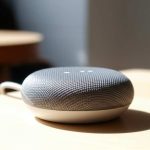
Turn your Google Home Mini into a powerful Bluetooth speaker with these simple steps! Easily stream music, podcasts, and more from your phone or tablet for amazing sound anywhere.
Hey there, tech explorers! Max here from AffTechy.com, your go-to spot for making technology feel like a breeze. Have you ever cranked up your favorite tunes on your phone and thought, “Man, I wish this sounded bigger?” Or maybe you’ve got a Google Home Mini just sitting there, and you’re wondering if it can do more than just tell you the weather or play trivia? Well, you’re in for a treat!
We all love our music, podcasts, and even those epic movie sound effects. But sometimes, the tiny speaker on your phone just doesn’t cut it. You want that rich, room-filling sound, right? It can feel a bit overwhelming trying to figure out which speaker is best or how to connect all your gadgets. But don’t sweat it! I’m here to show you a super simple trick that can totally upgrade your listening experience.
What if I told you that little puck-shaped smart speaker on your counter, your Google Home Mini, can actually become a fantastic Bluetooth speaker? Yep, it’s true! It’s like unlocking a secret superpower for your device. We’re going to go from “meh” sound to “wow” sound without any fuss.

So, grab your phone, give your Google Home Mini a little pat, and get ready. We’re about to make some noise, the good kind! Let’s break down exactly how to use your Google Home Mini as a Bluetooth speaker, step by step.
Why Use Your Google Home Mini as a Bluetooth Speaker?
You might be thinking, “I already have a Bluetooth speaker, why bother?” That’s a fair question! But here’s the cool part: your Google Home Mini probably lives somewhere you already hang out – your kitchen, your bedroom, your living room. It’s already there, ready to go!
Using it as a Bluetooth speaker means you get better sound without buying another gadget. It’s perfect for when you want to play music from an app that doesn’t directly connect to Google Assistant. Think of it as giving your favorite tunes a boost, straight from your phone to a speaker that sounds way better than your phone’s built-in one.
Plus, it’s incredibly easy to set up. You don’t need to be a tech wizard. Seriously, it’s almost as simple as pairing your headphones. We’re talking about transforming your daily listening moments from ordinary to awesome with just a few taps.
What You’ll Need to Get Started
Before we dive into the fun part, let’s make sure you have everything ready. It’s a pretty short list, so no worries!
- A Google Home Mini: Obviously! Make sure it’s set up and connected to your Wi-Fi network. If you haven’t done this yet, the Google Home app on your phone will guide you through it.
- A Smartphone or Tablet: This is what you’ll be streaming your audio from. It can be an Android phone or an iPhone.
- The Google Home App: You need this app on your smartphone or tablet. It’s free and available on both the Google Play Store and the Apple App Store.
- Your Device’s Bluetooth: Make sure Bluetooth is turned ON on your smartphone or tablet.
That’s it! See? Super simple. You probably have most of this already. The Google Home app is your command center for all things Google Assistant and smart home, so it’s a handy tool to have anyway.
Step-by-Step Guide: Connecting Your Google Home Mini via Bluetooth
Alright, ready to make some magic happen? Follow these steps, and you’ll be jamming in no time. It’s a straightforward process, and I’ll walk you through each part.
Step 1: Open the Google Home App
First things first, find the Google Home app on your phone or tablet. Tap on it to open it up. If you’re not already signed in to your Google account, you’ll need to do that. This is the same account you used to set up your Google Home Mini.
Step 2: Select Your Google Home Mini
Once the app is open, you’ll see a list of your connected smart devices. Find your Google Home Mini in the list. It might be named something like “Living Room Speaker” or “My Home Mini.” Tap on its name to go to its settings.
Step 3: Access Device Settings
On the device’s page, look for a settings icon. It usually looks like a gear or a cogwheel. Tap on that gear icon. This will take you to the specific settings for your Google Home Mini.
Step 4: Find the Bluetooth Option
Inside the settings menu, scroll down until you see an option related to Bluetooth. It might say “Bluetooth pairings,” “Paired devices,” or something similar. Tap on it to see your Bluetooth options.
Step 5: Pair Your Device
Now, you’ll want to put your Google Home Mini into pairing mode. Look for a button or option that says “Pair Bluetooth device” or “Enable pairing.” Tap it. Your Google Home Mini will then start searching for nearby Bluetooth devices.
On your phone or tablet, go to your Bluetooth settings. You should see your Google Home Mini appear in the list of available devices. Tap on its name to connect. You might hear a little confirmation sound from your Google Home Mini once it’s successfully paired!
Step 6: Start Streaming!
That’s it! Your Google Home Mini is now connected to your phone or tablet via Bluetooth. Open up your favorite music app, podcast player, or any app that plays audio. Select your Google Home Mini as the audio output device. You might need to go into your phone’s media settings to select the speaker if it doesn’t happen automatically. Now, press play and enjoy the richer sound!
Tips for the Best Bluetooth Experience
Getting connected is the main thing, but here are a few extra pointers to make sure your listening sessions are top-notch. These little tricks can make a big difference!
- Keep Devices Close: Bluetooth has a range, usually around 30 feet (10 meters). For the best connection without dropouts, keep your phone or tablet relatively close to your Google Home Mini.
- Check Your Audio Source: If you’re streaming from an app that offers different audio quality settings (like Spotify or YouTube Music), choose a higher quality for the best sound.
- Unpair When Done: When you’re finished using your Google Home Mini as a Bluetooth speaker, it’s a good idea to unpair your phone from it. This way, it’s ready to be paired with another device or to respond to voice commands without confusion. You can do this in your phone’s Bluetooth settings or sometimes through the Google Home app.
- Update Your Apps: Make sure both your Google Home app and your phone’s operating system are up to date. Updates often include performance improvements and bug fixes that can help with Bluetooth connectivity.
- Restart if Needed: If you encounter any connection issues, a simple restart of both your Google Home Mini and your phone can often fix the problem. Unplug the Mini for a few seconds, then plug it back in.
These tips are super handy for ensuring a smooth and enjoyable audio experience every time you decide to stream. It’s all about making the tech work for you!
Understanding Bluetooth Pairing: A Quick Peek
Bluetooth is a wireless technology that lets devices talk to each other over short distances. When you “pair” two devices, like your phone and your Google Home Mini, you’re essentially creating a secure link between them. This link allows audio data to flow from your phone to the speaker.
Here’s a little table showing how common Bluetooth versions compare in terms of range and speed. While your Google Home Mini might use a specific version, the core idea is that newer versions are generally better!
| Bluetooth Version | Typical Range | Data Transfer Rate |
|---|---|---|
| Bluetooth 4.0 | Up to 30 meters (100 ft) | Up to 24 Mbps |
| Bluetooth 4.2 | Up to 30 meters (100 ft) | Up to 24 Mbps |
| Bluetooth 5.0 | Up to 240 meters (800 ft) in open space, typically 30m indoors | Up to 48 Mbps |
As you can see, Bluetooth 5.0 offers a much longer theoretical range and faster speeds. While your Google Home Mini might not have the absolute latest version, it’s designed to work reliably within a typical home environment. The key takeaway is that this technology makes wireless audio streaming possible and easy!
Google Home Mini vs. Dedicated Bluetooth Speakers
So, how does your Google Home Mini stack up against a dedicated Bluetooth speaker? It’s a good comparison to make! While the Mini is fantastic for its versatility, dedicated speakers often have different strengths.
Here’s a quick look at some points to consider:
| Feature | Google Home Mini (as Bluetooth Speaker) | Dedicated Bluetooth Speaker |
|---|---|---|
| Sound Quality | Good for its size, decent for casual listening. | Often superior, designed specifically for audio output. Can vary greatly by price and model. |
| Portability | Requires a power outlet. Not portable. | Many are battery-powered and portable. |
| Connectivity | Bluetooth, Wi-Fi (for smart features). | Primarily Bluetooth. Some may have Wi-Fi or aux-in ports. |
| Extra Features | Voice control, smart home integration, Google Assistant. | Water resistance, speakerphone, multi-device pairing, EQ settings. |
| Setup Complexity | Easy, uses Google Home app. | Usually very simple, often just needs to be powered on and paired. |
The Google Home Mini shines because it’s already part of your smart home setup. You don’t need a separate device if you already own one. However, if top-tier audio quality or portability is your main goal, a dedicated Bluetooth speaker might be a better investment. For casual listening, podcasts, or just adding a bit more oomph to your phone’s audio, the Mini is a surprisingly capable option!
For instance, a popular dedicated Bluetooth speaker like the JBL Flip series is known for its robust sound and portability. It’s built for music on the go. In contrast, your Google Home Mini is designed to be a smart assistant that can also play audio. It’s about what fits your needs best!
Troubleshooting Common Issues
Sometimes, technology throws us a curveball. If you’re having trouble connecting or playing audio, don’t worry! Most issues are pretty easy to fix. Here are a few common problems and their solutions.
- Google Home Mini Not Showing Up in Bluetooth List:
- Make sure your Google Home Mini is powered on and within range.
- Ensure you’ve put it in pairing mode via the Google Home app.
- Try restarting both your phone and the Google Home Mini.
- Check if the Mini is already connected to another device.
- No Sound After Connecting:
- Verify that the Google Home Mini is selected as the audio output on your phone or tablet.
- Check the volume levels on both your device and the Google Home Mini.
- Try playing a different audio source or app to see if the issue is specific to one app.
- Disconnect and re-pair the devices.
- Audio Cutting Out or Skipping:
- Move your phone or tablet closer to the Google Home Mini.
- Minimize interference from other wireless devices (like microwaves or other Bluetooth devices).
- Close unnecessary apps running in the background on your phone.
- Ensure your Google Home Mini and phone’s software are updated.
- Google Home Mini Responds to “Hey Google” While Playing Music:
- This is normal! The Mini is still a smart speaker. To avoid this interrupting playback, you might want to unpair it when you want to exclusively use it as a Bluetooth speaker. Or, you can simply ignore its responses if you don’t mind.
Most of the time, a simple refresh or re-pairing does the trick. It’s like giving the devices a quick reset to re-establish their connection properly.
Fun Facts About Google Home Mini and Bluetooth
Did you know that the Google Home Mini, while small, packs a punch in terms of its processing power? It’s designed to handle voice commands and connect to your smart home ecosystem seamlessly.
And Bluetooth? It was named after a Viking king, Harald Bluetooth! He was known for uniting Danish tribes, much like Bluetooth technology unites devices wirelessly. Pretty cool, right? This technology has come a long way since its inception, enabling all sorts of wireless conveniences we enjoy today.
When you use your Google Home Mini as a Bluetooth speaker, you’re tapping into this robust wireless standard that has become essential in our daily lives. It’s a testament to how far wireless tech has advanced, making our gadgets more versatile than ever.
Frequently Asked Questions (FAQ)
Got more questions? I’ve got answers! Here are some common things people ask about using their Google Home Mini as a Bluetooth speaker.
Q1: Can I use my Google Home Mini as a Bluetooth speaker without Wi-Fi?
A: While you can pair your device via Bluetooth without an active Wi-Fi connection for the Mini, the initial setup and managing Bluetooth pairings are done through the Google Home app, which requires Wi-Fi. Once paired, you can often stream audio via Bluetooth even if your Wi-Fi is temporarily down, but it’s best to have Wi-Fi enabled for the smoothest experience and app access.
Q2: Does using Bluetooth affect the Google Home Mini’s smart features?
A: Not usually! Your Google Home Mini can still listen for “Hey Google” commands and perform smart tasks even when connected via Bluetooth. However, sometimes if it’s actively playing Bluetooth audio, it might prioritize that. You can unpair it to ensure full focus on voice commands.
Q3: How do I disconnect my phone from the Google Home Mini?
A: You can disconnect in a few ways: go to your phone’s Bluetooth settings and tap “Disconnect” or “Unpair” for the Google Home Mini, or you can tell Google Assistant, “Hey Google, disconnect Bluetooth.” Sometimes, simply turning off Bluetooth on your phone will also do the trick.
Q4: Can I pair multiple phones to my Google Home Mini at once?
A: Your Google Home Mini can remember multiple paired devices, but it can typically only actively stream audio from one device at a time. If another device tries to connect, it might disconnect the current one or require you to re-pair.
Q5: What if I can’t find the Bluetooth pairing option in the Google Home app?
A: Ensure your Google Home app is updated to the latest version. The Bluetooth pairing option is usually found within the settings menu for your specific Google Home Mini device. If you still can’t find it, try rebooting your phone and the Mini.
Q6: Is the sound quality good enough for serious music listening?
A: For casual listening, podcasts, or background music, the sound quality is quite good! It’s a definite upgrade from most phone speakers. However, if you’re an audiophile seeking studio-quality sound, a dedicated, higher-end Bluetooth speaker might be more suitable. But for everyday use, the Mini is surprisingly capable!
Q7: Can I connect my TV to my Google Home Mini via Bluetooth?
A: Some TVs have Bluetooth output capabilities. If your TV can send audio via Bluetooth, you should be able to pair it with your Google Home Mini just like you would a phone. Check your TV’s manual for Bluetooth audio output options.
Conclusion: Enjoy Your Upgraded Sound!
And there you have it! You’ve just unlocked a fantastic new way to use your Google Home Mini. It’s not just a smart speaker anymore; it’s your personal, room-filling Bluetooth audio companion. From setting up the connection to troubleshooting common hiccups, you’re now equipped to make your music sound bigger and better than ever.
Remember, technology is all about making our lives easier and more enjoyable. Using your Google Home Mini as a Bluetooth speaker is a perfect example of that – a simple trick that adds a lot of value. So go ahead, try it out with your favorite playlist, that podcast you’ve been meaning to catch up on, or even for watching videos that need a bit more sound.
Don’t be afraid to experiment and explore. The more you use your gadgets in different ways, the more you’ll appreciate their versatility. Now go enjoy amazing sound and make every moment louder and better!