
Yes, you can totally use your HomePod mini as a Bluetooth speaker, but with a little twist! It’s not a direct Bluetooth connection like your headphones, but Siri and AirPlay make it super easy to play music from your phone. Let’s dive in!
Hey there, tech explorers! Max here from AffTechy.com, ready to chat about something that’s probably sitting on your desk or nightstand right now: the HomePod mini. We all love that crisp sound it pumps out, right? Whether it’s your favorite playlist, an exciting podcast, or the background noise for movie night, a good speaker just makes life better.
But sometimes, you might wonder, “Can I just connect my phone to this speaker the same way I connect my earbuds?” It’s a super common question, and honestly, tech can sometimes feel like a maze of confusing terms and settings. Don’t worry, though! I’m here to clear things up and show you exactly how to get your HomePod mini playing whatever you want, without any stress.
We’ll break down exactly how your HomePod mini works with your devices. You’ll learn the easiest ways to stream music and get the most out of this little powerhouse. So, grab your favorite beverage, and let’s dive into the amazing world of HomePod mini sound!
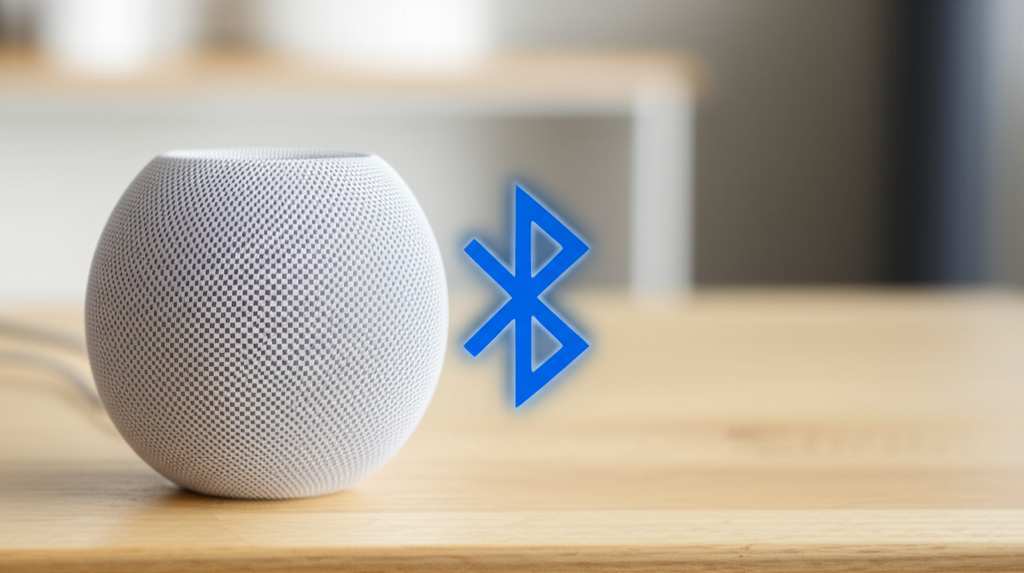
HomePod Mini: More Than Just a Smart Speaker
The HomePod mini is a pretty neat gadget. It’s not just a speaker; it’s also your personal assistant, Siri. You can ask it to play music, set timers, tell you the weather, and even control your smart home devices. It’s designed to work seamlessly with Apple devices, which is where things get interesting regarding how it connects to your phone.
When people ask if they can use their HomePod mini as a Bluetooth speaker, they’re usually thinking about that classic Bluetooth pairing. You know, where you go into your phone’s Bluetooth settings, find the device, and tap to connect. It’s a familiar process for many speakers and headphones.
While the HomePod mini does have Bluetooth technology inside, it’s not used in the same way you might expect for direct audio streaming from just any device. Apple designed it to work primarily through its own ecosystem using Wi-Fi. But don’t let that stop you! There are super simple ways to get your audio onto that little speaker.
The “Bluetooth” Connection: It’s All About Wi-Fi and AirPlay
Here’s the amazing answer: while you can’t pair your HomePod mini directly to your iPhone or iPad using the traditional Bluetooth menu like you would with most other speakers, you absolutely can use it to play audio from your Apple devices. The magic happens through Wi-Fi and Apple’s AirPlay technology.
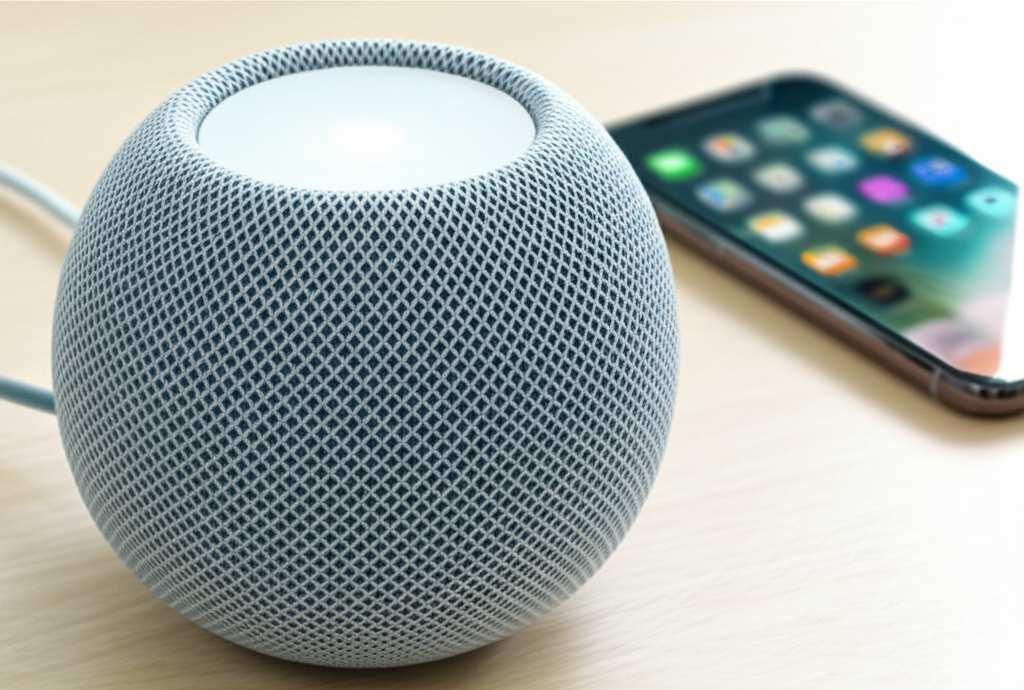
Think of AirPlay as Apple’s super-smart way of sending audio and video wirelessly over your home Wi-Fi network. It’s designed for high-quality streaming and works beautifully between your Apple devices and accessories like the HomePod mini. It’s actually often better than Bluetooth for sound quality and convenience when you’re within your home network.
So, instead of a Bluetooth handshake, your devices talk to each other through your Wi-Fi. This allows for a more robust connection, meaning less dropouts and better sound. It’s all about making things easy and seamless for Apple users.
How to Stream Audio to Your HomePod Mini
Getting your audio from your iPhone, iPad, or Mac to your HomePod mini is a breeze once you know how. Since we’re not using the typical Bluetooth pairing, the steps are a little different, but they are incredibly straightforward. Let’s walk through it.
Method 1: Using AirPlay from Your iPhone or iPad
This is the most common and easiest way to send music, podcasts, or any audio to your HomePod mini. AirPlay is built right into the apps you use every day.
-
Make sure you’re on the same Wi-Fi network. This is super important! Your iPhone/iPad and your HomePod mini need to be connected to the exact same Wi-Fi network for AirPlay to work. You can check your Wi-Fi settings on your device.
-
Open the app with your audio. This could be Apple Music, Spotify, Podcasts, YouTube, or any other app that plays sound. Start playing the song or podcast you want to listen to.
-
Look for the AirPlay icon. While the audio is playing, you’ll see a small icon that looks like a triangle with a circle above it. It might be in the playback controls, or you might need to tap on the screen to reveal it.
-
Tap the AirPlay icon. A menu will pop up showing different places you can send your audio. You should see your HomePod mini listed there, usually by its name (like “Living Room HomePod” or whatever you named it).
-
Select your HomePod mini. Tap on the name of your HomePod mini. That’s it! The audio will immediately stop playing from your phone’s speaker and start coming out of your HomePod mini.
The cool part is that AirPlay isn’t just for music. You can stream almost any audio this way. If you’re watching a video on your iPad and want bigger sound, just AirPlay it to your HomePod mini! It’s like casting a spell for better audio.
Method 2: Using Siri Commands
Your HomePod mini is a smart speaker, so why not use Siri? You can ask Siri directly to play music, and it will use your Apple Music subscription or radio stations.
-
Activate Siri. Say “Hey Siri” or press and hold the top of the HomePod mini. You can also activate Siri on your iPhone or iPad.
-
Make your request. You can say things like:
- “Hey Siri, play some jazz music.”
- “Hey Siri, play the latest episode of the ‘This American Life’ podcast.”
- “Hey Siri, play my ‘Workout Mix’ playlist.”
-
Enjoy the sound. Siri will confirm your request and start playing the audio directly through the HomePod mini.
This method is fantastic for hands-free control. If your hands are full or you’re across the room, a simple voice command is all you need. It’s like having a personal DJ who always knows what you want.
Method 3: Using Your Mac
Your Mac can also send audio to your HomePod mini using AirPlay. This is great for listening to music or podcasts from your computer.
-
Ensure Wi-Fi is connected. Just like with your iPhone, your Mac and HomePod mini must be on the same Wi-Fi network.
-
Open your audio app. Use Apple Music, Spotify, or any other app on your Mac that plays sound.
-
Find the AirPlay option. In the app’s playback controls, you’ll often see an AirPlay icon or an option to select an audio output device.
-
Select your HomePod mini. Choose your HomePod mini from the list of available devices. Your Mac’s audio will then stream to it.
For example, in Apple Music on your Mac, you can click the AirPlay icon in the playback bar and select your HomePod mini. It’s a super smooth transition for enjoying your tunes.
HomePod Mini vs. Traditional Bluetooth Speakers
It’s helpful to understand the differences between how the HomePod mini works and how a typical Bluetooth speaker operates. Each has its own advantages!
| Feature | HomePod Mini (via AirPlay) | Traditional Bluetooth Speaker |
|---|---|---|
| Connection Type | Wi-Fi (AirPlay) | Bluetooth |
| Initial Setup | Requires Wi-Fi and Apple ID | Simple Bluetooth pairing |
| Range | Limited by Wi-Fi network | Typically 30-100 feet (10-30 meters) |
| Audio Quality | Often higher, lossless streaming possible | Can be good, but sometimes compressed |
| Multi-Device Streaming | Can stream from multiple Apple devices to one speaker | Usually streams from one device at a time |
| Smart Features | Integrated Siri, smart home control | Limited or no smart features |
| Device Compatibility | Primarily Apple devices | Wide compatibility (iOS, Android, Windows) |
As you can see, the HomePod mini shines when you’re already in the Apple ecosystem. The Wi-Fi connection means you can often walk around your house and the audio will keep playing, as long as your Wi-Fi signal is strong. Plus, the smart features are a huge bonus!
Traditional Bluetooth speakers are great for their universal compatibility. If you have a mix of devices, or if you need a speaker to take outside where Wi-Fi might not be available, Bluetooth is usually the go-to. But for crystal-clear sound and smart convenience at home, the HomePod mini via AirPlay is a winner.
Why the “No Direct Bluetooth” Approach?
You might be wondering why Apple chose this path. It really comes down to their focus on quality and seamless integration within their own product family. AirPlay uses your Wi-Fi network, which is generally faster and more stable than Bluetooth for streaming high-quality audio over longer distances within your home.
It also allows the HomePod mini to do more. Because it’s always connected to your Wi-Fi, it can receive instructions from Siri, stream music directly from Apple Music without needing your phone to stay connected (once a song is playing), and act as a hub for your smart home. Bluetooth alone wouldn’t offer these advanced capabilities.
Think of it like this: Bluetooth is like a short-range walkie-talkie for simple messages. AirPlay is like a high-speed fiber optic cable for rich, detailed data. Both are useful, but for premium audio and smarts, Apple opted for the fiber optic.
Setting Up Your HomePod Mini for the First Time
If you haven’t set up your HomePod mini yet, it’s super simple and will prepare it for AirPlay streaming. You’ll need an iPhone or iPad for this initial setup.
-
Plug in your HomePod mini. Find a good spot, plug it into the power adapter, and wait for the white swirling light to appear.
-
Bring your iPhone or iPad near. Unlock your device and bring it close to the HomePod mini. A setup screen should pop up automatically.
-
Follow the on-screen prompts. Tap “Set Up.” You’ll be asked to choose a room for the HomePod mini, agree to terms, and transfer your Wi-Fi settings. You’ll also need to sign in with your Apple ID.
-
Personal requests. You can choose whether to enable “Personal Requests,” which allows Siri to access your messages, calendars, and more. This is what lets you ask for specific playlists or information.
-
All done! Once setup is complete, your HomePod mini will be ready to go. You can then use AirPlay from any of your Apple devices on the same Wi-Fi network.
This initial setup ensures your HomePod mini is connected to your network and linked to your Apple ID, which is crucial for all its smart features and AirPlay functionality. It’s a quick process that unlocks a world of sound.
Can I Use HomePod Mini with Non-Apple Devices?
This is a question that comes up a lot, especially if you have Android phones or Windows laptops. Since HomePod mini relies on AirPlay, direct streaming from non-Apple devices is generally not possible. AirPlay is an Apple-proprietary technology.
However, there are a few workarounds, though they aren’t as seamless:
-
Use a Mac. If you have a Mac, you can use it to play audio and AirPlay it to your HomePod mini, even if your primary device is Android. You could potentially stream audio from your Android device to your Mac and then AirPlay it from the Mac.
-
Third-party apps (with caution). Some third-party apps claim to enable AirPlay on Windows or Android. These can be hit-or-miss, sometimes unreliable, and might involve extra steps or costs. It’s often not worth the hassle compared to using a dedicated Bluetooth speaker for non-Apple devices.
-
HomeKit compatibility. If you’re using a smart home app on Android that supports HomeKit accessories, you might be able to control music playback on the HomePod mini, but not necessarily stream audio to it directly from the Android device.
For the best and easiest experience, the HomePod mini is designed for use with iPhones, iPads, and Macs. If you need a speaker for your Android phone, a dedicated Bluetooth speaker might be a simpler choice.
Tips for Getting the Best Sound from Your HomePod Mini
Your HomePod mini is small, but it can pack a punch! Here are a few tips to make sure you’re getting the best possible audio experience:
-
Placement matters. Try placing your HomePod mini on a flat, stable surface. Avoid corners or shelves that might make the bass sound boomy or muffled. About halfway up a bookshelf or on a counter often works well.
-
Keep it clean. Dust can affect sound quality. Gently wipe the mesh grille with a dry, soft cloth occasionally.
-
Use stereo pairing. If you have two HomePod minis, you can pair them in stereo for an incredible, immersive sound experience. This makes music sound so much richer and more spacious.
-
Update your software. Apple regularly releases software updates for HomePod. Make sure your devices are up-to-date for the best performance and any new features.
-
Experiment with EQ. While the HomePod mini doesn’t have a traditional EQ setting, some music apps allow you to adjust the EQ. This can subtly change the sound to your preference.
It’s amazing how much sound can come out of such a compact device. With a little attention to placement and software, you can really optimize its performance.
Fun Fact: The Power of Wi-Fi Audio
Did you know that AirPlay 2, which the HomePod mini uses, can stream audio to multiple AirPlay 2-compatible speakers simultaneously? This means you could have music playing in your living room, kitchen, and bedroom all at the same time, all synced up, just by selecting multiple speakers in the AirPlay menu. It’s a feature that Bluetooth just can’t replicate so easily!
Troubleshooting Common Issues
Even the best tech can sometimes be a little quirky. If you’re having trouble getting your HomePod mini to play audio, here are a few quick things to check:
-
Check your Wi-Fi. Is your iPhone/iPad/Mac connected to the exact same Wi-Fi network as your HomePod mini? This is the most common culprit.
-
Restart your devices. Sometimes a simple restart of your HomePod mini, your iPhone/iPad, and your router can fix connection issues.
-
Check AirPlay availability. Make sure your app is actually AirPlay compatible and that the AirPlay icon is appearing. Some older apps or specific types of audio might not support it.
-
Is your HomePod mini busy? If Siri is currently playing something or a system update is running, it might not be available for AirPlay. Wait a moment and try again.
-
Update your iOS/macOS. Ensure your Apple devices are running the latest software, as this often includes bug fixes for AirPlay and HomePod connectivity.
Most of the time, a quick check of your Wi-Fi or a simple restart will get things back on track. For more in-depth help, Apple’s support pages are a great resource, like this guide on using AirPlay 2.
Frequently Asked Questions (FAQ)
Can I connect my HomePod mini to my TV?
Not directly via Bluetooth or AirPlay in the way you might connect a soundbar. However, you can AirPlay audio from an Apple TV to your HomePod mini. If your TV has an Apple TV box connected, you can send the TV’s audio to your HomePod mini.
Will my Android phone work with HomePod mini?
Unfortunately, you cannot stream audio directly from an Android phone to a HomePod mini using Bluetooth or AirPlay, as these technologies are primarily for Apple devices. You would need a dedicated Bluetooth speaker for your Android phone.
Is HomePod mini audio quality good?
Yes, for its size, the HomePod mini offers impressive audio quality with clear highs and surprisingly good bass. When paired in stereo, the sound is even more immersive and rich. It’s definitely a step up from your phone’s built-in speaker.
Do I need an Apple Music subscription to use HomePod mini?
No, you don’t necessarily need an Apple Music subscription. You can stream music from other services like Spotify or Pandora via AirPlay from your iPhone or iPad. You can also listen to internet radio stations directly through Siri commands on the HomePod mini.
How far can AirPlay reach?
AirPlay uses your Wi-Fi network, so its range is generally as far as your Wi-Fi signal reaches within your home. This is typically much further than Bluetooth, allowing you to move around your house while still streaming audio.
Can I use my HomePod mini as a speakerphone?
You can ask Siri to make phone calls, and the audio will come through the HomePod mini. However, it doesn’t have a microphone array designed for speakerphone use in the same way a dedicated speakerphone does, so the person on the other end might not hear you as clearly if you’re far away.
What if I want to connect a non-Apple device via Bluetooth?
If you need a speaker that uses standard Bluetooth for easy connection with all your devices, including Android phones and Windows laptops, you might want to consider a dedicated Bluetooth speaker. There are many fantastic options available from brands like Bose, JBL, and Sony that offer universal compatibility.
The Amazing Answer: Your HomePod Mini Rocks!
So, to wrap it all up: can you use your HomePod mini as a Bluetooth speaker? The short answer is no, not in the traditional Bluetooth pairing sense. But the even more amazing answer is that you can use it to play all your favorite audio wirelessly from your Apple devices, and it’s incredibly easy and often provides a better experience thanks to AirPlay and Wi-Fi.
You’ve learned how AirPlay works, how to stream from your iPhone, iPad, and Mac, and even how to use Siri to control your music. You also know the difference between AirPlay and Bluetooth, and why the HomePod mini’s approach is so powerful within the Apple ecosystem.
Don’t let the lack of direct Bluetooth pairing hold you back. Your HomePod mini is a fantastic little speaker that’s ready to fill your home with sound. Just connect via Wi-Fi using AirPlay, and you’re good to go. Now go enjoy amazing sound and make every moment louder and better!
Related posts:
 Best Smart Speaker for Siri: Top Picks for Seamless Integration
 How Do Google Assistant Speakers Compare to Siri-Based Speakers? The Ultimate Showdown
 What is the Difference between Alexa, Google Assistant, And Siri for Home Automation? Key Insights
 Which Smart Speaker Has the Best Bass And Sound Quality? Top Picks