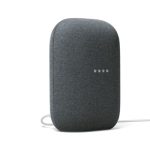
Quick Summary: Connecting your Google Home Mini as a Bluetooth speaker is super easy! Just open your Google Home app, tap your Mini’s settings, go to “Device Settings,” then “Audio,” and finally “Paired Bluetooth devices.” Tap “Enable pairing mode” and select your Mini from your phone’s Bluetooth list. Boom! Instant awesome sound.
Hey there, tech friends! It’s Max here from AffTechy.com, ready to dive into something super cool that can seriously upgrade your listening experience. We all love our smart speakers, right? They can play our favorite tunes, tell us the weather, and even control our lights. But sometimes, you just want to blast your personal playlist from your phone without juggling different apps.
That’s where the magic of Bluetooth comes in! Imagine your little Google Home Mini suddenly becoming the star player for all the music on your phone. It’s like giving your speaker a superpower upgrade, and it’s way simpler than you might think. No need to get tangled in complicated tech jargon; I’ll walk you through it step-by-step, with plenty of friendly tips along the way.
We’re going to turn your Google Home Mini into a fantastic Bluetooth speaker, making your music, podcasts, and audiobooks sound absolutely amazing. Ready to make some noise? Let’s get this party started!
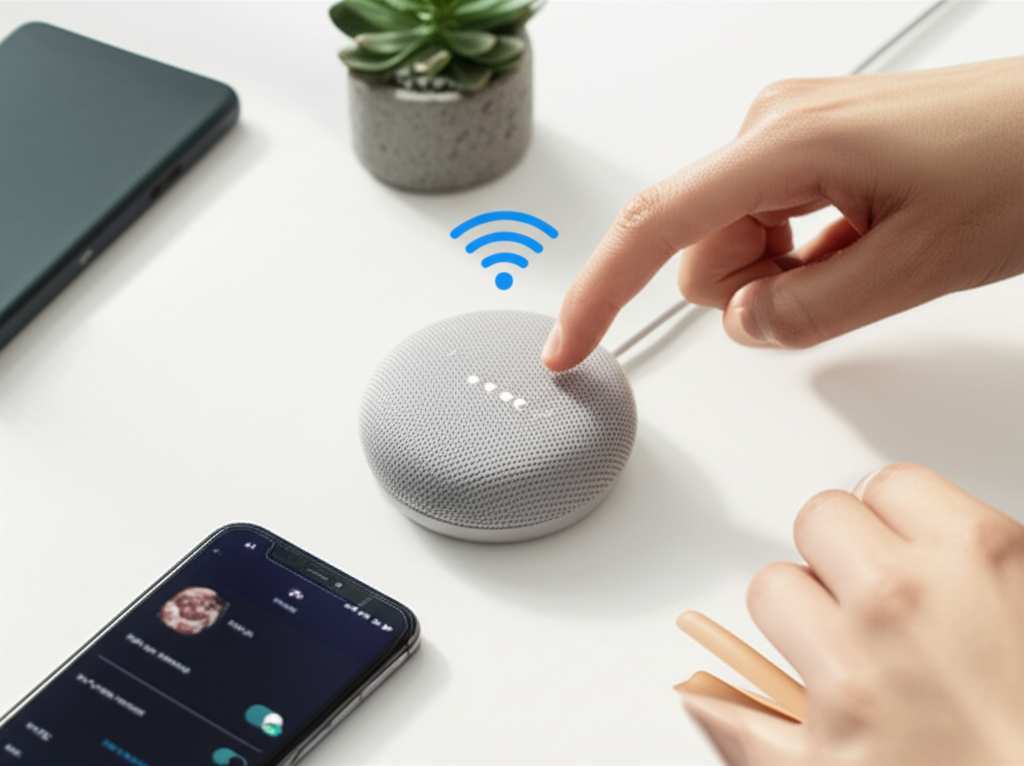
Your Google Home Mini: More Than Just a Smart Assistant
So, you’ve got this neat little Google Home Mini sitting pretty in your room. It answers your questions, sets your timers, and plays music from your favorite streaming services when you ask nicely. But did you know it can also be a killer Bluetooth speaker? It’s true! This means you can send audio directly from your smartphone, tablet, or even your laptop to your Mini.
Think about those moments when you just want to hear that specific song from your personal collection or a podcast that isn’t on Spotify or YouTube Music. Instead of fiddling with connecting your phone to other speakers, your Google Home Mini can step in and save the day with awesome sound quality. It’s like having your cake and eating it too – keeping its smart features while gaining a direct connection to your device’s audio.
Turning your Google Home Mini into a Bluetooth speaker is a game-changer for easy listening. It’s all about making your tech work smarter and simpler for you. And guess what? It’s a breeze to set up. Let’s find out exactly how to do it!
How to Connect Google Home Mini as a Bluetooth Speaker: The Easy Way
Alright, let’s get down to business! Connecting your Google Home Mini as a Bluetooth speaker is surprisingly straightforward. The magic happens through the Google Home app on your smartphone or tablet. So, make sure you’ve got that app installed and that your Google Home Mini is already set up and connected to your Wi-Fi network. If that part is new to you, no worries! You can find a super simple guide to setting up your Google Home Mini on the TechRadar website.
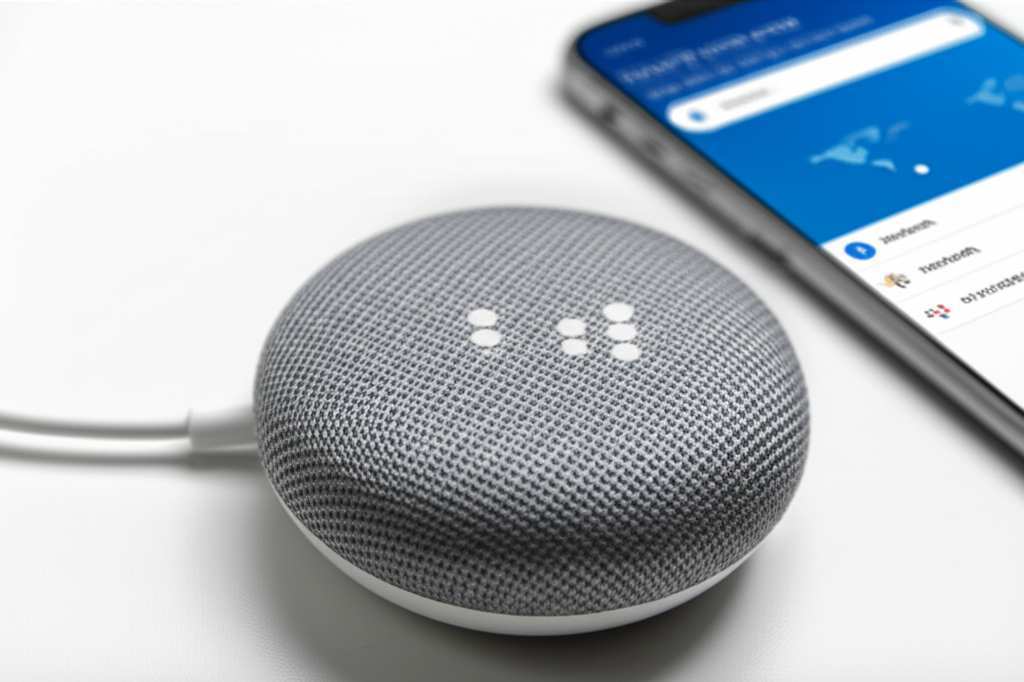
Once your Mini is all set up and online, grab your phone or tablet. Open the Google Home app. You’ll see a list of your smart devices. Find your Google Home Mini in that list. Tap on its name. This will take you to the device’s control screen. Now, look for the gear icon – that’s usually in the top right corner. Tap that gear icon to get into your Mini’s settings.
Unlocking Your Mini’s Bluetooth Superpower
Inside those settings, you’ll find all sorts of options, but we’re looking for something specific: “Audio.” Tap on “Audio.” Now you’re getting closer! You should see an option that says “Paired Bluetooth devices” or something very similar. This is our destination, folks! Tap on “Paired Bluetooth devices.”
You’ll likely see a list of any devices already paired, or a message saying there are none if this is your first time. To connect a new device, there’s a button you need to press. It’ll say something like “Enable pairing mode” or “Pair Bluetooth device.” Tap that. Your Google Home Mini will now be discoverable by other Bluetooth devices. It’s like it’s saying, “Hey, I’m ready to connect!”
Making the Connection: Linking Your Phone
Now, switch over to your smartphone or tablet. Go to your device’s Bluetooth settings. You know, the place where you connect to headphones or your car? Turn on your Bluetooth if it isn’t already. Your phone will start scanning for nearby Bluetooth devices.
In a moment, you should see your Google Home Mini’s name appear in the list of available devices. It might show up as “Google Home Mini,” or its specific name if you’ve changed it, like “Max’s Mini.” Tap on its name. Your phone will attempt to connect to the Mini. You might hear a little chime or a confirmation sound from your Google Home Mini, letting you know that the connection is successful!
And that’s it! Your Google Home Mini is now acting as a Bluetooth speaker. You can go back to your music app, select any song or podcast, and it will play through your Mini. How cool is that?
Playing Your Tunes: What to Expect
See? Connecting your Google Home Mini as a Bluetooth speaker is a piece of cake. Now that your devices are paired, you can enjoy your music in a whole new way. It’s perfect for when you want to easily share your favorite playlist with friends or just enjoy richer sound for your audio content.
When you play audio from your phone, it will stream directly to your Google Home Mini. This means you can control the volume from your phone, just like you would with any other Bluetooth speaker. You can also pause, play, and skip tracks from your phone’s media controls. It’s super intuitive and keeps everything in your control.
One thing to remember is that once your Mini is in Bluetooth mode, it might not be able to listen for your “Hey Google” commands as readily for a short period, or its primary function switches to audio playback. But don’t worry, it’s temporary. Once you disconnect Bluetooth or the connection times out, it’ll go back to being your fully functional smart assistant. It’s a flexible little device!
Keeping Things Connected: Tips and Tricks
To make your Google Home Mini Bluetooth experience as smooth as can be, here are a few handy tips:
- Keep Your Software Updated: Always ensure both your Google Home app and your Google Home Mini’s firmware are up to date. Google rolls out updates that can improve performance and fix any glitches. You can easily check for updates within the Google Home app.
- Distance Matters: Bluetooth has a limited range, typically around 30 feet (10 meters). For the best audio quality and to avoid dropouts, try to keep your phone or tablet relatively close to your Google Home Mini. Walls and other electronic devices can sometimes interfere with the signal.
- Disconnect When Done: When you’re finished using your Mini as a Bluetooth speaker, it’s a good idea to disconnect your phone from it. You can do this directly from your phone’s Bluetooth settings. This frees up your Mini to listen for your voice commands and makes it ready for other devices to pair.
- Multiple Devices: Your Google Home Mini can remember multiple paired devices. However, it can only actively play audio from one device at a time. If you want to connect a different phone or tablet, you’ll need to initiate pairing mode again.
- Troubleshooting Playback: If you experience choppy audio or connection issues, try forgetting the device in your phone’s Bluetooth settings and then re-pairing it. Sometimes, simply restarting your Google Home Mini and your phone can solve minor problems.
Google Home Mini vs. Dedicated Bluetooth Speakers: A Quick Comparison
You might be wondering, “How does my Google Home Mini stack up against a purpose-built Bluetooth speaker?” That’s a great question! Your Mini is a fantastic all-rounder, but dedicated speakers often have different strengths. Let’s take a peek at how they compare.
While the Google Home Mini offers the convenience of dual functionality – smart assistant and Bluetooth speaker – its primary design isn’t solely for audio fidelity. Dedicated Bluetooth speakers, on the other hand, are engineered with sound quality as a top priority. This means they often boast richer bass, clearer mids, and crisper highs.
Portability is another big difference. Most dedicated Bluetooth speakers are designed to be taken anywhere, with long battery lives and rugged builds. Your Google Home Mini, of course, needs to be plugged into a power outlet. So, if you’re looking for a speaker to take to the beach or on a camping trip, you’d likely need a dedicated portable Bluetooth speaker.
However, for casual listening at home, filling a room with music from your phone, or enjoying podcasts while you’re doing chores, the Google Home Mini is an excellent and convenient option. It leverages the technology you already have, saving you money and space!
| Feature | Google Home Mini (as Bluetooth Speaker) | Dedicated Portable Bluetooth Speaker (Example) |
|---|---|---|
| Primary Function | Smart Assistant with Bluetooth playback | High-quality Audio Playback |
| Sound Quality | Good for casual listening, clear voice | Often richer bass, wider soundstage, clearer highs |
| Portability/Power | Requires AC power outlet | Built-in rechargeable battery, portable |
| Connectivity | Bluetooth, Wi-Fi (for assistant features) | Bluetooth, sometimes Wi-Fi or NFC |
| Setup Simplicity | Very easy via Google Home app | Usually simple Bluetooth pairing |
| Smart Assistant | Yes | No |
| Use Case | Home listening, background music, convenience | Outdoor use, parties, travel, immersive music experience |
As you can see, the Google Home Mini shines for its versatility and ease of use within your smart home setup. If top-tier audio or rugged portability is your main goal, a dedicated Bluetooth speaker might be your best bet. But for everyday convenience and upgrading your phone’s audio, the Mini is a champion!
Frequently Asked Questions (FAQs)
Q1: Will my Google Home Mini always be listening for “Hey Google” when it’s connected via Bluetooth?
Yes, generally! When paired via Bluetooth, your Google Home Mini still functions as a smart assistant. You can usually still say “Hey Google” to ask questions, get updates, or control other smart devices, even while audio is playing from your phone. It’s designed to handle both tasks.
Q2: Can I connect my computer to my Google Home Mini using Bluetooth?
Absolutely! The process is the same. Just enable pairing mode on your Google Home Mini via the app, and then go to your computer’s Bluetooth settings to find and connect to your Mini. It’s a great way to get better sound for your video calls or movies.
Q3: What happens if I have multiple Google Home devices? Can I connect them all as Bluetooth speakers?
You can connect multiple Google Home devices individually to your phone via Bluetooth, one at a time. However, you cannot create a speaker group to play audio simultaneously from your phone across multiple Google Home Minis via Bluetooth like you can with casting. Each Mini will need to be paired separately from your phone’s Bluetooth menu.
Q4: How do I disconnect my phone from the Google Home Mini?
The easiest way is to go to your phone’s Bluetooth settings. Find your Google Home Mini in the list of connected devices and tap “Disconnect” or “Unpair.” Your Mini will then revert to its primary smart assistant functions.
Q5: Does connecting via Bluetooth affect the sound quality compared to asking Google to play music?
It can be different, but not necessarily worse! When you ask Google to play music, it streams directly over Wi-Fi from the internet, often in higher quality. When you use Bluetooth from your phone, the quality is dependent on the Bluetooth connection and the audio quality of the files on your phone. For most people, the sound quality is excellent for everyday listening.
Q6: My Google Home Mini isn’t showing up in my phone’s Bluetooth list. What should I do?
First, make sure you’ve enabled pairing mode in the Google Home app for your Mini. Also, ensure your phone’s Bluetooth is on and that you’re within range. Try restarting both your phone and your Google Home Mini. If problems persist, try forgetting the device in your phone’s Bluetooth settings and then re-pairing it from scratch.
Q7: Can I use my Google Home Mini as a Bluetooth speaker for my TV?
While you can pair your TV to your Google Home Mini via Bluetooth if your TV has that capability, it’s not typically recommended for watching video. Bluetooth connections can sometimes have a slight delay, or latency, which can cause the audio to be out of sync with the video. This is usually fine for music but can be distracting for movies or TV shows.
Wrapping It Up: Enjoy Your Awesome New Sound!
There you have it! You’ve officially unlocked a fantastic new way to enjoy your audio with your Google Home Mini. Connecting it as a Bluetooth speaker is super simple, and it really opens up a world of possibilities for how you listen to music, podcasts, and more.
No more being limited to just what Google Assistant knows or what’s on your streaming services! Now, all the great audio from your phone, tablet, or computer can effortlessly beam through your Google Home Mini, filling your room with sound. It’s a brilliant way to get more out of the tech you already own, making your daily listening sessions even better.
So go ahead, try it out! Pair your devices, crank up your favorite playlist, and enjoy that audio upgrade. Tech is all about making life more fun and easier, and this little trick is a perfect example of that. Happy listening, and may your sound always be awesome!