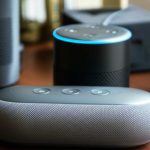
Connecting your Alexa to a Bluetooth speaker is super simple! Just a few quick steps and you’ll be blasting your favorite tunes or enjoying clearer audio for your shows. No tech wizardry needed, just follow along, and you’ll have great sound in no time.
Hey there, tech explorers! Max here from AffTechy.com, ready to dive into something that makes our gadgets sing. You know how awesome it is to have music fill a room, or to really hear what’s happening in that movie? A good speaker makes all the difference. Sometimes, the speaker built into our smart devices is okay, but what if you have a fantastic Bluetooth speaker just sitting there, waiting to be unleashed? It can feel a bit like having a super-powered voice assistant with a quiet whisper. We want that booming sound, right?
I get it. Sometimes, connecting devices can feel like trying to solve a puzzle in the dark. You see all the buttons, hear all the jargon, and wonder, “Is this going to be complicated?” But here’s the secret: it doesn’t have to be. Connecting your Alexa to a Bluetooth speaker is actually one of those tech wins that feels really satisfying. It’s about taking what you already have and making it even better. Think of it like giving your Alexa a megaphone for all its amazing skills.
We’re going to break down exactly how to do this, step by step. You’ll be streaming your playlists or getting clearer audio for your podcasts before you know it. No confusing tech talk, just plain English and easy instructions. Ready to boost your sound game? Let’s dive in!

Let’s Talk About Sound: Why Connect Alexa to a Bluetooth Speaker?
Imagine this: You’re chilling at home, maybe cooking dinner or getting ready for a party. You ask Alexa to play your favorite playlist. The sound comes out, but it’s a little… tinny. Or maybe you’re watching a show through your Echo device, and you miss some of the dialogue because the built-in speaker isn’t quite cutting it. This is where your trusty Bluetooth speaker swoops in like a superhero!
Connecting your Alexa-enabled device (like an Echo Dot, Echo Show, or even the Alexa app on your phone) to a separate Bluetooth speaker is all about upgrading your audio experience. It’s like giving your Alexa a direct line to a concert hall. You get richer bass, clearer highs, and just an overall more immersive sound. Plus, it’s a fantastic way to give a new life to those awesome Bluetooth speakers you might already own.
Think about the possibilities: a dance party in your living room with booming bass, crystal-clear audio for your audiobooks while you’re doing chores, or making movie nights on your tablet feel more cinematic. It’s about making your tech work harder and sound better for you. And the best part? It’s usually a pretty straightforward process.
What You’ll Need for This Audio Adventure
Before we start, let’s make sure you have everything ready. It’s a short list, so don’t worry!

Your Alexa-enabled Device: This could be any Echo speaker (Echo Dot, Echo, Echo Show, etc.) or even the Alexa app on your smartphone or tablet.
Your Bluetooth Speaker: Make sure it’s charged up and ready to go.
Your Wi-Fi Network: Both your Alexa device and your phone (if using the Alexa app) will need to be connected to your home Wi-Fi.
The Alexa App: You’ll use this on your smartphone or tablet to do most of the connecting. If you don’t have it yet, grab it from your device’s app store (Apple App Store or Google Play Store).
That’s it! See? No complicated gadgets or mysterious cables needed. We’re going to use your existing devices to create a super-powered sound system.
Step-by-Step: Connecting Alexa to Your Bluetooth Speaker
Okay, ready to make some noise? We’ll go through this together, nice and easy. The process is very similar whether you’re using an Echo speaker or the Alexa app.
Method 1: Using the Alexa App (The Most Common Way!)
This is usually the smoothest way to get your Alexa device paired with a Bluetooth speaker.
-
Put your Bluetooth speaker in pairing mode. This is super important! Every speaker is a little different, but usually, you’ll find a button with a Bluetooth symbol (it looks like a stylized ‘B’) or one labeled ‘Pairing’. Press and hold it for a few seconds until you hear a sound or see a light blinking. This tells the speaker it’s ready to connect to something new.
Pro Tip: Check your speaker’s manual if you’re not sure how to put it into pairing mode. It’s usually quick to find!
-
Open the Alexa App. Make sure you’re logged into your Amazon account on your smartphone or tablet.
-
Tap ‘Devices’. You’ll see this icon usually at the bottom of the screen. It looks like a little house with devices in it.
-
Select your Alexa Device. You’ll see a list of all your Alexa-enabled devices. Tap on the specific Echo speaker you want to connect to your Bluetooth speaker (e.g., “Living Room Echo Dot”).
-
Scroll down to ‘Bluetooth Connections’. You’ll find this section within your device’s settings. Tap on it.
-
Tap ‘Pair a New Device’. The Alexa app will now start searching for nearby Bluetooth devices that are in pairing mode.
-
Select your Bluetooth speaker from the list. Once Alexa finds your speaker, its name will pop up. Tap on it to connect. You might hear a confirmation sound from both your Alexa device and the Bluetooth speaker saying they are connected.
-
Test it out! Ask Alexa to play some music. “Alexa, play some jazz.” The sound should now come from your Bluetooth speaker!
And voilà! You’ve successfully connected your Alexa to your Bluetooth speaker. Easy peasy, right?
Method 2: Connecting Directly Through Your Echo Device (Voice Command!)
Some newer Echo devices allow you to initiate pairing directly with a voice command. It’s a bit more hands-free!
-
Put your Bluetooth speaker in pairing mode. Just like in Method 1, make sure your speaker is ready to connect. Press and hold that pairing button until you see a blinking light or hear a chime.
-
Say the magic words. To your Alexa device, say: “Alexa, pair Bluetooth.”
-
Listen for instructions. Alexa will likely respond by saying it’s searching for devices. She might also tell you to put your speaker in pairing mode if you haven’t already.
-
Wait for confirmation. Alexa will tell you when she’s found your speaker and is attempting to connect. Once connected, she’ll usually say something like, “ is now connected.”
-
Play some tunes! Try asking Alexa to play a song. “Alexa, play my workout playlist.” The audio should stream through your Bluetooth speaker.
This voice command method is super cool for when you don’t want to grab your phone. It feels very futuristic!
Making Alexa Your Default Speaker
Now that you’re connected, you might want Alexa to automatically use your Bluetooth speaker for all its audio output. This saves you from having to specify it every time.
Using the Alexa App to Set a Default Speaker
-
Open the Alexa App on your smartphone or tablet.
-
Tap ‘Devices’.
-
Select your Echo Device that you connected the Bluetooth speaker to.
-
Tap on ‘Bluetooth Connections’.
-
Find your connected Bluetooth speaker. You should see it listed under ‘Connected Devices’.
-
Tap the gear icon (Settings) next to your Bluetooth speaker’s name.
-
Toggle the switch for ‘Default Speaker’ ON. This tells Alexa to use this speaker for all its audio by default.
Now, whenever you ask Alexa to play music, tell a joke, or give you information, the sound will come directly from your chosen Bluetooth speaker. How convenient is that?
Troubleshooting Common Connection Issues
Sometimes, things don’t go perfectly the first time. Don’t sweat it! Here are a few common hiccups and how to fix them, like a tech detective.
-
Alexa Can’t Find My Speaker:
- Make sure your Bluetooth speaker is still in pairing mode. Sometimes the mode times out after a few minutes.
- Turn your Bluetooth speaker off and then back on, and put it into pairing mode again.
- Move your Alexa device and your Bluetooth speaker closer together. Walls and distance can interfere.
- Restart your Alexa device. Unplug it, wait 10 seconds, and plug it back in.
- Restart your Bluetooth speaker.
-
Connection Keeps Dropping:
- Check for interference. Other Wi-Fi devices or even microwaves can sometimes disrupt Bluetooth signals.
- Ensure your speaker is charged. Low battery can sometimes cause unstable connections.
- If you’re using the Alexa app, make sure your phone’s Bluetooth is turned on and the app has permission to use it.
- Try “forgetting” the speaker on your Alexa device (by going to Bluetooth Connections in the app and tapping ‘Forget Device’) and then re-pairing it.
-
No Sound After Connecting:
- Check the volume on both your Alexa device and your Bluetooth speaker. Sometimes one can be turned down low.
- Make sure the correct speaker is selected as the default in the Alexa app if you want it to play all audio.
- Ask Alexa to play something simple like a song to test.
- Try disconnecting and reconnecting the Bluetooth speaker.
-
Alexa App Shows Speaker Connected, But No Sound:
- This is a tricky one! Sometimes, Alexa devices can get “stuck” thinking they are connected to a Bluetooth speaker when they aren’t truly sending audio. A simple restart of your Echo device usually fixes this. Unplug it, wait a bit, and plug it back in.
Remember, most connection problems are just temporary glitches. A quick restart or re-pairing usually does the trick.
A Quick Comparison: Echo Speakers vs. Bluetooth Speakers
It’s helpful to know what each type of speaker brings to the table. While an Echo speaker is smart and connected, a dedicated Bluetooth speaker often shines in pure audio quality.
| Feature | Typical Echo Speaker | Dedicated Bluetooth Speaker |
|---|---|---|
| Smart Assistant Capabilities | Yes (Alexa built-in) | No (unless it’s a smart Bluetooth speaker, which is rare) |
| Sound Quality | Good for voice, basic music | Often Superior, richer bass, clearer mids/highs |
| Portability | Requires Wi-Fi and power outlet | Often battery-powered, portable |
| Setup | Requires Wi-Fi, Amazon account | Simple Bluetooth pairing |
| Primary Use | Voice commands, smart home control, basic audio | High-quality audio playback from any Bluetooth device |
As you can see, they’re different tools for different jobs. When you connect your Echo to a Bluetooth speaker, you’re essentially getting the best of both worlds: the intelligence of Alexa combined with the superior sound of your Bluetooth speaker. It’s a winning combo!
Fun Facts About Bluetooth Technology
Did you know Bluetooth is named after a Viking king? Harald Bluetooth united the Danish tribes in the 10th century. The inventor of Bluetooth, Jim Kardach, thought this technology would unite different communication protocols, much like King Harald united the tribes. Pretty cool, right?
Bluetooth technology works by using short-wavelength UHF radio waves in the ISM band from 2.4 to 2.485 GHz. This allows devices to connect wirelessly over short distances, usually up to about 30 feet (10 meters), though some newer versions can go further. It’s a remarkably efficient way to share data without cables.
When to Consider a New Bluetooth Speaker
If you’re using an older Bluetooth speaker, you might notice some differences in connection speed or sound quality compared to newer models. Here’s a little table to give you an idea of what to look for.
| Feature | Older Models (e.g., pre-2018) | Modern Models (e.g., 2019+) |
|---|---|---|
| Bluetooth Version | Typically Bluetooth 4.0 or 4.1 | Often Bluetooth 5.0 or higher |
| Connection Stability | Can be less stable, more prone to drops | More robust, less prone to interference |
| Battery Life | Varies, often 6-10 hours | Can be 12-20+ hours, sometimes with quick charging |
| Sound Quality | Good, but may lack deep bass or clarity | Enhanced bass, richer audio profiles, sometimes multi-speaker pairing |
| Pairing Speed | Slightly slower | Faster, more seamless pairing |
If your current speaker feels a bit sluggish or the sound isn’t what you hoped for, upgrading to a newer Bluetooth 5.0 or higher speaker can make a big difference. For example, Bluetooth 5.0 offers double the speed and eight times the broadcasting message capacity of previous versions! For more insights into Bluetooth speaker technology, check out guides on sites like CNET’s Bluetooth speaker reviews.
Frequently Asked Questions (FAQ)
Got more questions swirling in your head? No worries, I’ve got you covered!
Q1: Do I need a specific type of Bluetooth speaker to connect to Alexa?
Nope! As long as your Bluetooth speaker is in pairing mode, your Alexa device should be able to find and connect to it. It doesn’t need to be a “smart” speaker, just a standard Bluetooth speaker.
Q2: Can I connect multiple Bluetooth speakers to one Alexa device?
Currently, most Alexa devices can only connect to one Bluetooth speaker at a time for audio playback. You can pair multiple speakers over time and switch between them, but only one can be actively connected for sound.
Q3: What happens to Alexa’s voice when it’s connected to a Bluetooth speaker?
When connected, Alexa’s voice prompts and any music or audio you request will play through the Bluetooth speaker. It’s like Alexa is using the speaker as its own voice.
Q4: How do I disconnect my Bluetooth speaker from Alexa?
You can disconnect in a few ways:
- Through the Alexa App: Go to Devices > Your Echo Device > Bluetooth Connections, tap your connected speaker, and select ‘Disconnect’.
- Via Voice Command: Say, “Alexa, disconnect Bluetooth.”
- Turn off your speaker: Simply turning off your Bluetooth speaker will also disconnect it.
Q5: Can I connect my phone’s Bluetooth speaker to my Echo device?
Yes, you can! If you have a Bluetooth speaker paired to your phone, you can also pair it with your Echo device. Just make sure the speaker is in pairing mode when you try to connect it via the Alexa app or voice command.
Q6: Will connecting to a Bluetooth speaker affect Alexa’s smart capabilities?
Not at all! Connecting a Bluetooth speaker only changes where Alexa’s audio output comes from. It doesn’t impact her ability to listen to your commands, control smart home devices, or access information.
Q7: My Bluetooth speaker is connected, but Alexa sounds muffled. What’s wrong?
This can sometimes happen if the Bluetooth connection isn’t crystal clear. Try moving the devices closer together, ensuring there aren’t too many other wireless devices nearby, or restarting both your Alexa device and the Bluetooth speaker. Also, check the volume levels on both!
Wrapping Up Our Sound Journey
There you have it! Connecting your Alexa to a Bluetooth speaker is a fantastic way to boost your audio experience without a lot of fuss. You’ve learned how to pair, set defaults, and even troubleshoot common issues. It’s all about making your tech work for you and sound amazing.
Now you can enjoy richer music, clearer podcasts, and more immersive audio for your movies and shows. Don’t be afraid to experiment with different speakers if you have them, or consider an upgrade if you’re looking for that extra audio punch. You’ve got the knowledge, so go make some incredible sound happen! Now go enjoy amazing sound and make every moment louder and better!