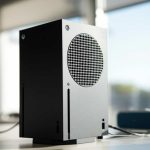
Quick Summary:
Connecting a Bluetooth speaker to your Xbox Series S is super easy! Just plug in a USB Bluetooth adapter to your Xbox, turn on your speaker, and pair. You’ll be enjoying awesome sound in minutes!
Hey Gadget Fans! Max Here from AffTechy.com
You know, sometimes the best gaming moments happen when everything just clicks, right? Like when the sound effects in your favorite game make you feel like you’re actually there. But then you realize your TV speakers are just… okay. That’s where a great Bluetooth speaker comes in, ready to make your gaming sessions go from good to absolutely amazing!
I get it, though. Tech can sometimes feel like a puzzle with too many pieces. You just want to hook up your cool new speaker to your Xbox Series S and enjoy that booming bass or crisp dialogue, but figuring out how can be a whole adventure in itself. Don’t worry, that’s exactly why I’m here!
Think of me as your friendly tech buddy. We’ll break down how to get your Xbox Series S and your Bluetooth speaker singing together in perfect harmony. No confusing jargon, just simple steps that’ll have you sorted in no time at all. Ready to level up your audio game? Let’s dive in!

Why You Might Want a Bluetooth Speaker for Your Xbox Series S
So, why bother with a Bluetooth speaker when your Xbox Series S already has sound? Well, imagine this: you’re playing a game, and the tiniest footsteps or the distant roar of a dragon suddenly become super clear and powerful. That’s the magic a good external speaker brings!
It’s not just about volume, either. Many Bluetooth speakers offer a richer, more immersive sound experience than your TV’s built-in speakers. This means explosions feel bigger, music in-game sounds richer, and dialogue is clearer. Plus, it’s a great way to get that theater-like feel without a full surround sound system.
One of the biggest perks? Freedom! With wireless Bluetooth, you can place your speaker anywhere you get the best sound, not tethered by annoying cables. For solo gaming sessions or movie nights, it’s a total game-changer for atmosphere!
The Big Question: Can My Xbox Series S Connect Directly to Bluetooth Speakers?
This is where things get a little tricky, and it’s a question I hear a lot. So, here’s the straight answer from your tech buddy: Unfortunately, the Xbox Series S (and Series X, for that matter) doesn’t have built-in Bluetooth audio output support for speakers or headphones. Bummer, I know!

This means you can’t just go into your Xbox settings, find your Bluetooth speaker, and pair it up like you would with your phone or laptop. The Xbox is designed to work with wired headsets and its own proprietary wireless controllers and headsets that use a different kind of wireless connection.
But don’t pack up your speaker just yet! There’s a super common and super effective workaround that makes this whole process a piece of cake. We just need one little extra piece of tech. Ready for the easy fix?
The Secret Weapon: USB Bluetooth Adapters!
Okay, so since the Xbox Series S doesn’t play nice directly with Bluetooth audio devices, we need a little helper. This helper comes in the form of a USB Bluetooth adapter, also often called a Bluetooth transmitter or dongle. These tiny gadgets plug right into one of your Xbox’s USB ports.
Here’s how it works: The USB adapter takes the audio signal from your Xbox and broadcasts it using Bluetooth. Your Bluetooth speaker then picks up this signal, just like it would from your phone. It’s like giving your Xbox the ability to speak Bluetooth!
These adapters are pretty affordable and widely available. You can find them online from tons of retailers or at your local electronics store. Just make sure you grab one that’s specifically designed for audio transmission, and you’re golden!
| Feature | What it Means for You | Why it Matters |
|---|---|---|
| Bluetooth Version (e.g., 5.0, 5.1, 5.2) | This is the wireless technology standard. Higher numbers generally mean better speed, range, and stability. | Latest versions offer a more reliable connection with less lag, which is crucial for gaming! |
| Audio Codecs (e.g., aptX, aptX HD) | These are like super-efficient ways to compress and send audio data. | Codecs like aptX reduce latency (delay) and improve sound quality, making the audio sound closer to the original. |
| Plug-and-Play | You just plug it in, and it works without needing to install any software or drivers. | This is key for ease of use. No complicated setup means quicker gaming! |
| Microphone Passthrough (for some) | Some adapters can also transmit microphone audio from your headset back to the Xbox. | Great if you plan to use a gaming headset with your adapter too, and need chat functionality. |
| Simultaneous Device Support | Can it connect two Bluetooth devices (like two speakers or a speaker and headphones) at once? | A fun bonus if you want to share audio with a friend or have music playing alongside game sounds. |
When you’re looking for an adapter, keep an eye on that Bluetooth version. Version 5.0 or higher is generally the sweet spot for performance and reliability. And if you see mentions of aptX, that’s a good sign; it helps make sure your audio sounds great and is snappy!
Step-by-Step: Connecting Your Bluetooth Speaker to Your Xbox Series S
Alright, the moment of truth! With your USB Bluetooth adapter in hand, let’s get this connected. It’s genuinely straightforward, and I’ll walk you through every little step.
Step 1: Get Your Gear Ready!
First, grab your Xbox Series S, your Bluetooth speaker, and your new USB Bluetooth adapter. Make sure your Bluetooth speaker is charged up or plugged in and ready to be turned on. It’s also a good idea to have your speaker’s manual handy, just in case it has specific pairing instructions.
Step 2: Plug In the USB Bluetooth Adapter
Look at the front or the back of your Xbox Series S. You’ll see a few USB ports. Pick one and simply plug your USB Bluetooth adapter into it. You might hear a little chime or see a light on the adapter turn on, letting you know it’s connected to the Xbox.
The Xbox is usually smart enough to recognize these as audio devices. Most adapters are plug-and-play, meaning no fancy software installs are needed. It’s like plugging in a USB drive – simple!
Step 3: Put Your Bluetooth Speaker into Pairing Mode
This is a crucial step. Every Bluetooth speaker is a little different, but they all have a way to enter “pairing mode.” Usually, there’s a dedicated Bluetooth button that you press and hold. Sometimes, you might need to press a combination of buttons. The speaker will often make a sound or have a flashing light to show it’s ready to connect.
Check your speaker’s manual if you’re unsure! For example, on many speakers, you just press and hold the Bluetooth icon button for a few seconds until you hear a beep or see a blinking light.
Step 4: Pair the Adapter to Your Speaker
This is where your USB Bluetooth adapter does its magic. Once plugged in and your speaker is in pairing mode, the adapter should automatically start searching for nearby Bluetooth devices. It will then link up with your speaker.
You might see a light on the adapter change from blinking to solid, or the speaker might make a confirmation sound. This means they’ve found each other and are now connected wirelessly!
Step 5: Configure Your Xbox Audio Settings
Now, we need to tell your Xbox to send the main game audio through this new adapter. Grab your Xbox controller and head to the settings menu.
- Press the Xbox button on your controller to open the Guide.
- Navigate to the ‘Profile & system’ tab (usually the icon with your profile picture).
- Select ‘Settings’.
- In the Settings menu, go to ‘General’.
- Then, choose ‘Volume & audio output’.
Here, you’ll want to adjust the ‘Speaker audio’ settings. You might need to select the USB audio device or enable it. Some adapters might require you to change the HDMI audio to “Stereo uncompressed” or “Bitstream out,” but often, it defaults correctly.
The key is to look for an option that routes audio to your connected USB device. If you have options for headset chat mixer, make sure that’s set appropriately if you plan to use a headset later for comms – but for just game audio to your speaker, you’re looking for the main speaker output.
Step 6: Test the Sound!
You’re almost there! To test if it’s working, launch a game or play some media on your Xbox. You should now hear the sound coming from your Bluetooth speaker!
If you don’t hear anything, don’t panic. Double-check that your speaker is still connected (lights are solid, not blinking), that it’s not muted, and revisit your Xbox audio settings. Sometimes, unplugging and replugging the USB adapter can reset the connection.
Troubleshooting Tips: When Things Don’t Go as Planned
Even with the easiest setup, tech can sometimes be a little stubborn. If your Bluetooth speaker isn’t connecting to your Xbox Series S, here are a few friendly tips to get things back on track.
- Is Your Speaker Actually in Pairing Mode? This sounds basic, but it’s the most common slip-up! Make sure the pairing light is blinking, not just on. Some speakers automatically connect to the last device they saw, so you might need to “unpair” it from your phone first if it’s being tricky.
- Check the USB Adapter’s Lights. Most adapters have indicator lights. A blinking light usually means it’s searching, and a solid light means it’s connected to a device. If it’s not lighting up at all, try a different USB port on your Xbox.
- Restart Everything! The classic tech solution works wonders. Turn off your Xbox, unplug the USB adapter, and turn off your Bluetooth speaker. Wait about 30 seconds, then power everything back on in this order: USB adapter, Xbox, and finally, your speaker. Then try pairing again.
- Update Your Xbox System. Make sure your Xbox Series S has the latest system updates. Sometimes, updates can improve compatibility with accessories. Go to Settings > System > Updates to check.
- Try a Different USB Port. Both the front and back USB ports on the Xbox Series S can be used. Sometimes, one port might have a better connection or power delivery for specific adapters.
- Speaker Distance and Interference. Keep your speaker relatively close to the Xbox (and the USB adapter) during the pairing process. Walls, other electronics, or even microwaves can sometimes interfere with Bluetooth signals.
- Consult the Manuals. Seriously, those little instruction booklets can be lifesavers! Check the manual for both your USB Bluetooth adapter and your speaker for any specific troubleshooting steps.
Remember, patience is key! Most of these connection hiccups are minor and can be fixed with a little fussing. You’ve got this!
Comparing Connectivity Options: Wired vs. Wireless for Xbox
It’s always good to know your options, right? While connecting a Bluetooth speaker via a USB adapter is awesome for wireless freedom, it’s helpful to see how it stacks up against other ways to get great sound from your Xbox Series S.
| Method | Pros | Cons | Best For |
|---|---|---|---|
| Wired Headset (3.5mm Jack/USB) | Low latency (no delay), no batteries needed for headset, often cheaper, broad compatibility. | Tethered by a cable, can be less immersive sound quality than good speakers, may lack surround sound features. | Competitive gaming where every sound detail matters, budget-conscious gamers, a quick plug-and-play option. |
| Xbox Wireless Headset | No USB dongle needed for headset connection, excellent chat integration, generally low latency, wireless freedom. | Requires specific Xbox Wireless radio (built-in on Xbox), can be expensive, needs charging. | Gamers who want a premium, integrated wireless headset experience without extra adapters. |
| TV Speakers (HDMI Audio) | No extra setup required, basic sound for everything. | Often lacks depth, bass, and clarity; limits immersion; positioning is fixed by TV placement. | Basic gaming, watching casual TV, users who don’t mind standard audio quality. |
| Bluetooth Speaker (via USB Adapter) | Wireless freedom, great for immersive movie/game audio, can use existing speakers, portable. | Requires an extra USB Bluetooth adapter, potential for slight audio delay (latency), might drain Xbox USB power. | Enhancing game atmosphere and immersion, casual gaming, enjoying movie audio, users who want flexibility. |
| Soundbar/Home Theater System (HDMI ARC/Optical) | Exceptional audio quality, immersive surround sound, powerful bass. | Expensive, requires space, complex setup, may need ARC-compatible TV. | Audiophiles, home theater enthusiasts, creating a cinematic gaming experience. |
As you can see, using a USB adapter for your Bluetooth speaker hits a sweet spot for many people. You get the big, rich sound of a dedicated speaker with the convenience of wireless. For enjoying story-driven games, watching movies on your Xbox, or just chilling with some in-game music, it’s a fantastic option without needing to invest in a whole new sound system!
Frequently Asked Questions about Connecting Speakers to Xbox Series S
Got more burning questions? I’ve got answers! Here are some things people often wonder about when trying to get sound to their speakers with an Xbox Series S.
Can I connect any Bluetooth speaker to my Xbox Series S?
Pretty much! As long as it’s a standard Bluetooth speaker that can pair with a Bluetooth transmitter or dongle, it should work. The key is the USB Bluetooth adapter; the speaker itself just needs to be a typical, discoverable Bluetooth device.
Will I experience audio delay or lag with a Bluetooth speaker?
This is the most common concern with Bluetooth audio. Some delay can occur, but it depends heavily on the quality of your USB Bluetooth adapter and your speaker. Adapters with low-latency codecs (like aptX Low Latency) and speakers that support them perform much better. For casual gaming and media, it’s often unnoticeable. For fast-paced competitive games, a wired headset might still be best.
Do I need to buy a special “Xbox compatible” Bluetooth adapter?
Not necessarily. Most generic USB Bluetooth audio adapters that support audio transmission will work. Just ensure it’s designed to broadcast audio and ideally supports newer Bluetooth versions (5.0 or higher) and audio codecs for the best performance. Some adapters market themselves as “for consoles,” which can be a good hint.
Can I use my Bluetooth earbuds with my Xbox Series S using an adapter?
Yes, absolutely! The same USB Bluetooth adapter you use for a speaker can also be used to connect Bluetooth earbuds or headphones. Just follow the same pairing process. Some adapters even support connecting two devices at once, so you could have a speaker and headphones connected, though you’d typically only get audio from one at a time, or it would be shared. This is a great trick for PC gaming too!
What if the sound is too low or distorted?
First, check the volume on both your speaker and your Xbox’s audio settings. Make sure neither is turned all the way down or at a critically low level. If it’s distorted, try turning down the volume on the speaker slightly and increasing it on the Xbox, or vice-versa. Also, ensure your USB adapter isn’t faulty and is properly recognized by the Xbox.
Can I connect a Bluetooth speaker and use my Xbox headset at the same time?
This depends on your USB Bluetooth adapter. Many adapters only transmit audio output to one device at a time. However, some advanced adapters support “dual-link” or connecting two devices. If your adapter doesn’t support this, you’d typically have to choose between your speaker or your headset for game audio. For voice chat, you might still use a wired headset connected to your controller while game audio plays through the speaker via the adapter.