Quick Summary: Connecting a Bluetooth speaker to your PS4 is easier than you think! No wires, just awesome sound for your games and movies. This guide walks you through the simple steps to get your PS4 sounding fantastic with your wireless speaker.
Hey there, tech explorers! Max Donovan from AffTechy.com here, ready to dive into something super cool: getting that amazing sound from your Bluetooth speaker hooked up to your PlayStation 4. We all love gaming, right? And immersive sound? That’s the cherry on top! It makes explosions boom louder, movie moments feel more epic, and even quiet scenes more intense. But sometimes, figuring out how to connect new gadgets can feel like trying to solve a puzzle without all the pieces.
Don’t sweat it, though! That’s exactly why I’m here. I’ll break down exactly how to get your PS4 and your trusty Bluetooth speaker singing the same tune, all without any confusing jargon. We’re going to make your gaming sessions sound incredible, just like that! Get ready to upgrade your audio game the easy way.
Why Bother Connecting a Bluetooth Speaker to Your PS4?
So, you’ve got this sleek Bluetooth speaker, and you already use it for your phone or laptop. What’s the big deal about connecting it to your PS4? Well, think about it! Most PS4s output audio through the controller or HDMI. While that’s fine, it might not give you that rich, room-filling sound you get from your dedicated speaker. Your gaming soundtrack, those dramatic orchestral pieces, or even just the in-game chatter can sound SO much better when they’re blasting from a quality speaker.
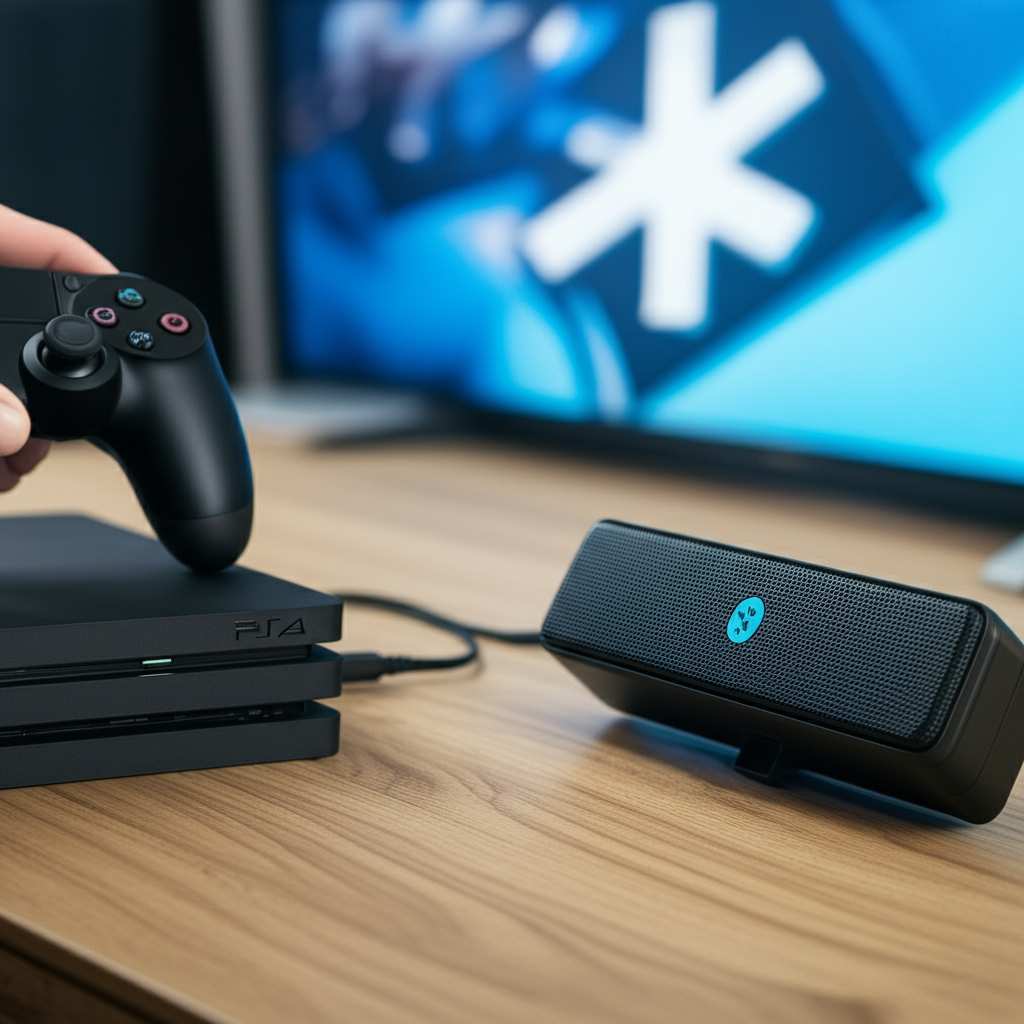
Imagine feeling the rumble of a T-Rex’s footsteps in your living room, or hearing every whisper of dialogue clearly without straining. Plus, it’s a fantastic way to avoid trailing wires, keeping your gaming setup looking neat and tidy. It’s all about leveling up your entertainment experience without adding any extra hassle. Seriously, the difference it can make is pretty amazing!
Wait, Can My PS4 Actually Connect to Bluetooth Speakers?
This is where a lot of people pause. It’s a super common question, and the answer has a tiny nuance that’s important to know. Your PS4 has Bluetooth built-in, which is awesome! It uses this for controllers, for headsets, and for connecting to wireless keyboards and mice. However, the PS4 doesn’t natively support connecting to any Bluetooth audio device, like a standard Bluetooth speaker, directly through its settings menu.
This can be a bit of a curveball! Most Bluetooth speakers use a profile called A2DP (Advanced Audio Distribution Profile) for streaming stereo sound. While the PS4 can handle some Bluetooth audio devices, it’s primarily designed for mono audio headsets. So, connecting your fancy stereo Bluetooth speaker directly isn’t a straightforward “pair and play” situation out of the box. But don’t tune out yet – there’s a brilliant workaround that solves this!
The Secret Weapon: A Bluetooth Audio Transmitter Dongle
Okay, so we can’t just pair a typical Bluetooth speaker directly to the PS4. What’s the magic trick? It’s a handy little gadget called a Bluetooth audio transmitter (sometimes called a dongle or adapter). Think of it as a translator for your PS4’s audio signal.
These transmitters plug into your PS4’s audio output – usually the headphone jack on the DualShock 4 controller or the optical audio port on the console itself. They then broadcast the sound via Bluetooth. This tricks your PS4 into thinking it’s sending audio to a standard wireless headset, but instead, it’s sending it to your speaker. It’s a super simple, affordable, and effective solution that opens up a world of wireless audio possibilities for your PS4!
How to Pick the Right Bluetooth Transmitter
Not all transmitters are created equal, so let’s cover what to look for. This keeps things simple and ensures you get a good experience.
What to Keep in Mind:
- Connection Type: Some transmitters plug into the controller’s 3.5mm headphone jack. Others plug into the PS4’s optical audio (S/PDIF) port. The optical port often offers slightly better audio quality, but is less common for simple setups. The controller jack is usually the easiest for a quick setup.
- Bluetooth Version: Look for Bluetooth 4.0 or higher for a stable connection and better audio. Newer versions like 5.0 offer even more reliability and lower latency (that annoying audio delay!).
- Low Latency: This is super important for gaming. Latency is the delay between what you see on screen and what you hear. Some transmitters use codecs like aptX Low Latency (aptX LL) to minimize this. If your speaker also supports aptX LL, you’ll have the best possible gaming audio experience with minimal lag.
- Portability: If you plan to use the transmitter for other devices too, consider its size and battery life (if it has one). Many are tiny and powered by the PS4 itself.
- Ease of Pairing: Most are designed to be plug-and-play and easy to pair. Check reviews to see if users report any tricky setup processes.
Finding a good transmitter is key to unlocking that wireless audio freedom. They’re not expensive, and many are super user-friendly. A quick search on Amazon or your favorite electronics retailer will show you tons of options!
A Quick Look at Transmitter Options
To give you a better idea of what’s out there, here’s a little comparison of common transmitter types. This isn’t an exhaustive list, but it covers the bases!
| Feature Type | Controller Jack Transmitter | Optical Audio Transmitter | Combined Transmitter/Receiver |
|---|---|---|---|
| How it Connects | Plugs into the 3.5mm headphone port on your controller. | Plugs into the optical audio port on the back of your PS4. | Can often connect via 3.5mm or optical; some can also receive Bluetooth for other devices. |
| Power Source | Typically powered by the controller; may drain controller battery faster. | Powered by its own USB connection or an external power source (often included). | Usually powered by USB; may have an internal battery for portability. |
| Audio Quality | Good, but can be limited by the controller’s audio output. | Often highest quality with less interference. | Can be excellent, depending on the unit, especially with optical. |
| Latency (Lag) | Varies. Look for aptX LL for best results. | Varies. Look for aptX LL for best results. | Varies. Prioritize aptX LL if gaming focus. |
| Ease of Use | Extremely easy. Plug and play. | Slightly more complex; requires an extra cable and proper port connection. | Generally easy, but may have more buttons/settings to manage. |
| Best For | Quick, simple setups with minimal fuss. | Users seeking the best possible audio fidelity. | Versatile users who want one device for multiple uses. |
It’s fascinating how these little gadgets can bridge the gap, right? They’re like the unsung heroes of PS4 audio upgrades. When you’re shopping, make sure to check the product description for that ‘aptX Low Latency’ support if you’re serious about lag-free gaming!
Let’s Get This Connected: Step-by-Step Guide
Alright, drumroll please! Here’s how you actually get your PS4 and Bluetooth speaker playing together using your trusty transmitter. We’ll focus on the most common setup: the controller jack transmitter, as it’s super straightforward.
Step 1: Prepare Your Gear
First things first, make sure everything is charged up or plugged in. You’ll need:
- Your PS4
- Your Bluetooth speaker (charged and ready to pair)
- Your Bluetooth audio transmitter
- Your DualShock 4 controller
Also, it’s a good idea to have your Bluetooth speaker in its pairing mode. Usually, there’s a dedicated button you press and hold until a light blinks, indicating it’s ready to connect to a new device.
Step 2: Plug in the Transmitter
Take your Bluetooth transmitter and plug it firmly into the 3.5mm headphone jack on the bottom of your PS4 controller. You’ll feel it click into place. Some transmitters might have a small button to turn them on – press that if needed. This transmitter will now ‘listen’ to the audio coming from your controller.
If you’re using an optical transmitter, you’ll connect that to the PS4’s optical port and likely need a separate USB power source for the transmitter. Always follow the specific instructions that come with your transmitter model!
Step 3: Pair Your Transmitter and Speaker
Now, for the magic connection! Your transmitter is in ‘discovery’ mode (it should have a blinking light, like your speaker). Bring your Bluetooth speaker close to the transmitter. The transmitter will automatically start searching for the nearest Bluetooth device. Since your speaker is also in pairing mode, they should find each other.
This process usually takes just a few seconds. You’ll often hear a beep or see a solid light on both the transmitter and the speaker, indicating they’ve successfully paired. It’s like they’re saying hello to each other!
Step 4: Configure Your PS4 Audio Settings
Almost there! Now you need to tell your PS4 where to send its sound. Grab your controller (the one with the transmitter plugged in, or your main one if you used an optical transmitter). Navigate to the PS4’s main menu.
Go to: Settings > Devices > Audio Devices.
Under “Input Device,” select “Headset Connected to Controller.”
Next, under “Output Device,” select “Headset Connected to Controller.”
Then, go to “Output to Headphones” and select “All Audio.”
This is the crucial step that redirects all game sound, music, and system alerts through the transmitter. If you used an optical transmitter, you might need to adjust things slightly in the audio settings to prioritize optical output, but the principle is the same – tell the PS4 to use that audio port.
Step 5: Test and Enjoy!
Start up a game or a video. You should now hear the audio coming through your Bluetooth speaker! Crank it up and enjoy that richer, fuller sound. If you don’t hear anything, double-check that your speaker is still connected to the transmitter (solid light) and that your PS4 audio settings are correct. You might also need to turn up the volume on both the PS4 controller and the speaker itself!
See? Not too painful, right? It’s really just a few menus and a simple pairing process. The hardest part is choosing which game to play first with your awesome new sound!
Troubleshooting Common Hiccups
Even with the best plans, sometimes things don’t work perfectly the first time. If you hit a snag, don’t worry. Here are a few common issues and how to fix them:
- No Sound at All:
- Check all cable connections. Did the transmitter fully plug in?
- Is your Bluetooth speaker turned on and not connected to another device (like your phone)?
- Did you set both “Input Device” and “Output Device” to ” Headset Connected to Controller” in PS4 settings?
- Did you select “All Audio” for headphone output?
- Try turning off and on your transmitter, speaker, and PS4.
- Audio Lag (Buzzing or Out of Sync):
- This is common with standard Bluetooth. If your transmitter and speaker support aptX Low Latency, ensure they are both using it.
- Move your speaker closer to the transmitter. Walls and distance can interfere.
- If possible, use an optical transmitter, which usually has less lag.
- Sometimes, a simple re-pairing of the devices can help.
- Speaker Won’t Pair with Transmitter:
- Make sure both devices are in pairing mode.
- Turn off Bluetooth on your phone or tablet so it doesn’t try to connect to the speaker.
- Try restarting both the transmitter and the speaker.
- Sound Only Coming from One Speaker (Stereo Issues):
- This is rare with modern devices but can happen. Ensure your transmitter is designed for stereo audio (most are).
- Check the PS4’s audio settings; sometimes there are options for mono or stereo output.
Remember, technology is all about trial and error, and sometimes a little patience goes a long way. Most of these issues are easily resolved with a quick check or a restart.
A Little Extra: Connecting More Than Just Speakers
The beauty of a Bluetooth transmitter is its versatility! Once you’ve got it set up for your speaker, you might find other cool uses for it. Many transmitters can also be used to send audio from your TV, PC, or Nintendo Switch to wireless headphones or speakers. Some even have a receiver mode, letting you stream music from your phone to older, non-Bluetooth speakers!
For instance, if you’re looking to upgrade your TV’s audio without replacing the TV itself, a Bluetooth transmitter can be a game-changer. You can learn more about general Bluetooth audio setups on sites like CNET’s guide to PS5/PS4 Bluetooth headphones, which touches on similar principles.
FAQ: Your Burning Questions Answered
Let’s clear up any last bits of confusion. Here are some frequently asked questions about connecting Bluetooth speakers to PS4.
Can I connect any Bluetooth speaker to my PS4?
Not directly. The PS4 doesn’t support standard Bluetooth audio speakers by default. You’ll need a Bluetooth audio transmitter to bridge the connection.
Do I need a special Bluetooth speaker for PS4?
No, you don’t need a special speaker. Any standard Bluetooth speaker will work as long as you use a Bluetooth audio transmitter.
Will there be a delay between picture and sound?
There can be a slight delay (latency) with standard Bluetooth. For the best experience, use a transmitter and speaker that support “aptX Low Latency” (aptX LL) for minimal lag, which is ideal for gaming.
Can I connect my PS4 controller’s audio to my Bluetooth speaker?
Yes, that’s one of the easiest ways! You plug the Bluetooth transmitter into the controller’s headphone jack. This transmits all audio from the controller to your speaker.
What if my transmitter doesn’t pair?
Make sure both devices are in pairing mode. Turn off Bluetooth on other nearby devices (like phones) to avoid interference. Try restarting both the transmitter and the speaker, and attempt to pair them again.
Can I use my PS4’s optical audio out with a Bluetooth transmitter?
Yes, you can! Some transmitters connect via the optical port on the PS4, which can offer very high-quality audio. You’ll need a transmitter specifically designed for optical input and possibly a separate power source for it.
Will my Bluetooth speaker vibrate my controller?
Your Bluetooth speaker won’t vibrate your controller. The audio is transmitting wirelessly. If you’re using a transmitter plugged into the controller, the controller itself won’t produce sound or vibration from the speaker.
Conclusion: Game On with Awesome Sound!
And there you have it, tech adventurers! Connecting a Bluetooth speaker to your PS4 is totally achievable and makes a massive difference to your gaming and entertainment. By grabbing a simple Bluetooth audio transmitter, you unlock a world of wireless, high-quality sound without all the fuss.
We’ve walked through why it’s worth it, what to look for in a transmitter, and the easy steps to get it all set up. Even those little troubleshooting tips are there to help you out. So go ahead, pair up that speaker, dive into your favorite game, and let those epic soundscapes wash over you.
Good sound makes every moment better — go enjoy it!