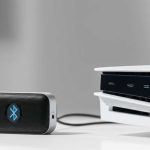
Connect your PS5 to a Bluetooth speaker easily and unlock immersive sound for your games and movies! This guide makes it simple, even if you’re new to tech.
Hey there, tech explorers! Ever wish you could ditch those headphone wires and blast your favorite game audio through a killer speaker? It’s a game-changer, right? Imagine the explosions in Spider-Man or the epic soundtracks in Final Fantasy filling your room. But then you look at your PS5, then at your sleek Bluetooth speaker, and wonder, “How do these two talk to each other?” It can feel like a puzzle, with all the buttons and settings.
I get it. Sometimes, technology feels like it’s speaking a secret language. But trust me, getting your PS5 hooked up to a Bluetooth speaker is totally doable, and it makes a huge difference in how you experience your games. We’re going to break it down, step by step, so you can enjoy that booming sound without any headaches. Let’s make this super simple!
Why Connect Your PS5 to a Bluetooth Speaker?
Think about your favorite movie moments. When the sound is huge and all around you, it pulls you right in. Games are just like that, maybe even more! The roar of a dragon, the subtle footsteps of an enemy, the epic music that swells during a boss battle – all of it makes the experience so much richer.
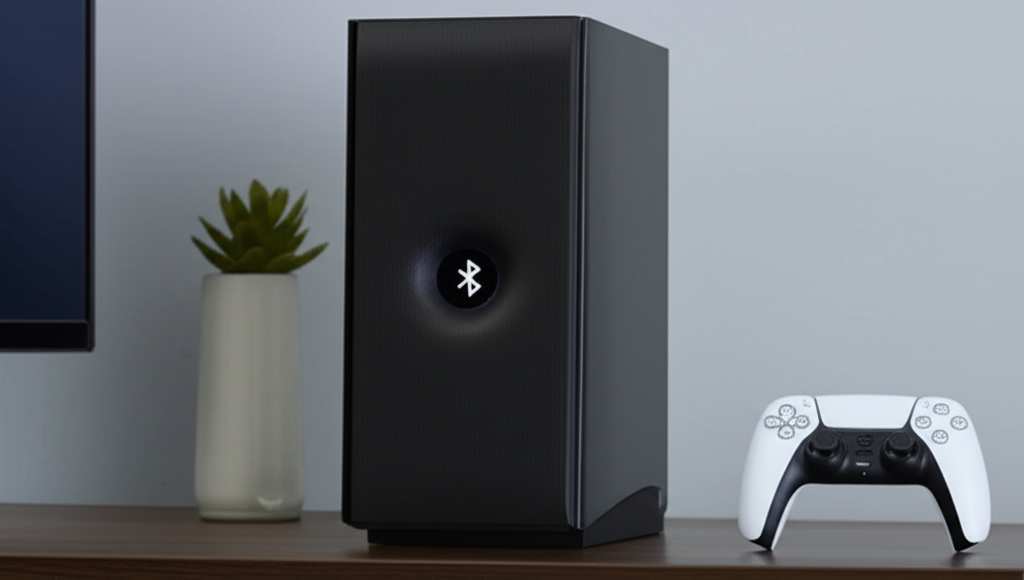
Using a Bluetooth speaker means you can share that amazing sound with everyone in the room. No more playing with headphones glued to your ears if you don’t want to. Plus, it can feel way more immersive than just the TV speakers. It’s like upgrading from a small screen to a big one – the whole experience just gets better.
Can PS5 Actually Do Bluetooth Audio? Let’s Clear the Air!
This is where things get a little tricky, and it’s a common question! Unlike some other devices, the PS5 doesn’t have built-in Bluetooth support for all audio devices, specifically standard Bluetooth speakers or headphones. This is a bit of a bummer, I know! Sony designed it to prioritize their own Pulse 3D headset and other specific audio devices.
So, if you try to pair your favorite Bose or JBL speaker directly through the PS5’s Bluetooth settings, you’ll probably find it doesn’t show up or won’t connect for audio. But don’t worry! There are still super effective ways to get that awesome Bluetooth speaker sound from your PS5. We’re going to explore those easy fixes.
Option 1: The USB Bluetooth Adapter (The Easiest Fix!)
This is by far the simplest and most common way to connect your PS5 to a standard Bluetooth speaker. Think of a USB Bluetooth adapter as a little translator that lets your PS5 talk to your speaker. It’s like giving your PS5 a new superpower!
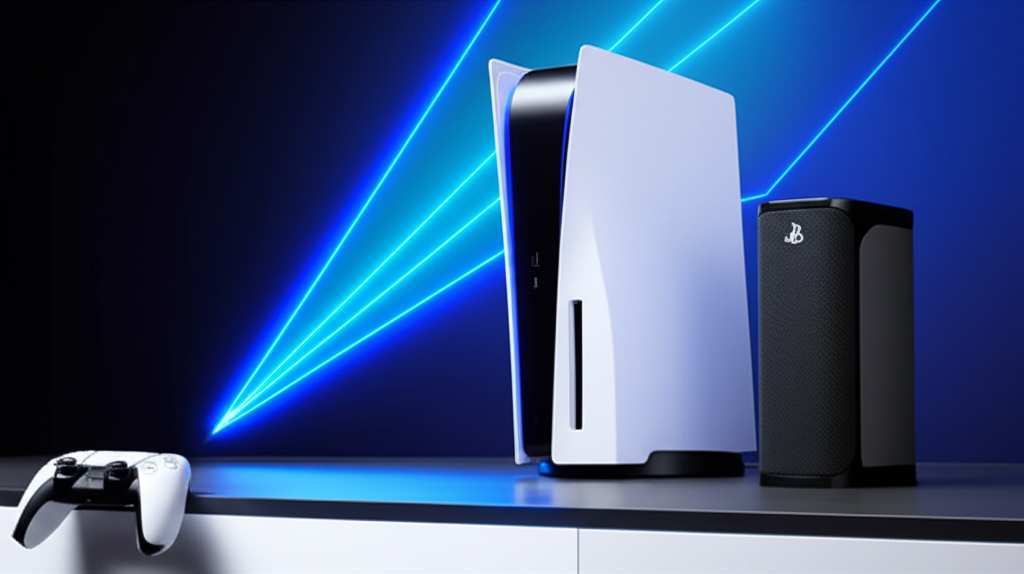
Here’s how it works: You plug this small adapter into one of your PS5’s USB ports. This adapter then broadcasts a Bluetooth signal that your speaker can connect to. It’s like creating your own personal Bluetooth connection just for your PS5’s audio.
What You’ll Need:
A USB Bluetooth Audio Transmitter/Adapter. These are widely available online and in electronics stores.
Your PS5.
Your Bluetooth speaker.
Step-by-Step Guide to Using a USB Bluetooth Adapter:
1. Unpack Your Adapter: Take your USB Bluetooth adapter out of its box. It usually looks like a small USB stick.
2. Plug It Into Your PS5: Find a USB port on your PS5. The front ones are usually easiest to access. Plug the adapter in firmly.
3. Put Your Speaker in Pairing Mode: Turn on your Bluetooth speaker. Then, press and hold the Bluetooth pairing button on your speaker. It usually has a Bluetooth symbol on it. The speaker will make a sound or its light will blink to show it’s ready to connect.
4. Pair the Adapter and Speaker: This part depends slightly on your adapter. Some adapters automatically start searching for nearby Bluetooth devices. Others might have a small button you need to press. Check the adapter’s instructions! Usually, you just need to have both devices close to each other.
5. Wait for the Magic: Your adapter will find your speaker, and they’ll connect. The blinking light on the speaker should turn solid, or it might make a confirmation sound. The adapter might also have a light that indicates a successful connection.
6. Configure PS5 Audio Settings: Now, you need to tell your PS5 to send its sound through the USB adapter.
Go to your PS5’s Settings (the gear icon on the home screen).
Select Sound.
Go to Audio Output.
Under Output Device, you should see an option related to your USB adapter. It might be called “USB Headset” or have the adapter’s brand name. Select this.
Make sure Output to Headphones is set to All Audio. This ensures game sound, voice chat, and system sounds all go through your speaker.
And that’s it! You should now hear all the awesome PS5 sounds coming from your Bluetooth speaker. It’s like a secret handshake between your console and your speaker, all thanks to that little adapter.
Fun Fact: Many USB Bluetooth adapters also support connecting two pairs of headphones or speakers at once! This is great if you want to share your gaming audio with a friend without disturbing anyone else. Just check the adapter’s specs to see if it’s a dual-link model.
Option 2: Using a TV with Bluetooth Capabilities
Does your TV have built-in Bluetooth? If so, this can be another super convenient way to get your PS5 audio to your speaker! The PS5 sends its audio signal to your TV, and then your TV, using its own Bluetooth, sends it to your speaker. It’s a two-step wireless process.
How to Check if Your TV Has Bluetooth:
Look through your TV’s settings menu. Go to Network, Sound, or Connections. Bluetooth options are often found there.
Check your TV’s manual or the manufacturer’s website. A quick search for your TV model online should tell you if it has Bluetooth audio support.
Step-by-Step Guide Using Your TV’s Bluetooth:
1. Put Your Bluetooth Speaker in Pairing Mode: Just like before, turn on your speaker and press the pairing button. Make sure its light is blinking.
2. Access Your TV’s Bluetooth Settings:
Go to your TV’s Settings menu.
Navigate to Sound or Audio settings.
Look for Bluetooth or Wireless Speakers.
Select the option to Add Device or Pair Device.
3. Pair Your Speaker to the TV: Your TV will scan for available Bluetooth devices. Select your speaker from the list when it appears.
4. Confirm the Connection: Your TV should confirm when the speaker is successfully paired. The speaker’s light will likely become solid.
5. Set PS5 Audio Output to TV: Now, ensure your PS5 is set to send its audio to your TV.
On your PS5, go to Settings.
Select Sound.
Go to Audio Output.
Under Output Device, select HDMI Device (TV).
Ensure Audio Format (Priority) is set to Bitstream (Dolby) or Linear PCM, depending on what your TV and speaker support best.
Now, any sound coming from your PS5, which is displayed on your TV, will be wirelessly sent from your TV to your Bluetooth speaker. Pretty neat, right?
Pro Tip: When using your TV’s Bluetooth, be aware of potential audio lag (latency). This is when the sound is slightly delayed compared to the video. It’s usually minimal, but for fast-paced games, it can be noticeable. Some TVs allow you to adjust audio sync settings to fix this.
Option 3: Bluetooth Audio Transmitters with Optical Input (For High-Quality Sound)
If you have a higher-end Bluetooth speaker or want the absolute best audio quality, you might consider a Bluetooth transmitter that uses an optical audio connection. Your PS5 can output digital audio via an optical cable, and a good transmitter will capture that signal and send it wirelessly to your speaker.
This method bypasses the HDMI audio extraction and can sometimes offer a cleaner signal. It’s a bit more involved than the USB adapter but can be worth it for audiophiles.
What You’ll Need:
A Bluetooth Audio Transmitter with Optical (Toslink) Input.
An Optical Audio Cable (Toslink cable).
A USB power source for the transmitter (often included or can use a PS5 USB port).
Your PS5.
Your Bluetooth speaker.
Step-by-Step Guide Using an Optical Transmitter:
1. Connect the Transmitter to Power: Plug your Bluetooth transmitter into a power source. This could be a USB wall adapter or one of your PS5’s USB ports.
2. Connect the Transmitter to Your PS5:
Locate the Optical Out port on your PS5. It’s usually on the back.
Connect one end of the optical audio cable to this port.
Connect the other end of the optical cable to the Optical In port on your Bluetooth transmitter.
3. Put Your Speaker in Pairing Mode: Turn on your Bluetooth speaker and put it into pairing mode.
4. Pair the Transmitter and Speaker: Turn on your Bluetooth transmitter. It should automatically start searching for nearby Bluetooth devices. Follow the transmitter’s instructions to initiate pairing with your speaker. They should connect automatically or with a button press.
5. Configure PS5 Audio Settings: You need to tell your PS5 to use the optical audio output.
Go to your PS5’s Settings.
Select Sound.
Go to Audio Output.
Under Output Device, select Digital Out (Optical).
Set Audio Format (Priority) to Dolby Digital 5.1ch or DTS 5.1ch. These formats work well with optical output and Bluetooth transmission.
This setup might seem a bit more complex, but the dedicated optical connection can provide a very clear and robust audio signal to your Bluetooth transmitter, resulting in excellent sound quality.
Did You Know? Optical audio cables are designed to transmit digital sound signals using light pulses. This means they are immune to electrical interference that can sometimes affect analog cables, leading to a cleaner audio experience.
Comparing the Connection Methods
Let’s break down the pros and cons of each method to help you choose the best one for you.
| Feature | USB Bluetooth Adapter | TV Bluetooth | Optical Bluetooth Transmitter |
| :—————– | :————————————————– | :———————————————– | :———————————————— |
| Ease of Setup | Very Easy | Easy (if TV has Bluetooth) | Moderate |
| Cost | Low ($15-$40) | Free (if TV has it) | Moderate ($30-$70) |
| Audio Quality | Good to Very Good | Good (can vary by TV) | Very Good to Excellent |
| Latency (Lag) | Low to Moderate | Low to Moderate (can sometimes have lag) | Low (often best for latency) |
| Compatibility | Works with most standard Bluetooth speakers/headphones | Works with any Bluetooth speaker/headphone TV supports | Works with most standard Bluetooth speakers/headphones |
| Power Source | PS5 USB Port | TV Power | USB Power (often included) |
| Best For | Quick, simple, and affordable setup. | Users with Bluetooth-enabled TVs. | Audiophiles seeking high-quality sound and low latency. |
What the Table Means for You:
If you just want to get your PS5 audio to a Bluetooth speaker as easily as possible, the USB Bluetooth Adapter is your best bet. It’s affordable and super straightforward.
If your TV already has Bluetooth, that’s a fantastic built-in option that costs nothing extra! Just check your TV’s capabilities first.
For those who are really particular about sound quality and want to minimize any delay, especially for fast-paced games, the Optical Bluetooth Transmitter is the way to go. It requires a bit more setup but can deliver a superior experience.
Quick Tips for Better Bluetooth Sound
Keep Devices Close: Bluetooth has a limited range. For the best connection, keep your PS5 (or the adapter/transmitter) and your Bluetooth speaker relatively close to each other, ideally in the same room without too many walls or large objects in between.
Check for Firmware Updates: Sometimes, both your PS5 and your Bluetooth speaker can benefit from software updates. Check the manufacturers’ websites for any available updates that might improve performance or fix bugs.
Avoid Interference: Other wireless devices, like microwaves or some cordless phones, can interfere with Bluetooth signals. Try to minimize their use or distance from your PS5 and speaker setup when gaming.
Charge Your Speaker: A speaker with a low battery might have a weaker signal or drop out unexpectedly. Make sure your Bluetooth speaker is well-charged before a long gaming session.
Understand Audio Formats: On your PS5, experiment with different Audio Format (Priority) settings (Linear PCM, Bitstream Dolby, etc.) in the Audio Output menu. What sounds best can depend on your specific speaker and adapter.
Frequently Asked Questions (FAQ)
Q1: Will my PS5 connect to any* Bluetooth speaker directly?
A1: Unfortunately, no. The PS5 doesn’t support direct Bluetooth audio connections for standard speakers or headphones like many phones do. You’ll typically need a USB adapter, or to go through your TV if it has Bluetooth.
Q2: How do I know if my PS5 supports Bluetooth audio?
A2: The PS5 itself has Bluetooth for controllers and accessories, but not for general audio output to standard Bluetooth devices. You need an external solution like an adapter.
Q3: What’s the difference between a USB adapter and an optical transmitter?
A3: A USB adapter plugs into your PS5’s USB port and broadcasts Bluetooth audio. An optical transmitter connects via an optical audio cable from your PS5 (or TV) and then broadcasts Bluetooth audio. Optical often provides a higher quality, more stable signal.
Q4: Can I use my PS5 controller’s headphone jack with a Bluetooth transmitter?
A4: While some controllers have a headphone jack, it’s usually for wired headphones. You can’t directly connect a Bluetooth transmitter to the controller’s jack to send audio to a speaker.
Q5: Is there a delay when using Bluetooth audio with my PS5?
A5: There can be, known as latency. The USB adapter and optical transmitter methods are generally designed to minimize this. However, if you notice a significant delay, check your PS5’s audio settings or your adapter/transmitter’s documentation for latency reduction features.
Q6: Can I connect my PS5 to two Bluetooth speakers at once?
A6: This depends on the USB Bluetooth adapter you use. Some advanced adapters (often called dual-link or dual-stream adapters) support connecting two devices simultaneously. Check the adapter’s specifications before buying if this is important to you.
Q7: Does using a USB Bluetooth adapter affect my PS5’s performance?
A7: No, not really. These adapters use very little power and are designed to be plug-and-play. They won’t impact your PS5’s gaming performance.
Time to Experience the Sound Revolution!
So there you have it! Connecting your PS5 to a Bluetooth speaker is totally achievable, and it’s a fantastic way to boost your gaming and entertainment experience. Whether you go for the super simple USB adapter, use your TV’s built-in Bluetooth, or opt for a high-quality optical transmitter, you’re on your way to bigger, better sound.
Don’t let confusing tech specs hold you back from enjoying your games to the fullest. You’ve got the knowledge now to make it happen. So grab your adapter, pair up your speaker, and get ready to feel the rumble of every explosion and the sweep of every cinematic score.
Now go enjoy amazing sound and make every moment louder and better! Happy gaming!