
Connect your laptop to a Bluetooth speaker in minutes with this super simple guide. Get ready to enjoy your music, movies, and games with amazing sound, no wires needed!
Hey there, tech explorer! Ever feel like your laptop’s built-in speakers just don’t cut it for your favorite tunes or that epic movie scene? I totally get it. Sometimes, you just need that extra boom, that richer sound that fills the room. Maybe you’ve got a cool Bluetooth speaker sitting there, looking all sleek and ready to party, but you’re scratching your head wondering how to get your laptop to talk to it. Don’t worry, it’s way easier than it sounds!
We’ve all been there, right? You see all these technical terms, and suddenly, connecting a speaker feels like solving a math problem. But honestly, it’s more like making friends with your gadgets. My goal here is to make this whole process feel as simple as, well, turning up the volume! We’re going to go from confused to connected, and you’ll be jamming out in no time.
So, grab your favorite snack, get comfy, and let’s dive in. We’ll break down exactly how to get your laptop and Bluetooth speaker singing the same song, without any fuss. It’s going to be fun, easy, and totally worth it. Let’s make that sound magic happen!
Let’s Talk About Sound: Why Bluetooth Speakers Rock
Imagine this: you’re getting ready for a cozy movie night, or maybe you’re on a video call with friends. Suddenly, you realize the sound from your laptop is a bit… weak. It’s like trying to enjoy a gourmet meal with only a tiny fork! That’s where Bluetooth speakers come in. They’re these awesome little (or sometimes big!) devices that can wirelessly beam sound from your laptop, tablet, or phone.
Think of Bluetooth as a magic invisible cable. It lets your devices talk to each other over short distances without any messy wires. This means you can place your speaker anywhere in the room, or even take it outside, and still have crystal-clear sound from your laptop. It’s all about freedom and better audio quality, making your music sound richer, your games more immersive, and your movies way more exciting. It’s like giving your laptop a voice upgrade!
Ready to Pair? Connecting Your Laptop to a Bluetooth Speaker
Alright, enough talk, let’s get to the good stuff! Connecting your laptop to a Bluetooth speaker is usually a two-part dance: making sure your speaker is ready to connect, and then telling your laptop to find it. We’ll go through it step-by-step, and you’ll see it’s not complicated at all.
Step 1: Power Up and Get Your Speaker Ready
First things first, make sure your Bluetooth speaker is charged or plugged in. You don’t want it to run out of juice halfway through your playlist! Most speakers have a power button you’ll need to press. Once it’s on, you’ll usually see a little light blinking. This blinking light is your speaker’s way of saying, “I’m ready to be discovered!”
Now, you need to put your speaker into pairing mode. This is super important! How you do this varies a bit from speaker to speaker. Often, there’s a dedicated Bluetooth button, or a button with the Bluetooth symbol (it looks like a sideways ‘B’). You might need to press and hold this button for a few seconds. Some speakers will even make a little sound or voice cue to let you know they’re in pairing mode. If you’re not sure, a quick peek at your speaker’s manual or a search online for its model number can help!
Step 2: Wake Up Your Laptop’s Bluetooth
Now, let’s get your laptop ready. The steps are a little different depending on whether you use Windows or a Mac. But don’t worry, they’re both pretty straightforward.
For Windows Laptops (Windows 10 & 11):
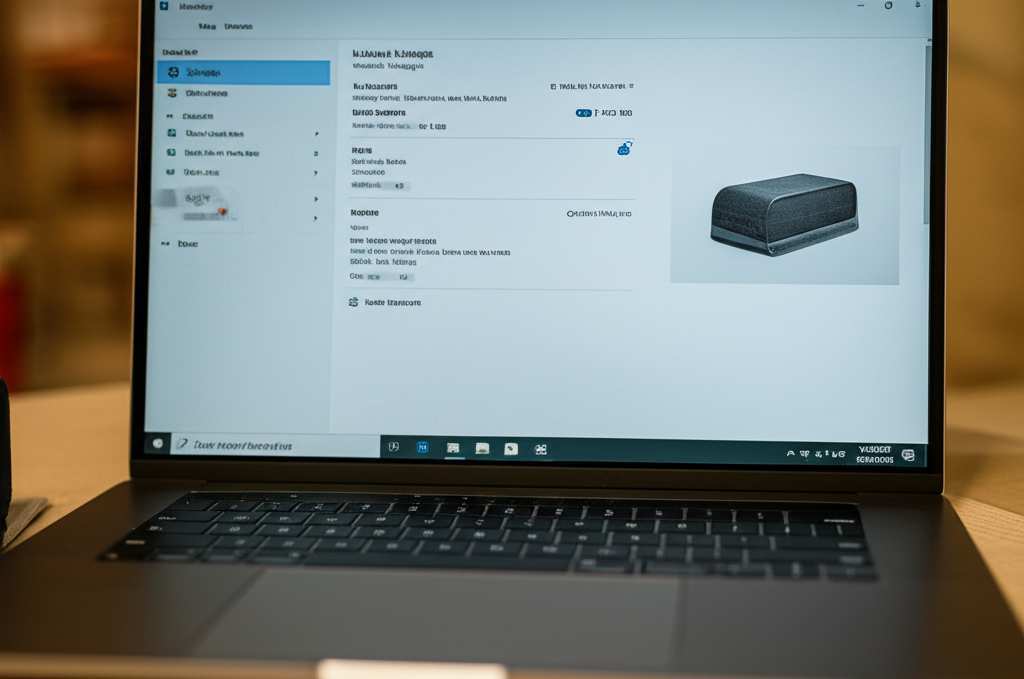
Click on the Start button (that’s the Windows logo, usually in the bottom-left corner). Then, click on the Settings icon (it looks like a little gear). In the Settings window, find and click on Devices (or Bluetooth & devices in Windows 11). Make sure the Bluetooth toggle switch is turned On. If it’s off, just click it to turn it on. Easy peasy!
For Mac Laptops:
Click on the Apple menu in the top-left corner of your screen. Then, select System Preferences (or System Settings in newer macOS versions). Look for the Bluetooth icon and click on it. Make sure Bluetooth is turned on. If it’s off, you’ll see a button to turn it on. Just click that!
Step 3: Let Your Laptop Find the Speaker
With Bluetooth turned on for both your laptop and speaker, it’s time for them to meet! Your laptop will start scanning for nearby Bluetooth devices.
On Windows:
In the same Bluetooth & devices settings window, you should see an option to Add device or Add Bluetooth or other device. Click on that. A new window will pop up. Select Bluetooth from the options. Your laptop will then search for available devices. You should see your speaker’s name appear in the list once it’s found. Click on your speaker’s name!
On Mac:
In the Bluetooth preferences window, your Mac will automatically start searching for devices. Your speaker’s name should appear in the list of devices. Look for it and click the Connect button next to its name.
Step 4: The Final Connection!
Once you click on your speaker’s name, your laptop will try to connect. You might see a pairing request or a prompt to confirm a code. Usually, you just need to click Connect or Pair. If it asks for a PIN, it’s often 0000 or 1234, but your speaker’s manual will tell you if it’s something different.
And voilà! You should see a message saying your speaker is connected. You might hear a little chime from the speaker itself, confirming the connection. Now, your laptop will automatically send audio to your Bluetooth speaker. How cool is that?
Quick Tips for a Smoother Connection
Sometimes, technology likes to keep us on our toes. Here are a few extra tips to make sure your Bluetooth connection is as smooth as butter:
Stay Close: For the best connection, keep your laptop and speaker relatively close to each other, especially during the initial pairing. This helps them find each other easily.
One Device at a Time: Most Bluetooth speakers are designed to connect to one device at a time. If your speaker is already connected to your phone, you might need to disconnect it from your phone before you can connect it to your laptop.
Update Your Drivers (Windows): If you’re having trouble, sometimes your laptop’s Bluetooth drivers might be a bit outdated. You can usually update these through Windows Update or by visiting your laptop manufacturer’s website.
Restart is Magic: If things seem a bit glitchy, a simple restart of both your speaker and your laptop can often fix the problem. It’s the tech equivalent of a fresh start!
Check Your Speaker’s Manual: Every speaker is a little unique. If you get stuck, your speaker’s manual is your best friend. It has all the specific instructions for your model.
Understanding Bluetooth Versions: Why It Matters
You might have heard about different Bluetooth versions, like Bluetooth 4.0, 5.0, or even newer ones. What’s the big deal? Well, newer versions generally mean better performance!
Bluetooth Version Comparison Table
| Feature | Bluetooth 4.0 (LE) | Bluetooth 5.0 | Bluetooth 5.1+ |
| :————- | :—————– | :—————- | :—————- |
| Speed | Up to 1 Mbps | Up to 2 Mbps | Up to 2 Mbps |
| Range | Up to 30 meters | Up to 240 meters | Up to 240 meters |
| Power Usage | Very Low | Very Low | Very Low |
| Data Transfer | Basic | Enhanced | Enhanced |
| Device Pairing | Standard | Faster, more stable | More precise |
So, what does this mean for you? A newer Bluetooth version (like 5.0 or higher) on both your laptop and speaker can give you a more stable connection, a longer range, and sometimes even better sound quality. It’s like upgrading from a country road to a superhighway for your audio data! While older versions will still work, newer ones offer a smoother, more reliable experience. Most modern laptops and speakers come with Bluetooth 5.0 or later, which is fantastic news for your audio adventures.
Troubleshooting Common Connection Hiccups
Even with the best intentions, sometimes things don’t connect right away. Don’t pull your hair out! Here are some common issues and how to fix them:
My Speaker Isn’t Showing Up in the List
Is it in Pairing Mode? Double-check that your speaker is actively in pairing mode. This is the most common reason a device won’t appear.
Is Bluetooth On? Make sure Bluetooth is enabled on your laptop. Sometimes it can get accidentally switched off.
Too Far Away? Try moving your speaker closer to your laptop. Walls and other electronics can sometimes interfere.
Restart Both Devices: A quick restart can work wonders. Turn off your speaker, turn off Bluetooth on your laptop, wait a few seconds, then turn them back on and try again.
The Speaker Connects, But No Sound Comes Out
Check Audio Output: This is a big one! Even if connected, your laptop might still be trying to play sound through its own speakers. On Windows, click the speaker icon in the taskbar and select your Bluetooth speaker from the list of output devices. On a Mac, go to System Preferences > Sound > Output and choose your Bluetooth speaker.
Volume Check: Make sure the volume on both your laptop and your speaker is turned up. Sometimes one is low, and it seems like there’s no sound at all.
Is the Speaker Paired to Another Device? As mentioned, speakers usually connect to one device at a time. If it’s connected to your phone, disconnect it there first.
The Sound is Choppy or Cutting Out
Reduce Interference: Other wireless devices, like microwaves or Wi-Fi routers, can sometimes interfere with Bluetooth signals. Try moving your speaker and laptop away from these.
Update Bluetooth Drivers: For Windows users, outdated drivers can cause choppy audio. Check your manufacturer’s website for updates.
Check the Distance: If you’re at the edge of your speaker’s range, the signal can become weak. Try moving closer.
Close Unnecessary Apps: Sometimes, too many applications running on your laptop can slow down its ability to send a clear audio signal.
For more in-depth troubleshooting, sites like CNET offer fantastic guides on resolving Bluetooth issues.
Choosing the Right Bluetooth Speaker for You
While connecting is easy, picking the right speaker is a whole other adventure! There are so many options out there, from tiny portable ones to powerful home systems. Here are a few things to consider:
Sound Quality: This is key! Do you want deep bass for music, or clear dialogue for movies? Reading reviews or, even better, listening to a speaker in person can help.
Portability: Will you be taking it to the park, the beach, or just moving it around the house? Look for smaller sizes and longer battery life if portability is important.
Battery Life: How long does it last on a single charge? If you’re going to be away from a power outlet, this is crucial.
Durability: If you’re an outdoorsy type, consider water-resistant or rugged speakers. They can handle a bit of rough and tumble.
Extra Features: Some speakers have built-in microphones for hands-free calls, can link with other speakers for stereo sound, or even have smart assistant integration.
Popular Bluetooth Speaker Features Explained
Here’s a quick rundown of some common features you’ll see:
- IPX Rating: This tells you how water-resistant or dustproof a speaker is. For example, an IPX7 rating means it can be submerged in water up to 1 meter for 30 minutes – great for pool parties!
- Stereo Pairing (TWS): This lets you connect two identical speakers to create a true stereo sound experience, filling your room with sound from both sides.
- Voice Assistant Integration: Some speakers can connect to Google Assistant or Alexa, letting you control music or get information just by asking.
- Long Battery Life: Many speakers boast 10-20 hours of playback on a single charge, perfect for all-day listening.
- NFC (Near Field Communication): Some speakers have NFC, which allows for even quicker pairing. Just tap your NFC-enabled laptop or phone to the speaker.
Let’s look at a quick comparison of a couple of popular types:
Bluetooth Speaker Comparison: Portable vs. Home Use
| Feature | Portable Speaker Example (e.g., JBL Flip) | Home Use Speaker Example (e.g., Sonos One) |
| :—————— | :—————————————- | :—————————————– |
| Size & Weight | Compact, lightweight | Larger, heavier |
| Battery Life | 10-20+ hours | N/A (plugs into wall) |
| Portability | High | Low |
| Sound Output | Good for personal/small groups | Rich, room-filling sound |
| Water Resistance| Often includes IPX ratings | Typically not water-resistant |
| Connectivity | Bluetooth, sometimes Aux-in | Wi-Fi, Bluetooth, Aux-in |
| Price Range | $50 – $200 | $150 – $400+ |
As you can see, the “best” speaker really depends on what you need it for! A portable speaker is amazing for on-the-go, while a home speaker might offer superior sound quality for dedicated listening sessions. Think about where and how you’ll use it most to make the right choice.
Fun Facts About Bluetooth
Did you know Bluetooth is named after a Viking king? King Harald “Bluetooth” Gormsson was known for uniting Danish tribes, just as Bluetooth technology aims to unite devices! It was invented in the late 1990s by Ericsson engineer Dr. Jaap Haartsen. It’s pretty amazing how far it’s come, enabling everything from wireless headphones to car infotainment systems. For more on the history and tech behind Bluetooth, check out resources from Wired.
Frequently Asked Questions (FAQs)
Q1: Do I need to buy a special Bluetooth adapter for my laptop?
A1: Most modern laptops (made in the last 10 years or so) come with built-in Bluetooth. You can usually check by looking for the Bluetooth symbol in your system settings or device manager. If yours doesn’t have it, you can buy an inexpensive USB Bluetooth adapter!
Q2: Can I connect more than one Bluetooth speaker to my laptop at the same time?
A2: This is a bit tricky. While some laptops and operating systems might* support connecting to multiple Bluetooth audio devices simultaneously for true multi-speaker playback, it’s not always reliable or easy to set up. Most often, you can only connect one Bluetooth audio speaker at a time for playback. Some speakers allow you to pair two identical units together for stereo sound, which is different.
Q3: Will connecting to a Bluetooth speaker drain my laptop’s battery faster?
A3: Yes, using Bluetooth does consume some power, so it will likely drain your laptop’s battery a bit faster than not using it. However, modern Bluetooth technology is very power-efficient, so the difference is usually quite small unless you’re using it for many hours straight.
Q4: How far can my laptop and Bluetooth speaker be from each other?
A4: The theoretical range for Bluetooth can be quite long, especially with newer versions like 5.0 (up to 240 meters or about 800 feet). However, in real-world conditions, especially with obstacles like walls, you’ll get the best and most stable connection when they are within about 10-15 meters (30-50 feet) of each other.
Q5: What if my Bluetooth speaker won’t charge?
A5: First, try a different charging cable and power adapter, as these can sometimes be the culprit. Make sure the charging port on the speaker is clean and free of debris. If it still won’t charge, it might be an issue with the speaker’s internal battery, and you may need to contact the manufacturer for support.
Q6: Can I connect my Bluetooth speaker to my smart TV?
A6: Many smart TVs now come with built-in Bluetooth! You can usually find the Bluetooth settings in your TV’s menu, similar to how you would on a laptop. Check your TV’s manual or settings to see if it supports Bluetooth audio output.
Q7: How do I disconnect my laptop from the Bluetooth speaker?
A7: To disconnect, go back to your laptop’s Bluetooth settings. Find your connected speaker in the list of devices, click on it, and select ‘Disconnect’ or ‘Remove device’. You can also usually just turn off Bluetooth on your laptop, or turn off your speaker.
Time to Enjoy Your Sound!
And there you have it! Connecting your laptop to a Bluetooth speaker is a simple process that opens up a world of better sound. You’ve learned how to power up, pair, troubleshoot, and even what to look for when choosing a new speaker. It’s all about making technology work for you, making your music sound richer, your movies more thrilling, and your games more immersive.
Don’t be afraid to experiment and explore different speakers. The world of audio is vast and exciting! Now that you know the steps, you can easily switch between devices or set up a new speaker whenever you want.
So go on, turn up the volume, connect that speaker, and let the good times roll. Enjoy that amazing sound and make every moment louder and better! Happy listening!


