Connecting your computer to a Bluetooth speaker is super simple! Just follow these easy steps to enjoy wireless sound for music, movies, and more, all without fiddling with cables.
Hey there, tech adventurers! Max here from AffTechy.com, ready to dive into something that makes life just a little bit better: amazing sound, wirelessly. You know, sometimes you just want to blast your favorite tunes while you’re working, or get totally immersed in a movie without being tied down by wires. It feels like magic when it works, right?
But let’s be real, sometimes tech can feel like a puzzle. You see all these speaker options, and connecting them can seem a bit daunting. Will it work? What if I do it wrong? Don’t you worry! I’m here to walk you through connecting your computer to a Bluetooth speaker. We’ll make it so easy, you’ll be wondering why you ever waited.
We’re going to cover everything, from getting your speaker ready to making that sweet wireless connection. Think of me as your friendly guide, holding your hand through the whole process. Ready to make some noise? Let’s break it down step by step.
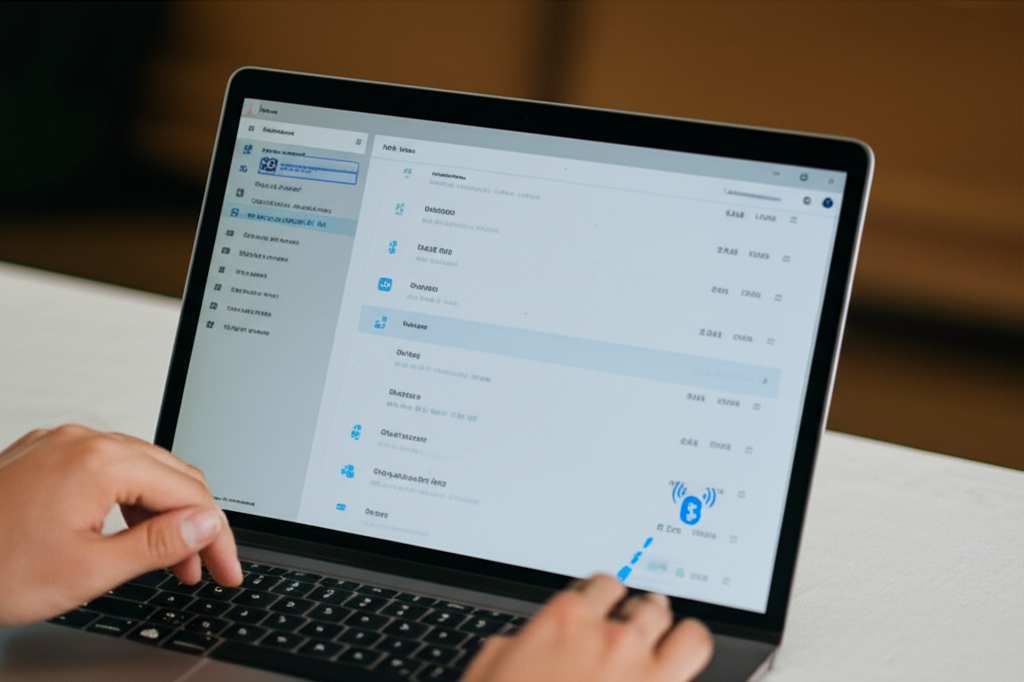
Let’s Get Your Bluetooth Speaker Ready!
Before we even think about connecting to your computer, your Bluetooth speaker needs to be in the right mood. It’s like getting ready for a party; you want to make sure everything is set up perfectly.
Most Bluetooth speakers have a specific way to enter “pairing mode.” This is the mode where the speaker says, “Hey, I’m looking for a device to connect to!” It’s usually pretty straightforward. You’ll often find a button on the speaker itself that you need to press and hold.
Sometimes, this button has a Bluetooth symbol on it, which looks like a little sideways Y. Other times, it might be labeled “Pair” or “Bluetooth.” When it’s in pairing mode, you’ll usually hear a little beep or a voice, and a light might start flashing. This flashing light is its way of saying, “I’m ready to mingle!”
Putting Your Computer in Discovery Mode
Now that your speaker is ready to be found, we need to tell your computer to look for it. Think of your computer as the one who needs to discover the speaker.
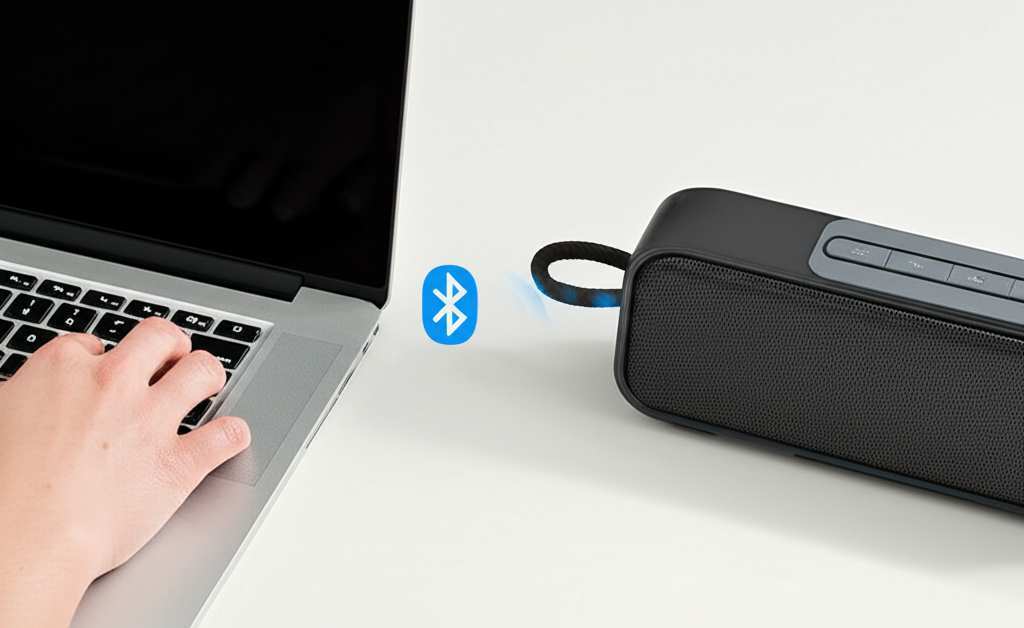
This process is a bit different depending on whether you’re using a Windows computer or a Mac. But don’t sweat it! We’ll cover both, and it’s really not complicated. It’s all about finding the right settings menu.
The main idea is to go into your computer’s Bluetooth settings and tell it to search for new devices. Your computer will then scan the area for any devices that are in pairing mode. It’s like a digital treasure hunt!
How to Connect on Windows: Step-by-Step
If you’re rocking a Windows computer, connecting to a Bluetooth speaker is pretty smooth sailing. Microsoft has made it quite user-friendly in recent versions of Windows.
First things first, make sure your Bluetooth is turned on. You can usually find this in the Settings app. Once it’s on, you’re ready to add a device.
Let’s walk through it:
-
Open Settings: Click the Start button (that’s the Windows logo in the corner) and then click on the gear icon to open Settings. Or, you can press the Windows key + I on your keyboard.
-
Go to Devices: In the Settings window, click on “Devices.” This is where you’ll find all your computer’s hardware connections.
-
Select Bluetooth & other devices: On the left-hand side menu, click on “Bluetooth & other devices.” If your Bluetooth isn’t on, you’ll see a toggle switch. Make sure it’s switched to “On.”
-
Add a device: Click the big plus sign that says “Add Bluetooth or other device.” A new window will pop up.
-
Choose Bluetooth: In the “Add a device” window, click on the first option, which is “Bluetooth.” This tells your computer to look for Bluetooth devices.
-
Wait for your speaker: Your computer will now scan for nearby Bluetooth devices that are in pairing mode. You should see your speaker’s name appear in the list. It might take a few seconds, so be patient!
-
Connect: Click on your speaker’s name when it shows up. Windows will then connect to it. You might hear a confirmation sound from your speaker, and the light might change from flashing to solid.
-
Confirm: Once connected, you’ll see a message saying your device is ready to go. You can now close the Settings window.
And that’s it! Your computer should now be sending audio to your Bluetooth speaker. If you don’t hear anything right away, just double-check your sound settings. Sometimes, you might need to select the Bluetooth speaker as your default audio output device.
Connecting on a Mac: A Breeze!
Apple users, rejoice! Connecting your Bluetooth speaker to a Mac is just as simple, and the interface is really clean and intuitive.
Just like with Windows, the first step is to ensure your Bluetooth speaker is in pairing mode. Remember that flashing light? That’s what we’re looking for.
Here’s how to do it on your Mac:
-
Open System Preferences: Click the Apple menu in the top-left corner of your screen. Then, select “System Preferences.”
-
Go to Bluetooth: In the System Preferences window, find and click on the “Bluetooth” icon. It looks like a little blue ‘B’.
-
Turn on Bluetooth: If Bluetooth is off, you’ll see a button to turn it on. Click that. Your Mac will start searching for devices.
-
Find Your Speaker: Your Bluetooth speaker should appear in the list of “Devices” or “Nearby Devices” as your Mac scans. Again, make sure your speaker is in pairing mode for it to show up.
-
Connect: Once you see your speaker’s name, click the “Connect” button next to it.
-
Confirmation: Your Mac will connect to the speaker. You’ll see the status change to “Connected,” and your speaker might make a confirmation sound.
Easy peasy, right? Your Mac will remember this connection, so next time you turn on your speaker and it’s in range, it should connect automatically. How cool is that?
Why Use a Bluetooth Speaker Anyway?
You might be wondering, “Why bother with a Bluetooth speaker when my laptop has built-in sound?” Great question! Bluetooth speakers offer a whole new level of audio experience.
The most obvious reason is sound quality. Most Bluetooth speakers, even smaller ones, pack a punch with richer bass and clearer highs than your computer’s tiny speakers. It makes music sound more vibrant and movies more immersive.
Then there’s the freedom! No more being stuck right next to your computer. You can move around your room, go to the kitchen for a snack, or even step out onto the balcony while still enjoying your audio. It’s all about convenience and a better listening experience.
Plus, many Bluetooth speakers are portable and have long battery lives, making them perfect for picnics, parties, or just moving from room to room. They really expand how and where you can enjoy your sound.
Choosing the Right Bluetooth Speaker for You
So, you’re convinced you need one, or maybe you already have one and are looking to upgrade. That’s where things can get a little tricky, with so many options out there. But don’t worry, we’ll keep it simple.
Here are a few things to think about when picking out a Bluetooth speaker:
-
Sound Quality: This is probably the most important thing. Do you want booming bass for parties, or clear, crisp sound for podcasts? Reading reviews or, even better, listening in person can help a lot. Websites like CNET often have great reviews to guide you.
-
Portability: Are you going to carry it around a lot? Look for smaller, lighter models with good battery life. Some are even waterproof, which is great for the beach or poolside!
-
Battery Life: How long does it need to last on a single charge? If you plan on using it for long periods away from a power outlet, aim for speakers with 10+ hours of playback.
-
Durability: If you’re accident-prone or plan to use it outdoors, consider a rugged, water-resistant, or dustproof speaker. Some can even survive a drop!
-
Extra Features: Some speakers have built-in microphones for hands-free calls, can pair with other speakers for stereo sound, or come with companion apps for EQ adjustments.
It’s a balancing act between what you need and what you want. A speaker that’s perfect for outdoor adventures might be overkill for your desk.
Understanding Bluetooth Versions: What’s the Big Deal?
You might see numbers like Bluetooth 4.0, 4.2, or 5.0 when looking at speakers or your computer. What do these mean?
Think of Bluetooth versions like upgrades to a phone. Newer versions are generally better, faster, and more efficient. It’s like the difference between dial-up internet and high-speed Wi-Fi.
Here’s a quick rundown:
-
Bluetooth 4.0: This was a big leap forward, introducing Bluetooth Low Energy (BLE). It’s still quite common and works well for basic audio streaming.
-
Bluetooth 4.2: Added some security improvements and made data transfers a bit faster.
-
Bluetooth 5.0 (and later, like 5.1, 5.2, 5.3): This is the latest and greatest! It offers a few key benefits:
-
Faster Speeds: Up to twice as fast as Bluetooth 4.2, meaning less delay.
-
Longer Range: You can often be further away from your device and still maintain a connection. This is super handy!
-
Better Power Efficiency: It uses less battery power, which is great for both your speaker and your computer.
-
Improved Broadcasting Capacity: This allows for more advanced features like connecting multiple devices simultaneously.
-
Ideally, you want both your computer and your speaker to support a newer Bluetooth version, like 5.0 or higher. However, older versions are still backward-compatible. This means a Bluetooth 5.0 speaker can connect to a Bluetooth 4.0 computer, but you’ll only get the capabilities of the older version.
It’s like having a super-fast car but only being able to drive on a slow road – it still gets you there, but not as efficiently. For the best experience, aim for matching newer versions.
Speaker Features at a Glance: What Matters?
When you’re looking at speaker specs, some terms might sound like a foreign language. Let’s translate a few common ones to help you make sense of it all.
Understanding these features can help you pick a speaker that truly fits your lifestyle. Here’s a little cheat sheet:
| Feature | What It Means | Why It’s Cool |
|---|---|---|
| IPX Rating (e.g., IPX7) | Indicates water resistance. IPX7 means it can be submerged in water up to 1 meter for 30 minutes. | Perfect for poolside, bathroom, or beach use without worry. |
| Driver Size (e.g., 40mm) | The size of the speaker cone that produces sound. Larger drivers usually mean better bass and volume. | A bigger driver often translates to a fuller, richer sound experience. |
| Frequency Response (e.g., 60Hz – 20kHz) | The range of sound frequencies the speaker can reproduce, from low bass (Hz) to high treble (kHz). | A wider range means the speaker can reproduce more details in the music. |
| Passive Radiators | Small, cone-like components that help boost bass output without needing a lot of power. | They make smaller speakers produce surprisingly deep bass. |
| TWS (True Wireless Stereo) | Allows you to pair two identical speakers wirelessly to create a stereo sound system. | Doubles the sound and creates a much more immersive listening experience. |
See? Not so scary! For most people, a good IPX rating and decent driver size will cover the basics for enjoyable sound. If you’re a true audiophile, you might delve deeper into frequency response.
Troubleshooting Common Connection Hiccups
Sometimes, even with the best instructions, tech can be a little stubborn. If you’re having trouble connecting, don’t panic! Most issues have simple fixes.
The most common problem is that the devices just aren’t seeing each other. This usually means one of two things: either the speaker isn’t in pairing mode, or your computer’s Bluetooth is having a moment.
Here are some quick fixes:
-
Restart Everything: Turn off Bluetooth on your computer, turn your speaker off and then on again, and put the speaker back into pairing mode. Then, turn your computer’s Bluetooth back on and try searching again.
-
Check for Interference: Other wireless devices can sometimes interfere with Bluetooth signals. Try moving away from microwaves, Wi-Fi routers, or other Bluetooth devices.
-
Forget the Device: On your computer, go back to the Bluetooth settings. If your speaker is listed but not connecting, you might need to “remove” or “forget” the device. Then, try pairing it again from scratch.
-
Update Drivers (Windows): For Windows users, sometimes outdated Bluetooth drivers can cause issues. You can usually find these on your computer manufacturer’s website.
-
Check Speaker’s Manual: Every speaker is a little different. If you’re really stuck, the manual that came with your speaker is your best friend. It’ll have specific instructions for pairing and troubleshooting.
A quick restart often solves 90% of connectivity problems. It’s like a magic wand for tech!
Comparing Bluetooth Speaker Battery Life
Battery life is a huge factor for portable speakers. You don’t want your music cutting out halfway through a picnic! Here’s a look at how battery life can vary.
Keep in mind that these are estimates, and actual battery life can depend on volume, playback content, and Bluetooth version.
| Speaker Type | Typical Battery Life (Hours) | Best For |
|---|---|---|
| Ultra-Portable (e.g., small, pocket-sized) | 4-8 hours | Short trips, occasional use, travel. |
| Standard Portable (e.g., mid-size, popular brands) | 8-15 hours | Daily use, parties, picnics, moving around the house. |
| Large/Boombox Style | 15-25+ hours | Extended events, outdoor gatherings, home use where power isn’t an issue. |
| Waterproof/Rugged | 8-12 hours | Outdoor adventures, beach, pool, any environment where durability is key. |
When you see these numbers, think about your typical use. If you’re mostly using it at home and can plug it in, battery life might be less critical. But for on-the-go listening, longer is definitely better!
Fun Fact: The Bluetooth Origin Story!
Did you know the name “Bluetooth” comes from a Viking king? King Harald “Bluetooth” Gormsson was known for uniting Danish tribes. The technology was named after him because it aimed to unite different devices and communication protocols!
It’s a cool little piece of history that gives a familiar tech term a fascinating backstory. So next time you connect, you can impress your friends with this tidbit!
FAQs: Your Bluetooth Speaker Questions Answered
Got more questions? That’s what I’m here for! Let’s tackle some common queries beginners might have.
-
Can I connect my computer to more than one Bluetooth speaker at once?
Generally, most computers and speakers support connecting to only one audio device at a time for standard audio playback. Some advanced systems or software might allow for multiple outputs, but it’s not a common feature for everyday use. For stereo sound, you’d usually need a pair of speakers designed to work together (like with TWS).
-
Does my computer need to have Bluetooth built-in?
Yes, for a wireless connection, your computer needs to have Bluetooth capabilities. Most modern laptops and many desktops come with it. If yours doesn’t, you can easily add Bluetooth using a small USB Bluetooth adapter (they’re inexpensive and widely available).
-
Will connecting a Bluetooth speaker drain my computer’s battery faster?
Yes, using Bluetooth does consume a bit more power than not using it. However, with newer Bluetooth versions (like 5.0 and above), the power drain is quite minimal, especially compared to older versions. It’s usually not a significant concern for most users.
-
How far can my computer and speaker be from each other?
The range can vary, but typically, Bluetooth 4.0 and 5.0 devices have a range of about 30 feet (10 meters) in open spaces. Obstacles like walls or furniture can reduce this range. Newer Bluetooth versions (5.0+) generally offer a longer and more stable connection.
-
Why does my Bluetooth speaker keep disconnecting?
This could be due to several reasons: weak signal (too far from the computer), interference from other devices, low battery on either the speaker or computer, or sometimes a software glitch. Try moving closer, restarting devices, or checking for interference. If it persists, consult your speaker’s manual.
-
Is Bluetooth audio quality as good as wired?
For most people, the difference is negligible, especially with newer Bluetooth versions and high-quality speakers. Bluetooth technology has improved significantly, offering near CD-quality audio. Wired connections can sometimes offer slightly better fidelity, but the convenience of Bluetooth often outweighs this minor difference for everyday listening.
-
How do I make my Bluetooth speaker the default sound output?
On Windows, right-click the speaker icon in your taskbar and select “Open Sound settings” or “Playback devices.” Then, choose your Bluetooth speaker and set it as the default. On a Mac, go to System Preferences > Sound > Output and select your Bluetooth speaker.
Conclusion: Unleash Your Sound!
And there you have it! You’ve officially learned how to connect your computer to a Bluetooth speaker. See? It’s not rocket science. You’ve gone from wondering how to do it, to actually knowing the steps for both Windows and Mac, and even learned a bit about speaker features and troubleshooting.
Now you can enjoy your music, podcasts, and movies with richer sound and the freedom to move around. Whether you’re working from home, relaxing on the couch, or hosting a small get-together, your Bluetooth speaker is ready to amplify the experience. Don’t be afraid to experiment with different speaker placements to find the sweet spot for your audio.
So go ahead, pair that speaker up, turn up the volume, and enjoy the fantastic world of wireless audio. You’ve got this! Now go enjoy amazing sound and make every moment louder and better!