Yes, your Fire TV can totally connect to a Bluetooth speaker! It’s super easy and makes your sound way better. Get ready for awesome audio for movies and music.
Hey there, tech explorer! Ever feel like your Fire TV’s sound is just… okay? You know, it gets the job done, but it doesn’t quite bring that oomph to your favorite shows or music. It’s like watching a blockbuster movie with just a whisper – it’s missing something, right? And then you see those sleek Bluetooth speakers and wonder, “Can my Fire TV actually talk to that?”
Well, guess what? It absolutely can! Connecting your Fire TV to a Bluetooth speaker is one of those simple upgrades that makes a huge difference. It’s like unlocking a secret level of awesome for your living room entertainment. No more tinny TV audio; get ready for rich, room-filling sound that makes everything feel more immersive.
I know tech can sometimes feel like a puzzle, with all sorts of wires and settings. But don’t worry! My goal here is to make it as easy as pie. We’ll walk through exactly how to pair your Fire TV with a Bluetooth speaker, step by step. You’ll be enjoying fantastic sound in no time, and it’s way simpler than you might think. Let’s dive in and make your audio experience amazing!
Let’s Talk About Sound!
Imagine this: you’re settling in for a movie night. The screen is epic, the popcorn is ready, but the sound is… meh. It’s a common problem, right? That built-in TV speaker just can’t compete with a dedicated sound system.
That’s where Bluetooth speakers come in! They’re portable, easy to use, and can seriously upgrade your audio game. And the best part? Your Fire TV is designed to work with them. It’s all about making your entertainment sound as good as it looks.
Why Connect a Bluetooth Speaker to Your Fire TV?
So, why bother with an extra gadget? Well, think about it. Bluetooth speakers often pack a bigger punch. They deliver clearer dialogue, deeper bass, and a more immersive soundstage. It’s like going from a quiet hum to a full concert hall!
Plus, many Bluetooth speakers are wireless. This means no messy cables cluttering up your space. You can place the speaker wherever it sounds best, creating a truly cinematic experience right in your home. It’s all about convenience and superior sound.
First Things First: What You’ll Need
Before we start pairing, let’s make sure you have everything ready. It’s pretty straightforward, but a quick check never hurts.
- Your Amazon Fire TV device (like a Fire TV Stick, Fire TV Cube, or a Fire TV Edition smart TV).
- A Bluetooth speaker that is charged and ready to go. Make sure it’s in pairing mode!
- Your Fire TV remote.
That’s it! No special apps or complicated hardware needed. Just your Fire TV and your speaker.
Getting Your Bluetooth Speaker Ready to Pair
This is a crucial step. Your speaker needs to be discoverable by your Fire TV. Most Bluetooth speakers have a specific button or sequence to put them into “pairing mode.”
Usually, you’ll press and hold a Bluetooth symbol or a dedicated pairing button. You might hear a little chime or see a flashing light indicating it’s ready to connect. Always check your speaker’s manual if you’re unsure – it’s the best guide for your specific model!
The Step-by-Step Guide: Connecting Your Fire TV
Alright, let’s get down to business! Follow these simple steps, and you’ll be enjoying richer sound in minutes. It’s like a recipe, but for awesome audio.
-
Power On Your Fire TV
Make sure your Fire TV device is powered on and you’re on the home screen. You’ll be navigating through the settings menu.
-
Navigate to Settings
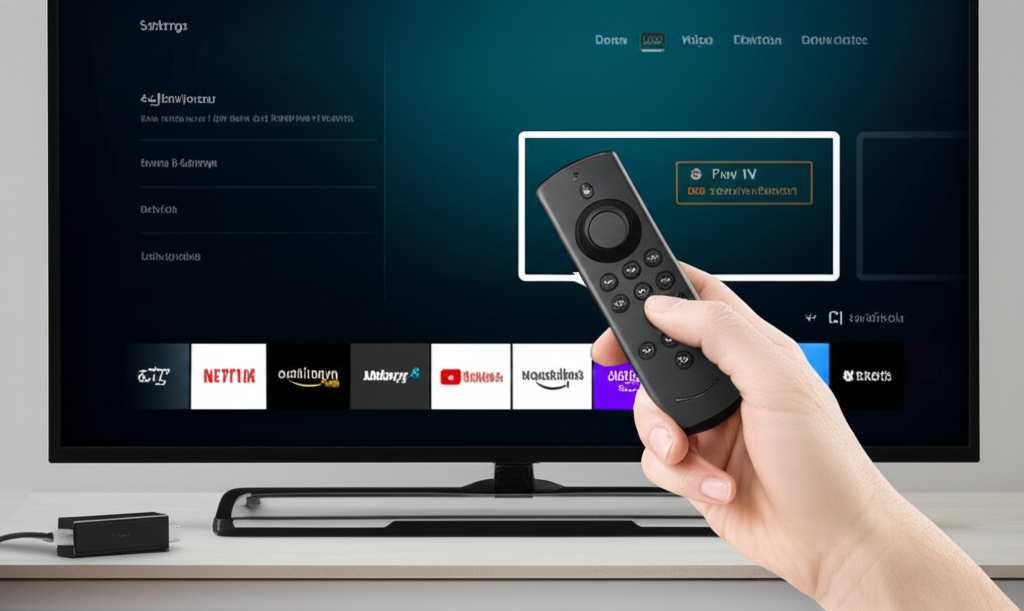
On your Fire TV remote, press the Home button. Then, scroll all the way to the right on the top menu and select “Settings.”
-
Select “Controllers & Bluetooth Devices”
In the Settings menu, find and select “Controllers & Bluetooth Devices.” This is where all your wireless connections live.
-
Choose “Other Bluetooth Devices”
Now, select “Other Bluetooth Devices.” This option tells your Fire TV to start looking for new devices to connect to.
-
Select “Add Bluetooth Devices”
Click on “Add Bluetooth Devices.” Your Fire TV will now begin scanning for any nearby Bluetooth devices that are in pairing mode.
-
Find and Select Your Speaker
You should see a list of available devices appear on your screen. Look for the name of your Bluetooth speaker. Once you spot it, use your remote to highlight it and press the Select button.
-
Wait for the Connection
Your Fire TV will attempt to connect to the speaker. You might hear a confirmation sound from the speaker, or see a message on your TV screen like “Device Connected.”
-
Test the Sound!
That’s it! Now, play something on your Fire TV. You should hear the audio coming from your Bluetooth speaker. If not, don’t worry, we’ll cover troubleshooting tips soon!
Troubleshooting: When Things Don’t Connect
Sometimes, tech doesn’t play nicely right away. If your speaker isn’t connecting, don’t panic! Most issues are simple to fix. Let’s go through some common hiccups.
-
Is Your Speaker Really in Pairing Mode?
This is the most common reason for connection failure. Double-check that your speaker is actively searching for a device. A solid light often means it’s connected to something else, while a blinking light usually means it’s in pairing mode. Consult your speaker’s manual for the exact procedure.
-
Are You Too Far Away?
Bluetooth has a range, usually around 30 feet (10 meters). Make sure your speaker is reasonably close to your Fire TV device. Walls and other electronics can sometimes interfere with the signal.
-
Is the Speaker Already Connected to Another Device?
Many Bluetooth speakers can only connect to one device at a time. If your speaker is already paired with your phone or tablet, it won’t be able to connect to your Fire TV. Turn off Bluetooth on your other devices or “forget” the speaker from their settings.
-
Restart Everything
The classic IT solution works wonders! Try restarting both your Fire TV device and your Bluetooth speaker. Unplug them for a minute, then plug them back in and try the pairing process again.
-
Forget and Re-pair
If your speaker is listed but won’t connect, try removing it from your Fire TV’s Bluetooth devices. Go back to “Settings” > “Controllers & Bluetooth Devices” > “Other Bluetooth Devices.” Select your speaker and choose “Unpair” or “Forget Device.” Then, try adding it again as if it were new.
-
Check for Fire TV Updates
Occasionally, software glitches can cause connection problems. Ensure your Fire TV is running the latest software. Go to “Settings” > “My Fire TV” > “About” > “Check for System Update.”
Speaker Placement: Where Does It Go?
Once connected, where you put your speaker matters! For movies, you might want it in front of you, similar to a soundbar. For music, placing it in a corner can sometimes boost the bass.
Experiment with different spots. You’re looking for the clearest sound without annoying echoes. Most Bluetooth speakers sound best when they have a bit of space around them, not crammed into a tight shelf.
Fun Facts About Bluetooth
Did you know Bluetooth technology was named after a Viking king? King Harald “Bluetooth” Gormsson united Danish tribes in the 10th century, much like Bluetooth technology aims to unite devices. Pretty cool, huh?
Bluetooth uses radio waves in a specific frequency band (2.4 GHz) to communicate. This is the same band used by Wi-Fi, but Bluetooth has clever ways to avoid interference, making it reliable for streaming audio. It’s a small but mighty technology!
Choosing the Right Bluetooth Speaker for Your Fire TV
So, you’re convinced you need a speaker, but where do you start? The world of Bluetooth speakers is huge! Here’s a quick guide to help you pick one that’s perfect for your Fire TV setup.
What to Look For: Key Features
- Sound Quality: This is paramount! Look for speakers with clear highs, good mids, and decent bass. Read reviews that talk about audio performance. Some speakers offer 360-degree sound for a more immersive experience.
- Battery Life: If you plan to move your speaker around or use it away from a power source, battery life is important. Many speakers offer 10-20 hours of playback on a single charge.
- Durability and Water Resistance: If you plan to use your speaker outdoors or in the kitchen, look for models with an IP rating (like IPX7), which means they can handle splashes or even submersion.
- Connectivity Options: While we’re focusing on Bluetooth, some speakers also offer auxiliary inputs (a 3.5mm jack) or even Wi-Fi connectivity for higher quality streaming.
- Size and Portability: Do you want a small speaker to place on a shelf, or something larger for a bigger room? Consider how much space you have and if you’ll be moving it often.
- Price: Bluetooth speakers range from budget-friendly options to high-end audiophile choices. Set a budget and look for the best features within that range.
Popular Bluetooth Speaker Brands and What They Offer
Here’s a peek at some great options. Remember, this is just a snapshot, and new models come out all the time!
| Brand | Typical Price Range | Key Strengths | Good For |
|---|---|---|---|
| JBL | $50 – $300+ | Durable, good bass, wide range of portable options. | Movies, music, outdoor use. |
| Sony | $70 – $350+ | Excellent sound clarity, often good battery life, stylish designs. | Music lovers, balanced audio. |
| Bose | $100 – $400+ | Premium sound quality, clear highs, elegant design. | Audiophiles, home entertainment. |
| Anker Soundcore | $30 – $150 | Great value for money, good battery life, surprisingly strong sound. | Budget-conscious users, everyday listening. |
| Ultimate Ears (UE) | $70 – $250+ | Very rugged, waterproof, often 360-degree sound. | Active lifestyles, parties, poolside. |
See? There’s a perfect speaker out there for everyone. For example, if you’re looking for something tough that can survive a splash by the pool while you watch a movie on your patio, an Ultimate Ears speaker might be your best bet. If you’re all about crystal-clear dialogue for your TV shows, a Bose or Sony speaker might offer that premium experience.
When checking out speakers, I always recommend reading reviews on sites like CNET. They do a fantastic job of breaking down sound quality, battery life, and durability in easy-to-understand terms.
When to Use Your Fire TV’s Internal Speakers vs. Bluetooth
It’s not always about using your Bluetooth speaker. Sometimes, your Fire TV’s built-in speakers are perfectly fine!
-
Use Fire TV Speakers When:
- You need a quick audio solution without fuss.
- You’re in a small room where loud sound isn’t necessary.
- You want to hear system sounds or notifications clearly from the TV itself.
- Your Bluetooth speaker isn’t charged or available.
-
Use Bluetooth Speaker When:
- You want an immersive movie or gaming experience.
- You’re listening to music and want richer, deeper sound.
- You need to hear dialogue more clearly, especially in noisy environments.
- You want to fill a larger room with sound.
- You want to reduce audio lag that can sometimes happen with TV speakers.
It’s really about the situation and what kind of audio experience you’re aiming for. For a quiet night in watching a drama, internal speakers might be fine. For an action movie that shakes the room? Definitely go for that Bluetooth speaker!
Can You Connect Multiple Bluetooth Speakers?
This is a question I get asked a lot! Sadly, most Fire TV devices can only connect to one Bluetooth audio device at a time. You can pair multiple devices, but only one can be active for audio output.
Some high-end Bluetooth speakers or specific apps might offer a “stereo pairing” feature where two identical speakers can connect to each other to create a stereo sound experience. However, your Fire TV will still only be sending the audio signal to one of those speakers. It’s a cool feature for the speakers themselves, but it doesn’t mean your Fire TV is outputting to two separate speakers simultaneously.
Frequently Asked Questions (FAQ)
Q1: Will connecting a Bluetooth speaker drain my Fire TV battery faster?
Your Fire TV device (like a Fire TV Stick) is usually plugged into power, so battery drain isn’t an issue for the device itself. The Bluetooth speaker will use its own battery, of course. So, no worries about your Fire TV running out of juice because of the speaker!
Q2: Is there a delay when using a Bluetooth speaker with my Fire TV?
Sometimes, yes, there can be a slight delay (latency) between the video and the audio. This is common with Bluetooth audio. For most casual viewing, it’s unnoticeable. However, if you find lip-sync issues distracting, check your speaker’s settings or your Fire TV’s audio settings for any AV sync adjustment options. Some newer Bluetooth versions (like 5.0 and above) have lower latency.
Q3: Can I connect my Bluetooth headphones to my Fire TV?
Absolutely! The process is exactly the same as connecting a Bluetooth speaker. Just make sure your headphones are in pairing mode, and follow the steps in the “Step-by-Step Guide” section above. It’s great for late-night viewing without disturbing anyone!
Q4: What if my Bluetooth speaker is not showing up in the list?
Make sure your speaker is in pairing mode and within range. Also, check if it’s already connected to another device. Try turning off Bluetooth on your phone or tablet to free it up. If it still doesn’t appear, try restarting both devices and try again.
Q5: Do I need a specific type of Bluetooth speaker for my Fire TV?
No, any standard Bluetooth speaker will work! Your Fire TV uses the common Bluetooth profiles for audio streaming. You don’t need a “Fire TV compatible” speaker, just a regular Bluetooth one. The key is that it can enter pairing mode.
Q6: Can I switch between my TV speakers and my Bluetooth speaker easily?
Yes, you can. If you want to switch back to your TV’s internal speakers, you’ll need to go back into the Fire TV settings (“Settings” > “Controllers & Bluetooth Devices” > “Other Bluetooth Devices”) and “Unpair” or “Forget” your Bluetooth speaker. The audio will then revert to the TV’s speakers. To switch back to the Bluetooth speaker, simply re-pair it.
Q7: My speaker was connected, but now it won’t connect again. What should I do?
This often happens if the speaker is still “remembered” by the Fire TV but not actively connecting. Try “forgetting” the speaker from your Fire TV’s Bluetooth device list (as mentioned in the troubleshooting section) and then re-pairing it. Sometimes, a simple restart of both devices can also clear up temporary glitches.
Conclusion: Your Sound Upgrade Awaits!
There you have it! Connecting your Fire TV to a Bluetooth speaker is totally doable and seriously worth it. You’ve learned how to pair them up, troubleshoot common issues, and even picked out what makes a good speaker.
Now you can enjoy your favorite movies, shows, and music with sound that truly brings them to life. No more settling for mediocre audio. You’ve got the power to transform your entertainment experience right at your fingertips.
So go ahead, pick out that perfect speaker, follow these simple steps, and get ready to immerse yourself in amazing sound. Now go enjoy amazing sound and make every moment louder and better!