
Connect your Bluetooth speaker to your laptop in minutes! This easy guide shows you how to get amazing sound for music, movies, or calls without any hassle. Let’s make your laptop sing!
Hey there, tech explorer! Ever feel like your laptop’s built-in speakers are just… okay? You know, they get the job done, but they don’t exactly make your favorite tunes pop or your movie explosions rumble. It’s like watching a blockbuster on a tiny phone screen when you’re craving the big cinema experience!
I get it. Sometimes, the tech jargon around speakers and connections can sound like a foreign language. You see words like “Bluetooth version,” “codec,” and “pairing mode,” and your eyes might start to glaze over. But here’s the cool part: getting that fantastic sound from a Bluetooth speaker to your laptop is actually super simple.
Think of your Bluetooth speaker as a little sound magician that can beam music wirelessly. And your laptop is the music player. We just need to teach them how to talk to each other. It’s like setting up a playdate for your gadgets!
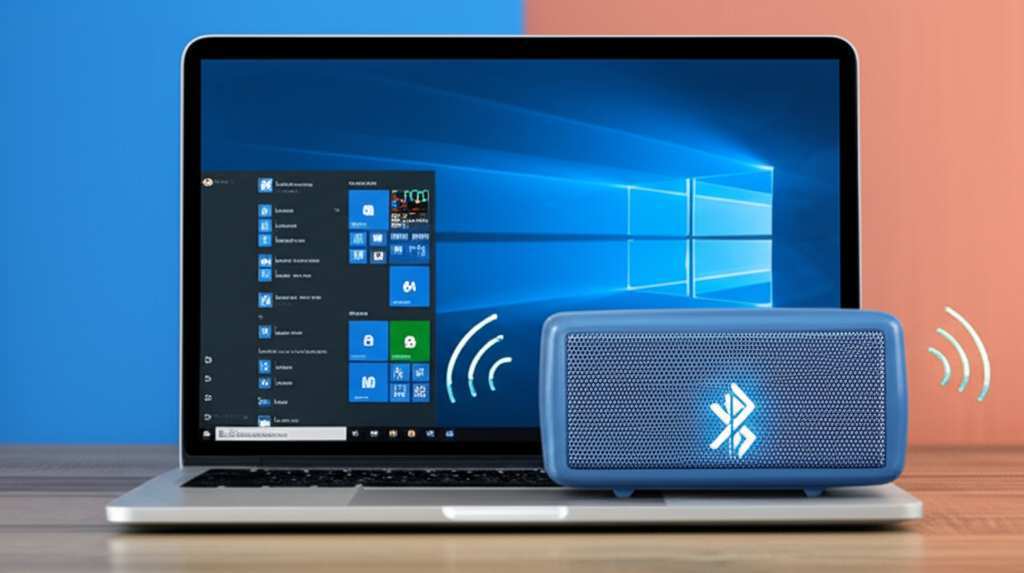
I’m Max Donovan, and my mission is to make tech feel as easy and fun as it should be. We’re going to ditch the confusing stuff and get straight to the good part: enjoying awesome audio. So, grab your favorite drink, get comfy, and let’s break down how to connect that Bluetooth speaker to your laptop, step by step. It’s going to be a breeze!
Why Go Bluetooth Anyway?
So, why bother with a Bluetooth speaker? Well, think about it. No more tangled wires messing up your desk space. You can place your speaker anywhere in the room for the best sound, not just where the headphone jack is. It’s freedom!
Plus, the sound quality is usually a huge upgrade. You get richer bass, clearer mids, and crisper highs. Whether you’re jamming to your workout playlist, diving into a new podcast, or enjoying a movie night, a good Bluetooth speaker just makes everything sound so much better. It’s like upgrading from black and white TV to a vibrant HD screen!
Getting Your Speaker Ready
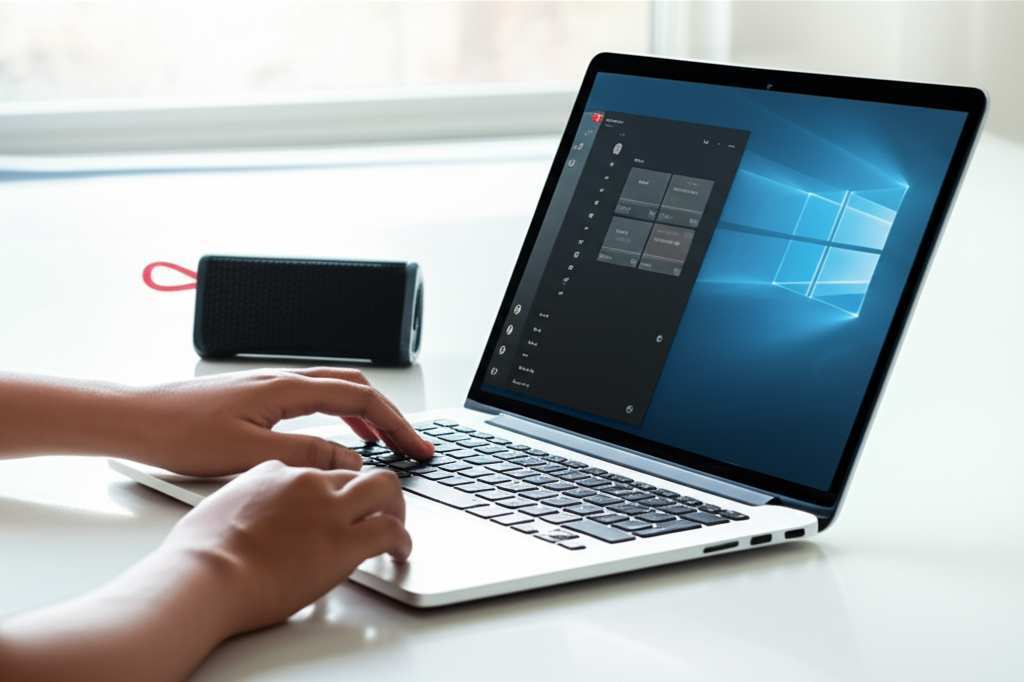
Before we can connect anything, we need to make sure your Bluetooth speaker is ready for action. Most speakers have a simple way to get them into “pairing mode.” This is like telling your speaker, “Hey, I’m looking for a new friend to connect with!”
What is Pairing Mode?
Pairing mode is a special setting on your Bluetooth device that makes it discoverable by other devices, like your laptop. It’s how they find each other in the crowded wireless world. Usually, there’s a dedicated button on the speaker. It might have a Bluetooth symbol on it, or it might say “Pair” or “Bluetooth.”
How to Activate Pairing Mode:
Here’s how you generally do it:
- Turn on your speaker. Make sure it has enough battery or is plugged in.
- Find the pairing button. Look for a button with the Bluetooth symbol (it looks like a stylized ‘B’). Sometimes, you might need to press and hold it.
- Press and hold the button. Do this for a few seconds. You’ll usually hear a sound or see a light blinking. This indicates it’s in pairing mode.
- Check your speaker’s manual. If you’re not sure, the little booklet that came with your speaker is your best friend here. It’ll tell you exactly what to do.
Once your speaker is blinking its little light, it’s officially ready to meet your laptop!
Getting Your Laptop Ready
Now, let’s get your laptop set up to find and connect to your speaker. Most modern laptops have Bluetooth built-in, but it’s always good to check. We’ll need to make sure Bluetooth is turned on and then scan for new devices.
Checking If Your Laptop Has Bluetooth:
How do you know if your laptop has Bluetooth? It’s pretty common these days! For Windows, you can usually check in your Settings. For Mac, it’s even easier to spot.
For Windows Users:
- Click the Start button (the Windows icon) in the bottom-left corner.
- Click on Settings (the gear icon).
- Select Devices.
- Look for Bluetooth & other devices on the left-hand menu. If you see options to turn Bluetooth on or off, you’ve got it!
For Mac Users:
- Click the Apple menu in the top-left corner of your screen.
- Select System Settings (or System Preferences on older macOS versions).
- Look for Bluetooth in the sidebar. If it’s there, your Mac has Bluetooth!
Turning On Bluetooth on Your Laptop:
If Bluetooth is off, you’ll see a toggle switch. Just click it to turn it on. You’ll often see a blue light or a message confirming it’s active. It’s like flipping a switch to open the door for wireless connections!
Connecting the Speaker: Step-by-Step
Alright, the moment of truth! Both your speaker and laptop are ready. Let’s get them connected. This process is pretty similar for both Windows and Mac, so don’t worry if you’re on a different system.
On Windows 10 and 11:
- Open Settings again (Start Menu > Settings).
- Go to Devices (or Bluetooth & devices on Windows 11).
- Click on Bluetooth & other devices.
- Click Add Bluetooth or other device. A new window will pop up.
- Select Bluetooth. Your laptop will start searching for nearby Bluetooth devices that are in pairing mode.
- Find your speaker in the list. It will usually show up with its brand name (e.g., “JBL Flip 5,” “Sony SRS-XB23”).
- Click on your speaker’s name to connect.
- You might see a “Connecting” message, and then “Your device is ready to go!”
- Your speaker should now be connected and ready to play sound!
On Mac:
- Open System Settings (Apple Menu > System Settings).
- Click on Bluetooth in the sidebar.
- Make sure Bluetooth is turned On.
- Your Mac will automatically start searching for nearby devices.
- Look for your speaker’s name under the “Nearby Devices” or “Devices” list.
- Click the Connect button next to your speaker’s name.
- You’ll see a “Connected” status once it’s done.
- Your Mac is now ready to send audio to your Bluetooth speaker!
Easy, right? It’s like they’ve just met and are ready to be best friends. You should hear a little confirmation sound from your speaker, or your laptop might show a confirmation message.
Setting Your Speaker as the Default Audio Device
Sometimes, even after connecting, your laptop might still try to play sound through its own speakers. We need to tell it to use your new Bluetooth speaker. This is super simple and ensures all your audio goes to the right place.
For Windows Users:
- Right-click on the speaker icon in your taskbar (usually in the bottom-right corner of your screen).
- Click on Sound settings (or Open Sound settings).
- Under the “Output” section, you’ll see a dropdown menu that says “Choose your output device.”
- Click on the dropdown and select your Bluetooth speaker from the list.
And voilà! Any sound your laptop makes will now come out of your Bluetooth speaker. You can test it by playing a song or a video.
For Mac Users:
- Open System Settings.
- Click on Sound.
- Go to the Output tab.
- You’ll see a list of output devices. Click on your Bluetooth speaker to select it.
Now your Mac knows where to send all that sweet audio. It’s like directing traffic to the best concert hall in town!
Troubleshooting Common Connection Issues
What if it doesn’t connect right away? Don’t panic! Most Bluetooth hiccups are easy to fix. It’s usually a small glitch that we can sort out quickly.
Speaker Not Showing Up?
This is a common one. The most likely reason is that the speaker isn’t in pairing mode, or your laptop isn’t scanning properly.
- Double-check pairing mode: Make sure your speaker’s light is blinking. Try turning the speaker off and on again, then re-activating pairing mode.
- Restart Bluetooth on your laptop: Turn Bluetooth off on your laptop for about 10 seconds, then turn it back on.
- Move closer: Sometimes, being too far away can cause issues. Bring the speaker and laptop closer together.
- Check for interference: Other wireless devices can sometimes interfere. Try moving away from microwaves or other strong wireless signals.
Connection Keeps Dropping?
If it connects but then disconnects randomly, it might be a signal strength or driver issue.
- Check distance and obstacles: Walls and even some furniture can weaken the signal. Keep your speaker and laptop relatively close and with a clear line of sight if possible.
- Update Bluetooth drivers (Windows): Outdated drivers can cause problems. You can usually find driver updates through Windows Update or your laptop manufacturer’s website.
- Forget and re-pair: On your laptop, go to Bluetooth settings, “forget” or “remove” your speaker, and then try pairing it again from scratch.
- Check speaker battery: A low battery on the speaker can sometimes cause unstable connections.
No Sound Even When Connected?
This usually means the connection is made, but the audio output isn’t set correctly.
- Check the default device setting: Go back to your laptop’s sound settings and make sure your Bluetooth speaker is selected as the output device.
- Volume check: Ensure the volume is turned up on both your laptop and your speaker. Sometimes one of them is accidentally set very low.
- Restart your laptop: A simple restart can fix many software glitches.
Bluetooth Versions and Why They Matter
You might see different Bluetooth version numbers like 4.0, 4.2, 5.0, 5.1, or 5.2. What’s the deal? Newer versions are generally better! They offer:
- Faster connection speeds: Less waiting time to pair.
- Better range: You can move your devices further apart.
- Improved power efficiency: Your speaker’s battery might last longer.
- More stable connections: Less chance of dropouts.
For example, Bluetooth 5.0 and later are a big step up from older versions. If your laptop and speaker both support Bluetooth 5.0 or higher, you’re likely to have a smoother experience. It’s like comparing a dial-up modem to fiber optic internet – a huge difference!
Fun Facts About Bluetooth
Did you know Bluetooth is named after a Viking king? Harald “Bluetooth” Gormsson united Danish tribes back in the 10th century, and the technology was named after him because it was designed to unite different communication protocols. Pretty cool, huh?
Also, Bluetooth technology is used in more than just speakers! It’s in your wireless headphones, smartwatches, car systems, and even some smart home devices. It’s truly everywhere, making our lives more convenient.
Table: Comparing Bluetooth Speaker Features
Choosing a Bluetooth speaker can feel overwhelming with all the options. Here’s a quick look at what some common features mean and why they matter.
| Feature | What It Means | Why It Matters |
|---|---|---|
| Bluetooth Version | The standard for wireless communication (e.g., 5.0, 5.1). | Affects connection speed, range, and stability. Newer is usually better. |
| Battery Life | How long the speaker plays on a single charge (in hours). | Crucial for portability. Look for at least 10-12 hours for good all-day use. |
| Water Resistance (IP Rating) | A rating like IPX4, IPX7 indicates protection against splashes or submersion. | Great for outdoor use, by the pool, or in the kitchen. |
| Sound Quality | How clear, balanced, and powerful the audio is. | The most important factor for enjoyment! Read reviews for opinions on bass, treble, and clarity. |
| Portability/Size | How small and lightweight the speaker is. | Determines how easy it is to carry around. Smaller is more portable, but might have less powerful sound. |
When you’re looking at speakers, think about where you’ll use it most. If it’s for parties by the pool, water resistance and good battery life are key. If it’s for your desk, maybe a more compact size with excellent audio clarity is your priority. Reading reviews on sites like CNET can give you real-world insights into how these features perform.
Table: Bluetooth Connection Speed Comparison (Approximate)
Here’s a rough idea of how different Bluetooth versions can impact how quickly you can get connected.
| Bluetooth Version | Approximate Pairing Time | Typical Range |
|---|---|---|
| Bluetooth 4.0 | 5-10 seconds | Up to 10 meters (33 feet) |
| Bluetooth 4.2 | 4-8 seconds | Up to 10 meters (33 feet) |
| Bluetooth 5.0 | 2-5 seconds | Up to 40 meters (131 feet) |
| Bluetooth 5.1 | 2-4 seconds | Up to 40 meters (131 feet) |
| Bluetooth 5.2 | 1-3 seconds | Up to 40 meters (131 feet) |
As you can see, newer Bluetooth versions offer a much quicker and more reliable connection. This means less time fiddling with settings and more time enjoying your music. If you’re buying a new speaker or laptop, aiming for Bluetooth 5.0 or higher is a great choice for the best experience. It’s the difference between a quick handshake and a lengthy introduction!
Tips for the Best Bluetooth Audio Experience
Want to make sure your sound is always top-notch? Here are a few extra tips to keep things running smoothly:
- Keep Firmware Updated: Some speakers have apps that allow you to update their firmware. This can improve performance and fix bugs.
- Avoid Too Many Devices: While your laptop can connect to many Bluetooth devices, try not to have too many actively searching or connected at once. It can sometimes slow things down.
- Use a Quality Audio Source: Even the best speaker can’t make a low-quality audio file sound amazing. Use streaming services or files with good bitrates for the best results.
- Position Your Speaker Wisely: Placing your speaker on a flat surface can improve bass. Experiment with placement to find the sweet spot in your room.
Frequently Asked Questions (FAQ)
Q: How long does it take to connect a Bluetooth speaker?
A: Typically, connecting a Bluetooth speaker to your laptop takes anywhere from a few seconds to a minute. Once paired, subsequent connections are usually almost instant!
Q: Do I need internet to connect my Bluetooth speaker?
A: Nope! Bluetooth is a wireless technology that works directly between devices. You don’t need Wi-Fi or a mobile data connection for Bluetooth to function.
Q: Can I connect multiple Bluetooth speakers to my laptop?
A: Most laptops can only connect to one Bluetooth audio device at a time for output. Some speakers offer a feature to connect two speakers together for stereo sound, but your laptop still only connects to one of them.
Q: What if my laptop doesn’t have Bluetooth?
A: No problem! You can buy a small, inexpensive USB Bluetooth adapter (sometimes called a dongle). Just plug it into a USB port, install any necessary drivers, and your laptop will gain Bluetooth capabilities.
Q: How far can my Bluetooth speaker be from my laptop?
A: This depends on the Bluetooth version. Older versions (like 4.0) have a range of about 10 meters (33 feet), while newer versions (5.0 and up) can reach up to 40 meters (131 feet) in ideal conditions. Obstacles like walls can reduce this range.
Q: How do I disconnect my Bluetooth speaker?
A: You can disconnect by going to your laptop’s Bluetooth settings and clicking “Disconnect” next to your speaker’s name. Or, simply turn off Bluetooth on your laptop or turn off the speaker itself.
Q: Will connecting a Bluetooth speaker drain my laptop battery faster?
A: Yes, a little bit. Your laptop uses some power to maintain the Bluetooth connection, but it’s usually not a significant drain. The speaker itself will use its own battery power.
Conclusion: Enjoy Your New Sound Experience!
See? Connecting your Bluetooth speaker to your laptop is totally doable, and it opens up a whole new world of awesome audio. You’ve learned how to get your speaker ready, how to make your laptop discoverable, and how to pair them up. Plus, you know how to troubleshoot if anything goes a little sideways.
Now, you can blast your favorite music with richer sound, enjoy immersive movie audio, or have crystal-clear calls without being tethered by wires. It’s all about making your tech work for you and making your everyday moments sound fantastic.
Don’t be afraid to experiment with different speaker placements or explore the features of your new audio buddy. The world of sound is vast and exciting!
Now go enjoy amazing sound and make every moment louder and better! Happy listening!


