
Connect multiple Bluetooth speakers around your pool for an amazing sound experience! It’s easier than you think to fill your outdoor space with music, making every poolside moment fantastic.
Hey there, tech explorers! Max here from AffTechy.com, your go-to buddy for making gadgets simple and fun. Ever picture yourself lounging by the pool, the sun warming your skin, with your favorite tunes filling the air from every corner? It sounds amazing, right? But then you start thinking about how to actually do that, and it can get a bit confusing.
Maybe you’ve tried connecting one speaker, and it worked okay. But what about that whole area? You want music to follow you, not just sit in one spot. It’s like having a party where the DJ is stuck in a corner! We’ve all been there, staring at speaker specs or Bluetooth settings and feeling a little lost.
But don’t worry, my friends! That’s exactly why I’m here. We’re going to make this super simple. I’ll walk you through how to get multiple Bluetooth speakers singing together, perfectly placed around your pool, so you can finally get that awesome, immersive sound you’ve been dreaming of.
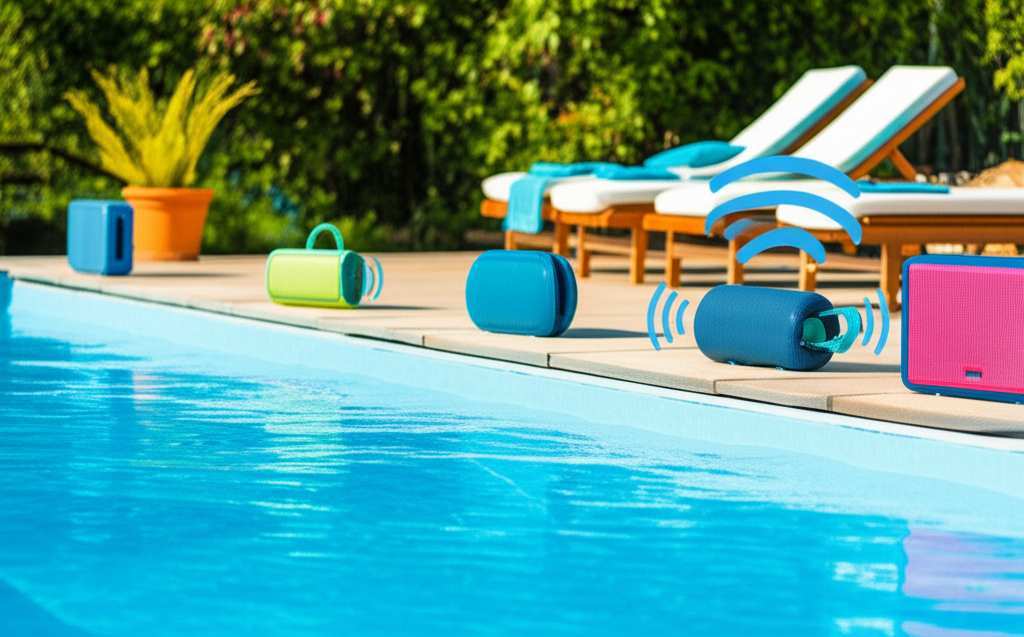
Ready to turn your backyard into a sound paradise? Let’s dive in!
Why Multiple Bluetooth Speakers? It’s All About the Vibe!
Think about it: a single Bluetooth speaker is great for a small gathering or personal listening. But a pool area is usually bigger, right? You’ve got sun loungers here, a shady spot there, maybe a table for drinks further away. If your music is only coming from one place, you get those “loud spots” and “quiet spots.” It’s like trying to watch a movie with only one speaker – you miss half the action!
With multiple speakers, you can create a 360-degree sound experience. This means the music sounds rich and full no matter where you are. It’s perfect for pool parties, relaxing afternoons, or even just enjoying some background tunes while you swim. Plus, it just feels more… professional. Like your own personal concert venue, right in your backyard!
Let’s Talk About Sound: What Makes it Amazing?
So, what makes sound “amazing” around a pool? It’s not just about volume. It’s about clarity, balance, and making sure everyone can hear the music without it being jarring. Multiple speakers help achieve this by distributing the sound evenly. Instead of one speaker blasting, you have several working together to create a smooth, consistent audio experience.
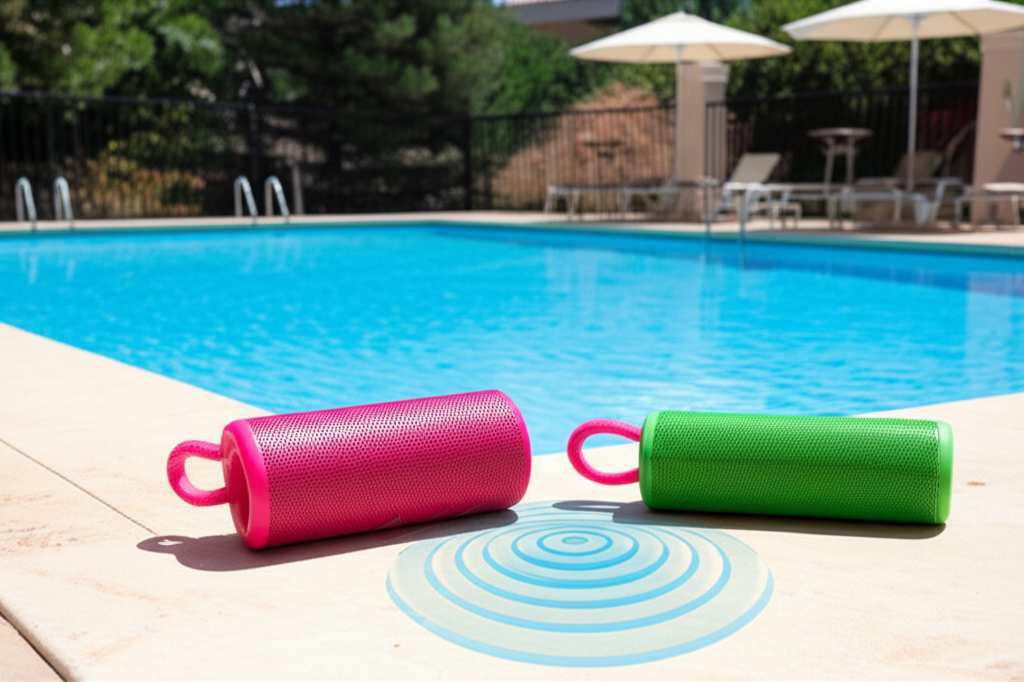
This is especially cool for outdoor spaces. You can position speakers to avoid echoes off walls or to direct sound away from neighbors if needed. It’s all about smart placement and smart technology working hand-in-hand. And the best part? You don’t need to be a sound engineer to figure it out.
The Big Question: How Do I Connect More Than One Bluetooth Speaker?
This is where things used to get tricky, but thankfully, technology has made it much easier. There are a few main ways to achieve this, depending on your speakers and your phone or tablet.
Method 1: The Built-In “Party Mode” or “Stereo Pairing”
Many modern Bluetooth speakers come with a special feature that lets you connect two or more speakers together. This is often called “Party Mode,” “Stereo Pairing,” or sometimes a brand-specific name like “JBL Connect+” or “UE Boom’s PartyUp.”
How it Usually Works
1. Turn on your speakers: Make sure all the speakers you want to connect are powered on and nearby.
2. Activate pairing mode on one speaker: Usually, you press and hold a specific button (often a Bluetooth icon or a dedicated pairing button) on the first speaker. This speaker will become the “primary” speaker.
3. Connect the second speaker to the first: Once the first speaker is in pairing mode, you’ll usually press a button or combination of buttons on the second speaker to link it to the first. You might hear a chime or see a light change to confirm they’re connected.
4. Add more speakers (if supported): If your speakers support connecting more than two, you’ll repeat step 3 for each additional speaker.
5. Connect your device to the primary speaker: Now, go to your phone or tablet’s Bluetooth settings. You should see the name of your primary speaker. Connect to it as you normally would.
Once connected, your phone will send the audio signal to the primary speaker, which then wirelessly relays it to the other connected speakers. It’s like a little audio chain reaction!
Why This is Awesome
True Stereo Sound: Some systems allow for true stereo pairing, where one speaker handles the left channel and the other handles the right, creating a much richer soundstage.
Easy Setup: Once you know the button combo, it’s usually a quick process.
Consistent Performance: The speakers are designed to work together, so you often get better synchronization and less audio lag.
A Little Tip
Always check your speaker’s manual or the manufacturer’s website. The exact button presses and sequences can vary between brands. For example, with a JBL speaker, you might press the “Connect” button on the first speaker, then press the “Connect” button on the second speaker until you hear a sound. For Ultimate Ears (UE) speakers, you might press and hold the Bluetooth button on one speaker, then press and hold the volume up button on another to link them.
Method 2: Using Your Phone’s Built-In Audio Sharing (iOS & Android)
Both Apple and Android have made it easier to connect multiple Bluetooth audio devices directly from your phone, without needing special speaker features.
For iOS Devices (iPhone/iPad): Connecting Two Speakers
Apple has a feature called “Stereo Pair” for AirPods and Beats headphones, but for regular Bluetooth speakers, they introduced
Audio Sharing. This lets you send audio to two different Bluetooth headphones or speakers simultaneously.
1.
Connect your first speaker: Go to Bluetooth settings on your iPhone or iPad and connect to your first speaker as usual. Play some music to confirm it’s working.
2. Connect your second speaker: Turn on your second speaker and make sure it’s in pairing mode. Go back to your device’s Bluetooth settings and connect to the second speaker.
3. Use the Control Center:
Open the Control Center on your iPhone or iPad. (Swipe down from the top-right corner on newer iPhones, or swipe up from the bottom on older ones).
Tap the AirPlay icon (it looks like a triangle with circles above it) in the Now Playing widget.
You should see a list of your connected audio devices. Tap the checkbox next to both your first and second speaker.
Your audio will now stream to both speakers!
Important Note for iOS: Audio Sharing is primarily designed for two devices. While you can sometimes get it to work with two different brands of Bluetooth speakers, it’s most reliable when connecting two of the same model of Bluetooth headphones or speakers that support this feature. For more than two speakers, you’ll likely need Method 1 or 3.
For Android Devices: Connecting Multiple Audio Devices
Android has also made strides in multi-device audio. The exact method can vary slightly depending on your Android version and phone manufacturer, but here’s the general idea:
1. Connect your first speaker: Pair your first Bluetooth speaker with your Android phone. Play some audio to check.
2. Connect your second speaker: Turn on your second speaker and pair it with your phone.
3. Check Advanced Bluetooth Settings:
Go to your phone’s Settings > Bluetooth.
Tap on the name of one of your connected speakers. You might see an option like “Use for phone calls” or “Use for media audio.”
Look for an option like “Dual Audio,” “Media Output,” or “Audio Output.” This setting is often found in the advanced Bluetooth settings or sometimes within the Media section of your sound settings.
If “Dual Audio” or a similar feature is available, you should be able to select both speakers to play media audio.
Some Samsung phones, for example, have a “Dual Audio” feature that allows streaming to two devices. You might need to enable it in advanced Bluetooth settings.
A Word of Caution for Android: Like iOS, Android’s native dual audio support is often most reliable for two devices. For more than two, or for better synchronization, dedicated speaker features (Method 1) or third-party apps (Method 3) might be necessary.
Method 3: Third-Party Apps (Use with Caution)
There are apps available on both iOS and Android that claim to connect multiple Bluetooth speakers. These apps often work by sending the audio signal to one speaker, and then using software tricks to try and sync the others.
How They Might Work
You connect each speaker individually to your phone.
You then open the app and select the speakers you want to use.
The app tries to manage the audio output to all selected speakers.
Why Be Cautious?
Synchronization Issues: This is the biggest problem. The audio might not be perfectly in sync between speakers, leading to annoying echoes or a “laggy” sound.
Battery Drain: Running these apps can use more battery on your phone.
Reliability: They don’t always work perfectly and can be buggy.
Cost: Some good ones might require a purchase.
Recommendation: Try Method 1 or 2 first. If those don’t meet your needs or your speakers don’t support them, then research reputable third-party apps, read reviews carefully, and be prepared for potential quirks. Apps like “AmpMe” or “SoundSeeder” are examples, but always check their current functionality and user feedback.
Choosing the Right Speakers for Your Pool Party
Not all Bluetooth speakers are created equal, especially when you want them to work together outdoors. Here’s what to look for:
Key Features to Consider
Water Resistance (IP Rating): This is crucial for a pool area! Look for speakers with an IPX4 rating or higher. IPX4 means they can resist splashes from any direction. IPX7 is even better, meaning they can be submerged in water for a short time.
“Party Mode” or “Stereo Pairing” Capability: As we discussed, this is the easiest way to connect multiple speakers. Check the product description or manual.
Battery Life: You don’t want your music to die halfway through a poolside chill session. Aim for speakers with at least 8-10 hours of playback at moderate volume.
Sound Quality: Listen to reviews or, if possible, demo speakers. You want clear highs, decent mids, and some bass, even outdoors.
Portability and Durability: Speakers should be easy to move around and tough enough to handle being near water, sand, or occasional bumps.
Connectivity Range: How far can the speaker be from your phone? A longer range means more flexibility in placement.
Speaker Comparison Table: Outdoor Sound Champions
Let’s look at a few popular types of speakers and what makes them good for this kind of setup.
| Feature | Speaker Type 1: Rugged Outdoor Speaker (e.g., JBL Charge, UE Boom) | Speaker Type 2: Portable Waterproof Speaker (e.g., Anker Soundcore, Oontz) | Speaker Type 3: Larger, Louder Outdoor Speaker (e.g., Fugoo Style-XL, Bose SoundLink) |
| :—————— | :————————————————————— | :———————————————————————– | :———————————————————————————— |
| Typical Price | $100 – $200 | $50 – $100 | $200 – $400 |
| Water Resistance| IPX7 (Fully waterproof) | IPX7 (Fully waterproof) | IPX5 to IPX7 (Splashproof to waterproof) |
| Multi-Speaker | Yes (Often Party Mode/Stereo Pair) | Yes (Some models offer pairing, check specs) | Yes (Often Stereo Pair or multi-speaker modes) |
| Battery Life | 12-20 hours | 8-15 hours | 15-24 hours |
| Portability | Very Good (Compact, often with carabiner clips) | Excellent (Lightweight, easy to carry) | Good (Can be larger, but still portable) |
| Sound Profile | Balanced, good bass for size | Clear, decent for casual listening | Richer, fuller sound, better bass |
| Best For | Versatile pool use, parties, everyday adventures | Budget-conscious, basic waterproof needs, smaller areas | Louder events, larger areas, premium sound quality |
What this table means for you: If you’re serious about great sound and want to connect multiple speakers easily, investing in speakers that explicitly support “Party Mode” or “Stereo Pairing” (like Type 1 and 3) is your best bet. They are designed for this! Type 2 speakers are fantastic budget options, but you’ll need to be extra careful to check if they can pair with each other.
Placement is Key: Where to Put Your Speakers
Just connecting them isn’t the whole story. Where you place your speakers makes a huge difference! Think about creating a balanced soundscape.
Opposite Corners: Place two speakers in opposite corners of your pool area. This covers a wide space.
Around the Perimeter: If you have 3 or 4 speakers, you can place them at intervals around the edge of your patio or deck.
Vary Heights: If possible, put some speakers on lower surfaces and others on higher ones. This helps spread the sound more effectively.
Avoid Obstructions: Try not to place speakers directly behind large furniture, thick bushes, or walls that can block the sound.
Consider Your Listening Spots: Where do you and your guests usually sit or stand? Aim to have speakers providing sound to those key areas.
Water Safety First! Keep speakers away from the immediate edge of the pool where they could easily fall in. Even waterproof speakers have limits! Always follow manufacturer guidelines.
Step-by-Step: Let’s Connect Your Poolside Sound System!
Okay, let’s get practical. Here’s a general step-by-step guide, assuming your speakers have a “Party Mode” or “Stereo Pairing” feature. If yours don’t, you’ll revert to the single-speaker pairing method and rely on your phone’s audio sharing, which is best for two speakers.
Scenario: Connecting Two Speakers with Party Mode
1. Charge Up! Make sure all your speakers are fully charged or plugged into power. You don’t want a dead speaker mid-party.
2. Power On: Turn on both of your Bluetooth speakers.
3. Initiate Primary Pairing: On the first speaker (this will be your main one), press and hold the designated pairing button (often the Bluetooth icon or a dedicated “Link” button) until you hear a confirmation sound or see a flashing light indicating it’s ready to connect to another speaker.
4. Connect Secondary Speaker: Now, take the second speaker. Press and hold its corresponding pairing or linking button. It should search for and connect to the first speaker. You’ll likely hear another confirmation sound from both speakers, and their indicator lights might change to show they are linked.
5. Pair Your Device: Go to the Bluetooth settings on your smartphone, tablet, or other audio source. Look for the name of your primary speaker (the first one you powered on and put into pairing mode). Tap to connect.
6. Test the Sound: Once connected, play some music! Both speakers should now be playing the same audio. You might be able to control the volume from your device, and it will affect both speakers.
7. Position for Perfection: Now, take your speakers and place them in your chosen spots around the pool area.
Scenario: Connecting Two Speakers Using Phone’s Dual Audio (iOS/Android)
1. Charge and Power On: Ensure both speakers are charged and turned on.
2. Pair Speaker 1: Connect your first speaker to your phone via Bluetooth as usual.
3. Pair Speaker 2: Connect your second speaker to your phone via Bluetooth as usual.
4. Enable Dual Audio:
iOS: Open Control Center, tap the AirPlay icon in the Now Playing widget, and select both speakers from the list.
Android: Go to Settings > Bluetooth. Tap on one of the connected speakers. Look for “Dual Audio” or “Media Output” and enable it, then select both speakers. (Exact steps vary by device).
5. Play and Position: Play music and place your speakers where they sound best.
Connecting More Than Two Speakers: If your speakers support linking more than two (e.g., 3 or 4), you’ll typically repeat steps 3 and 4 of the “Primary Pairing” scenario for each additional speaker. Always consult your speaker’s manual for the exact procedure.
Troubleshooting Tips: When Things Go Wonky
Sometimes, tech doesn’t play nice. If you’re having trouble, don’t panic! Here are some common fixes:
Restart Everything: Turn off all speakers and your phone/tablet. Then turn them back on, starting with the primary speaker, then the secondary, and finally your device.
Forget and Re-Pair: In your phone’s Bluetooth settings, “forget” or “unpair” all the speakers. Then, go through the connection process again from scratch.
Check for Interference: Other wireless devices, microwaves, or even thick walls can sometimes interfere with Bluetooth signals. Try moving closer to the speakers or away from potential interference sources.
Update Speaker Firmware: Some speakers can be updated via a mobile app. Check the manufacturer’s app for any available firmware updates, which can fix bugs.
Speaker Compatibility: Ensure your speakers are compatible with each other for linking. Some “Party Modes” only work if you’re linking two of the exact same model of speaker.
If you’re still stuck, checking the manufacturer’s support page or online forums for your specific speaker model is a great next step. Sites like CNET often have detailed reviews and troubleshooting tips for popular speaker brands.
Making the Most of Your Poolside Audio Experience
Beyond just connecting them, think about how to enhance your sound.
EQ Settings: Play with the equalizer settings on your phone or music app. You might want to boost the bass slightly for outdoor listening or adjust treble for clarity.
Music Choice: Upbeat playlists are fantastic for parties, but for relaxing, consider ambient or acoustic music that complements the natural sounds of water.
Volume Control: Be mindful of your neighbors! While you want amazing sound, you also want to be a good neighbor. Use the multi-speaker setup to achieve great sound at a reasonable volume.
Battery Management: If you’re having a long day, consider having a portable power bank handy for your phone or even some speakers if they have a USB out port for charging.
Frequently Asked Questions (FAQ)
Q1: Can I connect speakers from different brands together?
A1: It depends. If your speakers both have a universal “Party Mode” or “Stereo Pairing” feature that uses standard Bluetooth pairing, it might work. However, it’s much more reliable if you use two speakers of the exact same model from the same brand. Your phone’s dual audio feature (Method 2) might also allow different brands, but synchronization can be an issue.
Q2: How far can my speakers be from each other?
A2: This varies greatly. The Bluetooth connection is usually between your phone and the primary speaker. The distance between the primary and secondary speakers depends on their internal wireless linking technology. It’s often around 30-50 feet (10-15 meters) in open conditions. For best results, keep them within a reasonable distance.
Q3: Will connecting multiple speakers drain my phone’s battery faster?
A3: Yes, a little bit. Your phone is now actively managing multiple Bluetooth connections and sending audio streams. It’s not a huge difference for two speakers, but for three or four, you might notice it more. Using the speaker’s built-in linking (Method 1) is often more power-efficient than relying solely on your phone’s software.
Q4: What is an IP rating, and why is it important for pool speakers?
A4: An IP rating (Ingress Protection) tells you how well a device is protected against dust and water. For pool speakers, you want at least IPX4 (splash-proof) to protect against accidental splashes. IPX7 is even better, meaning it can be submerged in up to 3 feet of water for 30 minutes. This gives you peace of mind near the water!
Q5: How do I know if my speakers can connect to each other?
A5: Check the product description, the speaker’s manual, or the manufacturer’s website. Look for terms like “Party Mode,” “Stereo Pairing,” “Connect+,” “PartyUp,” “TWS” (True Wireless Stereo), or similar. If it’s not mentioned, they likely can’t link to each other, and you’ll have to rely on your phone’s dual audio feature.
Q6: What’s the difference between Stereo Pairing and Party Mode?
A6: Stereo Pairing typically means one speaker plays the left channel and the other plays the right channel, creating a true stereo sound experience. Party Mode or Multi-Speaker mode usually means all connected speakers play the same audio signal, essentially duplicating the sound to fill a larger area. Both are great for multiple speakers, but Stereo Pairing offers a more immersive audio image.
Q7: Can I use my laptop or tablet to connect multiple speakers?
A7: Yes! Most laptops and tablets with Bluetooth can connect to speakers. The process is very similar to connecting with a smartphone. However, laptops and tablets often have more limited built-in options for connecting multiple Bluetooth audio devices simultaneously compared to modern smartphones. You’ll likely need to rely on speakers with their own linking features (Method 1).
Your Backyard Oasis Awaits!
So there you have it! Connecting multiple Bluetooth speakers around your pool area is totally achievable and will seriously level up your outdoor entertainment. Whether you’re chilling with a book, hosting a barbecue, or splashing around with friends, great sound makes everything better.
Remember, the easiest way is usually through your speakers’ built-in “Party Mode” or “Stereo Pairing.” If that’s not an option, your phone’s dual audio feature is a good alternative for two speakers. Don’t forget to consider water resistance and battery life when picking out your gear.
Take a little time to set it up, experiment with placement, and soon you’ll be enjoying a fantastic, immersive sound experience that makes your pool area the envy of the neighborhood.
Now go make some noise and enjoy that amazing poolside sound!


