Connect your Bluetooth speaker to your Roku TV in minutes! This guide makes it super simple to boost your TV’s sound for movies, music, and games without any hassle. Get ready for awesome audio!
Hey there, tech adventurer! Ever feel like your Roku TV’s sound is just… okay? You know, the kind of sound that makes explosions a bit meh and your favorite music sound a little flat. I totally get it! Sometimes, the built-in speakers just don’t cut it for that truly immersive experience we all crave.
Maybe you’ve got a fantastic Bluetooth speaker sitting around, just waiting to be unleashed. Or perhaps you’re thinking about grabbing one to make movie nights epic. The thought of connecting it to your TV might seem a little daunting, right? Like, “Will it even work?” or “Is this going to be a tech nightmare?”
Don’t you worry your awesome head about it! I’m here to break it all down for you, step-by-step. We’ll make connecting your Bluetooth speaker to your Roku TV as easy as, well, watching your favorite show. Let’s dive in and get that sound cranked up!
Why Bother With a Bluetooth Speaker for Your Roku TV?
So, why would you want to hook up a Bluetooth speaker to your Roku TV in the first place? It’s all about making your entertainment better! Imagine watching an action movie where you can feel the rumble of the explosions. Or listening to a concert stream where the music sounds rich and full, like you’re right there.
A good Bluetooth speaker can completely transform your viewing experience. It adds depth, clarity, and a powerful punch that most TV speakers just can’t match. Plus, it’s a super flexible way to enjoy sound. You can easily move the speaker around your room, or even take it to another space if you want to listen there!
Roku TV and Bluetooth: What You Need to Know
Here’s the cool part: many modern Roku TVs actually have built-in Bluetooth! This makes connecting your speaker a breeze. However, not all Roku TVs have this feature. Don’t panic if yours doesn’t! There’s still a way to get that sweet Bluetooth audio.
If your Roku TV does have Bluetooth, it’s usually for connecting audio devices like headphones or speakers. If it doesn’t have Bluetooth built-in, you might need a little helper. This could be a Bluetooth transmitter or a different type of audio adapter. We’ll cover both scenarios, so no matter what Roku TV you have, you’ll be covered!
Let’s Check If Your Roku TV Has Bluetooth
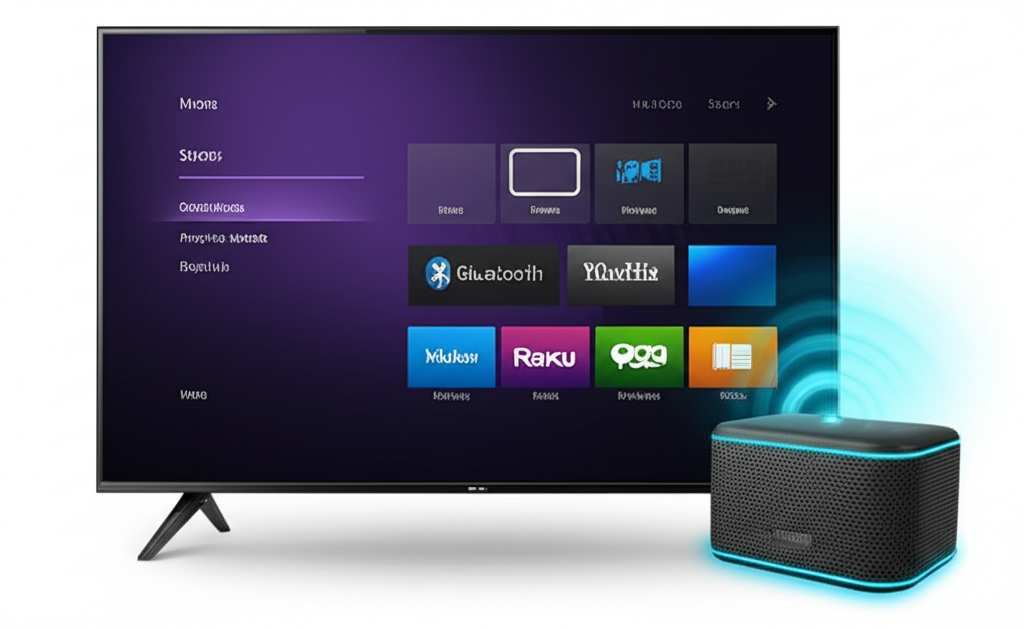
The first step is to see if your Roku TV is ready to go wireless. It’s super simple to check. Just follow these steps:
-
Turn on your Roku TV.
-
Grab your Roku remote. Press the Home button.
-
Navigate to the right side of the screen to find Settings. Select it.
-
Scroll down and select Remotes & devices.
-
Look for an option that says Bluetooth or Pair Bluetooth device. If you see this, hooray! Your TV has Bluetooth!
If you see that Bluetooth option, you’re in luck! This means your TV can talk directly to your Bluetooth speaker. If you don’t see that option, don’t get discouraged. We have a plan for that too, coming up a bit later.
How to Hook Up a Bluetooth Speaker to a Roku TV (When Your TV HAS Bluetooth)
Alright, if your Roku TV has that magical Bluetooth feature, getting your speaker connected is pretty straightforward. Think of it like pairing your phone to your car stereo – same idea!
Step 1: Get Your Bluetooth Speaker Ready
First, make sure your Bluetooth speaker is charged up and ready to go. You’ll need to put it into pairing mode. How you do this depends on your speaker, but usually, there’s a button with the Bluetooth symbol on it.
Press and hold this button for a few seconds. You’ll often hear a little sound, or see a light flashing, which means it’s searching for devices to connect to. Check your speaker’s manual if you’re unsure how to put it in pairing mode.
Step 2: Put Your Roku TV in Bluetooth Pairing Mode
Now, let’s get your TV ready to find that speaker. You’ll do this through your TV’s settings:
-
Go back to your Roku TV’s Settings menu. If you’re not there, press the Home button and select Settings.
-
Select Remotes & devices.
-
Choose Pair Bluetooth device.
-
Your Roku TV will now start searching for nearby Bluetooth devices. Make sure your speaker is still in pairing mode!
Step 3: Select Your Speaker from the List
Once your TV finds your speaker, its name should pop up on the screen. It might say something like “JBL Flip 5” or “Sony SRS-XB23.”
Use your Roku remote to highlight your speaker’s name and press the OK button. Your TV will then try to connect to it. You might hear a confirmation sound from your speaker, or see a message on your TV saying it’s connected!
Step 4: Enjoy the Sound!
That’s it! You’ve done it. Now, when you play anything on your Roku TV, the sound should come out of your Bluetooth speaker. You can usually control the volume using either your Roku remote or your speaker’s volume buttons. Experiment to see what works best for you!
What If My Roku TV Doesn’t Have Built-In Bluetooth? No Problem!
Okay, so you checked, and your Roku TV doesn’t have that handy Bluetooth option. Don’t worry, this is where a little gadget comes to the rescue! You’ll likely need a Bluetooth audio transmitter.
Think of a Bluetooth transmitter as a translator. It takes the audio signal from your TV and sends it wirelessly to your Bluetooth speaker. It’s a super common solution for older TVs or those that just don’t have Bluetooth built-in.
Choosing the Right Bluetooth Transmitter
There are tons of these transmitters out there. When picking one, here are a few things to consider:
-
Connectivity: How does it plug into your TV? Most use the 3.5mm headphone jack (like your old headphones!) or an optical audio port (a small, square port). Make sure it matches your TV’s audio output.
-
Range: How far can the signal reach? A longer range means you can place your speaker further away without losing connection.
-
Battery Life (if applicable): Some transmitters are rechargeable, others plug into the wall. If it’s rechargeable, check how long the battery lasts.
-
Number of Devices: Do you want to connect two speakers at once? Some transmitters can do that!
A popular and reliable option is the TaoTronics Bluetooth 5.0 Transmitter and Receiver. It’s versatile and often praised for its ease of use. For more options, you can check out reviews on sites like CNET.
How to Set Up a Bluetooth Transmitter
Setting up a transmitter is pretty simple. Here’s the general idea:
-
Connect the Transmitter to Your TV: Plug the transmitter into your TV’s audio output port. This is usually the headphone jack (a round hole) or the optical audio port. Your transmitter will come with the right cables.
-
Power Up the Transmitter: If it’s a rechargeable one, make sure it’s charged. If it plugs into the wall, connect it to power.
-
Put the Transmitter in Pairing Mode: Just like your speaker, the transmitter will have a button to put it into pairing mode. Hold it down until a light flashes.
-
Put Your Bluetooth Speaker in Pairing Mode: Do this exactly as you would if you were connecting directly to the TV.
-
Wait for Them to Connect: The transmitter and speaker should find each other automatically. Once they’re paired, the lights on both devices will usually change or stop flashing.
-
Adjust TV Audio Settings: You might need to tell your Roku TV to send audio out through the headphone jack or optical port. Go to your Roku TV’s Settings > Audio & video. Look for options like “Audio output” or “Digital audio out” and select the correct setting.
This method adds an extra step, but it’s a fantastic way to bring wireless audio to almost any TV!
Troubleshooting Common Issues
Sometimes, things don’t connect perfectly on the first try. It happens to the best of us! Here are a few common hiccups and how to fix them:
-
Speaker Not Showing Up: Make sure your speaker is definitely in pairing mode. Also, try turning Bluetooth off and on again on your Roku TV (or transmitter). Sometimes, just moving the speaker closer to the TV helps!
-
Connection Keeps Dropping: This could be due to interference. Try moving other wireless devices (like microwaves or Wi-Fi routers) away from your TV and speaker. A weak battery in either the speaker or transmitter can also cause issues.
-
No Sound at All: Double-check that your TV’s audio output is set correctly. If you’re using a transmitter, ensure it’s plugged into the right port and that the TV is sending audio through that port. Also, check the volume on both the TV and the speaker – maybe one is just turned down!
-
Audio Lag (Sound is Out of Sync): This is a bummer, but it can happen with Bluetooth. Some transmitters have a “low latency” mode, which helps reduce this. If yours does, make sure it’s enabled. Sometimes, simply re-pairing the devices can fix it.
If you’re still stuck, check the support pages for your specific Roku TV model or your Bluetooth speaker. They often have detailed troubleshooting guides.
A Quick Look at Bluetooth Speaker Features
When you’re thinking about Bluetooth speakers, what makes one better than another? It’s not just about the brand name. Here are some key things to look for:
| Feature | What It Means | Why It Matters for Roku TV |
|---|---|---|
| Bluetooth Version (e.g., 5.0, 5.2) | This is the technology standard. Higher numbers are generally better. | Newer versions mean faster connections, better range, and more stable audio with less lag. |
| Battery Life | How long the speaker can play music on a single charge. | Longer battery life means you can watch movies or have parties without worrying about recharging. |
| Sound Quality (Drivers, Wattage) | Refers to how clear, deep, and loud the sound is. | A speaker with good drivers and higher wattage will give you that rich, powerful sound for movies and music. |
| Water Resistance (IP Rating) | A rating (like IPX7) that tells you how well it can handle water. | Not essential for TV use, but great if you might use the speaker elsewhere, like by the pool or in the kitchen! |
| Portability (Size & Weight) | How easy it is to carry around. | If you plan to move your speaker from room to room, a lighter, smaller one is better. |
For connecting to your Roku TV, I’d really focus on the Bluetooth version and sound quality. A speaker with Bluetooth 5.0 or higher will give you the best experience. And, of course, good sound quality is what this whole upgrade is about!
Comparing Popular Bluetooth Speaker Options for TV
Choosing a speaker can be overwhelming. Here’s a little comparison to help you see what’s out there. Remember, these are just examples, and prices can change!
| Speaker Model | Approx. Price | Key Features for TV | Battery Life |
|---|---|---|---|
| JBL Charge 5 | $150 – $180 | Excellent sound, durable, Bluetooth 5.1 | Up to 20 hours |
| Sony SRS-XB33 | $100 – $150 | Deep bass, IP67 waterproof, Bluetooth 5.0 | Up to 24 hours |
| Anker Soundcore Motion+ | $70 – $100 | Great value, Hi-Res audio, Bluetooth 5.0 | Up to 12 hours |
| Bose SoundLink Flex | $150 – $170 | Rich Bose sound, rugged, Bluetooth 4.2 (still good) | Up to 12 hours |
As you can see, you can get great sound at different price points. The Anker Soundcore Motion+ is often a fantastic budget-friendly choice that still delivers impressive audio. The JBL and Sony options offer a bit more power and features if you want to go all out. Always check recent reviews before buying!
Frequently Asked Questions (FAQ)
Q1: Can I connect any Bluetooth speaker to my Roku TV?
Yes, as long as your Roku TV has Bluetooth, or you’re using a Bluetooth transmitter, you can connect most standard Bluetooth speakers. Some very old or specialized speakers might have compatibility issues, but it’s rare.
Q2: Will my Roku remote control the Bluetooth speaker volume?
Sometimes! If your Roku TV supports Bluetooth audio profiles that include volume control, your Roku remote might work. If not, you’ll likely need to use the volume buttons on your Bluetooth speaker itself.
Q3: How far away can my Bluetooth speaker be from the Roku TV?
For direct Roku TV Bluetooth connections, the range is usually around 30 feet (about 10 meters) in an open space. With a Bluetooth transmitter, the range depends on the transmitter’s quality, but it’s often similar or slightly better.
Q4: Can I connect my Bluetooth headphones to my Roku TV?
Yes! If your Roku TV has Bluetooth, you can connect Bluetooth headphones just like you would a speaker. This is great for watching TV without disturbing others.
Q5: What’s the difference between a Bluetooth transmitter and a receiver?
A transmitter sends Bluetooth audio out from a non-Bluetooth device (like your TV) to a Bluetooth device (like a speaker). A receiver takes Bluetooth audio in and outputs it through wired speakers or headphones. For connecting a speaker to your TV, you need a transmitter.
Q6: Is there a delay when using a Bluetooth speaker with my TV?
There can be a slight delay, known as latency, with Bluetooth audio. Newer Bluetooth versions (like 5.0 and above) and transmitters with low-latency technology help minimize this. It’s usually unnoticeable for movies, but might be more apparent in fast-paced video games.
Q7: What if my Roku TV is not a smart TV? Can I still use a Bluetooth speaker?
If your TV is not a “smart” TV and doesn’t have Roku built-in, it likely doesn’t have Bluetooth. In this case, you’ll definitely need a Bluetooth transmitter that plugs into your TV’s audio output (like the headphone jack).
Conclusion: Get Ready for an Audio Upgrade!
See? Connecting a Bluetooth speaker to your Roku TV is totally doable, and it’s a game-changer for your home entertainment. Whether your TV has built-in Bluetooth or you’re using a handy little transmitter, you’re just a few steps away from richer sound.
You’ve learned how to check your TV, pair your devices, and even troubleshoot common issues. You’re now equipped to make those movie nights more thrilling, your music sound fuller, and your gaming sessions more immersive. So go ahead, give it a try!
Now go enjoy amazing sound and make every moment louder and better!