
Your Bluetooth speaker keeps cutting out? Don’t worry! This usually means a simple fix like clearing interference, checking battery, or updating software. Let’s get your music playing smoothly again.
Hey there, tech explorer! Ever have your favorite tunes suddenly stutter or your movie audio cut out just at the best part? It’s super frustrating, right? Especially when you’ve got that awesome Bluetooth speaker ready to fill the room with sound. We’ve all been there, fiddling with our phones and speakers, wondering what’s going on.
Bluetooth speakers are fantastic for parties, relaxing at home, or even just making your workspace more enjoyable. But when they decide to take a break mid-song, it can really kill the vibe. It feels like the tech is being a bit stubborn, and you just want it to work!
Don’t sweat it, though. Figuring out why your Bluetooth speaker keeps cutting out is usually easier than you think. We’re going to break it down, nice and simple. Think of me as your tech buddy, here to help you get that audio back on track. Let’s make this easy, step by step.
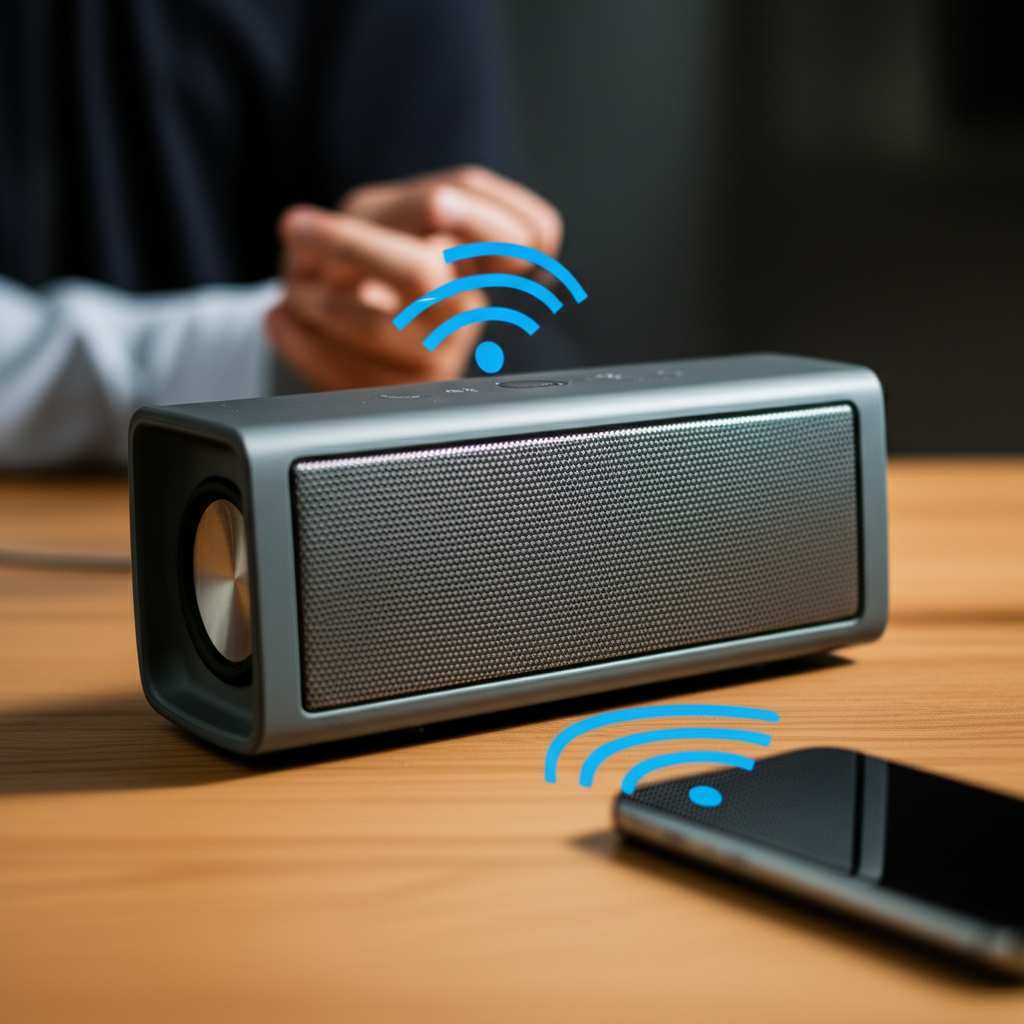
We’ll explore the common culprits and share some easy fixes that should get your music flowing without those annoying interruptions. Ready to dive in and banish those audio glitches?
Why Does My Bluetooth Speaker Keep Cutting Out? Let’s Find Out!
So, your Bluetooth speaker is acting up, and you’re wondering, “Why does my Bluetooth speaker keep cutting out?” It’s a common puzzle! The good news is, it’s rarely a sign of a broken speaker. Usually, it’s something in the connection or the environment. Let’s look at the most likely reasons.
1. Distance and Obstacles: The Invisible Walls
Bluetooth has a certain range. If you move your speaker too far from your phone or tablet, the signal can get weak. Think of it like trying to whisper to someone across a big room – they might not hear you clearly. Obstacles like walls, furniture, or even your own body can also block the signal.
Most Bluetooth speakers work best when they’re within about 30 feet (10 meters) of your device. Some newer ones have a longer range, but it’s always good to keep them relatively close. Thick walls made of brick or concrete are the worst offenders for blocking signals.
2. Interference: The Signal Scramble
This is a big one! Lots of devices use the same radio frequencies that Bluetooth uses. Things like microwaves, Wi-Fi routers, other Bluetooth devices, and even some cordless phones can create interference. This is like trying to have a quiet chat in a noisy crowd – your words get lost.
When these devices are active, they can “talk over” your Bluetooth signal. This causes skips, stutters, and dropouts. It’s especially noticeable if your speaker and device are close to a busy Wi-Fi router or a running microwave.
3. Low Battery: The Energy Drain
Just like your phone or laptop, your Bluetooth speaker needs power to function well. When the battery gets low, it might not be able to send or receive a strong, stable signal. This can lead to audio cutting out or sounding distorted. Your connected device might also struggle to maintain a good connection if its battery is low.
It’s a good habit to check the battery level of both your speaker and your playback device regularly. Many speakers have an indicator light or a voice prompt to let you know when they need charging. Some companion apps also show the battery percentage.
4. Outdated Software or Firmware: The Tech Glitch
Sometimes, the problem isn’t with the signal itself, but with the brains of the operation. Your Bluetooth speaker and your connected device (like your phone or laptop) have software, called firmware, that helps them communicate. If this software is old, it might have bugs that cause connection issues.
Manufacturers often release updates to fix these bugs and improve performance. If your speaker or device hasn’t had its firmware updated in a while, it could be the reason for the cutting out. It’s like an old app on your phone that keeps crashing – an update usually fixes it.
5. Too Many Connected Devices: The Crowded Channel
Many Bluetooth speakers can connect to multiple devices at once, or remember a list of previously connected devices. If you have a lot of devices trying to connect or nearby, it can sometimes confuse the speaker. It might struggle to decide which device to prioritize, leading to an unstable connection.
Some speakers are better at managing multiple connections than others. If your speaker is constantly trying to connect to a phone, tablet, and laptop all at once, it might get overwhelmed. It’s like a waiter trying to serve too many tables at once – things can get dropped.
6. Bluetooth Version Mismatch: The Compatibility Hurdle
Bluetooth technology has different versions (like Bluetooth 4.0, 4.2, 5.0, 5.1, 5.2, etc.). While newer versions are generally backward-compatible, sometimes older devices and newer speakers, or vice-versa, can have minor communication glitches. This is less common but can happen.
Newer Bluetooth versions offer better stability, range, and speed. If your speaker is very old and your phone is very new, or the other way around, this could be a subtle factor. Most modern devices use Bluetooth 5.0 or higher, which is pretty robust.
How to Fix Your Bluetooth Speaker Cutting Out: Easy Steps!
Alright, now that we know why it might be happening, let’s get to the good stuff: fixing it! These steps are simple and should help you get your audio back to crystal clear. We’ll go from the easiest fixes to slightly more involved ones.
Step 1: Get Closer and Clear the Path
This is the simplest fix. Move your speaker and your device closer to each other. Try to reduce the number of walls or large objects between them. If you’re in a crowded room, try moving to a more open space. Sometimes, just taking a few steps can solve the problem instantly!
Example: If you’re in your living room and the speaker is in the kitchen, move it back into the living room. Or, if you’re standing between the speaker and your phone, step to the side so there’s a clear line of sight.
Step 2: Reduce Interference
This is crucial. Turn off any devices that might be causing interference. This includes microwaves, other Bluetooth devices you aren’t using, and even unplugging your Wi-Fi router for a minute to see if it helps. Try moving your speaker away from your Wi-Fi router or other electronics.
Tip: Many Bluetooth devices use the 2.4 GHz frequency band, which is the same band used by Wi-Fi. If your Wi-Fi is really busy, it can impact your Bluetooth. Sometimes, simply switching your Wi-Fi to the 5 GHz band (if your router supports it) can free up the 2.4 GHz band for Bluetooth.
Step 3: Check and Charge Batteries
Make sure both your Bluetooth speaker and the device you’re connecting to (phone, tablet, etc.) have enough battery power. Plug them in to charge if they’re low. A full charge can often resolve performance issues.
Fun Fact: Devices often reduce their power output when the battery is critically low to conserve energy. This can weaken their Bluetooth signal, causing dropouts. Keeping them topped up is key!
Step 4: Restart Everything
A simple restart can fix many temporary glitches. Turn off your Bluetooth speaker completely. Then, turn off Bluetooth on your phone or tablet. Wait about 30 seconds, then turn Bluetooth back on, and finally, turn your speaker back on. Re-pair them if necessary.
This process clears out any temporary memory issues or software hiccups that might be causing the connection to be unstable.
Step 5: Forget and Re-pair the Device
If restarting doesn’t work, you can try “forgetting” the speaker from your device’s Bluetooth settings and then pairing them again. This creates a fresh connection profile.
How to do it (general steps):
- Go to your device’s Bluetooth settings.
- Find your speaker in the list of paired devices.
- Tap on it and select “Forget Device,” “Unpair,” or “Remove.”
- Turn off Bluetooth on your device, then turn it back on.
- Put your speaker in pairing mode (usually by holding a button).
- Scan for devices on your phone/tablet and select your speaker to pair again.
Step 6: Update Software and Firmware
Check for updates for your phone or tablet’s operating system. Also, check if the speaker manufacturer has a companion app. These apps often allow you to update your speaker’s firmware.
Why this matters: Manufacturers release firmware updates to fix bugs, improve performance, and sometimes even add new features. An update could be the magic bullet for your connection problems. You can usually find info on how to update on the manufacturer’s website or within their app.
Step 7: Disconnect Other Bluetooth Devices
Temporarily turn off Bluetooth on other devices nearby that you aren’t using. This helps ensure that your speaker and playback device have a clear channel without competing signals. If your speaker supports multi-point connection, try disconnecting it from other previously paired devices.
Quick Tip: Some advanced Bluetooth speakers allow you to manage connected devices through a dedicated app. Check your speaker’s manual or the app to see if you can easily disconnect or prioritize devices.
Step 8: Reset Your Bluetooth Speaker
Many Bluetooth speakers have a reset function that can return them to their factory settings. This is like giving the speaker a fresh start. The method varies by speaker, so you’ll likely need to consult your speaker’s manual or the manufacturer’s website for specific instructions.
Common Reset Methods:
- Pressing and holding a specific button combination (like Power + Volume Down) for several seconds.
- Using a small pin to press a hidden reset button.
- Sometimes, a firmware update process can also act as a reset.
After resetting, you’ll need to pair your speaker with your device again.
Step 9: Check for Physical Damage
While less common for connection issues, it’s worth a quick check. Ensure the charging port on the speaker is clean and free of debris. Also, look for any visible damage to the speaker or your device that might be affecting the Bluetooth antenna.
Example: If the speaker has been dropped, the internal antenna might have been dislodged. While this is rare, it’s good to rule out physical causes.
Understanding Bluetooth Connections: A Quick Look
Bluetooth is pretty cool! It uses radio waves to let devices talk to each other without wires. It’s like having a short-range walkie-talkie for your gadgets. The technology has come a long way, making connections more stable and faster. But it’s not magic – it can still be affected by the world around it.
How Far Can Bluetooth Reach?
The theoretical maximum range for Bluetooth is about 100 meters (330 feet) for Class 1 devices, but most common devices like smartphones and speakers are Class 2, with a range of around 10 meters (33 feet). However, real-world range is often less due to interference and obstacles.
Here’s a simple table showing typical ranges:
| Bluetooth Class | Max Power Output | Typical Range |
|---|---|---|
| Class 1 | 100 mW | ~100 meters (~330 feet) |
| Class 2 | 2.5 mW | ~10 meters (~33 feet) |
| Class 3 | 1 mW | ~1 meter (~3 feet) |
What this means for you: Most portable Bluetooth speakers are Class 2 devices. So, keeping your phone or tablet within about 10 meters (33 feet) is your best bet for a stable connection. If you’re experiencing dropouts, try moving closer!
Bluetooth vs. Wi-Fi: What’s the Difference?
It’s easy to mix them up, but Bluetooth and Wi-Fi are different. Bluetooth is for short-range, direct connections between two devices (like your phone and speaker). Wi-Fi is for connecting devices to a network and the internet, usually over a longer range.
They both use radio waves, but in different ways. Sometimes, your Wi-Fi network can interfere with your Bluetooth signal because they share the same frequency bands. This is why reducing Wi-Fi interference can help your Bluetooth connection.
When to Consider an Upgrade or Professional Help
If you’ve tried all these troubleshooting steps and your Bluetooth speaker still keeps cutting out, it might be time to consider a few things. Sometimes, older speakers might not have the most advanced Bluetooth technology, making them more prone to interference or range issues.
Signs it might be time for an upgrade:
- Your speaker is several years old and uses an older Bluetooth version (e.g., Bluetooth 3.0 or older).
- You consistently experience dropouts even in ideal conditions (close range, no interference).
- The battery life has significantly degraded and won’t hold a charge.
- The speaker has a lot of cosmetic damage.
What to look for in a new speaker:
- Bluetooth 5.0 or higher: Offers better range, stability, and power efficiency.
- Good reviews for connectivity: See what other users say about its Bluetooth performance.
- Companion App: Some apps offer firmware updates and better device management.
You can find great reviews and comparisons of the latest Bluetooth speakers on sites like CNET or TechRadar.
If your speaker is relatively new and still having issues, it might have a manufacturing defect. In this case, you might want to contact the manufacturer’s customer support or check your warranty. They might be able to offer specific troubleshooting or arrange for a repair or replacement.
Frequently Asked Questions (FAQ)
Q1: My Bluetooth speaker sounds distorted when it cuts out. What’s wrong?
A1: Distortion often happens when the Bluetooth signal is weak or heavily interfered with. It can also occur if the speaker’s battery is very low. Try moving closer to your device, reducing interference, and ensuring both devices are well-charged. If it persists, a firmware update or re-pairing might help.
Q2: Can my phone case affect my Bluetooth speaker connection?
A2: While less common, some very thick or metallic phone cases can sometimes interfere with the Bluetooth signal emitted by your phone. If you suspect this, try removing the case and see if the connection improves.
Q3: My speaker is cutting out when I’m walking around with my phone. Is that normal?
A3: It can be normal if you’re moving beyond the optimal range or if there are many obstacles. Bluetooth signals aren’t as strong as Wi-Fi. Try to stay within about 10-15 feet of your speaker, especially if you’re moving around a lot. For more freedom, look for speakers with Bluetooth 5.0 or higher, as they generally offer better range and stability.
Q4: I have a new Bluetooth speaker, but it still cuts out. Why?
A4: Even new speakers can experience issues. Check for interference from other devices (Wi-Fi routers, microwaves, other Bluetooth gadgets). Ensure the speaker and your phone have enough battery. Try forgetting and re-pairing the devices, and check for any firmware updates for the speaker through its app. Sometimes, a specific combination of devices can just be a bit finicky!
Q5: How do I know if my speaker has the latest Bluetooth version?
A5: You can usually find this information in the speaker’s product manual, on the manufacturer’s website, or on the product packaging. Look for specifications like “Bluetooth 5.0,” “Bluetooth 5.1,” or “Bluetooth 5.2.” If it just says “Bluetooth,” it might be an older version, but most speakers made in the last few years use at least Bluetooth 4.2.
Q6: Can too many nearby Bluetooth devices cause my speaker to cut out?
A6: Yes, absolutely. Bluetooth operates on specific radio frequencies, and if too many devices are trying to communicate simultaneously in the same area, it can create congestion. This is similar to how too many people trying to talk at once can make it hard to hear. Try turning off Bluetooth on devices you aren’t actively using.
Q7: What’s the difference between pairing and connecting?
A7: Pairing is the initial process of establishing a secure, trusted connection between two Bluetooth devices. Once paired, they can “connect” automatically whenever they are both on, in range, and have Bluetooth enabled. If your speaker is cutting out, re-pairing it can help create a fresh, more stable connection.
Conclusion: Enjoy Your Uninterrupted Sound!
So there you have it! We’ve explored why your Bluetooth speaker might be giving you a hard time and, more importantly, how to fix it. Most of the time, those annoying audio cuts are just a sign of a little signal interference, a low battery, or a need for a quick refresh of the connection. By trying out these simple steps – getting closer, reducing interference, charging up, and re-pairing – you should be well on your way to enjoying smooth, uninterrupted sound.
Remember, tech is meant to make our lives better and more fun. Don’t let a little audio glitch get you down. You’ve got the power to troubleshoot and fix it!
Give these tips a try, and if you discover a new trick, share it! Now go enjoy amazing sound and make every moment louder and better!


