Connect your Bluetooth speaker to Alexa easily in minutes! This guide shows you how to stream your favorite music and podcasts with simple steps. Get ready for awesome sound without the hassle.
Hey there, tech adventurer! Ever feel like your music just isn’t loud enough, or maybe your favorite podcast sounds a bit muffled coming from your phone? You’re not alone! We all love to fill our spaces with great sound, whether it’s for a party, a cozy night in, or just getting pumped up for the day. But sometimes, getting that perfect audio setup can feel a little tricky, right?
Maybe you’ve got a fantastic Bluetooth speaker that you love, and you’re wondering, “Can I make my Alexa device play through this?” Or perhaps you’re new to smart speakers and just want to explore all the cool things Alexa can do. It’s like having a music maestro in your home, but sometimes figuring out all the connections can be a puzzle.
Well, get ready to relax! I’m here to make connecting your Bluetooth speaker to Alexa super simple. Think of me as your friendly guide, walking you through each step with clear, easy-to-follow instructions. We’ll skip the confusing tech jargon and get straight to the good stuff: amazing sound!
So, grab your speaker and your Alexa device, and let’s dive in. We’re going to unlock a whole new world of audio possibilities together. It’s easier than you think, and you’ll be jamming out in no time. Ready to make some noise? Let’s break it down step by step!
Why Connect a Bluetooth Speaker to Alexa?
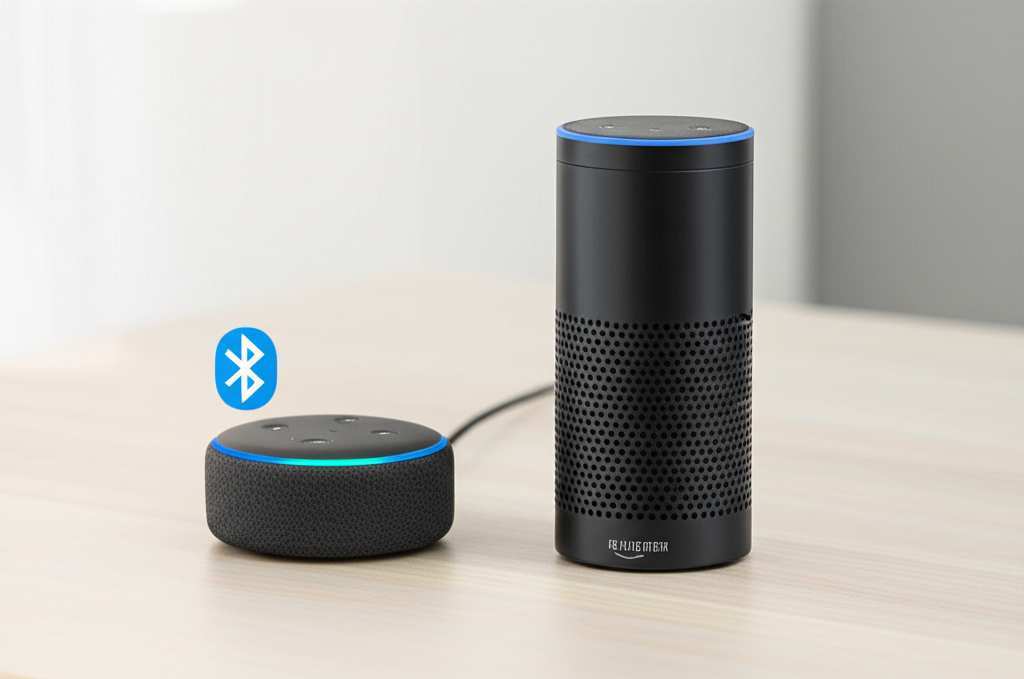
So, why would you even want to link your Bluetooth speaker to your trusty Alexa? It’s a great question! Think about it: your Echo Dot might be small, but it’s smart. Your Bluetooth speaker might have a bigger, richer sound. Combining them is like giving Alexa a powerful voice upgrade!
Imagine this: you’re hosting a get-together, and your Alexa is playing your party playlist. Suddenly, you want that music to fill the whole room with booming bass and crisp highs. Instead of just relying on your Echo’s built-in speaker, you can tell Alexa to play it through your beefier Bluetooth speaker. Boom! Instant party atmosphere.
Or maybe you love listening to audiobooks while you’re cooking. Your Alexa is great for setting timers, but the speaker might be a bit tinny. Connecting your Bluetooth speaker means you can hear every word of your story with incredible clarity. It’s all about making your audio experience better, richer, and more immersive.
Getting Your Gear Ready: What You Need
Before we jump into the connection process, let’s make sure you have everything you need. It’s like preparing your ingredients before baking a cake – a little prep goes a long way!
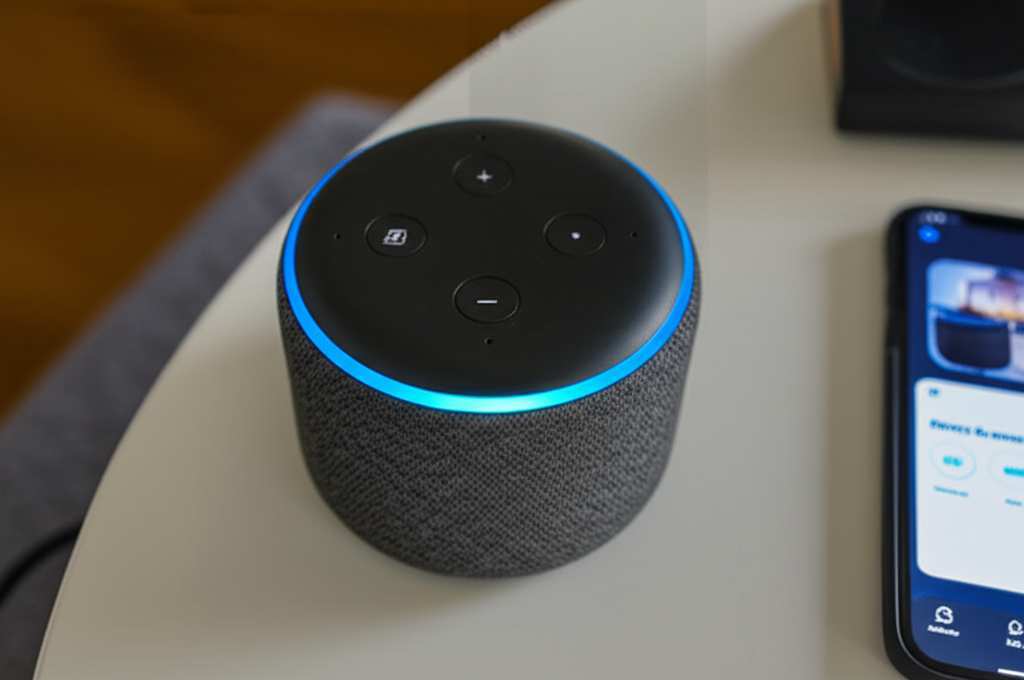
First things first, you’ll need your Amazon Echo device. This is your smart speaker that’s going to be the brains of the operation. Make sure it’s plugged in and powered on. You’ll also need it to be connected to your Wi-Fi network. If it’s not set up yet, the Alexa app will guide you through that.
Next, you need your Bluetooth speaker. This is the star of our sound upgrade! Make sure it’s charged up or plugged in. The most important thing here is that your Bluetooth speaker can be put into pairing mode. Most speakers have a dedicated Bluetooth button, or you might need to press and hold a power button for a few seconds. You’ll usually hear a little chime or see a blinking light to let you know it’s ready to connect.
Finally, you’ll need your smartphone or tablet with the Amazon Alexa app installed. This app is your command center for managing your Alexa devices. It’s where we’ll do most of the connecting. If you don’t have it yet, you can easily download it from the App Store (for iPhones and iPads) or Google Play Store (for Android devices).
It’s a good idea to have both your Bluetooth speaker and your Echo device relatively close to each other for the initial setup. This helps ensure a strong, stable connection. Once they’re paired, you can usually move them further apart, depending on your Bluetooth range.
Step-by-Step: Connecting Your Bluetooth Speaker to Alexa
Alright, let’s get down to business! This is where the magic happens. Follow these simple steps, and you’ll be enjoying your amplified audio in no time. It’s designed to be super straightforward, so don’t worry if you’re not a tech wizard.
Step 1: Put Your Bluetooth Speaker in Pairing Mode
This is the crucial first step for any Bluetooth connection. Your Bluetooth speaker needs to be discoverable so Alexa can find it.
Find the Bluetooth button: Look for a button on your speaker that has the Bluetooth symbol (it looks like a stylized ‘B’).
Press and hold: You usually need to press and hold this button for a few seconds. Some speakers might have a dedicated pairing button.
Listen for a sound or look for a light: Your speaker will likely make a sound or a light will start blinking. This indicates it’s in pairing mode and ready to connect to a new device.
Check your speaker’s manual: If you’re unsure, a quick peek at your speaker’s instruction manual will tell you exactly how to put it into pairing mode. Every speaker is a little different!
Step 2: Open the Alexa App and Go to Devices
Now, let’s switch over to your phone or tablet.
Launch the Alexa app: Find the Alexa app icon on your device and tap it to open.
Tap ‘Devices’: At the bottom of the screen, you’ll see a few icons. Tap on the one that says ‘Devices’. This is where all your Amazon smart devices live.
Step 3: Select Your Echo Device
Within the ‘Devices’ section, you need to tell the app which Echo device you want to connect the Bluetooth speaker to.
Choose ‘Echo & Alexa’: On the ‘Devices’ screen, you’ll see different categories. Tap on ‘Echo & Alexa’.
Pick your specific Echo: You’ll see a list of all your Echo devices. Select the one you want to use with your Bluetooth speaker. For example, if you have an Echo Dot in your living room, tap on that one.
Step 4: Find the Bluetooth Settings
Now we’re getting closer! We need to find the Bluetooth settings for your selected Echo device.
Tap the ‘Settings’ icon: On your Echo device’s page, look for a gear icon (⚙️) usually in the top right corner. Tap it.
Scroll down to ‘Bluetooth’: In the settings menu, scroll down until you see the ‘Bluetooth’ option. Tap on it.
Step 5: Pair Your Bluetooth Speaker
This is the moment of truth! Alexa will now search for nearby Bluetooth devices.
Tap ‘Pair a New Device’: You’ll see an option to pair a new device. Tap it.
Wait for Alexa to discover: Alexa will start scanning for available Bluetooth devices. Your speaker, if it’s still in pairing mode, should appear in the list.
Select your speaker from the list: When your speaker’s name pops up (e.g., “JBL Flip 5” or “Sony XB33”), tap on it.
Confirm the connection: You might hear a confirmation sound from your Echo device, and the Alexa app will likely show that the speaker is connected. Your Bluetooth speaker might also make a sound or its light will change to indicate a successful connection.
Step 6: Playing Audio Through Your Bluetooth Speaker
You’ve done it! Now you can enjoy the fruits of your labor.
Tell Alexa to play something: You can now ask Alexa to play music, podcasts, or anything else. For example, say, “Alexa, play my ‘Chill Vibes’ playlist.”
Confirm the output: Alexa will now play the audio through your connected Bluetooth speaker. You should notice a difference in sound quality immediately!
Switching back: If you ever want to go back to using the Echo’s built-in speaker, you can either disconnect the Bluetooth speaker through the Alexa app or simply ask Alexa to “Disconnect Bluetooth.”
Here’s a quick recap of the core steps:
Put your Bluetooth speaker in pairing mode.
Open the Alexa app on your phone or tablet.
Go to Devices > Echo & Alexa.
Select your Echo device and tap the gear icon for Settings.
Tap ‘Bluetooth’ and then ‘Pair a New Device’.
Select your speaker from the list when it appears.
Ask Alexa to play something, and enjoy the sound!
Advanced Tips & Tricks for a Better Experience
Connecting is just the start! There are a few extra things you can do to make your audio experience even smoother and more enjoyable. These little tips can make a big difference.
Setting Your Bluetooth Speaker as the Default Audio Device
Tired of always having to tell Alexa to play through your Bluetooth speaker? You can set it as the default! This means whenever you ask for music or a podcast, it will automatically play through your connected speaker without you having to specify.
In the Alexa app: Go to Devices > Echo & Alexa.
Select your Echo device.
Tap the gear icon (Settings).
Scroll down to ‘Audio’ or ‘Sound’. You might see an option for ‘Default Speaker’ or ‘Default Music Device’.
Select your Bluetooth speaker from the list of available devices.
Once this is set, any music or audio playback command will automatically be routed to your Bluetooth speaker. How cool is that? It makes using Alexa with your speaker feel much more seamless, like it was always meant to be.
Managing Multiple Bluetooth Devices
What if you have more than one Bluetooth speaker? Alexa can remember multiple devices. You can switch between them easily.
To connect to a different paired speaker: Say, “Alexa, connect to [Speaker Name].”
To disconnect: Say, “Alexa, disconnect Bluetooth.”
To see paired devices: In the Alexa app, under your Echo device’s Bluetooth settings, you’ll see a list of devices that have been previously paired.
Just remember, your Echo device can only be actively connected to one Bluetooth speaker at a time. So, if you want to switch, you’ll need to disconnect the current one first.
Troubleshooting Common Connection Issues
Sometimes, things don’t go perfectly the first time. Don’t panic! Here are a few common hiccups and how to fix them.
Speaker not showing up in the list:
Make sure your speaker is definitely in pairing mode. Try putting it in pairing mode again.
Ensure your speaker is close enough to your Echo device.
Turn Bluetooth off and then on again on your phone (this can sometimes help refresh the connection).
Restart both your Echo device and your Bluetooth speaker.
Connected but no sound:
Check the volume on both your Echo device and your Bluetooth speaker.
Make sure you haven’t accidentally muted either device.
Try disconnecting and reconnecting the Bluetooth speaker.
Ensure your Bluetooth speaker isn’t connected to another device (like your phone) simultaneously.
Choppy or intermittent audio:
This is often due to distance or interference. Move your speaker and Echo closer together.
Minimize other wireless devices that might be causing interference (like microwaves or other Bluetooth devices).
Ensure your Wi-Fi network is stable.
A quick restart of your Echo device is often the magic fix for many issues. Just unplug it, wait 10 seconds, and plug it back in.
Fun Facts About Bluetooth Technology
Did you know Bluetooth technology is named after a Viking king? Harald Bluetooth was known for uniting Danish tribes, much like Bluetooth technology unites devices! It’s a short-range wireless technology that uses radio waves in the 2.4 GHz band. Pretty neat, huh?
Bluetooth 5.0, which is common in many newer speakers and devices, offers improved speed and range compared to older versions. This means you can often place your speaker further away from your Alexa device without losing connection. The theoretical range can be up to 100 meters (about 330 feet), though real-world performance is usually closer to 10-30 meters (30-100 feet) depending on obstacles.
Comparing Bluetooth Speaker Features for Alexa
Choosing a Bluetooth speaker can be overwhelming with so many options! When you plan to use it with Alexa, here are a few features to keep in mind. We’ve put together a little comparison table to help you see what matters.
| Feature | What it Means for Alexa | Importance for Alexa Users