Is your Bluetooth speaker cutting out? Don’t worry! This guide will help you quickly fix choppy audio by tackling common connection issues, battery problems, and interference. Get your music playing smoothly again in no time!
Hey there, tech friend! You know that feeling when you’re jamming to your favorite tunes, or maybe engrossed in a podcast, and suddenly the sound starts skipping and stuttering? It’s super frustrating, right? Your Bluetooth speaker is supposed to bring you seamless audio joy, whether it’s for your weekend cookouts, movie nights, or just chilling at home. But sometimes, these little gadgets can be a bit… dramatic.
It’s like having a conversation with a friend who keeps getting interrupted. You want to understand, but the message gets lost. Picking out the perfect speaker can feel like a quest on its own, and then when it doesn’t work right, it adds to the confusion. But don’t you fret! I’m here to help you untangle these audio mysteries.
We’ll break down exactly why your Bluetooth speaker might be acting up and, more importantly, how to fix it. Think of me as your friendly tech sidekick, ready to make your gadgets work like a charm. Let’s dive in and get that music flowing smoothly again, step by step!
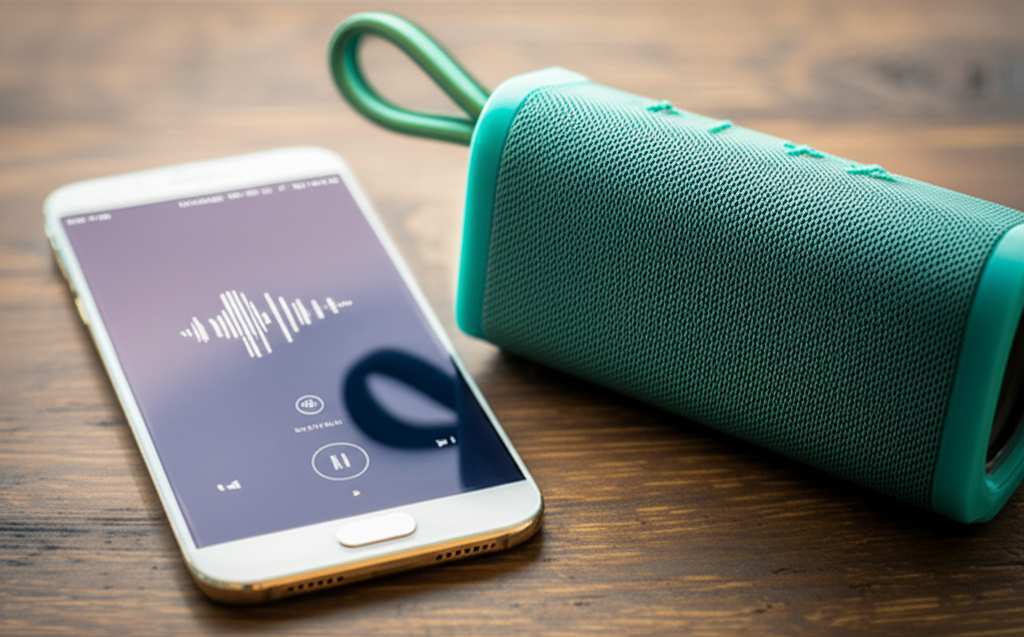
Why Does My Bluetooth Speaker Keep Cutting Out? Let’s Figure It Out!
So, your Bluetooth speaker is being a bit of a drama queen, huh? It’s a common problem, and usually, there’s a simple fix. Bluetooth is a fantastic technology for wireless convenience, but it’s not magic. It relies on radio waves to connect your devices, and sometimes those waves get a little jumbled.
Think of it like trying to have a conversation across a crowded room. If there’s too much noise or people between you, the message gets garbled. Your Bluetooth speaker and your phone or tablet are like those two people. Lots of things can get in the way and cause that choppy sound you’re hearing.
The good news is, most of the time, you don’t need to be a tech wizard to solve it. We’ll go through the most common culprits and what you can do about them. It’s usually a quick fix that gets you back to enjoying your audio without interruption.
The Usual Suspects: What’s Messing With Your Sound?
Let’s put on our detective hats and look at what might be causing your Bluetooth speaker to cut out. There are a few common reasons why this happens, and they’re usually pretty easy to spot once you know what to look for.
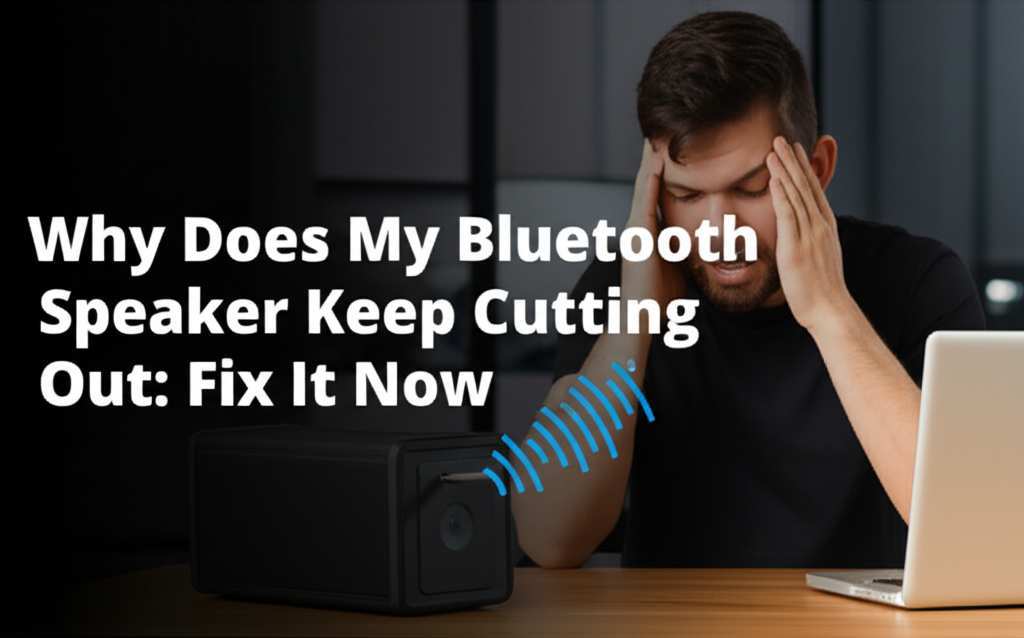
It’s often about distance, interference, or even just a little glitch in the system. Sometimes it’s as simple as your speaker’s battery running low, or your phone being too far away. Other times, it could be something else in your environment playing havoc with the signal.
We’ll cover the most likely causes, from simple solutions to slightly more involved troubleshooting. By the end of this, you’ll have a much clearer idea of why this is happening and how to prevent it.
1. Distance and Obstacles: The Signal Struggle
Bluetooth works best when your devices are close to each other. It’s like shouting to someone across the street – the further away they are, the harder it is to hear clearly. Bluetooth signals have a certain range, and if you go beyond that, the connection can get weak and choppy.
Your speaker and your device (like your phone or tablet) need a clear line of sight. Walls, furniture, and even your own body can get in the way and block or weaken the Bluetooth signal. This is one of the most common reasons for audio cutting out.
How to fix it:
- Get Closer: Try moving your speaker and your device closer together. Aim for within 30 feet (about 10 meters) for the best results.
- Clear the Path: Make sure there are no big obstacles between your speaker and your device. Move them out from behind couches or out of different rooms if possible.
- Avoid Walls: Thick walls, especially concrete or brick, can really disrupt the signal. Try to keep your devices in the same room or area if you can.
2. Interference: The Other Signals in the Air
Bluetooth uses a specific radio frequency (2.4 GHz) to communicate. The tricky part is, so do a lot of other devices! Things like Wi-Fi routers, microwaves, other Bluetooth devices, and even some cordless phones use this same frequency. When too many devices are trying to talk at once, it’s like a crowded party – signals can clash and cause interference.
This interference can make your Bluetooth signal weaker, leading to stuttering audio or dropped connections. It’s like trying to listen to your favorite song on the radio when another station is bleeding through. You get bits and pieces, but not the full clear sound.
How to fix it:
- Move Away from Routers: Try placing your speaker and device away from your Wi-Fi router. Sometimes just a few feet can make a difference.
- Turn Off Other Bluetooth Devices: If you have a lot of Bluetooth gadgets connected or nearby, try turning off the ones you’re not using. This reduces the number of signals competing.
- Avoid Microwave Ovens: Microwaves can cause significant interference when they’re running. If your speaker is cutting out while someone is using the microwave, that’s likely the culprit.
- Check for Wi-Fi Congestion: If your Wi-Fi is also acting up, it might be a sign of a busy network in your area. While harder to fix directly, reducing Wi-Fi usage or trying a different Wi-Fi channel (if you have control over your router) might help.
3. Low Battery: Powering Down the Performance
Just like your phone or tablet, Bluetooth speakers need power to function. When the battery is running low, the speaker might not have enough juice to maintain a strong, stable connection. This can lead to all sorts of weird behavior, including audio cutting out or the speaker shutting down unexpectedly.
It’s a bit like a car running out of gas – it starts sputtering before it stops completely. Your speaker might try to keep going, but the signal strength suffers. It’s a simple one, but often overlooked!
How to fix it:
- Charge Your Speaker: The most straightforward solution is to plug in your speaker and give it a good charge. Make sure you’re using the correct charger that came with it or a compatible one.
- Check Battery Indicator: Many speakers have an LED light or an app that shows the battery level. Keep an eye on this!
- Charge Your Source Device: While less common, a very low battery on your phone or tablet can sometimes affect its Bluetooth performance too. Keep your source device charged as well.
4. Outdated Software/Firmware: The Digital Glitches
Your speaker and the device you’re connecting it to (phone, tablet, laptop) both run on software. Sometimes, bugs or outdated versions of this software can cause connection issues. Manufacturers release updates to fix these problems and improve performance. If you haven’t updated your speaker’s firmware or your device’s operating system in a while, this could be the cause.
Think of software updates like tune-ups for your gadgets. They smooth out the rough edges and make everything run better. Without them, you might encounter little hiccups like your speaker cutting out.
How to fix it:
- Update Your Device’s OS: Go to your phone or tablet’s settings and check for any available software updates. Install them if prompted.
- Update Speaker Firmware: Many modern Bluetooth speakers have companion apps. Check the app store for your speaker’s brand and see if there’s an app. Open the app and look for a “firmware update” option. Follow the instructions carefully.
- Check Manufacturer Website: If there’s no app, visit the speaker manufacturer’s website. They often have a support or downloads section where you can find firmware updates and instructions.
5. Too Many Connected Devices: The Bluetooth Party is Too Full
Most Bluetooth devices can connect to multiple other devices, but they usually can only actively play audio from one at a time. Sometimes, if you have too many devices paired or trying to connect simultaneously, it can confuse the speaker or your source device. This can lead to connection drops or audio cutting out as it tries to switch between connections.
Imagine trying to listen to two different people talking to you at the exact same time. It’s hard to focus on either one! Your Bluetooth speaker can feel the same way when it’s juggling too many connections.
How to fix it:
- Unpair Unused Devices: On your phone or tablet, go to your Bluetooth settings. “Forget” or “Unpair” any speakers or devices you aren’t currently using.
- Disconnect Other Devices: If your speaker is paired with multiple devices (e.g., your phone and your laptop), make sure only the one you’re actively using is connected. You might need to manually disconnect from the other device.
- Restart Devices: Sometimes simply turning off Bluetooth on your source device and then turning it back on can help it re-establish a clean connection.
6. Bluetooth Version Mismatch: The Age Gap
Bluetooth technology has been around for a while and has gone through several upgrades (versions 1.0, 2.0, 3.0, 4.0, 5.0, etc.). While newer versions are generally backward-compatible, sometimes older devices might struggle to maintain a stable connection with much newer ones, or vice-versa. This isn’t as common as other issues, but it can happen.
Think of it like trying to use a brand-new smartphone app on a really old phone. Some features might not work correctly, or it might run very slowly. Bluetooth versions can have similar compatibility quirks.
How to fix it:
- Check Versions: You can usually find the Bluetooth version of your speaker and your device in their manuals or on the manufacturer’s website.
- Prioritize Newer Versions: If you have a choice, connecting a newer Bluetooth speaker to a device with a newer Bluetooth version (like 4.0 or 5.0) generally offers better stability and range.
- Contact Support: If you suspect a version mismatch is the issue, you might reach out to the speaker manufacturer’s support for advice.
7. Audio File or Streaming Quality Issues: Not the Speaker’s Fault?
Sometimes, the problem isn’t with the Bluetooth connection itself, but with the audio source. If the audio file you’re playing is corrupted, or if your internet connection is spotty for streaming music or podcasts, you’ll get choppy audio. The speaker is just playing what it’s receiving, even if that’s a broken signal.
It’s like trying to watch a blurry video online – the internet is the problem, not your TV screen. The same goes for audio. If the sound data is bad, the speaker can’t make it good.
How to fix it:
- Try a Different Audio File: Play a different song or podcast. If that plays fine, the original file might have been the issue.
- Check Your Internet Connection: If you’re streaming, make sure your Wi-Fi or mobile data is strong and stable. Try downloading the audio for offline playback if possible.
- Test Another App: Try playing audio from a different music app or service to see if the problem persists.
Troubleshooting Steps: Your Action Plan
Ready to get your speaker back in perfect working order? Here’s a step-by-step plan to tackle those annoying audio cutouts. We’ll start with the easiest fixes and move to more involved ones.
Think of this as a guided tour to audio bliss. We’ll go through each potential problem and its solution one by one. You’ve got this!
- Restart Everything: This is the golden rule of tech troubleshooting! Turn off your Bluetooth speaker and turn off the Bluetooth on your phone/tablet. Then, turn Bluetooth back on and reconnect your speaker. If that doesn’t work, try restarting your phone/tablet as well. It’s amazing how often a simple reboot solves many issues.
- Check Distance and Obstacles: Bring your speaker and your device closer together. Make sure there’s a clear path between them, free of walls or large furniture.
- Charge Up: Plug in your Bluetooth speaker and let it charge. Ensure your phone or tablet also has a decent battery level.
- Forget and Re-Pair: On your phone or tablet, go to Bluetooth settings. Find your speaker in the list of paired devices and select “Forget” or “Unpair.” Then, put your speaker back into pairing mode and connect it again as if it were new. This can clear out any corrupted connection data.
- Update Software: Check for and install any available operating system updates on your phone/tablet. Also, check for firmware updates for your speaker via its companion app or the manufacturer’s website.
- Minimize Interference: Move your speaker away from Wi-Fi routers, microwaves, and other electronic devices that might cause interference. Turn off unused Bluetooth devices nearby.
- Test with a Different Source: Try playing audio from a different app or a different device to see if the problem is specific to one source. If the audio is fine from another device, your original device might be the issue. If it’s bad from everywhere, the speaker might be the problem.
Speaker Performance Comparison: What to Expect
When you’re looking for a good Bluetooth speaker, a few things matter for sound quality and connection stability. Here’s a quick look at what you might find, especially when comparing different models or generations.
Understanding these differences can help you choose a speaker that fits your needs and avoids common connection woes. Newer technology often means better performance!
| Feature | Bluetooth 4.0 | Bluetooth 5.0 | Impact on Cutting Out |
|---|---|---|---|
| Range | Up to 30 ft (10m) | Up to 80 ft (24m) | Bluetooth 5.0 offers a significantly better range, reducing cutouts due to distance. |
| Data Transfer Speed | Lower | Higher | Faster speeds can lead to a more stable and less interrupted audio stream. |
| Power Efficiency | Good | Better | More efficient power usage can mean longer battery life, preventing cutouts from low power. |
| Interference Handling | Basic | Improved | Bluetooth 5.0 is generally better at managing interference from other devices. |
As you can see, speakers with Bluetooth 5.0 generally offer a more robust and reliable connection. This means fewer drops and less choppy audio, especially in environments with a lot of other wireless signals. When picking out a new speaker, looking for Bluetooth 5.0 or higher is a great way to future-proof your listening experience!
Tips for Maintaining Your Bluetooth Speaker
Keeping your Bluetooth speaker in tip-top shape is key to enjoying clear sound for a long time. A little bit of care goes a long way!
Just like any gadget, your speaker needs some attention to perform its best. Here are some simple tips to help you keep it sounding great and connecting smoothly.
- Keep it Clean: Dust and debris can get into the speaker’s ports and affect performance. Gently wipe it down with a soft, dry cloth. For stubborn grime, a slightly damp cloth can work, but avoid getting water inside the speaker.
- Charge Wisely: Avoid letting the battery drain completely too often. Most modern lithium-ion batteries (found in most speakers) perform best with regular charging.
- Protect from Elements: If your speaker is water-resistant or waterproof, still be mindful of where you use it. Extreme heat or cold can affect battery life and performance.
- Handle with Care: While many speakers are built tough, dropping them can damage internal components, including the Bluetooth antenna, which could lead to connection issues.
- Regularly Update Firmware: As we discussed, keeping the speaker’s software up-to-date is crucial for optimal performance and bug fixes.
Frequently Asked Questions (FAQs)
Got more questions? No worries, I’ve got you covered!
Q1: My speaker cuts out only when I’m playing music loudly. What’s happening?
This could be a sign that your speaker’s battery is struggling to keep up with the power demands of loud audio playback. Try charging your speaker fully and see if the issue improves. It might also indicate that the speaker is overheating slightly at high volumes, which can cause performance dips.
Q2: Can my headphones interfere with my Bluetooth speaker?
Yes, they can! If both your headphones and speaker are trying to connect to the same device (like your phone) at the same time, or if they’re both actively transmitting Bluetooth signals nearby, they can cause interference. It’s best to only have the device you’re actively listening to connected and active.
Q3: How far can my Bluetooth speaker realistically be from my phone?
For most standard Bluetooth speakers (using versions 4.0 or 4.1), the optimal range is around 30 feet (10 meters) with no obstructions. However, Bluetooth 5.0 and newer versions can extend this range significantly, sometimes up to 80 feet (24 meters) or more in ideal conditions. Keep in mind that walls and other electronic devices can shorten this effective range.
Q4: I’ve tried everything, and my speaker still cuts out. Is it broken?
It’s possible, but let’s try one more thing: test your speaker with a different source device. If it still cuts out when connected to a different phone or tablet, it’s highly likely that the speaker itself has a hardware issue. If it works fine with another device, the problem might be with your original phone or tablet’s Bluetooth hardware or software.
Q5: Do certain music file types cause more Bluetooth issues?
Generally, the file type itself (like MP3, AAC, FLAC) doesn’t directly cause Bluetooth cutouts. However, the quality and bitrate of the file do matter. Very high-bitrate or lossless files require more data to be transferred, which can be more demanding on the Bluetooth connection, especially if the connection isn’t perfect. Also, corrupted audio files can lead to choppy playback regardless of the connection.
Q6: Is it worth upgrading to a newer Bluetooth speaker?
If your current speaker is quite old (using Bluetooth 3.0 or earlier) and you’re constantly experiencing issues, upgrading to a speaker with Bluetooth 5.0 or later can make a big difference. You’ll benefit from better range, stability, and potentially improved sound quality. Check out reviews on sites like CNET for recommendations.
Q7: My speaker sometimes disconnects entirely. Is this the same as cutting out?
Yes, a complete disconnection is often just an extreme version of cutting out. It means the Bluetooth signal has been lost completely. The reasons are usually the same: too much distance, severe interference, low battery, or a software glitch. The troubleshooting steps we’ve covered should help resolve complete disconnections too.
Bringing the Beat Back: Your Speaker, Your Sound
So there you have it! We’ve journeyed through the common reasons why your Bluetooth speaker might be cutting out and armed you with plenty of fixes. From checking the distance and clearing up signal interference to ensuring your devices are charged and updated, you’re now equipped to tackle those audio hiccups.
Remember, most of the time, it’s just a little glitch that’s easily sorted. You’ve learned how to troubleshoot like a pro, compare speaker features, and keep your gadgets in great shape. You’re all set to enjoy uninterrupted, crystal-clear sound!
Don’t let a choppy connection spoil your vibe. Try these steps, experiment a little, and get your music, podcasts, or audiobooks playing smoothly again. Now go enjoy amazing sound and make every moment louder and better!