Connect your Samsung TV to a Bluetooth speaker easily! Get better sound for movies and music with these simple steps. It’s faster and simpler than you think.
Hey there, tech adventurer! You know how sometimes your TV’s speakers just don’t cut it? Maybe the dialogue is hard to hear, or the movie explosions feel a bit… soft. It’s like trying to enjoy a concert from the back row! Adding a Bluetooth speaker can totally transform your viewing and listening experience. Suddenly, every scene pops, and your music sounds like it’s right in the room with you.
But then comes the tech part. You might be wondering, “How do I even get these two gadgets talking to each other?” It can feel a bit daunting with all those buttons and menus. Don’t worry, though! I’m here to be your friendly guide. We’ll walk through connecting your Samsung TV to your Bluetooth speaker step-by-step. Think of it like a fun little tech adventure, and by the end, you’ll be an audio pro. Let’s make that amazing sound happen, shall we?
Let’s Talk About Sound: Why a Bluetooth Speaker Rocks!
Imagine watching your favorite action movie. The rumbling explosions, the screeching tires, the epic music – it all comes to life with amazing sound. A good external speaker can make that happen! It adds depth and richness that TV speakers often can’t match. You get to feel every moment. Even just listening to music becomes a whole new experience.
Or maybe you love gaming! The sound effects can be crucial to immersing yourself in virtual worlds. With a Bluetooth speaker, you’ll hear every footstep, every distant shot, and every magical spell with crystal clarity. It’s not just about volume; it’s about quality that pulls you in. Plus, many Bluetooth speakers are pretty stylish and can even add to your room’s decor.
Why Connect Your Samsung TV to Bluetooth?
Connecting your Samsung TV to a Bluetooth speaker is like giving your TV a superpower. It unlocks a world of richer, more immersive audio. It’s perfect for movie nights, gaming sessions, or just enjoying your favorite tunes. No more struggling to hear dialogue or wishing for more bass. You can finally get that cinema-like experience right in your living room!
Think about those times when you’ve had to crank up the TV volume just to catch what the characters are saying. With a Bluetooth speaker, you get clear, powerful sound without deafening yourself. It’s about enhancing your entertainment without the hassle of extra wires. It makes everything just better.
Getting Ready: What You’ll Need
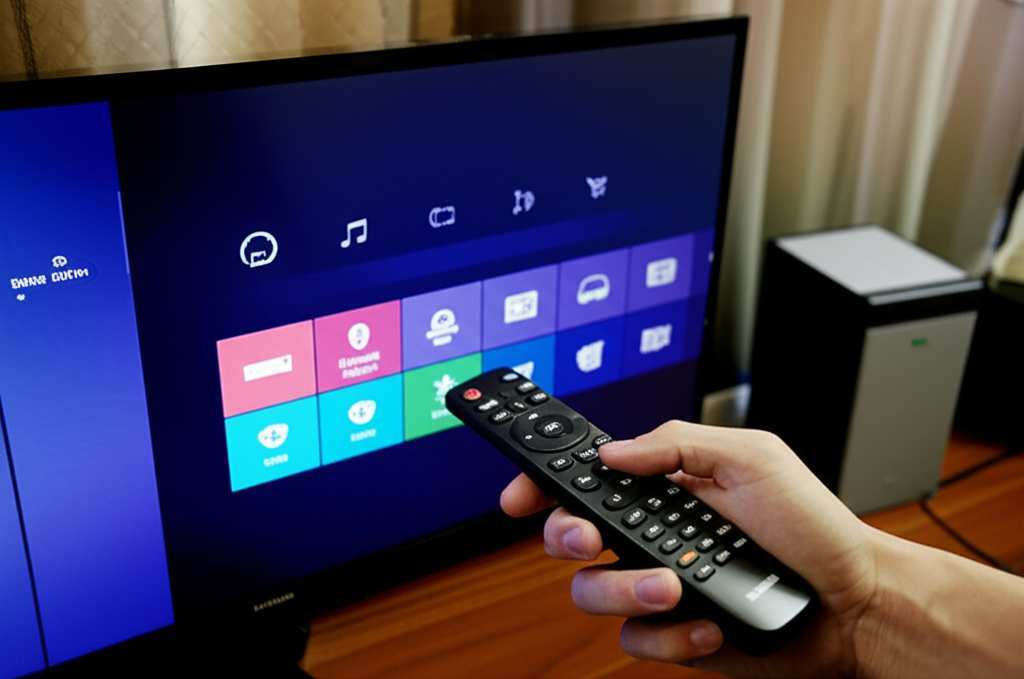
Before we dive into the steps, let’s make sure you have everything ready. It’s like prepping for a fun recipe! You’ll need your Samsung TV, of course. You’ll also need your Bluetooth speaker, charged up and powered on. Having the remote for your TV handy is important too, as we’ll be navigating through its settings.
It’s a good idea to place your speaker near your TV for the initial setup. This way, you can easily see if the connection is successful. Also, make sure your Bluetooth speaker is in “pairing mode.” This is usually indicated by a blinking light or a specific sound. How you put it into pairing mode varies by speaker, so a quick peek at its manual might be helpful.
The Big Step: How to Connect Your Samsung TV to Bluetooth
Connecting your Samsung TV to a Bluetooth speaker is surprisingly straightforward. Samsung TVs usually make this process quite user-friendly. We’ll guide you through the menu options. It’s not as complicated as it sounds, I promise! Just follow along, and soon you’ll be enjoying amplified sound.
The exact steps might vary slightly depending on your Samsung TV model and its software version. But the general path is very similar across most Samsung Smart TVs. We’re focusing on the most common method here.
Step-by-Step Guide to Pairing
Here’s how to get your Samsung TV and Bluetooth speaker talking:
1. Turn on both your Samsung TV and your Bluetooth speaker. Make sure your speaker is ready to pair. Check its manual if you’re unsure how to activate its pairing mode. You’ll usually see a blinking light.
2. Grab your Samsung TV remote. It’s time to navigate the TV’s settings.
3. Press the ‘Home’ button on your remote. This takes you to your TV’s main menu or smart hub.
4. Navigate to ‘Settings’. It often looks like a gear icon. You might need to scroll down or across the menu options to find it.
5. Select ‘Sound’ or ‘Audio’. This is where all the sound-related options live. Look for something like “Sound Output” or “Speaker List.”
6. Choose ‘Sound Output’. Here, you’ll see options for the TV’s built-in speakers or other connected devices.
7. Select ‘Bluetooth Audio’ or ‘Bluetooth Speaker List’. Your TV will now start looking for nearby Bluetooth devices.
8. Find your Bluetooth speaker in the list. After a moment, your speaker’s name should appear. Select it.
9. Connect and Confirm. Your TV will attempt to connect to the speaker. You might see a “Connecting…” message. Once paired, it should say “Connected” or “Paired.”
That’s it! You’re basically done. Your TV’s sound should now be playing through your Bluetooth speaker. Let’s test it out!
Finding Your Speaker’s Name
Sometimes, the trickiest part is finding your speaker’s correct name in the list. Speaker names can be a bit quirky! They might be the brand name (like “Sony Speaker”) or a model number (like “SRS-XB43”). If you’re unsure, check the speaker itself or its packaging. It’s usually printed somewhere.
If you see multiple devices, look for the one that matches your speaker. If you still can’t find it, try turning off other Bluetooth devices nearby. This can help clear up the list.
Troubleshooting Common Connection Issues
Even the best tech can sometimes be a bit stubborn. If your TV and speaker aren’t connecting, don’t panic! We’ve got some easy fixes. Often, it’s just a minor hiccup that can be resolved quickly.
Here are some common issues and how to tackle them:
Speaker Not Showing Up: Make sure the speaker is really in pairing mode. Some speakers only stay in pairing mode for a minute or two. You might need to put it back into pairing mode and try scanning again on the TV.
Connection Failed: Try turning off both devices, waiting a few seconds, and then turning them back on. Then, attempt the pairing process again. Sometimes a simple restart is all that’s needed.
Audio Lag or Delay: This can happen with Bluetooth connections. It means the picture and sound aren’t perfectly synced. Check your TV’s audio settings. Some TVs have an “audio delay” setting that you can adjust. You can find more info from tech experts like CNET on these common issues.
Speaker Connects but No Sound: Double-check that the TV’s sound output is definitely set to the Bluetooth speaker. Also, make sure the volume on both the TV and the speaker is turned up.
Quick Tips for a Smooth Connection
Keep these handy tips in mind for a hassle-free experience:
Keep Devices Close Initially: During the first pairing, have your speaker and TV close to each other. This helps the Bluetooth signal connect strongly.
Update Your TV Software: Just like your phone, your Samsung TV has software that gets updated. Sometimes, these updates fix bugs and improve Bluetooth performance. Look for “Software Update” in your TV’s settings.
Check Speaker Compatibility: Most modern Bluetooth speakers work fine, but it’s always good to ensure your speaker uses a standard Bluetooth profile.
One Device at a Time: Some speakers can connect to multiple devices. For initial setup, it’s less confusing if only your TV is actively trying to connect to the speaker.
Exploring Samsung TV Audio Settings
Once your speaker is connected, you might want to tweak a few things. Your Samsung TV has some neat audio settings that can make your sound even better. These options can help you fine-tune the experience to your liking.
You can usually find these settings within the same “Sound” or “Audio” menu where you selected the Bluetooth output. Look for options like Equalizer (EQ) settings, or different sound modes.
Understanding Audio Output Options
On your Samsung TV, you’ll see different places you can send the sound. Here’s a quick rundown:
TV Speaker: This is the default. Sound comes directly from your TV’s built-in speakers.
Bluetooth Audio: This is what we’re using! Sound is sent wirelessly to your connected Bluetooth speaker.
Optical/Digital Audio Out: This is for wired connections using a special cable.
HDMI ARC/eARC: This is another wired connection, mostly used for soundbars or AV receivers.
For our Bluetooth setup, we’ll focus on ‘Bluetooth Audio.’ It’s the simplest wireless option for many speakers.
Advanced Sound Customization
Some Samsung TVs offer advanced audio settings. You might find:
Equalizer (EQ): This lets you adjust bass, treble, and mid-tones. Fancy more bass for movies? You can boost it here!
Sound Modes: Different modes like “Standard,” “Movie,” “Music,” or “Clear Voice” optimize sound for various content.
Dolby Digital Plus: If your speaker supports it, enabling this can enhance surround sound effects.
Experimenting with these can really elevate your listening pleasure. It’s like having your own mini sound studio at home!
Bluetooth Speaker Features: What’s What?
Bluetooth speakers come with a bunch of features, some you might use daily, others less so. Knowing what they mean helps you get the most out of your speaker. It’s not just about the brand; it’s about the tech packed inside.
Here’s a quick look at some common terms and what they mean for your audio experience:
| Feature | What it Means | Why it Matters |
| :—————— | :—————————————————————————— | :——————————————————————————– |
| Bluetooth Version | The version of Bluetooth technology in the speaker (e.g., 4.2, 5.0). | Newer versions are more stable, use less battery, and can connect from further away. |
| Codec Support | Types of audio data your speaker can understand (e.g., SBC, AAC, aptX). | Better codecs like aptX can mean higher-quality sound and less delay. |
| Battery Life | How long the speaker plays on a single charge. | Important for portable use or long movie marathons without plugging in. |
| Water Resistance| How well the speaker handles splashes or submersion (e.g., IPX7 rating). | Great for use near pools, in bathrooms, or kitchens. |
| Multi-Point Pairing | Connects to two devices simultaneously. | Lets you easily switch between your TV and phone without re-pairing. |
Which Bluetooth Version is Best?
You’ll often see numbers like 4.2, 5.0, or 5.2. Newer is generally better! Bluetooth 5.0 and above offers significant improvements. They provide faster speeds, longer range, and better power efficiency compared to older versions.
This means a stronger, more reliable connection to your TV. You’ll likely experience fewer dropouts and a more stable audio stream. Some speakers even support “multi-point pairing,” which is super handy for switching between devices.
Choosing the Right Bluetooth Speaker for Your Samsung TV
With so many options out there, picking the perfect Bluetooth speaker can feel like a quest! Don’t worry, we’ll simplify it. Think about what you’ll primarily use it for. Is it for booming movie sound, crystal-clear dialogue, or just enjoying your playlist? Your needs will guide your choice.
Consider the size of your room too. A tiny speaker might sound great in a dorm room, but you might need something more powerful for a large living area. Here’s a quick comparison to help you think about what matters most.
Popular Bluetooth Speaker Options
Here’s a little peek at some types of speakers and what they’re good for:
| Speaker Type | Best For | Key Benefits | Potential Drawbacks |
| :—————– | :—————————————————————- | :—————————————————————————– | :——————————————————– |
| Portable Bluetooth Speaker | Quick setups, casual listening, moving around the house | Compact, easy to pair, often battery-powered, can be water-resistant. | May lack deep bass or powerful volume for large spaces. |
| Soundbar (Bluetooth Enabled) | Enhancing TV audio significantly, movies, gaming | Designed for TVs, delivers powerful, room-filling sound, often with a subwoofer. | Less portable, usually requires AC power, can be pricier. |
| Smart Speaker | Music streaming, voice control, general audio | Voice assistant integration, often good sound quality, can connect to TV. | Primarily designed for music, may have less TV-specific features. |
What to Look for in a TV-Specific Speaker
If your main goal is to improve your TV’s sound, consider speakers designed with that in mind. Soundbars are a prime example.
Sound Quality: Look for clear dialogue and decent bass. Many soundbars have dedicated dialogue enhancement features.
Connectivity Options: While we’re focusing on Bluetooth, having HDMI ARC or Optical inputs is a plus for simpler wired connections and better audio.
Size and Design: Will it fit neatly under your TV? Does it match your living room decor?
Subwoofer: For that real cinematic punch, a separate subwoofer can make a huge difference.
A good soundbar can dramatically upgrade your Samsung TV’s audio. Companies like Samsung itself offer excellent soundbars that integrate seamlessly with their TVs. You can check out reviews on sites like TechRadar for recommendations.
Tips for Maintaining Your Bluetooth Speaker
Once you’ve got your speaker connected and sounding great, you’ll want to keep it that way. Regular care ensures your speaker continues to perform at its best. It’s like taking care of a new gadget – a little love goes a long way.
Think about keeping it clean and charged. Simple habits can extend its lifespan and maintain audio quality. Here are a few easy maintenance tips.
Keeping Your Speaker in Top Shape
Clean It Gently: Use a soft, dry microfiber cloth to wipe down the exterior. For speaker grilles, a soft brush can help remove dust. Avoid harsh chemicals.
Manage Battery Life: Don’t leave it plugged in 24/7 if it’s a rechargeable battery speaker. Most modern batteries handle this well, but it’s good practice to let it discharge a bit sometimes.
Avoid Extreme Temperatures: Don’t leave your speaker in a very hot car or a freezing garage. Extreme temperatures can damage the electronics.
Protect from Liquids: Even if your speaker is water-resistant, avoid submerging it unless the manual explicitly says it’s safe for that. And always dry it thoroughly afterwards.
Regularly Update Firmware: If your speaker is a “smart” speaker or has an app, check for firmware updates. These can improve performance and fix bugs.
These simple steps will help your speaker last and keep sounding fantastic.
Frequently Asked Questions (FAQs)
Let’s answer some common questions people have about connecting their Samsung TV to a Bluetooth speaker.
Q1: My Samsung TV can’t find my Bluetooth speaker. What should I do?
A: First, make sure your speaker is in pairing mode. This is usually shown by a blinking LED light. Try turning both the TV and speaker off and on again. Also, check your speaker’s manual to ensure it’s discoverable. Sometimes, moving the speaker closer to the TV helps!
Q2: Can I connect multiple Bluetooth speakers to my Samsung TV at once?
A: Most Samsung TVs can only connect to one Bluetooth audio device at a time. Some newer models might support multi-room audio or connecting two speakers, but this is less common for standard Bluetooth pairing. Check your TV’s specific manual for this feature.
Q3: Will there be a sound delay with a Bluetooth speaker?
A: Sometimes, yes. Bluetooth technology can introduce a slight delay between the picture and sound, known as latency. Newer Bluetooth versions (like 5.0 and above) and speakers with aptX Low Latency support help minimize this. You might also find an “audio delay” setting in your Samsung TV’s sound options to help sync things up.
Q4: How do I disconnect my Bluetooth speaker from my Samsung TV?
A: Go back to your TV’s ‘Settings’ > ‘Sound’ > ‘Sound Output’. Select your TV’s built-in speakers or another audio output. This will disconnect the Bluetooth speaker. You can also usually turn off the Bluetooth speaker or turn off Bluetooth on the TV.
Q5: Can I connect any Bluetooth speaker to a Samsung TV?
A: Generally, yes. Most standard Bluetooth-enabled speakers should be compatible with Samsung Smart TVs. Very old Bluetooth versions or highly specialized audio devices might have compatibility issues, but it’s rare for common speakers.
Q6: My sound is distorted or choppy when connected via Bluetooth. What’s wrong?
A: This could be due to interference or the distance between devices. Try moving the speaker closer to the TV and ensure there are no major