Want to fill your room with awesome sound from multiple Bluetooth speakers? It’s easier than you think! Learn how to pair two or more speakers for a truly immersive audio experience, whether you’re chilling at home or throwing a party.
Hey there, tech adventurer! You know how sometimes, one speaker just isn’t enough? Maybe you’re trying to get that concert-hall feel for your music, or you want the sound to reach every corner of your backyard barbecue. It’s totally understandable! Picking out speakers can feel like a puzzle, with all those technical terms flying around. But guess what? Getting amazing sound from more than one Bluetooth speaker is totally doable, and I’m here to make it super simple for you. We’re going to break down how to connect multiple speakers without any fuss. Let’s make your audio dreams a reality, step by step!
Why Go for More Than One Bluetooth Speaker?
Imagine this: you’re hosting a get-together, and your favorite playlist is pumping. But the sound is strongest in one spot, and folks on the other side of the room are struggling to hear. Or maybe you’re watching a movie, and you wish the sound could wrap around you for that extra cinematic punch. That’s where connecting more than one Bluetooth speaker shines! It’s all about spreading that awesome sound evenly.
Let’s Talk About Sound Expansion
Having more than one Bluetooth speaker isn’t just about volume; it’s about creating a richer, more immersive audio environment. Think of it like having surround sound for your music. You can fill a larger space with clear, consistent audio, making every song, podcast, or movie sound so much better. It’s a fantastic way to elevate your listening experience without needing complicated wires or expensive home theater systems.
The Magic of Bluetooth Speaker Pairing
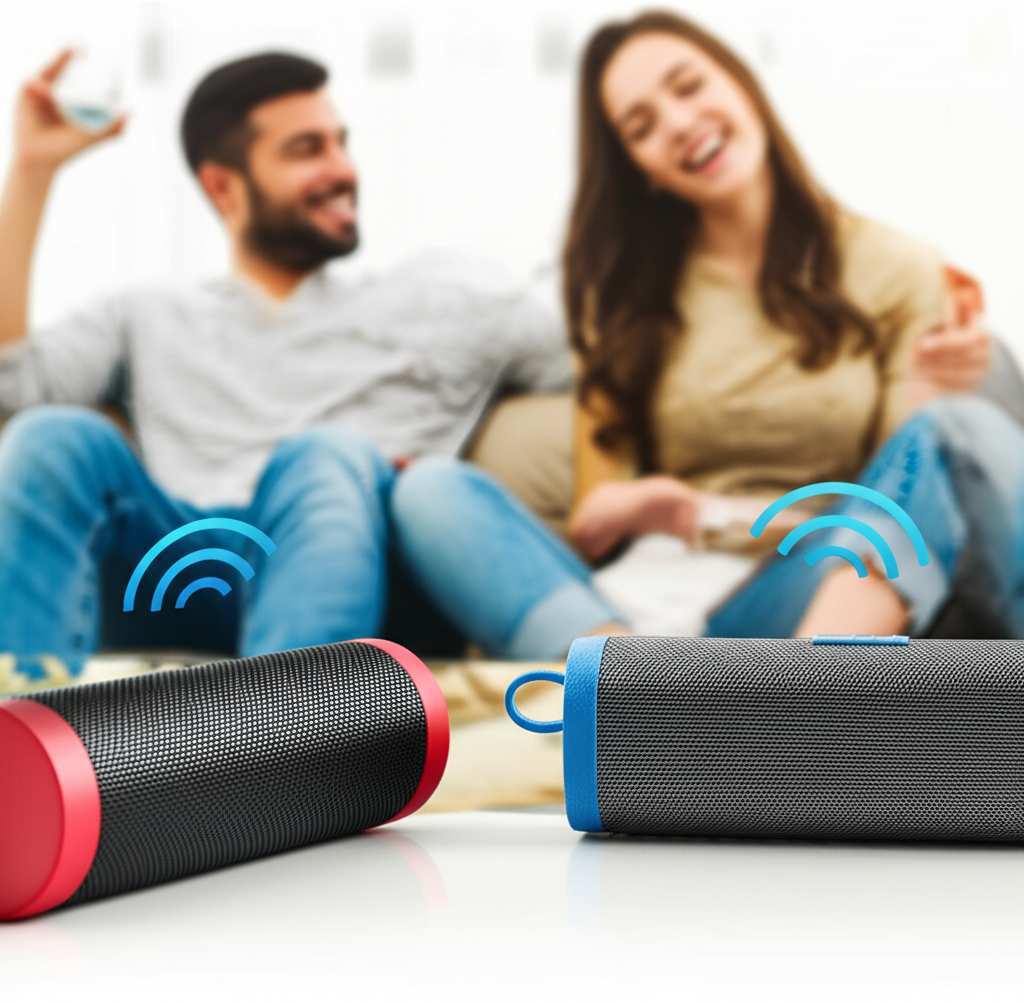
So, how does this magic happen? Bluetooth technology has gotten really smart. Many modern speakers are designed to work together, letting you create a stereo pair or even a multi-speaker setup. This feature is often called “stereo pairing,” “multi-speaker connection,” or sometimes by a brand-specific name like “Party Mode” or “Connect+.” It’s like giving your speakers a secret handshake so they can all play in harmony.
Different Ways to Connect Multiple Speakers
There are a few main ways you can achieve this multi-speaker magic. The method often depends on the speakers themselves and the device you’re using to play your audio. Don’t worry, we’ll cover the most common and easiest methods. It’s all about finding the right fit for your gear!
Method 1: Using the Speaker’s Built-in Pairing Feature
This is the most common and straightforward way. Many brands design their speakers to connect directly to each other.
How it Works:
Many speakers have a special button or a sequence of button presses to initiate pairing with another identical or compatible speaker from the same brand. Once they’re linked, one speaker acts as the “master” and the other as the “slave.” Your phone or tablet then connects to the master speaker, and the audio is sent to both.
Steps to Connect (General Guide):
1. Power On Your Speakers: Make sure both (or all) of your Bluetooth speakers are charged and turned on.
2. Put Them in Pairing Mode: This is the crucial step!
Check your speaker’s manual. Usually, you’ll need to press and hold a specific button (often marked with a Bluetooth symbol, a “+-” sign, or a dedicated pairing icon) on one of the speakers until you hear a confirmation sound or see a flashing light.
Repeat this process on the second speaker. Some speakers will automatically try to find another compatible speaker.
3. Initiate the Link: On the first speaker, press and hold the pairing button again, or a different designated button, to tell it to search for and connect to the second speaker. You might hear a sound indicating they’ve found each other.
4. Connect to Your Device: Now, go to your phone or tablet’s Bluetooth settings. You should see the name of one of your speakers listed. Connect to it as you normally would.
5. Enjoy the Sound! If everything worked, both speakers should now be playing the same audio from your device. You’ll usually only see one speaker listed in your Bluetooth device list.
Tips for Speaker-Specific Pairing:
JBL Speakers: Many JBL speakers use “Connect+” or “PartyBoost.” You typically press a button on one speaker to enter pairing mode, then press a similar button on the other speaker to link them. A quick search for “[Your JBL Speaker Model] Connect+” will show you the exact steps.
Bose Speakers: Bose often uses its “SoundLink” or “Bose Connect” app for advanced features, including speaker pairing. You might press a Bluetooth button twice on one speaker to enter pairing mode, then press the same button on the second speaker.
Sony Speakers: Sony’s “Party Connect” feature allows you to link multiple compatible Sony speakers. You usually press a button on one speaker to initiate the connection.
Ultimate Ears (UE) BOOM/MEGABOOM: These speakers use “UE BOOM & MEGABOOM App” which allows you to pair two speakers for stereo sound or more for a “Party Mode.”
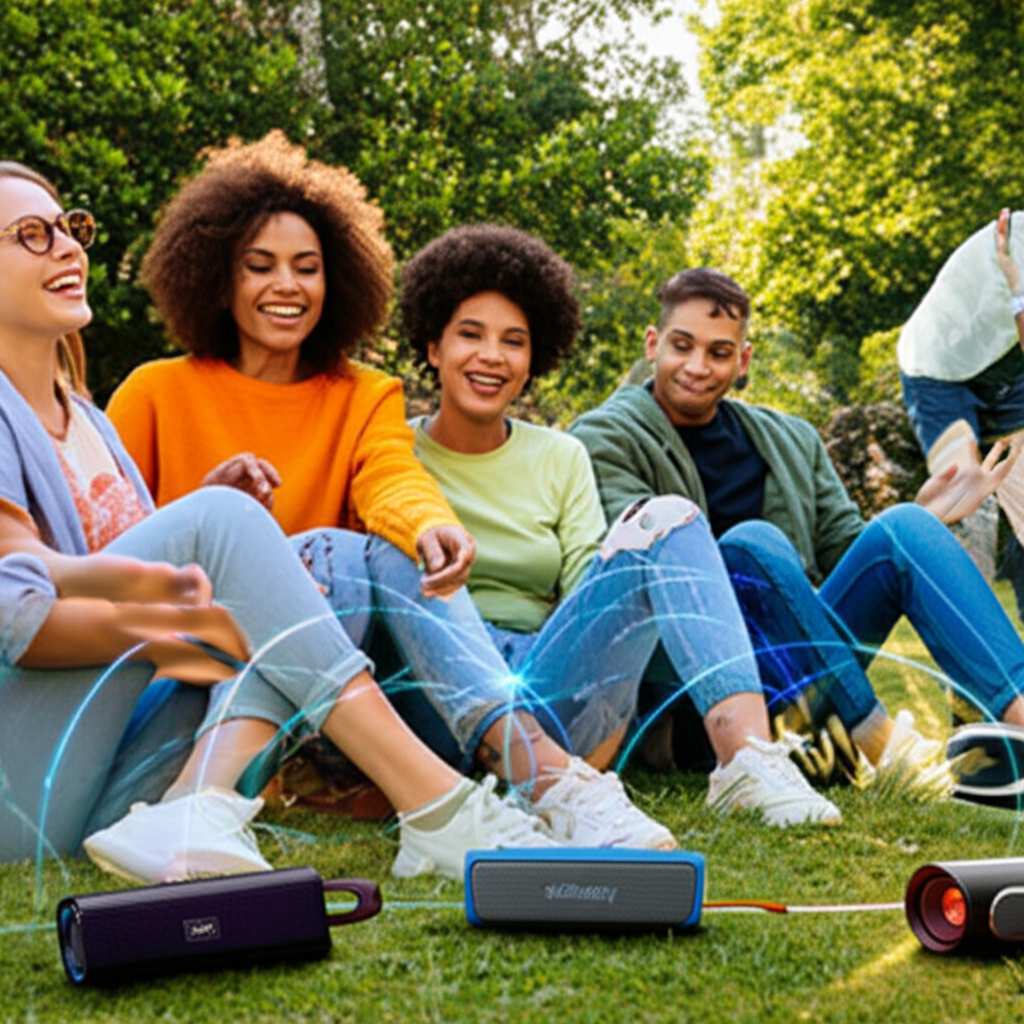
Fun Fact: Some manufacturers allow you to connect up to 100 compatible speakers wirelessly! Imagine the party power!
Method 2: Using Your Smartphone’s Dual Audio Feature
Some smartphones, especially Samsung Galaxy devices, have a built-in feature that lets you connect to two Bluetooth speakers simultaneously. This is super handy if your speakers don’t have their own pairing system.
How it Works:
Your phone can broadcast the audio signal to two different Bluetooth devices at the same time. It’s like your phone has two little Bluetooth antennas working at once! The audio might be mirrored (both speakers play the same thing) or, in some cases, split for stereo.
Steps to Connect (Samsung Galaxy Example):
1. Pair Your First Speaker: Go to your phone’s Bluetooth settings and connect to your first speaker as you normally would. Play some audio to confirm it’s working.
2. Pair Your Second Speaker: Connect your second Bluetooth speaker to your phone as well.
3. Enable Dual Audio:
Open your phone’s Settings.
Go to Bluetooth.
Tap the three dots (or “More” option) in the top right corner for advanced settings.
Select Advanced.
Toggle Dual Audio on.
4. Select Both Speakers: Now, when you have both speakers connected, you should see an option in your media playback controls (where you adjust volume) to select which devices receive audio. Make sure both of your speakers are checked or selected.
5. Test It Out: Play some music and check if both speakers are producing sound.
Important Notes for Dual Audio:
Availability: This feature is not available on all Android phones or iPhones. It’s most commonly found on Samsung devices. Check your phone’s settings under Bluetooth or Media for similar options.
Audio Quality: Sometimes, when using dual audio, the audio quality might be slightly compressed, or there might be a small delay between the two speakers. It’s usually good enough for casual listening but might not be perfect for critical listening.
Stereo vs. Mirror: Most dual audio features mirror the sound. True stereo separation (one speaker for left channel, one for right) is less common with this method and usually requires speakers designed for it.
Method 3: Using a Bluetooth Transmitter/Splitter
If your speakers don’t have built-in pairing and your phone doesn’t support dual audio, a Bluetooth transmitter or splitter is your superhero! These devices plug into your audio source (like a phone’s headphone jack, or even a TV) and broadcast the audio to multiple Bluetooth receivers (your speakers).
How it Works:
A Bluetooth transmitter takes an audio signal and sends it out wirelessly. Some advanced transmitters can send the signal to two (or more) Bluetooth headphones or speakers simultaneously. You’ll need to pair each speaker to the transmitter.
What You’ll Need:
A Bluetooth Transmitter/Splitter: Look for one that explicitly supports connecting to two Bluetooth devices at once. Brands like Avantree, Mpow, and TaoTronics offer good options.
Your Bluetooth Speakers: These don’t need any special features.
An Audio Source: This could be your phone (if it has a headphone jack), a tablet, a computer, or even a TV.
Steps to Connect:
1. Connect the Transmitter: Plug your Bluetooth transmitter into your audio source. This might be via a 3.5mm audio cable, RCA cables, or USB.
2. Put the Transmitter in Pairing Mode: Most transmitters have a power/pairing button. Press and hold it until the indicator light starts flashing, showing it’s ready to connect.
3. Put Your First Speaker in Pairing Mode: Turn on your first Bluetooth speaker and put it into its standard Bluetooth pairing mode.
4. Connect the First Speaker: Bring the speaker close to the transmitter. The transmitter should detect the speaker and connect. The indicator light on the transmitter will likely change to show a solid connection.
5. Put Your Second Speaker in Pairing Mode: Turn on your second Bluetooth speaker and put it into its pairing mode.
6. Connect the Second Speaker: The transmitter should now automatically find and connect to the second speaker. Again, watch the indicator lights on the transmitter.
7. Play Your Audio: Once both speakers are connected to the transmitter, play some audio from your source device. Both speakers should now be playing the sound!
Pros of Using a Transmitter:
Universal Compatibility: Works with almost any Bluetooth speaker and audio source that has an audio output.
Extended Range: Some transmitters offer a longer Bluetooth range than your phone might.
Great for Non-Bluetooth Devices: Perfect for making older TVs or stereos Bluetooth-enabled and able to send audio to two speakers.
Cons of Using a Transmitter:
An Extra Device: It’s another gadget to manage and keep charged.
Potential Latency: Some cheaper transmitters might introduce a slight audio delay, which can be noticeable in videos. Look for transmitters with aptX Low Latency support if this is a concern.
What to Look for in Multi-Speaker Bluetooth Speakers
If you’re in the market for new speakers and want the multi-speaker experience, here are some things to consider:
Key Features to Consider:
Brand Ecosystem: Many brands (like JBL, Sony, UE) have their own proprietary multi-speaker technology. If you buy multiple speakers from the same brand, they’re more likely to work together seamlessly.
Stereo Pairing vs. Party Mode:
Stereo Pairing: Connects two speakers to create a true left and right stereo sound. This gives the most immersive audio experience for music.
Party Mode/Multi-Speaker Mode: Connects two or more speakers to play the same audio in different locations, essentially boosting volume and coverage.
App Support: Many brands offer companion apps that make managing multi-speaker connections easier. These apps often let you control volume, EQ, and pairing status for all connected speakers.
Battery Life: If you’re using speakers wirelessly, especially for extended periods, check their battery life. Running multiple speakers will drain batteries faster.
Durability and Portability: If you plan to use your speakers outdoors or on the go, look for water resistance (IP ratings) and sturdy build quality.
Speaker Comparison Table: Multi-Speaker Capabilities
Here’s a quick look at how some popular brands handle multi-speaker connections. This can help you decide if sticking with one brand makes sense for you!
| Brand | Common Feature Name | Number of Speakers Supported | Stereo Pairing | App Support | Notes |
| :———— | :——————— | :————————- | :————- | :———- | :—————————————- |
| JBL | Connect+ / PartyBoost | Up to 100 (PartyBoost) | Yes (2) | Yes | PartyBoost is the newer, more robust version. |
| Bose | SoundLink Multi-Room | Up to 2 (for stereo) | Yes (2) | Yes (Bose Music App) | For home use with Wi-Fi and Bluetooth. |
| Sony | Party Connect | Up to 100 | No (Mirror only) | Yes (Sony | Music Center App) | Focuses on synchronized playback. |
| Ultimate Ears | PartyUp / Stereo Pair | Up to 100+ (PartyUp) | Yes (2) | Yes (UE App) | Very flexible for various setups. |
| Anker Soundcore | PartyCast | Up to 100 | No (Mirror only) | Yes (Soundcore App) | Great value, good for outdoor use. |
Note: Specifications can vary by specific speaker model within a brand. Always check the product details for the exact features.
This table shows that brands like JBL and UE are fantastic if you want both true stereo sound (with two speakers) and the ability to expand to many speakers for a big event. Sony and Anker focus more on getting the same sound everywhere, which is great for parties.
Tips for the Best Multi-Speaker Experience
Once you’ve got your speakers connected, here are a few tips to make sure everything sounds amazing:
Maximizing Your Sound Setup:
Placement is Key: Don’t just plop speakers anywhere. For stereo pairing, place them equidistant from you and angled slightly inward, like at a concert. For party mode, spread them out to cover the listening area evenly.
Identical Speakers for Stereo: If you’re doing true stereo pairing, using two identical speakers will give you the best balanced sound. They’ll have the same audio profile.
Keep Them Updated: Check for firmware updates for your speakers. Manufacturers often release updates that improve Bluetooth connectivity and stability.
Minimize Interference: Bluetooth can sometimes be a bit finicky. Keep your audio source (phone/tablet) relatively close to the speakers, and try to avoid thick walls or other electronic devices that might cause interference.
Manage Battery Life: If you’re using multiple speakers for a long time, keep portable chargers handy or have access to power outlets. Running two speakers simultaneously will drain batteries faster than running just one.
Troubleshooting Common Issues
Even with the best tech, sometimes things don’t go perfectly. Here are some quick fixes for common problems:
Quick Fixes:
Speakers Not Connecting to Each Other:
Make sure both speakers are compatible with each other (same brand, same pairing technology).
Try turning both speakers off and on again.
Reset both speakers to factory settings (check your manual for how to do this) and try pairing them again from scratch.
Audio is Stuttering or Cutting Out:
Move your audio source closer to the speakers.
Ensure the speakers are not too far apart from each other.
Turn off other nearby Bluetooth devices that might be causing interference.
Check for speaker firmware updates.
Only One Speaker is Playing Sound:
Double-check that you successfully completed the multi-speaker pairing process.
If using your phone’s dual audio, ensure both speakers are selected in the audio output settings.
Try disconnecting and reconnecting both speakers.
Volume is Too Low:
Increase the volume on your audio source.
Increase the volume on each individual speaker.
* If using stereo pairing, ensure the volume on both speakers is set equally.
Frequently Asked Questions (FAQ)
Q1: Can I connect speakers from different brands together?
A1: Generally, no. Most multi-speaker pairing technologies are proprietary, meaning they only work with other speakers from the same brand and often the same model line. Some Bluetooth transmitters can send audio to any Bluetooth speaker, but the speakers themselves usually can’t talk to each other if they’re different brands.
Q2: What’s the difference between Stereo Pairing and Party Mode?
A2: Stereo pairing uses two speakers to create a left and right channel for true stereo sound, giving you a more immersive music experience. Party Mode connects multiple speakers to play the same audio, just louder and in more places, which is great for filling a large area.
Q3: Will connecting two speakers drain my phone’s battery faster?
A3: Yes, slightly. Your phone’s Bluetooth radio will be working harder to maintain connections with two devices instead of one, which can use a bit more battery. However, the biggest battery drain will likely be from the speakers themselves running simultaneously.
Q4: How far apart can my Bluetooth speakers be?
A4: The range depends on the speakers and your device. For direct speaker-to-speaker pairing, they usually need to be within about 30 feet (10 meters) of each other. For connecting your phone to the speakers, the standard Bluetooth range of about 30 feet applies. Some higher-end systems or those using Wi-Fi can have much longer ranges.
Q5: Do I need a special app to connect multiple speakers?
A5: It depends on the brand! Some brands, like JBL and UE, strongly recommend using their app for the easiest and most feature-rich multi-speaker experience. Others, like some older models or simpler systems, might just require button presses. Always check your speaker’s manual.
Q6: Can I connect more than two Bluetooth speakers?
A6: Absolutely! Many systems, like JBL’s PartyBoost or Sony’s Party Connect, allow you to link a large number of compatible speakers together – sometimes up to 100! This is perfect for really big parties or events.
Q7: What if my speakers are old and don’t have multi-speaker features?
A7: No worries! You can still use a Bluetooth transmitter/splitter. This device connects to your audio source and can broadcast the sound to two regular Bluetooth speakers simultaneously. It’s a fantastic way to give older speakers new life and expand your sound!
Ready to Amplify Your Audio!
See? Connecting more than one Bluetooth speaker is totally achievable and incredibly rewarding. Whether you’re using your phone’s built-in features, your speakers’ own linking magic, or a handy Bluetooth transmitter, you’re well on your way to a richer, more enveloping sound experience. It’s all about making your music and audio content sound as amazing as possible, wherever you are.
Don’t be afraid to experiment! Try out different speaker placements and pairing methods to find what works best for your space and your sound preferences. Upgrading from a single speaker to a multi-speaker setup is a fantastic way to boost your home entertainment. Now go enjoy amazing sound and make every moment louder and better!