Want to use your Yoto Player as a Bluetooth speaker? It’s super easy! Just pair it with your phone or tablet to stream your favorite music, podcasts, or audiobooks. This guide shows you exactly how to get amazing sound from your Yoto, turning it into a versatile speaker for all your listening needs.
Hey there, tech explorers! Max here from AffTechy.com. Ever stare at a gadget and wonder, “What else can this thing do?” That’s kind of how I feel about the Yoto Player. It’s brilliant for kids’ stories and music, but what if you want to blast your own tunes? It can feel a bit like having a secret superpower hidden away.
Sometimes, tech specs can sound like a foreign language, right? You just want to enjoy your music or podcasts without a headache. I get it! It’s like trying to assemble furniture with confusing instructions – nobody enjoys that.
Well, guess what? Your Yoto Player is more capable than you might think. It can actually double as a pretty neat Bluetooth speaker. We’re going to make this super simple, step-by-step. Let’s dive in and unlock this hidden feature together!
Yoto Player: More Than Just Stories
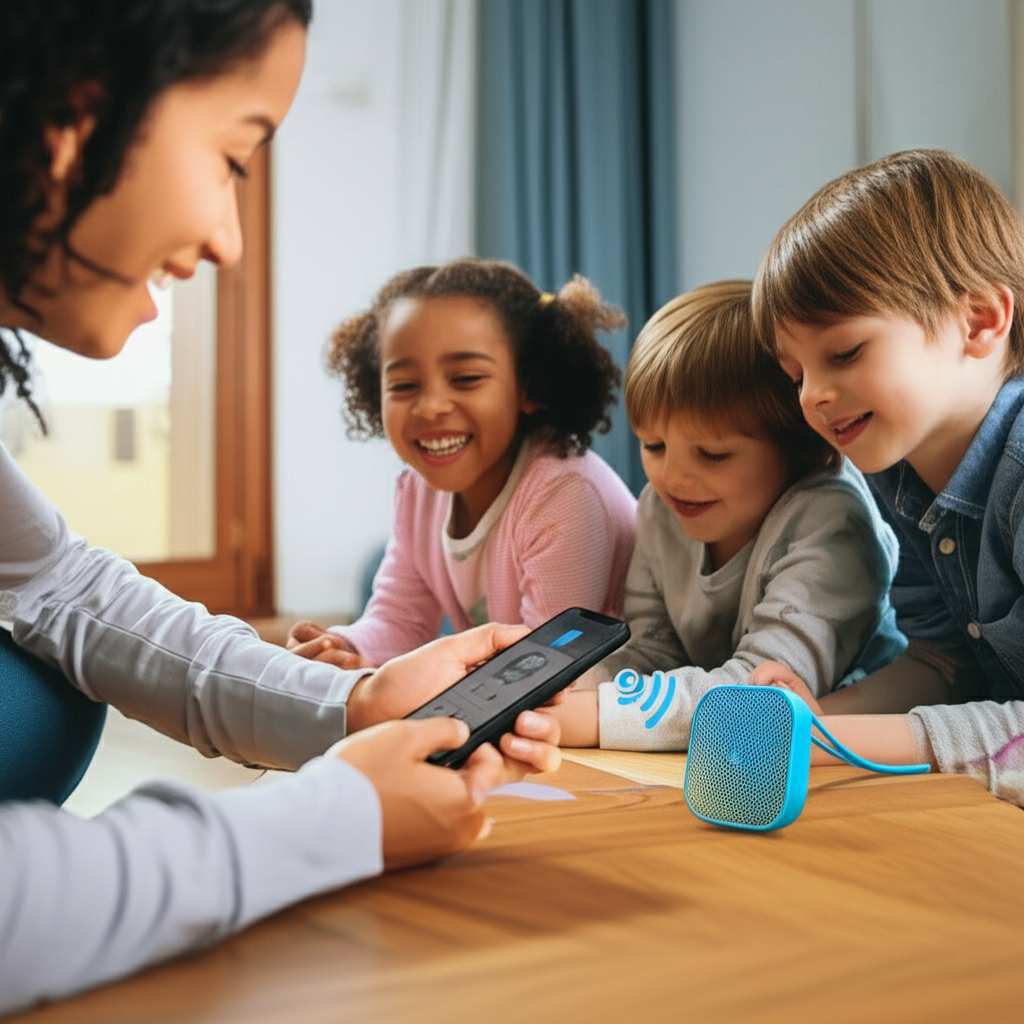
You probably know the Yoto Player as that awesome little box that plays audio cards for kids. It’s fantastic for bedtime stories, educational content, and fun music. But Yoto has a cool trick up its sleeve that many people don’t realize: it can also function as a Bluetooth speaker for your own devices.
Think about it: you’ve got a Yoto Player sitting on your shelf. Instead of just playing its usual content, imagine it filling your room with your favorite Spotify playlist or that podcast you’ve been meaning to catch up on. It’s a great way to get more use out of a device you already own and love.
This means you don’t need to buy a separate Bluetooth speaker for every room. Your Yoto can be that versatile sound companion. It’s all about making your tech work harder for you, and this feature is a fantastic example of that. Let’s get this set up so you can enjoy your own audio on your Yoto!
Why Use Your Yoto as a Bluetooth Speaker?
So, why would you want to turn your Yoto into a Bluetooth speaker? It’s all about convenience and making the most of your gadgets. Imagine this: you’re getting ready in the morning, and you want to listen to your favorite morning show podcast. Your phone is in your hand, but you want the sound to fill the room a bit more.
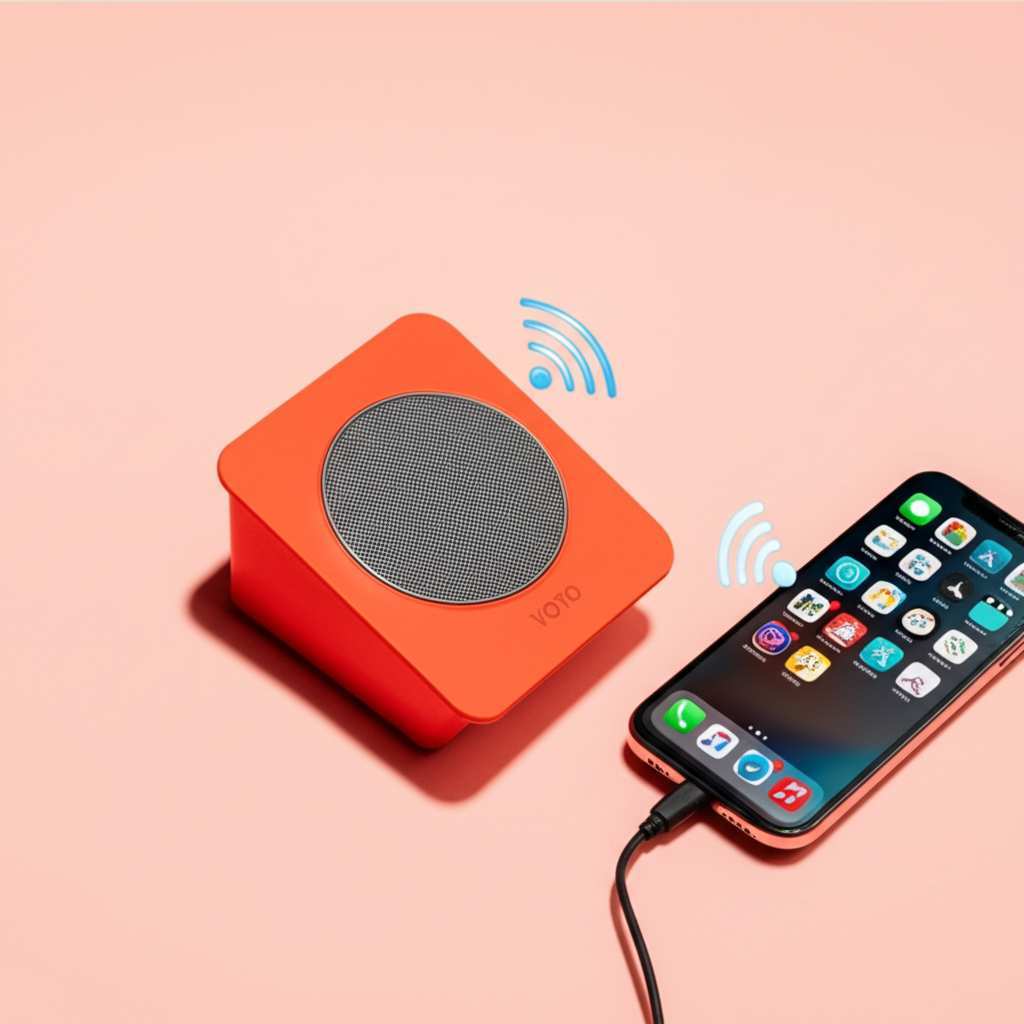
Instead of fumbling for another speaker, you can just connect your phone to your Yoto. It’s already there, looking all friendly. This is especially handy if you have multiple Yoto Players around the house. You can easily move your listening experience from one room to another without needing a whole new setup.
Plus, the Yoto Player has a decent speaker built-in. It’s designed to play audio clearly for kids, so it’s more than capable of handling your music or podcasts. It’s like finding a hidden feature that makes your existing tech even more valuable. Let’s get to the fun part: how to actually do it!
Getting Started: What You’ll Need
Before we jump into the steps, let’s make sure you have everything ready. It’s pretty simple, honestly. The main thing is your Yoto Player, of course. Make sure it’s charged or plugged in so it doesn’t run out of juice mid-song. You’ll also need a smartphone, tablet, or any other device that has Bluetooth capability.
This could be an iPhone, an Android phone, an iPad, or even a laptop. As long as it can send audio via Bluetooth, you’re good to go. You’ll also want to have your Wi-Fi connection set up for your Yoto Player, though it’s not strictly necessary for Bluetooth streaming, it’s good practice for all Yoto features.
And of course, you’ll need some audio to play! Whether it’s a Spotify playlist, a YouTube video, an audiobook from Audible, or a podcast from your favorite app, have something ready to test the sound. Now, let’s get to the magic.
How to Pair Your Device with Yoto Player
This is where the magic happens! Connecting your phone or tablet to your Yoto Player is just like pairing any other Bluetooth device. It’s usually a quick process. We’ll go through it step-by-step so you can’t miss anything.
Step 1: Put Your Yoto Player in Pairing Mode
First things first, you need to tell your Yoto Player to look for new devices. To do this, you need to put it into Bluetooth pairing mode. This is usually done through the Yoto app on your smartphone or tablet.
Open the Yoto app. If you haven’t already, you’ll need to connect your Yoto Player to your Wi-Fi network through the app. Once your Yoto Player is linked to your account in the app, navigate to its settings. You should find an option related to Bluetooth or device connections. Tap on that, and you’ll see an option to “Pair Bluetooth Device” or “Make Discoverable.” Select that.
Your Yoto Player will then broadcast its Bluetooth signal, ready to be found by other devices. You might see a light on the Yoto Player change or hear a little chime to let you know it’s in pairing mode. It’s like it’s saying, “I’m ready to connect!”
Step 2: Find Yoto Player on Your Device’s Bluetooth Settings
Now, grab your smartphone or tablet. Go to the Bluetooth settings on your device. You know, the place where you connect to wireless headphones or car stereos.
On your phone or tablet, make sure Bluetooth is turned on. You should see a list of available devices nearby. Look for your Yoto Player in that list. It will likely show up with a name like “Yoto Player” or something similar. If you have multiple Yoto Players, you might need to check the specific model number or name in your Yoto app to be sure which one you’re pairing.
Once you see your Yoto Player appear in the list of available devices, tap on its name to initiate the connection. Your phone or tablet will try to connect to the Yoto Player.
Step 3: Confirm the Connection
After you tap on your Yoto Player’s name in the Bluetooth list, your device will attempt to pair. You might see a confirmation message on your phone or tablet asking you to confirm the pairing. Just tap “Pair” or “Connect.”
Your Yoto Player might also give you some feedback. Sometimes it’s a little light, and other times it might make a sound. You’ll know it’s successfully connected when your phone or tablet shows it as “Connected” in the Bluetooth settings, and the Yoto Player indicates it’s ready for audio input.
If it asks for a PIN, it’s usually ‘0000’ or ‘1234’, but this is rare for Yoto. You’ve now successfully paired your device! It’s like unlocking a new level in a game. Now, let’s test it out!
Playing Your Audio Through Yoto
With your device paired, it’s time to enjoy the sound! This is the part where all your effort pays off. You’ve done the technical bit, and now you get to relax with your favorite audio.
Open any app on your smartphone or tablet that plays audio. This could be your music streaming app like Spotify or Apple Music, a podcast app like Overcast or Google Podcasts, or even a video app like YouTube. Start playing whatever you want to listen to.
The sound should automatically come out of your Yoto Player. If it doesn’t, check your device’s audio output settings to make sure it’s set to play through the connected Bluetooth speaker (your Yoto). You can control the volume using your phone or tablet, or directly on the Yoto Player itself.
It’s that simple! You’re now streaming your own audio content through your Yoto Player. Pretty cool, right? This opens up a whole new world of listening possibilities for your Yoto.
Tips for the Best Bluetooth Experience
To make sure your Yoto Player sounds its best as a Bluetooth speaker, here are a few handy tips. These little tricks can really make a difference in your listening experience, turning good sound into great sound.
- Placement Matters: Just like any speaker, where you place your Yoto can affect the sound quality. Try putting it on a flat surface, away from corners, to avoid muffled bass. Experiment with different spots to see what sounds best in your room.
- Volume Control: You can adjust the volume from your phone or tablet, and also from the Yoto Player itself. Sometimes, setting the Yoto Player’s volume to a medium level and then using your phone’s volume for finer control gives you a wider range of adjustment.
- Keep Devices Close: Bluetooth works best when your phone or tablet is reasonably close to your Yoto Player. While it has a good range, keeping them within the same room usually ensures a stable connection without dropouts.
- Check for Updates: Make sure both your Yoto Player firmware and your Yoto app are up to date. Manufacturers often release updates that improve performance, including Bluetooth connectivity. You can usually check for Yoto Player updates within the Yoto app.
- Disconnect When Done: When you’re finished using your Yoto Player as a Bluetooth speaker, it’s a good idea to disconnect your device from its Bluetooth settings. This frees up the Yoto Player to be used by other family members or for its primary function with Yoto cards.
Yoto Player Bluetooth vs. Dedicated Speakers
It’s natural to wonder how the Yoto Player stacks up against dedicated Bluetooth speakers. While the Yoto Player is a fantastic all-around device, it’s helpful to know its strengths and where a dedicated speaker might shine.
The Yoto Player offers a convenient, dual-purpose function. You get stories for kids and your own music from one device. This is great for saving space and money. The sound quality is good for its size and intended use, making it perfectly adequate for casual listening.
Dedicated Bluetooth speakers, on the other hand, are built solely for audio. They often come with features like enhanced bass, water resistance, longer battery life, and higher fidelity sound. For audiophiles or those who need a speaker for outdoor parties, a dedicated speaker might offer a superior audio experience.
However, for everyday listening at home, podcasts, or background music, the Yoto Player performs admirably. It bridges the gap beautifully, offering a simple and accessible way to enjoy your audio without needing an extra gadget.
Feature Comparison Table: Yoto Player vs. Generic Bluetooth Speaker
Here’s a quick look at how the Yoto Player, when used as a Bluetooth speaker, compares to a typical dedicated Bluetooth speaker:
| Feature | Yoto Player (as Bluetooth Speaker) | Generic Bluetooth Speaker |
|---|---|---|
| Primary Function | Interactive audio player for kids | Dedicated audio playback device |
| Bluetooth Connectivity | Yes, for audio streaming | Yes, primary function |
| Sound Quality | Good for general listening, clear | Varies greatly; often designed for richer bass and higher volume |
| Portability | Requires power outlet (or battery pack for some models) | Often battery-powered, highly portable |
| Ease of Use (Bluetooth) | Simple pairing via app | Simple pairing, often with NFC |
| Extra Features | Yoto ecosystem (cards, stories, smart features) | Water resistance, app control, multi-speaker pairing, voice assistants |
| Cost-Effectiveness | High (dual purpose) | Varies, can be low to high |
As you can see, the Yoto Player shines when you consider its primary role. It’s not trying to be the loudest or the most bass-heavy speaker on the market. Instead, it offers a fantastic added benefit to an already great product. If you need a speaker specifically for booming parties or critical listening, a dedicated Bluetooth speaker might be your best bet. But for a versatile, home-friendly audio solution, the Yoto is a winner!
Troubleshooting Common Issues
Sometimes, tech doesn’t cooperate perfectly the first time. Don’t worry, we’ve all been there! If you’re having trouble connecting your Yoto Player as a Bluetooth speaker, here are a few common issues and how to fix them.
- Yoto Player Not Appearing in Bluetooth List:
- Make sure your Yoto Player is powered on and in pairing mode. Double-check the Yoto app to ensure you’ve initiated Bluetooth pairing.
- Try turning Bluetooth off and on again on your phone or tablet.
- Restart your Yoto Player by unplugging it, waiting 10 seconds, and plugging it back in. Then, try putting it back into pairing mode.
- Connection Drops Frequently:
- Ensure your phone or tablet is within Bluetooth range of the Yoto Player. Obstacles like thick walls can interfere.
- Check for interference from other wireless devices. Try moving away from microwaves or other strong signals.
- Update your Yoto Player’s firmware and your device’s operating system.
- No Sound After Connecting:
- Verify that the volume is turned up on both your Yoto Player and your connected device.
- In your device’s Bluetooth settings, ensure the Yoto Player is selected as the audio output.
- Try disconnecting and re-pairing the devices.
- If you’re using a specific app, check its internal volume settings.
- Yoto Player Won’t Enter Pairing Mode:
- This is rare, but ensure you are following the correct steps within the Yoto app. Sometimes, a simple app restart can resolve minor glitches.
- If the issue persists, you might want to reach out to Yoto customer support for more specific advice on your device.
Remember, most Bluetooth connection issues are temporary glitches. A simple restart or re-pairing often solves the problem. For more in-depth troubleshooting, you can always check the official Yoto support pages online or resources like CNET’s guide to Bluetooth issues.
Yoto Player Bluetooth: A Summary of Benefits
Using your Yoto Player as a Bluetooth speaker brings a bunch of cool advantages to your daily life. It’s not just about playing music; it’s about making your tech work smarter for you.
- Convenience: You already own a Yoto Player, so you get a secondary speaker without buying anything new. It’s always ready to go in your room.
- Space-Saving: No need for multiple speakers cluttering your home. Your Yoto does double duty.
- Kid-Friendly Features: While you’re streaming your music, the Yoto Player remains a safe and controlled environment for children. They can still use their cards when you’re done.
- Decent Sound Quality: The Yoto Player is designed to produce clear audio, which is perfectly suitable for podcasts, audiobooks, and casual music listening.
- Easy Setup: Pairing is straightforward through the Yoto app, making it accessible even for those new to Bluetooth technology.
It’s a fantastic way to add audio versatility to any room where you have a Yoto Player. Whether it’s for background music while you cook, listening to a podcast while you relax, or even just enjoying your favorite album with a bit more room-filling sound, the Yoto Player delivers.
Frequently Asked Questions (FAQ)
Got more questions about using your Yoto as a Bluetooth speaker? Here are answers to some common ones!
Q1: Can I use my Yoto Player as a Bluetooth speaker without the Yoto app?
A1: No, you need the Yoto app on your smartphone or tablet to put your Yoto Player into Bluetooth pairing mode. The app is essential for initiating the connection.
Q2: Does using Yoto as a Bluetooth speaker affect its ability to play Yoto cards?
A2: Not at all! Once you disconnect your device from Bluetooth, your Yoto Player is immediately ready to play Yoto cards again. The two functions don’t interfere with each other.
Q3: What kind of audio can I stream through my Yoto Player via Bluetooth?
A3: You can stream any audio from your paired device! This includes music apps (Spotify, Apple Music), podcast apps, audiobooks, YouTube videos, and more. If your device can play it, your Yoto can stream it.
Q4: How far does the Bluetooth range usually extend?
A4: Typically, Bluetooth devices have a range of about 30 feet (10 meters) in open space. Walls and other obstructions can reduce this range. For the best connection, keep your paired device close to the Yoto Player.
Q5: Is the sound quality good enough for serious music listening?
A5: The Yoto Player offers clear and pleasant sound, which is great for general listening, podcasts, and casual music. For audiophiles seeking deep bass or very high fidelity, a dedicated, higher-end Bluetooth speaker might be preferred. But for everyday use, it’s quite good!
Q6: Can I connect multiple devices to my Yoto Player via Bluetooth at the same time?
A6: No, your Yoto Player can only be actively connected to one Bluetooth device at a time for audio streaming. You’ll need to disconnect the current device before pairing a new one.
Q7: My Yoto Player is connected but no sound is coming out. What should I do?
A7: First, check the volume levels on both your Yoto Player and your connected device. Make sure the Yoto Player is selected as the audio output in your device’s Bluetooth settings. Sometimes, simply disconnecting and re-pairing can resolve this issue. If problems persist, check out resources like TechRadar’s troubleshooting tips.
Conclusion: Your Yoto, Your Speaker!
And there you have it! You’ve learned how to unlock a fantastic hidden talent of your Yoto Player – its ability to function as a versatile Bluetooth speaker. It’s proof that technology can be both fun and functional, offering more than meets the eye.
From setting up the Bluetooth connection to enjoying your favorite tunes, you’ve got all the steps to make it happen. It’s a simple process that adds so much value to a device you probably already love. You can now enjoy your podcasts, music, or any audio content through your Yoto Player, making any room sound better.
So go ahead, give it a try! Connect your phone, pick your favorite playlist, and let the good times roll. Now go enjoy amazing sound and make every moment louder and better with your Yoto Player!