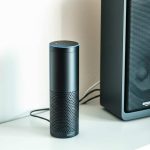
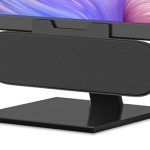
Can’t connect your phone to a speaker without Bluetooth? No sweat! You can still get great sound using an AUX cable or USB. It’s super easy and gives you a reliable audio boost for music, movies, and more.
Hey there, tech buddy! So, you’ve got this awesome speaker, and you’re ready to blast some tunes or dive into a movie. But then, you realize – no Bluetooth? Or maybe your phone’s Bluetooth is being a bit stubborn today. It happens to the best of us!
We all love how speakers make our favorite songs sound richer and our movie nights feel more epic. But when connecting them feels like a puzzle, it can be a real buzzkill. Don’t worry, though! I’m here to help you figure it all out, the easy way.
Think of me as your friendly tech guide, ready to untangle any gadget mystery. We’re going to go through simple ways to get your phone talking to your speaker, even if Bluetooth isn’t on the menu. It’s all about making tech work for you, not the other way around!
So, grab your phone and your speaker. Let’s break down how to connect them without Bluetooth, step by step. It’s going to be easier than you think!
Why Connect Your Phone to a Speaker Anyway?
Let’s be honest, our phones are amazing little devices. They hold our music, our podcasts, our entire digital lives. But let’s also be real – their built-in speakers are usually pretty tiny. They’re fine for a quick call or checking a notification, but for truly enjoying sound?
That’s where external speakers come in! They offer a much bigger, richer sound experience. Whether you’re hosting a party, having a movie marathon at home, or just want to feel immersed in your game, a good speaker makes a world of difference. It’s like upgrading from a tiny TV screen to a giant cinema!
So, even if Bluetooth isn’t your go-to, there are still fantastic ways to get that booming sound. We’re talking about methods that have been around for ages but are still super effective and sometimes even better for certain situations.
Let’s Talk About Sound: Wired vs. Wireless
We often hear about Bluetooth, which is wireless. It’s super convenient because you don’t need any cables. Just pair your devices, and you’re good to go! It’s like magic, but sometimes that magic needs a little reboot.
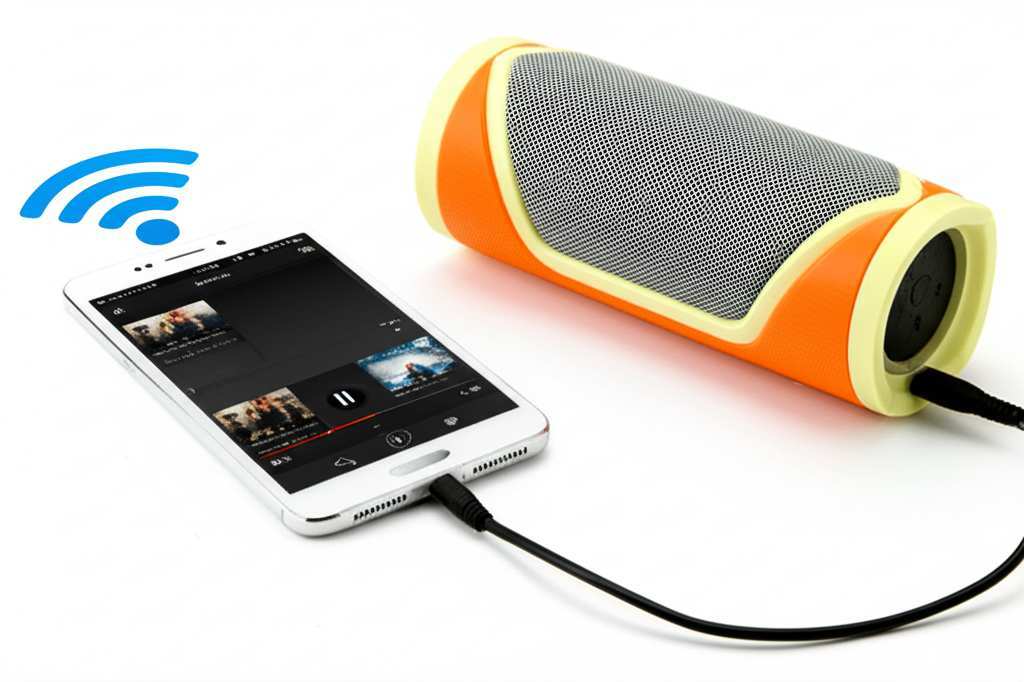
But what about when wireless isn’t an option, or you just want a super stable connection? That’s where the trusty wired connections come in. They use physical cables to send the sound signal from your phone to your speaker. Think of it like a direct phone line for your audio!
Wired connections often offer really clear sound because the signal doesn’t have to go through the air. Plus, you don’t have to worry about battery life on your Bluetooth transmitter or any pairing hiccups. It’s a straightforward, reliable way to get your music playing.
Your Non-Bluetooth Connection Toolkit
So, what do you actually need to make this happen? Don’t worry, it’s usually just a couple of simple things. We’re going to focus on the most common and easiest methods:
- Your Phone: The source of all your awesome audio!
- Your Speaker: The star of the show, ready to amplify the sound.
- The Right Cable: This is the crucial piece that connects your phone to the speaker. We’ll dive into the types in a sec.
That’s pretty much it! No complicated software, no tricky settings. Just a phone, a speaker, and the right cable. Let’s make some noise!
Method 1: The Classic AUX Cable Connection
This is probably the most common way people connect devices for audio, and for good reason. It’s simple, effective, and found on tons of speakers and older phones.
What is an AUX Cable?
An AUX cable is a short, flexible cable with a 3.5mm audio jack on each end. You know those little headphone jacks? It’s the same kind of plug! AUX stands for “auxiliary,” which basically means “extra” or “secondary.” It’s an extra way to get sound into your speaker.
How to Connect Using AUX
Connecting with an AUX cable is super straightforward. You don’t need any special apps or settings. Just plug and play!
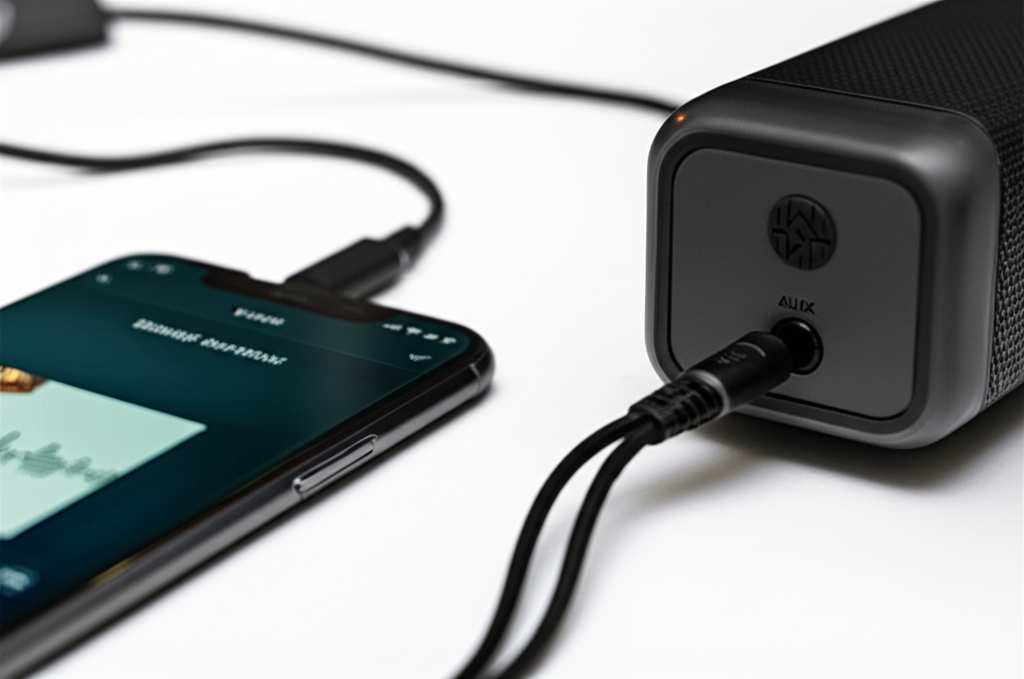
- Find the AUX Ports: Look for a small, round port on your speaker that usually has a headphone symbol or says “AUX IN.” On your phone, you’ll need a headphone jack. If your phone doesn’t have one (like many newer iPhones and Androids), don’t worry, we’ll cover adapters later!
- Plug in One End: Take one end of the AUX cable and plug it firmly into the “AUX IN” port on your speaker.
- Plug in the Other End: Now, take the other end of the AUX cable and plug it into your phone’s headphone jack.
- Select AUX Input on Speaker: On your speaker, you might need to press a button to select the “AUX” input source. This tells the speaker to listen to what’s coming through the cable. Check your speaker’s manual if you’re unsure!
- Play Your Music: Open your music app on your phone and hit play! The sound should now come out of your speaker. You can control the volume from both your phone and your speaker.
It’s really that simple! You’ve just bypassed Bluetooth and got your audio flowing.
Why AUX is Still Awesome
One of the coolest things about AUX is that it’s almost universally compatible. Most speakers designed for wired input will have an AUX port. Plus, you don’t need to worry about battery drain from wireless transmission or interference that can sometimes happen with Bluetooth.
It’s a direct connection, which often means a very clean audio signal. This can be great for audiophiles who want the purest sound. And honestly, sometimes, just plugging something in feels more reliable than waiting for a Bluetooth connection to establish.
What if My Phone Doesn’t Have a Headphone Jack?
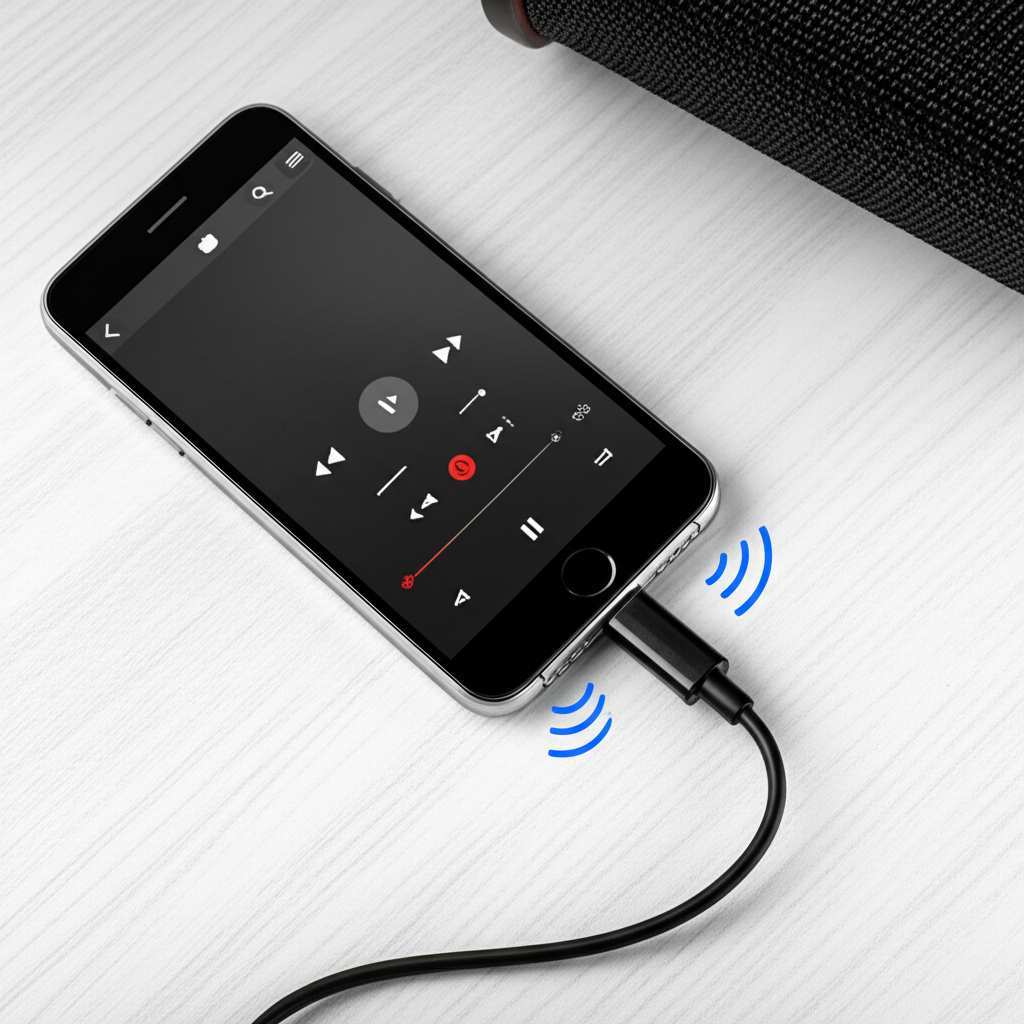
This is a common issue with modern smartphones! If your phone (like many newer iPhones or Android devices) lacks a 3.5mm headphone jack, you’ll need a small adapter. These are called “USB-C to 3.5mm adapters” or “Lightning to 3.5mm adapters,” depending on your phone type.
You simply plug the adapter into your phone’s charging port (USB-C or Lightning), and then plug your AUX cable into the adapter’s headphone jack. Voilà! You’ve created a headphone jack for your AUX cable.
These adapters are usually inexpensive and widely available. They’re a lifesaver for keeping older, great speakers connected to newer phones. Some adapters even allow you to charge your phone while listening, which is super handy!
Method 2: The USB Audio Connection
USB has been around forever for connecting devices, and it’s not just for charging or transferring files! Many speakers can receive audio directly through a USB connection. This is often found on computer speakers, soundbars, or more modern portable speakers.
How Does USB Audio Work?
When you connect your phone to a speaker via USB for audio, your phone essentially treats the speaker like a pair of headphones. The speaker has its own built-in sound card that processes the digital audio signal coming from your phone. It’s a really clean way to get sound!
Connecting Your Phone via USB
This method can vary slightly depending on your phone and speaker, but the basic steps are usually the same.
- Check Your Speaker’s USB Port: Not all USB ports on speakers are for audio input. Some are only for charging other devices or for playing music from a USB drive. Look for a port labeled “USB IN,” “Audio In,” or something similar.
- Get the Right USB Cable: You’ll likely need a USB-A to USB-C cable or a USB-A to Lightning cable, depending on your phone. Your speaker might come with one, or you might need to use a cable you already have for charging.
- Connect the Speaker to Power: Make sure your speaker is plugged in and powered on.
- Connect Phone to Speaker: Plug one end of the USB cable into your phone and the other end into the correct USB port on your speaker.
- Phone Notification: Your phone will likely pop up a notification asking how you want to use the USB connection. You might see options like “Charging,” “File Transfer (MTP),” or “Audio.”
- Select Audio: Choose the “Audio” or “Audio Output” option. Your phone should then send sound through the USB cable to the speaker.
- Play Your Music: Open your music app and play something! The sound should come through the speaker. You can often adjust the volume on both your phone and the speaker.
It’s a robust connection that’s great for high-quality audio.
When USB Audio is a Great Choice
USB audio is fantastic because it often provides a very high-quality sound. It bypasses your phone’s internal DAC (Digital-to-Analog Converter) and uses the speaker’s potentially better one. This can result in clearer, more detailed audio. It’s also a very stable connection, with no chance of dropouts.
Many computer speakers or soundbars are designed to work this way. If you’re using your phone as a music source connected to your PC setup, USB audio is a super convenient option. Plus, it often charges your phone simultaneously, so you don’t lose battery life while jamming out!
Important Note on USB Audio Compatibility
Not all phones support USB audio output to external devices by default. Some Android phones might require you to enable “USB Debugging” or select a specific USB mode in developer options. For iPhones, you generally need a USB-A to Lightning cable that is designed for audio output, or a specific adapter.
If you’re having trouble, check your phone’s manual or do a quick online search for “[Your Phone Model] USB audio out” to see if it’s supported and what specific steps might be needed. Sometimes, a speaker might also require a separate power source for USB audio to function correctly.
Method 3: Using a 3.5mm to RCA Cable
This is a bit more specialized but incredibly useful if you have a home stereo system or larger, older speakers that use RCA inputs. RCA cables are those with red and white (and sometimes yellow for video) connectors.
What is an RCA Connection?
RCA connectors are round plugs, usually color-coded. Red is for the right audio channel, and white (or black) is for the left audio channel. Many home stereo receivers, amplifiers, and older, larger speakers use these inputs. They were the standard for a long time!
How to Connect Using RCA
You’ll need a special cable for this one: a 3.5mm to RCA cable. One end has the familiar headphone jack plug, and the other end splits into two RCA plugs (red and white).
- Identify RCA Inputs: On your stereo receiver or speaker, find the input jacks labeled “AUX,” “Line In,” or “CD,” and look for the red and white ports.
- Connect the RCA Ends: Plug the red RCA plug into the red input jack and the white RCA plug into the white input jack.
- Connect the 3.5mm End: Plug the 3.5mm jack into your phone’s headphone port (or into your phone’s adapter, if you’re using one).
- Select the Correct Input: On your stereo receiver or speaker, select the input source that matches where you plugged in the RCA cables (e.g., “AUX,” “CD”).
- Play Your Music: Hit play on your phone! The sound should now be routed through your stereo system or large speakers.
This is a fantastic way to breathe new life into older audio equipment and get room-filling sound.
Why RCA Still Matters
If you have a home stereo system gathering dust, this is your ticket to using it with your phone! It offers a robust connection and can drive powerful speakers that create an amazing listening environment. It’s perfect for when you want serious sound quality without buying a whole new system.
Comparing Connection Methods
To help you decide which method is best for you, let’s quickly compare them. Each has its own strengths!
| Method | Pros | Cons | Best For |
|---|---|---|---|
| AUX Cable | Universal compatibility, simple plug-and-play, no pairing issues, good audio quality. | Requires headphone jack on phone or adapter, cable can be limiting. | Most portable speakers, car stereos, quick connections, older devices. |
| USB Audio | High-quality digital audio, often charges phone simultaneously, stable connection. | Requires specific USB port on speaker, phone compatibility can vary, may need specific cables/adapters. | Computer speakers, modern soundbars, audiophile setups, when charging is needed. |
| 3.5mm to RCA | Connects to home stereo systems, powerful sound, revitalizes old equipment. | Requires specific RCA inputs on speaker/receiver, needs a special cable, less portable. | Home stereo systems, large passive speakers, music enthusiasts with existing setups. |
As you can see, there’s a great option for almost any speaker setup you might have. The AUX cable is your everyday hero, USB audio is for the quality-conscious, and RCA is for the home theater buffs!
Quick Tips for the Best Sound
No matter which method you choose, here are a few extra tips to make your audio experience even better:
- Use Good Quality Cables: While basic cables work, investing in a slightly better quality cable can sometimes lead to clearer sound and better durability.
- Check Your Volume Levels: Start with your phone volume low and gradually increase it. Then, adjust the speaker volume. This prevents sudden loud noises and distortion.
- Position Your Speaker Wisely: For the best sound, place your speaker on a stable surface and away from corners if possible. Experiment with placement to see what sounds best in your room!
- Keep Connections Clean: Ensure the ports on your phone and speaker are free of dust and debris. This helps ensure a solid connection.
- Update Your Phone’s Software: Sometimes, audio issues can be resolved with the latest operating system updates for your phone.
These little things can make a surprising difference in how your music sounds. Happy listening!
Troubleshooting Common Issues
Even with these simple methods, you might run into a snag. Don’t worry, most problems are easy to fix!
- No Sound at All:
- Double-check that all cables are plugged in securely at both ends.
- Make sure the correct input source (AUX, USB, etc.) is selected on the speaker.
- Ensure your phone isn’t muted and the volume is turned up.
- Try restarting both your phone and the speaker.
- If using AUX, ensure your phone isn’t still trying to send audio to Bluetooth headphones (turn off Bluetooth temporarily if needed).
- Sound is Distorted or Crackly:
- Lower the volume on your phone and speaker. High volumes can cause distortion.
- Check the AUX cable for damage. Try a different cable if possible.
- Make sure the speaker’s USB port is indeed for audio input and not just charging.
- Ensure your phone’s audio output setting is correct (if applicable).
- Only One Side of the Stereo Sound Works:
- This often points to a cable issue. Ensure the RCA plugs (if using RCA) are fully seated and in the correct color-coded jacks.
- Try a different AUX cable, as one side might be damaged.
- Test your phone with headphones to see if stereo audio works there.
Most of the time, it’s just a loose connection or a setting that needs a tweak. You’ve got this!
Frequently Asked Questions (FAQ)
Here are some quick answers to common questions beginners might have:
Q1: Will connecting with an AUX cable drain my phone battery faster than Bluetooth?
A1: Generally, using an AUX cable uses less battery power than Bluetooth. Bluetooth requires constant wireless transmission, which uses more energy. So, AUX is often more battery-friendly!
Q2: Can I use my phone’s charger cable to connect to a speaker via USB for audio?
A2: Sometimes, yes! Many USB-A to USB-C or USB-A to Lightning cables can carry audio data. However, some cables are designed only for charging. If it doesn’t work, you might need a specific “data transfer” or “audio-enabled” USB cable.
Q3: My speaker has multiple USB ports. Which one should I use for audio?
A3: Look for labels like “USB IN,” “Audio In,” or “Data.” Ports labeled “USB Out” or “Charge” are usually only for powering other devices, not for receiving audio from your phone.
Q4: What’s the difference between AUX and Bluetooth for sound quality?
A4: It depends! High-quality Bluetooth codecs can sound excellent, but sometimes a wired AUX connection can offer a purer, more direct signal, especially if the speaker has a good built-in DAC. For many people, the difference is barely noticeable.
Q5: Can I connect my phone to a speaker using NFC?
A5: NFC (Near Field Communication) is mainly used for quickly initiating a Bluetooth pairing. It doesn’t transmit audio itself. So, while NFC can help you connect via Bluetooth faster, it’s not a direct audio connection method on its own.
Q6: My phone is old and only has an AUX port. Can I still connect it to a Bluetooth speaker?
A6: Yes! You can buy a small Bluetooth transmitter that plugs into your phone’s AUX port. This transmitter then sends the audio wirelessly to your Bluetooth speaker. It’s a great way to add Bluetooth to older devices!
Q7: Is it safe to use adapters for my phone’s headphone jack?
A7: Absolutely! Adapters like USB-C to 3.5mm or Lightning to 3.5mm are designed specifically for this purpose. They are safe and allow you to use standard audio accessories with phones that lack a built-in jack.
Ready to Rock Your Sound!
See? Connecting your phone to a speaker without Bluetooth is totally doable and often super simple. Whether you’re using the classic AUX cable, the modern USB connection, or even bridging to an old-school RCA system, you have reliable ways to boost your audio.
You’ve learned about the different cables, how to plug them in, and even how to handle phones that don’t have a headphone jack. You’re now equipped to get the best sound out of your devices, no matter what your setup looks like!
So go ahead, try out these methods. Dust off that older speaker or set up that impressive home stereo. You’ve got the knowledge to make it happen. Now go enjoy amazing sound and make every moment louder and better!