Want to blast your music louder with Alexa? Connect an external speaker easily by following these simple steps. We’ll show you how to use Bluetooth or an AUX cable to get richer sound for your tunes, podcasts, or calls. Get ready to upgrade your Alexa audio experience in minutes!
Hey there, tech explorers! Max here from AffTechy.com, your go-to buddy for making gadgets simple and fun. You know, sometimes Alexa’s built-in speaker is just… well, not quite enough. Maybe you’ve got a killer party playlist ready to go, or you’re trying to catch every whisper in that new podcast, and Alexa’s default sound just falls a little flat. It happens to the best of us!
I remember when I first got my Echo Dot. I loved Alexa, but when I wanted to really fill the room with music, it felt like I was listening through a tin can. I started wondering, “Can I make this sound better? Can I use those awesome speakers I already own?” The good news is, yes, you absolutely can! And it’s way easier than you might think.
We’re going to dive into how you can connect your own external speakers to your Alexa device. No more confusing manuals or tech jargon. Think of me as your friendly guide, holding your hand as we make your Alexa sound amazing. We’ll cover all the ways to get that richer, fuller sound, whether you prefer the wireless freedom of Bluetooth or the trusty simplicity of a cable.
Ready to turn up the volume on your Alexa experience? Let’s break it down step by step and unlock a whole new world of sound for your home. It’s going to be fun, I promise!
Why Bother Connecting an External Speaker to Alexa?
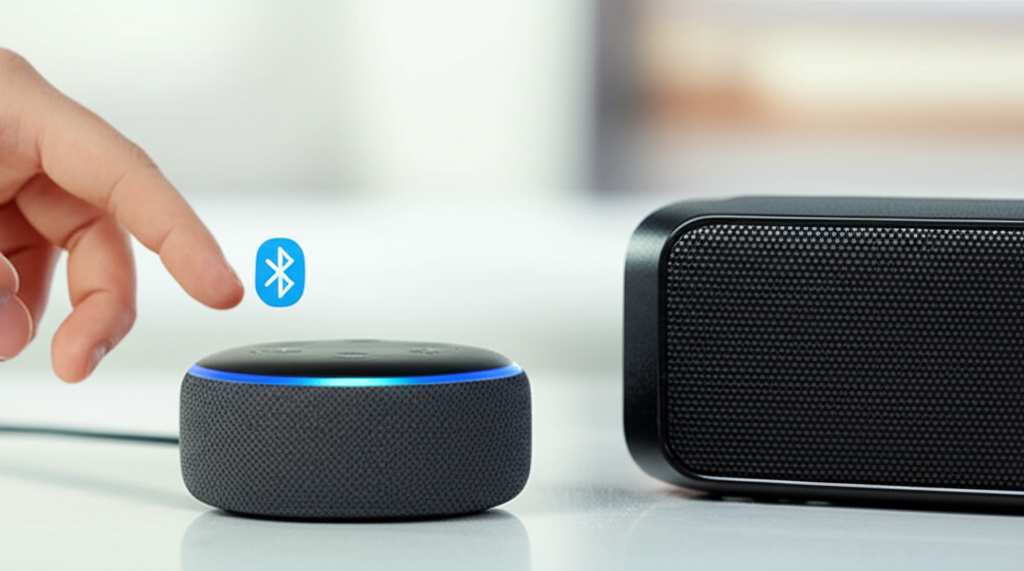
So, why would you even want to hook up a separate speaker to your Amazon Echo or Echo Dot? It’s a fair question! Alexa devices have speakers built-in, and for casual listening or quick questions, they work just fine. But let’s be real: those little speakers are often designed for voice commands and basic audio, not for making your favorite songs sound like they’re live in concert.
Imagine you’re hosting a get-together, and you want to fill the room with some upbeat tunes. Or perhaps you’re a movie buff and want to hear every explosion and dramatic score from your favorite film with more depth. That’s where an external speaker shines! It brings a whole new level of richness, bass, and clarity that your Echo speaker alone just can’t match.
Plus, you might already have a fantastic Bluetooth speaker sitting around. Instead of letting it collect dust, you can give it a new lease on life by pairing it with Alexa. It’s a brilliant way to get premium sound without buying a whole new smart speaker system. It’s all about making your tech work for you, and sounding great while doing it.
Two Main Ways to Connect: Bluetooth and AUX Cable
When it comes to giving your Alexa device a sound upgrade, there are two primary methods you’ll use: Bluetooth and a good old-fashioned AUX cable. Both have their own perks, and knowing which one to use depends on your speaker and what you’re going for.
Bluetooth is super popular because it’s wireless! You don’t have to worry about cables cluttering up your space. It’s great for connecting to most modern speakers, headphones, and even soundbars. It’s like magic – just pair them up, and you’re good to go.
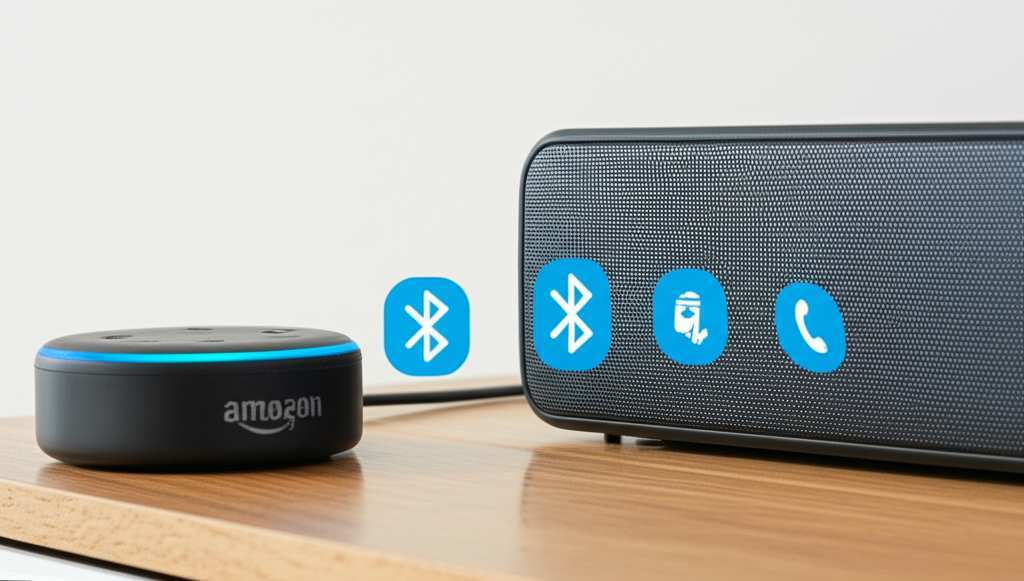
On the other hand, the AUX cable connection is like a direct line. It’s super reliable and doesn’t require any pairing fuss. If your speaker has an AUX-in port, it’s a straightforward way to get sound from your Alexa device to your speaker. It’s a classic for a reason, offering solid audio quality.
We’ll walk through both of these methods so you can pick the one that fits your setup perfectly. Don’t worry, I’ll keep it simple and clear, just like we like it here at AffTechy!
Method 1: Connecting Alexa to an External Speaker via Bluetooth
Okay, let’s dive into the most common and probably the coolest way to connect: Bluetooth! This is perfect if your external speaker is Bluetooth-enabled. It’s like giving your Alexa device a wireless superpower.
Step 1: Make Sure Your Speaker is Ready to Pair
First things first, grab your external speaker. You need to put it into “pairing mode.” How you do this varies by speaker, but usually, there’s a dedicated Bluetooth button you press and hold. Sometimes, it’s a small icon that looks like a Bluetooth symbol.
You’ll often hear a little sound or see a flashing light on the speaker when it’s ready to connect. It’s basically saying, “Hey, I’m looking for a device to connect to!” Check your speaker’s manual if you’re unsure – they all have their little quirks.
Step 2: Open the Alexa App and Find Your Device
Now, let’s head over to your smartphone or tablet. Open the Amazon Alexa app. If you don’t have it yet, it’s a free download from your app store. You’ll need to be logged into the same Amazon account that your Alexa device is registered to.
Once the app is open, tap on the “Devices” icon at the bottom. This is where you’ll see all your Alexa-enabled gadgets. Find the specific Alexa device you want to connect your speaker to (like your Echo Dot, Echo Show, etc.) and tap on it.
Step 3: Navigate to Bluetooth Settings
After you’ve selected your Alexa device in the app, you’ll see a few options. Look for something that says “Bluetooth” or “Bluetooth Devices.” Tap on that. This section is where you manage all your Bluetooth connections for that particular Alexa device.
You’ll usually see a list of devices that have been previously paired. Don’t worry if yours isn’t there yet. We’re about to add a new one!
Step 4: Initiate Bluetooth Pairing from the Alexa App
On the Bluetooth screen, you should see an option to “Pair a New Device” or something similar. Tap that button! The Alexa app will now start searching for nearby Bluetooth devices that are in pairing mode.
Your Alexa device will also announce that it’s “Searching for new devices.” This is the moment of truth! Give it a minute or two to scan the airwaves for your speaker.
Step 5: Select Your Speaker from the List
If your external speaker is successfully in pairing mode and within range, you should see its name pop up in the list within the Alexa app. It might be something like “JBL Flip 5” or “Bose SoundLink Mini.”
Go ahead and tap on the name of your speaker. The Alexa app will then try to establish a connection. You might hear a confirmation sound from your Alexa device, like “Connected to [Your Speaker’s Name].”
And voilà! Your external speaker should now be connected to Alexa. Any audio that Alexa plays – music, podcasts, audiobooks, or even Alexa’s own voice – will now come out of your external speaker. Pretty neat, right?
Step 6: Playing Audio and Troubleshooting
Now you can start playing music or anything else through Alexa. Just ask Alexa to play a song or a podcast. The sound should automatically route to your connected Bluetooth speaker.
What if it doesn’t work the first time? Don’t panic! Here are a few quick tips:
Check the Distance: Make sure your speaker and Alexa device are close enough to each other. Bluetooth has a range, usually around 30 feet (10 meters), but walls and other electronics can interfere.
Speaker Still in Pairing Mode? Sometimes speakers time out of pairing mode. If you don’t see it, try putting it back into pairing mode and repeating the steps.
Restart Both Devices: The classic tech fix! Turn off both your Alexa device and your external speaker, wait a few seconds, and turn them back on. Then try pairing again.
Forget and Re-Pair: If it was connected before but isn’t working now, you might need to “forget” the device in the Alexa app’s Bluetooth settings and then pair it as a new device.
Is Your Speaker Already Connected Elsewhere? Most Bluetooth speakers can only connect to one device at a time. Make sure your speaker isn’t already connected to your phone or laptop.
Connecting via Bluetooth is a fantastic way to get great sound. It’s all about that wireless freedom!
Method 2: Connecting Alexa to an External Speaker via AUX Cable
Sometimes, the simplest solutions are the best. If your external speaker has an AUX-in port (that’s a standard headphone jack-style port), you can use an AUX cable for a direct, wired connection. This method is super reliable and often gives excellent sound quality.
Step 1: Gather Your Supplies
You’ll need a few things for this method:
Your Alexa Device: Make sure it has an AUX-out port. Not all Echo devices do! The Echo Dot (3rd Gen and newer) and full-size Echo speakers usually have one. Check your device’s specs if you’re unsure.
Your External Speaker: It must have an AUX-in port.
An AUX Cable: This is a standard 3.5mm male-to-male audio cable. You can find these at most electronics stores or online. Make sure it’s long enough to comfortably connect your devices.
Step 2: Locate the AUX Ports
Take a look at the back or bottom of your Alexa device. You’re looking for a small, round port that looks like a headphone jack. This is the AUX-out port.
Now, find the AUX-in port on your external speaker. It will look identical.
Step 3: Connect the AUX Cable
Plug one end of the 3.5mm AUX cable into the AUX-out port on your Alexa device. Then, plug the other end into the AUX-in port on your external speaker. It’s a simple plug-and-play connection.
Once plugged in, your Alexa device should automatically detect that an audio cable has been connected. It usually switches the audio output to the AUX port by default.
Step 4: Test the Sound
Now, it’s time to test! Ask Alexa to play some music or a podcast. You should hear the audio coming directly from your external speaker. If you don’t hear anything immediately, check that the cable is plugged in securely at both ends.
You might also need to check the volume on both your Alexa device and your external speaker. Sometimes, even if the connection is made, if the volume is down on one of them, you won’t hear anything.
Step 5: Adjusting Volume and Settings
With an AUX connection, you’ll typically control the volume using the controls on your external speaker. Your Alexa device’s volume might still work, but the primary volume control will be on the speaker itself.
Unlike Bluetooth, there’s no app to manage here for the connection itself. It’s a direct physical link! This makes it super straightforward.
What if my Alexa Device Doesn’t Have an AUX-Out Port?
This is a common question! If your Alexa device (like older Echo Dots or some Echo Shows) doesn’t have an AUX-out port, you can’t use a direct AUX cable. In that case, Bluetooth is your best bet. If your external speaker also doesn’t have Bluetooth, you might need to look into a separate Bluetooth transmitter that can plug into your speaker’s AUX-in port and then pair with your Alexa device. It adds a step, but it’s doable!
Comparing Bluetooth and AUX Connections
Both methods are great, but they suit different situations. Here’s a quick look to help you decide:
| Feature | Bluetooth Connection | AUX Cable Connection |
|---|---|---|
| Setup Ease | Requires pairing via app; can sometimes be finicky. | Simple plug-and-play; very straightforward. |
| Wireless Freedom | Yes! No cables needed between devices. | No. Requires a physical cable. |
| Audio Quality | Generally good, but can vary with signal strength and codec. | Excellent and consistent, as it’s a direct analog signal. |
| Device Compatibility | Works with most modern speakers. | Requires AUX-in port on speaker and AUX-out on Alexa device. |
| Reliability | Can sometimes drop connection or have interference. | Very reliable once connected; no signal issues. |
| Volume Control | Usually controlled via Alexa app/voice and speaker. | Primarily controlled by the external speaker’s controls. |
So, which one is better? If your speaker is Bluetooth-enabled and you hate cables, go for Bluetooth. It’s the modern standard for a reason. If you have an older speaker with an AUX port, or you want the most rock-solid, interference-free audio, the AUX cable is your champion. Many people find the AUX connection to be slightly more robust for pure audio playback.
Making Alexa Your Default Speaker
Once you’ve successfully connected your external speaker, you might want to make it the default for all your audio. This means you don’t have to tell Alexa to play music on your speaker every single time. It just happens!
Here’s how to set that up in the Alexa app:
1. Open the Alexa App: Just like before, head to your app.
2. Tap on “Devices.”
3. Select Your Alexa Device: Choose the specific Echo device you’ve connected your external speaker to.
4. Go to “Bluetooth.”
5. Find Your Connected Speaker: You should see your external speaker listed as connected.
6. Look for a “Default Speaker” Option: Depending on your app version and device, you might see an option to set this as the default speaker. Tap it!
If you don’t see a direct “Default Speaker” option within the Bluetooth settings for that device, you can often set a default audio output device for your entire Alexa account.
1. Go back to the main “Devices” screen in the Alexa app.
2. Tap the “+” icon in the top right corner.
3. Select “Set up a household device.”
4. Choose “Audio & Speakers.”
5. Select “Amazon Echo” (or the specific Echo device you want to configure).
6. Follow the prompts to choose your default speaker from the list of paired devices.
This feature is a game-changer. It makes using your external speaker with Alexa feel seamless. It’s like your Alexa device and your speaker just naturally work together, all the time. It’s the little things that make smart home tech feel truly smart!
Fun Facts About Alexa and External Speakers
Did you know that Amazon designed Alexa devices to be expandable? That’s why they offer these connection options. They want you to be able to customize your experience. It’s not just about voice commands; it’s about integrating Alexa into your whole home entertainment setup.
Also, the quality of the Bluetooth connection can depend on the Bluetooth version your devices use. Newer versions, like Bluetooth 5.0, offer better range, faster speeds, and more stable connections compared to older versions. So, if you’re buying a new speaker, keeping an eye on the Bluetooth version can be a smart move!
According to industry reports, the smart speaker market is booming, with millions of households using devices like Amazon Echo. This growth fuels innovation, leading to better sound quality and more connectivity options for all of us. It’s an exciting time to be a tech enthusiast!
When to Use Which Speaker with Alexa
It’s not always about the external speaker being “better.” Sometimes, the built-in speaker on your Echo device is perfect! Here’s a little guide on when to use what:
Use Alexa’s Built-in Speaker for:
Quick questions and answers.
Setting timers and alarms.
Getting weather updates or news briefings.
When you just need to hear Alexa’s voice clearly.
If you only have one Alexa device and no external speakers.
Use an External Speaker (Bluetooth or AUX) for:
Listening to music for extended periods.
When you want richer bass and fuller sound.
Hosting parties or gatherings.
Watching movies or TV shows if your Alexa device is near your TV setup.
Podcasts or audiobooks where clarity and depth matter.
When you want to fill a larger room with sound.
Think of your Alexa device as the brain and your external speaker as the powerful lungs for sound. You can use them together or separately depending on your needs. It’s all about flexibility!
Quick Tips for Better Sound
Here are a few extra pointers to get the most out of your connected speakers:
Speaker Placement Matters: Don’t hide your speaker in a corner! Placing it in an open area, perhaps on a stable surface, can significantly improve sound quality. Experiment with different spots to see what sounds best in your room.
Keep Software Updated: Ensure both your Alexa app and your Alexa device’s firmware are up-to-date. Amazon regularly releases updates that can improve performance and connectivity.
Check Speaker Settings: Some advanced external speakers have their own EQ (equalizer) settings or sound modes. Explore your speaker’s app or settings to fine-tune the audio to your liking.
Clean Your Speaker: Dust can sometimes muffle speaker output. Give your external speaker a gentle clean with a soft, dry cloth every now and then.
These small steps can make a big difference in how your music sounds. It’s like tuning a guitar – small adjustments lead to better melodies!
Frequently Asked Questions (FAQ)
Got more questions buzzing around your head? I’ve got you covered with some common ones beginners ask.
-
Can I connect any Bluetooth speaker to Alexa?
Generally, yes! As long as your external speaker is Bluetooth-enabled and your Alexa device supports Bluetooth (most do), you should be able to pair them. Just make sure the speaker is in pairing mode.
-
What if my Alexa device doesn’t have an AUX-out port?
No worries! If your Echo device lacks an AUX-out port, you’ll need to use Bluetooth. If your external speaker also* lacks Bluetooth, you might need a separate Bluetooth transmitter that plugs into your speaker’s AUX-in port.
-
Will Alexa’s voice come out of the external speaker too?
Yes! Once connected via Bluetooth or AUX, all audio from your Alexa device, including Alexa’s own voice, will play through your external speaker.
-
Can I connect multiple external speakers to one Alexa device?
You can connect one Bluetooth speaker at a time to a single Alexa device. However, you can create a stereo pair with two identical Bluetooth speakers if they support that feature, or use Alexa’s multi-room music feature with multiple Echo devices playing in sync.
-
How do I disconnect my external speaker from Alexa?
For Bluetooth, you can either turn off the speaker, turn off Bluetooth on your Alexa device (in the Alexa app settings), or simply say, “Alexa, disconnect from [speaker name].” For AUX, just unplug the cable.
-
Is the sound quality better with AUX or Bluetooth?
Typically, an AUX connection offers a more stable and sometimes slightly higher fidelity audio signal because it’s a direct analog connection. Bluetooth is very good and convenient, but can sometimes be subject to interference or compression, depending on the version and codecs used.
-
Can I connect a soundbar to Alexa?
Yes, you often can! Many soundbars have Bluetooth connectivity, allowing you to pair them with Alexa using the Bluetooth method described above. Some soundbars also have AUX inputs, which you could use if your Alexa device has an AUX-out port.
Wrapping Up: Your Sound, Your Way!
And there you have it! You’ve officially learned how to connect an external speaker to your Alexa device. Whether you chose the wireless charm of Bluetooth or the straightforward reliability of an AUX cable, you’ve just unlocked a whole new level of audio for your home.
Remember, technology is all about making your life easier and more enjoyable. Now you can blast your favorite tunes for that party, catch every detail in your favorite podcast, or simply enjoy richer, fuller sound without a fuss. It’s your sound, your way.
Don’t be afraid to experiment! Try connecting different speakers, explore the settings, and find what sounds best for you. You’ve got the knowledge, so go ahead and make your Alexa experience even more awesome.
Now go enjoy amazing sound and make every moment louder and better! Happy listening!