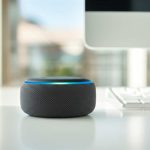
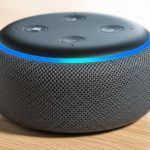
Turn your Alexa device into a super-powered Bluetooth speaker in minutes! This guide makes it simple to stream music, podcasts, and more from any device, ditching the extra cables and complexity.
Hey there, tech adventurer! Have you ever wished your smart speaker could do more than just answer questions? Like, what if it could blast your favorite tunes directly from your phone? It’s totally possible, and it’s way easier than you might think.
Sometimes, tech can feel a little overwhelming, right? You see all these specs and features, and it’s hard to know where to start. But don’t worry! I’m here to make things super simple. Think of me as your friendly guide through the cool world of gadgets.
We’re going to dive into how you can use your trusty Alexa device as a fantastic Bluetooth speaker. This means you can stream anything from your phone, tablet, or computer straight to your Echo without any fuss. Let’s break it down step by step!

Why Use Alexa as a Bluetooth Speaker?
So, why bother turning your Alexa into a Bluetooth speaker? It’s a great question! Imagine this: you’re getting ready for a party, and you want to play your killer playlist. Instead of fiddling with other speakers or trying to connect things wirelessly in a complicated way, you can just use what you already have.
Your Alexa device, whether it’s an Echo Dot, Echo Show, or a larger Echo, is already sitting pretty, ready to go. Connecting it via Bluetooth is like giving it a superpower upgrade. You get richer sound for your music, podcasts, or even audiobooks without needing a separate speaker. It’s all about making your life easier and your sound better!
Let’s Talk Sound: What Makes Alexa a Good Speaker?
Even though Alexa is famous for its voice commands, its speaker quality is pretty impressive. Different Echo models have different sound capabilities. The smaller ones, like the Echo Dot, are great for casual listening and clear voice responses. But the larger Echo devices pack a punch with deeper bass and fuller sound, making them perfect for enjoying music.
Think about it: you already have this device that can stream music from services like Spotify, Amazon Music, and Apple Music. When you connect your phone via Bluetooth, you’re essentially opening up an even wider world of audio content to it. Plus, you get to enjoy that familiar Alexa voice, but now it’s delivering your favorite tunes with gusto!

The Easy Way to Connect: Step-by-Step
Ready to make some noise? Connecting your phone or tablet to your Alexa device via Bluetooth is super straightforward. We’ll go through it together, piece by piece. You’ll be jamming out in no time!
Step 1: Put Your Alexa in Pairing Mode
First things first, you need to tell your Alexa device that it’s ready to connect to something new. The easiest way to do this is with a simple voice command. Just say, “Alexa, pair Bluetooth.”
Alexa will then respond, usually with something like, “Now in pairing mode. Find [Your Alexa Device Name] in your Bluetooth settings.” This is your cue that it’s listening and ready for your phone or tablet to find it. Keep your Alexa device plugged in and powered on during this process.
Step 2: Open Bluetooth Settings on Your Phone or Tablet
Now, grab your smartphone or tablet. You need to go into its settings to find the Bluetooth menu.
On an iPhone or iPad, you’ll go to Settings > Bluetooth.
On an Android device, it’s usually Settings > Connected devices > Bluetooth (the exact path might vary slightly by manufacturer).
Make sure Bluetooth is turned on. Your device will start scanning for available Bluetooth devices nearby.
Step 3: Select Your Alexa Device
Look at the list of available devices on your phone or tablet. You should see your Alexa device’s name pop up. It will likely be something like “Echo Dot” or “Amazon Echo,” followed by a few letters or numbers.
Tap on your Alexa device’s name in the list. Your phone or tablet will then attempt to connect to it. You might hear a little chime from your Alexa device confirming the connection.
Step 4: Confirm the Connection (If Needed)
Sometimes, Alexa will announce, “Connected to [Your Phone/Tablet Name].” Other times, you might just see it in your Bluetooth settings as “Connected.”
If Alexa asks you to confirm anything, just say “Yes” or follow the on-screen prompts. Most of the time, though, it’s a seamless connection without any extra steps. Congratulations, you’ve just paired your devices!
Playing Your Audio: What’s Next?
Now that your devices are paired, the fun really begins! You can start streaming any audio from your phone or tablet to your Alexa device.
Open your favorite music app, podcast player, or video app.
Start playing whatever you want to listen to.
The sound should automatically come out of your Alexa speaker. If it doesn’t, check your phone’s audio output settings. You might need to select your Alexa device as the playback destination.
It’s that simple! You can now enjoy your content with potentially better sound quality than your phone alone can offer.
Managing Your Bluetooth Connections
Alexa can remember multiple Bluetooth devices. This is super handy if different people in your household want to connect their phones. Here’s how to manage them:
Connecting to a Previously Paired Device
Once you’ve paired a device, Alexa will remember it. To reconnect later, you can usually just say, “Alexa, connect to [Your Phone/Tablet Name].” If your phone’s Bluetooth is on, it should connect automatically.
If you’re having trouble, you can also go into your phone’s Bluetooth settings and select your Alexa device from the list of previously paired devices.
Disconnecting a Device
To disconnect your phone or tablet from Alexa, you can either turn off Bluetooth on your phone, or you can ask Alexa to disconnect.
Just say, “Alexa, disconnect Bluetooth.” Alexa will confirm that the connection has been ended.
Forgetting a Device
If you want to remove a device completely from Alexa’s memory (maybe you’re giving your phone away or want to clear up the list), you can do that too.
You can use the Alexa app on your phone or tablet. Go to Devices > select your Echo device > Bluetooth Connections. From there, you should see a list of paired devices, and you can choose to “Forget” a device.
Troubleshooting Common Issues
Even with the best guides, sometimes things don’t go perfectly. Don’t sweat it! Here are a few common hiccups and how to fix them:
Alexa Isn’t Showing Up in Bluetooth List
Check Pairing Mode: Make sure you said “Alexa, pair Bluetooth.” Sometimes a simple retry helps.
Restart Devices: Turn off Bluetooth on your phone, then turn it back on. Also, try unplugging your Alexa device for 30 seconds and plugging it back in.
Move Closer: Ensure your phone and Alexa are close to each other. Walls and distance can interfere with the signal.
No Sound After Connecting
Check Volume: Is the volume up on both your phone and your Alexa device?
Check Audio Output: On your phone, make sure the audio is set to play through the Bluetooth speaker (your Alexa device).
Restart Playback: Stop and restart the music or podcast you’re trying to play.
Connection is Choppy or Drops Frequently
Reduce Interference: Other wireless devices can sometimes interfere. Try moving away from microwaves, other Bluetooth devices, or Wi-Fi routers.
Update Alexa App: Make sure you have the latest version of the Alexa app installed.
Check for Updates: Ask Alexa, “Alexa, check for software updates.”
Advanced Tips for the Best Experience
Want to get even more out of using Alexa as your Bluetooth speaker? Here are a few extra tricks.
Using Multiple Alexa Devices
Did you know you can create a multi-room music setup with your Echo devices? While this is more for streaming directly from Alexa, it’s a cool feature to know about. For Bluetooth, you generally connect one device at a time to a single Alexa speaker. However, if you have multiple Echo devices, you can pair your phone to each one individually.
Optimizing Sound Quality
The sound quality depends on the Alexa model and the audio source. For the best experience:
Use Larger Echo Devices: Models like the Echo Studio or larger Echo speakers offer superior audio.
High-Quality Audio Files: Stream from services that offer high-fidelity audio if possible.
Placement Matters: Position your Alexa device in a good spot. Avoid corners or enclosed spaces that can muffle sound.
Alexa Routines and Bluetooth
You can even set up Alexa Routines to help with Bluetooth. For example, you could create a routine that says, “Alexa, I’m home,” and it triggers Alexa to go into pairing mode automatically. This is a bit more advanced but super convenient once set up. You do this through the Alexa app.
Comparing Alexa Speaker Models for Bluetooth Use
When you’re thinking about using Alexa as a Bluetooth speaker, the model you have makes a difference in sound. Here’s a quick look at how some popular models stack up for audio playback:
| Echo Model | Typical Sound Quality | Best For |
|---|---|---|
| Echo Dot (3rd Gen) | Decent, clear for voice and light music. Lacks bass. | Casual listening, podcasts, small rooms. |
| Echo Dot (4th Gen) | Improved sound over 3rd Gen, slightly better bass. Spherical design helps. | Everyday use, background music. |
| Echo (4th Gen) | Fuller sound, richer bass, and more clarity than Dots. Great for music. | Music lovers, living rooms, medium-sized spaces. |
| Echo Studio | Premium sound, Dolby Atmos support, powerful bass. Audiophile-grade. | Serious music enthusiasts, home theater integration. |
As you can see, if you’re serious about music, a larger Echo device will give you a much richer experience. The Echo Dot is fantastic for its convenience and smart features, but for deep bass and vibrant sound, you might want to consider an upgrade if audio is your top priority.
Fun Fact: The Power of Bluetooth
Did you know that Bluetooth technology is named after a Viking king? King Harald Bluetooth was known for uniting Danish tribes, much like Bluetooth technology unites different devices. It’s a pretty cool piece of history behind the tech we use every day! This standard allows devices to communicate wirelessly over short distances, making connections like the one between your phone and Alexa possible.
Frequently Asked Questions (FAQ)
Got more questions? No worries! Here are some common ones beginners ask:
Can I use my Alexa as a Bluetooth speaker for my TV?
Yes, you can! If your TV has Bluetooth capabilities, you can pair it with your Alexa device just like you would a phone. This can be a great way to boost your TV’s audio without buying a new soundbar.
Does using Alexa as a Bluetooth speaker drain my phone battery faster?
Yes, using Bluetooth will use some battery on your phone, but it’s usually not a significant drain for casual listening. Keeping your phone plugged in while streaming is always a good idea if you’re listening for extended periods.
Can I use Alexa’s voice commands while it’s connected to Bluetooth?
Absolutely! Alexa’s voice control features work independently of the Bluetooth connection. You can still ask questions, set timers, or control smart home devices while music is playing from your phone.
How far can my phone be from Alexa when connected via Bluetooth?
The typical Bluetooth range is about 30 feet (10 meters) in an open area. Obstacles like walls, furniture, and other electronic devices can reduce this range. For the best connection, try to keep your devices relatively close.
What if I want to switch audio from my phone to Alexa?
Once paired, your phone should automatically send audio to Alexa. If it doesn’t, check your phone’s media output settings. You can usually tap an icon on your music player or in your phone’s quick settings to select the audio output device.
Can I connect multiple phones to Alexa at the same time via Bluetooth?
No, Alexa can only maintain an active Bluetooth connection with one phone or tablet at a time. You’ll need to disconnect one device before you can connect another.
Will my Echo device’s microphone work when it’s acting as a Bluetooth speaker?
Yes! The microphones on your Alexa device are always listening for the wake word (“Alexa”) even when it’s playing audio via Bluetooth. This means you can still issue commands and ask questions.
Wrapping It Up: Your New Sound Companion!
See? Using Alexa as a Bluetooth speaker is a fantastic way to get more out of your smart device. You’ve learned how to pair, play, and even troubleshoot any minor issues. It’s all about making technology work for you in the simplest way possible.
Whether you’re filling your home with music, catching up on podcasts, or enjoying audiobooks, your Alexa device is ready to be your sound companion. Don’t hesitate to experiment and explore different ways to use it.
Now go enjoy amazing sound and make every moment louder and better! Happy streaming!