Yes, you absolutely can use your Amazon Echo device as a Bluetooth speaker! It’s a super easy way to stream music from your phone or tablet to get richer sound. Let’s explore how to set it up.
Hey there, tech explorers! It’s Max from AffTechy.com, your go-to spot for making tech simple and fun. Ever feel like your phone’s speaker just doesn’t cut it for your favorite tunes or that epic movie scene? I totally get it. Sometimes, you just want that bigger, fuller sound.
You might be looking at your Amazon Echo device and wondering, “Could this little (or not so little) gadget be my new go-to speaker?” The answer is a resounding YES! It’s like unlocking a hidden superpower for your Echo.
We’ll walk through everything you need to know. No confusing jargon, just clear steps to get you jamming in no time. Ready to make your Echo sing with your own music? Let’s break it down step by step.
What is an Amazon Echo, Anyway?
Before we dive into the Bluetooth magic, let’s quickly chat about what an Echo is. Amazon’s Echo devices are smart speakers. They’re powered by Alexa, Amazon’s virtual assistant. You can ask them questions, control smart home devices, and, of course, play music.
They have built-in speakers, and they’re designed to stream audio from services like Amazon Music, Spotify, and Apple Music. But their capabilities go beyond just Alexa’s music library. They can also be your personal Bluetooth powerhouse.
Can You REALLY Use Echo as a Bluetooth Speaker?
Yes, you can! This is one of the coolest, most practical features of many Echo devices. It turns your smart speaker into a regular Bluetooth speaker. Think of it as giving your Echo a new job. It can still chat with Alexa, but it can also play anything you send its way from your phone or tablet via Bluetooth.
This is perfect for when you want to play something specific that Alexa might not directly access, or if you just prefer controlling playback from your own device. It’s a seamless integration that adds a lot of versatility.
Why Would You Want to Use Your Echo as a Bluetooth Speaker?
There are a few great reasons to make this switch. Maybe your phone’s speaker is a bit tinny. Or perhaps you have a vast music library on your phone that you want to enjoy with better sound quality.
You might also find it easier to manage playlists or podcasts directly from your phone. Plus, if you’re having a party, streaming from your phone lets you be the DJ without needing to shout commands at Alexa. It’s all about convenience and better audio.
Let’s Get Connected: Pairing Your Device with Echo
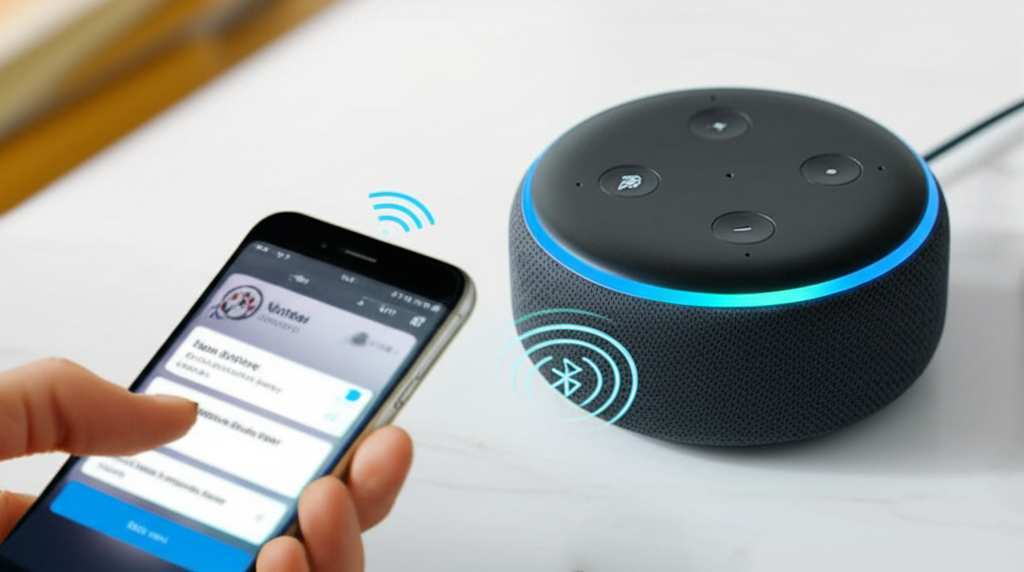
This is where the fun begins! Pairing your phone, tablet, or any other Bluetooth-enabled device with your Echo is super straightforward. There are two main ways to do this: using voice commands with Alexa or using the Alexa app.
Method 1: Using Voice Commands (The Easy Way!)
This is my favorite method because it’s so hands-free.
1. Put your Echo into pairing mode. You can do this by saying, “Alexa, pair Bluetooth.” Your Echo will respond, usually with a chime and a light ring indicating it’s ready.
2. Open Bluetooth settings on your phone or tablet. Go to your device’s settings menu and find the Bluetooth section.
3. Scan for devices. Your phone will start looking for nearby Bluetooth devices.
4. Select your Echo. You should see your Echo device appear in the list of available devices. It might be named something like “Echo Dot” or “Echo Studio.” Tap on it to connect.
5. Confirmation! Once connected, Alexa will usually say, “Connected to [your device name].” You’ll also see a confirmation on your phone.
It’s really that simple! Now, any audio playing on your phone will come out of your Echo.
Method 2: Using the Alexa App (For More Control)
The Alexa app gives you a visual way to manage your devices, including Bluetooth connections.
1. Open the Alexa app on your smartphone or tablet.
2. Tap “Devices” in the bottom right corner.
3. Select your Echo device from the list.
4. Tap the gear icon (settings) in the top right corner.
5. Scroll down and tap “Bluetooth.”
6. Tap “Pair a New Device.”
7. Follow the on-screen prompts. The app will guide you through the pairing process, similar to the voice command method. Your Echo will enter pairing mode, and you’ll select it from your phone’s Bluetooth settings.
Both methods achieve the same result: a happy connection between your device and your Echo.
What Devices Can You Connect via Bluetooth?
The beauty of Bluetooth is its wide compatibility. You can connect a whole range of devices to your Echo:
Smartphones: Both iOS (iPhones) and Android phones work perfectly.
Tablets: iPads, Android tablets, and even Amazon Fire tablets.
Laptops and Computers: Windows PCs, Macs, and Chromebooks.
MP3 Players: Any device with Bluetooth audio output.
Smart TVs: Some smart TVs can stream audio via Bluetooth.
Essentially, if it has Bluetooth and can send audio, you can likely connect it to your Echo.
What Can You Play Through Your Echo via Bluetooth?
Once paired, your Echo becomes a versatile speaker for all sorts of audio content.
Music: Stream your favorite songs from any music app you use – Spotify, Apple Music, YouTube Music, Pandora, or even local music files on your device.
Podcasts: Catch up on your favorite podcasts with richer sound.
Audiobooks: Make your listening experience more immersive.
Movies and TV Shows: Enhance the audio for shows and movies you watch on your tablet or phone.
Video Games: Get more out of game sound effects and dialogue.
Notifications and Alerts: Even your phone’s notification sounds can come through your Echo.
It’s like giving your favorite apps a serious sound upgrade!
Understanding Echo Bluetooth Pairing Modes
Sometimes, your Echo might be a bit shy and needs a gentle nudge to find your device. Here’s a quick rundown of pairing modes:
“Alexa, pair Bluetooth”: This is the most common command to put your Echo into discoverable mode.
“Alexa, connect to [Device Name]”: If you’ve paired a device before, you can often reconnect by simply saying its name. For example, “Alexa, connect to my iPhone.”
“Alexa, disconnect from my device”: To stop the Bluetooth connection.
“Alexa, forget all Bluetooth devices”: This clears all previously paired devices. You’ll need to re-pair them if you want to connect again.
It’s good to know these commands, especially if you switch between devices or need to reset your connection.
Connecting Multiple Devices to Your Echo
This is where things get interesting. Can you connect more than one phone at a time? Not really. Your Echo can only actively stream audio from one Bluetooth device at a time. However, it can remember multiple devices.
So, if you’ve paired your phone and your partner’s tablet, you can switch between them. To switch to a different device, you usually just need to initiate playback from the new device. Your Echo will typically disconnect from the old one and connect to the new one automatically.
If you want to manage which devices your Echo remembers, you can do that in the Alexa app under the Bluetooth settings for your device.
What if Bluetooth Pairing Doesn’t Work? Troubleshooting Tips
It’s rare, but sometimes technology throws us a curveball. If you’re having trouble pairing, don’t worry! Here are some quick fixes:
Check Distance: Make sure your phone and Echo are close to each other, ideally within 30 feet (about 10 meters).
Restart Both Devices: Turn off Bluetooth on your phone, restart your phone, and restart your Echo by unplugging it for 10 seconds and plugging it back in. Then try pairing again.
Forget and Re-pair: On your phone, go to Bluetooth settings and “forget” your Echo device. Then, put your Echo back into pairing mode and try connecting again.
Update Alexa App and Echo Software: Ensure your Alexa app is up-to-date. Amazon also pushes software updates to Echo devices automatically, but a quick restart can sometimes trigger them.
Check Echo’s Status: Make sure your Echo is connected to Wi-Fi and isn’t in a “Do Not Disturb” mode.
A little patience and these simple steps usually solve most connection issues.
Echo Models and Bluetooth Capabilities
Most Amazon Echo devices come equipped with Bluetooth capabilities. This includes:
Echo (various generations)
Echo Dot (various generations)
Echo Show (all models)
Echo Studio
Echo Plus
Echo Spot
There might be some very early or niche Echo devices that lack Bluetooth, but it’s a standard feature on almost all modern Echo speakers. If you’re unsure, a quick check of your device’s specifications on Amazon or the manufacturer’s website will confirm.
Comparing Echo as a Bluetooth Speaker vs. Dedicated Bluetooth Speakers
So, how does your Echo stack up against a standalone Bluetooth speaker? Let’s look at the pros and cons.
Pros of Using Echo as a Bluetooth Speaker
Convenience: You likely already own an Echo, so there’s no extra purchase needed.
Sound Quality: Many Echo devices, especially the larger ones like Echo Studio or Echo (4th Gen), offer significantly better sound than typical phone speakers.
Multi-Functionality: You get all the smart assistant features of Alexa in addition to Bluetooth speaker functionality.
Easy Setup: Pairing is generally very quick and simple.
Cons of Using Echo as a Bluetooth Speaker
Portability: Echos need to be plugged into a power outlet, unlike many portable Bluetooth speakers.
Battery Life: Since they’re not portable, battery life isn’t a factor, but this also means they’re tethered to an outlet.
Sound Profiles: Dedicated Bluetooth speakers can sometimes offer more specialized sound profiles or features like waterproofing that Echos don’t have.
Pairing Limitations:** Only one device can stream at a time.
Here’s a quick comparison table:
| Feature | Amazon Echo (as Bluetooth Speaker) | Dedicated Bluetooth Speaker |
|---|---|---|
| Portability | Low (Requires power outlet) | High (Battery-powered) |
| Sound Quality | Good to Excellent (Varies by model) | Good to Excellent (Varies by model & price) |
| Smart Assistant | Yes (Alexa) | No (Typically) |
| Setup | Very Easy | Very Easy |
| Multi-Device Streaming | No (One at a time, remembers multiple) | Often supports multi-point connection |
| Price | Already owned or cost of Echo device | Varies widely ($20 – $400+) |
As you can see, the Echo is fantastic for home use, offering great sound and smart features without needing a separate device. Dedicated Bluetooth speakers shine when you need to take your music on the go.
Fun Fact: The Evolution of Bluetooth
Did you know Bluetooth technology was named after a Viking king? Harald Bluetooth united Danish tribes in the 10th century, and the wireless technology was named in his honor because it was meant to unite different communication devices. Pretty cool, right? This technology has come a long way from its ancient inspiration!
Tips for the Best Bluetooth Audio Experience with Your Echo
Want to get the most out of your Echo as a Bluetooth speaker? Here are a few tips:
Choose the Right Echo for Sound: If audio quality is a top priority, consider larger Echo models like the Echo (4th Gen) or Echo Studio. They have better speaker drivers and produce richer bass.
Placement Matters: Position your Echo in a good spot in the room. Avoid corners if you want a more balanced sound. Experiment to find the sweet spot!
Keep Software Updated: Make sure your Echo and your streaming device have the latest software updates. This often includes performance improvements.
Use High-Quality Audio Sources: If your music sounds better in higher quality on your phone, it will sound better through your Echo too.
* Check for Interference: Other wireless devices can sometimes interfere with Bluetooth. If you notice choppy audio, try moving your Echo away from microwaves or other strong wireless emitters.
These little adjustments can make a big difference in your listening pleasure.
Frequently Asked Questions (FAQ)
Let’s tackle some common questions beginners might have about using their Echo as a Bluetooth speaker.
Q1: Do I need a separate Bluetooth speaker if I have an Echo?
Not necessarily! If you’re happy with the sound quality and mainly use it at home, your Echo can serve as a great Bluetooth speaker. For portable use or audiophile-grade sound, a dedicated speaker might be better.
Q2: Can Alexa play music when my phone is connected via Bluetooth?
Yes! Your Echo can still respond to Alexa commands and play music from streaming services directly. When you connect via Bluetooth, you’re just adding the option to stream audio from your phone.
Q3: How do I disconnect my phone from my Echo?
You can say, “Alexa, disconnect Bluetooth,” or turn off Bluetooth on your phone. You can also go into your phone’s Bluetooth settings and select your Echo to disconnect.
Q4: Can I use my Echo as a Bluetooth speaker for my TV?
Some Echo devices, like the Echo Studio and certain Echo Show models, can connect to TVs that support Bluetooth audio output. Check your TV’s manual and your Echo’s specs to confirm compatibility.
Q5: Will my Echo always be listening when connected via Bluetooth?
Your Echo only actively listens for the wake word (“Alexa”) when it’s not actively streaming audio from your connected device. When streaming, it won’t be listening for commands unless you specifically initiate them.
Q6: What happens if my Echo loses Wi-Fi connection? Can it still be a Bluetooth speaker?
Yes, it can! Bluetooth is a separate connection from Wi-Fi. If your Echo loses its Wi-Fi connection, it can still function as a Bluetooth speaker, as long as it’s powered on.
Q7: Can I connect my Echo to multiple phones at the same time?
No, an Echo can only stream audio from one Bluetooth device at a time. However, it can remember multiple previously paired devices, allowing you to switch between them.
Conclusion: Unleash Your Echo’s Sound Potential!
See? Using your Amazon Echo as a Bluetooth speaker is incredibly simple and opens up a world of audio possibilities. You can easily stream your favorite music, podcasts, or any audio from your phone or tablet, all while enjoying the convenience of your Echo device.
Whether you’re upgrading your phone’s sound or just want a quick way to fill your room with music, your Echo is ready to deliver. Give it a try, experiment with pairing, and discover how much better your audio can sound.
Now go enjoy amazing sound and make every moment louder and better with your connected Echo! Happy listening!