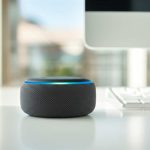
Yes, you absolutely can use your Amazon Echo device as a Bluetooth speaker! It’s a super easy way to play music, podcasts, or anything from your phone or tablet through your Echo’s better sound system. Let’s dive in and make it happen!
Hey there, tech explorers! Max here from AffTechy.com, ready to chat about something that makes our lives a whole lot more fun: sound. Whether it’s jamming to your favorite tunes, getting lost in an audiobook, or making movie nights epic, good sound makes a huge difference, right? Sometimes, the speakers on our phones or tablets just don’t cut it. That’s where devices like Amazon Echo come in handy.
You might be wondering if your trusty Echo, the one that answers your questions and controls your smart home, can also be your go-to speaker for all your audio needs. The answer is a big, resounding YES! It’s like unlocking a hidden superpower for your Echo.
It can feel a bit confusing trying to figure out all the techy stuff, especially when it comes to connecting different devices. But don’t you worry! I’m here to break it all down for you in a way that’s as simple as, well, asking Alexa for the weather. We’ll explore how to connect your phone or tablet to your Echo using Bluetooth, and unlock a world of richer sound.

So, grab your favorite device, get comfy, and let’s dive into this amazing guide. We’ll make sure you’re streaming your audio through your Echo like a pro in no time!
What’s So Great About Using Echo as a Bluetooth Speaker?
Imagine this: You’re chilling at home, and your phone’s speaker is just… meh. You want to blast that new song you love, but it sounds tinny and weak. Now, picture your Amazon Echo, sitting there all sleek and capable. What if you could make that device play your phone’s audio? That’s exactly what we’re talking about!
Using your Echo as a Bluetooth speaker is a game-changer for a few reasons. First off, Echo devices often have better speakers than your average smartphone or tablet. This means your music will sound fuller, podcasts will be clearer, and movie audio will be more immersive. It’s like upgrading your sound system without buying a whole new one!
Plus, it’s incredibly convenient. No more fiddling with wires or complicated setups. You just pair your device once, and then you can easily switch between Alexa’s skills and your phone’s audio. It’s a seamless way to enhance your listening experience throughout your home.
Echo Devices: More Than Just Voice Assistants
Most of us know Echo devices for their amazing voice capabilities. They can tell us jokes, set timers, order groceries, and even control our smart lights. But under that helpful voice assistant exterior is a pretty capable speaker! Many Echo models, from the smaller Echo Dot to the larger Echo Studio, are designed with sound quality in mind.
When you use your Echo as a Bluetooth speaker, you’re tapping into that audio hardware. This means you get to enjoy your personal music library, streaming services, or any audio content from your phone through a device that’s built to deliver richer, more powerful sound. It’s a smart way to get more out of the tech you already own.
Let’s Talk Bluetooth: How Does It Work?
Before we get our hands dirty with the steps, let’s quickly touch on what Bluetooth actually is. Think of it as a wireless magic wand that lets devices talk to each other over short distances. It’s like a secret handshake between your phone and your Echo, allowing them to share audio signals without any cables.
This technology is super common. It’s how your wireless headphones connect to your phone, or how your car’s stereo plays music from your smartphone. For your Echo, it means you can wirelessly stream audio from any device that supports Bluetooth, like your iPhone, Android phone, tablet, or even your laptop. It’s all about making connections simple and hassle-free.
Can I Use Echo As Bluetooth Speaker? The Simple Answer!
Yes, you totally can! Amazon designed Echo devices with Bluetooth connectivity for exactly this purpose. It’s one of the most popular ways people use their Echo devices beyond just asking for information. You can connect your smartphone, tablet, or computer to your Echo and play audio directly from it.
It’s a fantastic way to get better sound quality for your music, podcasts, or any other audio content without needing a separate Bluetooth speaker. Your Echo is already there, and with a few simple steps, it becomes your personal, high-quality wireless sound system.
Getting Started: Pairing Your Device with Your Echo
Alright, ready to set this up? It’s easier than you might think! We’ll walk through the process step-by-step. You’ll need your Echo device and the device you want to stream audio from (like your phone or tablet).
Step 1: Wake Up Your Echo and Enable Bluetooth Mode
First things first, make sure your Echo is plugged in and powered on. You can then tell Alexa to turn on Bluetooth. Just say:
“Alexa, pair Bluetooth.”
Or, you can say:
“Alexa, open Bluetooth.”
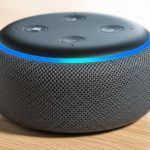
Alexa will then tell you that your Echo is in pairing mode and ready to connect. You might also see a blue light ring on your Echo device, indicating it’s in pairing mode.
Step 2: Put Your Phone or Tablet in Bluetooth Discovery Mode
Now, grab the device you want to stream from. You need to tell it to look for new Bluetooth devices.
For iPhones/iPads: Go to Settings > Bluetooth. Make sure Bluetooth is turned on. Your device will start searching for available devices.
For Android Phones/Tablets: Go to Settings > Connections > Bluetooth. Make sure Bluetooth is toggled on. Your device will scan for nearby devices.
For Computers (Windows/Mac): The exact steps vary, but generally, you’ll go to Bluetooth settings and select “Add Bluetooth or other device” (Windows) or “Bluetooth” in System Preferences/Settings (Mac) and click the “+” or “Add Device” button.
Step 3: Select Your Echo from the List
On your phone, tablet, or computer, you should see a list of available Bluetooth devices. Look for your Echo device’s name. It might be something like “Echo,” “Echo Dot,” or the specific name you gave your device in the Alexa app (e.g., “Living Room Echo”).
Tap or click on your Echo device’s name in the list. Your phone or tablet will then attempt to connect to it.
Step 4: Confirm the Connection (If Needed)
Sometimes, the connection happens automatically. Other times, you might get a prompt on your phone or Echo asking you to confirm the pairing. Just follow the on-screen instructions.
Once successfully paired, Alexa will usually say something like, “Connected to [Your Device Name].” Your phone or tablet will also show that it’s connected to your Echo.
Step 5: Start Playing Your Audio!
That’s it! You’re now connected. Open your favorite music app, podcast player, or video and hit play. The sound should now come through your Echo device.
Tips for a Smooth Bluetooth Connection
Sometimes, technology likes to be a little tricky. Here are a few things to keep in mind to make your Bluetooth experience with your Echo super smooth:
Keep Devices Close: Bluetooth works best when your phone/tablet and Echo are relatively close to each other, ideally within the same room. Walls and other obstructions can sometimes interfere with the signal.
Check Your Echo’s Name: If you have multiple Echo devices, make sure you’re pairing with the correct one. You can usually check and rename your Echo devices in the Alexa app.
Unpair Old Devices: If you’re having trouble connecting, try unpairing your phone/tablet from other Bluetooth devices or unpairing your Echo from other phones/tablets that might be trying to connect.
Restart Both Devices: A classic tech tip that often works wonders! If you’re facing connection issues, try turning off Bluetooth on your phone/tablet, restarting your Echo, and then trying to pair again.
Managing Your Bluetooth Connections with Alexa
Alexa can actually help you manage your Bluetooth connections. You can ask Alexa to disconnect from your current device, connect to a previously paired device, or even forget a device if you no longer want it to connect.
Here are some handy voice commands you can use:
“Alexa, disconnect Bluetooth.” (This will disconnect your currently paired phone/tablet.)
“Alexa, connect to my phone.” (If your phone is already paired, Alexa will try to reconnect.)
“Alexa, forget my phone.” (This will remove your phone from the Echo’s paired devices list.)
“Alexa, what Bluetooth devices are connected?” (Alexa will tell you which devices are currently paired.)
“Alexa, turn off Bluetooth.” (This disables Bluetooth on your Echo.)
“Alexa, turn on Bluetooth.” (This enables Bluetooth on your Echo.)
Using these commands makes managing your connections even easier, especially if you switch between different audio sources or devices.
Troubleshooting Common Bluetooth Issues
Even with the best intentions, sometimes Bluetooth connections can be a bit finicky. If you’re running into problems, don’t worry! Here are some common issues and how to fix them.
Problem: My Echo won’t go into pairing mode.
Solution: Make sure you’re using the correct voice command: “Alexa, pair Bluetooth.” If it still doesn’t work, try restarting your Echo device by unplugging it for 10 seconds and plugging it back in.
Problem: My phone/tablet can’t find my Echo.
Solution: Ensure Bluetooth is enabled on your phone/tablet and that it’s close to your Echo. Try restarting both devices. Also, check the Alexa app to see if your Echo is online and functioning normally.
Problem: The connection keeps dropping.
Solution: This could be due to interference. Try moving your devices closer together or away from other wireless devices like microwaves or Wi-Fi routers. Sometimes, older Bluetooth versions can be less stable.
Problem: Audio is choppy or laggy.
Solution: Similar to dropping connections, this can be caused by distance or interference. Ensure a clear line of sight between your devices. If you’re streaming a video, a slight delay between audio and video is normal with Bluetooth, but excessive lag might indicate a connection issue.
Problem: I want to connect a new device, but my Echo says it’s already connected to another.
Solution: You can only have one device actively streaming audio at a time. Ask Alexa to disconnect the current device using “Alexa, disconnect Bluetooth.” Then, you can try pairing your new device.
Echo Models and Their Bluetooth Capabilities
Good news! Most Amazon Echo devices come with Bluetooth built-in, making them versatile for audio streaming. Here’s a quick look at some popular models and their Bluetooth features:
| Echo Device | Bluetooth Version (Typical) | Sound Quality (General) | Notes |
| :————— | :————————– | :———————- | :———————————————————– |
| Echo Dot (3rd Gen) | Bluetooth 5.0 | Decent for its size | Great for smaller rooms, easy to place anywhere. |
| Echo Dot (4th Gen) | Bluetooth 5.0 | Improved over 3rd Gen | Spherical design, better sound, comes in standard and with clock. |
| Echo (4th Gen) | Bluetooth 5.0 | Good, balanced | Larger than Dot, offers richer bass and clearer highs. |
| Echo Studio | Bluetooth 5.0 | Excellent, immersive | Designed for audiophiles, supports spatial audio. |
| Echo Show | Bluetooth 5.0 | Good, clear | The screen adds visual elements, but sound is still strong. |
| Echo Show 5 | Bluetooth 5.0 | Good for its size | Compact smart display with decent audio output. |
| Echo Show 8 | Bluetooth 5.0 | Better than Show 5 | Larger screen and speaker for a more engaging experience. |
Please note that Bluetooth versions can vary slightly depending on the manufacturing batch and region. Always check the specific product details for the most accurate information.
As you can see, whether you have a tiny Echo Dot or a high-end Echo Studio, Bluetooth connectivity is a standard feature. This means you can enjoy your music through pretty much any Echo device you own. The main difference you’ll notice is the sound quality, which generally improves with the size and sophistication of the Echo model.
For instance, if you have an Echo Studio, you’re in for a treat! It’s built for premium sound and can really make your music shine. Even a humble Echo Dot, however, will offer a noticeable upgrade over your phone’s built-in speaker for casual listening.
Beyond Music: Other Audio You Can Stream
It’s not just about music! Using your Echo as a Bluetooth speaker opens up a world of audio possibilities. Think about:
Podcasts: Hear your favorite hosts in crystal-clear sound, making every word crisp and engaging.
Audiobooks: Immerse yourself in the story with rich audio that brings characters and settings to life.
YouTube Videos: Want to watch a video on your tablet but hear the audio through a better speaker? Connect your tablet to your Echo!
Video Calls: If you’re on a video call on your tablet or laptop, you can stream the audio through your Echo for a clearer listening experience.
Games: Playing a game on your tablet and want more impactful sound effects? Your Echo can deliver!
Basically, any audio that plays on your connected device can be streamed to your Echo. It’s a versatile tool for enhancing all sorts of entertainment.
Pairing Your Echo with Your TV (Yes, You Can!)
This is where things get really interesting! Many newer Echo devices, especially the larger ones like the Echo (4th Gen) and Echo Studio, can also be paired with your TV via Bluetooth. This is fantastic for improving the sound quality of your TV without needing a soundbar or complex audio setup.
The process is very similar to pairing your phone:
1. Put your TV into Bluetooth pairing mode. Check your TV’s manual for specific instructions, as this varies greatly by brand and model.
2. Tell your Echo: “Alexa, pair Bluetooth.”
3. On your TV’s Bluetooth menu, select your Echo device from the list of available speakers.
4. Confirm the pairing on both devices if prompted.
Once connected, your TV’s audio will play through your Echo. This is a great way to get better sound for movies and shows, especially if your TV’s built-in speakers are a bit lacking.
A quick note: Not all TVs support Bluetooth audio output. Older models or some budget TVs might not have this feature. Always check your TV’s specifications or user manual first.
A Deeper Dive: Echo Studio and Hi-Fi Audio
For those who really care about sound quality, the Echo Studio is a star player. It’s Amazon’s premium smart speaker, and it’s designed to deliver an exceptional audio experience. When you pair your phone or tablet with an Echo Studio via Bluetooth, you’re tapping into some serious audio power.
The Echo Studio supports high-fidelity (Hi-Fi) audio and can even play music mixed in Dolby Atmos and Sony 360 Reality Audio. This means if you stream music from compatible services (like Amazon Music HD or Tidal) that offer these formats, you’ll get an incredibly immersive, 3D sound experience. It’s like being right there in the studio with the artists!
Even for standard Bluetooth audio, the Echo Studio’s multiple drivers and larger design produce a much richer, deeper bass and clearer treble than other Echo models. It’s a fantastic option if you want to use your Echo as a primary speaker for your music.
Protecting Your Privacy: Bluetooth Security
When you connect devices via Bluetooth, you might wonder about security. Amazon takes this seriously. Your Echo devices use Bluetooth 5.0, which offers enhanced security features and a more stable connection.
When you pair a device, it’s generally secured for your personal use. It’s a good practice to unpair devices you no longer use or if you’re concerned about unauthorized access. You can easily do this through the Alexa app or by asking Alexa to “forget” a specific device.
For more in-depth information on Amazon’s privacy practices, you can always check out their official privacy pages or resources from trusted tech sites like CNET’s privacy guides.
FAQs: Your Top Bluetooth Questions Answered!
Got more questions buzzing in your head? Here are some common ones that beginners often ask about using Echo as a Bluetooth speaker.
Can I use my Echo as a Bluetooth speaker without Wi-Fi?
No, your Echo device generally needs a Wi-Fi connection to function fully, including enabling and managing its Bluetooth features. While the Bluetooth connection itself doesn’t require Wi-Fi, the initial setup and ongoing management through the Alexa app, as well as core Echo functionalities, rely on an internet connection.
Can multiple devices be paired to an Echo at the same time?
An Echo device can remember multiple paired devices, but it can only actively stream audio from one device at a time. If you want to switch from your phone to your tablet, you’ll need to disconnect the first device before connecting the second.
Does using Echo as a Bluetooth speaker drain my phone’s battery faster?
Yes, like any Bluetooth connection, streaming audio to your Echo will use some battery power on your phone or tablet. However, Bluetooth 5.0 is designed to be more power-efficient than older versions, so the drain is generally manageable.
Can I use my Echo to play audio from my computer?
Absolutely! Most modern computers (laptops and desktops) have Bluetooth capabilities. You can pair your computer with your Echo just like you would your phone or tablet to stream audio, music, or even sound from videos.
What happens if my Echo loses its Bluetooth connection?
If the connection drops, Alexa will usually notify you. You can try reconnecting by saying, “Alexa, connect to my phone” (or your device name), or by manually reconnecting through your device’s Bluetooth settings. Sometimes, simply restarting Bluetooth on both devices can fix it.
Can I use my Echo to play audio from a TV that doesn’t have Bluetooth?
Generally, no. If your TV doesn’t have built-in Bluetooth, you won’t be able to directly pair it with your Echo. You might need a separate Bluetooth transmitter that plugs into your TV’s audio output (like a headphone jack or optical audio out) to make this possible.
How do I know which Echo device has the best Bluetooth sound quality?
While all Echo devices support Bluetooth, sound quality varies. The larger Echo models (like the Echo 4th Gen) and especially the Echo Studio offer significantly better sound reproduction due to their larger drivers and advanced audio design. Echo Dots are more compact and suitable for casual listening.
Making the Switch: When to Use Echo vs. Other Bluetooth Speakers
So, you’ve got your Echo connected and sounding great. When should you choose your Echo as your go-to Bluetooth speaker, and when might a dedicated Bluetooth speaker be better?
Your Echo is fantastic for:
Convenience: If your Echo is already in the room and you just want quick, better sound without grabbing another device.
Whole-Home Audio: If you have multiple Echo devices, you can group them for synchronized music playback.
Smart Home Integration: Seamlessly switch between asking Alexa questions and playing your music.
Improving TV Sound: For models that support TV pairing, it’s an easy audio upgrade.
A dedicated Bluetooth speaker might be preferred if:
Portability is Key: You need a speaker you can easily take to the park, beach, or another room without worrying about Wi-Fi.
Extreme Durability: Many dedicated Bluetooth speakers are built to be rugged, waterproof, or dustproof, which Echo devices typically aren’t.
Maximum Bass/Loudness: Some high-end dedicated Bluetooth speakers are designed to produce more powerful bass and higher volumes than even the largest Echo devices.
* No Wi-Fi Available: If you’re in a location without Wi-Fi, a standalone Bluetooth speaker is your only wireless option.
Ultimately, your Echo is a super versatile option for enhancing your daily listening experience right at home.
Conclusion: Enjoy Your Enhanced Sound!
And there you have it! You’ve learned how to transform your Amazon Echo into a powerful Bluetooth speaker. It’s a simple trick that adds so much value to the device you already own, making your music, podcasts, and audiobooks sound so much better.
Remember, it’s all about telling Alexa to “pair Bluetooth,” finding your Echo on your phone or tablet, and connecting. You can manage these connections easily with voice commands, and even use your Echo to boost your TV’s sound. Whether you have an Echo Dot or an Echo Studio, you can enjoy this fantastic feature.
Don’t be afraid to experiment and explore the possibilities. Try streaming different types of audio and see how much richer the sound is. It’s a small change that makes a big difference to your everyday listening enjoyment.
Now go enjoy amazing sound and make every moment louder and better! Happy listening!