Yes, you absolutely can use your Amazon Echo device as a Bluetooth speaker! It’s a super easy way to stream music, podcasts, or audio from your phone or tablet. Let’s unlock this hidden talent of your smart speaker and make it work even harder for you!
Hey there, tech explorers! It’s Max from AffTechy.com, your go-to buddy for all things gadgety. You know, sometimes I get so excited about new tech that I forget about the awesome features hidden in the devices we already own. Like your Amazon Echo, for instance!
We all love asking Alexa to play our favorite tunes or tell us the weather. But what if I told you your Echo can do more? What if it could be the wireless speaker for your phone, just like those fancy Bluetooth speakers you see everywhere? It sounds pretty cool, right?
I remember when I first discovered this trick. I had a small gathering, and my phone’s speaker just wasn’t cutting it. Then it hit me: “Wait a minute, can my Echo do this?” And guess what? It totally can! It’s like finding a secret superpower in your tech.
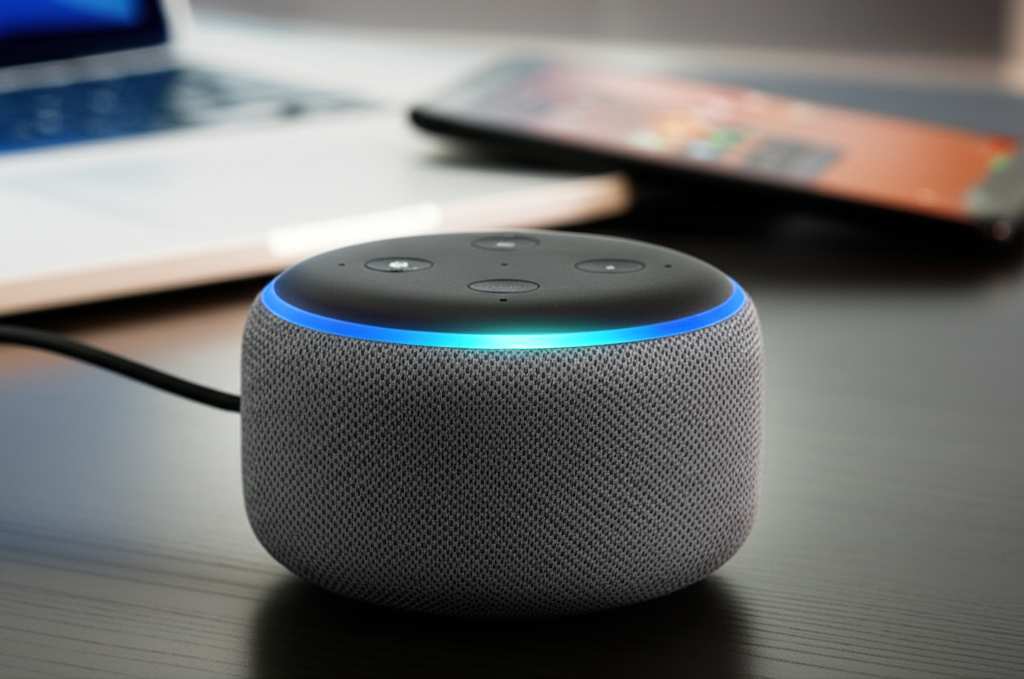
So, if you’ve ever wondered if your Echo can be your go-to Bluetooth speaker, the answer is a resounding yes! We’re going to walk through it step-by-step, making it as simple as asking Alexa to play your favorite song. Let’s dive in and make your Echo sing even louder!
Why Turn Your Echo Into a Bluetooth Speaker?
Think about it: you’ve got your trusty Echo sitting on your counter, always ready to answer your questions. Now, imagine using that same great sound quality to play audio directly from your phone. It’s perfect for when you want to stream music from an app Alexa doesn’t directly support, or when you want to share a funny podcast with friends without crowding around your phone.
It also means you can use your Echo for more than just voice commands. You can play audio from any app on your phone, tablet, or even your computer. This makes your Echo incredibly versatile. It’s like getting a brand-new speaker without buying anything extra!
Plus, it’s a fantastic backup. If your dedicated Bluetooth speaker runs out of battery or you can’t find it, your Echo is ready to step in. It’s about getting the most out of the technology you already have. Let’s unlock that potential together!
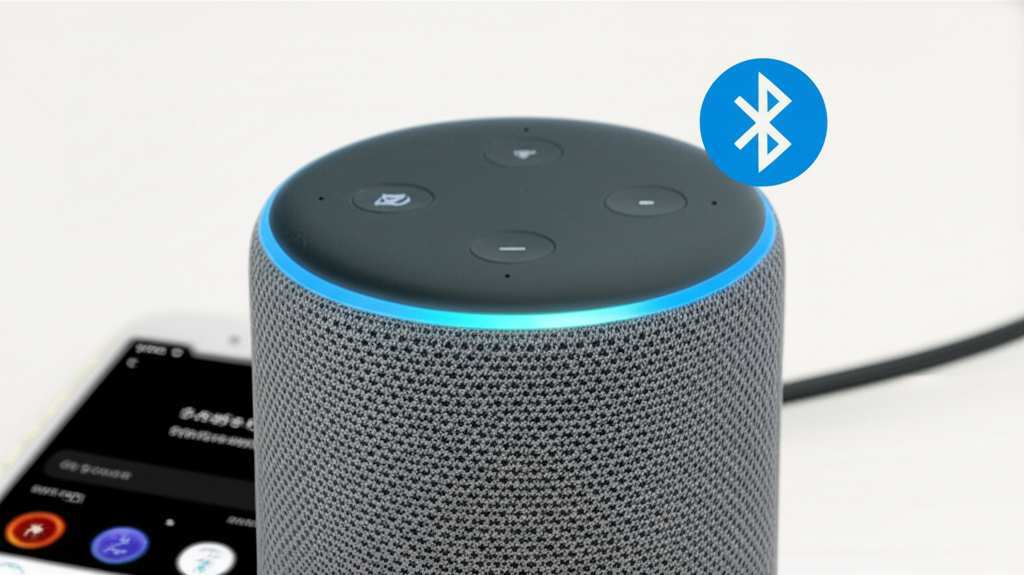
What Echo Devices Can Be Bluetooth Speakers?
The great news is, most Amazon Echo devices are designed with Bluetooth connectivity. This means a wide range of Echos can be paired with your phone or tablet. It’s not just the big ones; even the smaller Echo Dots can work wonders!
Generally, if your Echo device has Alexa built-in and can connect to Wi-Fi, it likely supports Bluetooth. This includes popular models like:
- Echo Dot (all generations)
- Echo (full-size smart speaker)
- Echo Show (all models with screens)
- Echo Studio
- Echo Plus
- Echo Input (though this is more of an adapter to add Alexa to existing speakers)
The setup process is pretty similar across most of these devices. So, don’t worry about having a specific model. If you can ask Alexa the time, you can probably use it as a Bluetooth speaker!
Let’s Get Connected: How to Pair Your Echo
Ready to turn your Echo into a music maestro? The process is surprisingly simple. You can do it using just your voice or the Alexa app on your phone. We’ll cover both methods, so pick the one that feels easiest for you.
Method 1: Using Your Voice (The Quickest Way!)
This is my favorite way because it’s so fast. You don’t even need to pick up your phone!
- Put your Echo in Pairing Mode: Say, “Alexa, pair Bluetooth.”
- Listen for Confirmation: Alexa will tell you she’s in pairing mode and ready to connect. You might hear a little chime or a voice announcement.
- Open Bluetooth Settings on Your Device: Go to the Bluetooth settings on your smartphone, tablet, or computer.
- Find Your Echo: Look for your Echo device in the list of available devices. It will usually show up with a name like “Echo Dot” or “Amazon Echo.”
- Select and Connect: Tap on your Echo’s name to connect.
- Confirmation Again: Once connected, Alexa will announce that your device is connected. You might also see it in your device’s Bluetooth settings as “Connected.”
That’s it! Now, any audio you play from your phone will come out of your Echo. It’s like magic, but it’s just clever technology!
Method 2: Using the Alexa App (Great for First-Timers)
If you prefer using your phone or need a visual guide, the Alexa app is perfect. It’s also handy if you have multiple Echo devices and want to be specific.
- Open the Alexa App: Make sure you’re logged into your Amazon account.
- Tap ‘Devices’: Look for the “Devices” icon, usually at the bottom of the screen.
- Select Your Echo: Choose the specific Echo device you want to use as a speaker.
- Go to ‘Bluetooth Connections’: Scroll down within the device settings until you find “Bluetooth Connections.”
- Tap ‘Pair a New Device’: You’ll see an option to “Pair a New Device.” Tap it.
- Put Echo in Pairing Mode: The app might prompt you to say “Alexa, pair Bluetooth” or it might put the device in pairing mode automatically. Follow the on-screen instructions.
- Find and Connect: On your phone or tablet, go to your Bluetooth settings, find your Echo device in the list, and tap to connect.
- Confirm Connection: The Alexa app and your Echo should both confirm the connection.
See? Both ways are super straightforward. You’re just telling your Echo to be ready to listen to your phone for audio.
Playing Your Audio: What Happens Next?
Once your Echo and your phone are paired, it’s time for the fun part: playing sound! Here’s what you can expect and how to manage it.
Streaming Music and More
After a successful pairing, your phone or tablet will treat the Echo as a Bluetooth audio output. Simply open any app that plays sound – like Spotify, Apple Music, YouTube, Audible, or even your phone’s native media player – and start playing. The sound will automatically stream to your Echo.
You can control the playback (play, pause, skip) using your phone’s controls. However, you can still use voice commands for volume control on your Echo. Just say, “Alexa, turn up the volume,” or “Alexa, volume 5.”
Disconnecting and Reconnecting
Need to switch back to your phone’s speaker or disconnect for privacy? It’s easy!
- Voice Command: Say, “Alexa, disconnect Bluetooth.” Your Echo will confirm it’s disconnected.
- Alexa App: Go back to the “Bluetooth Connections” in your Echo’s settings in the Alexa app and tap “Disconnect.”
- Device Settings: You can also go into your phone’s Bluetooth settings and “forget” or disconnect from the Echo device.
To reconnect later, you can either repeat the voice command “Alexa, pair Bluetooth” and then connect from your phone, or if your device remembers the Echo, you might just need to select it again in your phone’s Bluetooth menu. Some devices will automatically reconnect if Bluetooth is on and your Echo is in pairing mode.
Connecting Multiple Devices
An Echo device can typically remember multiple paired devices, but it can only actively play audio from one device at a time. If you want to switch between your phone and your tablet, you’ll need to disconnect the first device before pairing the second one.
Think of it like a phone line; only one call can be active at a time. When you pair a new device, the Echo usually disconnects from the previous one automatically.
Echo as a Bluetooth Speaker vs. Dedicated Bluetooth Speakers
So, how does using your Echo as a Bluetooth speaker stack up against a dedicated Bluetooth speaker? It’s a great question, and there are definitely some differences. Let’s break it down.
Sound Quality
Amazon designs Echo devices with decent sound for their size and price point. Some models, like the Echo Studio or larger Echo speakers, offer impressive audio fidelity that can rival many Bluetooth speakers. However, smaller Echo Dots might not produce the same bass or clarity as a purpose-built portable Bluetooth speaker.
Dedicated Bluetooth speakers often prioritize sound engineering, packing in larger drivers or advanced audio technology for a richer listening experience. But for casual listening, podcasts, or background music, your Echo is often more than capable.
Portability
This is where dedicated Bluetooth speakers shine. They are designed to be portable, often with long battery life and water resistance. Your Echo, on the other hand, needs to be plugged into a power outlet. This means it’s best for stationary use.
If you’re heading to the beach or a picnic, a portable Bluetooth speaker is your best bet. If you’re chilling at home and want to stream from your phone to a speaker in another room, your Echo is perfect.
Features and Convenience
Your Echo’s biggest advantage is its smart capabilities. You get the best of both worlds: Bluetooth audio streaming and voice control via Alexa. You can still ask Alexa questions, set timers, or control smart home devices while using it as a Bluetooth speaker.
Dedicated Bluetooth speakers are simpler – they just play audio. Some have speakerphone capabilities or app controls, but they lack the AI assistant integration that makes an Echo so versatile.
Comparison Table: Echo vs. Dedicated Bluetooth Speaker
Here’s a quick look at how they compare:
| Feature | Amazon Echo (as Bluetooth Speaker) | Dedicated Bluetooth Speaker |
|---|---|---|
| Power Source | Wall Outlet (Requires continuous power) | Rechargeable Battery (Portable) |
| Portability | Low (Stationary) | High (Designed for travel) |
| Smart Features | Yes (Alexa voice assistant, smart home control) | Generally No (Some have app controls) |
| Sound Quality | Good to Excellent (Varies by model, e.g., Echo Studio) | Varies Widely (Can be superior for audio fidelity) |
| Setup | Easy pairing via voice or app | Simple Bluetooth pairing |
| Connectivity | Bluetooth, Wi-Fi | Bluetooth (some have Wi-Fi or NFC) |
As you can see, the choice depends on what you need! If you want a smart speaker that can also stream from your phone at home, the Echo is fantastic. If you need something rugged and portable for on-the-go, a dedicated Bluetooth speaker is likely better.
Tips for the Best Echo Bluetooth Experience
Want to make sure you’re getting the most out of your Echo as a Bluetooth speaker? Here are a few handy tips.
- Keep it Updated: Make sure your Echo’s software is up-to-date. Amazon often releases updates that improve Bluetooth performance.
- Placement Matters: Just like any speaker, the placement of your Echo can affect sound quality. Experiment with different spots in the room. Placing it on a stable surface away from walls can sometimes improve bass response.
- Volume Control: Remember you can use both your phone’s volume controls and Alexa’s voice commands for volume. Sometimes one is more responsive than the other depending on the app you’re using.
- Troubleshooting: If you have connection issues, try restarting both your Echo and your phone. You can also try “forgetting” the Echo in your phone’s Bluetooth settings and re-pairing it.
- Check for Interference: Too many other Bluetooth devices or Wi-Fi signals can sometimes cause interference. If you notice stuttering audio, try moving your Echo or your phone closer together, or away from other electronics.
These little tricks can make a big difference in enjoying your audio!
A Little Tech History: The Rise of Bluetooth
It’s interesting to think about how far wireless audio has come. Bluetooth technology, named after the Viking king Harald Bluetooth, was developed in the late 1990s. Its goal was to replace cables with a short-range wireless connection.
Now, it’s everywhere! From headphones and speakers to cars and even smartwatches, Bluetooth has made our lives much more convenient. Amazon smartly integrated this technology into Echo devices, giving them a dual purpose. It’s a testament to how innovation builds upon existing technologies to create even better user experiences.
For more on the history and evolution of Bluetooth, you can check out resources like CNET’s explanation. It’s fascinating stuff!
Frequently Asked Questions (FAQs)
Got more questions? No worries, we’ve got you covered!
Q1: Can I use my Echo as a Bluetooth speaker without Wi-Fi?
A: No, your Echo needs a Wi-Fi connection to initially set up and operate. While it uses Bluetooth to connect to your phone for audio streaming, the Echo itself requires Wi-Fi to function and process voice commands. So, Wi-Fi is a must.
Q2: Will my Echo still listen for “Alexa” commands when connected via Bluetooth?
A: Yes, absolutely! Your Echo’s primary function as a voice assistant remains active even when it’s connected to your phone via Bluetooth. You can still ask Alexa questions, control smart home devices, or set timers while streaming audio from your phone.
Q3: How do I know if my Echo is in pairing mode?
A: When you ask Alexa to pair Bluetooth or initiate pairing through the app, Alexa will usually announce, “Your Echo is now in pairing mode” or you might hear a specific sound cue. The light ring on some Echo models might also change color to indicate pairing mode.
Q4: Can I use my Echo to play audio from my laptop or computer?
A: Yes! Your laptop or computer likely has Bluetooth capabilities. Just follow the same pairing steps: put your Echo in pairing mode, then go to your computer’s Bluetooth settings and select your Echo device to connect.
Q5: What happens if my Bluetooth connection drops?
A: If the Bluetooth connection drops, your phone might revert to playing audio through its own speaker. You’ll usually hear a notification from Alexa stating the device is disconnected. Simply re-initiate pairing or reconnect from your phone’s Bluetooth settings.
Q6: Can I use an Echo speaker connected via Bluetooth for Alexa multi-room music?
A: No, multi-room music is a feature that relies on Wi-Fi streaming directly from Amazon Music or other supported services. Bluetooth audio is a one-to-one connection between your device and a single Echo speaker. You cannot include a Bluetooth-connected audio stream in a multi-room music group.
Q7: My Echo won’t pair. What should I do?
A: First, ensure your Echo is in pairing mode and your phone’s Bluetooth is turned on. Try restarting both devices. If problems persist, try “forgetting” the Echo in your phone’s Bluetooth settings and then re-pairing it from scratch. You can also check Amazon’s support pages for your specific Echo model.
Your Echo, Your New Favorite Speaker
So there you have it! Your Amazon Echo is more than just a smart assistant; it’s a capable Bluetooth speaker too. We’ve covered how to pair it up, what to expect, and how it compares to dedicated speakers. It’s all about making your tech work harder and smarter for you!
Now you can easily stream your favorite playlists, podcasts, or even audio from apps that Alexa doesn’t directly integrate with. It’s a simple trick that adds a lot of value to the smart device you already own. Give it a try today!
Go ahead, pair your phone, crank up your tunes, and enjoy the enhanced sound. Now go enjoy amazing sound and make every moment louder and better!