Connecting your Sonos Bluetooth speaker is super simple! Just turn it on, put it in pairing mode, and select it from your phone’s Bluetooth menu. That’s it – enjoy your music!
Hey there, tech adventurers! Max here from AffTechy.com, ready to dive into the awesome world of sound. You know how music just makes everything better? Whether you’re jamming out in the kitchen, chilling on the patio, or setting the mood for a movie night, a great speaker is your best friend. But sometimes, getting that speaker connected can feel like trying to solve a puzzle, right?
Sonos makes some seriously cool speakers that sound amazing and are pretty easy to use. Today, we’re going to tackle connecting your Sonos Bluetooth speaker. Forget all the confusing tech jargon; we’re going to make this as smooth as your favorite playlist. I’ll walk you through it step-by-step, so you’ll be blasting tunes in no time!
Think of it like this: your phone or tablet is the DJ, and your Sonos speaker is the dance floor. We just need to make sure they know how to find each other. Ready to make some noise? Let’s break it down!
Why Sonos Bluetooth Speakers Are Awesome
Sonos has a reputation for fantastic sound quality, and their Bluetooth speakers are no exception. They’ve managed to pack rich, clear audio into portable designs. This means you get that signature Sonos sound wherever you go, without being tied down by Wi-Fi. It’s perfect for picnics, beach days, or just moving from room to room in your house.
The convenience of Bluetooth is a huge plus. You don’t need a special app for basic playback, and most devices connect easily. This makes it super user-friendly, even if you’re not a tech wizard. Plus, Sonos speakers often have smart features that can enhance your listening experience, even when using Bluetooth.
Let’s Get Your Sonos Speaker Ready to Connect
Before we can pair your phone or tablet, we need to make sure your Sonos Bluetooth speaker is in the right mood. It’s like getting ready for a party – you need to set the stage!
Step 1: Power Up Your Speaker
First things first, plug in your Sonos Bluetooth speaker. Most portable Sonos speakers have a rechargeable battery, so make sure it has some juice. If it’s your first time using it or it’s been a while, give it a good charge. You’ll usually see an indicator light that tells you when it’s charging and when it’s ready to go.
Once it’s charged, press the power button. You’ll likely hear a little chime or see a light turn on, signaling that it’s awake and ready for action. This is the speaker saying, “I’m here and ready to play!”
Step 2: Put Your Speaker in Pairing Mode
This is the crucial step! Your Sonos speaker needs to tell other devices, like your phone, “Hey, I’m available to connect!” The way to do this is by putting it into Bluetooth pairing mode.
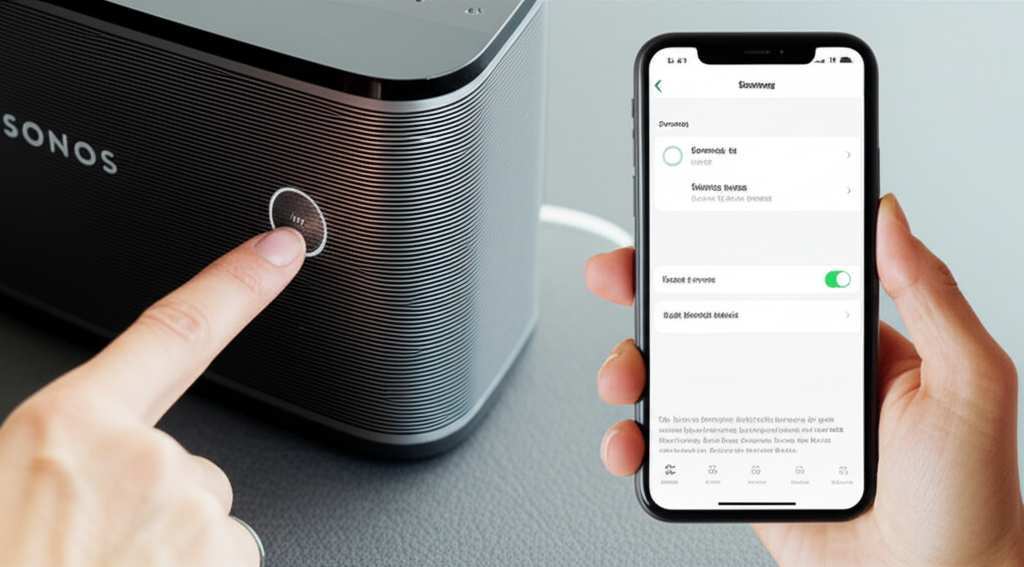
On most Sonos Bluetooth speakers, like the Roam or Move, you’ll need to press and hold the Bluetooth button. This button is usually marked with the familiar Bluetooth symbol (a circle with a line sticking out of the top). Keep holding it down until you hear a distinct sound or the indicator light starts flashing. This flashing light is the universal sign that your speaker is actively looking for a device to pair with.
A fun fact: Bluetooth technology uses radio waves to communicate, allowing devices to connect wirelessly over short distances. It’s pretty neat how it works without any wires!
Step 3: Open Your Device’s Bluetooth Settings
Now, let’s switch over to the device you want to play music from – usually your smartphone or tablet. You’ll need to go into its Bluetooth settings.
On an iPhone, you’ll go to Settings > Bluetooth. On an Android device, you’ll typically find it under Settings > Connected devices > Connection preferences > Bluetooth, or something similar depending on your phone model. Just look for the Bluetooth option in your main settings menu.
Once you’re in the Bluetooth menu, make sure Bluetooth is turned ON. You’ll see a list of devices that are already paired and a section for available devices that are nearby.
Step 4: Select Your Sonos Speaker from the List
This is where the magic happens! Your phone or tablet will start scanning for nearby Bluetooth devices. In the list of available devices, you should see your Sonos speaker appear. It might be named something like “Sonos Roam” or “Sonos Move,” or perhaps a more generic name if you haven’t customized it.
Simply tap on the name of your Sonos speaker in the list. Your phone will then attempt to connect to it. You might hear another confirmation sound from the speaker, or the indicator light will change from flashing to solid, letting you know the connection was successful.
It’s like your phone and speaker just shook hands and agreed to play some tunes together. Easy peasy!
Troubleshooting Common Connection Issues
Sometimes, technology likes to keep us on our toes. If your Sonos speaker isn’t connecting right away, don’t worry! Most issues are pretty simple to fix. Here are a few things to check:
- Is the speaker still in pairing mode? If the light stopped flashing, it might have timed out. Just press and hold the Bluetooth button again until it starts flashing.
- Is your device’s Bluetooth on? Double-check that Bluetooth is enabled on your phone or tablet.
- Is the speaker already connected to another device? Most Bluetooth speakers can only connect to one device at a time. If it’s connected to another phone or tablet, you’ll need to disconnect it from that device first.
- Are you within range? Bluetooth works best when devices are close to each other, usually within about 30 feet (10 meters).
- Try restarting both devices. Sometimes, a simple restart can clear up any glitches. Turn off your speaker, turn off Bluetooth on your phone, then turn them back on and try pairing again.
If you’re still having trouble, it might be worth checking out the official Sonos support pages. They have a ton of helpful guides and troubleshooting tips for all their products.
Beyond Basic Bluetooth: Sonos App Integration
While connecting via Bluetooth is super straightforward for quick music playback, Sonos offers a richer experience when you use their app. This is especially true if you have other Sonos speakers on your Wi-Fi network.
What the Sonos App Adds
The Sonos app lets you control your speakers with more precision. You can:
- Stream music from various services: Connect directly to Spotify, Apple Music, Pandora, and many more.
- Create speaker groups: Play the same music on multiple Sonos speakers around your home.
- Adjust EQ settings: Fine-tune the bass, treble, and loudness to your liking.
- Update speaker firmware: Keep your speaker running smoothly with the latest software.
- Set up voice control: If your speaker supports it, you can use voice commands.
When you connect a Sonos Bluetooth speaker like the Roam or Move to your Wi-Fi network via the Sonos app, it becomes part of your whole-home Sonos system. This allows for features like AirPlay 2 and Google Cast, giving you even more ways to listen.
Connecting to Wi-Fi with the Sonos App
If you want to unlock the full potential of your Sonos Bluetooth speaker, connecting it to your home Wi-Fi is the way to go. Here’s a general idea of how it works:
- Download the Sonos App: Get the latest Sonos app from your device’s app store.
- Open the App and Start Setup: Follow the on-screen prompts to add a new product.
- Connect to Bluetooth First (Sometimes): For some setups, the app might ask you to connect to the speaker via Bluetooth initially to help it find the speaker.
- Select Your Wi-Fi Network: The app will guide you to select your home Wi-Fi network and enter the password.
- Complete Setup: The app will then finalize the connection, and your speaker will be online!
This process integrates your Bluetooth speaker seamlessly into your Sonos ecosystem. It’s a bit more involved than just Bluetooth pairing, but it opens up a world of possibilities.
Sonos Roam vs. Sonos Move: Bluetooth Capabilities
Sonos currently has two main portable speakers with Bluetooth: the Sonos Roam and the Sonos Move. While both offer Bluetooth connectivity, they have some differences that might influence your choice.
Sonos Roam
The Roam is the smaller, more travel-friendly option. It’s designed for ultimate portability with a lightweight build and a long-lasting battery. It’s also fully waterproof and drop-resistant, making it perfect for outdoor adventures.
Key Features:
- Bluetooth and Wi-Fi connectivity
- Automatic Sound Swap (switches between Bluetooth and Wi-Fi seamlessly)
- Compact and durable design
- About 10 hours of playtime on a single charge
Connecting the Roam via Bluetooth is just like we described: press the Bluetooth button until it flashes, then pair with your device. Its size makes it super easy to take anywhere.
Sonos Move
The Move is larger and offers a more powerful sound experience. It’s also built for portability but is a bit more robust. It features active noise cancellation and voice control integration, and it’s also water-resistant.
Key Features:
- Bluetooth and Wi-Fi connectivity
- Durable, weather-resistant design
- Impressive sound quality with deep bass
- About 11 hours of playtime on a single charge
- Built-in microphone for voice control (when on Wi-Fi)
Like the Roam, the Move uses the Bluetooth button for pairing. Press and hold it until the light flashes, and then select it from your device’s Bluetooth menu. The Move provides a bigger sound, which is great for parties or filling a larger space.
Here’s a quick comparison table to help you see the differences:
| Feature | Sonos Roam | Sonos Move |
|---|---|---|
| Bluetooth Pairing | Yes (Press & Hold Bluetooth Button) | Yes (Press & Hold Bluetooth Button) |
| Wi-Fi Connectivity | Yes | Yes |
| Battery Life (approx.) | 10 hours | 11 hours |
| Water Resistance | IP67 (Fully Waterproof) | IP56 (Weather Resistant) |
| Portability | Very High (Compact, Lightweight) | High (Larger, Heavier) |
| Sound Output | Clear, Balanced | Powerful, Rich Bass |
As you can see, both speakers offer a great Bluetooth experience. The choice between them often comes down to how portable you need it to be and how powerful you want the sound. For simple Bluetooth connection, the steps are identical!
Quick Tips for the Best Bluetooth Sound
Want to make sure your audio sounds its best? Here are a few handy tips:
- Keep Devices Close: While Bluetooth has a decent range, keeping your phone or tablet within a few feet of the speaker usually provides the most stable connection.
- Minimize Interference: Other wireless devices, microwaves, and even thick walls can sometimes interfere with Bluetooth signals. Try to keep the path between your device and speaker clear.
- Charge Up: Low battery on either your speaker or your device can sometimes lead to connection issues or choppy audio. Make sure both are well-charged.
- Update Your Software: Always ensure your phone’s operating system and the Sonos app are up to date. Updates often include improvements to Bluetooth connectivity.
- Use the Right App for Streaming: For the best quality, stream music through dedicated music apps like Spotify or Apple Music rather than web browsers, which can sometimes have lower audio quality.
These little things can make a big difference in your listening experience. It’s all about setting yourself up for success!
Frequently Asked Questions (FAQ)
Got more questions swirling around? Don’t sweat it! Here are some common queries beginners have about connecting Sonos Bluetooth speakers.
Q1: Do I need the Sonos app to use Bluetooth?
Nope! You can connect to your Sonos Bluetooth speaker using just your device’s native Bluetooth settings. The app is great for more advanced features like Wi-Fi streaming and system management, but for basic Bluetooth playback, it’s not required.
Q2: How do I know if my Sonos speaker has Bluetooth?
Sonos’s portable speakers are the ones with Bluetooth. Currently, the Sonos Roam and Sonos Move models feature Bluetooth connectivity. If you have an older or different Sonos speaker (like a Sonos One or Play:5), it likely uses Wi-Fi only.
Q3: Can I connect my Sonos Bluetooth speaker to a TV?
Generally, you can connect a Bluetooth-enabled TV to a Sonos Bluetooth speaker if your TV has Bluetooth output. However, for the best audio experience with your TV, Sonos typically recommends their soundbars or speakers that connect via HDMI or optical cable, as these offer lower latency (less delay between picture and sound).
Q4: What does the flashing light on my Sonos speaker mean?
A flashing light on a Sonos Bluetooth speaker usually indicates it’s in pairing mode and actively searching for a device to connect to. A solid light often means it’s successfully connected or powered on.
Q5: My Sonos speaker won’t pair. What should I do?
First, ensure the speaker is in pairing mode (Bluetooth button flashing). Then, check that Bluetooth is enabled on your phone and that the speaker isn’t already connected to another device. Try restarting both your speaker and your phone, and then attempt pairing again. You can find more detailed troubleshooting on the Sonos Support website.
Q6: Can I play music from my computer using Bluetooth?
Absolutely! Most modern laptops and desktop computers have Bluetooth capabilities. You’ll follow a similar process: enable Bluetooth on your computer, put your Sonos speaker in pairing mode, and then select it from your computer’s list of available Bluetooth devices.
Q7: Is the Sonos Bluetooth connection high quality?
Yes, Sonos speakers are known for their sound quality. While Bluetooth has some limitations compared to Wi-Fi streaming, Sonos implements advanced audio codecs to ensure the best possible sound over Bluetooth. For the absolute highest fidelity, especially for multi-room audio, Wi-Fi is generally preferred.
Conclusion: Your Sound, Your Way!
And there you have it! Connecting your Sonos Bluetooth speaker is a breeze. You’ve learned how to power it up, get it into pairing mode, and link it with your phone or tablet. We’ve also touched on how the Sonos app can unlock even more features and compared the popular Roam and Move models.
Remember, the goal is to make your listening experience enjoyable and hassle-free. Whether you’re using Bluetooth for a quick jam session or integrating your speaker into a whole-home Wi-Fi system, Sonos makes it accessible. Don’t be afraid to experiment with different music sources and speaker placements to find what sounds best to you.
So go ahead, pair up your speaker, pick your favorite playlist, and let the good times roll. Now go enjoy amazing sound and make every moment louder and better!