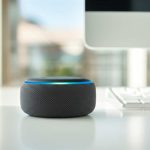
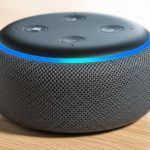
Yes, your Amazon Echo Pop can totally be used as a Bluetooth speaker! It’s super easy to pair and lets you stream music, podcasts, or audio from your phone or tablet. Get ready for surprisingly good sound from this little gadget!
Hey there, tech explorers! Ever look at your little Amazon Echo Pop sitting on your desk or nightstand and wonder if it’s just for asking about the weather or playing music through Alexa? I get it. Sometimes, these smart gadgets can feel like they have a million features, and figuring them all out can be a bit like navigating a maze. But what if I told you that your Echo Pop is also a fantastic Bluetooth speaker, ready to play anything from your phone or tablet?
Think about it: you love your music, right? Or maybe you’re into podcasts, or you love watching videos on your tablet. Sometimes, the built-in speakers on our devices just don’t cut it. They can sound tinny or just not loud enough. That’s where a good speaker comes in. And your Echo Pop, that cute little hockey puck of a device, is actually pretty darn good at this!
It’s like discovering a secret superpower for something you already own. You don’t need to buy another speaker. You can use the one you’ve got! I’m going to walk you through exactly how to turn your Echo Pop into the perfect Bluetooth speaker for all your audio needs. We’ll make it super simple, so you’ll be streaming your favorite tunes in no time.
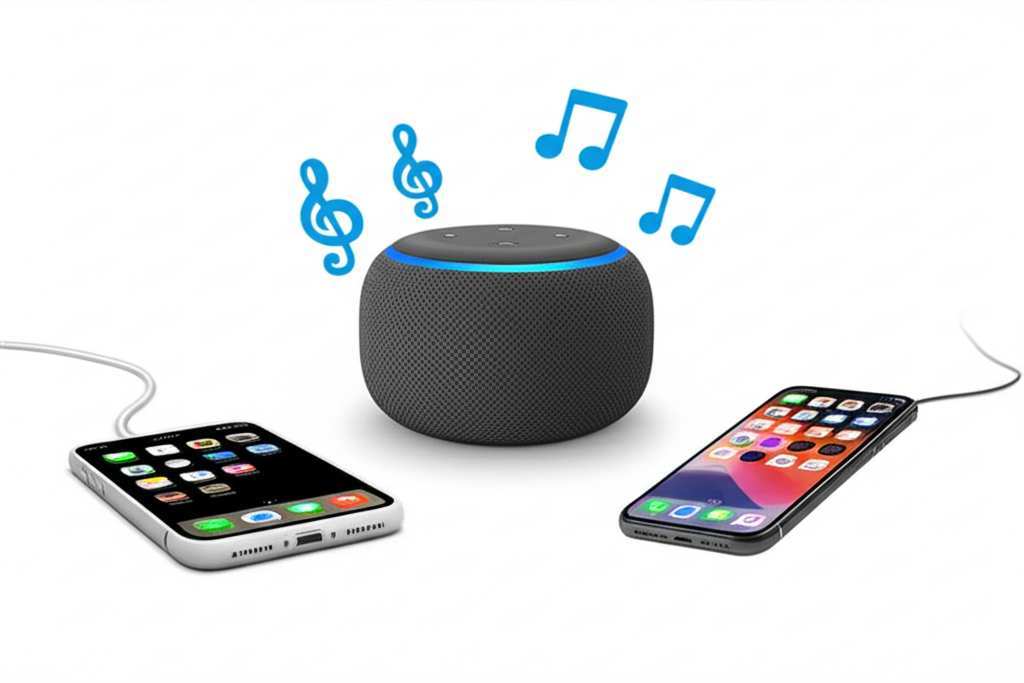
Ready to unlock this cool feature? Let’s dive in and make your Echo Pop sing!
What’s So Cool About Using Echo Pop as a Bluetooth Speaker?
So, why bother turning your Echo Pop into a Bluetooth speaker? It’s all about making your life easier and your sound better. Imagine this: you’re cooking in the kitchen, and you want to listen to a podcast from your phone. Instead of holding your phone or trying to hear its small speaker, you can just send that audio straight to your Echo Pop. Boom! Clearer sound, hands-free.
Or maybe you’re chilling in your room and want to play a song from your phone’s music app. Your Echo Pop can handle that too, filling the room with sound that’s way better than your phone’s speaker. It’s like giving your phone a voice upgrade without any extra cost. Plus, it’s a great way to get more out of the smart speaker you already have. It’s a win-win!
Let’s Get Your Echo Pop Connected: Step-by-Step
Connecting your Echo Pop to your phone or tablet via Bluetooth is a breeze. Seriously, it’s one of those things that sounds more complicated than it is. Think of it like pairing headphones for the first time. You just need to tell your devices to find each other.
Here’s how we’ll do it:
Step 1: Wake Up Your Echo Pop and Alexa
First things first, make sure your Echo Pop is plugged in and powered on. You’ll know it’s ready when you see the light ring glow. Now, you need to tell Alexa to get ready to pair. Just say, “Alexa, pair Bluetooth.”
You should hear Alexa respond with something like, “Your Echo Pop is now in Bluetooth pairing mode.” The light ring might also start to pulse blue, which is its way of saying, “I’m looking for a friend!”
Step 2: Go to Your Phone or Tablet’s Settings
Next, grab your smartphone or tablet. You’ll need to go into its settings menu. This is usually an app with a gear icon. Once you’re in settings, look for the “Bluetooth” option. Tap on that.
Make sure your device’s Bluetooth is turned on. You’ll see a list of available devices appear. This is where your Echo Pop will show up.
Step 3: Find and Select Your Echo Pop
On your phone or tablet’s Bluetooth screen, you should see a list of devices that are available to connect. Look for the name of your Echo Pop. It usually appears as “Echo Pop” followed by some letters or numbers, or maybe your specific Amazon account name.
Once you spot it, tap on its name. Your phone or tablet will then try to connect to your Echo Pop. You might see a “Connecting…” message.
Step 4: Confirmation Time!
If everything goes smoothly, you’ll hear Alexa say something like, “Connected to [Your Device Name].” Your phone or tablet should also show that it’s connected to your Echo Pop. The light ring on the Echo Pop will usually stop pulsing and might turn solid blue or go off, depending on the mode.
And that’s it! You’ve successfully paired your Echo Pop. Now, whatever audio you play on your phone or tablet will come out of your Echo Pop. How cool is that?
Playing Your Tunes: A Quick Guide
Now that your Echo Pop is paired, let’s get some sound going. It’s super simple.
Open your favorite music app on your phone or tablet. Think Spotify, Apple Music, YouTube Music, or any other app you love.
Choose a song, podcast, or audiobook and hit play.
Listen! The audio should automatically play through your Echo Pop.
If for some reason the sound doesn’t come out of the Echo Pop, don’t worry. Go back to your phone’s Bluetooth settings and make sure it’s still connected. Sometimes, you might need to manually select the Echo Pop as the audio output device on your phone.
Need to Disconnect or Reconnect? Easy Peasy!
Sometimes you might want to disconnect your Echo Pop from your phone. Maybe you want to connect it to a different device, or you’re done listening.
To disconnect: Just go back to your phone or tablet’s Bluetooth settings. Find your Echo Pop in the list of connected devices and tap “Disconnect” or “Unpair.” You can also just tell Alexa, “Alexa, disconnect Bluetooth.”
To reconnect later: The next time you want to use it, just go to your phone’s Bluetooth settings. Your Echo Pop should appear under “Paired Devices.” Tap on its name, and it should reconnect automatically. You can also say, “Alexa, connect to [Your Device Name].”
It remembers your connection, so you won’t have to go through the whole pairing process every single time. Super convenient!
What if Pairing Doesn’t Work? Troubleshooting Tips
Don’t you hate it when tech doesn’t cooperate right away? It happens! If you’re having trouble getting your Echo Pop to connect, don’t sweat it. Here are a few things you can try.
1. Check Your Bluetooth is On
This sounds obvious, but sometimes it’s the simplest thing. Make sure Bluetooth is enabled on your phone or tablet. Go to your device’s settings and double-check.
2. Move Them Closer
Bluetooth has a range. If your Echo Pop and your phone are too far apart, they might struggle to connect. Try bringing them closer together, like within a few feet.
3. Restart Both Devices
A classic tech fix that often works wonders! Turn off Bluetooth on your phone, then turn it back on. For your Echo Pop, you can unplug it for a few seconds and then plug it back in. This can clear out any temporary glitches.
4. Forget and Re-pair
If your devices have connected before but are acting up now, try “forgetting” the Echo Pop from your phone’s Bluetooth list. Go to your phone’s Bluetooth settings, find your Echo Pop, and select “Forget Device” or “Unpair.” Then, start the pairing process over from the beginning.
5. Check the Alexa App
Sometimes, the Amazon Alexa app on your phone can help manage Bluetooth connections. Open the app, go to Devices, select your Echo Pop, and look for Bluetooth settings. You might be able to initiate pairing or see connection status there.
For more in-depth troubleshooting, you can always check out Amazon’s official support pages. They have tons of helpful guides!
Comparing Echo Pop to Other Bluetooth Speakers
So, how does the Echo Pop stack up against dedicated Bluetooth speakers? It’s a bit of an apples-and-oranges comparison, but let’s break it down.
| Feature | Amazon Echo Pop | Typical Portable Bluetooth Speaker (e.g., JBL Go, Anker Soundcore) |
| :————- | :——————————————— | :————————————————————– |
| Primary Use| Voice assistant, smart home control, music playback | Music playback, portability, durable outdoor use |
| Sound Quality| Decent for its size, clear vocals, lacks deep bass | Varies greatly, often richer bass and fuller sound |
| Portability| Small, but needs power outlet | Compact, often battery-powered for true portability |
| Connectivity| Bluetooth, Wi-Fi (for Alexa features) | Bluetooth (primary), sometimes AUX input |
| Battery Life| N/A (requires AC power) | 5-20+ hours (depending on model and volume) |
| Durability | Indoor use, not water-resistant | Often rugged, water-resistant options available |
| Smart Features| Excellent (Alexa voice control, smart home) | Minimal to none |
| Price | Very affordable (often under $50) | Varies widely, from $20 to $200+ |
As you can see, the Echo Pop is a fantastic entry-level option for Bluetooth audio. It’s perfect if you already have one for Alexa and just want to stream from your phone occasionally. The sound is surprisingly good for casual listening, like background music or podcasts.
However, if you’re an audiophile who wants booming bass for parties, or you need a speaker to take to the beach or pool, a dedicated portable Bluetooth speaker will likely offer better sound and more robust features like waterproofing and long battery life. But for everyday use around the house, the Echo Pop is a surprisingly capable contender!
Fun Facts About Echo Pop and Bluetooth Audio
Did you know that Bluetooth technology is named after a Viking king? Yep, King Harald Bluetooth united various Danish tribes into a single kingdom, much like Bluetooth technology aims to unite devices. It’s a pretty neat piece of trivia that adds a little fun to your tech!
Another cool thing is how compact speakers like the Echo Pop can produce such clear sound. They use clever engineering, like specially designed drivers and acoustic chambers, to maximize sound quality within a small space. It’s a testament to how far audio technology has come.
Maximizing Your Echo Pop’s Audio Experience
While the Echo Pop is a capable Bluetooth speaker, there are a few things you can do to get the most out of it.
Placement Matters: Put your Echo Pop on a flat, stable surface. Placing it near a wall can sometimes help boost the bass slightly. Avoid placing it in a cabinet or enclosed space, as this can muffle the sound.
Keep Volume Balanced: The Echo Pop sounds best at moderate volumes. While it can get loud, pushing it to its absolute limit might introduce some distortion. Find that sweet spot for clear, enjoyable sound.
Use High-Quality Audio Sources: If you’re streaming music, using a service that offers higher quality audio (like Spotify Premium or Apple Music’s lossless options) will naturally sound better, even through the Echo Pop.
Consider Multiple Devices: If you have more than one Echo device, you can even group them in the Alexa app to play music simultaneously in different rooms! This isn’t strictly Bluetooth, but it’s a related audio feature that’s worth exploring.
Troubleshooting Common Issues
Sometimes, even after pairing, you might run into little hiccups. Here are a few common ones and how to fix them.
Echo Pop is connected but no sound:
Make sure the volume is turned up on both your phone/tablet and the Echo Pop. You can control Echo Pop volume with your voice (“Alexa, volume up”) or via the Alexa app.
Check that your phone/tablet is actually sending audio to the Echo Pop. Sometimes, other Bluetooth devices might take priority.
Try playing audio from a different app to see if the issue is app-specific.
Audio is choppy or cutting out:
This usually means the Bluetooth signal is weak. Try moving your phone or tablet closer to the Echo Pop.
Minimize interference. Other wireless devices, microwaves, or even thick walls can disrupt the signal. Try moving away from potential interference sources.
Ensure your Echo Pop’s software is up to date. You can usually check this in the Alexa app.
Echo Pop won’t enter pairing mode:
Make sure you’re saying the command correctly: “Alexa, pair Bluetooth.”
If it’s already connected to another device, it might not enter pairing mode easily. Disconnect it from other devices first.
* A quick power cycle (unplugging and plugging back in) can often resolve this.
Frequently Asked Questions (FAQ)
Let’s answer some of those burning questions you might have!
Can I use Echo Pop as a Bluetooth speaker without Wi-Fi?
No, your Echo Pop needs a Wi-Fi connection to set up and function as a smart speaker. However, once it’s set up and paired with your device via Bluetooth, you can stream audio from your phone or tablet even if your Wi-Fi is temporarily down. The Bluetooth connection is independent of Wi-Fi for audio playback.
How do I control the volume when using Echo Pop as a Bluetooth speaker?
You can control the volume in a few ways! You can use the volume controls on your phone or tablet, and the audio level will adjust. You can also use your voice by saying, “Alexa, volume up” or “Alexa, volume down.” The Alexa app on your phone also has a volume slider for your Echo Pop.
Can I connect multiple phones to my Echo Pop at the same time?
Your Echo Pop can only be actively connected to one phone or tablet for audio playback at a time. If you want to connect a new device, you’ll need to disconnect the current one first.
Will my Echo Pop sound better than my phone’s speaker?
In most cases, yes! The Echo Pop is designed with audio output in mind and generally provides a fuller, louder, and clearer sound than the small speakers found on most smartphones and tablets. It’s especially good for vocals and mid-range sounds.
How far away can my phone be from the Echo Pop to maintain a good Bluetooth connection?
The standard Bluetooth range is typically around 30 feet (about 10 meters) in open spaces with no obstructions. Walls, furniture, and other electronic devices can reduce this range. For the best experience, keep your phone or tablet within about 15-20 feet of your Echo Pop.
Can I use my Echo Pop as a Bluetooth speaker for my TV?
While you can technically pair your Echo Pop with a TV if your TV has Bluetooth output, the sound quality and latency (delay) might not be ideal for watching videos or playing games. Dedicated soundbars or Bluetooth speakers designed for TV use are usually a better choice for that. The Echo Pop is best suited for music, podcasts, and general audio from mobile devices.
How do I switch Echo Pop back to Alexa mode from Bluetooth mode?
You don’t really “switch” it. When you’re done playing audio from your phone, you can simply disconnect the Bluetooth connection from your phone’s settings or say, “Alexa, disconnect Bluetooth.” Your Echo Pop will then be ready to respond to your voice commands again. It seamlessly transitions between modes.
Bringing It All Together: Your Echo Pop, Your Speaker!
There you have it! You’ve learned how to turn your Amazon Echo Pop into a perfectly capable Bluetooth speaker. It’s a simple process that unlocks a whole new way to enjoy your audio. From music to podcasts and beyond, your Echo Pop can now be your go-to for clear, convenient sound.
Remember, tech is all about making our lives easier and more enjoyable. Using your Echo Pop as a Bluetooth speaker is a prime example of getting more out of the gadgets you already own. It’s about smart, simple solutions that just make sense.
So go ahead, try it out! Pair your phone, play your favorite song, and enjoy the surprisingly rich sound coming from that little Echo Pop. You’ve got the power to upgrade your listening experience right at your fingertips.
Now go enjoy amazing sound and make every moment louder and better!