Yes, Alexa can absolutely be a Bluetooth speaker! It’s a super easy way to stream music, podcasts, or anything else from your phone directly to your Echo device for better sound. Let’s get your tunes playing!
Hey there, tech adventurer! Ever found yourself wishing your favorite music sounded a little bit bigger, a little bit richer, right in your own home? We all love our smart speakers, but sometimes we forget they can do more than just answer questions or tell us the weather. Imagine filling your room with crystal-clear sound from your phone’s playlist, all thanks to your trusty Alexa device.
It can feel a bit like magic, right? You’ve got this smart assistant that does so much, and then BAM! It can also be your personal concert hall. But figuring out how to connect your phone and get that awesome audio might seem a little tricky at first. Don’t worry, that’s where I come in!
Think of me as your friendly tech guide, here to make all these cool gadgets feel simple and fun. We’re going to take this “Alexa as a Bluetooth speaker” idea and break it down into super easy steps. No confusing jargon, just clear, friendly advice.
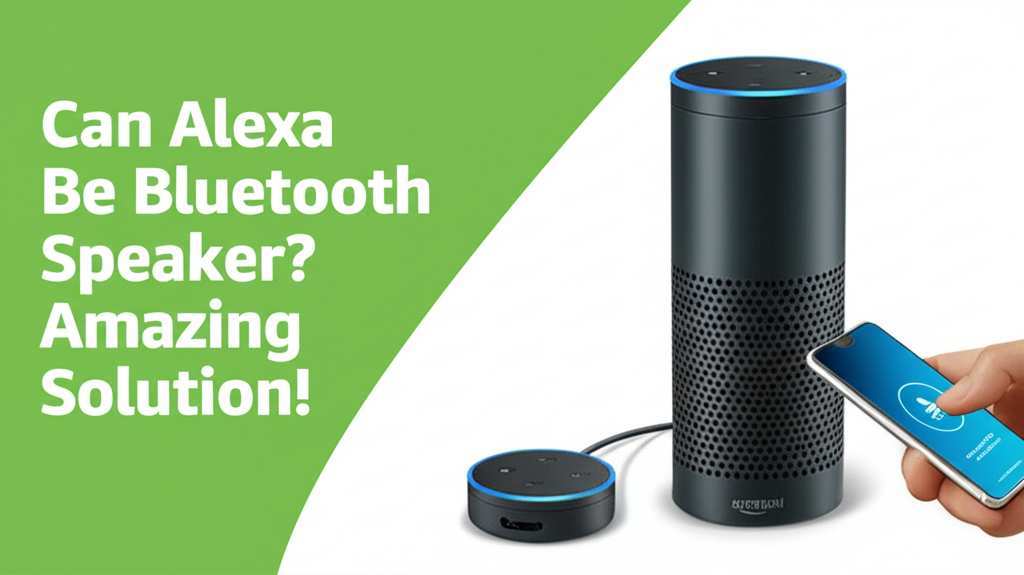
So, are you ready to turn your Alexa into a powerhouse for your music? Let’s dive in and unlock this amazing feature together. It’s going to be easier than you think!
Alexa as a Bluetooth Speaker: What’s the Big Deal?
You might be wondering, “Why would I even need Alexa to be a Bluetooth speaker?” That’s a fair question! Most of us have other speakers, maybe even some fancy ones. But here’s the cool part: your Alexa device is likely already in a central spot in your home.
Think about it. Your Echo Dot might be in the kitchen while you’re cooking, or your Echo Show in the living room. Instead of needing a separate speaker there, your Alexa is already ready to go. It’s like having a surprise audio upgrade right where you are.
Plus, the sound quality on many Alexa devices is pretty darn good! It can often fill a room better than your phone’s tiny speaker. So, whether it’s your favorite podcast, a chill playlist for dinner, or the soundtrack to your latest binge-watch, Alexa can make it sound so much better.
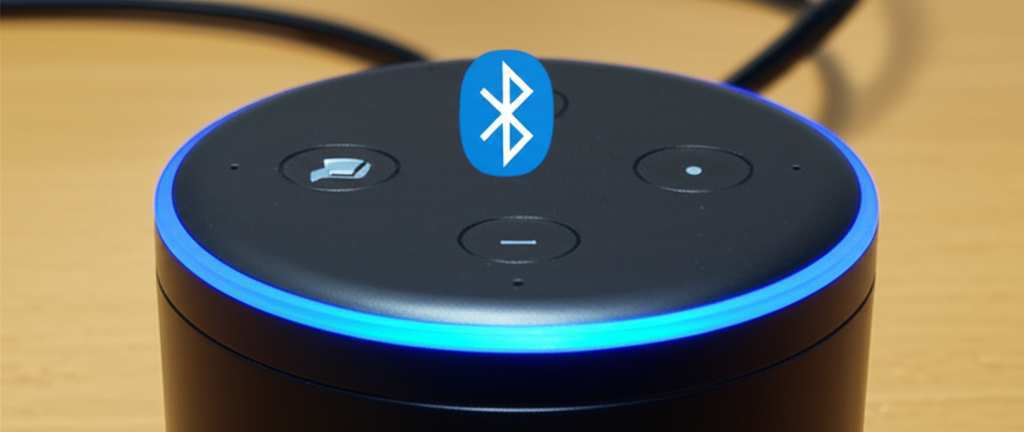
Connecting Alexa to Your Phone: Step-by-Step!
Alright, let’s get this show on the road! Connecting your phone or tablet to your Alexa device is a breeze. We’ll do it using the Alexa app. It’s like the remote control for all your smart devices.
Step 1: Open the Alexa App
First things first, grab your smartphone or tablet. Make sure you have the Amazon Alexa app downloaded and installed. If you haven’t already, you’ll need to log in with your Amazon account. This is the same account you used to set up your Alexa device.
Step 2: Navigate to Devices
Once you’re in the app, look for the “Devices” icon. It’s usually at the bottom of the screen. Tap on it. This section shows you all the smart devices connected to your account.
Step 3: Select Your Echo Device
In the “Devices” menu, you’ll see a list of your Amazon Echo devices. Find the specific Alexa device you want to use as a Bluetooth speaker. It might be named “Living Room Echo,” “Kitchen Dot,” or whatever you called it when you set it up. Tap on its name.
Step 4: Find the Bluetooth Settings
Now you’re on the settings page for that specific Alexa device. Scroll down until you see an option that says “Bluetooth.” Tap on that. You’ll see a few options here, like “Pair a New Device” or “Manage Speaker Settings.”
Step 5: Put Alexa in Pairing Mode
Here’s where the magic happens! Tap on “Pair a New Device.” Your Alexa device will now be ready to connect. You’ll usually hear a little chime or a voice announcement from Alexa saying something like, “Now in pairing mode” or “Ready to connect.”
Step 6: Connect from Your Phone
Now, switch over to your phone’s Bluetooth settings. Go to your phone’s Settings app, then tap on “Bluetooth.” Your phone will start scanning for nearby devices. You should see your Alexa device appear in the list of available devices. It will likely have a name like “Echo Dot (Living Room)” or “Echo (2nd Gen).”
Step 7: Select Your Alexa Device
Tap on the name of your Alexa device in your phone’s Bluetooth list. Your phone and Alexa will then pair up. You might hear Alexa say, “Connected to [Your Phone’s Name].” Success!
Step 8: Play Your Audio!
That’s it! Now, open any app on your phone that plays audio – like Spotify, Apple Music, YouTube, or even your podcast app. Start playing your music or show. The sound should now be coming out of your Alexa device instead of your phone. Amazing, right?
Troubleshooting Tips: When Things Go a Little Wonky
Sometimes, technology likes to keep us on our toes! If you’re having trouble connecting, don’t panic. Here are a few common issues and how to fix them:
Can’t find the Alexa device in phone’s Bluetooth list:
Make sure Alexa is still in pairing mode. You might need to go back to the Alexa app and tap “Pair a New Device” again.
Check that Bluetooth is actually turned on on your phone! It sounds simple, but it happens.
Try restarting both your phone and your Alexa device. Turn them off, wait 10 seconds, and turn them back on.
Connected, but no sound:
Is the volume turned up on both your phone and your Alexa device? Sometimes the volume controls are separate.
Double-check in the Alexa app that your phone is still connected.
Try disconnecting and then re-pairing your phone to Alexa.
Audio is choppy or cutting out:
Make sure your phone and Alexa are not too far apart. Bluetooth has a limited range, usually around 30 feet (10 meters).
Are there a lot of things interfering with the signal? Thick walls or other electronic devices can sometimes cause issues. Try moving closer.
Restart both devices. This often clears up connection glitches.
Managing Your Bluetooth Connections with Alexa
Once you’ve paired your phone, Alexa remembers it! This means you usually don’t have to go through the whole pairing process every single time. When you want to connect again, you can often just say:
“Alexa, connect my phone.”
Or, if you have multiple devices paired, you might need to be more specific:
“Alexa, connect my [Your Phone’s Name].”
To disconnect, you can say:
“Alexa, disconnect my phone.”
Viewing Paired Devices
Want to see which devices are already paired with your Alexa? You can check this in the Alexa app.
1. Open the Alexa app.
2. Go to “Devices.”
3. Select your Echo device.
4. Tap “Bluetooth.”
Here, you’ll see a list of devices that have been paired before. You can also “Forget” devices from this list if you no longer want Alexa to remember them. This is handy if you’ve paired many devices over time.
Alexa vs. Dedicated Bluetooth Speakers: What’s the Difference?
So, how does using Alexa as a Bluetooth speaker stack up against a dedicated Bluetooth speaker? It’s a great question, and the answer depends on what you’re looking for!
Alexa as a Bluetooth Speaker: The Good Stuff
Convenience: You’re probably already using your Alexa device, so it’s ready to go without needing a separate gadget.
Sound Upgrade: It’s a significant improvement over your phone’s built-in speaker for a richer listening experience.
Hands-Free Control: You can still use voice commands to control playback once connected! “Alexa, pause,” “Alexa, next song,” – it works!
No Extra Cost: You’re using a device you already own.
Dedicated Bluetooth Speakers: The Other Side
Portability: Many Bluetooth speakers are designed to be portable, with built-in batteries for use anywhere, even outdoors.
Sound Quality: High-end Bluetooth speakers often offer superior sound fidelity, deeper bass, and more powerful volume.
Durability: Some Bluetooth speakers are rugged, waterproof, and built for adventure.
No Wi-Fi Needed: They only rely on Bluetooth, making them simple for quick use without needing a network.
Here’s a quick look at some features to consider when comparing.
| Feature | Alexa as Bluetooth Speaker | Dedicated Bluetooth Speaker |
|---|---|---|
| Setup Ease | Simple app pairing | Usually simple Bluetooth pairing |
| Sound Quality | Good, room-filling | Varies widely, often superior in higher-end models |
| Portability | Limited (requires power outlet) | High (many have batteries) |
| Voice Control | Yes (via Alexa commands) | No (unless it’s a smart speaker) |
| Durability | Standard (indoor use) | Varies, some are waterproof/rugged |
| Connectivity | Bluetooth + Wi-Fi for Alexa functions | Bluetooth only |
As you can see, Alexa is fantastic for adding better sound to your existing setup without buying anything new. It’s perfect for casual listening at home. If you need something for picnics, beach trips, or audiophile-level sound, a dedicated Bluetooth speaker might be your go-to.
Beyond Music: Other Ways to Use Alexa as a Speaker
It’s not just about your music playlists! Using Alexa as a Bluetooth speaker opens up a world of audio possibilities.
Podcasts and Audiobooks: Get immersed in your favorite stories and discussions with clearer, louder sound.
Video Audio: Watching a YouTube video or a movie on your tablet? Connect to Alexa for a more cinematic experience. The audio will sync up beautifully.
Calls: Some people even use it for hands-free calling if their phone is connected via Bluetooth, though dedicated speakerphone features might be better for this.
Gaming: Playing a mobile game? The sound effects and music will be much more impactful coming from your Echo device.
It’s all about enhancing your audio experience wherever you are in your home.
Fun Fact: The Evolution of Sound!
Did you know that the first Bluetooth technology was developed way back in the 1990s? It was designed to replace cables with wireless connections. Now, it’s everywhere, from your headphones to your car, and yes, even your smart speakers! It’s amazing how far we’ve come in making our tech lives simpler and more connected.
Alexa Voice Commands for Audio Playback
One of the coolest parts of using Alexa as a Bluetooth speaker is that you can often control your audio using your voice! Once your phone is connected, try these commands:
“Alexa, play music.”
“Alexa, pause.”
“Alexa, resume.”
“Alexa, next song.”
“Alexa, previous song.”
“Alexa, stop music.”
“Alexa, what song is this?”
Keep in mind that these commands usually work best when you’re using music apps that Alexa natively supports, like Amazon Music or Spotify. For other apps, you might need to use your phone to control playback. Still, it’s a neat feature to try!
Maximizing Your Alexa Audio Experience
Want to make your Alexa sound even better when it’s acting as a Bluetooth speaker? Here are a few simple tips:
Placement Matters: Put your Alexa device in a good spot. Corners of rooms or shelves can sometimes make the sound boom, but placing it on a flat surface in an open area usually gives the clearest sound. Avoid stuffing it into tight spaces.
Volume Control: Adjust the volume on both your phone and your Alexa device. Sometimes, setting your phone’s volume to about 80% and then using Alexa’s volume controls gives the best balance without distortion.
Keep it Updated: Ensure your Alexa app and your Echo device’s firmware are up to date. Amazon often releases updates that can improve performance and sound. You can check for updates in the Alexa app under device settings.
Consider Multi-Room Audio: If you have multiple Alexa devices, you can group them together to play audio throughout your home. This is a feature you set up in the Alexa app under “Device Settings” > “Stereo Pair” or “Multi-Room Music.” While this is more for native Alexa music services, it shows the potential for whole-home audio!
Data Spotlight: Bluetooth Version Benefits
Bluetooth technology has evolved over the years. Newer versions offer better performance. Here’s a quick look:
| Bluetooth Version | Typical Range | Data Transfer Speed | Power Efficiency |
|---|---|---|---|
| Bluetooth 4.0 | ~10 meters (33 ft) | ~1 Mbps | Good |
| Bluetooth 4.2 | ~10 meters (33 ft) | ~2 Mbps | Improved |
| Bluetooth 5.0 | ~30 meters (100 ft) (with clear line of sight) | ~2 Mbps | Greatly Improved |
| Bluetooth 5.1/5.2/5.3 | ~30 meters (100 ft) | ~2 Mbps | Further Improvements |
Most modern Alexa devices and smartphones use Bluetooth 4.0 or newer, which is great for audio streaming. While you might not see the exact version number listed for your Alexa device, Amazon ensures they use reliable Bluetooth standards for smooth connections. A higher Bluetooth version generally means a more stable connection and potentially better range.
A Quick Look at Popular Alexa Devices for Bluetooth
Most Amazon Echo devices can function as Bluetooth speakers. Here are a few popular ones:
Echo Dot (various generations): Compact and affordable, great for smaller rooms or adding sound to places like your bedroom or office.
Echo (standard model): Offers a bit more bass and volume than the Dot, ideal for living rooms or kitchens.
Echo Show (various screen sizes): These smart displays also have capable speakers and can double as your Bluetooth audio hub.
You don’t need a special “Bluetooth Echo.” Any Echo device with Bluetooth capability can do the job! For more in-depth reviews of these devices, check out tech experts at CNET.
Frequently Asked Questions (FAQ)
Got more questions swirling around? Let’s clear them up!
Can I use Alexa as a Bluetooth speaker without Wi-Fi?
You need Wi-Fi to set up your Alexa device and to use most of its smart features. However, once your Alexa device is set up and paired with your phone via Bluetooth, you can use it to play audio from your phone even if your home Wi-Fi is temporarily down. The Bluetooth connection itself doesn’t require Wi-Fi.
How do I disconnect my phone from Alexa?
You can disconnect by going into your phone’s Bluetooth settings and turning off Bluetooth or by selecting your Alexa device and choosing to “Disconnect.” You can also tell Alexa, “Alexa, disconnect my phone.”
Can I connect multiple phones to one Alexa device via Bluetooth?
Yes, your Alexa device can remember multiple paired devices. However, only one device can be actively connected and playing audio at a time. If another phone tries to connect, Alexa will usually ask if you want to disconnect the current device.
Does connecting via Bluetooth affect Alexa’s smart features?
No, not at all! When connected via Bluetooth, your Alexa device still functions as a smart assistant. You can ask it questions, set timers, or control smart home devices while your phone’s audio plays through it. It’s like having two great features in one!
Is the sound quality good enough for music lovers?
For casual listening, podcasts, and general enjoyment, the sound quality from most Echo devices is quite good and a significant upgrade from your phone. For true audiophiles seeking high-fidelity sound, a dedicated, high-end Bluetooth speaker might offer a richer experience. But for everyday use, Alexa is a solid performer!
How do I update my Alexa device for better Bluetooth performance?
Your Alexa device automatically updates its software over Wi-Fi. Just ensure it’s connected to your network, and Amazon will handle the updates. You can check the device’s firmware version in the Alexa app under Device Settings > About.
Can I pair my Alexa device to my TV’s Bluetooth?
Typically, Alexa devices are designed to receive Bluetooth audio from phones, tablets, or computers, not to transmit audio to other devices like TVs. You usually can’t pair your Echo device to your TV’s Bluetooth output.
Wrapping It Up: Your Sound, Your Way!
See? It’s super straightforward! You’ve learned how to turn your friendly Alexa assistant into a fantastic Bluetooth speaker. No more relying on that tiny phone speaker when you want to fill your space with sound.
From setting it up in just a few minutes using the Alexa app to troubleshooting common hiccups, you’re now all set. You know how to connect, disconnect, and even use voice commands to manage your audio. Plus, you’ve got a good idea of how it compares to dedicated Bluetooth speakers and how to get the best sound possible.
So go ahead, give it a try! Pair your phone, crank up your favorite tunes, or dive into that captivating audiobook. You’ve got the power to make your audio experience so much better, right in your own home.
Now go enjoy amazing sound and make every moment louder and better!