Yes, you absolutely can use Alexa as a Bluetooth speaker! It’s a super easy way to stream music and audio from your phone or tablet directly to your Echo device. This guide shows you how to set it up in minutes, transforming your smart speaker into a powerful audio hub.
Hey there, tech explorers! Ever find yourself wanting to blast your favorite tunes or listen to that podcast you love, but your phone’s speaker just isn’t cutting it? We’ve all been there, right? We love our music, our podcasts, and even those awesome movie soundtracks. Having a good speaker makes everything sound so much richer and more immersive. But sometimes, figuring out which speaker is best or how to connect it all can feel like a puzzle.
That’s where our trusty Alexa comes in! Many people know Alexa for answering questions or controlling smart home gadgets. But did you know it can also be your go-to Bluetooth speaker? It’s true! This is a game-changer for anyone with an Amazon Echo device. It means you can easily send audio from your phone, tablet, or computer straight to your Alexa.
Imagine this: you’re getting ready for a party, and you want to play your ultimate party playlist. Instead of struggling with wires or fiddly settings, you can just connect your phone to Alexa with a few simple commands. Or maybe you’re trying to catch up on an audiobook while you’re cooking, and you want clearer sound than your phone can offer. Alexa can do that too!
Don’t worry if tech talk makes your head spin. My goal here is to make this super simple. We’ll walk through it step-by-step. You’ll be enjoying richer sound in no time. Let’s dive in and unlock this amazing feature together!
What Exactly is a Bluetooth Speaker?
Before we jump into how Alexa works as one, let’s quickly chat about what a Bluetooth speaker actually is. Think of it as a speaker that connects wirelessly. It uses a technology called Bluetooth to communicate with your phone, tablet, or computer. This means no messy wires!
You just pair your device with the speaker, and then any sound that comes from your device plays through the speaker. It’s perfect for music, podcasts, audiobooks, and even watching videos. They come in all shapes and sizes, from tiny portable ones to bigger ones that fill a room with sound.
Why Use Alexa as a Bluetooth Speaker?
So, why would you even bother using Alexa as a Bluetooth speaker? That’s a great question! Here are a few reasons why this feature is so awesome:
Convenience: If you already have an Echo device, you don’t need to buy a separate Bluetooth speaker. It’s already there, ready to go!
Better Sound Quality: Most Echo devices have better speakers than your average smartphone. This means your music and audio will sound fuller and richer.
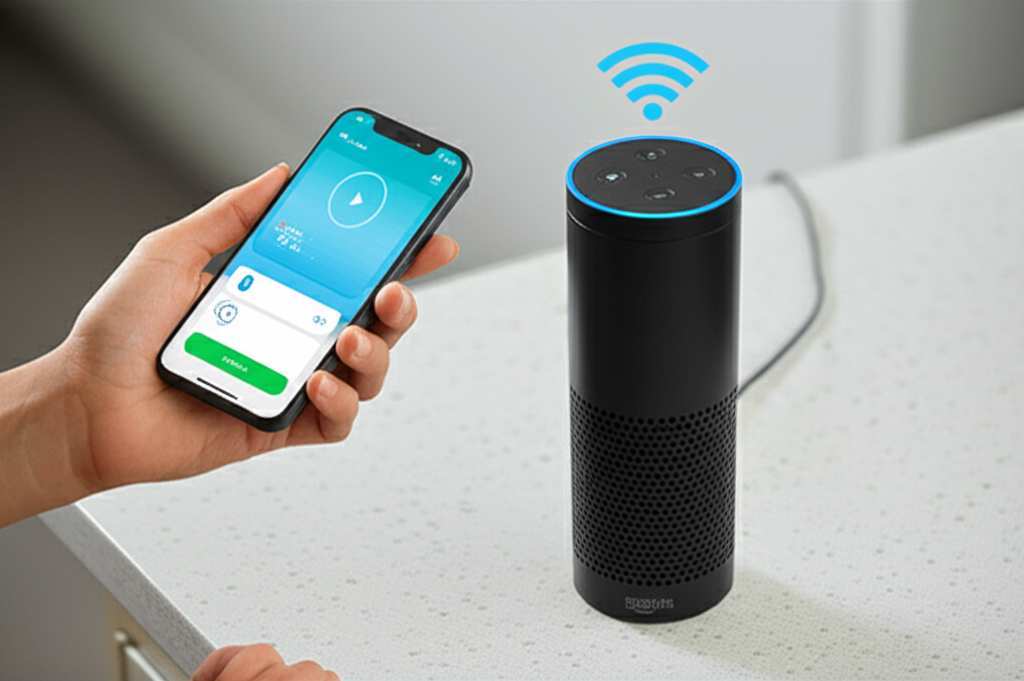
Easy Setup: Connecting your device is usually a breeze. You can do it with voice commands or through the Alexa app.
Hands-Free Control: Once connected, you can still use Alexa for other things. You can even ask Alexa to play, pause, or skip tracks!
It’s like getting a bonus feature for a device you already own and love. Pretty neat, right?
Can My Alexa Be a Bluetooth Speaker?
This is a common question! Most Amazon Echo devices can indeed function as Bluetooth speakers. This includes:
Amazon Echo (all generations)
Echo Dot (all generations)
Echo Show (all generations)
Echo Plus
Echo Studio
Echo Spot
Echo Input
If you have one of these, you’re likely good to go! There are a few older or very basic devices that might not have Bluetooth capabilities, but the vast majority of Echo devices do. If you’re unsure, you can always check the product details for your specific device or do a quick search online for your model.
Let’s Get Connected: How to Use Alexa as a Bluetooth Speaker
Ready to turn your Echo into a sound machine? It’s easier than you think! There are two main ways to connect your device to Alexa via Bluetooth: using voice commands or using the Alexa app.
Method 1: Using Voice Commands (The Quickest Way!)
This is my favorite method because it’s so fast and simple. You don’t even need to pick up your phone sometimes!
1. Put Alexa in Pairing Mode: You need to tell Alexa to be ready to connect to a new device. Say: “Alexa, pair Bluetooth.”
2. Wait for Confirmation: Alexa will respond and tell you it’s in pairing mode. It might say something like, “Your Echo is now discoverable. Go to your Bluetooth settings on your phone or tablet and select your Echo device.”
3. Connect from Your Phone/Tablet: Now, grab your phone or tablet. Go to your Bluetooth settings. You should see your Echo device listed there. It will usually have the name of your Echo device (e.g., “Echo Dot,” “My Echo Show”).
4. Select Your Device: Tap on your Echo device’s name in the list to pair it.
5. Confirmation Again: Once connected, Alexa will usually say, “Connected to [your device’s name].” You’ll also see it listed as connected in your phone’s Bluetooth settings.
And that’s it! Your Alexa is now a Bluetooth speaker. You can start playing any audio from your phone, and it will come out of your Echo.
Method 2: Using the Alexa App (For More Control)
If you prefer using the app or if voice commands aren’t working for you, the app is a great alternative.
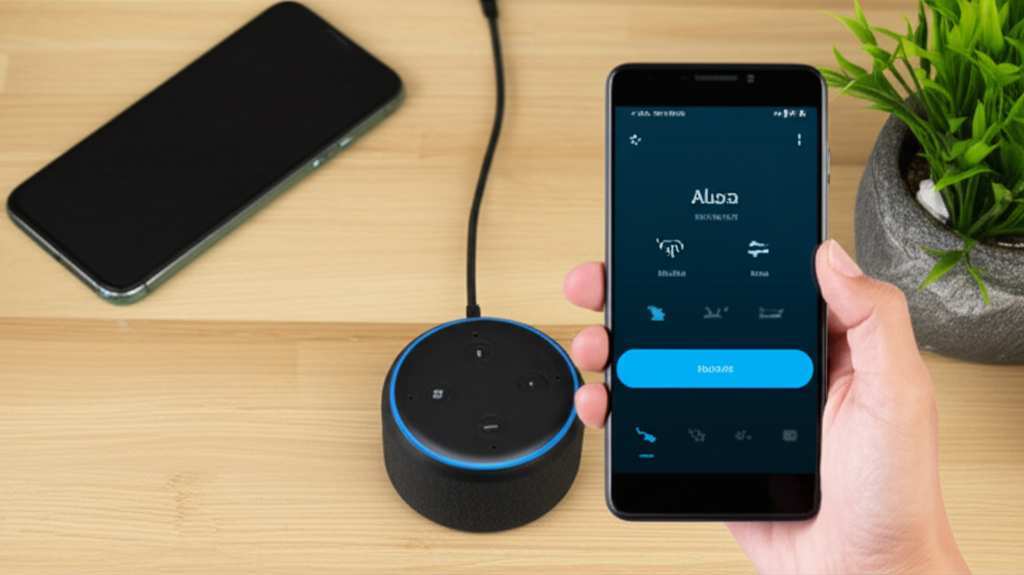
1. Open the Alexa App: Make sure you have the Amazon Alexa app downloaded on your smartphone or tablet and that you’re logged into your account.
2. Go to Devices: Tap on the “Devices” icon at the bottom of the app screen.
3. Select Your Echo Device: You’ll see a list of your Alexa-enabled devices. Tap on the specific Echo device you want to use as a speaker.
4. Find Bluetooth Settings: On your device’s settings screen, scroll down until you see “Bluetooth.” Tap on it.
5. Pair New Device: Tap on “Pair a New Device.”
6. Wait for Alexa: Alexa will now go into pairing mode, just like with the voice command method. It will say, “Your Echo is now discoverable.”
7. Connect from Your Phone/Tablet: Go to your phone or tablet’s Bluetooth settings and select your Echo device from the list of available devices.
8. All Set! Once connected, the Alexa app will show that your device is connected to Bluetooth.
Both methods achieve the same result, so pick the one that feels most comfortable for you!
Troubleshooting Common Connection Issues
Sometimes, technology likes to be a little stubborn. If you’re having trouble connecting, don’t panic! Here are a few common issues and how to fix them:
Alexa Not Discoverable:
Make sure your Echo device is powered on and connected to Wi-Fi.
Try saying “Alexa, pair Bluetooth” again. Sometimes a simple retry works.
If you previously paired another device, Alexa might be trying to connect to that one. You might need to tell Alexa to “forget” the old device first by saying, “Alexa, disconnect Bluetooth” and then “Alexa, pair Bluetooth.”
Phone Not Finding Echo:
Ensure Bluetooth is turned ON on your phone or tablet.
Make sure your phone is close enough to the Echo device. Bluetooth has a limited range.
Restart both your Echo device and your phone/tablet. A simple reboot can often clear up glitches.
Audio Stuttering or Dropping:
Check the distance between your phone and the Echo. Walls and other obstructions can interfere.
Try closing other apps running in the background on your phone, as they might be using up resources.
Ensure your Echo device has a strong Wi-Fi connection. While Bluetooth is separate, a stable Wi-Fi connection helps Alexa function optimally.
Can’t Pair:
Sometimes, a device needs to be “forgotten” from your phone’s Bluetooth list before you can pair it again. Go to your phone’s Bluetooth settings, find your Echo device, and select “Forget This Device.” Then try pairing again.
If you’re still stuck, a quick search on Amazon’s support site or tech review sites like CNET can offer more specific solutions for your Echo model.
Disconnecting and Reconnecting Alexa
Once you’re done listening to audio from your phone, you’ll probably want to disconnect. This allows Alexa to go back to its usual smart assistant duties.
Voice Command: Simply say, “Alexa, disconnect Bluetooth.” Alexa will confirm that the Bluetooth connection has been terminated.
Alexa App: Go back to your Echo device’s settings in the app, tap on “Bluetooth,” and then tap “Disconnect.”
Phone Settings: You can also go into your phone’s Bluetooth settings and tap to disconnect from your Echo device.
When you want to use Alexa as a Bluetooth speaker again, you usually don’t need to re-pair it. Just go to your phone’s Bluetooth settings, and your Echo device should appear as a previously paired device. Tap on it to reconnect! If it doesn’t connect automatically, you can always go through the pairing process again.
Alexa as a Multi-Room Speaker? Not Exactly.
Here’s a small but important point: while you can connect one phone to one Echo device, you can’t create a multi-room audio system using Bluetooth in the same way you can with Amazon Music or Spotify through Alexa’s native streaming.
If you have multiple Echo devices and want to play music on all of them simultaneously, you’ll need to use Alexa’s built-in multi-room music feature for supported streaming services. Bluetooth is generally for a one-to-one connection between your device and a single Echo. So, think of it as a direct link for your personal audio, not a broadcast to your whole house.
Fun Facts and Cool Features
Did you know that Bluetooth technology has been around since the late 1990s? It’s named after a Viking king, Harald Bluetooth! It’s pretty amazing how this wireless communication has become so common.
Here’s another cool trick: once connected via Bluetooth, you can ask Alexa to control your playback! Try saying:
“Alexa, play music.”
“Alexa, pause.”
“Alexa, next song.”
“Alexa, volume up/down.”
This is super handy when your phone is across the room or if your hands are busy. It’s like having a remote control for your audio, powered by your voice!
Comparing Alexa as a Bluetooth Speaker to Dedicated Bluetooth Speakers
It’s helpful to compare how Alexa stacks up against dedicated Bluetooth speakers you might buy. Each has its own strengths!
| Feature | Alexa as Bluetooth Speaker | Dedicated Bluetooth Speaker |
| :—————- | :——————————————————— | :———————————————————— |
| Cost | Free if you already own an Echo device. | Varies widely, from $20 to $300+ for good quality. |
| Sound Quality | Generally good, especially on larger Echo models. | Can range from basic to audiophile-grade, depending on price. |
| Portability | Limited to where your Echo is placed (needs power outlet). | Many are portable, battery-powered, and water-resistant. |
| Setup | Very easy via voice or app. | Usually straightforward pairing, sometimes with an app. |
| Extra Features| Smart assistant capabilities, smart home control. | Often focus purely on audio, sometimes with rugged designs. |
| Connectivity | Bluetooth only. | Bluetooth, sometimes Wi-Fi, NFC, or aux input. |
So, when should you choose one over the other?
Choose Alexa if: You already have an Echo, want better sound than your phone, need a quick and easy setup, and value the smart assistant features. It’s perfect for home use.
Choose a Dedicated Bluetooth Speaker if: You need something portable for outdoor trips or parties, want the absolute best sound quality for your money, or need features like water resistance.
For many people, having both options is ideal! Use your Echo for everyday listening at home and a portable speaker for adventures.
Frequently Asked Questions (FAQs)
Q1: Do I need a special subscription to use Alexa as a Bluetooth speaker?
Nope! You don’t need any special subscription. As long as you have an Echo device and a phone or tablet with Bluetooth, you can use it for free.
Q2: Can I use Alexa as a Bluetooth speaker for my laptop or computer?
Yes, you can! Most laptops and computers have Bluetooth. You’ll follow a similar process: put your Alexa device in pairing mode and then search for it in your computer’s Bluetooth settings.
Q3: Will my music stream directly from my phone, or does it go through Alexa’s internet?
When you use Alexa as a Bluetooth speaker, the audio streams directly from your phone or tablet to the Echo device via Bluetooth. Alexa’s internet connection isn’t directly involved in the audio streaming itself, though the Echo device still needs to be connected to Wi-Fi to function as an Alexa device.
Q4: How far away can my phone be from Alexa when using Bluetooth?
The standard Bluetooth range is typically around 30 feet (about 9 meters) in open spaces. However, this can be reduced by walls, furniture, and other electronic devices that might cause interference. For the best experience, keep your phone and Alexa relatively close to each other.
Q5: Can I connect multiple phones to one Alexa at the same time via Bluetooth?
No, you can only have one phone or tablet actively connected to an Echo device via Bluetooth at any given time. If you want to connect a different device, you’ll need to disconnect the current one first.
Q6: What’s the difference between asking Alexa to play music and using it as a Bluetooth speaker?
When you ask Alexa to play music (e.g., “Alexa, play [song name] on Spotify”), Alexa uses its internet connection and your linked music service to play the song. When you use it as a Bluetooth speaker, the audio originates from your phone or tablet, and Alexa simply acts as the speaker for that audio.
Q7: Does using Alexa as a Bluetooth speaker drain its battery faster?
Echo devices need to be plugged into a power outlet, so battery life isn’t a concern. They don’t run on internal batteries like portable Bluetooth speakers do.
Bringing It All Together: Your New Sound Companion
There you have it! You’ve learned how to easily turn your Amazon Echo device into a fantastic Bluetooth speaker. It’s a simple process that unlocks a whole new way to enjoy your favorite audio. Whether it’s boosting the sound for a movie on your tablet, playing a podcast while you cook, or just enjoying your music with richer quality, Alexa has you covered.
Remember, if you ever get stuck, just say “Alexa, pair Bluetooth” or pop open the Alexa app. It’s designed to be user-friendly. And if you need more audio power for on-the-go adventures, a dedicated portable Bluetooth speaker is always a great option too! It’s all about making tech work for you.
Now go ahead and connect your phone, crank up the volume, and enjoy your tunes. Make every moment sound amazing!