Connecting your Sonos speaker to Bluetooth is surprisingly simple! This guide breaks down the easy steps so you can stream your favorite music wirelessly in minutes. No more tangled wires or complicated setups.
Hey there, tech adventurer! It’s Max from AffTechy.com, your go-to buddy for making technology feel like a walk in the park. You know, sometimes I think about how much fun we have with our gadgets. Music pumping, movies sounding epic, games totally immersive – it’s all about that awesome sound experience, right?
But then comes the setup part. Picking out the perfect speaker can feel like a puzzle, and figuring out all those buttons and connections? Phew! It can get a little overwhelming. Especially when you just want to blast your favorite tunes without a fuss.
That’s exactly why I’m here! We’re going to tackle connecting your Sonos speaker to Bluetooth. Think of it as unlocking a whole new level of easy listening. I promise, by the end of this, you’ll be a Bluetooth pro, ready to fill your space with amazing sound.
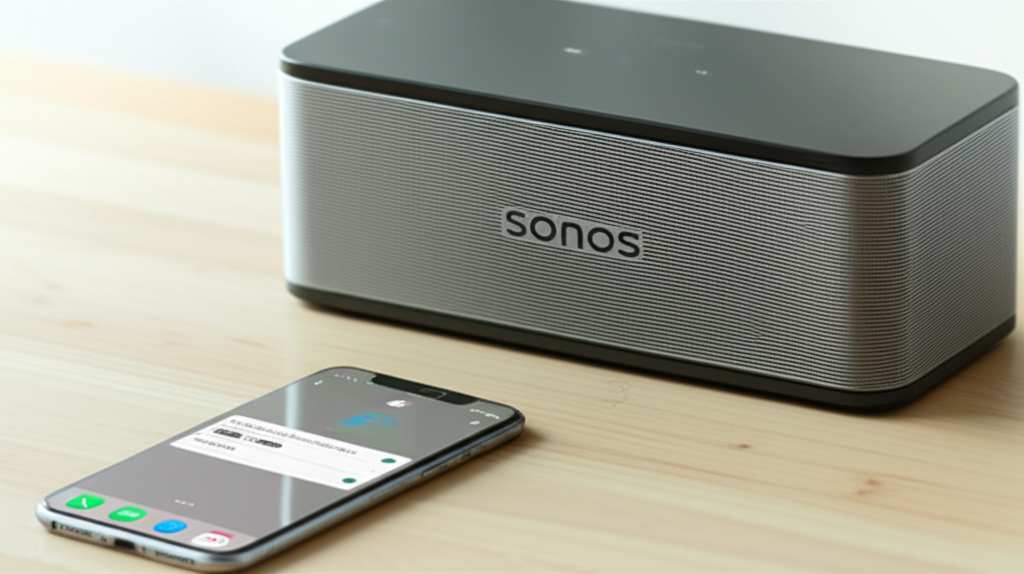
Ready to make some noise? Let’s break it down, step by step, and get that music flowing!
Why Bluetooth is Your New Best Friend for Sound
Bluetooth is pretty magical, isn’t it? It lets your devices talk to each other wirelessly. This means your phone can send music straight to your Sonos speaker without needing any cables. It’s super convenient for parties, or just chilling at home.
Imagine this: you’re getting ready to host friends. You grab your phone, tap a few buttons, and BAM! Your Sonos speaker fills the room with your party playlist. No fumbling with cords, no searching for the right port. Just instant good vibes. That’s the power of Bluetooth!
Sonos speakers are known for their incredible sound quality. When you add Bluetooth to the mix, you get that premium audio experience with the ultimate freedom. You can move your speaker around your home, or even take it outside if it’s portable, all while staying connected.
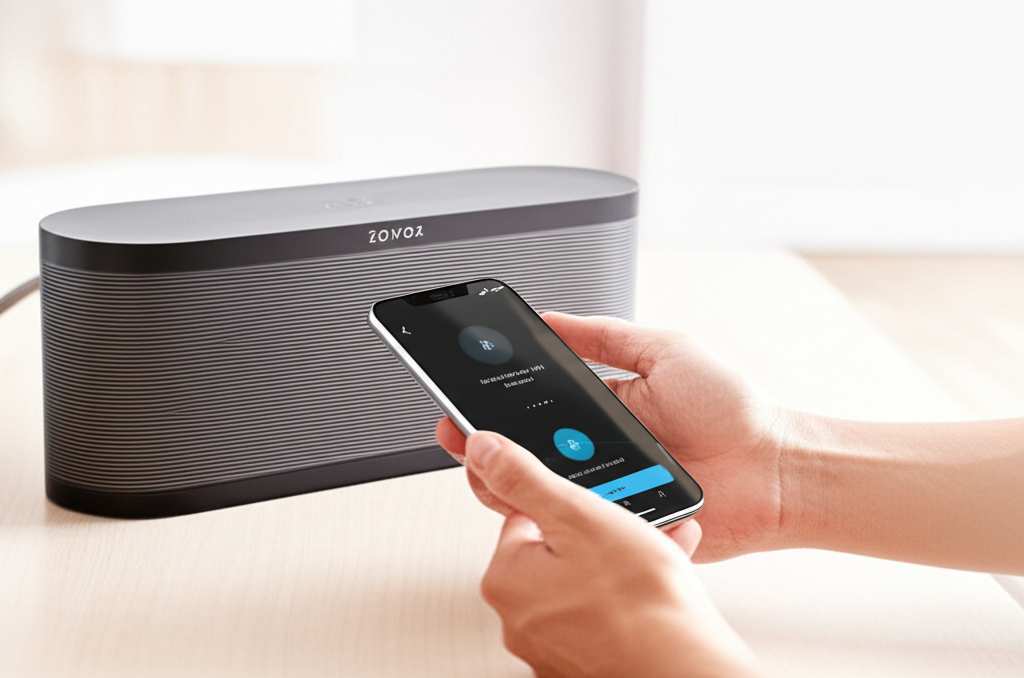
Let’s Talk About Your Sonos Speaker
Sonos makes some seriously cool speakers. They’re designed to sound amazing and work together seamlessly. Most Sonos speakers are built for Wi-Fi streaming, which is fantastic for your home network. But many newer models also have a handy Bluetooth feature. This gives you more options for how you listen.
It’s important to know that not ALL Sonos speakers have Bluetooth. Some of the older or more stationary ones might rely purely on Wi-Fi. But don’t worry, we’ll help you figure out if yours has the Bluetooth magic. It’s usually a pretty straightforward check.
Think of it like this: Wi-Fi is like the superhighway for your home network, giving you the best quality and control. Bluetooth is more like a speedy shortcut for quick, direct connections. Both are great, but knowing you have both options is super empowering!
Does My Sonos Speaker Have Bluetooth?
This is the million-dollar question! The easiest way to find out is to check your speaker’s model. Sonos has been adding Bluetooth to more of its portable and some of its newer models. The Sonos Roam and Sonos Move are prime examples of speakers with built-in Bluetooth.
If you have a Sonos Roam or Move, you’re in luck! These are designed with Bluetooth in mind. You’ll often find a dedicated Bluetooth button or a way to activate pairing mode directly on the speaker itself. It’s usually a small button that you press and hold.
Still not sure? A quick peek at the back or bottom of your speaker is a good idea. Look for symbols or labels that might indicate Bluetooth. If you’re really stumped, a quick search for your specific Sonos model number online will usually tell you all you need to know. Websites like CNET often have detailed specs for all sorts of gadgets.
Quick Tip: If you see a little Bluetooth symbol (it looks like a sideways ‘B’ made of three curved lines), that’s your sign! It means your speaker is ready to go wireless via Bluetooth.
Connecting Your Sonos Speaker via Bluetooth: Step-by-Step
Alright, let’s get down to business! If your Sonos speaker has Bluetooth, connecting it is a breeze. We’ll walk through it together, nice and slow. No need to rush, we want to get this perfect!
Step 1: Power Up Your Sonos Speaker
First things first, make sure your Sonos speaker is charged or plugged in. You want it ready to go. For portable models like the Sonos Roam or Move, ensure they have enough battery life for the setup. A quick charge never hurts!
Once it’s powered on, you might hear a little chime or see a light indicating it’s ready. This is your speaker saying, “I’m here and ready to connect!” It’s a friendly little signal.
Step 2: Put Your Sonos Speaker in Bluetooth Pairing Mode
This is the key step. You need to tell your speaker, “Hey, I want to connect a new device via Bluetooth!” How you do this depends slightly on your model, but it’s usually very similar.
For Sonos Roam and Move: Look for a small button on the back of the speaker. It usually has the Bluetooth symbol on it. Press and hold this button for about 3 seconds. You should hear a distinct tone, and the status light on the speaker will start flashing, usually white or blue. This flashing light means it’s actively searching for a device to pair with.
Pro Tip: Don’t let go of the button too early! Holding it for the full 3 seconds ensures it enters pairing mode. If you accidentally skip this, just try again. It’s all about finding that sweet spot.
Step 3: Open Bluetooth Settings on Your Phone or Tablet
Now, grab the device you want to stream music from – usually your smartphone or tablet. You need to go into its Bluetooth settings. This is typically found in your device’s main Settings app.
On an iPhone or iPad, go to Settings > Bluetooth. On an Android device, it’s usually Settings > Connected devices > Bluetooth, or simply Settings > Bluetooth. Make sure Bluetooth is toggled ON. Your device will then start scanning for available Bluetooth devices nearby.
Step 4: Select Your Sonos Speaker from the List
You should see a list of available Bluetooth devices on your phone or tablet screen. Look for your Sonos speaker’s name in this list. It might appear as “Sonos Roam,” “Sonos Move,” or something similar. It’s usually pretty clear which one is yours!
Tap on your Sonos speaker’s name in the list. Your phone or tablet will then attempt to connect to it. You might hear another confirmation tone from the speaker, and the flashing light should turn solid. This solid light is your signal that the connection is successful!
Step 5: Start Streaming!
And just like that, you’re connected! You can now open any music app on your phone or tablet – Spotify, Apple Music, YouTube Music, podcasts, you name it – and play your audio. The sound will come out of your Sonos speaker!
You can control the volume directly from your phone or tablet, or using the volume controls on the Sonos speaker itself. It’s that simple. You’ve just unlocked a world of wireless sound. Enjoy!
What If Bluetooth Isn’t Working? Easy Fixes!
Sometimes technology likes to throw us a little curveball. If you’re having trouble connecting your Sonos speaker via Bluetooth, don’t panic! We’ve got some quick fixes that usually sort things out. Let’s troubleshoot together.
1. Check the Basics: Power and Distance
Is the speaker powered on? Is Bluetooth enabled on your phone? These might seem obvious, but a quick double-check saves a lot of headaches. Also, make sure your phone and speaker are close enough. Bluetooth has a range, usually around 30 feet (10 meters), but walls and other electronics can interfere.
2. Restart Everything
The classic tech fix: turn it off and on again! Power off your Sonos speaker, and turn off Bluetooth on your phone or tablet. Wait about 30 seconds, then power your speaker back on and re-enable Bluetooth on your device. Try pairing again.
3. Forget and Re-pair the Device
Sometimes, your device might have a “stuck” connection. Go into your phone’s Bluetooth settings. Find your Sonos speaker in the list of paired devices. There should be an option to “Forget This Device” or “Unpair.” Tap that. Then, put your Sonos speaker back into pairing mode and try connecting from scratch.
4. Update Your Sonos App and Speaker Firmware
Sonos frequently releases updates to improve performance and fix bugs. Make sure your Sonos app is up to date, and check if your speaker needs a firmware update. You can usually do this within the Sonos app settings. Updates can sometimes resolve connectivity issues.
Fun Fact: Firmware is like the speaker’s internal operating system. Keeping it updated ensures it runs smoothly and has the latest features!
5. Check for Interference
Other electronic devices can sometimes mess with Bluetooth signals. Things like microwaves, other Bluetooth devices, or even some Wi-Fi routers can cause interference. Try moving your speaker and phone away from other electronics when trying to pair.
6. Consult the Sonos Support Site
If none of these steps work, the official Sonos support website is your best friend. They have detailed guides and troubleshooting tips specific to each model. You can usually find solutions to even the trickiest problems there. TechRadar also offers great advice on common speaker issues.
Sonos Bluetooth vs. Wi-Fi: What’s the Difference?
You might be wondering why Sonos even offers Bluetooth when they’re so known for their Wi-Fi capabilities. Both have their strengths, and knowing them helps you get the most out of your speaker!
Sonos Wi-Fi Connection
When your Sonos speaker is connected to your home Wi-Fi network, it can stream directly from the internet or your local network. This means:
- Higher Audio Quality: Wi-Fi can handle more data, leading to potentially better sound quality, especially for high-resolution audio files.
- No Phone Needed: Once set up on Wi-Fi, your Sonos speaker can play music independently. You can control it with the Sonos app, but your phone doesn’t need to stay nearby or even be on.
- Multi-Room Audio: This is where Wi-Fi shines. You can group multiple Sonos speakers together and play the same music in different rooms, all controlled by one app.
- Longer Range: Your Wi-Fi network’s range determines how far your speaker can be from your router, which is usually quite extensive within a home.
Sonos Bluetooth Connection
When you connect via Bluetooth, your phone or tablet streams directly to the speaker. This is great for:
- Simplicity: It’s often quicker to connect via Bluetooth for a quick song or podcast.
- Portability: If you take your Sonos speaker (like the Roam or Move) outside your home Wi-Fi range, Bluetooth is your lifeline for playing music.
- Guest Use: Friends can easily connect their phones to your speaker without needing to join your home Wi-Fi network.
- Direct Control: Your phone is the primary source and controller.
Here’s a quick comparison:
| Feature | Sonos Wi-Fi | Sonos Bluetooth |
|---|---|---|
| Setup Simplicity | Initial setup can be more involved (needs app, Wi-Fi password) | Very quick for direct device-to-speaker connection |
| Audio Quality | Potentially higher, especially for high-res audio | Good, but can be compressed depending on source and connection |
| Range | Limited by your Wi-Fi network strength | Typically around 30 feet (10 meters), can be affected by obstacles |
| Device Dependency | Speaker can play independently once set up | Requires a connected Bluetooth device (phone, tablet) to stream |
| Multi-Room Audio | Excellent, designed for grouping multiple speakers | Not typically used for multi-room setups; usually one-to-one connection |
| Use Cases | Home listening, integrated home audio system, high-quality streaming | Quick listening, outdoor use, guest connections, on-the-go |
As you can see, both have their place! For everyday use at home, especially with multiple speakers, Wi-Fi is usually the way to go. But for instant, portable, or guest-friendly audio, Bluetooth is a fantastic option. It’s great to have choices!
Maximizing Your Sonos Bluetooth Experience
Once you’ve mastered connecting via Bluetooth, there are a few extra tips to make your sound experience even better. Think of these as the little extras that make a big difference!
- Keep Firmware Updated: We mentioned this for troubleshooting, but it’s also key for performance. Sonos updates often improve Bluetooth stability and sound. Check the Sonos app regularly for updates.
- Manage Multiple Bluetooth Devices: Your Sonos speaker can remember several Bluetooth devices. If you have trouble reconnecting, try “forgetting” older devices on your phone and the speaker (if possible through the app or by resetting).
- Use the Sonos App for More: Even when connected via Bluetooth, you can often still use the Sonos app to adjust EQ settings, check battery life (for Roam/Move), or even switch to Wi-Fi control if you’re back in your home network’s range.
- Consider Audio Sources Wisely: While Bluetooth is convenient, if you’re after the absolute best audio fidelity, using Wi-Fi with a high-quality streaming service will generally yield superior results. Bluetooth is fantastic for convenience, though!
Did You Know? The Bluetooth standard has evolved significantly. Newer versions offer better power efficiency and improved audio codecs, meaning your wireless sound keeps getting better!
Frequently Asked Questions (FAQs)
Got more questions buzzing around? That’s totally normal! Here are some common ones beginners ask:
Q1: Can I control my Sonos speaker with the app while it’s connected via Bluetooth?
A1: Yes, for some functions! While the audio streams via Bluetooth, you can usually still use the Sonos app to control volume, check battery status, and sometimes even adjust EQ settings. However, browsing music libraries or controlling playback might be better handled directly by the app you’re streaming from.
Q2: My Sonos speaker won’t show up in my phone’s Bluetooth list. What should I do?
A2: First, double-check that your speaker is actually in Bluetooth pairing mode (the status light should be flashing). Also, ensure your phone’s Bluetooth is on and that you’ve tried restarting both devices. If it still doesn’t appear, confirm your specific Sonos model actually supports Bluetooth.
Q3: How far can my phone be from my Sonos speaker when using Bluetooth?
A3: The standard Bluetooth range is about 30 feet (10 meters) in open space. However, this can be reduced by walls, furniture, and other electronic devices that might cause interference. For the best connection, try to keep your phone and speaker relatively close.
Q4: Can I connect multiple phones to my Sonos speaker via Bluetooth at the same time?
A4: Typically, no. Most Bluetooth connections are one-to-one. Only one device can be actively paired and streaming via Bluetooth at any given moment. If someone else wants to play music, they’ll need to disconnect their phone and pair theirs.
Q5: Does connecting via Bluetooth affect my Wi-Fi network?
A5: No, not directly. Bluetooth and Wi-Fi are separate wireless technologies. When your Sonos speaker is using Bluetooth, it’s not communicating with your Wi-Fi router for that audio stream. However, if you’re using the Sonos app to manage settings while on Bluetooth, the app is still using Wi-Fi.
Q6: Is Bluetooth audio quality as good as Wi-Fi audio quality on Sonos?
A6: Generally, Wi-Fi offers higher potential audio quality because it can transmit more data. Bluetooth is excellent for convenience and portability, but the audio stream can sometimes be compressed. For critical listening or audiophiles, Wi-Fi is usually preferred.
Q7: My Sonos Roam/Move keeps disconnecting from Bluetooth. Any tips?
A7: This could be due to interference, low battery, or an outdated firmware. Make sure the speaker is well-charged, try moving it away from other electronics, and check for any available software updates in the Sonos app. Forgetting the device on your phone and re-pairing can also help.
Wrapping Up: Your Sound, Your Way!
See? Connecting your Sonos speaker to Bluetooth is totally doable and opens up so many easy listening possibilities. Whether you’re kicking back at home, having a backyard BBQ, or just want to easily share tunes with friends, Bluetooth is your friend.
You’ve learned how to put your speaker in pairing mode, connect your phone, and even troubleshoot common issues. You’ve also got a better understanding of how Bluetooth and Wi-Fi work together to give you the best Sonos experience. It’s all about making technology work for you, without the stress!
So go ahead, give it a try! Connect that speaker, pick your favorite playlist, and let the good times roll. You’ve got this! Now go enjoy amazing sound and make every moment louder and better!