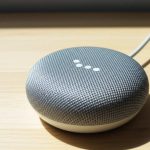
Setting up your Google Home sound box is a breeze! This guide walks you through connecting it to Wi-Fi, linking your Google account, and exploring its amazing features. From initial unboxing to playing your first song, we’ve got you covered. Get ready to enjoy smart audio in your home!
Welcome to the future of sound! You’ve just unboxed your new Google Home sound box, and you’re probably eager to hear its amazing capabilities. Whether it’s a Google Nest Mini, a Google Home speaker, or a more advanced model, setting it up is the gateway to a world of smart audio, information, and control. This guide is designed to make the process as smooth and enjoyable as possible, even if you’re not a tech wizard. Think of me as your friendly guide, walking you through each step with simple instructions and helpful tips.
Gone are the days of fumbling with complex wiring and confusing manuals. Setting up your Google Home sound box is designed to be intuitive. You’ll be asking it questions, playing your favorite tunes, and even controlling your smart lights with just your voice in no time. We’ll cover everything from the initial unboxing to exploring the full potential of your new smart assistant. So, grab your phone or tablet, and let’s get your Google Home sound box up and running!
## Unboxing and Initial Setup: Getting Started
The very first thing you’ll want to do is get everything out of the box. Carefully open the packaging and ensure you have your Google Home sound box, its power adapter, and any included quick start guides. It’s always a good idea to keep the box and packaging for a little while, just in case you need to return or exchange the device. Once you’ve confirmed all the parts are present, find a suitable location for your speaker. It’s best to place it in a central area where you’ll use it most often and where it has a clear line of sight for voice commands. Avoid placing it too close to walls that might muffle the sound, or in enclosed spaces that could affect audio quality.
### Powering Up Your Device
Now, let’s give your Google Home sound box some juice! Connect the power adapter to the back of the speaker and then plug the adapter into a wall outlet. You should see some indicator lights on the device light up, signaling that it’s receiving power and ready for the next step. This is a good time to make sure your smartphone or tablet is charged and ready to go, as it will be your primary tool for the setup.
## The Google Home App: Your Command Center
The Google Home app is the heart of your smart home experience with Google. It’s where you’ll connect your sound box to your Wi-Fi, manage its settings, and discover new features. If you don’t already have it, you’ll need to download it from your device’s app store.
### Downloading and Installing the App
For Android devices, head to the Google Play Store. For iOS devices, visit the App Store. Simply search for “Google Home” and tap to install. Once downloaded, open the app. You might be prompted to sign in with your Google account or create one if you don’t have one already. Your Google account is essential as it links your preferences, music subscriptions, and other personalized services to your Google Home sound box.
### Connecting Your Sound Box to Wi-Fi
With the app open and your speaker powered on, it’s time to connect it to your home Wi-Fi. The Google Home app is designed to make this process very straightforward.
1. Tap the ‘+’ icon: In the Google Home app, you’ll typically find a plus sign or an “Add” button. Tap this to begin adding a new device.
2. Select “Set up device”: The app will then give you options. Choose to set up a new device.
3. Choose “New device”: You’ll be asked if you’re setting up a new device or configuring one that’s already set up. Select “New device.”
4. Select your home: If you have multiple locations set up in the app, choose the location where you’re setting up the speaker.
5. Device discovery: The app will then search for nearby devices. Your Google Home sound box should appear in the list. If it doesn’t, ensure your Bluetooth is enabled on your phone/tablet, as this can help with initial detection.
6. Follow on-screen prompts: The app will guide you through connecting to your Wi-Fi network. You’ll need to select your Wi-Fi network name (SSID) and enter your Wi-Fi password. Make sure you have your Wi-Fi password handy!
7. Linking to your account: Once connected to Wi-Fi, the app will confirm that your sound box is linked to your Google account. You can then choose a room for your speaker (e.g., “Living Room,” “Kitchen”).
## Voice Control and Basic Commands: Talking to Your Assistant
Congratulations! Your Google Home sound box is now set up and connected. The most exciting part is starting to use its voice capabilities. The wake word for Google Home devices is “Hey Google” or “Ok Google.” Try saying it followed by a simple command.
### Playing Music
Music is one of the most popular uses for a Google Home sound box. You can link your favorite music streaming services like Spotify, YouTube Music, Pandora, and more within the Google Home app.
Try saying:
- “Hey Google, play some jazz music.”
- “Ok Google, play my ‘Morning Coffee’ playlist on Spotify.”
- “Hey Google, what song is this?”
If you’re just getting started with smart speakers, you might be interested in learning how to use your Google Home Mini as a Bluetooth speaker for more direct audio input.
### Getting Information
Your Google Home sound box is a powerful information hub. You can ask it almost anything!
Try saying:
- “Hey Google, what’s the weather like today?”
- “Ok Google, how many ounces are in a cup?”
- “Hey Google, what’s the capital of Australia?”
- “Ok Google, tell me a joke.”
### Setting Alarms and Timers
Never be late again or forget to check on that roast chicken!
Try saying:
- “Hey Google, set a timer for 10 minutes.”
- “Ok Google, set an alarm for 7 AM tomorrow.”
- “Hey Google, wake me up with news at 6:30 AM.”
## Customizing Your Google Home Experience
The Google Home app isn’t just for setup; it’s your hub for customizing your entire smart home experience. You can manage linked services, adjust settings, and even set up routines.
### Linking Music and Video Services
To get the most out of your Google Home sound box for entertainment, link your preferred music and video streaming services.
1. Open the Google Home app.
2. Select your device: Tap on your Google Home sound box icon.
3. Go to Settings: Look for the gear icon or a “Settings” option.
4. Find “Media” or “Music”: Under the settings, you’ll find options to manage your media services. Here, you can link or unlink accounts like Spotify, YouTube Music, Netflix, etc.
Once linked, you can command your speaker to play content from these services using voice commands.
### Setting Up Routines
Routines allow you to string together multiple actions with a single voice command. For example, you could create a “Good Morning” routine that turns on your lights, tells you the weather, and plays your morning news briefing.
1. Open the Google Home app.
2. Tap “Routines”: This is usually found on the main screen or within the settings menu.
3. Create a new routine: You can start from scratch or use pre-made suggestions.
4. Set a starter: This is the voice command that triggers the routine (e.g., “Hey Google, I’m home”).
5. Add actions: Select the actions you want to happen, such as adjusting smart home devices, getting information, or playing media.
### Managing Device Settings
Within the device settings, you can also:
- Adjust the speaker volume.
- Change the “voice” of your Google Assistant.
- Manage privacy settings, like turning off the microphone.
- Check for software updates.
- Rename your device or assign it to a different room.
This level of control ensures your Google Home sound box works exactly how you want it to. If you’re looking to enhance your audio experience, understanding how to improve sound quality on a Bluetooth turntable setup can give you ideas for integrating different audio sources.
## Advanced Features and Integrations
Once you’re comfortable with the basics, you can explore the more advanced features and integrations that make your Google Home sound box a truly smart device.
### Smart Home Control
Google Home is a powerful hub for controlling your smart home devices. If you have compatible smart lights, thermostats, locks, or cameras, you can control them with your voice.
Examples:
- “Hey Google, turn off the living room lights.”
- “Ok Google, set the thermostat to 72 degrees.”
- “Hey Google, lock the front door.”
You’ll need to link your smart home device accounts within the Google Home app to enable this functionality.
### Making Calls
Some Google Home devices can be used to make calls to other Google devices or even regular phone numbers (availability may vary by region and device model).
Try saying:
- “Hey Google, call Mom.”
- “Ok Google, call [Contact Name].”
### Multi-Room Audio
If you have multiple Google Home or Nest devices, you can group them together to play audio simultaneously across different rooms. This is fantastic for parties or just enjoying music throughout your home.
1. In the Google Home app, go to the settings for one of your speakers.
2. Under “Device Features,” find “Speaker group.”
3. Create a new group and select the speakers you want to include.
Now, when you ask to play music, you can specify the group, like “Hey Google, play my party playlist on the ‘Upstairs’ speaker group.” If you’re interested in creating an immersive soundscape, check out how to create awesome backyard surround sound, which can inspire your whole-home audio strategy.
## Troubleshooting Common Issues
Even with the most user-friendly setup, you might encounter a few hiccups. Here are some common issues and how to resolve them.
### Device Not Responding
If your Google Home sound box isn’t responding to voice commands:
- Check the microphone: Ensure the microphone is not muted. There’s usually a physical button or a touch control on the device to mute/unmute it.
- Check Wi-Fi: Make sure your Wi-Fi is working and the speaker is connected. You can check this in the Google Home app.
- Restart the device: Unplug the power adapter, wait about 30 seconds, and plug it back in. This often resolves temporary glitches.
- Restart your router: Sometimes the issue is with your network. Restarting your Wi-Fi router can help.
### Poor Audio Quality
If the sound quality isn’t what you expect:
- Check volume levels: Ensure the volume is set appropriately on both the Google Home device and within your music app.
- Placement: As mentioned earlier, speaker placement matters. Try moving it to a different location.
- Source quality: The quality of the audio source itself plays a role. Streaming from a high-quality service will sound better. If you are connecting a separate speaker, ensure you are following tips to improve sound quality of a portable Bluetooth speaker.
### Setup Fails
If you’re having trouble completing the initial setup:
- Check internet connection: A stable internet connection is vital for setup.
- Update the Google Home app: Ensure you have the latest version of the app installed.
- Bluetooth enabled: Make sure Bluetooth is turned on on your phone or tablet.
- Factory reset: As a last resort, you can perform a factory reset on your Google Home sound box. The method varies by device, but it usually involves holding down a button for a specific amount of time. Consult your device’s manual or Google’s support pages for specific instructions.
If you’re encountering sound issues with a Bluetooth device, also look into how to repair a Bluetooth speaker with no sound, as some underlying principles might apply.
## Conclusion: Enjoy Your Smart Sound Experience!
Setting up your Google Home sound box is the beginning of an exciting journey into a more connected and convenient lifestyle. From enjoying your favorite music with just a word to effortlessly controlling your smart home and getting instant answers, your new smart speaker is ready to assist. We’ve covered the essential steps, from unboxing and connecting to Wi-Fi, to exploring its rich features and troubleshooting common issues.
Remember, the Google Home app is your central command. Regularly check it for new features, updates, and ways to personalize your experience. Don’t be afraid to experiment with different commands and routines. The more you interact with your Google Home sound box, the more indispensable it will become. So, sit back, relax, and let your voice bring your home to life with the power of Google Assistant!
Key Takeaways
- Unboxing and Powering Up: The first step is to carefully unbox your Google Home sound box and plug it into a power source.
- Downloading the Google Home App: You’ll need the Google Home app on your smartphone or tablet to complete the setup process.
- Wi-Fi Connection: The app will guide you through connecting your sound box to your home Wi-Fi network, which is crucial for its smart functionality.
- Linking Your Google Account: Connecting your Google account allows the sound box to access your personalized settings, music, and more.
- Basic Voice Commands: Once set up, you can start using voice commands to play music, get information, and control smart home devices.
- Exploring Features: Learn about linking music services, setting alarms, making calls, and customizing your Google Home experience.
- Troubleshooting Common Issues: Be prepared for common hiccups and know how to resolve them quickly for a seamless experience.
Frequently Asked Questions
What do I need to set up my Google Home sound box?
You’ll need a smartphone or tablet with the Google Home app installed, a stable Wi-Fi connection at home, and your Google account login details. Ensure your mobile device has Bluetooth enabled for the initial setup process.
Do I need a Google account to use Google Home?
Yes, a Google account is essential. It’s used to link your personalized settings, music subscriptions, and other services to your Google Home sound box, allowing for a tailored experience.
Can I connect my Google Home sound box to a Bluetooth speaker?
Yes, you can! You can actually connect a Bluetooth speaker to your Google Home device, or use your Google Home device as a Bluetooth speaker itself. Check out guides on how to connect a Bluetooth speaker to Google Home for detailed steps.
How do I improve the sound quality of my Google Home sound box?
Placement is key; avoid corners or enclosed spaces. You can also ensure you’re using high-quality audio sources and explore EQ settings within the Google Home app if available. For external speakers, learning how to improve sound quality of a portable speaker can offer insights.
What if my Google Home sound box isn’t responding?
First, check if the microphone is muted. Then, ensure your Wi-Fi connection is stable and try restarting both your Google Home device and your Wi-Fi router. A simple power cycle often resolves connectivity issues.
Can I control smart home devices with my Google Home sound box?
Absolutely! Once you link compatible smart home devices (like lights, thermostats, or smart plugs) through the Google Home app, you can control them using voice commands to your Google Home sound box.