Connect your Bluetooth speaker to Google Home easily! This guide shows you how to get great sound from your favorite devices, making music and calls sound amazing.
Hey there, tech explorer! Ever wish your music could fill the whole room, not just come from a small speaker? Or maybe you want your Google Home to play sounds from your phone without any fuss. It’s totally possible, and it’s way simpler than you might think! I know, sometimes tech can feel like a puzzle. You might look at all the buttons and settings and wonder where to even start. But don’t worry, that’s what I’m here for! We’re going to make connecting your Bluetooth speaker to your Google Home a breeze.
Think about it: you’ve got this awesome Bluetooth speaker, and you love the sound it makes. Now, imagine making it even smarter by linking it with your Google Home. This means you can use your voice to control what plays on your speaker, or even use it as an extra speaker for your Google Assistant! It’s like giving your speaker a superpower. We’ll walk through it step-by-step, no confusing jargon, just clear, friendly instructions. Let’s make your sound system sing!
Why Connect Your Bluetooth Speaker to Google Home?
So, why bother connecting your Bluetooth speaker to your Google Home device? It’s all about making your life easier and your sound experience better. Imagine this: you’re cooking in the kitchen, and you want to play your favorite podcast. Instead of fumbling with your phone, you can just ask Google to play it on your Bluetooth speaker. Pretty neat, right?
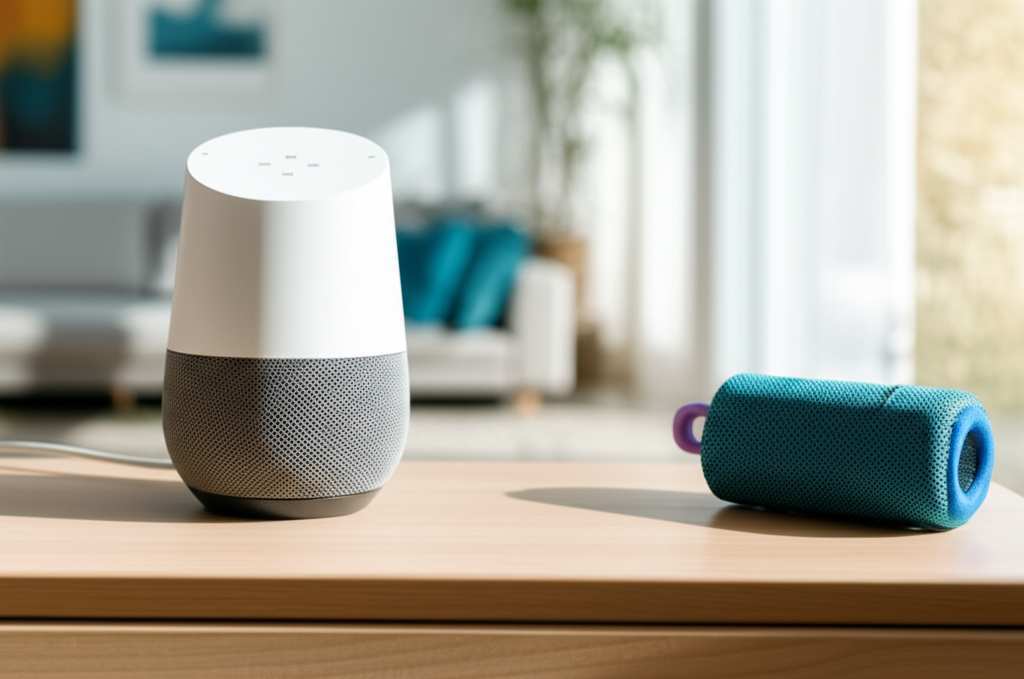
This connection also lets you use your Bluetooth speaker as an additional audio output for your Google Home. This means if you’re having a party and want music to play in multiple rooms, you can set it up! It’s like having a whole home audio system without all the complicated wires. Plus, it can be a great way to boost the sound quality for calls or other audio from your phone through your Google Home.
What You’ll Need
Before we dive into the steps, let’s make sure you have everything ready. It’s a quick checklist, so you’ll be set up in no time. Having these things handy will make the whole process super smooth.
Your Google Home Device: This could be a Google Home Mini, Nest Mini, Nest Hub, or any other Google Assistant-enabled smart speaker or display.
Your Bluetooth Speaker: Make sure it’s charged up and in pairing mode. How to do this varies by speaker, so check its manual if you’re unsure.
Your Smartphone or Tablet: You’ll need this to use the Google Home app. Make sure it’s connected to the same Wi-Fi network as your Google Home device.
The Google Home App: If you don’t have it yet, download it from the App Store (for iOS) or Google Play Store (for Android).
Let’s Get This Party Started: Step-by-Step Guide
Alright, ready to connect? It’s easier than you think! We’ll go through it one step at a time. Just follow along, and soon you’ll be enjoying your tunes through your upgraded setup.
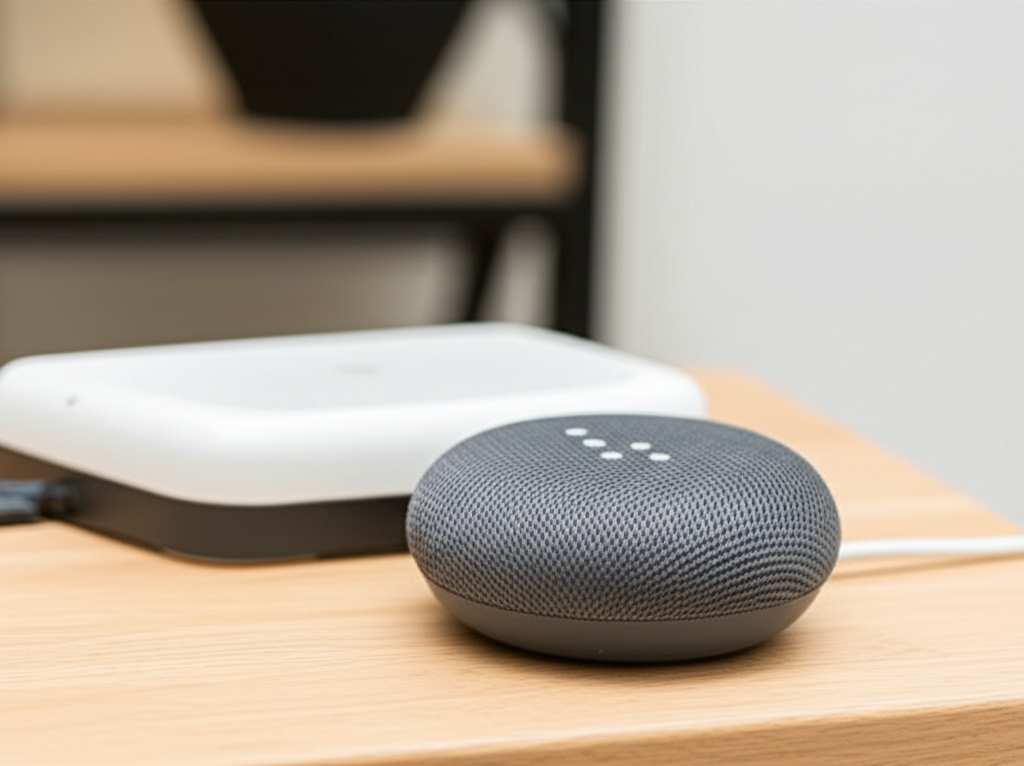
Step 1: Put Your Bluetooth Speaker in Pairing Mode
This is the first crucial step! Your Bluetooth speaker needs to be discoverable so your Google Home can find it. Most speakers have a dedicated Bluetooth button. You usually press and hold it for a few seconds. You might hear a little beep or see a blinking light.
If you’re not sure how to put your specific speaker into pairing mode, don’t stress! Just grab its instruction manual or do a quick online search for your speaker’s model name plus “pairing mode.” It’s usually a pretty straightforward process.
Step 2: Open the Google Home App
Now, grab your smartphone or tablet. Open up the Google Home app. This app is your command center for all your Google Home devices. It’s where all the magic happens for setup and management.
Make sure your phone is connected to the same Wi-Fi network as your Google Home device. This is super important for the app to be able to see and control your devices. If they’re on different networks, they won’t be able to talk to each other.
Step 3: Find Your Google Home Device in the App
Once the app is open, you’ll see a list of your connected Google Home devices. Tap on the specific Google Home device you want to link your Bluetooth speaker to. This might be your Nest Mini in the living room or your Google Home Max in the bedroom.
You’ll then see the device’s settings page. It usually shows you things like the device name and current settings. Look for an option related to audio or Bluetooth.
Step 4: Select “Paired Bluetooth Devices”
On the device’s settings page, you should see an option that says something like “Paired Bluetooth Devices” or “Audio Settings.” Tap on that. This is where you’ll manage all the Bluetooth connections for that particular Google Home device.
This section is your gateway to connecting new speakers. It’s where your Google Home listens for new devices to pair with.
Step 5: Initiate Bluetooth Pairing
Now, you should see an option to “Pair Bluetooth device” or something similar. Tap this to start the pairing process. Your Google Home will begin searching for nearby Bluetooth devices that are in pairing mode.
Your Google Home will now be actively looking for your speaker. This is where your speaker’s pairing mode comes into play, making it visible to your Google Home.
Step 6: Select Your Bluetooth Speaker from the List
If your Bluetooth speaker is correctly in pairing mode, it should appear in the list of available devices on your Google Home app screen. It might show up with its brand name or model number.
Tap on your speaker’s name in the list. Your Google Home will attempt to connect to it. You might hear a confirmation sound from your Google Home or your Bluetooth speaker.
Step 7: Confirm the Pairing (If Prompted)
Sometimes, especially with newer devices, you might be asked to confirm the pairing. Your Google Home app might show a code, or your speaker might make a sound. Just follow any on-screen prompts to finalize the connection.
Once it’s connected, you’ll usually see a confirmation message in the app. Your Bluetooth speaker is now paired with your Google Home!
Using Your Connected Speaker
So, your Bluetooth speaker is connected! Now what? Here’s how you can start using it with your Google Home. It’s pretty intuitive once it’s set up.
Playing Music and Audio
You can now ask Google Assistant to play music, podcasts, or audiobooks directly on your Bluetooth speaker. Just say something like, “Hey Google, play my chill playlist on [Your Bluetooth Speaker Name].” You’ll need to name your speaker in the Google Home app so you can refer to it easily.
If you’ve paired your speaker as a default speaker, then any audio played through your Google Home will automatically go to that speaker. This is super handy if you want consistent, high-quality sound for all your Google Assistant interactions.
Making and Taking Calls
If your Bluetooth speaker supports it, you can also use it for Google Duo calls or other voice calls initiated through Google Assistant. This is great for hands-free conversations when you’re busy. Just say, “Hey Google, call Mom on speaker.”
What if My Speaker Isn’t Showing Up?
Don’t panic if your speaker doesn’t appear on the first try! Sometimes Bluetooth connections can be a bit finicky. First, double-check that your speaker is still in pairing mode and is close to your Google Home device. You might also want to try turning off and on the Bluetooth on your phone.
Another trick is to restart both your Google Home device and your Bluetooth speaker. Unplug them, wait about 30 seconds, and plug them back in. This often solves minor glitches. If it’s still not showing up, try unpairing any other devices your Bluetooth speaker might be connected to, as some speakers can only connect to one device at a time.
Troubleshooting Common Issues
Even with the best tech, things can sometimes go wrong. If you’re having trouble, don’t worry! Most problems have simple solutions. We’ve all been there, so let’s fix it together.
Audio Lag or Skipping
Experiencing a delay between what you see and what you hear? That’s audio lag. It can happen with Bluetooth. Make sure your Google Home and speaker are not too far apart. Walls and other electronics can sometimes interfere with the signal.
Try moving your speaker closer to your Google Home device. Also, check if there are too many other Bluetooth devices active in the area. Sometimes, turning off other Bluetooth devices can help clear up the signal.
Speaker Not Connecting After Initial Pairing
Did your speaker work fine at first but now won’t reconnect? You might need to re-pair it. Go back into the Google Home app, find your speaker in the paired devices list, and select “Forget” or “Unpair.” Then, put your speaker back into pairing mode and go through the steps again to connect it.
It’s like a quick refresh for the connection. This usually gets things working again. Sometimes, the connection just needs a little reset.
Google Home Not Recognizing the Speaker Name
If you’ve paired your speaker but Google Assistant isn’t understanding its name, you might need to rename it. In the Google Home app, go to your device settings, then to “Paired Bluetooth Devices.” You should be able to edit the name of your connected speaker there.
Give it a simple, easy-to-say name. Something like “Living Room Speaker” or “Boombox” works well. This makes it much easier for Google Assistant to pick up on what you’re asking for.
Comparing Bluetooth Speaker Options for Google Home
Choosing a Bluetooth speaker can be fun, but also a bit overwhelming! There are so many choices out there. When you’re thinking about connecting one to your Google Home, consider a few things. Sound quality is obvious, but battery life and portability matter too.
Here’s a quick look at some popular types of Bluetooth speakers and what you might look for:
| Speaker Type | Key Features | Best For | Google Home Compatibility |
| :—————– | :———————————————– | :——————————————— | :———————— |
| Portable Speakers | Compact, battery-powered, often water-resistant | On-the-go music, outdoor use, small gatherings | Excellent |
| Smart Speakers | Built-in voice assistants, Wi-Fi and Bluetooth | Smart home control, music streaming, alarms | N/A (Google Home is the smart speaker) |
| Bookshelf Speakers | Higher fidelity sound, often require power | Home listening, serious music enthusiasts | Good (if Bluetooth enabled) |
| Soundbars | Enhance TV audio, can have Bluetooth | Movies, gaming, immersive home theater | Good (if Bluetooth enabled) |
This table gives you a general idea. Remember, the key is that your speaker must have Bluetooth to connect to Google Home. A speaker like a Google Nest Mini or Google Home Max already is a smart speaker, so you’d be connecting a separate Bluetooth speaker to it.
When you’re picking out a new Bluetooth speaker, think about where you’ll use it most. If it’s for your home office, a decent-sounding bookshelf speaker might be perfect. If you want to take music to the park, a tough, portable speaker is the way to go. And if you just want a bit more oomph for your Google Assistant’s music playback, almost any Bluetooth speaker will do the trick!
For more in-depth reviews and comparisons of the latest Bluetooth speakers, check out sites like CNET. They do a fantastic job of breaking down the pros and cons of various models.
Advanced Tips and Tricks
Once you’ve got the basics down, there are a few extra things you can do to make your connected speaker experience even better. These little tweaks can really make a difference.
Set Your Bluetooth Speaker as the Default
Want your Google Home to always play audio through your Bluetooth speaker without you having to ask? You can set it as the default audio device! In the Google Home app, go to your Google Home device settings, then find the “Audio” or “Default Speaker” option. Select your paired Bluetooth speaker from the list.
Now, any music, podcasts, or other audio you request from Google Assistant will automatically play on your Bluetooth speaker. It’s like having your favorite speaker as your primary sound system!
Using Multiple Bluetooth Speakers (with Limitations)
Google Home allows you to pair multiple Bluetooth speakers to a single Google Home device. However, you can typically only play audio through one Bluetooth speaker at a time. You can’t easily set up stereo pairs or multi-room audio using only Bluetooth speakers connected this way.
For true multi-room audio or stereo sound, you’d usually need speakers designed for that, like Google’s own Nest speakers or speakers that support specific streaming protocols. But for simply using your favorite Bluetooth speaker for Google Assistant audio, it’s perfect!
Keep Your Firmware Updated
Both your Google Home device and your Bluetooth speaker get software updates. These updates often improve performance, fix bugs, and can even add new features. Make sure your Google Home app is up-to-date, and check your Bluetooth speaker manufacturer’s website or app for any firmware updates.
Keeping everything updated is like giving your devices a tune-up. It ensures they’re running as smoothly and efficiently as possible.
Frequently Asked Questions (FAQs)
Got more questions? That’s totally fine! Here are some common things people ask about connecting Bluetooth speakers to Google Home.
Can I connect any Bluetooth speaker to Google Home?
Yes, generally you can connect any Bluetooth-enabled speaker to a Google Home device. The main requirement is that the speaker has Bluetooth and can be put into pairing mode.
Does connecting a Bluetooth speaker improve sound quality?
Often, yes! If your Bluetooth speaker has better audio drivers or a larger enclosure than your Google Home device, you’ll likely hear a richer, fuller sound. It can make music sound much more immersive.
Can I control my Bluetooth speaker with my voice using Google Home?
You can control what plays through the Bluetooth speaker using your voice via Google Assistant (e.g., “Hey Google, play rock music”). However, you generally can’t use Google Assistant to control the speaker’s physical functions like volume or power directly via Bluetooth commands alone, unless the speaker itself has advanced integration.
What’s the difference between casting and Bluetooth for Google Home?
Casting uses your Wi-Fi network to send audio directly from apps to your Google Home device. Bluetooth uses a direct wireless connection between your Google Home and the speaker. Casting is often more stable and can handle higher quality audio. Bluetooth is simpler for quick connections without Wi-Fi.
How far apart can my Google Home and Bluetooth speaker be?
For a stable connection, it’s best to keep them within about 30 feet (10 meters) of each other. Walls and other obstructions can reduce this range.
Can I connect two Bluetooth speakers to one Google Home?
You can pair multiple Bluetooth speakers, but you can typically only play audio through one at a time. You can’t create a stereo pair or multi-room setup this way.
What if my Bluetooth speaker has a microphone? Will Google Assistant use that?
No, when you connect a Bluetooth speaker to Google Home, Google Assistant will use the microphone on your Google Home device, not the one on your Bluetooth speaker. The speaker’s microphone is usually for its own independent functions.
Conclusion: Your Sound, Your Way!
See? Connecting your Bluetooth speaker to your Google Home is totally doable and really opens up a world of sound possibilities! You’ve learned how to pair your devices, troubleshoot common issues, and even some neat tricks to enhance your audio experience. It’s all about making your tech work for you, so you can enjoy your favorite music, podcasts, and more with amazing sound quality.
Now you can fill your rooms with rich audio, control playback with just your voice, and make every listening moment a little bit better. Don’t be afraid to experiment with different speakers and settings to find what sounds best for you. The world of smart audio is at your fingertips, and it’s easier than ever to enjoy it.
Now go enjoy amazing sound and make every moment louder and better!