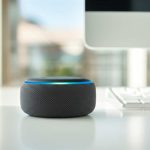
Turn your Amazon Echo into a super Bluetooth speaker easily! This guide shows you how to connect your phone or tablet for awesome sound, making music and calls sound way better. Get ready for a simple setup that boosts your audio experience.
Hey there, tech explorers! Max here from AffTechy.com, ready to dive into something super cool. You know how much we love our Amazon Echo devices, right? They’re great for asking questions, setting timers, and playing music. But did you know your Echo can do even more? Imagine this: you’re chilling, want to listen to your favorite playlist from your phone, or maybe take a call on speakerphone. What if your Echo could handle all that, giving you amazing sound quality? It’s totally possible! Sometimes, figuring out all the techy stuff can feel a bit like deciphering a secret code. But don’t worry, that’s where I come in! We’re going to make using your Echo as a Bluetooth speaker as easy as making your morning coffee. So, grab your favorite gadget, and let’s break it down step by step.
Why Use Your Echo as a Bluetooth Speaker?
Think about your music. You’ve got it all on your phone, right? Maybe it’s your workout mix, your chill-out tunes, or even podcasts you love. When you play them through your phone’s tiny speaker, it’s okay. But what if you could fill your room with rich, clear sound? That’s where your Echo shines. It’s designed to produce fantastic audio, making every note pop and every word crystal clear.
And it’s not just for music! Got a video call with family or friends? Or maybe you’re watching a movie on your tablet and want better sound? Connecting your Echo via Bluetooth makes everything sound so much more immersive. It’s like upgrading from a little whisper to a concert hall experience, right in your living room.

Getting Started: What You’ll Need
Before we jump into the magic, let’s make sure you have everything ready. It’s pretty simple, honestly. You’ll need your Amazon Echo device, of course. This could be an Echo Dot, Echo Show, or any of the other Echo family members. The main thing is that it has Bluetooth capabilities, which most newer ones do!
You’ll also need the device you want to stream audio from. This is usually your smartphone (iPhone or Android), your tablet, or even your laptop or computer. Make sure your phone or tablet has Bluetooth turned on. That’s it! Two main things: your Echo and your streaming device.
Let’s Talk About Pairing: The Step-by-Step Magic
This is where the fun begins! Pairing your phone or tablet with your Echo is super straightforward. Amazon designed it to be really user-friendly. We’ll go through it together, nice and slow.
Step 1: Wake Up Your Echo and Get It Ready
First, make sure your Echo device is plugged in and powered on. You’ll see a light ring or a display indicating it’s ready. You can even say, “Alexa, what’s the weather?” just to make sure it’s listening and connected to your Wi-Fi. This confirms it’s online and ready for action.

Step 2: Put Your Echo in Pairing Mode
Now, we need to tell your Echo to look for new devices to connect with. The easiest way to do this is with a voice command. Just say:
“Alexa, pair Bluetooth.”
Or, you can try:
“Alexa, open Bluetooth settings.”
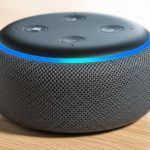
Alexa will then respond, usually saying something like, “Your Echo is now in pairing mode. Go to the Bluetooth settings on your phone or tablet to connect.” You might even see a blue light ring on your Echo, signaling it’s in pairing mode.
Step 3: Connect From Your Phone or Tablet
This part happens on your other device, like your smartphone.
On an iPhone or iPad:
1. Go to Settings.
2. Tap on Bluetooth.
3. Make sure Bluetooth is switched ON.
4. Your iPhone will start scanning for nearby Bluetooth devices.
5. Look for your Echo device name in the list. It might be something like “Echo Dot (Living Room)” or just “Echo.”
6. Tap on your Echo’s name to connect.
On an Android Phone or Tablet:
1. Open the Settings app.
2. Tap on Connected devices or Connections.
3. Tap on Bluetooth.
4. Ensure Bluetooth is switched ON.
5. Your device will scan for available devices.
6. Find your Echo device in the list of available devices.
7. Tap on your Echo’s name to pair.
Once you tap to connect, your phone or tablet will try to pair with the Echo. You might hear Alexa say, “Connected to [Your Device Name],” confirming the successful link. That’s it! You’re officially paired.
Playing Your Sound: Music, Podcasts, and More!
The moment you’ve been waiting for! Now that your Echo and your device are connected via Bluetooth, you can start streaming your audio.
Streaming Music
Simply open your favorite music app on your phone or tablet. This could be Spotify, Apple Music, YouTube Music, Pandora, or any app you use. Start playing a song or playlist. The sound will now come out of your Echo device instead of your phone’s speaker. Isn’t that awesome?
Podcasts and Audiobooks
The same goes for podcasts and audiobooks. Fire up your preferred app, hit play, and enjoy the enhanced audio quality. This makes listening to your favorite shows or stories so much more enjoyable.
Video and Movies
Watching a movie or a YouTube video on your tablet? Connect your Echo via Bluetooth for a much more immersive experience. The audio will sync up, and you’ll hear dialogue and sound effects much more clearly.
Phone Calls
Yes, you can even use your Echo as a Bluetooth speakerphone! If you receive a call on your connected phone, you can choose to answer it through your Echo. Just say, “Alexa, answer call” (if your phone is set up for call forwarding) or manage it through your phone’s call interface and select the Echo as the audio output. It’s super handy for hands-free conversations.
Managing Your Bluetooth Connections
Your Echo can remember multiple Bluetooth devices. This is super convenient if you share your Echo with family members or want to connect different devices throughout the day.
Connecting to a Previously Paired Device
Once a device is paired, you usually don’t need to go through the full pairing process again. Just make sure Bluetooth is on your phone or tablet and say:
“Alexa, connect to [Your Device Name].”
Alexa should confirm the connection. If it doesn’t connect automatically, you might need to go into your phone’s Bluetooth settings and tap on your Echo’s name to re-establish the connection.
Disconnecting a Device
When you’re done listening or want to switch to another device, you can disconnect your current device. Just say:
“Alexa, disconnect Bluetooth.”
Your Echo will disconnect from your phone or tablet. You can then pair it with another device.
Forgetting a Device
If you want to remove a device from your Echo’s memory permanently, you can do that too. Say:
“Alexa, forget [Your Device Name].”
Alexa will confirm that the device has been removed. This is useful if you’re lending your device to someone else or want to clear out old connections.
Troubleshooting Common Issues
Sometimes, tech doesn’t work perfectly the first time. Don’t worry, these are usually easy fixes!
Echo Not Appearing in Bluetooth List:
Make sure your Echo is in pairing mode. Try saying, “Alexa, pair Bluetooth” again.
Ensure your phone/tablet’s Bluetooth is on and that it’s close to the Echo.
Restart both your Echo device (unplug and plug it back in) and your phone/tablet.
Connection Fails:
Try forgetting the device on your phone/tablet and re-pairing from scratch.
Check if your Echo is connected to too many devices. Try forgetting an older device.
Ensure your Echo device software is up to date. Alexa usually updates automatically, but you can check in the Alexa app.
Audio Cutting Out or Lagging:
Move your phone/tablet closer to your Echo. Walls and distance can interfere with the Bluetooth signal.
Minimize interference from other wireless devices. Microwaves or other strong signals can sometimes disrupt Bluetooth.
Restart both devices. This often clears up temporary glitches.
Advanced Tips and Tricks
Want to get even more out of your Echo as a Bluetooth speaker? Here are a few ideas.
Using the Alexa App for Bluetooth Management
You can also manage Bluetooth connections through the Amazon Alexa app on your smartphone.
1. Open the Alexa app.
2. Tap Devices at the bottom.
3. Select your Echo device.
4. Tap the gear icon (Settings) in the top right.
5. Scroll down and tap on Bluetooth.
6. Here, you can see paired devices, initiate pairing, or disconnect.
This is a great way to manage connections if you prefer a visual interface or if voice commands aren’t working.
Stereo Pairing for an Immersive Soundstage
Did you know that if you have two identical Echo devices (like two Echo Dots of the same generation), you can pair them together to create a stereo sound system? This is amazing for music!
Open the Alexa app.
Go to Devices.
Tap the + icon in the top right and select Set up a speaker.
Choose Music and then Stereo pair.
Follow the on-screen instructions to select your two Echo devices and assign them as left and right channels.
This setup is fantastic for movies or truly enjoying your music with a wider sound. It creates a much richer, more enveloping audio experience.
Fun Fact: Bluetooth Versions Matter!
Bluetooth technology has different versions (like 4.0, 4.2, 5.0, 5.1). Newer versions generally offer faster speeds, longer range, and better power efficiency. While your Echo might not have the absolute latest, newer versions on your phone can sometimes improve the connection quality. It’s interesting how these invisible waves keep getting better!
Echo vs. Dedicated Bluetooth Speakers: What’s the Difference?
It’s fair to wonder how your Echo stacks up against a speaker designed only for Bluetooth. Let’s look at a quick comparison:
| Feature | Amazon Echo (as Bluetooth Speaker) | Dedicated Bluetooth Speaker |
| :————- | :—————————————————————— | :—————————————————————— |
| Primary Use | Smart assistant with added Bluetooth functionality. | Primary function is portable audio playback. |
| Sound Quality | Generally good to excellent, especially for larger Echo models. | Varies widely; some are audiophile-grade, others basic. |
| Portability | Requires power outlet; not designed for travel. | Often battery-powered; highly portable. |
| Connectivity | Bluetooth, Wi-Fi. | Bluetooth, sometimes Wi-Fi or NFC. |
| Smart Features| Voice control, smart home integration, Alexa skills. | Usually none; focused solely on audio. |
| Setup | Requires Wi-Fi setup initially, then Bluetooth pairing. | Often simple plug-and-play or immediate Bluetooth pairing. |
| Cost | Varies; often bundled with smart features. | Varies widely from budget to premium. |
What does this table mean for you? If you already have an Echo, using it as a Bluetooth speaker is a fantastic, cost-effective way to get great sound without buying another device. It’s perfect for home use. Dedicated Bluetooth speakers, on the other hand, are your go-to if you need something rugged for picnics, camping, or just want the freedom of battery power and ultimate portability. Both have their place!
How to Choose the Right Echo for Bluetooth Audio
If you’re thinking about getting an Echo primarily for its Bluetooth speaker capabilities, or just want to know which one performs best, here’s a quick rundown.
Echo Dot (3rd Gen and later): These are the most popular and affordable. They offer surprisingly good sound for their size, making them great for bedrooms, kitchens, or small offices. The sound is clear and loud enough for casual listening.
Echo (4th Gen): This is the standard Echo, a step up from the Dot. It has a larger speaker and produces richer bass and a fuller sound. If you want a noticeable upgrade in audio quality for music or movies without going for the high-end options, this is a solid choice.
Echo Studio: This is Amazon’s premium smart speaker, designed with serious audio quality in mind. It supports 3D audio and Dolby Atmos. If audio fidelity is your top priority and you want the best sound your Echo can produce for music, this is the one. It’s also a fantastic Bluetooth speaker.
Echo Show devices: While primarily visual, Echo Show devices (like Echo Show 8, 10, 15) also have capable speakers. They offer good sound, often comparable to the standard Echo, with the added benefit of a screen for visual information or video playback.
Ultimately, the best Echo for you depends on your budget and how important audio quality is. For most people looking to simply use their Echo as a better speaker for their phone, an Echo Dot or the standard Echo will be more than sufficient.
Maintaining Your Echo for Optimal Sound
Keeping your Echo in tip-top shape ensures it always sounds its best. It’s pretty low-maintenance, but a few simple things can help.
Keep it Clean: Dust can accumulate on speaker grilles. Gently use a dry, soft cloth or a soft brush to clean it. Avoid using liquids or harsh cleaners.
Positioning Matters: While not as critical as with high-fidelity home stereo systems, placing your Echo in an open area, away from corners or obstructions, can help sound project better. Experiment with different spots in your room!
Software Updates: Amazon automatically updates Echo devices. Ensure your Echo is connected to Wi-Fi so it can receive these updates, which often include performance improvements for sound and Bluetooth.
Avoid Extreme Conditions: Just like any electronic device, keep your Echo away from extreme temperatures, direct sunlight for prolonged periods, or excessive moisture.
Frequently Asked Questions (FAQ)
Got more questions bubbling up? Let’s clear them up!
Q1: Can I use my Echo as a Bluetooth speaker without Wi-Fi?
A: No, your Echo needs to be connected to Wi-Fi for its initial setup and to respond to voice commands. However, once it’s paired with your phone via Bluetooth, you can stream audio even if your Wi-Fi goes down, as long as both devices are powered on.
Q2: How far can my phone be from my Echo when using Bluetooth?
A: The standard Bluetooth range is typically about 30 feet (around 9 meters). However, this can be affected by walls, furniture, and other electronic devices. For the best performance, try to keep your phone or tablet within 10-15 feet of your Echo.
Q3: Can I connect multiple phones to my Echo at the same time?
A: No, an Echo device can only be actively connected to one Bluetooth audio source at a time. You can pair multiple devices, but only one can be streaming audio at any given moment.
Q4: Will my Echo still listen for “Alexa” commands when playing music via Bluetooth?
A: Yes! This is one of the coolest parts. Your Echo remains a smart assistant. You can pause or skip tracks with voice commands like “Alexa, pause” or “Alexa, next song,” and you can still ask it questions or control other smart home devices while audio is playing.
Q5: Does using Echo as a Bluetooth speaker drain my phone’s battery faster?
A: Streaming audio over Bluetooth does use battery power on your phone, but it’s generally comparable to using any other Bluetooth speaker. Keeping your phone’s screen off and volume at a moderate level can help conserve battery.
* Q6: What happens if I tell Alexa to play music when I’m already streaming from my phone?
A: If you tell Alexa to play music directly (e.g., “Alexa, play pop music”), it will stop the Bluetooth audio stream and start playing music through its own streaming service. To continue your phone’s audio, you’ll need to disconnect Alexa’s music and reconnect your Bluetooth stream.
Bringing It All Together: Your Sound, Your Way
See? Using your Amazon Echo as a Bluetooth speaker is totally doable and incredibly useful. You’ve learned how to pair your devices, stream your favorite audio, manage connections, and even troubleshoot common hiccups. It’s like unlocking a secret superpower for your smart speaker!
Whether you’re powering up your morning playlist, enjoying a podcast on a lazy afternoon, or enhancing your movie nights, your Echo is ready to deliver. It’s a fantastic way to get more out of the tech you already own, making your everyday moments sound so much better.
So go ahead, try connecting your phone or tablet. Explore different apps and sounds. Experiment with placement and enjoy the rich audio experience. You’ve got this! Now go enjoy amazing sound and make every moment louder and better!