Connect your JBL Bluetooth speaker in a snap! This guide makes pairing super easy, so you can enjoy your music anywhere. No tech headaches, just great sound fast!
Hey there, tech explorers! Max here from AffTechy.com. You know how sometimes you just want to blast your favorite tunes, or maybe get immersed in a movie with killer sound? A good speaker makes all the difference. And JBL? They make some awesome speakers that are pretty easy to use.
But then comes that little moment of “Wait, how does this connect?” You’ve got your shiny new JBL speaker, your phone or tablet is right there, and you just want the music to flow. Sometimes, figuring out the Bluetooth pairing can feel like a tiny puzzle. Don’t worry, it’s totally normal!
We’ve all been there, staring at blinking lights and Bluetooth menus. But here’s the good news: connecting your JBL Bluetooth speaker is usually a breeze. I’m going to walk you through it, step-by-step, just like we’re hanging out and doing this together. You’ll be jamming out in no time!
Let’s Get Your JBL Speaker Singing!
Think of your JBL speaker as a little music box that talks wirelessly. Bluetooth is like its special language that lets it chat with your phone, tablet, or computer. Once they’re talking, your device sends the music over, and the speaker plays it loud and clear!
It’s all about making your life easier and more fun. Whether you’re having a picnic, working out, or just chilling at home, good sound can really lift your spirits. And JBL speakers are known for their punchy sound and cool designs.
So, let’s ditch the confusion and get straight to the good stuff: making that connection. We’ll cover everything from turning it on to troubleshooting if things get a little tricky. Ready to make some noise? Let’s dive in!
Step 1: Power Up Your JBL Speaker
First things first, your speaker needs some juice! Most JBL speakers have a power button. It’s usually a little symbol that looks like a circle with a line through it, or sometimes just says “Power.”

Press and hold this button for a second or two. You’ll usually hear a little sound, or see a light turn on. This means your speaker is waking up and ready to go! Some models might have a charging indicator light too, so make sure it’s got enough battery.
Step 2: Put Your Speaker in Pairing Mode
This is the most important step! To connect a new device, your JBL speaker needs to be in “pairing mode.” This tells it to look for new devices to connect to. The way to do this can vary a little between JBL models, but there’s a common trick.
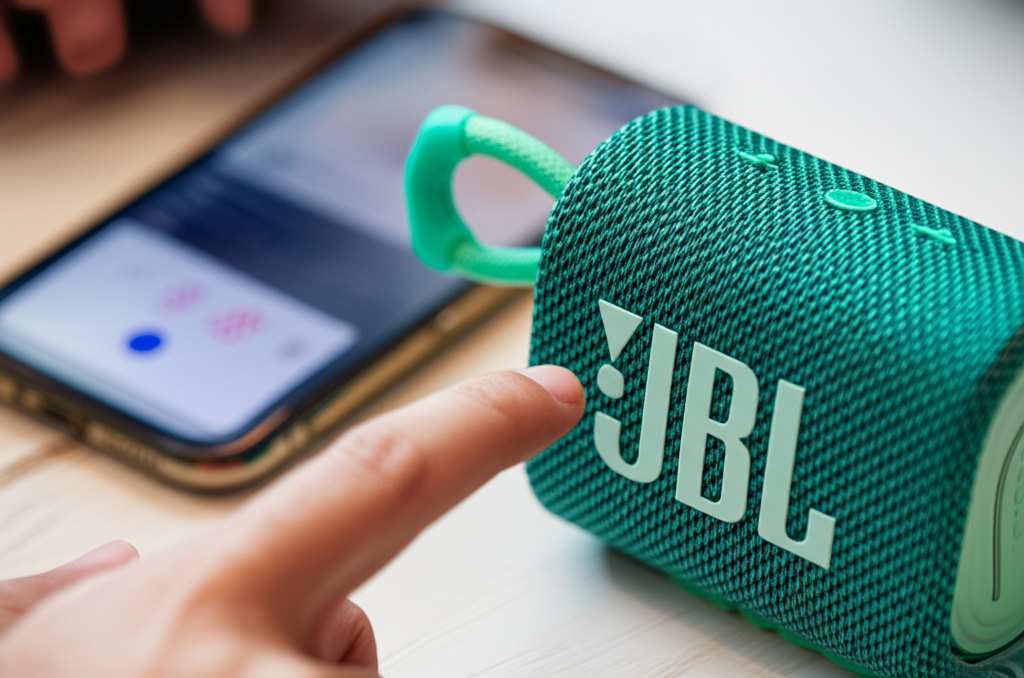
Look for a button that has the Bluetooth symbol on it. It often looks like a little sideways figure-eight or a stylized ‘B’. Sometimes, this button is combined with the volume controls, or it might be a dedicated button.
Press and hold this Bluetooth button. You’ll usually hear a distinct beep or a series of beeps. A light next to the Bluetooth symbol might start blinking rapidly, often blue. This blinking light is your signal that the speaker is now discoverable and ready to pair!
Step 3: Find the Bluetooth Settings on Your Device
Now, let’s grab the device you want to play music from – usually your smartphone or tablet. You need to go into its Bluetooth settings.
On most iPhones, you go to `Settings` > `Bluetooth`. On Android phones, it’s usually `Settings` > `Connections` > `Bluetooth`, or sometimes directly under `Settings` > `Bluetooth`. If you’re using a computer, you’ll find Bluetooth settings in your system preferences or control panel.
Make sure Bluetooth is turned ON on your device. You’ll see a little toggle switch. Flip it to the “on” position if it’s not already.
Step 4: Scan for Devices and Select Your JBL Speaker
Once Bluetooth is on, your device will start looking for nearby Bluetooth devices. You should see a list pop up under “Available Devices” or “Other Devices.”
Look for the name of your JBL speaker in this list. It usually has “JBL” in the name, followed by the model number (like “JBL Flip 5” or “JBL Charge 4”). If you’re not sure what your speaker is called, check the manual or the speaker itself – sometimes the name is printed on it.
Tap on the name of your JBL speaker in the list. Your device will then try to connect. You might hear another sound from your speaker, and the blinking light should turn solid. This means you’re connected!
Step 5: Play Your Music!
Hooray! You’ve successfully connected your JBL Bluetooth speaker. Now comes the fun part. Open up your favorite music app, podcast player, or video and hit play. The sound should now come out of your JBL speaker!
If you don’t hear anything, double-check that the volume on both your device and your speaker is turned up. Sometimes, the volume controls on your device only control the device volume, not the speaker itself. Use the volume buttons on your JBL speaker to adjust the sound.
What If It Doesn’t Connect? Easy Fixes!
Sometimes, technology likes to keep us on our toes. If your JBL speaker isn’t connecting, don’t panic! Here are some super simple fixes that usually do the trick.
1. Is it Charged?
Yep, it sounds basic, but a low battery can cause all sorts of weird issues. Make sure your JBL speaker has enough power. Plug it in if you’re not sure.
2. Are Both Devices Ready?
Make sure your speaker is still in pairing mode (that blinking light is key!). Also, ensure Bluetooth is definitely on for your phone or tablet.
3. Too Many Devices Connected?
Many JBL speakers can only connect to one device at a time. If your speaker is already connected to another phone or tablet you own, it might not show up for your current device. Try disconnecting it from the other device first.
4. Restart Everything!
This is the classic tech fix for a reason – it works! Turn off your JBL speaker completely. Then, turn off Bluetooth on your phone or tablet. Wait about 30 seconds, then turn everything back on. Try pairing again.
5. Forget and Re-pair
If your device remembers the speaker from a previous connection but it’s acting up, you can tell it to “forget” the speaker. Go to your device’s Bluetooth settings, find your JBL speaker in the list of paired devices, and tap “forget” or “unpair.” Then, put your speaker back into pairing mode and try connecting as if it were new.
6. Update Your Device Software
Sometimes, older software on your phone or tablet can cause Bluetooth problems. Make sure your device’s operating system is up to date. Check your device’s settings for software updates.
7. Distance Matters
Bluetooth has a range. Try to keep your speaker and your device relatively close to each other, especially during the initial pairing. Walls and other electronic devices can sometimes interfere.
Connecting Multiple JBL Speakers (JBL Connect+)
Some JBL speakers have a cool feature called JBL Connect+. This lets you link two compatible JBL speakers together for stereo sound or just to make your music louder. If your speaker supports this, you’ll usually find a dedicated button for it.
To use JBL Connect+, you first connect one speaker to your phone as usual. Then, put the second speaker into pairing mode. Press the JBL Connect+ button on the first speaker. It should then search for and connect to the second speaker.
Here’s a quick look at some popular JBL speaker features that might impact connection:
| Feature | What it Does | Why it Matters |
|---|---|---|
| Bluetooth Version | How modern the wireless connection is (e.g., Bluetooth 4.2, 5.0) | Newer versions are more stable, use less battery, and can connect from further away. |
| JBL Connect/Connect+ | Links multiple JBL speakers together. | Great for parties or a more immersive stereo sound experience. |
| Waterproof Rating (IPX Rating) | Shows how well it resists dust and water. | Ideal for outdoor use, poolside, or even in the shower! |
| Battery Life | How long it plays on a single charge. | Longer battery means less charging and more listening time. |
So, when you see these terms, you know they’re about making your listening experience better and easier. For example, a higher Bluetooth version means a smoother connection. It’s like upgrading from dial-up internet to super-fast fiber!
Connecting to Different Devices
The steps are pretty much the same for most devices, but here’s a quick rundown:
Smartphones & Tablets (iOS/Android): As covered above, go to `Settings` > `Bluetooth`.
Laptops/Computers (Windows): Go to `Settings` > `Devices` > `Bluetooth & other devices`. Click “Add Bluetooth or other device.”
Laptops/Computers (macOS): Go to `System Preferences` > `Bluetooth`. Make sure Bluetooth is on.
If you’re trying to connect to a TV, it’s a bit trickier. Some newer smart TVs have built-in Bluetooth. You’ll find the option in the TV’s sound or connectivity settings. If your TV doesn’t have Bluetooth, you might need a small Bluetooth transmitter that plugs into your TV’s headphone jack.
Fun Fact!
Did you know that the Bluetooth technology we use today is named after a Viking king, Harald Bluetooth? He was known for uniting warring Danish tribes, much like Bluetooth technology aims to unite different devices! How cool is that?
Keeping Your JBL Speaker Happy: Maintenance Tips
Once you’ve got your JBL speaker connected and sounding great, a little care goes a long way.
Keep it Clean: Gently wipe down your speaker with a soft, dry cloth. If it gets a bit dirty, a slightly damp cloth is okay, but avoid getting moisture into any ports.
Charge Wisely: Don’t let the battery drain completely all the time. For long-term storage, it’s often best to keep the battery at around 50%.
Protect from Extremes: While some JBLs are waterproof, avoid exposing them to extreme heat or cold for extended periods.
Update Firmware (if applicable): Some JBL speakers can have their firmware updated. Check the JBL app or website for your specific model if you want to ensure you have the latest features and fixes.
Common JBL Speaker Models and Their Pairing
While the steps are universal, sometimes knowing your specific model helps. Here are a few popular ones and a quick note:
JBL Flip Series (Flip 3, 4, 5, 6): These are super portable. Just press and hold the Bluetooth button until the light blinks.
JBL Charge Series (Charge 3, 4, 5): Similar to the Flip, locate the Bluetooth button and press until it blinks. These also act as power banks, which is a neat bonus!
JBL Xtreme Series: A larger, more rugged option. The pairing process is the same – look for that Bluetooth symbol button.
* JBL Go Series: The smallest and most basic. Pairing is straightforward by pressing the Bluetooth button.
No matter which JBL speaker you have, the core process of powering on, activating pairing mode, and selecting it on your device remains consistent.
Frequently Asked Questions (FAQs)
Q1: My JBL speaker won’t turn on. What should I do?
A1: Make sure it’s charged! Plug it into its charger for at least an hour. If it still won’t turn on, you might have a faulty unit, and it’s time to contact JBL support.
Q2: Can I connect my JBL speaker to two devices at the same time?
A2: Most JBL speakers can only connect to one device at a time. Some newer models might support connecting to two devices simultaneously, allowing you to switch between them, but this is less common.
Q3: How far can my JBL speaker be from my phone?
A3: The standard Bluetooth range is about 30 feet (10 meters). However, this can be reduced by walls, other electronic devices, or even your body. For the best connection, keep them within 15-20 feet.
Q4: Why does my JBL speaker keep disconnecting?
A4: This could be due to a weak Bluetooth signal, interference from other devices, low battery on either the speaker or your phone, or outdated software on your phone. Try restarting both devices and re-pairing.
Q5: My JBL speaker is connected, but there’s no sound. What’s wrong?
A5: Check the volume levels on both your phone and the speaker. Make sure you’ve selected the JBL speaker as the audio output device on your phone. Also, ensure the audio app you’re using isn’t muted or paused.
Q6: How do I reset my JBL Bluetooth speaker?
A6: The reset method can vary by model. Some have a small reset button you need to press with a pin. Others might require holding a combination of buttons for a specific time. Check your speaker’s manual for the exact procedure for your model.
Q7: Can I use my JBL speaker while it’s charging?
A7: Yes, most JBL speakers allow you to use them while they are plugged in and charging. You can enjoy your music without interruption!
Bringing It All Together
See? Connecting your JBL Bluetooth speaker is really that simple. We’ve gone from powering it up to getting your favorite playlist flowing. You’ve learned how to put it in pairing mode, find it on your device, and what to do if things don’t go perfectly the first time.
Remember, tech is supposed to make life easier and more fun. Don’t be afraid to experiment a little! Try connecting to different devices, explore the JBL Connect+ feature if your speaker has it, and just enjoy the freedom of wireless sound.
You’re now officially a JBL Bluetooth pro! Go ahead and experience your music, podcasts, and calls with crystal-clear sound, wherever you are. Now go enjoy amazing sound and make every moment louder and better!