Connecting your JBL Bluetooth speaker is super simple! Just turn it on, put it in pairing mode, and select it on your phone or device. You’ll be jamming to your favorite tunes in no time!
Hey there, tech adventurers! Max here from AffTechy.com, ready to dive into something awesome. You know, there’s just something magical about music, right? It can totally change your mood, make a party pop, or just make a quiet afternoon feel so much better. And when you’ve got a JBL Bluetooth speaker, you’ve got that magic in the palm of your hand, ready to play anywhere.
But sometimes, getting that speaker connected can feel a bit like trying to solve a puzzle. You’ve got the speaker, you’ve got your phone, and you’re just trying to make them talk to each other. It’s like they speak different languages at first! I’ve been there, staring at my phone, tapping buttons, and wondering, “Why isn’t this working?”
Don’t worry, though! I’m here to be your friendly guide. We’re going to make connecting your JBL Bluetooth speaker as easy as pie. No confusing tech jargon, no complicated steps. Just simple, clear instructions that’ll have you playing your favorite playlists in minutes. Let’s break it down, step by step.
Why Connect a JBL Bluetooth Speaker Anyway?
So, why all the fuss about Bluetooth speakers? Think about it. You’re at the beach, and you want to play some chill tunes. Or maybe you’re having a backyard BBQ and need some background music. Your phone speaker just doesn’t cut it, does it? A Bluetooth speaker like a JBL one blasts out rich, clear sound that fills the space.
Plus, they’re super portable! You can take them from your kitchen to your living room, to the park, or even on vacation. And the best part? No messy wires. Just pure wireless freedom. It’s about making your life easier and your listening experience way more awesome.
Let’s Get Your JBL Speaker Ready to Pair!
Okay, first things first. You’ve got your shiny new (or maybe just new-to-you!) JBL Bluetooth speaker. Before we can connect it to anything, we need to get it ready. This usually involves a few simple steps.
Step 1: Power Up Your Speaker
This might sound obvious, but make sure your JBL speaker is charged or plugged in. You don’t want to start the connection process only for it to die on you halfway through! Most JBL speakers have a power button, often marked with a circle and a vertical line symbol. Just press and hold it for a second or two.
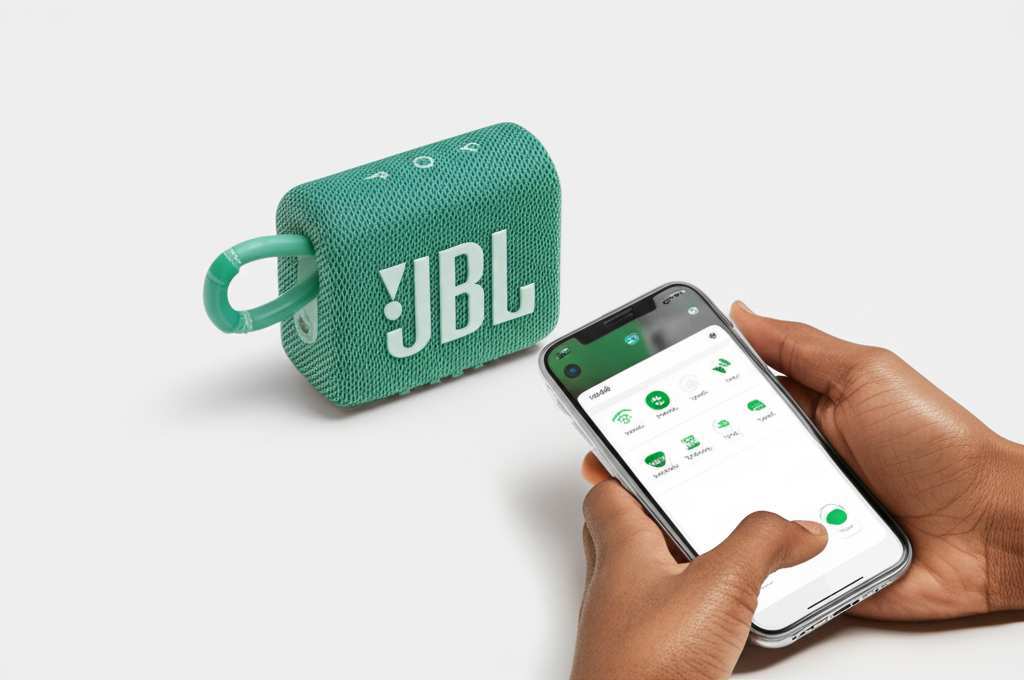
You’ll usually hear a little chime or a voice prompt telling you it’s on. Some models have LED lights that will also light up, often turning blue or white when they’re powered on and ready to go.
Step 2: Put Your Speaker in Pairing Mode
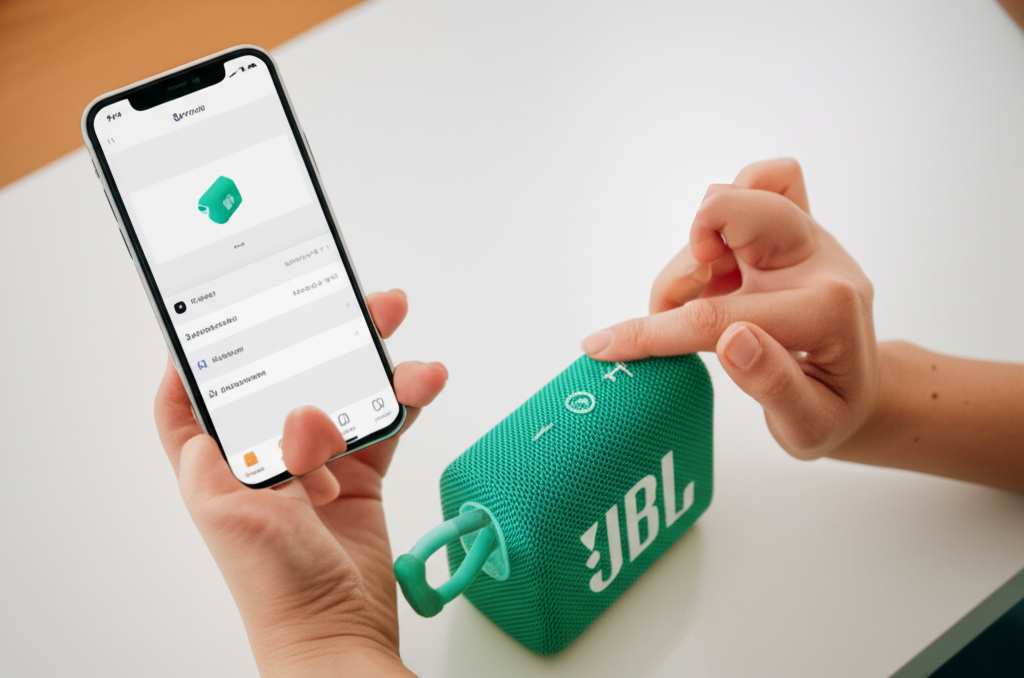
This is the crucial step where your speaker announces itself to the world (or at least to your devices). On most JBL Bluetooth speakers, there’s a dedicated Bluetooth button. It usually looks like the universal Bluetooth symbol: a circle with a smaller line sticking out of the top.
To put your speaker in pairing mode, you typically need to press and hold this Bluetooth button. You might need to hold it for a few seconds. Listen for a distinct sound or a blinking light. This blinking usually means it’s actively looking for a device to connect to.
A quick tip: Some JBL speakers, especially newer models, might automatically go into pairing mode the first time you turn them on if they haven’t been connected to anything before. So, if you just unboxed it, try looking for the Bluetooth light blinking right away!
Step 3: Find Your Speaker on Your Device
Now, grab the device you want to play music from – this could be your smartphone (iPhone or Android), tablet, or even your laptop. You need to go into its Bluetooth settings.
For Smartphones/Tablets:
Go to your device’s Settings app.
Tap on Bluetooth.
Make sure Bluetooth is switched ON.
Your device will start scanning for nearby Bluetooth devices.
For Laptops (Windows):
Click the Start Menu.
Go to Settings.
Click on Devices.
Select Bluetooth & other devices.
Make sure Bluetooth is switched ON.
Click Add Bluetooth or other device.
For Laptops (macOS):
Click the Apple menu in the top-left corner.
Select System Preferences.
Click on Bluetooth.
Make sure Bluetooth is switched ON.
Once your device is scanning, you should see a list of available devices. Look for your JBL speaker’s name. It often starts with “JBL” followed by the model name (like “JBL Flip 5” or “JBL Charge 4”).
Step 4: Select and Connect!
When you see your JBL speaker’s name pop up in the list, simply tap or click on it. Your device will then try to connect to the speaker. You might hear another sound from the speaker, or the blinking light might turn solid blue, indicating a successful connection.
If it’s your first time connecting, your device might ask you to confirm a pairing code. Usually, it’s just a simple “Pair” or “Connect” prompt. Accept it, and voila! You’re connected.
Troubleshooting Common Connection Issues
Sometimes, tech doesn’t play nice right away. If you’re having trouble connecting, don’t get frustrated! Here are a few common hiccups and how to fix them.
Speaker Not Showing Up:
Make sure the speaker is definitely in pairing mode. Try pressing and holding the Bluetooth button again.
Is the speaker too far from your device? Try moving them closer together. Bluetooth has a range, usually around 30 feet (10 meters), but walls and other electronics can interfere.
Is the speaker already connected to another device? Many speakers can only connect to one device at a time. If it’s paired with your tablet, it won’t show up for your phone until you disconnect it from the tablet.
Connection Failed:
Try turning off Bluetooth on your device, then turn it back on and try connecting again.
Turn your JBL speaker off and then on again. Sometimes a simple restart is all it needs.
If it’s still not working, try “forgetting” the speaker in your device’s Bluetooth settings and then re-pairing it from scratch. On most phones, you tap the “i” or gear icon next to the speaker’s name in the Bluetooth list and select “Forget Device.”
Sound Cutting Out:
This can be due to interference. Try moving your speaker away from other wireless devices like microwaves, Wi-Fi routers, or other Bluetooth gadgets.
Ensure your device’s software (phone, tablet, etc.) is up to date. Outdated software can sometimes cause connection problems.
Understanding Your JBL Speaker’s Features
JBL makes a ton of different speakers, and they all have cool features! Knowing a bit about them can make your listening experience even better.
Key Features to Look For
Battery Life: How long can you play music on a single charge? This is super important for portable speakers! Many JBL speakers offer 10-20 hours of playtime.
Water Resistance: Some JBL speakers are waterproof or water-resistant, often rated with an IPX rating. This means you can take them to the pool, beach, or shower without worry. An IPX7 rating, for example, means it can be submerged in water up to 1 meter for 30 minutes.
Connectivity Options: While most focus on Bluetooth, some might have an aux-in port for wired connections, which is handy if your device doesn’t have Bluetooth or you want to save battery.
Party Mode/Connect+: Newer JBL speakers often have features like Connect+ or PartyBoost that let you wirelessly link two or more compatible JBL speakers together for a bigger sound.
Sound Quality: This is subjective, but JBL is known for its punchy bass and clear mids and highs. Different models will offer different sound profiles.
JBL Bluetooth Speaker Connection: A Quick Reference Table
Here’s a handy table to quickly see the general process. Keep in mind that button placement and exact sounds might vary slightly between models.
| Action | What to Do | What to Look/Listen For |
|---|---|---|
| Power On | Press and hold the power button. | Chime sound, LED indicator lights up. |
| Enter Pairing Mode | Press and hold the Bluetooth button. | Beeping sound, Bluetooth light blinks rapidly. |
| On Your Device | Go to Bluetooth settings and scan. | Your JBL speaker’s name appears in the list. |
| Connect | Tap or click your speaker’s name. | Confirmation sound, Bluetooth light becomes solid. |
This table is like your quick cheat sheet! When you’re in a hurry or just need a reminder, you can glance here to get back on track. Remember, the solid light is your signal that you’re all set and ready to go!
Comparing Popular JBL Bluetooth Speaker Models (A Quick Peek)
JBL has a fantastic range of speakers, from tiny portable ones to larger party machines. Here’s a little peek at how some popular models stack up, focusing on features that matter for connectivity and portability.
| Model | Battery Life (Approx.) | Water Resistance | Key Connectivity Feature | Portability |
|---|---|---|---|---|
| JBL Go 3 | 5 Hours | IP67 (Waterproof & Dustproof) | Bluetooth 5.1 | Ultra-portable, built-in loop |
| JBL Flip 6 | 12 Hours | IP67 (Waterproof & Dustproof) | Bluetooth 5.1, PartyBoost | Compact, fits in cup holders |
| JBL Charge 5 | 20 Hours | IP67 (Waterproof & Dustproof) | Bluetooth 5.1, PartyBoost, Powerbank | Medium-sized, robust |
| JBL Xtreme 3 | 15 Hours | IP67 (Waterproof & Dustproof) | Bluetooth 5.1, PartyBoost | Larger, shoulder strap included |
See how the battery life and water resistance can vary? The Charge 5, for instance, gives you a whopping 20 hours of playtime, perfect for long trips or parties. The Go 3 is tiny but tough, with full waterproofing. This helps you pick a speaker that fits your lifestyle. For example, if you plan to take it to the beach a lot, look for that IP67 rating! You can find more in-depth reviews and specs on sites like CNET.
Tips for the Best Bluetooth Connection
Want to make sure your JBL speaker always connects smoothly and sounds great? Here are some pro tips!
Keep Devices Close: While Bluetooth has a decent range, the closer your device is to the speaker, the more stable the connection will be. Especially when you’re just pairing.
Update Your Device’s Software: Make sure your smartphone, tablet, or computer has the latest operating system updates. This often includes Bluetooth improvements that can help with connection stability and range.
Manage Paired Devices: Most speakers can remember several devices, but they can only actively connect to one at a time. If you switch between your phone and laptop often, you might need to “forget” the speaker on the old device before pairing it with the new one.
Avoid Interference: As mentioned, other electronics can mess with Bluetooth signals. Try to keep your speaker and device away from Wi-Fi routers, microwaves, and other strong wireless signals.
Charge Both Devices: A low battery on either your speaker or your device can sometimes lead to connection issues or a weaker signal. Keep them both topped up!
Restart When in Doubt: If things get glitchy, a simple restart of both your speaker and your device can often fix the problem. It’s the oldest trick in the book for a reason!
Frequently Asked Questions (FAQ)
Got more questions? I’ve got answers! Here are some common ones beginners ask about connecting JBL Bluetooth speakers.
Q1: Do I need an app to connect my JBL Bluetooth speaker?
A1: Nope! For basic connection, you don’t need any special app. You just use your device’s built-in Bluetooth settings. Some JBL speakers have companion apps (like JBL Portable or JBL One) that unlock extra features like EQ settings or firmware updates, but they aren’t required for pairing.
Q2: How do I disconnect my JBL speaker from my phone?
A2: It’s super easy! On your phone or device, go back to your Bluetooth settings. You should see your JBL speaker listed under “Connected Devices.” Simply tap on it and select “Disconnect” or “Turn Off.” You can also just turn off Bluetooth on your device, or turn off the speaker itself.
Q3: Can I connect my JBL speaker to two devices at once?
A3: Most JBL speakers can be paired with multiple devices, but they can only actively play audio from one device at a time. If you want to switch audio from your phone to your laptop, you usually need to disconnect it from the first device before connecting to the second. Some advanced features or specific models might offer dual connection, but it’s not the norm for basic pairing.
Q4: My JBL speaker won’t charge. What should I do?
A4: First, check your charging cable and the power source. Make sure they are working correctly by testing them with another device. Ensure the charging port on the speaker is clean and free of debris. If it’s still not charging, it might be a hardware issue, and you may need to contact JBL customer support or the place where you purchased it.
Q5: How do I reset my JBL Bluetooth speaker to factory settings?
A5: Resetting can often fix persistent issues. The method varies by model, but a common way is to press and hold specific buttons simultaneously for about 10-20 seconds while the speaker is powered on. For example, on some models, you might press and hold the “Volume Up” and “Play/Pause” buttons together. Always check your speaker’s manual or the JBL website for the exact reset procedure for your specific model.
Q6: Can I use my JBL speaker while it’s charging?
A6: Yes, you absolutely can! Most JBL Bluetooth speakers are designed to be used while they are plugged in and charging. This is great if you have a party that might go on longer than the battery life or if you just want to ensure uninterrupted playback.
Q7: What is the range of a JBL Bluetooth speaker?
A7: The typical Bluetooth range for most JBL speakers is around 30 feet (or about 10 meters). However, this can be affected by obstacles like walls, furniture, and even interference from other electronic devices. For the best and most stable connection, try to keep your speaker and your device within this range and with a clear line of sight if possible.
Conclusion: Your Sound, Your Way!
And there you have it! Connecting your JBL Bluetooth speaker is really that straightforward. We’ve covered powering it up, getting it into pairing mode, connecting it to your devices, and even troubleshooting common issues. You’ve learned about handy features and picked up some tips for the best listening experience.
You’re now ready to unlock the full potential of your JBL speaker. Imagine all the places you can take it and all the amazing sound you can enjoy! Whether it’s powering your workout, setting the mood for a dinner, or bringing life to your next get-together, your JBL speaker is ready to deliver.
So go ahead, give it a try! Connect it to your phone, your tablet, or your laptop. Experiment with different playlists and discover how much better your music can sound. You’ve got this!
Now go enjoy amazing sound and make every moment louder and better!