Want to connect your JBL speaker to your TV for awesome sound? It’s super easy! This guide will show you exactly how to link your JBL speaker to your TV using Bluetooth or other simple methods. Get ready for movie nights and music marathons with boosted audio!
Hey there, tech adventurers! Max Donovan here from AffTechy.com, your go-to spot for making gadgets simple and fun. You know how sometimes your TV’s built-in speakers just don’t cut it? That’s where a cool JBL speaker comes in handy, turning your living room into a mini theater or a concert hall. But then comes that little question: how do I actually get my awesome JBL sound to play through my TV?
It can feel a bit like trying to solve a puzzle, right? You’ve got this fantastic speaker, and you’ve got your TV, but making them talk to each other can seem like a tech mystery. Don’t sweat it! I’ve been there, and I’m here to help. We’ll walk through the whole process, step by step, so you can ditch those tiny TV speakers and dive into immersive sound.
Think of it this way: we’re about to unlock a whole new level of entertainment. Whether you’re a movie buff, a gaming guru, or just love blasting your favorite tunes, better sound makes everything way more exciting. So, grab your JBL speaker, get cozy, and let’s make this happen together. It’s going to be easier than you think!
Why Boost Your TV Sound with a JBL Speaker?
Let’s be honest, TV speakers have gotten better, but they often lack that punch. You miss out on the deep bass in action movies or the subtle nuances in dialogue. A JBL speaker, known for its clear sound and powerful bass, can completely transform your viewing experience. It’s like upgrading from watching a movie on a tiny phone screen to a giant cinema display – the difference is huge!
Imagine feeling the rumble of an explosion during a movie or hearing the crisp footsteps of your character in a game. That’s the magic a good external speaker brings. Plus, JBL speakers are pretty versatile. Many are portable, so you can move them around for parties or even take them outside. Connecting one to your TV means you get that premium audio quality for all your favorite shows and games.
Your JBL Speaker and TV: The Connection Options
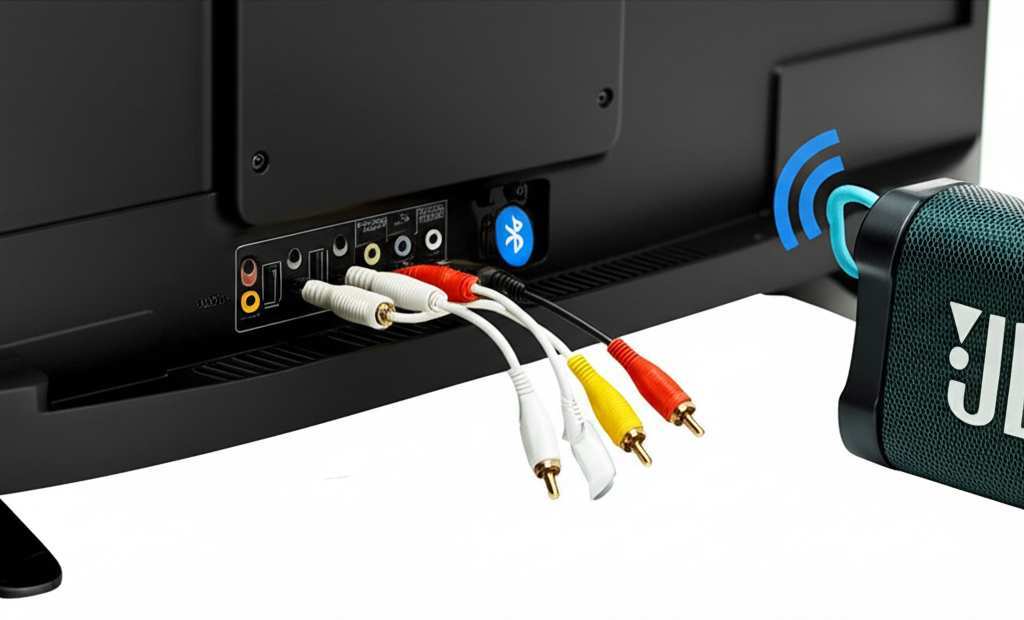
There are a few ways to get your JBL speaker hooked up to your TV. The most common and convenient method for many JBL speakers is Bluetooth. It’s wireless, which means no messy cables! Some older TVs or specific JBL models might use an auxiliary (AUX) cable, which is also super simple. We’ll cover both, but Bluetooth is usually the star of the show for modern setups.
Bluetooth is fantastic because it’s built into most new TVs and almost all JBL Bluetooth speakers. It allows a seamless connection without any wires getting in the way. Think of it as a secret, invisible handshake between your speaker and your TV. It makes setting things up quick and keeps your entertainment space looking neat and tidy.
Connecting Your JBL Speaker to Your TV via Bluetooth
This is the most popular method, and for good reason! Bluetooth is wireless and usually straightforward to set up. Here’s how to get your JBL speaker chatting with your TV:
-
Power Up Your JBL Speaker
First things first, make sure your JBL speaker is charged and turned on. You’ll usually see a power button you need to press and hold for a few seconds. Some JBL speakers have indicator lights that show they’re ready to go.
-
Put Your JBL Speaker in Pairing Mode
This is the crucial step! On your JBL speaker, you need to activate its Bluetooth pairing mode. Look for a button with the Bluetooth symbol (it looks like a stylized ‘B’). You might need to press and hold this button for a few seconds until a light starts flashing, or you hear a sound. This tells your speaker it’s looking for a new device to connect to.
Fun Fact: The Bluetooth symbol is actually a combination of two Viking runes: Hagall (ᚼ) and Bjarkan (ᛒ), representing the initials of Harald Bluetooth, the king who united Danish tribes.
-
Access Your TV’s Bluetooth Settings
Now, grab your TV remote. You’ll need to go into your TV’s settings menu. Look for options like ‘Network,’ ‘Connections,’ ‘Sound,’ or ‘Bluetooth.’ The exact wording varies by TV brand, but you’re generally looking for anything related to wireless or audio devices.
-
Scan for Devices on Your TV
Once you’re in the Bluetooth settings on your TV, select the option to ‘Scan,’ ‘Search,’ or ‘Add Device.’ Your TV will then start looking for any nearby Bluetooth devices that are in pairing mode. This might take a minute or two.
-
Select Your JBL Speaker from the List
You should see a list of available devices pop up on your TV screen. Find the name of your JBL speaker (it might be something like “JBL Flip 5” or “JBL Charge 4”). Select it with your remote. Your TV will then try to connect to the speaker.
-
Confirm Connection (If Necessary)
Sometimes, the TV and speaker will connect automatically. Other times, you might get a prompt on your TV screen asking you to confirm the pairing. Just follow the on-screen instructions. You might also hear a confirmation sound from your JBL speaker, and its Bluetooth light might turn solid instead of flashing.
-
Set Your TV’s Audio Output to Bluetooth
This is a very important step that sometimes gets missed! Even after connecting, your TV might still be trying to send sound through its own speakers. Go back into your TV’s sound or audio output settings and make sure you select your JBL speaker (or ‘Bluetooth Audio’) as the primary audio output device. This tells your TV, “Hey, send all the sound here!”
-
Test the Sound!
Now, play something on your TV! You should hear the audio coming loud and clear from your JBL speaker. You might need to adjust the volume using your JBL speaker’s controls or your TV remote, depending on how your TV handles Bluetooth volume. Enjoy your enhanced sound!
Pro Tip: If your JBL speaker doesn’t appear on the list, double-check that it’s still in pairing mode (the light should be flashing). You might also need to turn Bluetooth off and on again on your TV, or even restart both devices and try the process again. Sometimes a fresh start is all it takes!
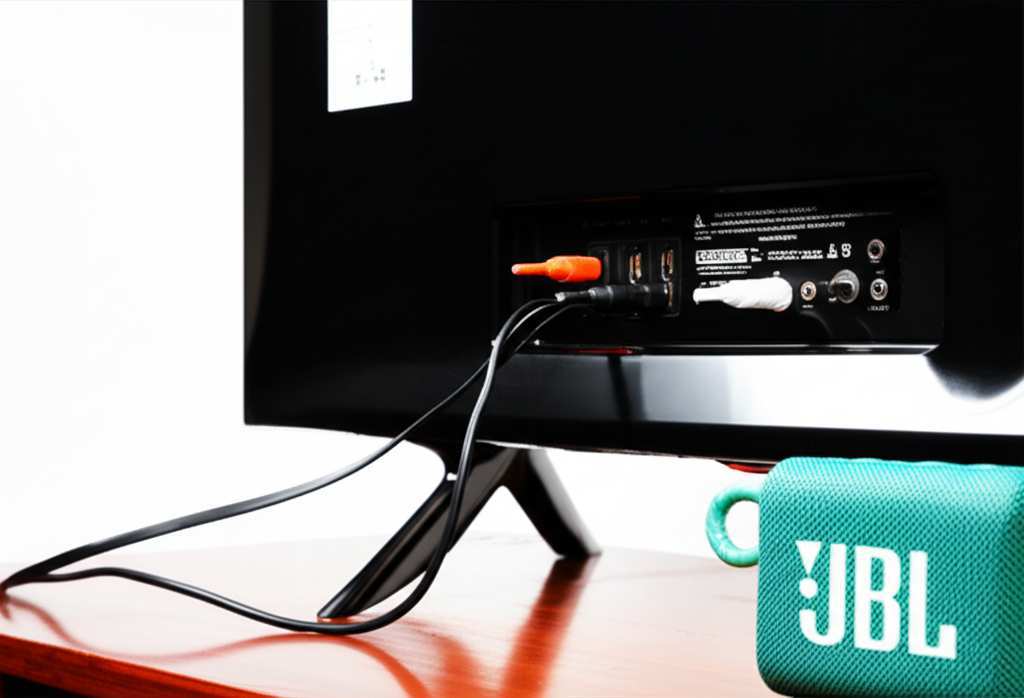
Connecting Your JBL Speaker to Your TV via AUX Cable
Not all JBL speakers have Bluetooth, and some TVs might not have it either. In these cases, an auxiliary (AUX) cable is your best friend. It’s a simple wired connection that’s very reliable.
Here’s how to use an AUX cable:
-
Check Your Ports
Look at the back or side of your JBL speaker. You need to find an ‘AUX IN’ or ‘Audio In’ port. It’s usually a small, round hole. Also, check your TV. You’ll need an ‘Audio Out’ or ‘Headphone’ port. This is also a small, round hole, often labeled with a headphone icon.
-
Get the Right AUX Cable
You’ll need a 3.5mm male-to-male stereo audio cable. These are super common and inexpensive. Make sure it’s long enough to comfortably reach between your TV and speaker.
-
Connect the Cable
Plug one end of the AUX cable into the ‘AUX IN’ port on your JBL speaker. Then, plug the other end into the ‘Audio Out’ or ‘Headphone’ port on your TV. If you’re using the headphone port, the TV might mute its internal speakers automatically.
-
Set Your TV’s Audio Output
On your TV, go to the sound or audio settings. You’ll need to select ‘External Speakers,’ ‘Audio Out,’ or ‘Headphone’ as your audio output. This tells the TV to send sound through the port you just plugged the cable into.
-
Turn On Your JBL Speaker
Power on your JBL speaker. Some speakers will automatically detect the AUX input. Others might have a button to switch between Bluetooth and AUX mode. Make sure it’s set to AUX mode if you have that option.
-
Test the Sound!
Play some content on your TV. You should hear the sound coming from your JBL speaker. You’ll control the volume primarily using your JBL speaker’s volume buttons, though some TVs allow you to adjust headphone output volume.
Why AUX is Still Great: While not wireless, AUX cables offer a very stable connection. There’s no chance of interference like with Bluetooth, and it’s a lifesaver if your TV or speaker doesn’t support Bluetooth. Plus, you don’t need to worry about battery life on the speaker for this connection!
JBL Speaker Features That Make a Difference
JBL offers a wide range of speakers, and understanding a few key features can help you get the best sound experience. Here are some things you might notice:
-
Connectivity Options
As we discussed, Bluetooth is common. Some higher-end models might also support Wi-Fi for better streaming quality or multi-room audio.
-
Sound Quality
Look for specifications like wattage (higher means louder) and frequency response (a wider range means better sound, especially for bass and treble). JBL is known for its punchy bass and clear mids/highs.
-
Battery Life
If you plan to move your speaker around, check how long it lasts on a single charge. This is crucial for portable models.
-
Water Resistance
Many JBL speakers are water-resistant (often rated with an IPX number). This is great if you ever want to use it near a pool or in the kitchen.
-
PartyBoost/Connect+
Some JBL speakers have features like PartyBoost or Connect+ that allow you to link multiple compatible JBL speakers together for a bigger sound or stereo effect.
Comparing Popular JBL TV-Friendly Speakers
Choosing the right JBL speaker can depend on your needs and budget. Here’s a quick look at a couple of popular options and what makes them great for TV use:
| JBL Speaker Model | Primary Connection | Typical Battery Life | Best For |
|---|---|---|---|
| JBL Flip Series (e.g., Flip 6) | Bluetooth | Up to 12 hours | Small rooms, portability, casual viewing |
| JBL Charge Series (e.g., Charge 5) | Bluetooth | Up to 20 hours | Medium rooms, longer listening sessions, can charge your phone! |
| JBL Xtreme Series (e.g., Xtreme 3) | Bluetooth | Up to 15 hours | Larger rooms, powerful sound, outdoor use |
| JBL Bar Series (Soundbars) | HDMI ARC, Optical, Bluetooth | N/A (Plugs into wall) | Dedicated home theater, ultimate TV audio upgrade |
As you can see, the JBL Flip and Charge series are fantastic portable Bluetooth speakers that easily connect to your TV. They offer a significant audio upgrade without being too bulky. The Xtreme series gives you even more power for larger spaces. And if you’re serious about home theater, a JBL soundbar is a dedicated TV audio solution that connects directly via HDMI or optical cables, offering a different but equally impressive upgrade path.
When you’re looking at these, consider where you’ll use it most. A Flip is great if you have a smaller apartment and want to move it around. A Charge offers more playtime and power for a slightly larger space. The Xtreme is for when you want to really feel the bass! And if you want a permanent TV audio boost, a soundbar is the way to go.
Troubleshooting Common Connection Issues
Sometimes, things don’t connect perfectly on the first try. Don’t worry, this happens to everyone! Here are some common problems and how to fix them:
-
Speaker Not Found by TV
Fix: Make sure your JBL speaker is in pairing mode (flashing light). Ensure Bluetooth is enabled on your TV. Try moving the speaker closer to the TV. Restart both devices and try scanning again.
-
Connected, But No Sound
Fix: Check your TV’s audio output settings. Make sure your JBL speaker is selected as the playback device. Also, check the volume on both the TV and the speaker – sometimes one is turned all the way down!
-
Choppy or Interrupted Sound
Fix: This is often due to Bluetooth interference. Try to minimize other wireless devices nearby (like microwaves or other Bluetooth gadgets). Ensure there aren’t too many physical obstructions between your TV and speaker. Sometimes, simply restarting the connection can fix this.
-
Volume Control Issues
Fix: Some TVs and speakers don’t sync volume controls perfectly. You might need to adjust the volume on the speaker itself, or use the TV remote to control the Bluetooth audio volume if your TV supports it. Check your TV’s audio settings for options like “AV Sync” or “Bluetooth Volume Sync.”
-
Speaker Won’t Charge
Fix: Ensure you’re using the correct charging cable and power adapter that came with your JBL speaker. Try a different power outlet or USB port. If the problem persists, the charging port or battery might be faulty, and you might need to contact JBL support.
A Little Extra Help: For more detailed troubleshooting specific to your JBL model, the official JBL support website is a great resource. You can often find user manuals and FAQs there that cover a wide range of issues. Websites like CNET also have excellent guides on Bluetooth troubleshooting for various devices.
Making the Most of Your JBL TV Sound
Once you’ve got your JBL speaker connected, here are some tips to elevate your audio experience even further:
-
Placement is Key
Don’t just plop your speaker anywhere! For TVs, placing the speaker in front of the TV, at a similar height, often works best. Experiment with different spots to see what sounds clearest. Avoid corners if possible, as they can sometimes make bass sound muddy.
-
Adjust EQ Settings (If Available)
Some JBL speakers have companion apps that let you adjust equalizer (EQ) settings. You might want to boost bass for movies or make dialogue clearer for TV shows. Play around with these settings to find your sweet spot.
-
Use TV Sound Modes
Many TVs have different sound modes like ‘Movie,’ ‘Music,’ ‘Sports,’ or ‘Standard.’ Experiment with these to see how they affect the sound coming through your JBL speaker. Sometimes, a specific mode can really enhance the audio for what you’re watching.
-
Consider Stereo Pairing
If you have two identical compatible JBL speakers, you can often pair them in stereo mode! This means one speaker handles the left audio channel and the other handles the right, creating a much wider and more immersive soundstage, just like a real home theater system.
-
Keep Firmware Updated
Occasionally, JBL releases firmware updates for their speakers. These can improve performance, fix bugs, and even add new features. Check the JBL Portable app (if your speaker is compatible) to see if any updates are available.
Frequently Asked Questions (FAQ)
Got more questions? Here are some common ones beginners ask about connecting JBL speakers to TVs:
Q1: My TV doesn’t have Bluetooth. Can I still connect my JBL speaker?
A1: Absolutely! If your TV has an audio output or headphone jack, you can use a 3.5mm AUX cable to connect it to your JBL speaker’s AUX-in port. It’s a simple wired solution that works great!
Q2: How do I know if my JBL speaker is compatible with my TV?
A2: Most JBL Bluetooth speakers will connect to any TV that has Bluetooth. If you’re using an AUX cable, any JBL speaker with an AUX-in port will work with any TV that has an audio-out or headphone jack.
Q3: Can I control the volume with my TV remote after connecting via Bluetooth?
A3: It depends on your TV and speaker. Some TVs allow you to control Bluetooth audio volume directly with the TV remote. Others might only control the TV’s internal volume, meaning you’ll need to use the JBL speaker’s buttons for volume adjustment. Check your TV’s audio settings for options like “Bluetooth Volume Sync.”
Q4: Why does my JBL speaker sometimes disconnect from the TV?
A4: This can happen if the speaker goes into standby mode (to save battery) or if there’s interference. Try keeping the speaker closer to the TV, ensuring Bluetooth is active on both devices, and avoiding other strong wireless signals. You might also need to re-pair the devices.
Q5: Can I connect multiple JBL speakers to my TV at once?
A5: Typically, a TV can only connect to one Bluetooth audio device at a time. However, if your JBL speaker supports PartyBoost or Connect+, you can pair two compatible speakers to each other and then connect just one of them to the TV. This gives you a stereo sound experience with two speakers!
Q6: What does the IPX rating on my JBL speaker mean for TV use?
A6: The IPX rating (like IPX7) indicates how waterproof or water-resistant your speaker is. For TV use, it’s less about water and more about durability. It means you don’t have to worry as much if you spill a drink near it or want to use it in a kitchen or bathroom while watching something.
Q7: My JBL speaker sounds tinny when connected to the TV. What can I do?
A7: This could be due to a few things. Make sure you’ve selected the correct audio output on your TV. If using Bluetooth, check if your TV has EQ settings you can adjust, or use the JBL app if available to tweak the sound. Also, speaker placement can drastically affect sound quality; try moving it slightly!
Ready to Experience Awesome Sound!
So there you have it! Connecting your JBL speaker to your TV is totally doable, and honestly, it’s a game-changer for your entertainment. Whether you went the wireless Bluetooth route or opted for the trusty AUX cable, you’re now set to enjoy richer, fuller sound. No more straining to hear dialogue or missing out on those epic movie sound effects!
Remember, tech is all about making our lives better and more enjoyable. By taking these simple steps, you’ve unlocked a whole new dimension of sound for your favorite shows, movies, and games. Don’t be afraid to experiment with speaker placement or settings to find what sounds best for your room. You’ve got this!
Now go ahead, fire up your TV, pick something awesome to watch or play, and bask in that fantastic JBL sound. You’ve earned it! Enjoy every beat, every explosion, and every whisper. Make every moment louder and better!