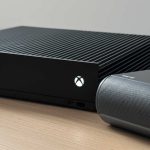
Connecting your Bluetooth speaker to your TV is super easy! This guide will show you how to get better sound for movies, shows, and games in just a few simple steps. Get ready for an awesome audio experience!
Hey there, tech adventurers! Max here from AffTechy.com, your go-to spot for making technology feel like a friendly chat. Today, we’re diving into something that can seriously upgrade your home entertainment: connecting a Bluetooth speaker to your TV. Imagine watching your favorite movie with sound that fills the room, or feeling the rumble of game explosions like you’re really there!
Sometimes, the built-in TV speakers just don’t cut it, right? They can sound a bit tinny, or maybe you can’t hear dialogue clearly. That’s where a good Bluetooth speaker comes in. It’s like giving your TV a super-powered voice! But I get it, sometimes tech can seem a little confusing. You might look at all the buttons and settings and think, “Whoa, what do I do here?”
Well, take a deep breath and relax. My mission is to make this super simple for you. We’re going to walk through this together, step by step. No confusing jargon, just clear, easy instructions. You’ll be enjoying richer, more immersive sound in no time. Let’s get your TV singing with that awesome Bluetooth speaker!

Why Bother Connecting a Bluetooth Speaker to Your TV?
Let’s talk about sound. Think about your favorite movie scene or that intense gaming moment. The sounds are a huge part of the experience, right? A good Bluetooth speaker can transform those moments from “okay” to “WOW!” You get richer bass, clearer dialogue, and sound that feels like it’s all around you. It’s like bringing the cinema home, but way more comfortable.
Plus, it’s so convenient! Most modern TVs have Bluetooth built-in, and so do most Bluetooth speakers. This means you can connect them wirelessly, no messy cables needed. It’s a clean setup that just works. You can even place your speaker where it sounds best, not just where a wire can reach. It’s all about making your viewing and gaming sessions more enjoyable.
What You’ll Need: The Essentials
Before we jump into the how-to, let’s make sure you have everything ready. It’s pretty straightforward, but being prepared makes everything smoother. Think of it like packing for a fun trip – you want to have all your essentials handy!
Here’s your quick checklist:

Your TV: Make sure it’s powered on and you know how to access its settings menu. Most smart TVs from the last few years have Bluetooth capabilities. If your TV is a bit older, don’t worry, we’ll cover some alternatives later!
Your Bluetooth Speaker: It needs to be charged up and ready to pair. Make sure it’s not currently connected to another device, like your phone, unless you plan to switch it.
The Speaker’s Manual (Optional but Helpful): Sometimes, specific buttons or pairing modes can be a little tricky. Having the manual handy can be a lifesaver if you get stuck.
That’s pretty much it! See? We’re already making good progress. Having these things ready means we can move on to the fun part: making the magic happen.
Let’s Talk Sound: How Your TV and Speaker Connect
So, how does this wireless magic actually work? Bluetooth is a type of wireless technology that lets devices talk to each other over short distances. It’s like a secret handshake between your TV and your speaker. Your TV sends the audio signal through the air, and your speaker catches it and plays it loud and clear.
This is different from how you might connect a soundbar with cables. Bluetooth is all about convenience and a clean look. It’s perfect for those who don’t want a jungle of wires behind their TV. It’s a simple way to get a big sound upgrade without a big fuss.
Step-by-Step: Connecting Your Bluetooth Speaker to Your TV
Alright, it’s time to get down to business! Follow these steps, and you’ll be enjoying your enhanced audio in no time. We’ll keep it simple and straightforward.
Step 1: Put Your Bluetooth Speaker in Pairing Mode
This is the most important first step. Your speaker needs to be “discoverable” so your TV can find it. Every speaker is a little different, but here’s what you’ll generally do:
Turn on your Bluetooth speaker.
Look for a button that has the Bluetooth symbol (it looks like a stylized ‘B’). This button might be labeled “Pair,” “Bluetooth,” or have the symbol.
Press and hold this button for a few seconds. You’ll usually hear a beep or a voice prompt, and a light on the speaker might start flashing. This means it’s ready to connect!
Friendly Tip: If you’re not sure how to put your specific speaker in pairing mode, a quick look at its manual or a search online for “[Your Speaker Model] pairing mode” will usually give you the exact instructions.
Step 2: Access Your TV’s Bluetooth Settings
Now, let’s go to your TV. You’ll need to navigate through its menus to find the Bluetooth settings. The exact path can vary depending on your TV brand, but here are some common places to look:
Samsung: Settings > Sound > Sound Output > Bluetooth Speaker List
LG: Settings > Sound > Bluetooth > Select Device
Sony: Settings > Remotes & Accessories > Bluetooth > Add device
TCL/Roku TV: Settings > Remotes & Devices > Bluetooth > Pair Bluetooth device
Don’t see those exact options? No problem! Just look for a “Settings” or “Setup” menu, and then explore sections like “Sound,” “Audio,” “Network,” “Connections,” or “Accessories.” You’re looking for anything related to Bluetooth.
Step 3: Scan for Devices on Your TV
Once you’re in your TV’s Bluetooth menu, you’ll usually see an option to “Scan,” “Search,” or “Add Device.” Select this! Your TV will start looking for any nearby Bluetooth devices that are in pairing mode.
This is where your speaker’s “discoverable” status comes in handy. Your TV should find your speaker’s name (it might be something like “JBL Flip 5” or “Sony SRS-XB23”). Give it a moment; sometimes it takes a few seconds to show up.
Step 4: Select Your Speaker and Connect
When your speaker’s name appears on the TV screen, use your TV remote to highlight it and select it. Your TV will then try to connect to the speaker.
You might get a confirmation message on your TV, or you might hear a sound from your speaker confirming the connection. Sometimes, there’s a PIN code involved, but this is rare for speakers. If it asks for one, try “0000” or “1234.” If those don’t work, check your speaker’s manual.
Step 5: Test the Sound!
Hooray! You should now be connected. To make sure everything is working, play something on your TV. You can try a TV show, a YouTube video, or even just the TV’s own menu sounds.
Listen carefully. Is the sound coming from your Bluetooth speaker? If it is, congratulations, you’ve done it! If not, don’t worry, we’ll troubleshoot in a bit.
Troubleshooting Common Connection Issues
Sometimes, tech doesn’t cooperate perfectly on the first try. It happens to everyone! If your TV and speaker aren’t connecting, here are a few things to check.
Is the Speaker Really in Pairing Mode? Double-check that the flashing light is on and that the speaker is actively trying to connect. Sometimes, they only stay in pairing mode for a few minutes.
Is the Speaker Already Connected to Another Device? Bluetooth speakers can usually only connect to one device at a time. If your speaker is connected to your phone, it might not be available for your TV. Turn off Bluetooth on your phone or disconnect the speaker from your phone first.
Is Your TV’s Bluetooth On? Make sure you haven’t accidentally turned off Bluetooth on your TV. Go back to the settings and confirm it’s enabled.
Are You Close Enough? Bluetooth has a range, usually around 30 feet (10 meters). Make sure your speaker is reasonably close to your TV. Walls and other electronics can sometimes interfere with the signal.
Restart Everything: The classic IT solution – turn it off and on again! Turn off your TV and your Bluetooth speaker, wait 30 seconds, and then turn them back on. Try the pairing process again.
Forget the Device and Re-pair: On your TV’s Bluetooth menu, you might see an option to “forget” or “unpair” a device. If your speaker is listed but not connecting, try removing it from the list and then pairing it again from scratch.
If you’re still having trouble, it might be worth checking your TV manufacturer’s support website or your speaker’s manual for more specific troubleshooting tips.
When Your TV Doesn’t Have Bluetooth: What Are Your Options?
Not all TVs have built-in Bluetooth. It’s a bummer, but it’s not the end of the world! You still have ways to enjoy better sound with your Bluetooth speaker. Here are a couple of popular solutions:
Option 1: Use a Bluetooth Transmitter/Adapter
This is a small device that plugs into your TV’s audio output (like the headphone jack or optical audio out port) and broadcasts the audio via Bluetooth.
How it Works: You connect the transmitter to your TV using an audio cable. Then, you put the transmitter into pairing mode, and your Bluetooth speaker connects to the transmitter, not directly to the TV.
What to Look For:
Audio Input Options: Make sure it has the right ports for your TV (3.5mm headphone jack is common, but optical is often better quality).
Bluetooth Version: Newer versions (like Bluetooth 5.0) offer better range and stability.
Low Latency: This is super important for TV! Low latency transmitters help reduce the delay between the video on screen and the sound from your speaker, so lip-sync issues are minimized. Look for “aptX Low Latency” if your speaker also supports it.
Where to Find Them: You can find these adapters on Amazon, Best Buy, and other electronics retailers. Brands like Avantree and Mpow make popular ones.
Option 2: Use a Bluetooth Audio Receiver
This is similar to a transmitter but works in reverse. You connect the receiver to your speaker (if it has a line-in port), and then the receiver connects wirelessly to a Bluetooth-enabled device, like a separate Bluetooth dongle plugged into your TV. This is less common for connecting directly to a TV for sound output, as transmitters are usually simpler.
Option 3: Consider a Bluetooth-Enabled Soundbar or Speaker System
If you’re looking for a more integrated solution, you might consider a soundbar or a speaker system that has both Bluetooth and other connection options. Some soundbars are designed to be paired wirelessly with a TV, or they might have a Bluetooth input for your devices.
Quick Guide: Choosing the Right Bluetooth Speaker for Your TV
If you’re in the market for a new Bluetooth speaker to pair with your TV, here are a few things to keep in mind. It’s not just about volume; it’s about how it fits your life and your viewing habits.
Key Features to Consider:
Sound Quality: This is probably the most important. Listen to reviews or try to demo speakers if you can. Look for clear mids, decent bass, and balanced treble.
Latency: As mentioned, for TV, low latency is crucial. This means the time delay between the video and audio is minimal. Look for “aptX Low Latency” support if both your TV (or transmitter) and speaker have it.
Connectivity Options: While we’re focusing on Bluetooth, some speakers offer other inputs like AUX, which can be useful for older devices.
Battery Life: If you plan to move your speaker around a lot or use it away from a power source, battery life is important. For TV use, it might stay plugged in, but it’s still a nice feature.
Durability & Design: Do you want something that can withstand a few bumps, or is it just going to sit on a shelf? Consider its look to match your home decor.
Smart Features: Some speakers have built-in voice assistants, which might be a bonus for some users.
Speaker Types and What They’re Good For:
Here’s a quick look at different types of Bluetooth speakers and how they might suit your TV setup:
| Speaker Type | Best For | Pros | Cons |
| :——————- | :——————————————— | :—————————————————————— | :—————————————————————- |
| Portable Speaker | Casual viewing, moving between rooms | Compact, easy to move, good battery life, often water-resistant | Sound might not be as powerful or room-filling as larger options. |
| Home Speaker | Dedicated living room or media room setup | Designed for richer, fuller sound, often more powerful | Less portable, might need to stay plugged in. |
| Soundbar (BT) | All-in-one TV sound upgrade, simple setup | Enhances TV audio significantly, often sleek design, some have BT | Can be pricier, might still require specific TV connection methods. |
| Mini/Compact | Small spaces, bedside TV, or secondary screen | Space-saving, affordable, good for dialogue enhancement | Limited bass and volume, not ideal for immersive movie experiences. |
When choosing, think about where you’ll use it most and what kind of audio experience you’re after. A portable speaker might be great for a dorm room, while a home speaker or a dedicated soundbar might be better for a main living area.
Fun Fact: The History of Bluetooth
Did you know Bluetooth is named after a Viking king? King Harald “Bluetooth” Gormsson united Denmark and Norway in the 10th century. The technology was named this because it was meant to unite different communication devices, just like the king united tribes. Pretty cool, huh? It’s a little piece of history every time you connect your devices!
Maintaining Your Bluetooth Connection for the Best Sound
Once you’ve got your speaker connected, you want it to stay that way! Here are a few tips to keep your audio flowing smoothly:
Keep Firmware Updated: Both your TV and your speaker might have firmware updates. These can improve performance, fix bugs, and sometimes even enhance Bluetooth stability. Check the manufacturer’s websites for your devices.
Manage Connected Devices: If your TV or speaker supports multiple devices, make sure you’re aware of what’s connected. Sometimes, an old connection can interfere with a new one.
Check for Interference: Other wireless devices, like microwaves, Wi-Fi routers, or even some cordless phones, can sometimes interfere with Bluetooth signals. If you notice dropouts, try moving your speaker or TV slightly further away from potential sources of interference.
Battery Management: For wireless speakers, keeping them charged will ensure they’re always ready to go and perform at their best. Many speakers sound better when plugged in, especially for sustained use.
Frequently Asked Questions (FAQ)
Got more questions? That’s what friends are for! Here are some common things people wonder about when connecting Bluetooth speakers to TVs.
Q1: My TV says it’s connected to the Bluetooth speaker, but there’s no sound. What should I do?
No worries! First, check the volume on both your TV and your speaker. Make sure neither is muted. Then, go back into your TV’s sound output settings and ensure that the Bluetooth speaker is selected as the primary audio output device. Sometimes, you might need to restart both devices and try pairing again.
Q2: Why is there a delay between the video and the sound from my Bluetooth speaker?
This is called latency, and it’s a common issue with Bluetooth audio. It happens because the audio signal takes a tiny bit of time to travel wirelessly. If your TV and speaker support “aptX Low Latency” technology, enabling this can significantly reduce the delay. If not, a Bluetooth transmitter with low latency support is your best bet.
Q3: Can I connect multiple Bluetooth speakers to my TV at once?
Most TVs can only connect to one Bluetooth audio device at a time. Some specific TV models or advanced Bluetooth transmitters might allow for multi-point connection or stereo pairing of two identical speakers, but it’s not a standard feature. For a true surround sound experience, you’d typically look at wired sound systems or soundbars designed for that purpose.
Q4: How far can my Bluetooth speaker be from my TV?
The standard Bluetooth range is typically around 30 feet (or about 10 meters). However, this can be affected by obstacles like walls, furniture, and other electronic devices that might cause interference. For the most stable connection, it’s best to keep the speaker within a reasonable distance, ideally in the same room.
Q5: Will connecting a Bluetooth speaker drain my TV’s battery faster?
Most smart TVs are plugged into a power outlet, so battery life isn’t usually a concern for the TV itself. If you’re using a TV that runs on battery power (like some portable projectors or certain tablet-style TVs), using Bluetooth does consume extra power, but it’s generally quite efficient.
Q6: Do I need a smart TV to connect a Bluetooth speaker?
Not necessarily! While smart TVs often have built-in Bluetooth, you can connect a Bluetooth speaker to almost any TV using a separate Bluetooth transmitter adapter. This adapter plugs into your TV’s audio output and sends the sound wirelessly to your speaker.
Time to Amplify Your Entertainment!
There you have it! Connecting a Bluetooth speaker to your TV is a fantastic way to boost your audio experience without a lot of hassle. Whether you’re binge-watching your favorite series, getting lost in a new game, or just want your music to sound richer, this simple upgrade makes a world of difference.
We’ve covered how to pair your devices, what to do if things don’t go perfectly, and even what options you have if your TV isn’t Bluetooth-ready. You’re now equipped to take your home entertainment to the next level.
So go ahead, try it out! Experiment with speaker placement, enjoy the clearer dialogue, and feel the immersive sound. You’ve got this! Now go enjoy amazing sound and make every moment louder and better!