Want to blast your TV shows and movies with awesome sound? Connecting a Bluetooth speaker to your smart TV is super easy! This guide will walk you through every step, so you can enjoy richer audio without any fuss. Get ready for a sound upgrade!
Hey there, tech adventurer! Ever feel like your smart TV’s built-in speakers just aren’t cutting it? You know, when the explosions in that action movie are more of a ‘pop’ than a ‘BOOM,’ or when the dialogue in your favorite show sounds a bit muffled? I’ve been there too!
It’s like having a super cool movie theater right in your living room, but the sound system is a little… shy. And let’s not even talk about trying to enjoy music or gaming without that immersive audio experience. It’s a bummer, right?
That’s where your trusty Bluetooth speaker comes in! Imagine filling your room with deep bass and crystal-clear highs, all wirelessly. It’s totally doable, and honestly, it’s not as complicated as it might sound. I promise we’ll make this super simple.
Think of this as your friendly chat about getting your TV and speaker to be best buds. We’ll cover everything from finding the Bluetooth settings on your TV to pairing your speaker. Let’s make your home entertainment sound absolutely epic, together!
Why Bother Connecting a Bluetooth Speaker to Your Smart TV?
So, why go through the trouble of connecting a Bluetooth speaker when your TV already has sound? Great question! The main reason is, well, the sound quality. Most smart TV speakers are built to be slim and fit into the TV design, which often means they’re not the most powerful or rich in sound.

A dedicated Bluetooth speaker, on the other hand, is designed specifically for audio. They often pack bigger drivers, better acoustics, and more advanced sound technology. This means you get louder volumes, deeper bass, clearer dialogue, and an overall more immersive listening experience for movies, shows, music, and games.
Plus, think about versatility! You can use that same Bluetooth speaker for your phone, tablet, or laptop. It’s like getting a sound upgrade for your entire digital life. And the best part? No messy wires cluttering up your beautiful living space!
Let’s Talk About Bluetooth: The Magic Behind Wireless Sound
Before we dive into the ‘how-to,’ let’s quickly touch on what Bluetooth actually is. Think of Bluetooth as a short-range wireless technology. It lets devices talk to each other without needing cables, using radio waves. It’s like a secret handshake between your TV and your speaker.
This technology is what allows your phone to connect to your wireless headphones or your car’s audio system. For your TV, it means you can send the audio signal wirelessly to a speaker that might be placed anywhere in the room, giving you more flexibility with your setup.
There are different versions of Bluetooth, but for connecting speakers to TVs, most modern devices use versions that are more than capable of delivering good quality sound with minimal delay. So, you shouldn’t have to worry too much about the technical jargon here; just know it’s the tech that makes the magic happen!
Step 1: Check If Your Smart TV Has Bluetooth
This is the crucial first step. Not all smart TVs come with built-in Bluetooth audio support. Some might have Bluetooth for remotes or other accessories, but not for speakers. Don’t worry, though; checking is super easy!
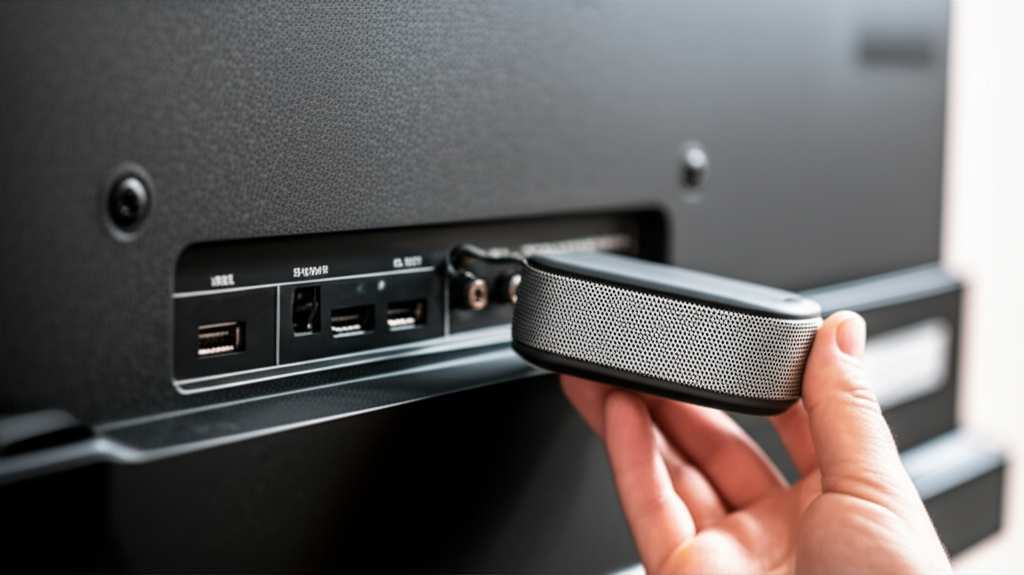
Here’s how you can find out:
- Dive into Your TV’s Settings: Grab your TV remote and navigate to the ‘Settings’ menu. Look for options like ‘Sound,’ ‘Audio,’ ‘Network,’ ‘Connections,’ or ‘Bluetooth.’
- Look for Bluetooth Pairing Options: Within these menus, search for anything related to ‘Bluetooth,’ ‘Add Device,’ ‘Pair Device,’ or ‘Speaker List.’ If you find these options, your TV likely supports Bluetooth audio!
- Consult Your TV Manual or Manufacturer Website: If you’re still unsure after digging through the settings, your TV’s user manual is your best friend. You can also visit the manufacturer’s website and search for your TV model’s specifications. They’ll usually list all its features, including Bluetooth capabilities.
Quick Tip: Some older smart TVs or those from budget brands might not have built-in Bluetooth. If yours doesn’t, don’t despair! There are external Bluetooth transmitters you can buy that plug into your TV’s audio output (like an optical or headphone jack) to add Bluetooth functionality. We’ll touch on those later!
Step 2: Prepare Your Bluetooth Speaker
While your TV is getting ready, let’s make sure your speaker is in the game. The main thing your speaker needs to do is be discoverable for pairing.
Here’s what to do:
- Turn On Your Speaker: Simple enough, right? Make sure it’s powered on.
- Put It in Pairing Mode: This is the key step! Most Bluetooth speakers have a dedicated Bluetooth button. You might need to press and hold it for a few seconds until a light starts blinking, or you hear a specific sound. This blinking light usually indicates it’s actively searching for devices to connect to.
- Check Your Speaker’s Manual: If you’re not sure how to put your specific speaker into pairing mode, check its instruction manual. It’s usually straightforward, but models can vary slightly.
- Charge It Up: Make sure your speaker has enough battery life. You don’t want the connection dropping mid-movie because the speaker ran out of juice!
Fun Fact: Bluetooth uses a frequency band that’s also used by other devices like microwave ovens and some Wi-Fi routers. But don’t worry, Bluetooth has clever ways to avoid interference and maintain a stable connection!
Step 3: Pair Your Bluetooth Speaker to Your Smart TV
Now for the main event! This is where your TV and speaker become connected. The exact steps can differ slightly depending on your TV brand (like Samsung, LG, Sony, Vizio, Roku TV, Fire TV, etc.), but the general process is very similar.
Let’s walk through it:
- Go back to your TV’s Settings: If you’re not already there, navigate back to your TV’s main settings menu.
- Find the Bluetooth Menu: Look for the Bluetooth settings we identified in Step 1. It might be under ‘Sound,’ ‘Network,’ or a dedicated ‘Bluetooth’ section.
- Scan for Devices: Select the option to ‘Add Device,’ ‘Scan for Devices,’ or ‘Pair New Device.’ Your TV will then start searching for nearby Bluetooth devices that are in pairing mode.
- Select Your Speaker: In a moment, you should see your Bluetooth speaker’s name appear on the TV screen in a list of available devices. It might be the brand name or a model number.
- Choose Your Speaker and Pair: Use your remote to select your speaker from the list. Your TV will then attempt to connect or ‘pair’ with the speaker.
- Confirmation: Once paired, you’ll usually see a confirmation message on your TV screen, like ‘Connected’ or ‘Paired Successfully.’ Your Bluetooth speaker might also make a sound or its indicator light might change (often from blinking to solid) to show it’s connected.
Example Scenario: Let’s say you have a Sony Bravia TV and a JBL Charge speaker. You’d go to your Sony TV’s Settings > Bluetooth > Add Device. Your JBL Charge speaker, put into pairing mode, would then appear on the list. You’d select it, and they’d connect.
Step 4: Set Your TV to Output Audio to the Bluetooth Speaker
Sometimes, even after pairing, your TV might still be using its internal speakers. You need to tell your TV to send the sound to the new Bluetooth speaker.
Here’s how to usually do that:
- Navigate to Audio Output Settings: Go back to your TV’s ‘Settings’ menu, and find the ‘Sound’ or ‘Audio’ settings.
- Select Audio Output Device: Look for an option that lets you choose where the sound comes from. It might be called ‘Audio Output,’ ‘Speaker Settings,’ ‘Sound Output,’ or similar.
- Choose Your Bluetooth Speaker: From the available options, select your newly paired Bluetooth speaker. It might be listed by its name or simply as ‘Bluetooth Speaker.’
- Confirm the Selection: Once selected, your TV should immediately start sending audio through your Bluetooth speaker.
Pro Tip: Some TVs might automatically switch audio output once a Bluetooth speaker is successfully paired and selected. Others might require you to manually select it each time, or you might find a toggle in the audio settings.
Troubleshooting Common Connection Issues
Even with the best guides, sometimes tech can be a little stubborn! If you’re having trouble connecting, don’t get frustrated. Here are some common issues and how to fix them:
- Speaker Not Appearing in List:
- Make sure your speaker is still in pairing mode (check that blinking light!).
- Try turning both the TV and speaker off and on again.
- Move the speaker closer to the TV.
- Forget the device on your TV (if it appeared before but won’t connect) and try pairing again.
- Connected but No Sound:
- Double-check your TV’s audio output settings to ensure the Bluetooth speaker is selected.
- Turn the volume up on both your TV and your speaker. Sometimes one is set too low.
- Try disconnecting and reconnecting the speaker.
- Audio Lag or Delay (Lip Sync Issues):
- This is more common with older Bluetooth versions or cheaper devices. Some TVs have an ‘AV Sync’ or ‘Lip Sync’ setting in their audio menu that lets you adjust the delay.
- Try moving the speaker closer to the TV.
- If the problem persists, you might need to consider a Bluetooth transmitter with lower latency or a TV with better Bluetooth audio processing.
- Connection Keeps Dropping:
- Ensure there are no major physical obstructions between the TV and speaker (like thick walls or large metal objects).
- Check for interference from other wireless devices.
- Make sure both your TV and speaker have the latest firmware or software updates.
Helpful Resource: For more in-depth troubleshooting specific to your TV model, you can often find helpful guides and forums on tech review sites like CNET or the manufacturer’s support pages. They often have solutions for very specific issues.
What If My Smart TV Doesn’t Have Bluetooth?
No Bluetooth on your TV? No problem! You can easily add this functionality with an external Bluetooth transmitter. These handy gadgets are relatively inexpensive and plug into your TV’s audio ports.
Here’s how it works:
- Get a Bluetooth Transmitter: Look for one that supports your TV’s audio output. Most common are optical (Toslink) or 3.5mm headphone jack outputs. Some transmitters can also connect via RCA cables.
- Plug It In: Connect the transmitter to your TV’s audio output port using the appropriate cable.
- Power It Up: Most transmitters need to be powered, usually via a USB cable connected to a USB port on your TV or a wall adapter.
- Put the Transmitter in Pairing Mode: Follow the transmitter’s instructions to put it into pairing mode.
- Pair Your Speaker: Put your Bluetooth speaker in pairing mode. The transmitter will then search for and connect to your speaker, just like your TV would.
- Set TV Audio Output: On your TV’s settings, you’ll need to select the audio output that the transmitter is connected to (e.g., ‘Optical Out’ or ‘Headphone Out’). Make sure the TV volume is turned up, and the transmitter’s volume is also adjusted correctly.
Buying Tip: When choosing a transmitter, look for ones that support the latest Bluetooth codecs (like aptX Low Latency) if audio delay is a big concern for you. This technology helps minimize the lag between the video and audio.
Understanding Bluetooth Speaker Features for Your TV
When picking a Bluetooth speaker for your TV, a few features can make a big difference:
- Battery Life: For binge-watching or long movie nights, a speaker with 10+ hours of battery life is ideal.
- Sound Quality: Look for speakers with clear mids and highs for dialogue and decent bass for impact. Brands like Bose, Sony, and JBL often offer great sound.
- Connectivity Range: A good range (e.g., 30-50 feet) gives you flexibility in where you place the speaker.
- Water Resistance (Optional): If you plan to use the speaker in other areas like the kitchen or bathroom, water resistance is a bonus.
- Multi-Point Pairing: This lets the speaker connect to two devices at once (e.g., your TV and phone).
- Latency: As mentioned, low latency is important to avoid that annoying lip-sync delay. Look for aptX Low Latency support if both your TV (or transmitter) and speaker support it.
Let’s compare some popular speaker types that work well with smart TVs:
| Speaker Type | Pros | Cons | Best For |
|---|---|---|---|
| Portable Bluetooth Speaker | Versatile, easy to move, long battery life, often affordable. | Sound might not fill a large room as effectively, can sometimes have slight latency. | Smaller rooms, casual viewing, moving around the house. |
| Soundbar (with Bluetooth) | Designed for TV audio, better bass and clarity than TV speakers, can fill a room well. | Less portable, can be pricier than basic speakers, still requires a connection to the TV. | Dedicated home theater setups, movie buffs, enhancing dialogue. |
| Smart Speaker (e.g., Echo, Google Nest) | Can sometimes pair with TVs, doubles as a voice assistant and music player. | Pairing options vary greatly by TV and smart speaker brand, sound quality can be hit or miss for TV. | Users already invested in a smart home ecosystem, convenience. |
This table gives you a quick peek at what different kinds of speakers offer. For most people looking to simply boost their TV sound without much fuss, a good portable Bluetooth speaker or a dedicated Bluetooth soundbar is usually the way to go.
A Quick Look at Bluetooth Versions and Codecs
You might hear terms like Bluetooth 4.0, 5.0, aptX, or LDAC. What do they mean for your TV sound?
- Bluetooth Versions (e.g., 4.2, 5.0, 5.1): Newer versions generally mean better efficiency, longer range, and faster speeds. Bluetooth 5.0 and later are usually recommended for a more stable connection.
- Codecs (e.g., SBC, AAC, aptX, aptX LL, LDAC): These are like languages that send audio data.
- SBC (Subband Coding): The basic, universal codec. Works everywhere but offers average quality.
- AAC (Advanced Audio Coding): Used by Apple devices. Generally better quality than SBC.
- aptX: Offers near CD-quality audio.
- aptX Low Latency (aptX LL): The star for TV! It drastically reduces the delay between video and audio, making it great for movies and gaming. Both your TV (or transmitter) and speaker need to support aptX LL for it to work.
- LDAC: Developed by Sony, it can transmit high-resolution audio, but it’s less common for TV connections and might require more power.
Why this matters: If you’re experiencing lip-sync issues, the codec is often the culprit. If your TV and speaker both support aptX Low Latency, enabling it (if your TV has the option) can solve a lot of problems. You can usually check the specifications for your TV and speaker online to see which codecs they support.
Frequently Asked Questions (FAQ)
Q1: Can I connect more than one Bluetooth speaker to my TV?
A: Most smart TVs can only connect to one Bluetooth audio device at a time. Some high-end TVs or specific streaming devices might support connecting two speakers for stereo sound, but it’s not very common. You might need a special Bluetooth transmitter that supports dual audio if this is a feature you want.
Q2: How do I disconnect my Bluetooth speaker from the TV?
A: Go back to your TV’s Bluetooth settings menu. You should see your connected speaker listed. Select it and choose the option to ‘Disconnect’ or ‘Unpair.’ You can also simply turn off your speaker or put it back into pairing mode.
Q3: My TV says it supports Bluetooth, but I can’t find the option. What should I do?
A: Double-check your TV’s manual or the manufacturer’s website for your specific model. Some TVs have Bluetooth for remotes or other accessories but not for audio output. If it truly doesn’t support audio, a Bluetooth transmitter is your best bet.
Q4: Is it okay to leave my Bluetooth speaker connected all the time?
A: Yes, it’s generally fine! Most speakers go into a low-power standby mode when not actively playing sound. Just make sure to turn them off completely if you’re going away for an extended period to save battery.
Q5: What’s the difference between pairing and connecting?
A: ‘Pairing’ is like the initial introduction where your TV and speaker exchange information so they can recognize each other. Once paired, they can ‘connect’ easily whenever they’re both on and in range. You usually only need to pair a device once.
Q6: Will connecting a Bluetooth speaker drain my TV’s battery faster?
A: Most smart TVs are plugged into a power outlet, so battery life isn’t an issue for them. If you have a battery-powered TV (which is rare!), then yes, using Bluetooth will consume more power. For most users, this isn’t a concern.
Q7: Can I connect a gaming headset via Bluetooth to my TV?
A: Some TVs support Bluetooth headset connections, but it’s less common than speaker support. Gaming headsets often have their own proprietary wireless dongles for lower latency. If your TV supports it, the process will be similar to pairing a speaker. If not, you might need a dedicated Bluetooth transmitter.
Ready to Experience Awesome Sound!
There you have it! Connecting a Bluetooth speaker to your smart TV is a fantastic way to boost your home entertainment. We’ve covered how to check for Bluetooth, get your speaker ready, pair them up, and even troubleshoot common hiccups.
Whether you’re a movie buff wanting that cinema experience at home, a gamer seeking deeper immersion, or just someone who loves great sound for their favorite shows, this simple upgrade can make a world of difference. And if your TV is a bit older, remember that a little Bluetooth transmitter can bring it right up to speed!
Don’t let mediocre TV sound hold you back any longer. Give these steps a try, experiment with your settings, and get ready to hear your favorite content in a whole new light. Now go enjoy amazing sound and make every moment louder and better!