
Having trouble with your Onn Bluetooth speaker? This guide shows you exactly how to reset it quickly and easily. Get your music back on track in no time, no tech stress needed!
Hey there, tech adventurer! I’m Max Donovan, your friendly guide from AffTechy.com. We all love our gadgets, right? Especially those little speakers that bring our music, podcasts, and movie nights to life. They can really make a moment feel special.
Sometimes, though, technology throws us a little curveball. Maybe your Onn Bluetooth speaker is acting a bit quirky, not connecting like it used to, or just generally being a bit stubborn. It can feel frustrating when your tunes are interrupted, and you just want things to work smoothly again.
Don’t worry, though! Figuring out tech doesn’t have to be a headache. My goal here is to make things super simple. We’ll walk through how to fix common speaker issues without any confusing jargon.
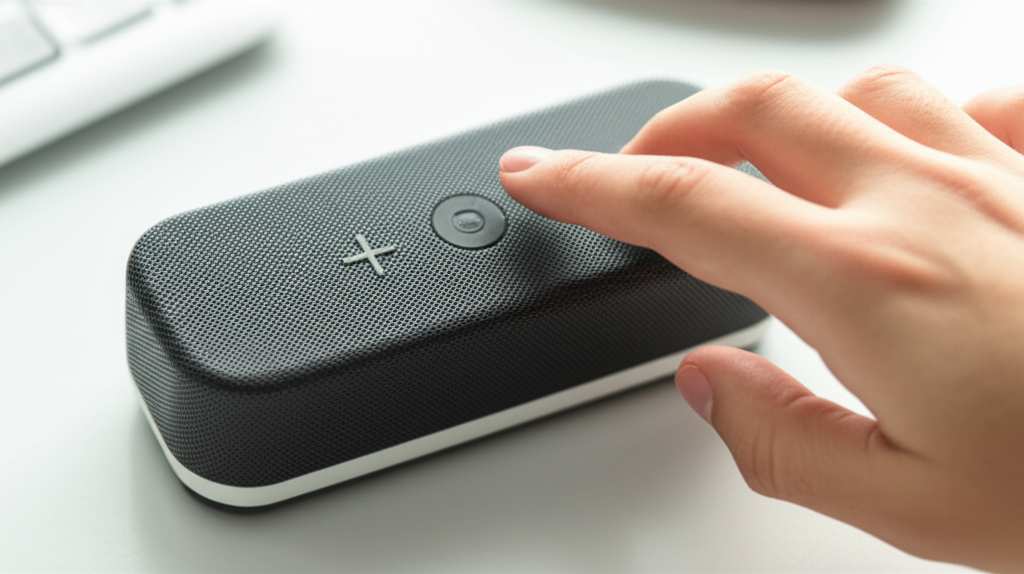
So, if your Onn Bluetooth speaker is giving you a bit of a headache, stick around! We’re going to break down how to reset it, step by step. Let’s dive in and get your sound system singing again!
Why Resetting Your Onn Bluetooth Speaker Might Be the Answer
Imagine you’ve got your favorite playlist ready to go. You grab your Onn Bluetooth speaker, hit play, and… nothing. Or maybe it connects, but the sound is all choppy, or it keeps disconnecting. It’s like a party pooper, right?
These little hiccups can happen for many reasons. Sometimes, the speaker’s internal memory gets a bit overloaded with connection information. Other times, a small software glitch can cause unexpected behavior. It’s like when your computer freezes – a quick restart often does the trick.
That’s where resetting comes in! A reset is like giving your speaker a fresh start. It clears out old settings and can fix many common problems without you needing to be a tech wizard. It’s often the first and easiest step to troubleshoot.
Understanding Your Onn Bluetooth Speaker Basics
Before we get into resetting, let’s quickly chat about what makes your Onn Bluetooth speaker tick. These little devices use Bluetooth technology to wirelessly connect to your phone, tablet, or computer. This lets you play audio from your device through the speaker, usually with better sound quality and volume.
Most Onn Bluetooth speakers have a few key buttons: power, volume up, volume down, and a Bluetooth pairing button. Some might have play/pause or skip track buttons too. Knowing where these are helps when we go through the reset process.
Common Signs Your Onn Bluetooth Speaker Needs a Reset
How do you know if a reset is the right fix? Well, if you’re experiencing any of these common issues, a reset is a great first step to try:
Connection Problems: Your speaker won’t pair with your device, or it keeps disconnecting.
No Sound: The speaker turns on, but no audio plays, even when connected.
Distorted or Choppy Audio: The sound is not clear, or it skips and stutters.
Speaker Not Responding: Buttons don’t work, or the speaker is frozen and won’t turn off.
Previous Device Issues: If you’ve paired it with many devices, it might get confused.
These are all classic signs that your speaker might just need a little refresh. It’s like clearing the cache on your phone to make it run smoother.
How to Reset Your Onn Bluetooth Speaker: The Step-by-Step Guide
Alright, let’s get down to business! Resetting most Onn Bluetooth speakers is pretty straightforward. While the exact steps can vary slightly between models, there’s a common method that works for many of them.
Here’s the most common way to perform a factory reset on your Onn Bluetooth speaker:
- Power Off: First things first, make sure your Onn Bluetooth speaker is turned off. Press and hold the power button until the indicator light goes out.
- Locate the Reset Button (if applicable): Some Onn speakers have a small, recessed reset button. You might need a paperclip or a SIM card tool to press it. Look around the ports or the back of the speaker. If you can’t find a dedicated reset button, don’t worry, we’ll cover the alternative in the next step.
- Press and Hold Specific Buttons: For many models without a dedicated reset button, you’ll need to press and hold a combination of buttons. The most common combination is holding down the Bluetooth pairing button and the Volume Down (-) button simultaneously.
- Hold for 5-10 Seconds: Keep holding these buttons down. You might see the lights on the speaker flash, change color, or hear a beep. This indicates the reset process is happening.
- Release the Buttons: Once you’ve held the buttons for about 5 to 10 seconds, release them.
- Power On and Re-Pair: Turn your speaker back on by pressing the power button. It should now be reset to its factory default settings. You’ll need to pair it with your device again, just like when it was new.
It’s always a good idea to check your specific Onn speaker model’s manual if you have it. Sometimes, a quick search on the manufacturer’s website for your model number can also reveal specific instructions.
What Happens During a Reset?
When you reset your Onn Bluetooth speaker, it essentially erases all the personalized settings and stored information. This includes:
Paired Devices: Any phones, tablets, or computers it was previously connected to will be forgotten.
Custom EQ Settings: If your speaker had any sound profile adjustments, they’ll be gone.
Network Information: For any smart speakers (though Onn is usually simpler), Wi-Fi passwords would be cleared.
It’s like wiping your phone clean and starting fresh. This is why you’ll need to re-pair it afterward.
Troubleshooting: What if the Reset Doesn’t Work?
Sometimes, even a reset might not solve the problem. If you’ve tried the reset steps and your Onn speaker is still misbehaving, here are a few other things you can try:
Charge Your Speaker: A low battery can cause all sorts of strange issues. Make sure your speaker is fully charged. Plug it in for a good hour or two.
Check Your Device: Sometimes the problem isn’t the speaker, but the device you’re trying to connect it to. Try restarting your phone or tablet. Also, go into your device’s Bluetooth settings and “forget” the Onn speaker, then try pairing again.
Update Device Software: Ensure your phone or tablet’s operating system is up to date. Sometimes, older software can have compatibility issues.
Test with Another Device: Try pairing your Onn speaker with a different phone or tablet. This helps determine if the issue is with the speaker or your primary device.
Inspect for Damage: Look for any physical damage to the speaker or its charging port.
If none of these steps help, it might be time to contact Onn customer support. They can offer more specific advice or discuss warranty options if the speaker is faulty.
Onn Bluetooth Speaker Reset vs. Re-Pairing
It’s important to know the difference between resetting and simply re-pairing.
Re-pairing: This is just disconnecting your speaker from your device and then connecting it again. It’s like saying goodbye and hello to your Bluetooth connection. It’s useful if the connection is glitchy. You usually do this by going into your device’s Bluetooth settings, finding the speaker, and tapping “Forget Device” or “Unpair.” Then, you put the speaker back in pairing mode and connect again.
Resetting: This is a more thorough process. It wipes the speaker’s internal memory back to its original factory settings. This fixes deeper software issues that re-pairing won’t touch. You’ll always have to re-pair after a reset.
Think of it this way: Re-pairing is like a quick handshake; resetting is like a full system reboot.
Fun Facts About Bluetooth Technology
Did you know Bluetooth is named after a Viking king? Yes, King Harald Bluetooth united Danish tribes in the 10th century, and the technology was named after him because it aimed to unite different communication devices. Pretty cool, right? Bluetooth technology itself has gone through many versions, with newer ones offering better range, speed, and power efficiency. This helps your Onn speaker connect more reliably.
Comparing Onn Bluetooth Speaker Models
Onn offers a range of Bluetooth speakers, and while the reset process is often similar, features can differ. Here’s a quick look at how some general categories might stack up, which could influence your troubleshooting experience:
| Feature | Onn Mini Speaker (Example) | Onn Portable Speaker (Example) | Onn Smart Speaker (Example – Less Common) |
|---|---|---|---|
| Reset Method | Hold Bluetooth + Vol Down | Hold Bluetooth + Vol Down | Dedicated Reset Button or App |
| Battery Life (Approx.) | 4-6 Hours | 8-12 Hours | Varies (often plugged in) |
| Connectivity | Bluetooth 4.0 | Bluetooth 5.0 | Bluetooth + Wi-Fi |
| Portability | Very High | High | Medium |
This table gives you a general idea. The key takeaway for resetting is that simpler models often rely on button combinations, while more complex ones might have a specific reset button or even a companion app for troubleshooting. For most basic Onn speakers, the button combo is your go-to!
Tips for Keeping Your Onn Speaker in Top Shape
Once you’ve got your Onn speaker working perfectly again, here are some tips to keep it that way:
Keep it Clean: Dust and grime can affect button performance. Wipe it down gently with a dry, soft cloth.
Avoid Extreme Temperatures: Don’t leave your speaker in a hot car or direct sunlight for too long. Extreme heat or cold can damage the battery and electronics.
Charge Smart: Avoid letting the battery drain completely too often. Plug it in when you get a low battery warning.
Handle with Care: While portable, try not to drop your speaker. Physical shocks can cause internal damage.
Regular Re-Pairing: If you notice connection issues before they get bad, try unpairing and re-pairing your speaker with your device.
Following these simple tips can help extend the life of your speaker and ensure it sounds great for a long time.
Frequently Asked Questions (FAQ) About Resetting Onn Bluetooth Speakers
Let’s tackle some common questions beginners might have.
Q1: How do I know if my Onn speaker is actually resetting?
You’ll usually know it’s resetting because the indicator lights will flash, change color, or you might hear a distinct beep or chime. After the reset, it will likely go back into pairing mode, meaning its light will blink to show it’s ready to connect.
Q2: Will resetting my Onn speaker delete my music?
No, absolutely not! The speaker itself doesn’t store your music. It only stores connection information. Resetting it will erase those connection memories, but your music files are safe on your phone or other playback device.
Q3: Can I reset my Onn speaker without a paperclip?
Yes! If your speaker has a dedicated reset button that needs a small tool, and you don’t have a paperclip, you can often use a toothpick, a small safety pin, or even the tip of a pen. Just be gentle so you don’t damage the button.
Q4: Do I need to reset my speaker every time it disconnects?
Not at all! Disconnecting is normal when you move out of range or turn off Bluetooth. You only need to reset your speaker if it’s having persistent connection problems, acting strangely, or won’t pair. For normal disconnections, you just need to re-pair it.
Q5: What’s the difference between a soft reset and a factory reset?
A soft reset is usually just turning the device off and on again, like unplugging and replugging a computer. A factory reset (which is what we’ve been discussing) is a deeper reset that erases all custom settings and returns the device to its original state as it came from the factory.
Q6: My Onn speaker isn’t turning on at all. Can a reset help?
If the speaker won’t turn on, a reset might not be possible or effective. First, make sure it’s fully charged. If it still won’t power on after charging, there might be a hardware issue, and you might need to contact Onn support.
Q7: Can I reset an Onn speaker through an app?
Most basic Onn Bluetooth speakers are designed for simple, direct use and don’t have companion apps. If you have a more advanced Onn smart speaker model, it’s possible it might have an app that offers reset options, but for the standard portable speakers, button combinations are the way to go.
Bringing the Sound Back to Life!
So there you have it! Resetting your Onn Bluetooth speaker is a super handy trick to have up your sleeve. It’s a simple yet powerful way to fix common connection glitches and get your tunes flowing again. We’ve covered why it’s useful, how to do it step-by-step, and what to do if you hit a snag.
Remember, technology is meant to be enjoyed, not to cause stress. With a few simple steps, you can troubleshoot many issues yourself and keep your audio experience smooth and enjoyable. Don’t be afraid to try these methods – you’ve got this!
Now go enjoy amazing sound and make every moment louder and better!


