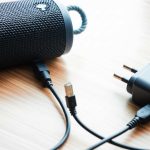
Is your Bluetooth speaker acting up? Don’t worry! This guide gives you quick, easy fixes to get your music back on track. We’ll cover common problems and simple solutions so you can enjoy great sound again without the hassle.
Hey there, tech friends! Max here from AffTechy.com. You know, sometimes life’s best moments are made better with music. Whether you’re chilling at home, having a backyard party, or just enjoying a podcast on your patio, a good Bluetooth speaker is like a magic wand for sound. But what happens when that magic wand stops working? It can be super frustrating when your trusty speaker decides to go silent or won’t connect.
I remember my first Bluetooth speaker. It was a gift, and I was so excited to blast my favorite tunes. Then, one day, it just wouldn’t pair with my phone. I felt a bit lost, sifting through confusing manuals and tech forums. It felt like I needed a degree in engineering just to play a song! That’s why I wanted to create this guide. I want to take the confusion out of troubleshooting and make it as easy as picking your next playlist.
We’ve all been there, right? That moment of panic when your speaker is supposed to be the life of the party, and it’s just… quiet. Or maybe it connects, but the sound is all crackly and weird. It can feel like a huge problem, but usually, it’s something simple we can fix together. Think of me as your friendly tech buddy, here to help you sort it out.
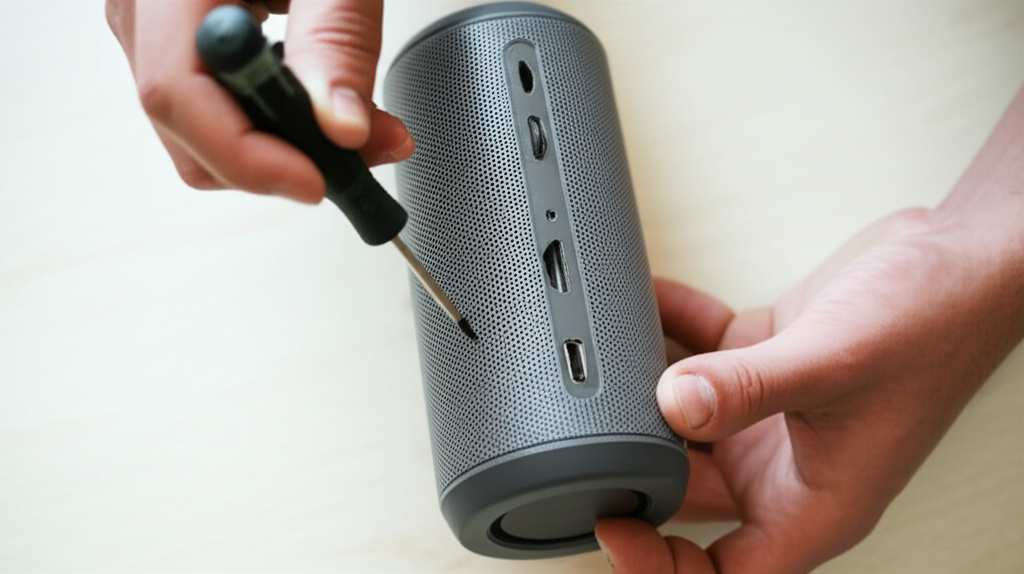
So, let’s dive in! We’ll break down the most common Bluetooth speaker issues and walk through some super simple fixes. You don’t need to be a tech wizard, I promise. We’ll cover everything from connection problems to sound glitches. Ready to get your speaker singing again? Let’s make this easy.
Why Isn’t My Bluetooth Speaker Working? Common Culprits
It’s a bummer when your speaker doesn’t play nice. Often, the issue isn’t a broken speaker at all. It’s usually a small glitch or a simple setting that’s a bit off. Think of it like a tiny hiccup in the system. We’ll look at the most frequent reasons your speaker might be misbehaving.
Sometimes, it’s as simple as your speaker needing a little break. Or maybe the device you’re trying to connect from is playing up. We’ll go through these common culprits one by one. By the end, you’ll be a pro at spotting and fixing most Bluetooth speaker problems.
Let’s Get Connected: Fixing Pairing and Connection Issues
This is probably the most common problem people run into. Your phone sees the speaker, or it doesn’t see it at all. Or it connects, but then drops the connection. It’s like trying to have a conversation, but the line keeps cutting out.
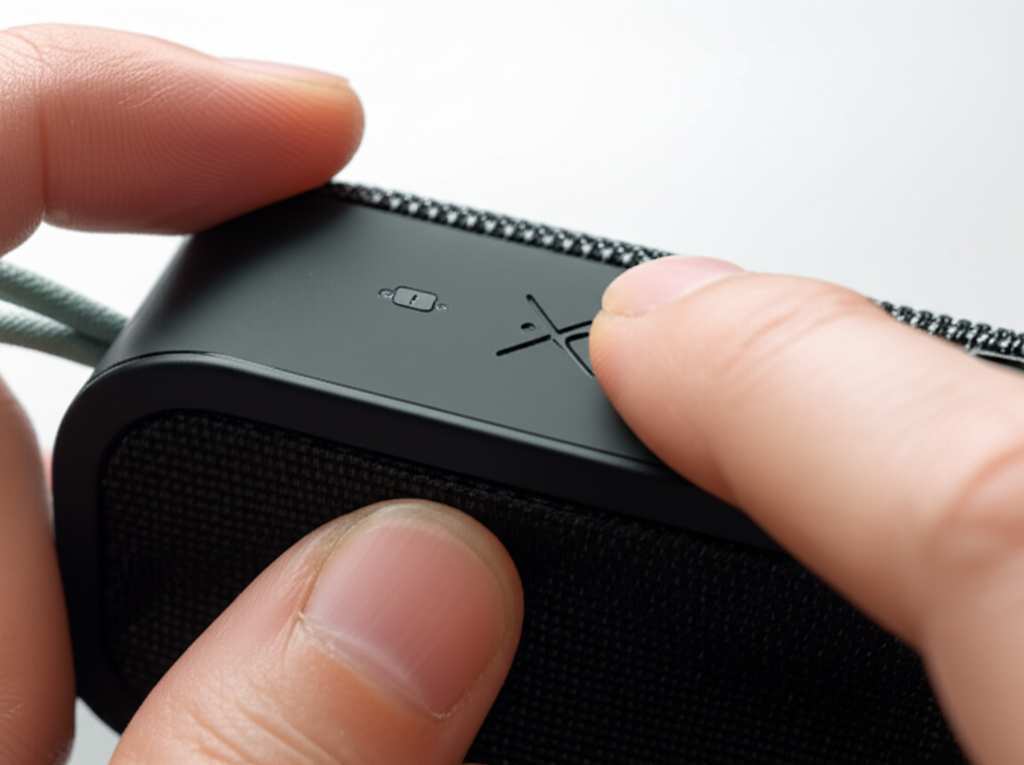
Here’s the good news: most connection issues are super easy to fix. We’ll start with the simplest steps and work our way up. You’ll be streaming your favorite songs in no time.
The Classic Restart: Turn it Off and On Again
This is the golden rule of tech troubleshooting, and it works wonders for Bluetooth speakers. It’s like giving the speaker and your device a fresh start.
- Turn off your Bluetooth speaker. Look for a power button, usually on the top or side. Press and hold it until the lights go off.
- Turn off Bluetooth on your phone or tablet. Go into your device’s settings and toggle Bluetooth off.
- Wait for about 30 seconds. This gives everything a moment to reset properly.
- Turn your Bluetooth speaker back on. Make sure it’s in pairing mode if it doesn’t connect automatically.
- Turn Bluetooth back on on your phone or tablet.
- Try pairing again. Your device should find the speaker, and you can reconnect.
This simple step fixes a surprising number of issues. It clears out any temporary glitches that might be causing trouble.
Are You In Range? Checking Your Distance
Bluetooth has a limited range. If you’re too far away, the connection can get weak or drop. Think of it like trying to hear someone whisper across a large room.
Keep your speaker and device close. For most speakers, this is around 30 feet (10 meters).
Obstacles matter. Walls, furniture, and even your own body can weaken the signal. Try to have a clear line of sight if possible.
Being too far apart is a simple reason for connection woes. Move closer and see if that helps!
Forget and Re-Pair: A Clean Slate
Sometimes, your device remembers an old or faulty connection. Telling it to forget the speaker and start fresh can solve a lot of problems.
- Go to your device’s Bluetooth settings.
- Find your speaker in the list of paired devices.
- Tap on it and select “Forget Device” or “Unpair.” The wording might be slightly different depending on your phone or tablet.
- Put your speaker back into pairing mode. Check your speaker’s manual for how to do this – it often involves holding a Bluetooth button.
- Scan for devices again on your phone or tablet.
- Select your speaker from the new list and pair it.
This is a great way to clear out any corrupted connection data. It’s like giving your device and speaker a brand new introduction.
Is Your Speaker in Pairing Mode?
This sounds obvious, but it’s a common oversight. Your speaker needs to be in “pairing mode” to be discoverable by your phone or tablet.
Most speakers have a dedicated Bluetooth button. You usually press and hold this button until you hear a sound or see a blinking light.
Check your speaker’s manual if you’re unsure. Every model is a little different.
Without pairing mode, your phone won’t even know your speaker is available to connect. It’s like trying to find a restaurant without knowing its name or address.
Check for Interference: Other Devices Can Be Sneaky
Other electronic devices can sometimes interfere with Bluetooth signals. This is because Bluetooth uses a specific radio frequency.
Microwaves, Wi-Fi routers, and even some cordless phones can cause interference.
Try moving your speaker and device away from these potential sources.
If you have many Bluetooth devices connected, try disconnecting some to see if it improves the connection.
It’s a good idea to test your speaker in a different location if you suspect interference. This helps rule out environmental factors.
Sound Problems: When the Music Isn’t Quite Right
So, your speaker connects, but the sound is weird. Maybe it’s crackly, distorted, or just sounds… off. This can be just as annoying as not connecting at all!
Let’s look at what might be causing these audio glitches and how to fix them.
Is the Volume Too High?
This might sound too simple, but pushing the volume to its absolute maximum can sometimes cause distortion.
Try lowering the volume slightly on both your device and the speaker.
See if the sound quality improves. Many speakers sound best at around 75-80% volume.
It’s like shouting for too long – eventually, your voice gets strained! A little less volume can often mean a lot better sound.
Check Your Audio Source
Is the problem with your speaker, or is it the music itself?
Try playing a different song or podcast.
If the new audio sounds fine, the original file or stream might be the issue.
Test with a known good audio source. This helps isolate the problem.
Sometimes the source of the sound is the culprit, not the speaker itself. This is a quick way to check.
Firmware Updates: Keeping Your Speaker Smart
Just like your phone or computer, Bluetooth speakers can have software, called firmware, that sometimes needs updating. These updates can fix bugs and improve performance.
Check the manufacturer’s website or app. Many brands have a dedicated app for their speakers.
Look for a section on firmware updates.
Follow the instructions carefully to update your speaker.
This is a bit more involved, but it can solve deeper issues. It’s like giving your speaker a tune-up. A recent update for the popular JBL Charge 5, for example, improved its Bluetooth stability.
Clean Your Speaker Grills
Dust and debris can build up over time, especially if you use your speaker outdoors. This can muffle the sound.
Gently brush the speaker grills with a soft, dry brush.
You can use a can of compressed air to blow out stubborn dust.
Never use liquids directly on the speaker.
Clean grills mean clearer sound. It’s like cleaning your glasses so you can see better!
Battery and Power Issues: When Your Speaker Won’t Turn On
What if your speaker is completely dead? No lights, no sounds, nothing. This usually points to a power or battery problem.
Is it Charged? The Most Basic Step
It sounds super obvious, but is your speaker actually charged? Many connection or power issues are solved by simply charging the device.
Plug your speaker into its charger. Use the original cable and adapter if possible.
Check the charging indicator light. Most speakers have a light that shows when they are charging and when they are full.
Leave it to charge for a good while. Some batteries take longer than others to charge fully.
If it’s been a while and it’s still not showing any signs of life, there might be another issue. But always start with a full charge.
Try a Different Charging Cable or Adapter
Sometimes, the problem isn’t the speaker, but the accessories you’re using to charge it.
Cables can get damaged internally without showing external signs.
Adapters can also fail.
Try using a different, known-good USB cable and power adapter to charge your speaker.
This is a quick test that can save you a lot of worry. If it charges with different accessories, you know what the problem was!
Battery Health: Has it Reached its Limit?
Like all rechargeable batteries, Bluetooth speaker batteries degrade over time. If your speaker is old and won’t hold a charge for long, or won’t charge at all, the battery might be dead.
Check your speaker’s manual or the manufacturer’s website for information on battery life and replacement.
For many portable speakers, replacing the battery yourself can be difficult or impossible.
If the battery is the issue and it’s not replaceable, it might be time for a new speaker.
It’s a sad truth of gadgets, but batteries don’t last forever. This is especially common with older models.
Troubleshooting Specific Speaker Features
Some speakers have extra features like voice assistants, multi-speaker pairing, or special app controls. If these aren’t working, here are some quick tips.
Multi-Speaker Pairing (Stereo or Party Mode)
If you can’t get two or more speakers to sync up:
Ensure both speakers are the same model and brand. Most multi-speaker systems require this.
Make sure both speakers are fully charged and updated.
Follow the specific pairing instructions for your model carefully. This often involves pressing a button on one speaker to connect to the other.
Try re-pairing them from scratch. Sometimes the initial connection for multi-speaker mode gets confused.
This feature is super fun for parties, so it’s worth troubleshooting to get it working!
Voice Assistant Issues
If your speaker has a built-in voice assistant (like Alexa or Google Assistant) and it’s not responding:
Check your Wi-Fi connection. Most voice assistants need a stable internet connection.
Ensure the microphone isn’t muted. Many speakers have a physical button to mute the mic.
Try re-linking your voice assistant account through the speaker’s app.
Voice assistants are super convenient, but they rely on a good internet connection to work.
When to Call in the Pros (or Get a New Speaker!)
Sometimes, despite your best efforts, a speaker just won’t cooperate. If you’ve tried all these steps and your speaker is still giving you trouble, it might be time to consider a few things.
Contact Manufacturer Support
If your speaker is still under warranty, or if you suspect a hardware defect, reaching out to the manufacturer is a good next step.
Visit the support section on their website.
They might have more advanced troubleshooting steps or offer repair or replacement options.
Manufacturers are there to help, especially if there’s a known issue with their product.
Consider the Age of Your Speaker
Technology moves fast! If your speaker is several years old, it might be struggling with newer Bluetooth versions or simply have a worn-out battery.
Older Bluetooth versions (like 3.0 or 4.0) might have more connection issues with newer devices.
Battery degradation is inevitable.
It’s okay to admit when a gadget has served its time.
Look for Common Problems with Your Model
Sometimes, specific speaker models have common quirks or issues. A quick search online for your speaker model and “problems” or “troubleshooting” can reveal if others have faced similar challenges and found solutions. You might find tips specific to your device that aren’t general.
Here’s a quick look at how different battery capacities might affect your listening time, which is a common concern for portable speakers:
| Speaker Model | Battery Capacity (mAh) | Typical Playback Time (Hours) | Notes |
|---|---|---|---|
| BrandX Mini | 1500 | 8-10 | Great for short trips, needs frequent charging. |
| BrandY SoundBlast | 4000 | 15-20 | Excellent for longer listening sessions, good balance. |
| BrandZ Pro | 8000 | 25-30+ | Ideal for all-day use, but heavier and takes longer to charge. |
As you can see, a bigger battery usually means longer playtime. If your speaker’s playback time has drastically reduced, it’s a strong sign the battery is aging. This is a crucial detail to consider when troubleshooting battery life issues.
Another thing to think about is the Bluetooth version your speaker uses. Newer versions are generally more stable and efficient.
| Bluetooth Version | Year Introduced | Key Improvements |
|---|---|---|
| Bluetooth 4.0 (LE) | 2010 | Lower power consumption (LE = Low Energy). |
| Bluetooth 4.2 | 2014 | Improved security and internet communication. |
| Bluetooth 5.0 | 2016 | 2x speed, 4x range, 8x broadcast capacity. Major improvements! |
| Bluetooth 5.1 | 2019 | Direction finding (for location services). |
| Bluetooth 5.2 | 2020 | Enhanced audio (LE Audio) and power efficiency. |
If your speaker is running Bluetooth 4.0 or older, you might experience more connection dropouts or slower pairing compared to newer models that use Bluetooth 5.0 or later. This can sometimes make it feel like the speaker is “broken” when it’s just using older technology. For more detailed info on Bluetooth versions, TechRadar has some great breakdowns.
Frequently Asked Questions (FAQ)
Got more questions? No worries, I’ve got you covered with answers to common beginner queries!
Q1: My Bluetooth speaker won’t turn on at all. What should I do?
First, make sure it’s properly charged! Plug it in with its original charger and let it sit for at least an hour. Check if there’s a charging indicator light. If it still won’t turn on after charging, try a different charging cable and power adapter. If that doesn’t work, the battery might be completely dead, or there could be a hardware issue.
Q2: How do I know if my speaker is in pairing mode?
Most speakers have a blinking light or make a specific sound when they are in pairing mode. You usually activate it by pressing and holding the Bluetooth button for a few seconds. Check your speaker’s manual for the exact indicator!
Q3: Why does my Bluetooth speaker keep disconnecting?
This can happen if you’re too far from your device, if there are obstacles like walls between them, or if there’s interference from other electronic devices. Try moving your speaker and device closer together and away from potential interference sources like microwaves or Wi-Fi routers. Forgetting and re-pairing the device can also help.
Q4: My speaker sounds muffled or distorted. What’s wrong?
Check the volume levels on both your speaker and your device – sometimes max volume causes distortion. Also, make sure the speaker grills are clean and free of dust or debris. If the audio source itself is poor quality, that can also sound muffled.
Q5: Can I use any USB cable to charge my Bluetooth speaker?
While many speakers use standard USB cables (like micro-USB or USB-C), it’s always best to use the original cable that came with your speaker. Some speakers might have specific charging requirements. If you’re using a different cable and it’s not charging, try the original one or a known-good compatible cable.
Q6: How often should I update my Bluetooth speaker’s firmware?
You don’t need to update firmware constantly. Usually, you’ll only need to update if you’re experiencing specific issues that the update addresses, or if the manufacturer releases a significant improvement. Check the manufacturer’s app or website periodically, or when you notice a problem.
Q7: My speaker is old. Is it worth fixing?
That depends! If the fix is simple, like a restart or re-pairing, then absolutely. If it’s a battery issue and the battery is replaceable, it might be worth it. However, if it requires complex repairs or the battery is integrated and dead, it might be more cost-effective to invest in a new, updated speaker.
Bringing the Beat Back: Your Speaker is Ready!
There you have it! Most of the time, your Bluetooth speaker just needs a little nudge in the right direction. We’ve covered the simple restarts, the connection tricks, and even some sound fixes. You’ve learned how to be your own tech support hero!
Remember, technology is meant to be enjoyed. Don’t let a little glitch get you down. By following these steps, you can tackle most common Bluetooth speaker problems with confidence. You’ve got this!
So go ahead, try out these quick fixes. You’ll be back to enjoying crystal-clear music, immersive podcasts, or epic game audio in no time. Now go enjoy amazing sound and make every moment louder and better!