Having trouble with your Bluetooth speaker? Don’t worry! This guide will show you easy, step-by-step ways to fix common Bluetooth speaker problems so you can get back to enjoying your music or podcasts. Let’s make that sound amazing again!
Hey there, tech adventurer! So, you’ve got a Bluetooth speaker, right? It’s pretty awesome. It fills your room with music, makes movie nights way better, or even brings your gaming sessions to life. But what happens when that trusty speaker suddenly goes silent or refuses to connect? It can be super frustrating, I know!
Picking out the perfect speaker can be a whole adventure in itself, with all those specs and features. But when it stops working, it feels like a party pooper. Don’t sweat it though, because you’ve landed in the right spot. We’re going to dive into the common issues and fix them up together, nice and easy.
Think of me as your friendly guide through the land of gadgets. We’ll go through this step-by-step, no confusing jargon, just simple solutions. You’ll be jamming to your favorite tunes in no time. Ready to bring your speaker back to life? Let’s get started!
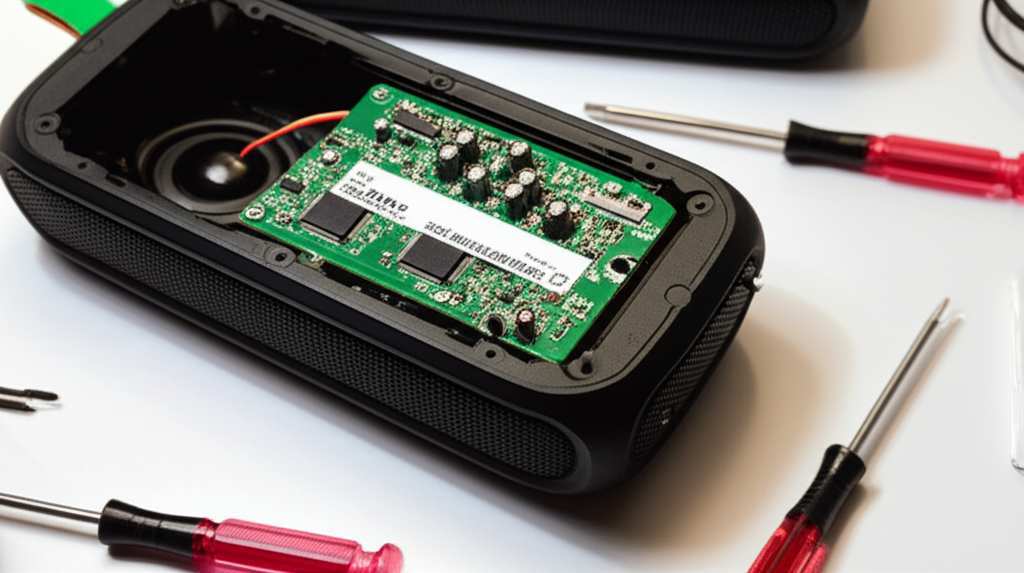
Why Your Bluetooth Speaker Might Be Acting Up
It’s a bummer when your speaker just won’t play nice. There are a few reasons this can happen, and most of them are pretty simple to fix. Think of it like a car that’s not starting – sometimes it’s just a loose wire or an empty gas tank! Your speaker can have similar little hiccups.
Sometimes, it’s just a small glitch in the connection between your phone and the speaker. Other times, the speaker itself might need a little reset. We’ll cover all the common culprits, from pairing problems to sound issues. You’ll learn what to look for and how to solve it.
Troubleshooting 101: The Quick Fixes First!
Before we dive into anything complicated, let’s try the simplest things first. These are like the “turn it off and on again” tricks, but for your speaker. They often solve more problems than you’d think!
1. Restart Everything
This is the golden rule of tech troubleshooting. It’s amazing how often this works.
Turn off your Bluetooth speaker.
Turn off Bluetooth on your phone or device.
Wait about 30 seconds.
Turn your Bluetooth speaker back on.
Turn Bluetooth on your device back on.
Try to pair them again.
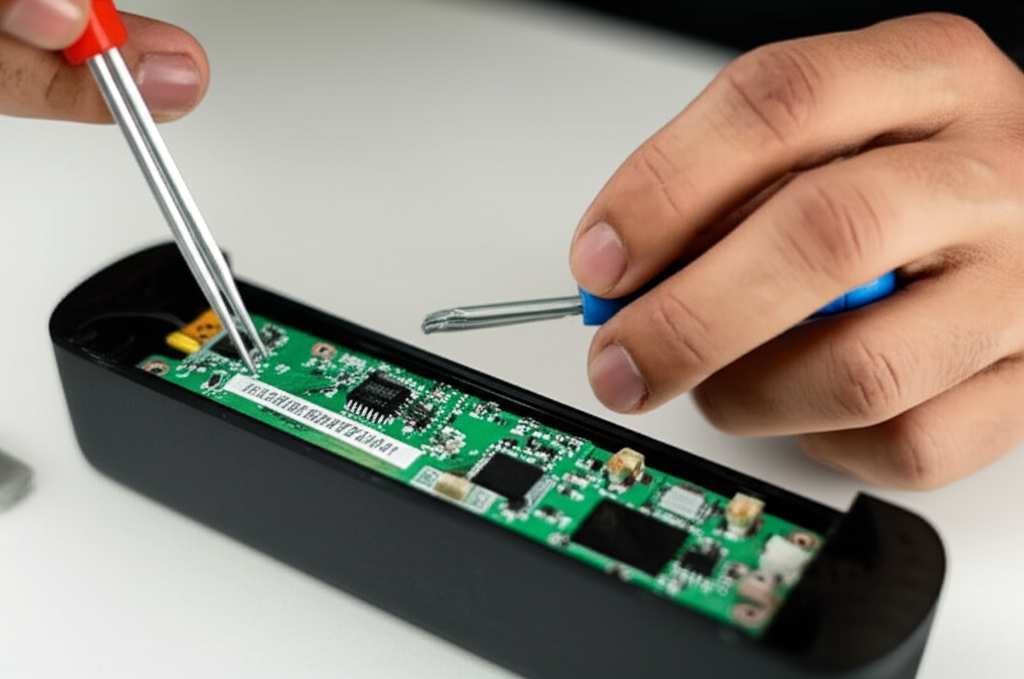
This simple restart can clear out temporary glitches in both devices. It’s like giving them a fresh start to connect properly.
2. Check the Volume Levels
This might sound silly, but it happens! Sometimes the speaker is connected, but the volume is just turned all the way down.
Make sure the volume on your speaker is turned up.
Also, check the volume on your phone or tablet.
Sometimes, there’s a separate volume control for the Bluetooth connection.
It’s easy to forget to check all the volume controls when you’re in a hurry. Double-check them all!
3. Get Closer
Bluetooth has a range, and if you’re too far away, the signal can get weak or drop.
Bring your phone or device closer to the speaker.
Try to keep them within 10-15 feet of each other.
Avoid walls or other objects that can block the signal.
This helps ensure a strong, stable connection for the best sound.
When the Speaker Won’t Connect or Pair
Connection issues are super common. If your speaker isn’t showing up on your device, or if it keeps disconnecting, here are some specific things to try.
Forget and Re-Pair Your Device
Sometimes, the saved connection between your speaker and device gets a bit confused. “Forgetting” it and setting it up again can fix this.
On your phone or tablet, go to your Bluetooth settings.
Find your speaker in the list of paired devices.
Tap on it and select “Forget Device” or “Unpair.”
Now, put your speaker in pairing mode (usually by holding a Bluetooth button until a light blinks).
On your device, scan for new Bluetooth devices.
Select your speaker when it appears and pair them again.
This process is like reintroducing your devices to each other. It often clears up persistent pairing problems.
Clear Your Device’s Bluetooth Cache (Android)
For Android users, sometimes the Bluetooth system itself can get a little bogged down. Clearing its cache can help.
Go to your device’s Settings.
Tap on “Apps” or “Applications.”
You might need to tap the three dots and select “Show System Apps.”
Find “Bluetooth” in the list.
Tap on “Storage.”
Select “Clear Cache.”
You might also see “Clear Data,” but use that with caution as it can reset other Bluetooth settings. Start with just the cache.
Restart your device and try pairing again.
This is a bit more technical, but it can be a lifesaver for stubborn connection issues on Android phones.
Check for Interference
Other electronic devices can mess with Bluetooth signals.
Move away from microwaves, Wi-Fi routers, or other Bluetooth devices.
Too many devices trying to connect at once can also cause problems.
Bluetooth uses a specific radio frequency, and other gadgets can sometimes bump into that signal. Keeping your speaker and device away from potential interference helps.
No Sound or Distorted Sound Issues
Okay, so your speaker connects, but you’re not getting any sound, or it sounds all crackly. Let’s sort that out!
Make Sure the Correct Audio Output is Selected
Sometimes your phone or computer might be trying to play sound through its own speaker instead of the Bluetooth one.
When your speaker is connected, go to your audio settings on your device.
Look for an option to select your audio output.
Choose your Bluetooth speaker from the list.
This ensures the sound is actually being sent to where you want it to go. It’s a simple check that often gets overlooked.
Update Your Device’s Software
Outdated software can sometimes cause compatibility issues with Bluetooth devices.
Check your phone, tablet, or computer for any available software updates.
Install any updates and then try connecting your speaker again.
Keeping your devices updated helps them work better with all sorts of accessories, including your speaker.
Test with a Different Device
This helps figure out if the problem is with the speaker or your original device.
Try connecting your Bluetooth speaker to a different phone, tablet, or laptop.
If it works fine with another device, the issue is likely with your first device.
If it still has problems, the speaker itself might be the issue.
This is a great way to narrow down the source of the trouble. It saves you a lot of guessing!
Check the Speaker’s Firmware
Some Bluetooth speakers have firmware that can be updated. This is like the speaker’s internal software.
Visit the manufacturer’s website for your specific speaker model.
Look for a support or downloads section.
They might have instructions on how to check and update the firmware.
Manufacturer websites are the best place to find these specific instructions. It’s usually a straightforward process if they offer it.
What if the Speaker Won’t Charge or Turn On?
This is a critical one. If your speaker isn’t powering up, it’s not much good to anyone!
Check the Charging Cable and Port
A faulty cable or a dirty port can stop charging.
Try using a different USB cable and power adapter.
Make sure the charging port on the speaker is clean and free of debris. You can gently clean it with a dry, soft brush or a puff of air.
Ensure the cable is plugged in firmly at both ends.
Sometimes, a worn-out cable is the culprit. Trying a new one is a quick test.
Let It Charge for a While
If the battery is completely drained, it might take a little while before it shows any signs of life.
Plug your speaker in using a reliable charger.
Leave it charging for at least 30 minutes to an hour before trying to turn it on.
A completely dead battery needs a bit of juice before it can boot up. Patience is key here!
Perform a Hard Reset (If Available)
Some speakers have a hidden reset button or a button combination that can force a reset.
Check your speaker’s manual or the manufacturer’s website for instructions on how to perform a hard reset.
This often involves holding down a specific button or a combination of buttons for several seconds.
A hard reset can sometimes clear internal errors that prevent the speaker from powering on.
Speaker Won’t Hold a Charge?
If your speaker powers on but the battery life is terrible, it might be time to look at the battery itself.
Battery Health
Like all rechargeable batteries, Bluetooth speaker batteries degrade over time.
If your speaker is several years old, the battery might simply be worn out.
Check the manufacturer’s specifications for expected battery life. If it’s significantly less, the battery might be the problem.
Unfortunately, replacing the battery in a Bluetooth speaker can be tricky and sometimes not cost-effective.
Try a Different Charger
Not all chargers are created equal, and using a low-quality one can affect charging speed and battery health.
Always use the charger recommended by the speaker manufacturer, if possible.
If not, use a reputable brand charger with the correct voltage and amperage.
A good quality charger ensures your speaker gets the power it needs without damaging the battery.
Amazing Features That Can Help Your Speaker Last Longer
Taking care of your speaker can prevent many problems. Here are some features and tips to keep in mind.
Water Resistance Ratings
Many speakers come with IP ratings, like IPX7. This tells you how well they resist water and dust.
IPX7 means it can be submerged in water up to 1 meter for 30 minutes.
This is great for poolside parties or bathroom listening!
Knowing your speaker’s IP rating helps you use it confidently in different environments without worrying about damage.
Battery Saving Modes
Some speakers have modes that help conserve battery life.
This might include dimming LED lights or reducing power output slightly.
Using these modes can extend your listening time between charges.
It’s a small feature, but it can make a big difference on long trips or days out.
Automatic Shut-Off
Many speakers will turn themselves off after a period of inactivity to save battery.
This is super handy if you forget to turn it off yourself.
Check your manual to see if your speaker has this feature and how long it waits.
It’s a smart little function that prevents you from finding a dead speaker next time you want to use it.
Comparing Bluetooth Speaker Features
When you’re looking at speakers, some features stand out for performance and reliability. Here’s a quick look at what matters:
| Feature | What It Means | Why It’s Important |
| :————— | :———————————————- | :———————————————– |
| Bluetooth Version | The technology standard used for wireless connection. | Newer versions (e.g., 5.0, 5.2) offer better range, speed, and stability. |
| Battery Life | How long the speaker plays on a single charge. | Crucial for portable use; longer is better. |
| IP Rating | Protection against dust and water ingress. | Indicates durability and where you can safely use it. |
| Driver Size | The physical size of the speaker components. | Larger drivers often mean deeper bass and richer sound. |
| Connectivity | Number of devices it can connect to, or if it supports multi-point. | Allows for easier switching between devices or connecting multiple speakers. |
Understanding these features can help you choose a speaker that’s not only great for sound but also built to last and easy to use. A speaker with Bluetooth 5.0, for instance, will generally provide a more robust connection than one with an older version.
Quick Tips for Maintaining Your Bluetooth Speaker
Keeping your speaker in good shape means fewer problems down the line. Here are some easy maintenance tips.
Keep it Clean: Gently wipe down the exterior with a soft, dry cloth. Avoid harsh chemicals.
Protect the Ports: Keep charging ports free from dust and debris.
Avoid Extreme Temperatures: Don’t leave your speaker in a hot car or freezing cold for long periods.
Handle with Care: While some are rugged, dropping them can damage internal components.
* Update Firmware: Check for firmware updates periodically as mentioned before.
These small habits can significantly extend the life and performance of your Bluetooth speaker. It’s like taking care of any valuable gadget!
Frequently Asked Questions About Fixing Bluetooth Speakers
Let’s tackle some common questions you might have.
Why won’t my Bluetooth speaker turn on?
Usually, this means the battery is completely drained. Try charging it for at least 30 minutes with a known good charger and cable. Also, check if there’s a reset button or a hard reset procedure for your specific model.
My speaker connects but there’s no sound. What do I do?
First, check the volume on both your device and the speaker. Make sure your device is set to output audio to the Bluetooth speaker, not its internal speakers. Sometimes, restarting both devices can fix this.
Why does my Bluetooth speaker keep disconnecting?
This could be due to distance, interference from other devices, or a weak battery. Try moving closer to your device, away from other electronics like microwaves or Wi-Fi routers. Ensure your speaker and device have enough charge. Forgetting and re-pairing the speaker can also help.
Can I fix a Bluetooth speaker that got wet?
If your speaker is rated as water-resistant, follow its specific instructions. If it’s not, turn it off immediately and dry it thoroughly. Do NOT try to charge it until you are sure it’s completely dry inside and out, which can take days. Avoid using heat to dry it.
How do I know if my Bluetooth speaker battery is dead?
If your speaker won’t hold a charge for more than a short period, or if it won’t turn on even after charging, the battery might be worn out. Batteries naturally degrade over time.
Is it worth repairing a broken Bluetooth speaker?
For simple fixes like pairing issues or minor connection problems, yes, it’s often worth it! If the internal components or battery are severely damaged, it might be more cost-effective to replace it, especially with the affordable options available today.
How do I update the firmware on my Bluetooth speaker?
You’ll need to check your speaker’s manufacturer website. They usually have a support section with instructions and software for firmware updates. This process often involves connecting the speaker to a computer.
Conclusion: Get Ready for Amazing Sound Again!
So there you have it! We’ve walked through the most common Bluetooth speaker hiccups and found some amazing solutions. From simple restarts to checking those tiny ports, you’re now armed with the knowledge to tackle most issues. Remember, most of these fixes are super straightforward and can get you back to enjoying your tunes in minutes.
Don’t let a little technical glitch stop your groove. You’ve got this! Whether it’s a stubborn pairing, a silent speaker, or a charging drama, you now know the first steps to take. And if you ever need more in-depth info, the manufacturer’s website is always your friend.
Now go enjoy amazing sound and make every moment louder and better! Happy listening!