Want to blast your music from two Bluetooth speakers at once? It’s totally doable and easier than you think! This guide shows you simple ways to sync multiple speakers for bigger, bolder sound, making parties, movies, or just chill sessions way more awesome. Get ready for immersive audio!
Hey there, tech explorer! Max here from AffTechy.com, your go-to buddy for making technology feel like a breeze. You know how sometimes you’re watching a movie or having friends over, and you just wish the sound could fill the whole room? Like, really fill it?
Maybe you’ve got a couple of cool Bluetooth speakers lying around, and you’ve wondered, “Can I actually play music through both of them at the same time?” It’s a super common question, and honestly, the tech world can sometimes make simple things sound complicated.
But that’s where I come in! My mission is to break down all that tech jargon into plain English. We’re going to explore how to get your tunes or movie sound pumped out from more than one speaker without pulling your hair out.
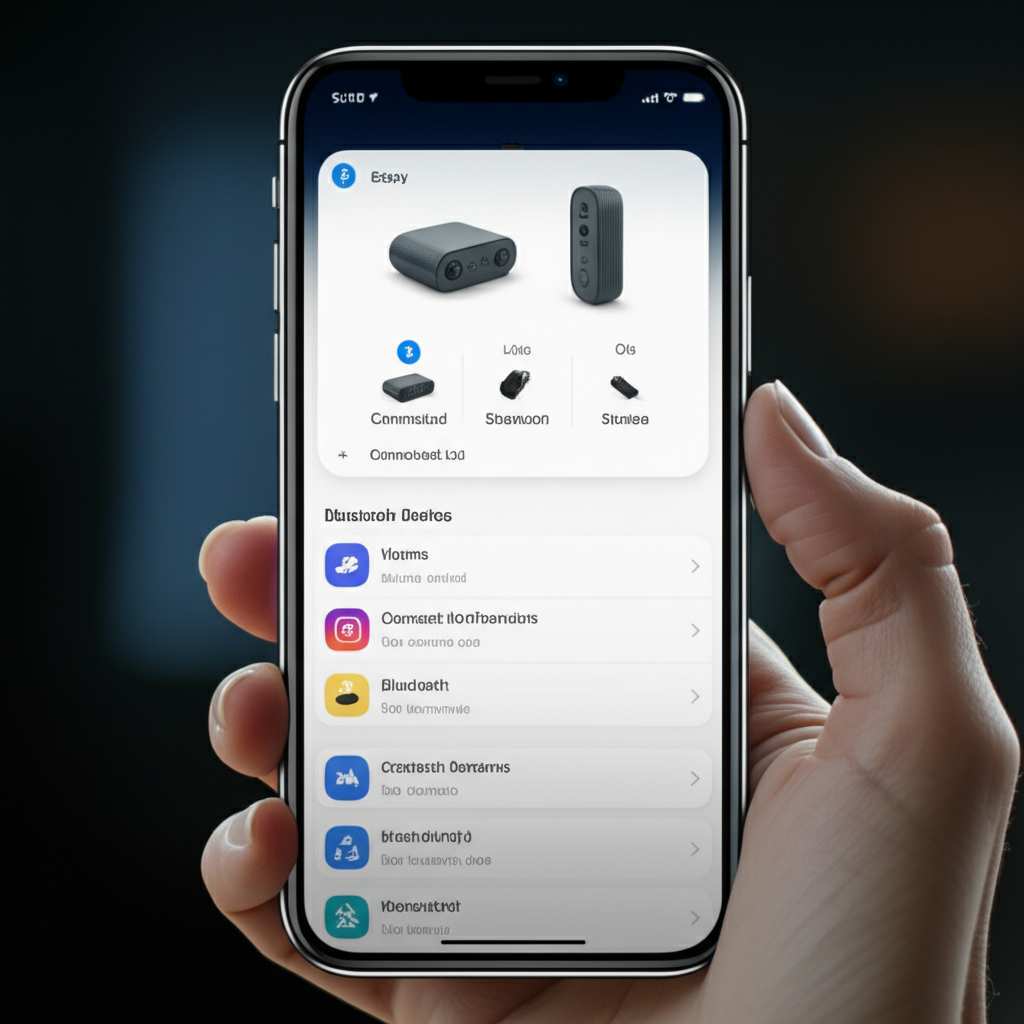
Think of it like this: why have a solo artist when you can have a whole band playing your favorite song? We’re aiming for that full-sound experience, and it’s not as tricky as it sounds. Let’s dive in and unlock the magic of multi-speaker Bluetooth sound!
Why Double Up Your Bluetooth Speakers?
Imagine this: you’re setting up for a backyard barbecue, and your phone’s speaker just isn’t cutting it. Or perhaps you’re setting up a home theater vibe, and you want that cinematic sound to really wrap around you. Connecting two Bluetooth speakers is your ticket to a much richer, more immersive audio experience.
It’s not just about volume, though that’s a nice perk! It’s about creating a soundstage. This means the audio feels like it’s coming from different directions, making music sound more dynamic and movies feel more engaging. You can even place speakers in different parts of a room to ensure everyone gets great sound.
This setup is perfect for parties, outdoor gatherings, or even just making your gaming sessions feel way more epic. Plus, it’s a fantastic way to get more use out of the speakers you already own. Who doesn’t love a good tech hack that enhances their life?
Understanding the Magic: How Does This Even Work?
Before we jump into the “how-to,” let’s quickly touch on the “why” behind connecting multiple speakers. It’s all thanks to a bit of clever technology that allows devices to broadcast audio to more than one output source. This feature is often called “stereo pairing,” “multi-room audio,” or sometimes by a brand-specific name.
Essentially, your phone or tablet acts as the central hub. It sends the audio signal to one speaker, and then either that speaker relays the signal to the second one, or your phone sends a separate signal to each. The goal is to have both speakers playing the same audio, perfectly in sync, so you don’t get that annoying echo effect.
Some speakers are designed specifically to work together as a pair, while others can connect to a wider network of speakers. We’ll cover both scenarios to make sure you’re covered, no matter what gear you have. It’s all about finding the right method for your specific speakers.
The Two Main Ways to Connect Multiple Bluetooth Speakers
When it comes to connecting more than one Bluetooth speaker, there are generally two main paths you can take. Each has its own set of advantages and works best with different types of speakers.
The first way is using a feature built directly into the speakers themselves. Many modern Bluetooth speakers come with a “stereo pairing” or “TWS” (True Wireless Stereo) function. This lets you link two identical or compatible speakers together to act as a left and right channel, or just play the same audio in sync.
The second way involves using your smartphone or tablet’s software capabilities. Some devices have a built-in feature that allows you to connect to two Bluetooth audio devices simultaneously. This is often called “dual audio” or something similar. Let’s explore these methods in detail!
Method 1: Stereo Pairing (TWS) – The Speaker’s Built-in Feature
This is often the most seamless and best-sounding way to connect two Bluetooth speakers. Stereo pairing is designed to create a true stereo sound experience, meaning one speaker handles the left audio channel and the other handles the right. It’s like having a mini sound system!
For this to work, you usually need two identical speakers, or at least speakers from the same brand and model that are designed to pair with each other. Some brands even allow pairing of different models within the same series. Always check your speaker’s manual for compatibility.
Here’s how you generally set it up. The exact steps can vary slightly between brands, so consult your speaker’s manual if you get stuck!
Step-by-Step Guide to Stereo Pairing
- Charge Up Your Speakers: Make sure both of your speakers have enough battery life. You don’t want them cutting out mid-song!
- Turn On Both Speakers: Power on both of the speakers you want to pair.
- Initiate Pairing Mode on One Speaker: On the first speaker, you’ll need to activate its pairing mode. This often involves pressing and holding a Bluetooth button until you hear a specific sound or see a flashing light.
- Activate the TWS/Stereo Pairing Function: This is the crucial step! On the same speaker (the one you just put into pairing mode), you’ll need to press a specific button combination or hold another button to initiate the TWS connection. Again, this varies by brand. Some speakers have a dedicated TWS button, while others use a long press of the Bluetooth button or a power button. You might hear a confirmation sound or see a light change on the speaker.
- Wait for Them to Connect: The first speaker will now search for its partner. Once the second speaker is turned on and in Bluetooth range, they should automatically find each other and connect. You’ll usually hear a confirmation sound from both speakers, or a light on the primary speaker will change to indicate a successful TWS connection.
- Connect to Your Device: Now, go to your smartphone or tablet’s Bluetooth settings. You should see the name of one of your speakers appear in the list of available devices. Select it to connect.
- Enjoy Stereo Sound: Once connected, your phone will send the audio signal, and it will be split between the two speakers. One will act as the left channel, and the other as the right. You’ve got stereo sound!
Pro Tip: Sometimes, the speaker that initiates the TWS connection becomes the “primary” speaker. This means all audio controls (volume, play/pause) might be managed through this primary speaker. If you want to switch which speaker is primary, you might need to disconnect and re-pair, or check your speaker’s app if it has one.
Common TWS Button Actions (Check Your Manual!)
- Double-press Bluetooth button: On one speaker, press the Bluetooth button twice quickly.
- Long-press Bluetooth button: Hold down the Bluetooth button on one speaker for several seconds.
- Dedicated TWS button: Some speakers have a specific button labeled “TWS” or with a pair icon.
- Power button combination: Occasionally, it might involve holding the power button for a specific duration.
Fun Fact: TWS technology has been around for a while, but it’s become much more common and reliable in recent years, thanks to advancements in Bluetooth connectivity and processing power within the speakers themselves.
Method 2: Dual Audio / Multipoint Connection – Using Your Phone’s Features
This method is fantastic because it doesn’t necessarily require you to have identical speakers. It relies on your smartphone or tablet’s ability to connect to two Bluetooth audio devices at the same time. This feature is more common on newer flagship phones, especially from Samsung and some other Android manufacturers.
With dual audio, your phone sends the same audio stream to both connected speakers. They won’t create a true stereo pair (left/right channels) like TWS, but they will play the same sound in sync. This is perfect for filling a larger space with consistent sound.
The exact name and location of this setting can differ depending on your phone’s brand and operating system version. Let’s look at how it generally works, focusing on Samsung devices as they often have a robust implementation of this feature.
How to Enable Dual Audio on Samsung Phones
- Turn on Both Speakers: Power on your two Bluetooth speakers. Make sure they are in pairing mode and discoverable.
- Pair the First Speaker: Go to your phone’s Bluetooth settings, find the first speaker in the list of available devices, and connect to it.
- Pair the Second Speaker: Now, while the first speaker is still connected, go back to your Bluetooth settings. Find the second speaker in the list and connect to it as well.
- Enable Dual Audio: If your phone supports dual audio, you’ll likely see a prompt or a setting to enable it. On Samsung phones, you usually need to go to:
- Settings > Bluetooth.
- Once both speakers are connected, tap the three dots (menu) in the top right corner.
- Select “Advanced.”
- Toggle on “Dual audio.”
- Confirm the Setting: Your phone might ask you to confirm that you want to play audio from both devices. Accept this prompt.
- Play Your Audio: Now, when you play music, a podcast, or any audio, it should play through both connected Bluetooth speakers simultaneously.
Note for Other Android Devices: Some other Android phones might have a similar feature, often found in Developer Options or under advanced Bluetooth settings. You might need to search online for your specific phone model to find out if it supports this. For example, on some phones, you might need to enable “Bluetooth AVRCP Version” to 1.4 or higher in Developer Options.
Note for iPhones: As of my last update, native support for connecting to two different Bluetooth audio devices simultaneously for simultaneous playback (like two separate speakers) is not a standard feature on iPhones. However, iPhones can connect to two Bluetooth devices, but typically only one can be used for audio at a time. You can use AirPlay 2 with compatible speakers for multi-room audio, but that’s a different technology than Bluetooth.
When to Use Dual Audio
Dual audio is great for situations where you want consistent sound across a larger area without needing a dedicated stereo setup. Think of a long patio, a big living room, or even two adjacent rooms. It’s less about channel separation and more about broad sound coverage.
It’s also a lifesaver if you have two different Bluetooth speakers that aren’t designed to pair with each other. This method lets you leverage the tech in your phone to make them work together. It’s a true testament to how smart our devices are getting!
Comparing the Methods: Which is Best for You?
Choosing between stereo pairing (TWS) and your phone’s dual audio feature depends on your goals and your equipment. Both have their strengths!
Stereo Pairing (TWS)
- Pros:
- Creates true stereo sound (left and right channels) for a more immersive listening experience.
- Often results in better audio quality and synchronization.
- Speaker handles the connection, freeing up your phone for other tasks.
- Ideal for critical listening or enjoying music with a wide soundstage.
- Cons:
- Usually requires two identical or compatible speakers from the same brand.
- Can be a bit trickier to set up initially, requiring specific button presses.
- Less flexibility if you want to mix and match different speaker brands.
Dual Audio / Multipoint Connection
- Pros:
- Works with most Bluetooth speakers, even if they are different brands or models.
- Excellent for filling larger spaces with consistent sound.
- Easier setup once enabled on your phone – just connect both speakers.
- More flexible for using speakers you already own.
- Cons:
- Does not create true stereo separation; both speakers play the same channel.
- Synchronization might not be as perfect as TWS, though it’s usually very good.
- Relies on your phone supporting the dual audio feature.
- May consume more battery on your phone.
Quick Guide to Choosing
- If you have two identical speakers and want the best possible sound: Go for Stereo Pairing (TWS).
- If you have two different speakers and want them to play together: Use your phone’s Dual Audio feature.
- If you want to fill a large area with sound evenly: Dual Audio is likely your best bet.
- If you want an “audiophile” experience with distinct left and right channels: TWS is the way to go.
Helpful Tip: Always check your speaker’s manual or the manufacturer’s website. They often have specific instructions and compatibility information for pairing multiple units. Some brands even have dedicated apps that simplify the process!
What If My Speakers Don’t Support These Features?
It’s a bummer, but not all Bluetooth speakers are created equal when it comes to multi-speaker setups. Older models or very basic speakers might not have TWS capabilities, and your phone might not support dual audio. So, what are your options?
1. Use a Bluetooth Transmitter/Receiver with Multipoint: Some advanced Bluetooth transmitters and receivers can connect to two devices simultaneously. You’d plug your audio source (like a TV or computer) into the transmitter, and then the transmitter sends the signal to two separate Bluetooth speakers. This is a great workaround if your phone and speakers lack native support. Brands like Avantree offer reliable options.
2. Consider a Different Audio Technology: If you’re looking for a robust multi-room audio experience, you might want to explore Wi-Fi based systems. Technologies like Apple’s AirPlay 2 or Sonos systems allow you to group multiple speakers (even different brands that support AirPlay 2) to play audio in sync throughout your home. This usually requires a Wi-Fi connection rather than Bluetooth.
3. Look for Speakers with Built-in Multi-Speaker Functionality: Many brands now advertise their speakers as being able to connect to multiple units. For example, JBL’s Connect+ or PartyBoost, and Bose’s Party Mode allow you to link several compatible speakers together for a bigger sound. This often works over Bluetooth but is managed by the speaker ecosystem itself.
It’s all about finding the right tool for the job. While Bluetooth is convenient, it does have its limitations, and sometimes a little extra hardware or a different approach is needed.
Tips for the Best Multi-Speaker Experience
Once you’ve got your speakers connected, here are a few tips to make sure everything sounds amazing:
- Placement is Key: Don’t just plop your speakers anywhere! For stereo pairing, placing them about 6-10 feet apart, angled slightly towards you, will create the best soundstage. For dual audio, spread them out to cover the area evenly. Avoid corners, as they can sometimes boost bass too much and make the sound muddy.
- Keep Them Within Range: Bluetooth has a limited range, typically around 30-50 feet (10-15 meters) in open space. Walls and other electronic devices can interfere. Make sure your speakers are reasonably close to your device and each other (especially for TWS) to maintain a stable connection.
- Minimize Interference: Other wireless devices like microwaves, some cordless phones, and even other Bluetooth devices can sometimes cause interference. If you notice skipping or dropouts, try moving your speakers or device away from potential sources of interference.
- Update Your Firmware: Speaker manufacturers sometimes release firmware updates that can improve Bluetooth connectivity, stability, and even add new features. Check the manufacturer’s website or app for any available updates for your speakers.
- Manage Battery Life: Playing audio through two speakers will drain batteries faster than one. Keep an eye on the charge levels, especially for longer listening sessions. Consider keeping chargers handy or using speakers that can be powered via USB.
- Test Synchronization: If you’re using dual audio, do a quick test to ensure the sound is in sync. Play a song with clear vocals or a distinct beat. If you notice a slight delay or echo, try disconnecting and reconnecting, or repositioning your speakers.
Did You Know? The Bluetooth standard has evolved significantly. Newer versions like Bluetooth 5.0 and above offer better range, speed, and stability, which can contribute to a smoother multi-speaker experience.
Example: Setting Up Two JBL Flip 5 Speakers
Let’s walk through a real-world example. Say you have two JBL Flip 5 speakers. JBL uses a feature called “JBL Connect+” (or the newer “PartyBoost” on some models) to link multiple speakers.
- Charge Both Speakers: Ensure both JBL Flip 5s are adequately charged.
- Turn On Both Speakers: Power on both speakers.
- Pair the First Speaker to Your Phone: Put one Flip 5 into Bluetooth pairing mode (press the Bluetooth button) and connect it to your phone.
- Activate JBL Connect+/PartyBoost: On the first speaker (the one already connected to your phone), press and hold the Connect+ or PartyBoost button.
- Connect the Second Speaker: On the second Flip 5, press its Connect+ or PartyBoost button. The speakers will then search for each other and connect.
- Confirmation: You’ll hear a confirmation sound, and the Connect+/PartyBoost button on the first speaker will light up, indicating a successful link.
- Play Music: Now, any music played from your phone will stream to both connected JBL Flip 5 speakers simultaneously, providing a louder and more expansive sound.
This is a classic example of TWS, where the speakers themselves manage the multi-speaker connection. It’s designed to give you louder sound, not necessarily true stereo separation, but it’s fantastic for parties and events.
Troubleshooting Common Issues
Sometimes, things don’t go as smoothly as planned. Here are a few common hiccups and how to fix them:
- Speakers Won’t Pair Together (TWS):
- Check Compatibility: Ensure both speakers are the same model or are explicitly listed as compatible for pairing.
- Reset Speakers: Try turning both speakers off and on again. Sometimes a simple restart is all that’s needed.
- Clear Bluetooth Cache: On your phone, go to Bluetooth settings and “forget” any previously paired speakers. Then try pairing again from scratch.
- Consult Manual: Double-check the exact TWS pairing steps in your speaker’s manual.
- Audio is Out of Sync (Dual Audio):
- Check Phone Settings: Ensure “Dual Audio” is enabled correctly on your phone.
- Restart Phone and Speakers: A full reboot can often resolve sync issues.
- Reduce Distance: Try moving your phone and speakers closer together.
- Update Phone Software: Make sure your phone’s operating system is up to date.
- Connection Drops Frequently:
- Check Range: Move your device and speakers closer.
- Reduce Interference: Turn off other nearby Bluetooth devices or move away from potential interference sources.
- Update Speaker Firmware: Check for firmware updates for your speakers.
- Only One Speaker Plays Sound:
- Verify Connection: In your phone’s Bluetooth settings, check that both speakers are listed as connected for audio.
- Check TWS Status: If using TWS, ensure the pairing was successful. One speaker might be connected, but the TWS link might have failed.
- Restart Pairing Process: Disconnect both speakers and go through the pairing process again.
Expert Tip: If you’re using an app to control your speakers (like for TWS or firmware updates), make sure that app is also updated to the latest version. Sometimes app bugs can interfere with connectivity.
Tables: Speaker Features for Multi-Pairing
Here’s a look at some popular speaker features that enable multi-speaker connections. Keep an eye out for these when you’re shopping!
| Feature Name | What It Does | Typical Use Case | Requires Identical Speakers? |
|---|---|---|---|
| True Wireless Stereo (TWS) | Pairs two speakers to create a left and right stereo channel. | Immersive music listening, home theater audio. | Usually Yes (same model or compatible series). |
| JBL Connect+ / PartyBoost | Links multiple compatible JBL speakers for louder sound. | Parties, outdoor events, boosting volume. | Yes (JBL Connect+ with Connect+, PartyBoost with PartyBoost). |
| Bose SimpleSync™ / Party Mode | Connects multiple Bose speakers or Bose soundbars with speakers. | Whole-home audio, larger gatherings. | Yes (compatible Bose models). |
| Sony Wireless Party Chain | Connects multiple compatible Sony speakers for synchronized audio. | Parties, events, distributed sound. | Yes (compatible Sony models). |
What this table means for you: If you want that true left-right stereo separation, look for “TWS” or features that explicitly mention stereo pairing. If your main goal is just to make things LOUDER for a party and you don’t mind both speakers playing the same thing, features like JBL’s PartyBoost or Sony’s Party Chain are excellent. Always check the specifics for the brand you’re interested in!
Here’s another table comparing some popular speakers known for their multi-pairing capabilities:
| Speaker Model | Pairing Technology | Stereo Capable? | Max Speakers Linked | Approx. Price (USD) |
|---|---|---|---|---|
| JBL Flip 6 | PartyBoost | No (can link multiple for louder sound) | 100+ | $130 |
| Sony SRS-XB33 | Wireless Party Chain | No (can link multiple for louder sound) | Up to 100 | $150 |
| Bose SoundLink Flex | Bose SimpleSync™ (with Bose soundbars) | No (can link two for stereo via Bose app) | 2 (for stereo) | $150 |
| Anker Soundcore Motion Boom | TWS | Yes (pairs two for stereo) | 2 | $90 |
| UE Boom 3 | PartyUp | Yes (pairs two for stereo) | 150+ | $150 |
Understanding this table: As you can see, some speakers are designed for loud, distributed sound (like the JBL Flip 6), while others offer true stereo pairing with just two units (like the Anker Soundcore Motion Boom or UE Boom 3). The price is also a factor, but remember that investing in a TWS-capable pair can give you a much richer audio experience for music.
Frequently Asked Questions (FAQ)
Q1: Can I connect any two Bluetooth speakers together?
A1: Not always. You’ll need either both speakers to support True Wireless Stereo (TWS) or your phone to support a dual audio feature. Older or basic speakers might not have these capabilities.
Q2: How far apart can my speakers be?
A2: For TWS pairing, speakers usually need to be relatively close, often within 30 feet (10 meters). For dual audio via your phone, the distance is more about the range from your phone to each speaker, typically up to 30-50 feet (10-15 meters) in ideal conditions.
Q3: Will connecting two speakers drain my phone battery faster?
A3: Yes, generally it will. Your phone is actively managing two Bluetooth connections and sending audio streams to both, which requires more power than managing just one connection.
Q4: Do I need a special app to connect two speakers?
A4: Sometimes! For TWS or brand-specific linking features (like JBL Connect+), you might use a manufacturer’s app. For your phone’s dual audio feature, it’s usually a setting within your phone’s Bluetooth menu, not a separate app.
Q5: Can I connect a Bluetooth speaker to a non-Bluetooth device?
A5: Yes, you can! You’ll need a Bluetooth transmitter that plugs into your device’s audio output (like a headphone jack or RCA ports). The transmitter then sends the audio wirelessly to your Bluetooth speaker.
Q6: What’s the difference between TWS and Dual Audio?
A6: TWS pairs two speakers to act as a left and right stereo channel for a more immersive soundstage. Dual Audio lets your phone connect to two separate speakers, sending the same audio to both for broader sound coverage, but without distinct stereo channels.
Q7: My speakers keep disconnecting. What can I do?
A7: Ensure speakers are fully charged, within range, and that there aren’t too many other wireless devices causing interference. Sometimes updating the speaker’s firmware or your phone’s software can help stabilize the connection.
Conclusion: Unleash Your Sound!
And there you have it! Connecting more than one Bluetooth speaker is totally achievable, whether you’re aiming for a full stereo experience with TWS or just want to fill your space with sound using your phone’s dual audio feature. You’ve learned about the different methods, how to set them up step-by-step, and even what to do if you hit a snag.
Remember, the world of audio is all about making your favorite sounds bigger, richer, and more enjoyable. Don’t be afraid to experiment with your current speakers or consider upgrading to a pair that’s built for multi-speaker magic. You’ve got the knowledge now to transform your listening sessions!
So go ahead, pair those speakers up, crank up your favorite tunes, dive into that movie, or get lost in your game. Now go enjoy amazing sound and make every moment louder and better!