
Want richer sound? Learn how to connect two Bluetooth speakers easily for an immersive audio experience. It’s simpler than you think and makes your music, movies, or games sound way better!
Hey there, tech explorers! Max here from AffTechy.com, your go-to spot for making technology feel like a friendly chat. Ever feel like your music is just… okay? Like it’s missing that extra oomph? You’ve got a couple of cool Bluetooth speakers, and you know they sound good solo. But what if you could double that sound power and fill your whole room with awesome audio?
I get it. Sometimes tech specs can sound like a secret language. You see terms like “TWS” or “stereo pairing,” and your eyes might glaze over a bit. But don’t worry! Connecting two Bluetooth speakers together isn’t rocket science. It’s actually a super fun way to level up your listening experience, whether you’re hosting a party, enjoying a movie night, or just want to feel more immersed in your favorite tunes.
Think of it like this: one speaker is great, but two working together create a whole new sound stage. It’s like going from watching a movie on a small TV to a big home theater system. The sound feels bigger, more detailed, and way more engaging. And the best part? You can probably do it with the speakers you already own!
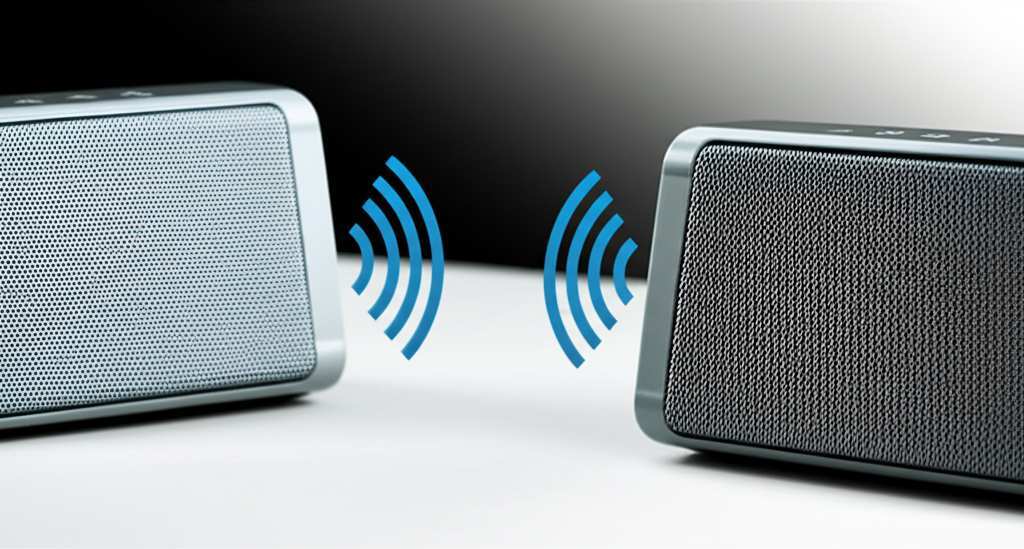
So, are you ready to unlock that amazing dual-speaker sound? We’re going to break it all down, step by step, in a way that’s easy and fun. No confusing jargon, just pure, simple guidance. Let’s dive in and make your sound system sing!
Why Connect Two Bluetooth Speakers Anyway?
You might be wondering, “Why bother connecting two speakers when one works just fine?” Great question! It’s all about enhancing your audio experience. Connecting two speakers, often called “stereo pairing” or “TWS” (True Wireless Stereo), does a few awesome things for your sound.
First off, it creates a wider soundstage. This means the audio feels like it’s coming from everywhere, not just one spot. It’s like having a mini concert hall in your living room. Your music will sound richer, with instruments clearly separated, making it feel more alive and immersive.
Secondly, it boosts the overall volume and bass. When you have two speakers working in harmony, they can push out more sound pressure. This is perfect for parties or outdoor gatherings where you need that extra power to fill a larger space. You get a fuller, more impactful sound that can really get the good times rolling.
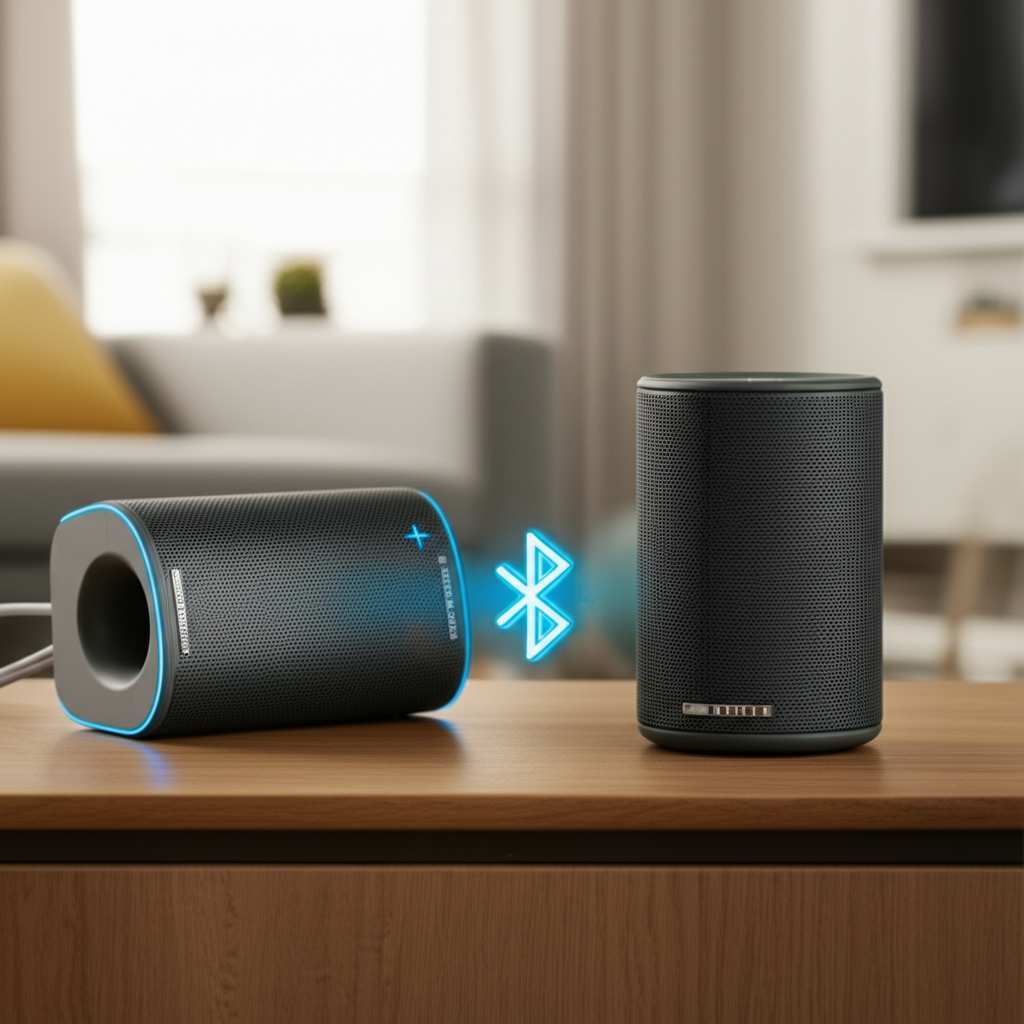
And let’s not forget about movie nights or gaming! Imagine the sound effects from your favorite action flick or game booming from both sides of the room. It adds a whole new layer of realism and excitement. You’ll feel like you’re right in the middle of the action, not just watching it from afar. It’s a simple upgrade that makes a huge difference!
How to Connect Two Bluetooth Speakers: The Basics
Connecting two Bluetooth speakers usually involves a feature called True Wireless Stereo (TWS). This is a technology that lets two speakers pair with each other wirelessly, creating a left and right channel for true stereo sound. One speaker acts as the primary (left channel) and connects to your phone or device, and then it tells the second speaker (right channel) what to play.
Not all Bluetooth speakers have TWS capabilities. You’ll typically find this feature on speakers that are designed to be paired up, often sold as a set or advertised as having this specific function. Some brands have their own proprietary pairing technology, while others use the universal TWS standard. Always check your speaker’s manual or product description to see if it supports TWS or a similar dual-speaker feature.
The process is generally quite similar across different brands. It usually involves putting one speaker into pairing mode and then using a button or sequence on that same speaker (or the second speaker) to find and connect to its partner. Once they’re paired with each other, you then connect your phone or audio source to the primary speaker via Bluetooth as you normally would.
Finding the Right Speakers for Pairing
So, you’re ready to get that dual-speaker magic going. The first step is making sure your speakers are up for the job! Not all Bluetooth speakers can talk to each other to create that awesome stereo sound. Here’s what you need to know when choosing or checking your current speakers.
Look for TWS or Stereo Pairing Capability
This is the big one! You need speakers that specifically mention “TWS” (True Wireless Stereo) or “Stereo Pairing” in their description. This is the technology that allows them to wirelessly link up and play different audio channels (left and right) for a true stereo effect. If your speakers don’t have this, they likely won’t be able to pair up for stereo sound. Some speakers might allow you to connect multiple speakers for just louder sound, but not true stereo.
Brand Compatibility (Sometimes!)
Some brands design their speakers to only pair with other speakers from the same brand and often, the same model. For example, a specific JBL speaker might only pair with another identical JBL speaker. Other times, speakers might use a more universal TWS standard and could potentially pair with different brands, though this is less common and can be hit or miss. It’s usually safest to get two of the exact same model if you want guaranteed pairing.
Speaker Model Numbers
If you’re buying new speakers, check the model numbers carefully. Sometimes, even within the same brand, only specific models support TWS. For instance, you might have a SoundCore Boost speaker, but only certain versions of the Boost support pairing. Always double-check the product specs online or on the packaging.
Checking Your Current Speakers
Got speakers already? No problem! Dig out the manuals or do a quick search online for your speaker’s model number plus “TWS” or “stereo pairing.” You might be pleasantly surprised to find they have this hidden superpower! You can often find this information on the manufacturer’s website or in reviews.
Fun Fact: TWS technology has become much more common in recent years, especially in portable Bluetooth speakers. Manufacturers are recognizing how much people love that bigger, richer sound!
Step-by-Step: How to Connect Two Bluetooth Speakers
Alright, let’s get down to business! This is where we actually make the magic happen. The exact steps can vary a little depending on your speaker brand, but the general idea is pretty much the same. Think of it like a secret handshake for your speakers.
Step 1: Charge Them Up!
Before you start, make sure both of your speakers have plenty of battery life. You don’t want them cutting out halfway through your awesome playlist! A good rule of thumb is to have them both at least 50% charged, or even better, fully charged.
Step 2: Turn On Both Speakers
Power on both of your Bluetooth speakers. You’ll usually hear a little chime or see a light indicating they are on and ready. Make sure they aren’t already connected to your phone or another device. If they are, disconnect them first.
Step 3: Pair the Speakers Together (The TWS Step!)
This is the most crucial part. You need to tell one speaker to find and connect to the other. Here’s how it typically works:
Find the TWS/Pairing Button: Look for a button on one of your speakers. It might have a symbol that looks like two interlocking circles, two “L”s, or simply say “TWS” or “Pair.”
Press and Hold: On one of the speakers, press and hold this TWS button for a few seconds. You might hear a sound or see a flashing light that indicates it’s trying to find its partner.
Wait for Confirmation: The speaker will search for its mate. Once they find each other, you’ll usually hear a confirmation sound (like a “ding” or “connected”) from both speakers, and the flashing light might turn solid or change color. This means they are now paired together!
Important Note: Sometimes, you only need to press the TWS button on one speaker, and it will automatically find and connect to the other speaker if it’s on and nearby. Other times, you might need to put both speakers into pairing mode or press the button on one speaker and then press it again (or another button) on the second speaker to confirm the link. Always consult your speaker’s manual if you’re unsure.
Step 4: Connect Your Device to the Primary Speaker
Now that your two speakers are talking to each other, you need to connect your phone, tablet, or computer to the
primary speaker. This is usually the one you initially put into TWS pairing mode, or the one that indicates it’s the main connection point (sometimes it has a different light indicator).
Open Bluetooth Settings: Go to the Bluetooth settings on your smartphone or device.
Scan for Devices: Make sure Bluetooth is turned on and scan for available devices.
Select the Speaker: You should see the name of your speaker model appear in the list. Tap on it to connect.
Step 5: Enjoy Your Stereo Sound!
Once your device is connected to the primary speaker, both speakers should start playing audio in stereo! You’ll notice the sound is coming from both directions, creating that immersive experience. If only one speaker is playing, or the sound is just mirrored (same audio from both), you might need to go back to Step 3 and ensure the TWS pairing was successful.
Quick Tip: If you get disconnected, or the speakers don’t pair correctly, simply turn off both speakers, turn them back on, and repeat the TWS pairing process (Step 3) and then reconnect your device (Step 4). It usually works on the second try!
Common Scenarios & How to Handle Them
Sometimes, tech doesn’t work perfectly the first time, and that’s totally okay! Here are a few common issues you might run into when connecting two Bluetooth speakers and how to fix them.
Scenario 1: Speakers Won’t Pair With Each Other
Check Compatibility: Are both speakers TWS-enabled and compatible with each other? As mentioned, some brands only pair with their own kind.
Distance: Make sure the speakers are relatively close to each other when you’re trying to pair them for the first time (within a few feet).
Reset TWS Connection: Turn off both speakers. Then, on the primary speaker, press and hold the TWS button for a longer duration (often 5-10 seconds) until you hear a reset sound or the light changes. Then try the pairing process again.
Firmware Update: Some speakers can be updated via a mobile app. Check if there’s a firmware update available for your speakers, as this can sometimes resolve connectivity issues.
Scenario 2: Only One Speaker is Playing Sound
TWS Pairing Not Complete: The speakers might not have successfully paired with each other. Repeat Step 3 carefully. Listen for the confirmation sound.
Device Bluetooth Connection: Ensure your device is connected to the primary speaker and not trying to connect to both independently. Sometimes, if you try to connect to the second speaker manually, it can override the TWS link. Disconnect from both speakers, then reconnect your device only to the primary one after TWS pairing is confirmed.
Check Audio Source Settings: In rare cases, your phone or device might have audio settings that are forcing mono output. Check your device’s accessibility or audio settings to ensure stereo output is enabled.
Scenario 3: Sound is Out of Sync or Distorted
Distance from Device: If your device is too far from the primary speaker, or the speakers are too far apart, you might experience audio lag or dropouts. Try moving your device closer to the primary speaker and ensure the two speakers are not excessively far apart.
Interference: Other wireless devices (like Wi-Fi routers, microwaves, or other Bluetooth devices) can sometimes cause interference. Try moving to a different location or turning off other potential sources of interference.
Speaker Limitations: Older or lower-end TWS speakers might struggle with perfect synchronization. If the issue persists across different audio sources, it might be a limitation of the speakers themselves.
Scenario 4: Pairing is Lost After Disconnecting
Automatic Reconnection: Most TWS speakers will try to automatically reconnect to each other when turned on, and then to your device. If they don’t, you’ll likely need to repeat the TWS pairing process (Step 3).
Forget and Re-pair: On your device, go to Bluetooth settings, find the speaker, and select “Forget Device.” Then, re-pair your device with the primary speaker after the TWS connection is established. This can clear any glitches.
Making the Most of Your Dual Speakers
Once you’ve got your two speakers linked up and pumping out sound, there are a few extra things you can do to make the experience even better! It’s not just about the connection; it’s about how you use them.
Optimizing Speaker Placement
Where you put your speakers can make a huge difference. For the best stereo effect, try placing them about 5 to 10 feet apart. Pointing them slightly inward, towards where you’ll be listening, can create a focused soundstage. If you’re in a large room, placing them on opposite sides can help fill the space more evenly. Avoid placing them too close to walls, as this can sometimes muddle the bass.
Experiment with Different Audio Sources
Try connecting different devices and playing various types of audio. How does your favorite podcast sound? What about that epic movie soundtrack? Or your go-to gaming playlist? Different audio content will highlight the strengths of stereo pairing in unique ways. You might discover new details in music you’ve heard a thousand times!
Understanding the Sound Modes
Some TWS systems allow you to switch between “Stereo Mode” (where each speaker plays a different channel for true stereo) and “Party Mode” or “Mono Mode” (where both speakers play the exact same audio for maximum volume in all directions). If your speakers have this option, experiment with both to see what works best for your situation. Stereo is usually for immersive listening, while mono is for maximum impact at a gathering.
Keep Software Updated
As I mentioned before, many modern Bluetooth speakers come with companion apps. These apps are super handy for checking battery levels, adjusting EQ settings, and, most importantly, updating the speaker’s firmware. Firmware updates often include improvements to Bluetooth connectivity, TWS stability, and overall sound performance. So, it’s a good idea to keep those apps installed and check for updates regularly.
Consider Speaker Size and Type
While many TWS systems require two identical speakers, some setups allow for pairing different sizes within the same brand. However, for the most balanced stereo sound, using two identical speakers is always the best bet. This ensures they have similar sound profiles, power output, and frequency response, leading to a more cohesive audio experience.
Fun Fact: The concept of stereo sound has been around since the 1930s, but wireless stereo pairing (TWS) is a much more recent innovation, made possible by advancements in Bluetooth technology!
Comparing TWS Speaker Features
When you’re looking to buy speakers for TWS pairing, or just want to understand what makes some pairs better than others, here are a few features to keep an eye on. These can influence your listening experience significantly.
Feature Comparison Table
| Feature | What it Means for You | Example 1 (Basic) | Example 2 (Premium) |
| :—————— | :————————————————– | :——————– | :——————– |
|
Bluetooth Version | Newer versions (like 5.0+) mean better stability, range, and efficiency. | Bluetooth 4.2 | Bluetooth 5.2 |
| Battery Life (Total) | How long you can listen wirelessly. Crucial for parties or long trips. | Up to 10 hours | Up to 20 hours |
| Water Resistance | Can you use them by the pool or in the shower? Look for IP ratings. | IPX4 (Splash-proof) | IP67 (Waterproof) |
| App Control | Can you update firmware, EQ, or TWS settings via a mobile app? | No App Support | Dedicated App Control |
| Sound Quality | Richness, clarity, and bass response. Subjective but important! | Clear, decent bass | Deep bass, crisp highs|
| TWS Mode Options| Stereo vs. Party/Mono mode for different scenarios. | Stereo Only | Stereo & Party Mode |
| Charging Port | USB-C is faster and more modern than Micro-USB. | Micro-USB | USB-C |
What This Means for You: When looking at this table, think about your lifestyle. If you’re always on the go and love outdoor adventures, battery life and water resistance (like IP67) are probably top priorities. If you’re an audiophile who wants the best sound experience, pay close attention to the Bluetooth version and any mention of sound quality enhancements or app-controlled EQ settings. A higher Bluetooth version usually means a more stable connection between your device and the speakers, and between the speakers themselves. And a longer total battery life means less worrying about finding an outlet!
Frequently Asked Questions (FAQs)
Got more questions? We’ve got answers! Here are some common things beginners ask about connecting two Bluetooth speakers.
Q1: Do I need to buy two speakers that are exactly the same model?
A1: Usually, yes! For TWS stereo pairing to work reliably, it’s best to get two identical speakers from the same brand and model. Some brands might allow pairing different models, but it’s less common and not always guaranteed.
Q2: Can I connect speakers from different brands together?
A2: Generally, no. Bluetooth TWS technology is typically proprietary to each brand or requires both speakers to support a universal standard that’s not widely adopted for cross-brand pairing. It’s safest to stick with the same brand and model.
Q3: What does “TWS” stand for?
A3: TWS stands for “True Wireless Stereo.” It’s the technology that allows two separate speakers to connect wirelessly to each other and act as a single stereo sound system, with one speaker handling the left audio channel and the other handling the right.
Q4: How far apart can my two speakers be for TWS to work?
A4: This varies by speaker, but typically they need to be within about 30-50 feet (10-15 meters) of each other. For the best and most stable connection, keeping them closer, like 10-20 feet apart, is recommended.
Q5: What if my speakers support TWS but don’t sound like stereo?
A5: Double-check that you’ve successfully completed the TWS pairing process between the two speakers before connecting your device. Also, ensure your device’s audio settings are set to stereo output. If only one speaker plays sound, or both play the exact same sound (mono), the TWS link might not have been established correctly. Try re-pairing them.
Q6: Can I connect more than two speakers together?
A6: Some brands offer “multi-speaker pairing” or “party modes” that let you connect many speakers. However, true stereo sound (left and right channels) is usually limited to just two speakers. If you connect more than two, they will likely all play the same mono audio.
Q7: Will connecting two speakers drain my phone’s battery faster?**
A7: Connecting two speakers doesn’t significantly increase your phone’s battery drain compared to connecting just one. The primary connection is still between your phone and the main speaker, and that speaker then communicates with the second one. The extra Bluetooth communication is minimal.
Ready to Amplify Your Audio!
| :—————— | :————————————————– | :——————– | :——————– |
|
See? Connecting two Bluetooth speakers is totally doable, and it’s a fantastic way to boost your sound. You’ve learned why it’s cool, how to check if your speakers can do it, and the step-by-step process to get them working together. Plus, we’ve covered some common hiccups and how to fix them, and even how to place your speakers for the best effect.
Now you have the knowledge to transform your listening experience from good to absolutely amazing. Imagine your next get-together, movie night, or even just chilling with your favorite tunes, all enhanced by that rich, room-filling stereo sound. It’s like getting a mini sound system upgrade without buying a whole new setup!
Don’t be afraid to experiment with your speakers and see how much better your audio can be. This simple trick can make a world of difference. Now go enjoy amazing sound and make every moment louder and better!


