
Want richer sound? Learn how to connect two Bluetooth speakers easily for a powerful audio experience that fills any room. It’s simpler than you think!
Hey there, tech adventurer! Max here from AffTechy.com. We all love our music, right? Whether it’s your favorite playlist pumping up a party, the immersive sound of a movie, or the epic score of a game, good audio makes everything better. Sometimes, though, one speaker just doesn’t cut it. You want that sound to wrap around you, to feel it everywhere.
Maybe you’ve got a couple of cool Bluetooth speakers sitting around and wondered, “Can I use these together?” The answer is a big, resounding YES! It’s like giving your music superpowers. But sometimes, figuring out how to make them talk to each other can feel a bit like cracking a secret code. Don’t worry, though!
I’m here to guide you through it, step by step. We’ll ditch the confusing jargon and get straight to making your sound system sing. It’s all about getting that amazing, room-filling sound without any fuss. Let’s break down how to connect two Bluetooth speakers effortlessly!
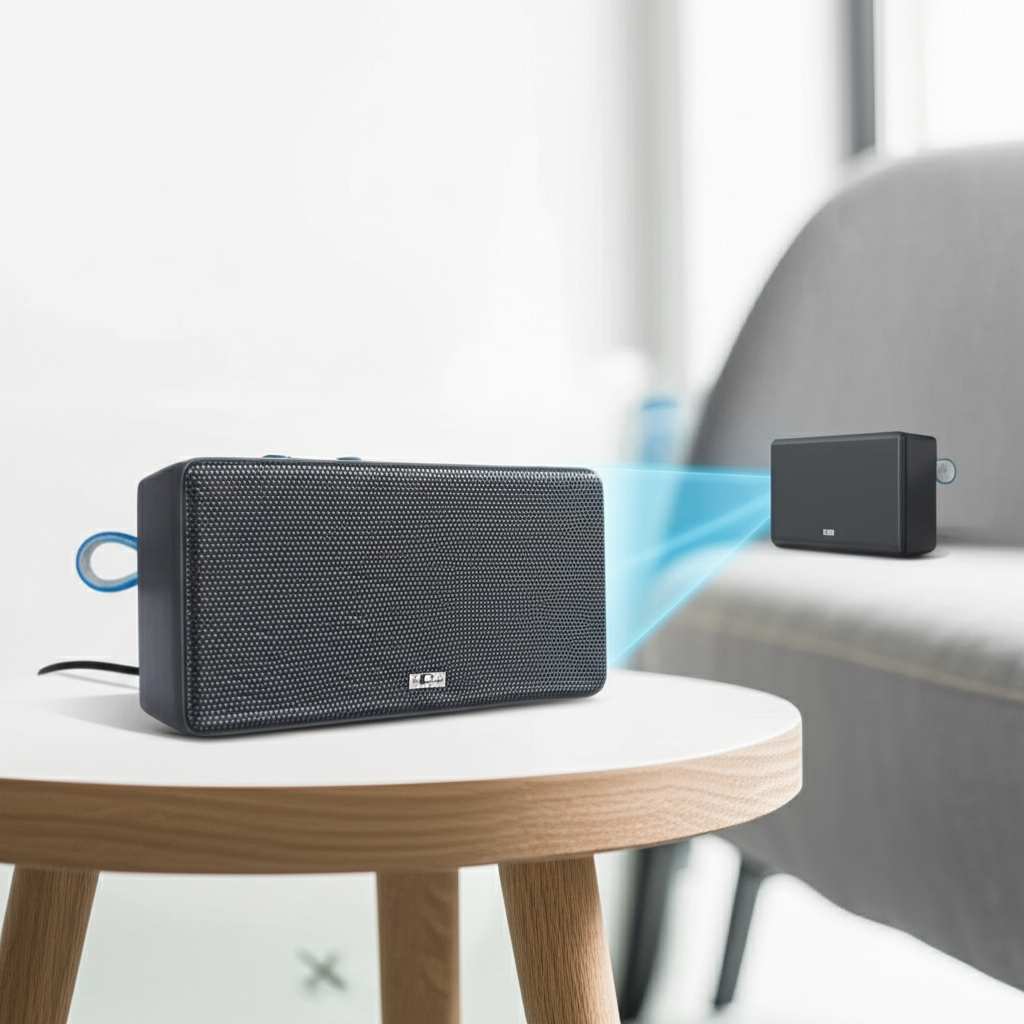
Why Connect Two Bluetooth Speakers?
Imagine this: you’re hosting a small get-together, and your single Bluetooth speaker is doing its best, but the sound is a bit… one-sided. Or perhaps you’re trying to enjoy a movie outdoors, and the dialogue gets lost in the breeze. That’s where connecting two speakers comes in. It’s not just about making things louder; it’s about creating a richer, more immersive audio experience.
When you link two speakers, you can often spread them out. This fills the room or your outdoor space with sound, eliminating those dead spots where the music seems to fade. It’s like upgrading from a single spotlight to a whole stage lighting system for your audio. Plus, many modern speakers are designed with this feature in mind, making the connection process smoother than ever.
Understanding Bluetooth Speaker Pairing
Before we dive into connecting two speakers, let’s quickly chat about how one speaker connects to your device. This is called “pairing.” Your phone, tablet, or computer sends a signal via Bluetooth to the speaker. It’s like a secret handshake that lets them talk to each other wirelessly. Most speakers have a dedicated Bluetooth button. You usually press and hold it until a light flashes, showing it’s ready to pair.
Then, on your device, you go to the Bluetooth settings and look for your speaker’s name in the list of available devices. Tap it, and voilà! They’re connected. Knowing this basic pairing process will make connecting two speakers much easier. Think of it as learning your ABCs before writing a whole essay.
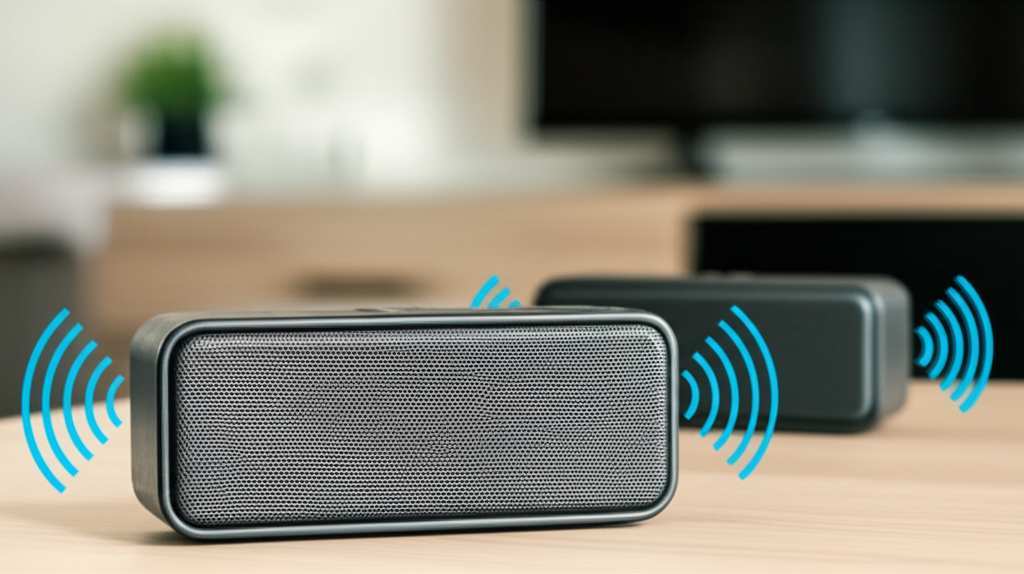
Can All Bluetooth Speakers Connect Together?
This is a super important question, and the short answer is: not always. Many speakers are designed to work with a specific technology that allows them to link up with another identical speaker, or sometimes another speaker from the same brand. This technology often has fancy names, like TWS (True Wireless Stereo), Party Mode, or speaker-linking features.
If your speakers are different brands, or even different models from the same brand, they might not be able to connect directly to each other for stereo or synchronized playback. However, there are some clever workarounds if you’re feeling a bit adventurous! We’ll touch on those too. For the easiest experience, aim for two identical speakers from the same manufacturer.
How to Connect Two Bluetooth Speakers: The Easy Way (Using TWS/Linking)
Most modern portable Bluetooth speakers that support linking will use a feature called True Wireless Stereo (TWS) or a similar brand-specific linking technology. This is the most common and straightforward method. The goal here is to have one speaker act as the “master” and the other as the “slave.” The master speaker connects to your phone, and then it tells the slave speaker what to play.
Step 1: Charge Up Your Speakers
First things first, make sure both your speakers have enough battery life. You don’t want your epic sound session cutting out halfway through! A good rule of thumb is to charge them fully before you start. This ensures a stable connection and uninterrupted listening.
Step 2: Turn On Both Speakers
Switch on both of your Bluetooth speakers. You’ll usually hear a startup sound or see an indicator light turn on. Make sure they are discoverable, meaning they are ready to be paired with a device or with each other.
Step 3: Initiate the Linking Process on One Speaker
This is where it varies slightly depending on your speaker brand. Look for a dedicated button for TWS or linking. Sometimes it’s a small icon that looks like two circles or a Wi-Fi symbol. You might need to press and hold this button on ONE of the speakers for a few seconds. Often, you’ll hear a distinct sound or see a different light pattern indicating that it’s trying to find its partner speaker.
Pro Tip: Check your speaker’s manual! This is the ultimate cheat sheet. It will tell you exactly which button to press and for how long to activate the linking feature. Some brands, like JBL or Anker, have very user-friendly linking processes.
Step 4: Wait for the Connection
After you press the button, give the speakers a moment to find each other. You might hear a confirmation sound, or the indicator lights might change to show they are successfully paired together. One speaker will likely become the “primary” or “master” speaker. This is the one your phone will connect to.
Step 5: Pair Your Phone (or Device) with the Master Speaker
Now, grab your smartphone, tablet, or laptop. Go to your Bluetooth settings. You should see the name of your speaker appear in the list of available devices. It might show up as just the speaker’s name, or sometimes as “SpeakerName_L” or “SpeakerName_R” if they are designated as left and right channels. Select the primary speaker to pair with your device.
Once your device is connected to the primary speaker, the audio should automatically start playing through both speakers! You’ll get that wonderful stereo sound or just a more powerful, consistent audio output filling your space. It’s like magic, but it’s just smart technology!
Understanding TWS and Stereo Modes
When you connect two identical speakers using TWS, they often offer two modes: Stereo Mode and Party Mode (or Dual Mode). Understanding the difference can help you get the best sound for your situation.
- Stereo Mode: In this mode, the speakers are assigned specific channels. One speaker plays the left audio channel, and the other plays the right audio channel. This creates a true stereo soundstage, which is fantastic for music, movies, and games where you want to experience depth and separation of sound. It feels like you’re right there in the middle of the action!
- Party Mode (or Dual Mode): This mode sends the same audio signal to both speakers. This is great for filling a larger area with sound or if you just want maximum volume. While you lose the distinct left/right channel separation, you gain an overall louder and more evenly distributed sound. It’s perfect for outdoor gatherings or large rooms.
How do you switch between these modes? It often depends on the brand. Some speakers automatically default to Stereo Mode when linked. Others might have a specific button combination or setting within a companion app to switch. Again, your speaker’s manual is your best friend here!
Connecting Different Brands or Models (The Workaround)
So, what if you have two speakers that aren’t identical or from the same brand? Connecting them directly for synchronized stereo sound is usually not possible. Most TWS technologies require speakers to be the same model and brand to communicate with each other. This is because they use proprietary protocols to ensure perfect synchronization.
However, you can still play music through both, just not in a perfectly synchronized way. Here are a couple of approaches:
- Manually Connect Each Speaker: You can pair each speaker to your device independently. Most phones and tablets allow you to connect to multiple Bluetooth devices at once, though audio output can be tricky. You might be able to select one speaker for audio output, then try to “cast” or “stream” to the second one, but this often results in a delay (latency) between the two speakers. This isn’t ideal for music but might work for casual listening.
- Use a Bluetooth Transmitter with Multiple Outputs: Some advanced Bluetooth transmitters can broadcast to two different Bluetooth receivers (your speakers) simultaneously. This requires an extra piece of hardware, but it can be a solution if your speakers lack built-in linking capabilities. You’d connect the transmitter to your audio source (like a TV or computer), and it would send the signal to both speakers.
- The “Close Enough” Method: If you have two different speakers and want to play music simultaneously without perfect sync, you can simply pair each one to your device separately. Then, in your device’s audio settings (especially on Android), you might be able to select both as audio outputs. Be prepared for a slight delay between them, which can be jarring for music but might be acceptable for background ambiance.
It’s worth noting that these workarounds are generally less seamless than using TWS with identical speakers. For the best experience, sticking to identical speakers is usually the way to go. You can often find great deals on buying speakers in pairs or check out reviews from sites like CNET to see which models are known for their linking capabilities.
Speaker Linking Comparison Table
To help you decide which path is best, here’s a quick look at the main ways to connect speakers:
| Method | Ease of Setup | Sound Quality | Compatibility | Best For |
|---|---|---|---|---|
| TWS (Identical Speakers) | Very Easy | Excellent (Stereo Sound) | Same Model/Brand | Music, Movies, Immersive Audio |
| Party Mode (Identical Speakers) | Easy | Good (Synchronized Mono) | Same Model/Brand | Large Areas, Maximum Volume |
| Manual Pairing (Different Speakers) | Moderate (Device Dependent) | Fair (Potential Latency) | Any Bluetooth Speakers | Casual Background Music |
| Bluetooth Transmitter | Moderate (Requires Extra Device) | Good (If Transmitter is High Quality) | Any Bluetooth Speakers | Non-TWS Speakers, TVs |
As you can see, TWS with identical speakers offers the most straightforward and highest-quality experience for creating a linked audio setup. If your current speakers don’t support this, you might consider investing in a pair that does for the best results.
Tips for the Best Dual Speaker Experience
Once you’ve got your speakers connected, here are some tips to make your audio experience even better:
- Speaker Placement: For true stereo sound, place your speakers apart, ideally forming an equilateral triangle with your listening position. This means the distance between the speakers should be roughly the same as the distance from each speaker to where you’re sitting or standing. For party mode, placing them on opposite sides of the room or area can help distribute sound evenly.
- Check for Updates: Some speaker brands offer companion apps that allow you to manage your speakers, update their firmware, and sometimes even switch between stereo and party modes. Make sure your speakers have the latest firmware for the best performance and stability.
- Minimize Interference: Bluetooth signals can sometimes be interrupted by other wireless devices or physical obstructions. Try to keep a clear line of sight between your device and the master speaker, and avoid placing speakers too close to microwaves or other strong Wi-Fi sources.
- Master Volume Control: Usually, you control the overall volume from your phone or the primary speaker. Adjusting the volume on the primary speaker often adjusts both. However, some systems allow you to adjust each speaker’s volume independently, which can be useful if one speaker is placed in a slightly different acoustic environment.
- Battery Management: Remember that two speakers mean double the battery drain. Keep an eye on the battery levels, especially during longer listening sessions.
Troubleshooting Common Issues
Even with the best intentions, sometimes technology throws us a curveball. Here are a few common issues and how to fix them:
- Speakers Won’t Link:
- Ensure both speakers are the exact same model and brand.
- Turn both speakers off and on again, then try the linking process from the start.
- Make sure no other devices are actively connected to either speaker before attempting to link them.
- Reset the speakers to their factory defaults (check your manual for instructions) and try again.
- Audio Lag or Sync Issues:
- This is more common with different brands or workarounds. Ensure your primary speaker is close to your audio source.
- Close any unnecessary apps running in the background on your device.
- Try disconnecting and reconnecting the Bluetooth connection.
- If using a companion app, check for firmware updates for your speakers.
- One Speaker Not Playing:
- Check the volume on the silent speaker. Some systems allow independent volume control.
- Disconnect the speakers from each other and from your device, then re-pair them.
- Restart both speakers.
- Connection Drops Frequently:
- Ensure your device is within range of the master speaker.
- Reduce interference by moving away from other wireless devices or large metal objects.
- Charge both speakers; low battery can sometimes affect connection stability.
If you’re still stuck, don’t hesitate to consult your speaker’s user manual or the manufacturer’s support website. They often have detailed FAQs and troubleshooting guides specific to their models. For more general Bluetooth tips, resources like TechRadar often have great advice.
Frequently Asked Questions (FAQ)
Q1: Can I connect any two Bluetooth speakers together?
A1: Usually, you can only connect two speakers if they are the exact same model and brand, and both support a linking feature like TWS (True Wireless Stereo). Different brands or models typically can’t connect directly for synchronized sound.
Q2: What is TWS?
A2: TWS stands for True Wireless Stereo. It’s a technology that allows two speakers to connect wirelessly to each other, creating a stereo sound experience. One speaker acts as the master and connects to your device, while the other acts as a slave and receives audio from the master.
Q3: How do I know if my speakers support linking?
A3: Check the product description, the box, or the user manual for terms like “TWS,” “Party Mode,” “Stereo Pairing,” “Speaker Link,” or similar phrases. Most speakers that support this will have a dedicated button for it.
Q4: What’s the difference between Stereo Mode and Party Mode?
A4: In Stereo Mode, one speaker plays the left channel and the other plays the right, giving you a full stereo sound. In Party Mode, both speakers play the same audio signal, providing louder, more distributed sound without stereo separation.
Q5: My speakers are different brands. Can I still play music through both?
A5: You might be able to connect each speaker to your device separately, but they likely won’t play in sync, meaning there will be a delay. For a seamless experience, it’s best to use two identical speakers that support linking.
Q6: What if the sound is delayed between the two speakers?
A6: This is common when speakers aren’t designed to link together. Ensure your primary speaker is close to your device and try restarting the connection. If it persists, you might need speakers that support TWS for proper synchronization.
Q7: Do I need a special app to connect two speakers?
A7: Often, you don’t need an app for basic TWS linking—just the speakers themselves. However, some brands offer companion apps that can help manage the connection, update firmware, or switch between modes, making the process even easier.
Conclusion: Get Ready for Awesome Sound!
See? Connecting two Bluetooth speakers isn’t some tech wizardry reserved for the pros. It’s a super accessible way to boost your audio game, whether you’re chilling at home, hosting friends, or enjoying the great outdoors. By understanding your speakers’ capabilities and following these simple steps, you can unlock a world of richer, more immersive sound.
Whether you’re using the seamless TWS feature on identical speakers or exploring creative workarounds, the goal is simple: more sound, more fun. Don’t be afraid to experiment and find the perfect setup for your needs. You’ve got this!
Now go forth, connect those speakers, and let the amazing sound fill your world. Enjoy every beat, every note, and every moment louder and better!


