Unlock your Alexa speaker’s full potential! You can absolutely use your Alexa Bluetooth speaker without Wi-Fi. Just connect your phone or tablet via Bluetooth and stream your favorite music, podcasts, or audiobooks. It’s super easy and perfect for when Wi-Fi isn’t around.
Hey there, tech explorer! It’s Max from AffTechy.com, your friendly guide to all things gadgety. We all love the magic of smart speakers, right? They fill our homes with music, help us with quick questions, and even set the mood for movie nights. But sometimes, figuring out how they work, especially without Wi-Fi, can feel like trying to solve a puzzle in the dark.
I get it. You’ve got this awesome Alexa speaker, and you’re itching to blast your favorite tunes, but the Wi-Fi is acting up, or maybe you’re somewhere without it. You might be wondering, “Can I still use my fancy speaker for something other than a fancy paperweight?” The answer is a resounding YES!
Don’t worry about complicated tech jargon or confusing manuals. My mission is to make technology feel as easy and fun as it should be. Think of me as your tech buddy, here to walk you through everything, step by step. We’ll make sure you can enjoy your music anytime, anywhere.
So, grab your favorite drink, get comfy, and let’s dive into how you can turn your Alexa speaker into a fantastic Bluetooth speaker, even when the internet is taking a break. Let’s break it down step by step!
What Exactly Is an Alexa Bluetooth Speaker?
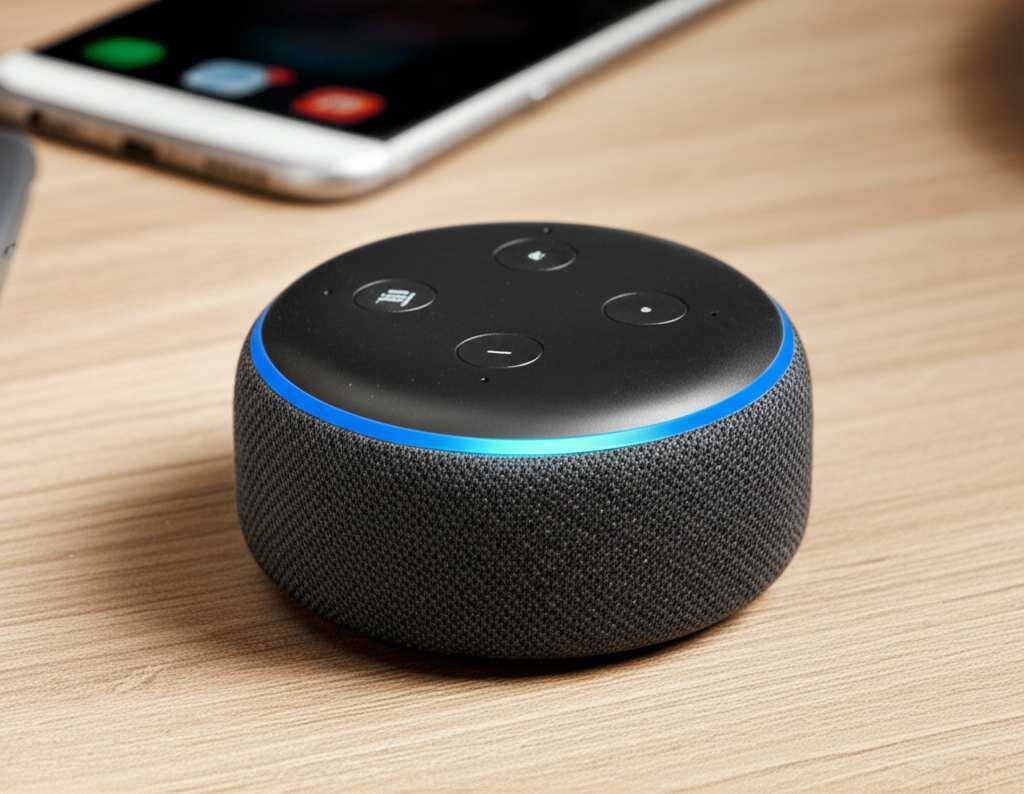
Okay, let’s clear the air first. When we talk about an “Alexa Bluetooth speaker,” we’re usually talking about an Amazon Echo device, like an Echo Dot, Echo Show, or Echo Studio. These speakers are super smart because they connect to the internet (via Wi-Fi) and use Amazon’s Alexa voice assistant. This lets you ask questions, play music from streaming services, control smart home devices, and so much more, all with your voice.
But here’s the cool part: most of these Alexa-enabled devices also have built-in Bluetooth! This is a separate way to connect them to other devices, like your smartphone, tablet, or laptop. It’s like having two gadgets in one!
Why Would You Want to Use Alexa Without Wi-Fi?
You might be thinking, “If it needs Wi-Fi for Alexa, why bother with Bluetooth?” Great question! There are tons of reasons why using your Alexa speaker via Bluetooth without Wi-Fi is a lifesaver.
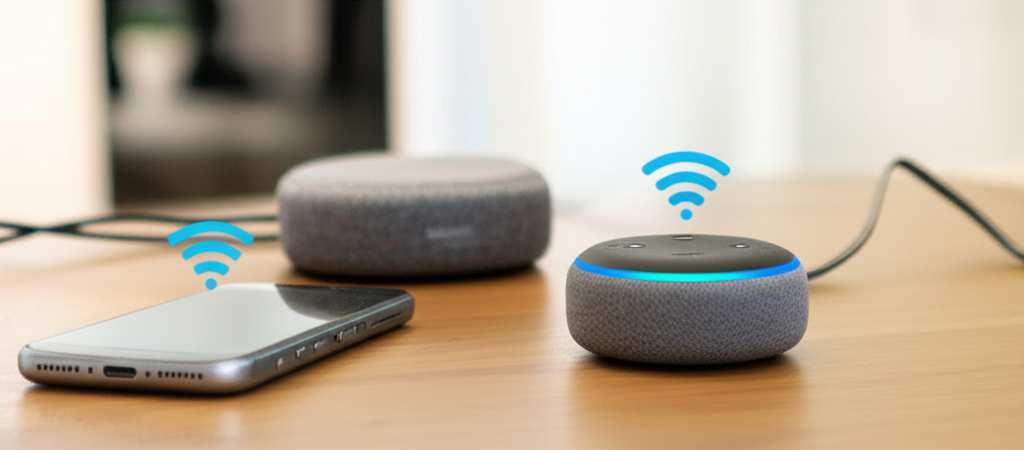
No Wi-Fi Available: This is the most obvious one! Maybe you’re on a camping trip, at a picnic in the park, or visiting a friend who doesn’t have Wi-Fi. Your Alexa speaker can still be your personal DJ.
Quick Music Playback: Sometimes, you just want to play a song from your phone instantly. Bluetooth is often faster for this than finding your Wi-Fi password and connecting your speaker.
Privacy Concerns: If you’re in a public place or a situation where you prefer not to connect to a shared Wi-Fi network, Bluetooth is a direct, private connection between your device and the speaker.
Saving Data: If you have a limited mobile data plan, streaming music through your phone’s data connection might not be ideal. Bluetooth lets you play audio files stored on your device or use apps without using Wi-Fi.
Testing or Troubleshooting: If your Wi-Fi is acting up, using Bluetooth is a great way to confirm that your speaker itself is working perfectly fine.
Think of it like this: your Alexa speaker is a smart hub when it has Wi-Fi. But with Bluetooth, it transforms into a really good, portable speaker that you control from your phone. It’s all about flexibility!
How to Connect Your Phone to Your Alexa Speaker Using Bluetooth
Ready to make some noise? Connecting your phone or tablet to your Alexa speaker via Bluetooth is surprisingly simple. We’ll go through the steps for both your phone and your Alexa device.
Step 1: Put Your Alexa Speaker in Pairing Mode
First things first, you need to tell your Alexa speaker to look for new Bluetooth devices.
1. Use Your Voice: The easiest way is to use a voice command. Say, “Alexa, pair Bluetooth.”
2. Check the Light Ring: When your speaker is ready to pair, the light ring on top will usually turn blue or start pulsing blue. Alexa might also say something like, “You are now in pairing mode, and your device will be discoverable by your Echo.”
3. Manual Method (If Voice Doesn’t Work): If for some reason the voice command doesn’t work, you can usually find a Bluetooth button on the back or bottom of your Echo device. Press and hold it until the light ring turns blue. (Check your specific Echo model’s manual if you can’t find it!).
Step 2: Connect Your Phone or Tablet to Alexa
Now, it’s time to make your phone or tablet find the Alexa speaker. The steps are slightly different for iPhones and Android phones, but the idea is the same.
For iPhones (iOS):
1. Open Settings: Go to your iPhone’s “Settings” app.
2. Tap Bluetooth: Select the “Bluetooth” option.
3. Turn On Bluetooth: Make sure the Bluetooth toggle is switched ON (it will be green).
4. Find Your Speaker: Your iPhone will start searching for nearby Bluetooth devices. You should see your Alexa speaker appear in the list under “Other Devices.” It will usually be named something like “Echo Dot” or “Amazon Echo,” followed by a few letters or numbers.
5. Tap to Connect: Tap on the name of your Alexa speaker in the list.
6. Confirmation: You might hear a sound or Alexa might say, “Connected to [Your Phone’s Name].” The light ring on your Echo will typically turn solid blue, indicating a successful connection.
For Android Phones:
1. Open Settings: Go to your Android phone’s “Settings” app.
2. Tap Connections (or similar): This might be called “Connections,” “Connected devices,” or “Bluetooth.”
3. Tap Bluetooth: Select the “Bluetooth” option.
4. Turn On Bluetooth: Make sure the Bluetooth toggle is switched ON.
5. Scan for Devices: Your phone will start looking for new devices. You might need to tap “Scan” or “Pair new device.”
6. Find Your Speaker: Your Alexa speaker should appear in the list of available devices. Look for its name (e.g., “Echo Studio,” “Echo Show”).
7. Tap to Connect: Tap on your Alexa speaker’s name.
8. Confirmation: Similar to iPhone, you’ll hear Alexa confirm the connection, and the light ring will show a solid blue.
And voilà! Your phone and Alexa speaker are now paired.
Step 3: Play Your Audio
Once connected, your Alexa speaker will act as a Bluetooth speaker for your phone.
1. Open Your Music App: Go to any app on your phone that plays audio – Spotify, Apple Music, YouTube Music, Audible, a podcast app, or even just your phone’s local music player.
2. Play Your Content: Start playing your music, podcast, audiobook, or whatever you like.
3. Audio Output: The sound should automatically come out of your Alexa speaker. If it doesn’t, check your phone’s audio output settings within the app you’re using. Sometimes there’s a small icon that lets you choose where the sound goes.
It’s that simple! You’re now streaming audio directly from your phone to your Alexa speaker, no Wi-Fi needed.
Using Alexa as a Bluetooth Speaker for Calls
This is a super handy feature that many people overlook! You can actually use your Alexa speaker to take calls from your connected smartphone.
1. Connect via Bluetooth: First, make sure your phone is connected to your Alexa speaker via Bluetooth, just like we did for music.
2. Incoming Call: When your phone rings, you’ll hear the ringtone through the Alexa speaker.
3. Answer the Call: You can say, “Alexa, answer call.”
4. End the Call: When you’re done, say, “Alexa, hang up.”
It’s like having a hands-free speakerphone for your phone! This is fantastic for when you’re cooking and your hands are messy, or when you just want to talk without holding your phone.
Troubleshooting Common Bluetooth Connection Issues
Sometimes, technology likes to throw us a curveball. If you’re having trouble connecting, don’t panic! Here are a few common issues and how to fix them:
Speaker Not Appearing in List:
Make sure your Alexa speaker is in pairing mode (light ring blue).
Ensure Bluetooth is ON on your phone.
Try restarting both your phone and your Alexa speaker.
Move your phone closer to the speaker.
Connection Fails:
Forget the device on your phone and try pairing again. To do this on iOS, go to Settings > Bluetooth, tap the ‘i’ icon next to your speaker, and select “Forget This Device.” On Android, go to Settings > Bluetooth, tap the gear icon next to your speaker, and select “Unpair.”
Check if other Bluetooth devices are trying to connect simultaneously.
No Sound After Connecting:
Check the volume on both your phone and your Alexa speaker.
Make sure the audio is actually playing on your phone and that the correct audio output is selected.
Try disconnecting and reconnecting the Bluetooth.
Intermittent Audio/Choppy Sound:
Ensure you’re within Bluetooth range (usually about 30 feet or 10 meters).
Minimize interference from other wireless devices (like microwaves or other Bluetooth gadgets).
Ensure your phone’s software and your Alexa speaker’s software are up to date.
A quick restart of both devices often solves a surprising number of problems!
Alexa Speaker Bluetooth vs. Wi-Fi: What’s the Difference?
It’s helpful to understand how these two connection methods stack up. They both get sound to your speaker, but they do it very differently.
| Feature | Bluetooth Connection (No Wi-Fi) | Wi-Fi Connection (With Internet) |
|---|---|---|
| Primary Use | Streaming audio directly from a paired device (phone, tablet). | Voice commands, streaming music from online services, smart home control, information requests. |
| Range | Limited (approx. 30 feet / 10 meters). | Dependent on Wi-Fi network strength, can cover an entire house. |
| Internet Required? | No. | Yes. |
| Voice Assistant (Alexa) Functionality | Very limited or none. Cannot process voice commands for online tasks. | Full functionality. Can answer questions, play music from Spotify/Amazon Music, etc. |
| Audio Source | Files or streams from the paired device. | Online streaming services, linked accounts, and some local network sources. |
| Setup Complexity | Simple pairing process between two devices. | Requires Wi-Fi network setup, account linking. |
So, when you use Bluetooth, your Alexa speaker is essentially becoming a high-quality Bluetooth speaker. It’s fantastic for playing your personal music library or audio from apps when you don’t have internet. When you use Wi-Fi, you unlock the full potential of Alexa’s smart capabilities. They are complementary, not competing, features!
What Audio Can You Play Via Bluetooth?
The beauty of Bluetooth is its versatility. If your phone or tablet can play it, your Alexa speaker can likely broadcast it.
Music: Any music app you have – Spotify, Apple Music, Amazon Music, Pandora, etc. – will work. This also includes music files stored directly on your device.
Podcasts: Listen to your favorite podcasts from any app.
Audiobooks: Dive into your Audible books or other audiobook apps.
YouTube Videos: Want better sound for your YouTube videos without Wi-Fi? Connect via Bluetooth!
Sound Effects & Games: If a game or app on your phone makes noise, it can come out of your Alexa speaker.
Voice Memos: Listen back to recordings you’ve made.
Basically, if it’s audio content on your device, Bluetooth is your gateway to bigger sound.
Top Alexa Models and Their Bluetooth Capabilities
Most Amazon Echo devices come with Bluetooth. Here’s a quick look at some popular ones:
| Echo Model | Bluetooth Support | Notes |
|---|---|---|
| Echo Dot (3rd Gen & later) | Yes | Compact and affordable, great for portable use. |
| Echo (4th Gen) | Yes | Larger speaker for richer sound, still portable for Bluetooth use. |
| Echo Studio | Yes | Premium sound quality, excellent for music lovers. |
| Echo Show (all models) | Yes | Can also stream audio from connected devices, though primarily designed for screen interaction. |
| Echo Input | No | This is an older device designed only to add Alexa to existing speakers via audio cable or Bluetooth. It doesn’t have its own speaker. |
As you can see, the vast majority of Echo devices are ready to be your Bluetooth speaker. The key is that the Echo itself needs to be powered on for Bluetooth to work.
Tips for the Best Bluetooth Experience
Want to make your Bluetooth listening even better? Here are a few Pro Tips:
Keep Devices Charged: Both your phone and your Alexa speaker need power. If your phone battery is low, it might disconnect Bluetooth.
Update Your Software: Make sure your phone’s operating system and your Alexa app are up-to-date. Amazon regularly releases updates that can improve Bluetooth performance.
Name Your Speaker: In the Alexa app, you can rename your speaker to something memorable (like “Living Room Echo”). This makes it easier to find in your Bluetooth settings.
Check Volume Levels: Don’t forget to adjust the volume on both your phone and the Alexa speaker. Sometimes one is cranked up, and the other is low, causing confusion.
Unpair When Done: If you’re using your speaker in a public space or around others, it’s good practice to unpair your phone when you’re finished to prevent accidental connections or to save battery on your phone.
Can Alexa Play Music From My Phone Without Bluetooth?
This is a common point of confusion! While Bluetooth is the most direct way to play audio stored on your phone without Wi-Fi, there are a couple of other methods if you do have Wi-Fi or are willing to use mobile data.
Alexa App (Wi-Fi Required): You can use the Alexa app on your phone to control music playback on your Echo device. This usually works by sending commands over Wi-Fi to the Echo, which then streams the music itself from online services. So, this method typically still needs Wi-Fi.
Amazon Music App (Wi-Fi or Mobile Data): If you use Amazon Music, you can often control playback on your Echo from the Amazon Music app on your phone, either via Wi-Fi or sometimes using your phone’s mobile data connection for the streaming.
Linking Services: Services like Spotify allow you to link your account to Alexa. You can then use your phone (via Wi-Fi or mobile data) to tell Alexa to play music from Spotify on your Echo.
But remember, for the truly “no Wi-Fi” scenario, Bluetooth is your golden ticket! It creates a direct audio link.
Frequently Asked Questions (FAQs)
Let’s tackle some common questions beginners might have!
Q1: Do I need an Amazon account to use Alexa as a Bluetooth speaker?
Nope! For basic Bluetooth audio playback from your phone, you don’t need to be logged into any Amazon account or have an active Wi-Fi connection for the Alexa speaker. You just need to pair your phone to the speaker.
Q2: Can I use Alexa voice commands while connected via Bluetooth?
Generally, no. When connected via Bluetooth for audio playback, your Alexa speaker is acting as a dumb speaker. It can’t process voice commands like “What’s the weather?” or “Play a song from Spotify” because it’s not connected to the internet. You’ll need Wi-Fi for those smart features.
Q3: Will my Alexa speaker automatically connect to my phone via Bluetooth?
Once you’ve paired your phone to your Alexa speaker for the first time, it usually remembers the connection. If both devices have Bluetooth turned on and are within range, your Alexa speaker might automatically connect. You can check this setting in the Alexa app under “Devices” > [Your Speaker Name] > “Bluetooth.”
Q4: How do I disconnect Bluetooth from my Alexa speaker?
You can disconnect in a few ways:
- On your phone: Go to Bluetooth settings and “Unpair” or “Disconnect” from the Alexa speaker.
- With voice command: Say, “Alexa, disconnect Bluetooth.”
- In the Alexa app: Go to Devices > [Your Speaker Name] > Bluetooth, and you should see an option to disconnect.
If you want to remove the pairing completely, you’ll need to “Forget” the device on your phone and unpair it from the Alexa app.
Q5: Can I use multiple phones to connect to one Alexa speaker via Bluetooth?
An Alexa speaker can remember multiple paired devices, but it can typically only be actively connected to one device at a time for audio playback. If another phone tries to connect, you might need to disconnect the first one. It’s best to manage which device is actively playing.
Q6: What’s the difference between pairing Alexa to my phone and using Alexa for calls?
Pairing via Bluetooth lets you play audio (music, podcasts) from your phone through the Alexa speaker. Using Alexa for calls means you’re using that Bluetooth connection to route phone calls through* the Alexa speaker, allowing you to answer and talk hands-free.
Q7: Is Bluetooth connection secure?
Yes, Bluetooth uses encryption to secure the connection between your device and the speaker. It’s a private connection between just the two devices, unlike public Wi-Fi networks.
Bringing It All Together: Your Go-To Guide
So there you have it! Using your Alexa speaker as a Bluetooth device is a fantastic way to enjoy your audio content, especially when Wi-Fi is out of the picture. It’s a simple process that unlocks a whole new level of convenience for your smart speaker.
Remember, pairing is just like connecting any other Bluetooth speaker. You put your Alexa device in pairing mode, find it on your phone’s Bluetooth settings, and connect. Once paired, any audio playing on your phone will stream directly to your Alexa speaker. It’s perfect for road trips, camping, or even just when your home internet is being a bit flaky.
You’ve learned how to connect, troubleshoot, and even use it for calls. You’re now equipped to make your Alexa speaker work for you, no matter the circumstances. For more tips on making the most of your gadgets, be sure to check out CNET’s guides on Bluetooth technology.
Now go enjoy amazing sound and make every moment louder and better, with or without Wi-Fi! Happy listening!