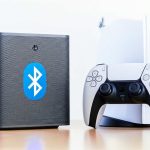
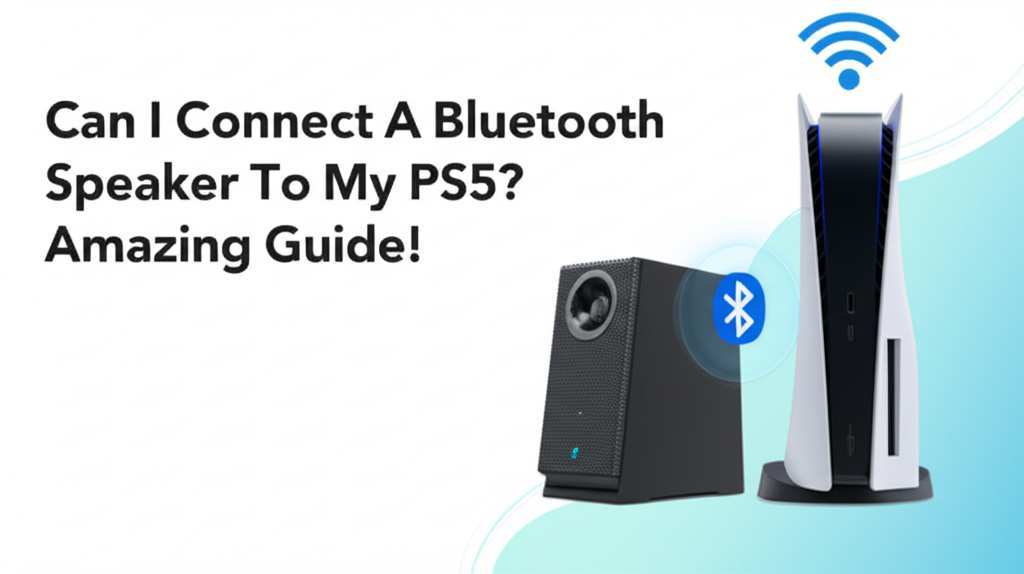
Yes, you absolutely can connect a Bluetooth speaker to your PS5, but it’s not as straightforward as just pairing it directly. You’ll need a little workaround, and I’ll show you exactly how to do it with this easy guide! Get ready for bigger, better sound for your games and movies.
Hey there, tech explorers! Max here from AffTechy.com, your go-to buddy for making technology super simple and fun. You know, sometimes the built-in sound on our consoles is good, but it’s not great. It’s like having a tiny speaker on your phone when you really want to blast your favorite tunes or feel every explosion in your game. That’s where awesome Bluetooth speakers come in, right?
I remember when I first got my PS5. I was so excited to dive into those amazing new worlds. But then I thought, “Man, this sound would be even cooler with my big, beefy Bluetooth speaker!” It’s a totally natural thought. You want that immersive experience, that feeling of being right in the middle of the action or concert. But when you look at the PS5’s settings, it doesn’t have that simple “add Bluetooth device” option like your phone or laptop does. A little confusing, I know!
But don’t you worry one bit. That’s exactly why I’m here! We’re going to cut through all the tech jargon and figure out the best way to get your favorite Bluetooth speaker singing along with your PS5. Think of me as your friendly guide, walking you through every step. We’ll make sure you understand why we do things a certain way, and by the end, you’ll be enjoying richer sound without any headaches. Ready to boost your audio game? Let’s dive in!
Let’s Talk Sound: Why You Want That Extra Oomph
We all love our PlayStation 5. It’s a powerhouse of gaming and entertainment. But the audio experience can always be improved, right? That built-in TV speaker or even standard soundbar might be okay, but it often lacks that deep bass, crisp detail, or surround-sound feel that truly pulls you into a game or movie. This is where your trusty Bluetooth speaker can shine.
Imagine the roar of a dragon in your favorite RPG, the subtle footsteps of an enemy creeping up behind you, or the epic soundtrack of a cinematic masterpiece. A good Bluetooth speaker can transform these moments, adding layers of depth and excitement that you might be missing. It’s all about making your entertainment more immersive and enjoyable.
The Big Question: Can I Connect a Bluetooth Speaker Directly to PS5?
This is the million-dollar question, and here’s the short answer: No, not directly. The PlayStation 5, unlike many other devices, doesn’t support pairing standard Bluetooth audio devices like speakers or headphones directly through its system settings. Sony designed it to work with specific Bluetooth profiles that are compatible with their official wireless headsets or controllers.
This can be a bit of a bummer when you first discover it. You’ve got this awesome speaker, and you just want to connect it easily. But don’t let that stop you! There are some super effective workarounds that will get your Bluetooth speaker hooked up and pumping out sound. It just requires a tiny bit of extra gear or a different approach.
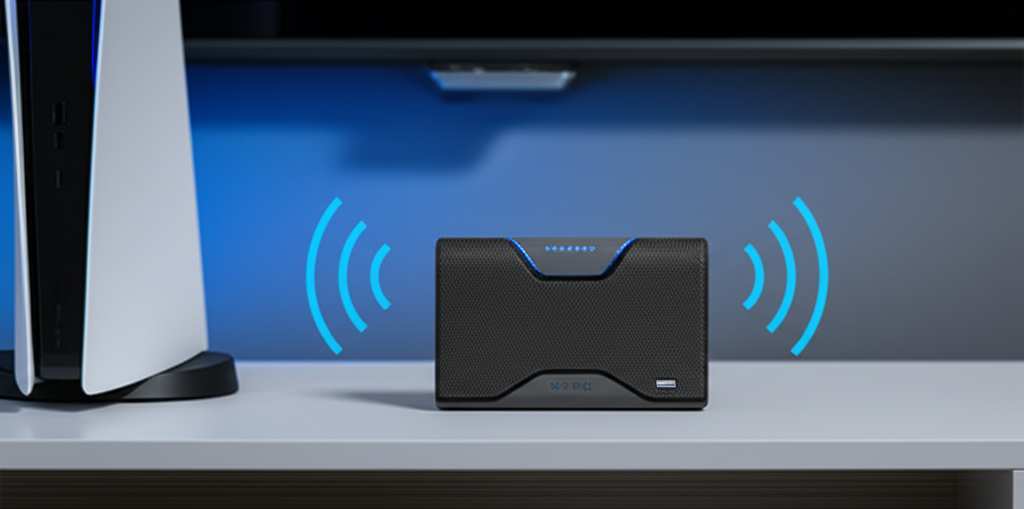
Why Doesn’t the PS5 Just Do It? A Little Tech Insight
Sony’s decision to limit direct Bluetooth audio connections is often for a few reasons. One big one is to ensure a stable, low-latency audio experience. For gaming, lag is the enemy! If your audio is even a fraction of a second behind what’s happening on screen, it can ruin the experience, especially in fast-paced games. Standard Bluetooth can sometimes have this delay.
Another reason might be to encourage the use of their own PlayStation wireless headsets, which are optimized for the console. They guarantee a reliable connection without lag. While this makes sense from a performance perspective, it does leave us wanting to use our favorite third-party speakers. But hey, where there’s a will, there’s a way!
The Best Workarounds: Getting Your Bluetooth Speaker Connected
Since direct connection is a no-go, we need to find a bridge. Thankfully, there are a couple of really good ways to achieve this. These methods involve using an adapter or a different device to send the audio signal to your Bluetooth speaker.
Method 1: The Bluetooth Audio Transmitter/Receiver
This is probably the most popular and straightforward method. You’ll need a small device called a Bluetooth audio transmitter. These little gadgets plug into your PS5 and then beam the audio wirelessly to your Bluetooth speaker.
Here’s how it works:
1. Get a Bluetooth Transmitter: Look for a transmitter that supports low-latency audio. This is crucial for gaming to avoid that annoying delay between what you see and what you hear. Many transmitters also double as receivers, but for this purpose, we only need the transmission function.
2. Connect the Transmitter to Your PS5: Most transmitters connect via the USB-C port or the optical audio out port on your PS5.
USB-C Connection: Some transmitters plug directly into the front USB-C port. This is often the easiest method as it draws power directly from the console.
Optical Audio (S/PDIF) Connection: If your transmitter has an optical input, you’ll need a separate power source (often USB) for the transmitter. You’ll also need to configure your PS5 to output audio via the optical port.
3. Put the Transmitter in Pairing Mode: Follow the instructions that come with your transmitter. Usually, this involves holding down a button until a light flashes.
4. Put Your Bluetooth Speaker in Pairing Mode: Turn on your Bluetooth speaker and put it into pairing mode. Check your speaker’s manual if you’re unsure how to do this.
5. Pair Them Up: The transmitter and speaker should automatically find each other and pair. Once connected, a steady light on the transmitter usually indicates a successful connection.
6. Configure PS5 Audio Settings:
Go to Settings on your PS5.
Select Sound.
Go to Audio Output.
If you used the USB-C connection, ensure HDMI Device Type is set to AV amplifier and Audio Format (Priority) is set to Dolby or Bitstream (Dolby).
If you used the optical connection, you might need to set Output Device to HDMI (even though you’re using optical, the PS5 sometimes routes general audio this way) and ensure Digital Output Format (Optical) is set to Dolby Digital 5.1ch.
Crucially, make sure Output to Headphones is set to Chat Audio or All Audio if you want game sound through the speaker. If it’s off, you won’t get any sound.
Why this works: The Bluetooth transmitter acts as an intermediary. It takes the digital audio signal from your PS5 (either through USB or optical) and converts it into a Bluetooth signal that your speaker can understand. Low-latency transmitters are key for a smooth gaming experience.
Choosing the Right Bluetooth Transmitter: What to Look For
When you’re shopping for a Bluetooth transmitter, keep these points in mind:
Low Latency Support (aptX Low Latency): This is the most important feature for gaming. It minimizes the delay between the on-screen action and the sound.
Connection Type: Does it use USB-C, USB-A, or optical audio? Make sure your PS5 has the corresponding port.
Power Source: Does it draw power from the PS5 (via USB) or does it need its own power adapter?
Bluetooth Version: Newer versions (like Bluetooth 5.0 or higher) offer better range and stability.
Ease of Pairing: Look for devices that boast simple, one-button pairing.
Method 2: Using a PC or Laptop as an Audio Bridge
If you have a PC or laptop connected to your TV or if you’re gaming on a monitor with your PC nearby, you can use your computer as a relay. This method is a bit more involved but can be useful if you don’t want to buy an extra adapter.
Here’s the process:
1. Connect PS5 to PC Audio Input: You’ll need to get the PS5’s audio signal into your PC. The easiest way is often through your TV if it has an audio output that can connect to your PC’s audio input. Alternatively, you might use an HDMI audio extractor if your PC doesn’t have suitable audio inputs.
2. Configure PS5 Audio Output: Set your PS5 to output audio to your TV or the device connected to your PC.
3. Configure PC Audio Input: On your PC, go to Sound settings and set the input device to accept the audio from your PS5.
4. Connect PC to Bluetooth Speaker: Pair your PC with your Bluetooth speaker as you normally would.
5. Set PC to Output to Bluetooth Speaker: Make sure your PC’s sound output is set to your Bluetooth speaker.
6. Relay the Sound: Now, any sound coming from your PS5 to your PC will be re-broadcasted to your Bluetooth speaker.
Why this works: Your PC is essentially acting as a hub. It receives the audio from the PS5, processes it, and then transmits it wirelessly to your Bluetooth speaker. This allows you to leverage your computer’s Bluetooth capabilities.
A Quick Look at HDMI Audio Extractors
If you’re going the PC route and your TV doesn’t have an audio output that easily connects to your PC, an HDMI audio extractor can be a lifesaver. This device plugs into your PS5’s HDMI output, and then you can connect a separate HDMI cable to your TV. The extractor will have its own audio outputs (like optical or 3.5mm analog) that you can then connect to your PC’s audio input.
Fun Fact: Some newer smart TVs have built-in Bluetooth audio support! If your TV has this feature, you might be able to connect your Bluetooth speaker directly to the TV, and then the PS5’s audio (which goes through the TV via HDMI) will play through your speaker. Always check your TV’s manual first!
Setting Up Your Bluetooth Transmitter: A Step-by-Step Guide
Let’s focus on the most common and easiest method: using a Bluetooth audio transmitter. Here’s a breakdown of how to get it done, assuming you have a transmitter that connects via USB-C.
Step 1: Unbox and Identify Your Transmitter
Take your new Bluetooth transmitter out of its packaging. Familiarize yourself with its ports and buttons. You’ll typically see a USB-C connector, maybe a pairing button, and an LED indicator light.
Step 2: Plug the Transmitter into Your PS5
Locate the USB-C port on the front of your PS5. It’s usually next to the USB-A ports. Gently plug the USB-C connector of your transmitter into this port. The transmitter should now be powered on.
Step 3: Activate Pairing Mode on the Transmitter
Press and hold the pairing button on the transmitter for a few seconds. The LED indicator light should start flashing, usually rapidly. This means it’s searching for a device to connect to. Consult your transmitter’s manual for the exact procedure.
Step 4: Activate Pairing Mode on Your Bluetooth Speaker
Turn on your Bluetooth speaker. Then, press and hold its Bluetooth or pairing button until its indicator light starts flashing. This signals that it’s ready to pair with a new device.
Step 5: Let Them Connect
Keep both devices close to each other. Within a minute or two, the flashing lights on both the transmitter and the speaker should turn solid or change color. This indicates that they have successfully paired.
Step 6: Configure Your PS5 Audio Settings
Now, you need to tell your PS5 to send audio through the connected USB device.
1. Navigate to the PS5 Settings menu (the gear icon on the home screen).
2. Scroll down and select Sound.
3. Choose Audio Output.
4. Under Output Device, select the USB Headset (even though it’s a speaker connected via transmitter, the PS5 often recognizes it as a USB audio device).
5. Ensure Volume Control (Controller Speaker) is set to Off or Fixed Volume, depending on your preference, but the main thing is that your speaker is selected as the output.
6. Under General, select Audio Output.
7. Ensure HDMI Device Type is set to AV amplifier.
8. Set Audio Format (Priority) to Bitstream (Dolby) or PCM. Experiment to see which sounds best for you. PCM is uncompressed, while Dolby might offer a more dynamic range if supported by your speaker.
Important Note: If you chose a transmitter that uses the optical audio port, the setup will be slightly different. You’ll need to connect the transmitter to its power source, then plug the optical cable from the transmitter to the PS5’s optical port. In your PS5 settings, you’ll need to ensure the Digital Output Format (Optical) is set correctly, usually to Dolby Digital 5.1ch.
Comparing Bluetooth Transmitter Options
Not all transmitters are created equal. Here’s a quick comparison of popular types and what they offer.
| Feature | Basic Transmitter (No Low Latency) | Low Latency Transmitter (aptX LL) | Transmitter with Optical Input | Transmitter with Multiple Inputs |
| :—————- | :——————————— | :——————————— | :—————————– | :——————————- |
| Audio Delay | High (Noticeable lag) | Low (Minimal lag, good for gaming) | Varies (depends on chip) | Varies (depends on chip) |
| Connection | USB-A or USB-C | USB-A or USB-C | Optical + USB Power | USB-C, Optical, 3.5mm |
| Power Source | PS5 USB | PS5 USB | External USB | PS5 USB or External |
| Best For | Casual music listening | Gaming, Movies, TV | High-fidelity audio | Versatile use |
| Price Range | $15 – $30 | $30 – $60 | $25 – $50 | $40 – $70 |
What does this table mean for you? If you’re primarily gaming, definitely aim for a transmitter that explicitly supports “aptX Low Latency” (aptX LL). This will make the biggest difference in avoiding that annoying audio delay. For movies and general media, a standard transmitter might be fine, but why not get the best experience possible?
Tips for the Best Bluetooth Speaker Experience
Once you’ve got your speaker connected, here are some tips to make sure you’re getting the best sound possible.
Optimize Speaker Placement
Positioning Matters: Don’t just plop your speaker down anywhere. Place it at ear level if possible. For music, a corner can boost bass. For gaming, try to have it facing you directly.
Distance: Keep your speaker within the recommended Bluetooth range of your transmitter (usually around 30-50 feet, but less with obstacles).
Check Your PS5 Audio Settings
Output to Headphones: Remember to set Output to Headphones to All Audio in your PS5’s Sound settings if you want all game and system sounds to go through your speaker. If it’s set to Chat Audio, you’ll only hear voice chat.
Volume Limits: If you’re worried about extremely loud volumes, you can set up Volume Limiters in the PS5’s Accessibility settings.
Consider a Transmitter with Multiple Connections
Some transmitters let you connect two pairs of headphones or speakers simultaneously. This is great if you want to share the audio experience with a friend!
Keep Firmware Updated
For some Bluetooth transmitters, there might be firmware updates available from the manufacturer. Check their website periodically, as these updates can sometimes improve performance or fix bugs.
Frequently Asked Questions (FAQs)
Got more questions swirling in your head? No worries, let’s clear them up!
Can I connect any Bluetooth speaker to my PS5 using a transmitter?
Generally, yes! As long as your Bluetooth speaker is compatible with standard Bluetooth connections, it should work with a Bluetooth transmitter. The transmitter handles the communication with the PS5, and the speaker just needs to receive the Bluetooth audio signal.
Will there be a noticeable delay in sound when gaming?
This is the biggest concern! If you use a standard Bluetooth transmitter, you might experience a delay, especially in fast-paced games. However, using a transmitter that supports aptX Low Latency (aptX LL) technology significantly minimizes this delay, making it almost unnoticeable for most people. It’s worth investing in one if gaming is your priority.
What if my TV has Bluetooth? Can I use that?
Yes! If your TV has built-in Bluetooth audio output, you can often connect your Bluetooth speaker directly to the TV. Then, any audio from your PS5 that is sent via HDMI to your TV will play through your connected Bluetooth speaker. This is a fantastic, wire-free solution if your TV supports it. Check your TV’s manual for details!
Do I need to buy a special Bluetooth speaker for PS5?
No, you don’t need a special speaker. Any standard Bluetooth speaker will work. The key is the adapter or method you use to get the audio signal from the PS5 to the speaker. The PS5 itself doesn’t require any specific speaker technology.
How do I disconnect my Bluetooth speaker from the PS5?
You can typically disconnect by turning off your Bluetooth speaker, or by going into your PS5’s Sound settings and changing the Output Device back to your TV or headset. If you want to permanently unpair, you might need to do that from your speaker’s settings or the transmitter’s pairing options, depending on the device.
Can I connect a Bluetooth controller and a Bluetooth speaker simultaneously?
This can be tricky. The PS5’s Bluetooth is primarily for its own controllers and specific headsets. Trying to use a Bluetooth transmitter for audio and* a standard Bluetooth controller at the same time might cause interference or simply not work, as the console has limited Bluetooth channels for external devices. It’s usually best to rely on the PS5’s native wireless for controllers.
What’s the difference between Bluetooth audio and 2.4GHz wireless audio?
2.4GHz wireless audio, often used by dedicated gaming headsets (like many PlayStation Pulse headsets), typically offers a more stable connection with even lower latency than standard Bluetooth. This is why many audiophiles and serious gamers prefer dedicated wireless headsets for consoles. Bluetooth is more universal and works with a wider range of devices but can be prone to lag without specific codecs.
Conclusion: Your PS5 Sound is About to Get a Major Upgrade!
So there you have it! Connecting a Bluetooth speaker to your PS5 is totally doable, and now you know exactly how. It might not be a direct plug-and-play, but with a simple Bluetooth audio transmitter, you can unlock a whole new level of sound for your games, movies, and music.
We’ve covered why you’d want to do this, the best methods to achieve it, and what to look for when choosing your gear. Remember, a low-latency transmitter is your best friend for gaming to keep that audio in sync with the action. And don’t forget to check if your TV has Bluetooth – that could be an even simpler solution!
Don’t be afraid to experiment a little with the settings to find what sounds best for your setup. The goal is to make your PS5 experience more immersive and enjoyable. Now go ahead, connect that speaker, and get ready to hear your favorite titles like never before.
Now go enjoy amazing sound and make every moment louder and better! Happy gaming!